mirror of
https://github.com/huggingface/diffusers.git
synced 2026-04-26 09:51:34 +08:00
Compare commits
10 Commits
scheduler-
...
eulera-fla
| Author | SHA1 | Date | |
|---|---|---|---|

|
40d548ddad | ||
|
|
1b7684bcec | ||
|
|
c6a72ceb4d | ||
|
|
dc3db972de | ||
|
|
1ac8a03f94 | ||
|
|
b6126db88b | ||
|
|
5d78e05aa3 | ||
|
|
be5ba32323 | ||
|
|
4fde038fb7 | ||
|
|
df0067d3fa |
2
.github/PULL_REQUEST_TEMPLATE.md
vendored
2
.github/PULL_REQUEST_TEMPLATE.md
vendored
@@ -41,7 +41,7 @@ Core library:
|
||||
- Schedulers: @williamberman and @patrickvonplaten
|
||||
- Pipelines: @patrickvonplaten and @sayakpaul
|
||||
- Training examples: @sayakpaul and @patrickvonplaten
|
||||
- Docs: @stevhliu and @yiyixuxu
|
||||
- Docs: @stevenliu and @yiyixu
|
||||
- JAX and MPS: @pcuenca
|
||||
- Audio: @sanchit-gandhi
|
||||
- General functionalities: @patrickvonplaten and @sayakpaul
|
||||
|
||||
58
.github/workflows/pr_tests.yml
vendored
58
.github/workflows/pr_tests.yml
vendored
@@ -67,7 +67,6 @@ jobs:
|
||||
run: |
|
||||
apt-get update && apt-get install libsndfile1-dev libgl1 -y
|
||||
python -m pip install -e .[quality,test]
|
||||
python -m pip install git+https://github.com/huggingface/accelerate.git
|
||||
|
||||
- name: Environment
|
||||
run: |
|
||||
@@ -114,60 +113,3 @@ jobs:
|
||||
with:
|
||||
name: pr_${{ matrix.config.report }}_test_reports
|
||||
path: reports
|
||||
|
||||
run_staging_tests:
|
||||
strategy:
|
||||
fail-fast: false
|
||||
matrix:
|
||||
config:
|
||||
- name: Hub tests for models, schedulers, and pipelines
|
||||
framework: hub_tests_pytorch
|
||||
runner: docker-cpu
|
||||
image: diffusers/diffusers-pytorch-cpu
|
||||
report: torch_hub
|
||||
|
||||
name: ${{ matrix.config.name }}
|
||||
|
||||
runs-on: ${{ matrix.config.runner }}
|
||||
|
||||
container:
|
||||
image: ${{ matrix.config.image }}
|
||||
options: --shm-size "16gb" --ipc host -v /mnt/hf_cache:/mnt/cache/
|
||||
|
||||
defaults:
|
||||
run:
|
||||
shell: bash
|
||||
|
||||
steps:
|
||||
- name: Checkout diffusers
|
||||
uses: actions/checkout@v3
|
||||
with:
|
||||
fetch-depth: 2
|
||||
|
||||
- name: Install dependencies
|
||||
run: |
|
||||
apt-get update && apt-get install libsndfile1-dev libgl1 -y
|
||||
python -m pip install -e .[quality,test]
|
||||
|
||||
- name: Environment
|
||||
run: |
|
||||
python utils/print_env.py
|
||||
|
||||
- name: Run Hub tests for models, schedulers, and pipelines on a staging env
|
||||
if: ${{ matrix.config.framework == 'hub_tests_pytorch' }}
|
||||
run: |
|
||||
HUGGINGFACE_CO_STAGING=true python -m pytest \
|
||||
-m "is_staging_test" \
|
||||
--make-reports=tests_${{ matrix.config.report }} \
|
||||
tests
|
||||
|
||||
- name: Failure short reports
|
||||
if: ${{ failure() }}
|
||||
run: cat reports/tests_${{ matrix.config.report }}_failures_short.txt
|
||||
|
||||
- name: Test suite reports artifacts
|
||||
if: ${{ always() }}
|
||||
uses: actions/upload-artifact@v2
|
||||
with:
|
||||
name: pr_${{ matrix.config.report }}_test_reports
|
||||
path: reports
|
||||
1
.github/workflows/push_tests.yml
vendored
1
.github/workflows/push_tests.yml
vendored
@@ -63,7 +63,6 @@ jobs:
|
||||
run: |
|
||||
apt-get update && apt-get install libsndfile1-dev libgl1 -y
|
||||
python -m pip install -e .[quality,test]
|
||||
python -m pip install git+https://github.com/huggingface/accelerate.git
|
||||
|
||||
- name: Environment
|
||||
run: |
|
||||
|
||||
2
.github/workflows/push_tests_mps.yml
vendored
2
.github/workflows/push_tests_mps.yml
vendored
@@ -40,7 +40,7 @@ jobs:
|
||||
${CONDA_RUN} python -m pip install --upgrade pip
|
||||
${CONDA_RUN} python -m pip install -e .[quality,test]
|
||||
${CONDA_RUN} python -m pip install torch torchvision torchaudio
|
||||
${CONDA_RUN} python -m pip install git+https://github.com/huggingface/accelerate.git
|
||||
${CONDA_RUN} python -m pip install accelerate --upgrade
|
||||
${CONDA_RUN} python -m pip install transformers --upgrade
|
||||
|
||||
- name: Environment
|
||||
|
||||
@@ -10,9 +10,6 @@
|
||||
<a href="https://github.com/huggingface/diffusers/releases">
|
||||
<img alt="GitHub release" src="https://img.shields.io/github/release/huggingface/diffusers.svg">
|
||||
</a>
|
||||
<a href="https://pepy.tech/project/diffusers">
|
||||
<img alt="GitHub release" src="https://static.pepy.tech/badge/diffusers/month">
|
||||
</a>
|
||||
<a href="CODE_OF_CONDUCT.md">
|
||||
<img alt="Contributor Covenant" src="https://img.shields.io/badge/Contributor%20Covenant-2.0-4baaaa.svg">
|
||||
</a>
|
||||
|
||||
@@ -32,52 +32,40 @@
|
||||
title: Load safetensors
|
||||
- local: using-diffusers/other-formats
|
||||
title: Load different Stable Diffusion formats
|
||||
- local: using-diffusers/push_to_hub
|
||||
title: Push files to the Hub
|
||||
title: Loading & Hub
|
||||
- sections:
|
||||
- local: using-diffusers/pipeline_overview
|
||||
title: Overview
|
||||
- local: using-diffusers/unconditional_image_generation
|
||||
title: Unconditional image generation
|
||||
- local: using-diffusers/conditional_image_generation
|
||||
title: Text-to-image
|
||||
title: Text-to-image generation
|
||||
- local: using-diffusers/img2img
|
||||
title: Image-to-image
|
||||
title: Text-guided image-to-image
|
||||
- local: using-diffusers/inpaint
|
||||
title: Inpainting
|
||||
title: Text-guided image-inpainting
|
||||
- local: using-diffusers/depth2img
|
||||
title: Depth-to-image
|
||||
title: Tasks
|
||||
- sections:
|
||||
title: Text-guided depth-to-image
|
||||
- local: using-diffusers/textual_inversion_inference
|
||||
title: Textual inversion
|
||||
- local: training/distributed_inference
|
||||
title: Distributed inference with multiple GPUs
|
||||
- local: using-diffusers/distilled_sd
|
||||
title: Distilled Stable Diffusion inference
|
||||
- local: using-diffusers/reusing_seeds
|
||||
title: Improve image quality with deterministic generation
|
||||
- local: using-diffusers/control_brightness
|
||||
title: Control image brightness
|
||||
- local: using-diffusers/weighted_prompts
|
||||
title: Prompt weighting
|
||||
title: Techniques
|
||||
- sections:
|
||||
- local: using-diffusers/pipeline_overview
|
||||
title: Overview
|
||||
- local: using-diffusers/sdxl
|
||||
title: Stable Diffusion XL
|
||||
- local: using-diffusers/controlnet
|
||||
title: ControlNet
|
||||
- local: using-diffusers/shap-e
|
||||
title: Shap-E
|
||||
- local: using-diffusers/diffedit
|
||||
title: DiffEdit
|
||||
- local: using-diffusers/distilled_sd
|
||||
title: Distilled Stable Diffusion inference
|
||||
- local: using-diffusers/reproducibility
|
||||
title: Create reproducible pipelines
|
||||
- local: using-diffusers/custom_pipeline_examples
|
||||
title: Community pipelines
|
||||
- local: using-diffusers/contribute_pipeline
|
||||
title: How to contribute a community pipeline
|
||||
- local: using-diffusers/stable_diffusion_jax_how_to
|
||||
title: Stable Diffusion in JAX/Flax
|
||||
- local: using-diffusers/weighted_prompts
|
||||
title: Weighting Prompts
|
||||
title: Pipelines for Inference
|
||||
- sections:
|
||||
- local: training/overview
|
||||
@@ -102,8 +90,6 @@
|
||||
title: InstructPix2Pix Training
|
||||
- local: training/custom_diffusion
|
||||
title: Custom Diffusion
|
||||
- local: training/t2i_adapters
|
||||
title: T2I-Adapters
|
||||
title: Training
|
||||
- sections:
|
||||
- local: using-diffusers/other-modalities
|
||||
@@ -117,8 +103,6 @@
|
||||
title: Memory and Speed
|
||||
- local: optimization/torch2.0
|
||||
title: Torch2.0 support
|
||||
- local: using-diffusers/stable_diffusion_jax_how_to
|
||||
title: Stable Diffusion in JAX/Flax
|
||||
- local: optimization/xformers
|
||||
title: xFormers
|
||||
- local: optimization/onnx
|
||||
@@ -204,16 +188,12 @@
|
||||
title: Audio Diffusion
|
||||
- local: api/pipelines/audioldm
|
||||
title: AudioLDM
|
||||
- local: api/pipelines/audioldm2
|
||||
title: AudioLDM 2
|
||||
- local: api/pipelines/auto_pipeline
|
||||
title: AutoPipeline
|
||||
- local: api/pipelines/consistency_models
|
||||
title: Consistency Models
|
||||
- local: api/pipelines/controlnet
|
||||
title: ControlNet
|
||||
- local: api/pipelines/controlnet_sdxl
|
||||
title: ControlNet with Stable Diffusion XL
|
||||
- local: api/pipelines/cycle_diffusion
|
||||
title: Cycle Diffusion
|
||||
- local: api/pipelines/dance_diffusion
|
||||
@@ -238,8 +218,6 @@
|
||||
title: Latent Diffusion
|
||||
- local: api/pipelines/panorama
|
||||
title: MultiDiffusion
|
||||
- local: api/pipelines/musicldm
|
||||
title: MusicLDM
|
||||
- local: api/pipelines/paint_by_example
|
||||
title: PaintByExample
|
||||
- local: api/pipelines/paradigms
|
||||
@@ -287,8 +265,6 @@
|
||||
title: LDM3D Text-to-(RGB, Depth)
|
||||
- local: api/pipelines/stable_diffusion/adapter
|
||||
title: Stable Diffusion T2I-adapter
|
||||
- local: api/pipelines/stable_diffusion/gligen
|
||||
title: GLIGEN (Grounded Language-to-Image Generation)
|
||||
title: Stable Diffusion
|
||||
- local: api/pipelines/stable_unclip
|
||||
title: Stable unCLIP
|
||||
@@ -312,56 +288,54 @@
|
||||
title: Versatile Diffusion
|
||||
- local: api/pipelines/vq_diffusion
|
||||
title: VQ Diffusion
|
||||
- local: api/pipelines/wuerstchen
|
||||
title: Wuerstchen
|
||||
title: Pipelines
|
||||
- sections:
|
||||
- local: api/schedulers/overview
|
||||
title: Overview
|
||||
- local: api/schedulers/cm_stochastic_iterative
|
||||
title: CMStochasticIterativeScheduler
|
||||
- local: api/schedulers/ddim_inverse
|
||||
title: DDIMInverseScheduler
|
||||
title: Consistency Model Multistep Scheduler
|
||||
- local: api/schedulers/ddim
|
||||
title: DDIMScheduler
|
||||
title: DDIM
|
||||
- local: api/schedulers/ddim_inverse
|
||||
title: DDIMInverse
|
||||
- local: api/schedulers/ddpm
|
||||
title: DDPMScheduler
|
||||
title: DDPM
|
||||
- local: api/schedulers/deis
|
||||
title: DEISMultistepScheduler
|
||||
- local: api/schedulers/multistep_dpm_solver_inverse
|
||||
title: DPMSolverMultistepInverse
|
||||
- local: api/schedulers/multistep_dpm_solver
|
||||
title: DPMSolverMultistepScheduler
|
||||
title: DEIS
|
||||
- local: api/schedulers/dpm_discrete
|
||||
title: DPM Discrete Scheduler
|
||||
- local: api/schedulers/dpm_discrete_ancestral
|
||||
title: DPM Discrete Scheduler with ancestral sampling
|
||||
- local: api/schedulers/dpm_sde
|
||||
title: DPMSolverSDEScheduler
|
||||
- local: api/schedulers/singlestep_dpm_solver
|
||||
title: DPMSolverSinglestepScheduler
|
||||
- local: api/schedulers/euler_ancestral
|
||||
title: EulerAncestralDiscreteScheduler
|
||||
title: Euler Ancestral Scheduler
|
||||
- local: api/schedulers/euler
|
||||
title: EulerDiscreteScheduler
|
||||
title: Euler scheduler
|
||||
- local: api/schedulers/heun
|
||||
title: HeunDiscreteScheduler
|
||||
title: Heun Scheduler
|
||||
- local: api/schedulers/multistep_dpm_solver_inverse
|
||||
title: Inverse Multistep DPM-Solver
|
||||
- local: api/schedulers/ipndm
|
||||
title: IPNDMScheduler
|
||||
- local: api/schedulers/stochastic_karras_ve
|
||||
title: KarrasVeScheduler
|
||||
- local: api/schedulers/dpm_discrete_ancestral
|
||||
title: KDPM2AncestralDiscreteScheduler
|
||||
- local: api/schedulers/dpm_discrete
|
||||
title: KDPM2DiscreteScheduler
|
||||
title: IPNDM
|
||||
- local: api/schedulers/lms_discrete
|
||||
title: LMSDiscreteScheduler
|
||||
title: Linear Multistep
|
||||
- local: api/schedulers/multistep_dpm_solver
|
||||
title: Multistep DPM-Solver
|
||||
- local: api/schedulers/pndm
|
||||
title: PNDMScheduler
|
||||
title: PNDM
|
||||
- local: api/schedulers/repaint
|
||||
title: RePaintScheduler
|
||||
- local: api/schedulers/score_sde_ve
|
||||
title: ScoreSdeVeScheduler
|
||||
- local: api/schedulers/score_sde_vp
|
||||
title: ScoreSdeVpScheduler
|
||||
title: RePaint Scheduler
|
||||
- local: api/schedulers/singlestep_dpm_solver
|
||||
title: Singlestep DPM-Solver
|
||||
- local: api/schedulers/stochastic_karras_ve
|
||||
title: Stochastic Kerras VE
|
||||
- local: api/schedulers/unipc
|
||||
title: UniPCMultistepScheduler
|
||||
- local: api/schedulers/score_sde_ve
|
||||
title: VE-SDE
|
||||
- local: api/schedulers/score_sde_vp
|
||||
title: VP-SDE
|
||||
- local: api/schedulers/vq_diffusion
|
||||
title: VQDiffusionScheduler
|
||||
title: Schedulers
|
||||
|
||||
@@ -9,8 +9,4 @@ All models are built from the base [`ModelMixin`] class which is a [`torch.nn.mo
|
||||
|
||||
## FlaxModelMixin
|
||||
|
||||
[[autodoc]] FlaxModelMixin
|
||||
|
||||
## PushToHubMixin
|
||||
|
||||
[[autodoc]] utils.PushToHubMixin
|
||||
[[autodoc]] FlaxModelMixin
|
||||
@@ -46,5 +46,6 @@ Make sure to check out the Schedulers [guide](/using-diffusers/schedulers) to le
|
||||
- all
|
||||
- __call__
|
||||
|
||||
## AudioPipelineOutput
|
||||
[[autodoc]] pipelines.AudioPipelineOutput
|
||||
## StableDiffusionPipelineOutput
|
||||
|
||||
[[autodoc]] pipelines.stable_diffusion.StableDiffusionPipelineOutput
|
||||
@@ -1,93 +0,0 @@
|
||||
<!--Copyright 2023 The HuggingFace Team. All rights reserved.
|
||||
|
||||
Licensed under the Apache License, Version 2.0 (the "License"); you may not use this file except in compliance with
|
||||
the License. You may obtain a copy of the License at
|
||||
|
||||
http://www.apache.org/licenses/LICENSE-2.0
|
||||
|
||||
Unless required by applicable law or agreed to in writing, software distributed under the License is distributed on
|
||||
an "AS IS" BASIS, WITHOUT WARRANTIES OR CONDITIONS OF ANY KIND, either express or implied. See the License for the
|
||||
specific language governing permissions and limitations under the License.
|
||||
-->
|
||||
|
||||
# AudioLDM 2
|
||||
|
||||
AudioLDM 2 was proposed in [AudioLDM 2: Learning Holistic Audio Generation with Self-supervised Pretraining](https://arxiv.org/abs/2308.05734)
|
||||
by Haohe Liu et al. AudioLDM 2 takes a text prompt as input and predicts the corresponding audio. It can generate
|
||||
text-conditional sound effects, human speech and music.
|
||||
|
||||
Inspired by [Stable Diffusion](https://huggingface.co/docs/diffusers/api/pipelines/stable_diffusion/overview), AudioLDM 2
|
||||
is a text-to-audio _latent diffusion model (LDM)_ that learns continuous audio representations from text embeddings. Two
|
||||
text encoder models are used to compute the text embeddings from a prompt input: the text-branch of [CLAP](https://huggingface.co/docs/transformers/main/en/model_doc/clap)
|
||||
and the encoder of [Flan-T5](https://huggingface.co/docs/transformers/main/en/model_doc/flan-t5). These text embeddings
|
||||
are then projected to a shared embedding space by an [AudioLDM2ProjectionModel](https://huggingface.co/docs/diffusers/main/api/pipelines/audioldm2#diffusers.AudioLDM2ProjectionModel).
|
||||
A [GPT2](https://huggingface.co/docs/transformers/main/en/model_doc/gpt2) _language model (LM)_ is used to auto-regressively
|
||||
predict eight new embedding vectors, conditional on the projected CLAP and Flan-T5 embeddings. The generated embedding
|
||||
vectors and Flan-T5 text embeddings are used as cross-attention conditioning in the LDM. The [UNet](https://huggingface.co/docs/diffusers/main/en/api/pipelines/audioldm2#diffusers.AudioLDM2UNet2DConditionModel)
|
||||
of AudioLDM 2 is unique in the sense that it takes **two** cross-attention embeddings, as opposed to one cross-attention
|
||||
conditioning, as in most other LDMs.
|
||||
|
||||
The abstract of the paper is the following:
|
||||
|
||||
*Although audio generation shares commonalities across different types of audio, such as speech, music, and sound effects, designing models for each type requires careful consideration of specific objectives and biases that can significantly differ from those of other types. To bring us closer to a unified perspective of audio generation, this paper proposes a framework that utilizes the same learning method for speech, music, and sound effect generation. Our framework introduces a general representation of audio, called language of audio (LOA). Any audio can be translated into LOA based on AudioMAE, a self-supervised pre-trained representation learning model. In the generation process, we translate any modalities into LOA by using a GPT-2 model, and we perform self-supervised audio generation learning with a latent diffusion model conditioned on LOA. The proposed framework naturally brings advantages such as in-context learning abilities and reusable self-supervised pretrained AudioMAE and latent diffusion models. Experiments on the major benchmarks of text-to-audio, text-to-music, and text-to-speech demonstrate new state-of-the-art or competitive performance to previous approaches.*
|
||||
|
||||
This pipeline was contributed by [sanchit-gandhi](https://huggingface.co/sanchit-gandhi). The original codebase can be
|
||||
found at [haoheliu/audioldm2](https://github.com/haoheliu/audioldm2).
|
||||
|
||||
## Tips
|
||||
|
||||
### Choosing a checkpoint
|
||||
|
||||
AudioLDM2 comes in three variants. Two of these checkpoints are applicable to the general task of text-to-audio
|
||||
generation. The third checkpoint is trained exclusively on text-to-music generation.
|
||||
|
||||
All checkpoints share the same model size for the text encoders and VAE. They differ in the size and depth of the UNet.
|
||||
See table below for details on the three checkpoints:
|
||||
|
||||
| Checkpoint | Task | UNet Model Size | Total Model Size | Training Data / h |
|
||||
|-----------------------------------------------------------------|---------------|-----------------|------------------|-------------------|
|
||||
| [audioldm2](https://huggingface.co/cvssp/audioldm2) | Text-to-audio | 350M | 1.1B | 1150k |
|
||||
| [audioldm2-large](https://huggingface.co/cvssp/audioldm2-large) | Text-to-audio | 750M | 1.5B | 1150k |
|
||||
| [audioldm2-music](https://huggingface.co/cvssp/audioldm2-music) | Text-to-music | 350M | 1.1B | 665k |
|
||||
|
||||
### Constructing a prompt
|
||||
|
||||
* Descriptive prompt inputs work best: use adjectives to describe the sound (e.g. "high quality" or "clear") and make the prompt context specific (e.g. "water stream in a forest" instead of "stream").
|
||||
* It's best to use general terms like "cat" or "dog" instead of specific names or abstract objects the model may not be familiar with.
|
||||
* Using a **negative prompt** can significantly improve the quality of the generated waveform, by guiding the generation away from terms that correspond to poor quality audio. Try using a negative prompt of "Low quality."
|
||||
|
||||
### Controlling inference
|
||||
|
||||
* The _quality_ of the predicted audio sample can be controlled by the `num_inference_steps` argument; higher steps give higher quality audio at the expense of slower inference.
|
||||
* The _length_ of the predicted audio sample can be controlled by varying the `audio_length_in_s` argument.
|
||||
|
||||
### Evaluating generated waveforms:
|
||||
|
||||
* The quality of the generated waveforms can vary significantly based on the seed. Try generating with different seeds until you find a satisfactory generation
|
||||
* Multiple waveforms can be generated in one go: set `num_waveforms_per_prompt` to a value greater than 1. Automatic scoring will be performed between the generated waveforms and prompt text, and the audios ranked from best to worst accordingly.
|
||||
|
||||
The following example demonstrates how to construct good music generation using the aforementioned tips: [example](https://huggingface.co/docs/diffusers/main/en/api/pipelines/audioldm2#diffusers.AudioLDM2Pipeline.__call__.example).
|
||||
|
||||
<Tip>
|
||||
|
||||
Make sure to check out the Schedulers [guide](/using-diffusers/schedulers) to learn how to explore the tradeoff between
|
||||
scheduler speed and quality, and see the [reuse components across pipelines](/using-diffusers/loading#reuse-components-across-pipelines)
|
||||
section to learn how to efficiently load the same components into multiple pipelines.
|
||||
|
||||
</Tip>
|
||||
|
||||
## AudioLDM2Pipeline
|
||||
[[autodoc]] AudioLDM2Pipeline
|
||||
- all
|
||||
- __call__
|
||||
|
||||
## AudioLDM2ProjectionModel
|
||||
[[autodoc]] AudioLDM2ProjectionModel
|
||||
- forward
|
||||
|
||||
## AudioLDM2UNet2DConditionModel
|
||||
[[autodoc]] AudioLDM2UNet2DConditionModel
|
||||
- forward
|
||||
|
||||
## AudioPipelineOutput
|
||||
[[autodoc]] pipelines.AudioPipelineOutput
|
||||
@@ -12,9 +12,9 @@ specific language governing permissions and limitations under the License.
|
||||
|
||||
# ControlNet
|
||||
|
||||
ControlNet was introduced in [Adding Conditional Control to Text-to-Image Diffusion Models](https://huggingface.co/papers/2302.05543) by Lvmin Zhang and Maneesh Agrawala.
|
||||
[Adding Conditional Control to Text-to-Image Diffusion Models](https://huggingface.co/papers/2302.05543) by Lvmin Zhang and Maneesh Agrawala.
|
||||
|
||||
With a ControlNet model, you can provide an additional control image to condition and control Stable Diffusion generation. For example, if you provide a depth map, the ControlNet model generates an image that'll preserve the spatial information from the depth map. It is a more flexible and accurate way to control the image generation process.
|
||||
Using a pretrained model, we can provide control images (for example, a depth map) to control Stable Diffusion text-to-image generation so that it follows the structure of the depth image and fills in the details.
|
||||
|
||||
The abstract from the paper is:
|
||||
|
||||
@@ -22,13 +22,290 @@ The abstract from the paper is:
|
||||
|
||||
This model was contributed by [takuma104](https://huggingface.co/takuma104). ❤️
|
||||
|
||||
The original codebase can be found at [lllyasviel/ControlNet](https://github.com/lllyasviel/ControlNet), and you can find official ControlNet checkpoints on [lllyasviel's](https://huggingface.co/lllyasviel) Hub profile.
|
||||
The original codebase can be found at [lllyasviel/ControlNet](https://github.com/lllyasviel/ControlNet).
|
||||
|
||||
<Tip>
|
||||
## Usage example
|
||||
|
||||
Make sure to check out the Schedulers [guide](/using-diffusers/schedulers) to learn how to explore the tradeoff between scheduler speed and quality, and see the [reuse components across pipelines](/using-diffusers/loading#reuse-components-across-pipelines) section to learn how to efficiently load the same components into multiple pipelines.
|
||||
In the following we give a simple example of how to use a *ControlNet* checkpoint with Diffusers for inference.
|
||||
The inference pipeline is the same for all pipelines:
|
||||
|
||||
</Tip>
|
||||
* 1. Take an image and run it through a pre-conditioning processor.
|
||||
* 2. Run the pre-processed image through the [`StableDiffusionControlNetPipeline`].
|
||||
|
||||
Let's have a look at a simple example using the [Canny Edge ControlNet](https://huggingface.co/lllyasviel/sd-controlnet-canny).
|
||||
|
||||
```python
|
||||
from diffusers import StableDiffusionControlNetPipeline
|
||||
from diffusers.utils import load_image
|
||||
|
||||
# Let's load the popular vermeer image
|
||||
image = load_image(
|
||||
"https://hf.co/datasets/huggingface/documentation-images/resolve/main/diffusers/input_image_vermeer.png"
|
||||
)
|
||||
```
|
||||
|
||||
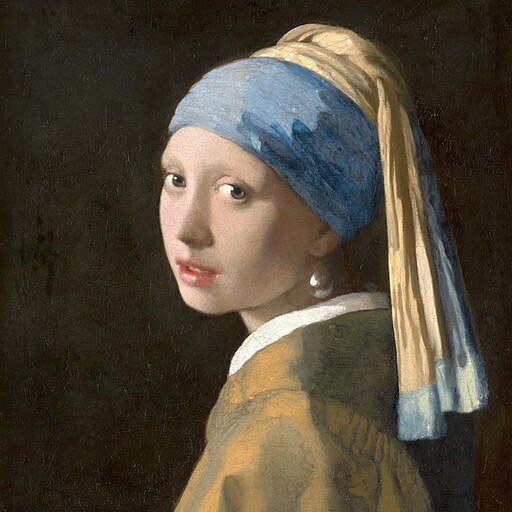
|
||||
|
||||
Next, we process the image to get the canny image. This is step *1.* - running the pre-conditioning processor. The pre-conditioning processor is different for every ControlNet. Please see the model cards of the [official checkpoints](#controlnet-with-stable-diffusion-1.5) for more information about other models.
|
||||
|
||||
First, we need to install opencv:
|
||||
|
||||
```
|
||||
pip install opencv-contrib-python
|
||||
```
|
||||
|
||||
Next, let's also install all required Hugging Face libraries:
|
||||
|
||||
```
|
||||
pip install diffusers transformers git+https://github.com/huggingface/accelerate.git
|
||||
```
|
||||
|
||||
Then we can retrieve the canny edges of the image.
|
||||
|
||||
```python
|
||||
import cv2
|
||||
from PIL import Image
|
||||
import numpy as np
|
||||
|
||||
image = np.array(image)
|
||||
|
||||
low_threshold = 100
|
||||
high_threshold = 200
|
||||
|
||||
image = cv2.Canny(image, low_threshold, high_threshold)
|
||||
image = image[:, :, None]
|
||||
image = np.concatenate([image, image, image], axis=2)
|
||||
canny_image = Image.fromarray(image)
|
||||
```
|
||||
|
||||
Let's take a look at the processed image.
|
||||
|
||||
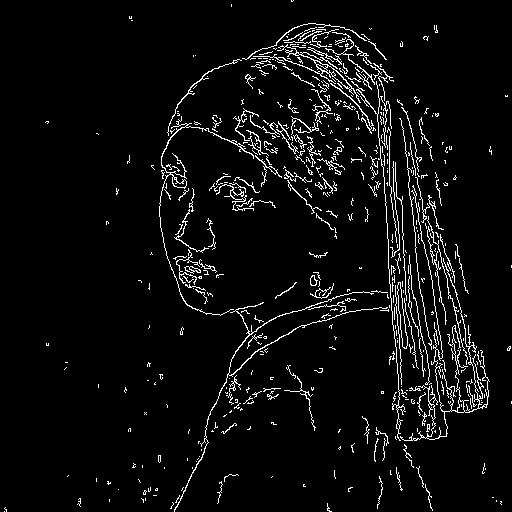
|
||||
|
||||
Now, we load the official [Stable Diffusion 1.5 Model](runwayml/stable-diffusion-v1-5) as well as the ControlNet for canny edges.
|
||||
|
||||
```py
|
||||
from diffusers import StableDiffusionControlNetPipeline, ControlNetModel
|
||||
import torch
|
||||
|
||||
controlnet = ControlNetModel.from_pretrained("lllyasviel/sd-controlnet-canny", torch_dtype=torch.float16)
|
||||
pipe = StableDiffusionControlNetPipeline.from_pretrained(
|
||||
"runwayml/stable-diffusion-v1-5", controlnet=controlnet, torch_dtype=torch.float16
|
||||
)
|
||||
```
|
||||
|
||||
To speed-up things and reduce memory, let's enable model offloading and use the fast [`UniPCMultistepScheduler`].
|
||||
|
||||
```py
|
||||
from diffusers import UniPCMultistepScheduler
|
||||
|
||||
pipe.scheduler = UniPCMultistepScheduler.from_config(pipe.scheduler.config)
|
||||
|
||||
# this command loads the individual model components on GPU on-demand.
|
||||
pipe.enable_model_cpu_offload()
|
||||
```
|
||||
|
||||
Finally, we can run the pipeline:
|
||||
|
||||
```py
|
||||
generator = torch.manual_seed(0)
|
||||
|
||||
out_image = pipe(
|
||||
"disco dancer with colorful lights", num_inference_steps=20, generator=generator, image=canny_image
|
||||
).images[0]
|
||||
```
|
||||
|
||||
This should take only around 3-4 seconds on GPU (depending on hardware). The output image then looks as follows:
|
||||
|
||||
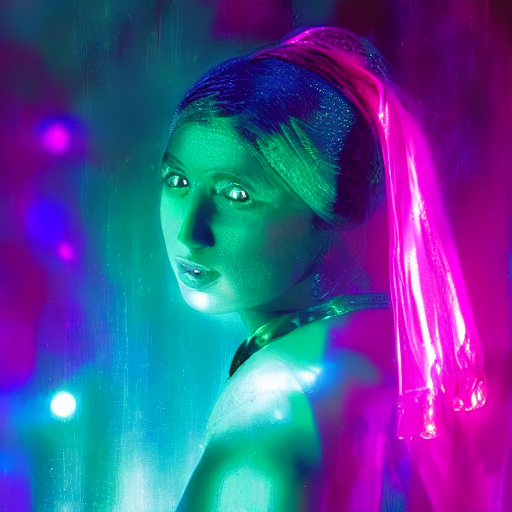
|
||||
|
||||
|
||||
**Note**: To see how to run all other ControlNet checkpoints, please have a look at [ControlNet with Stable Diffusion 1.5](#controlnet-with-stable-diffusion-1.5).
|
||||
|
||||
<!-- TODO: add space -->
|
||||
|
||||
## Combining multiple conditionings
|
||||
|
||||
Multiple ControlNet conditionings can be combined for a single image generation. Pass a list of ControlNets to the pipeline's constructor and a corresponding list of conditionings to `__call__`.
|
||||
|
||||
When combining conditionings, it is helpful to mask conditionings such that they do not overlap. In the example, we mask the middle of the canny map where the pose conditioning is located.
|
||||
|
||||
It can also be helpful to vary the `controlnet_conditioning_scales` to emphasize one conditioning over the other.
|
||||
|
||||
### Canny conditioning
|
||||
|
||||
The original image:
|
||||
|
||||
<img src="https://huggingface.co/datasets/huggingface/documentation-images/resolve/main/diffusers/landscape.png"/>
|
||||
|
||||
Prepare the conditioning:
|
||||
|
||||
```python
|
||||
from diffusers.utils import load_image
|
||||
from PIL import Image
|
||||
import cv2
|
||||
import numpy as np
|
||||
from diffusers.utils import load_image
|
||||
|
||||
canny_image = load_image(
|
||||
"https://huggingface.co/datasets/huggingface/documentation-images/resolve/main/diffusers/landscape.png"
|
||||
)
|
||||
canny_image = np.array(canny_image)
|
||||
|
||||
low_threshold = 100
|
||||
high_threshold = 200
|
||||
|
||||
canny_image = cv2.Canny(canny_image, low_threshold, high_threshold)
|
||||
|
||||
# zero out middle columns of image where pose will be overlayed
|
||||
zero_start = canny_image.shape[1] // 4
|
||||
zero_end = zero_start + canny_image.shape[1] // 2
|
||||
canny_image[:, zero_start:zero_end] = 0
|
||||
|
||||
canny_image = canny_image[:, :, None]
|
||||
canny_image = np.concatenate([canny_image, canny_image, canny_image], axis=2)
|
||||
canny_image = Image.fromarray(canny_image)
|
||||
```
|
||||
|
||||
<img src="https://huggingface.co/datasets/huggingface/documentation-images/resolve/main/blog/controlnet/landscape_canny_masked.png"/>
|
||||
|
||||
### Openpose conditioning
|
||||
|
||||
The original image:
|
||||
|
||||
<img src="https://huggingface.co/datasets/huggingface/documentation-images/resolve/main/diffusers/person.png" width=600/>
|
||||
|
||||
Prepare the conditioning:
|
||||
|
||||
```python
|
||||
from controlnet_aux import OpenposeDetector
|
||||
from diffusers.utils import load_image
|
||||
|
||||
openpose = OpenposeDetector.from_pretrained("lllyasviel/ControlNet")
|
||||
|
||||
openpose_image = load_image(
|
||||
"https://huggingface.co/datasets/huggingface/documentation-images/resolve/main/diffusers/person.png"
|
||||
)
|
||||
openpose_image = openpose(openpose_image)
|
||||
```
|
||||
|
||||
<img src="https://huggingface.co/datasets/huggingface/documentation-images/resolve/main/blog/controlnet/person_pose.png" width=600/>
|
||||
|
||||
### Running ControlNet with multiple conditionings
|
||||
|
||||
```python
|
||||
from diffusers import StableDiffusionControlNetPipeline, ControlNetModel, UniPCMultistepScheduler
|
||||
import torch
|
||||
|
||||
controlnet = [
|
||||
ControlNetModel.from_pretrained("lllyasviel/sd-controlnet-openpose", torch_dtype=torch.float16),
|
||||
ControlNetModel.from_pretrained("lllyasviel/sd-controlnet-canny", torch_dtype=torch.float16),
|
||||
]
|
||||
|
||||
pipe = StableDiffusionControlNetPipeline.from_pretrained(
|
||||
"runwayml/stable-diffusion-v1-5", controlnet=controlnet, torch_dtype=torch.float16
|
||||
)
|
||||
pipe.scheduler = UniPCMultistepScheduler.from_config(pipe.scheduler.config)
|
||||
|
||||
pipe.enable_xformers_memory_efficient_attention()
|
||||
pipe.enable_model_cpu_offload()
|
||||
|
||||
prompt = "a giant standing in a fantasy landscape, best quality"
|
||||
negative_prompt = "monochrome, lowres, bad anatomy, worst quality, low quality"
|
||||
|
||||
generator = torch.Generator(device="cpu").manual_seed(1)
|
||||
|
||||
images = [openpose_image, canny_image]
|
||||
|
||||
image = pipe(
|
||||
prompt,
|
||||
images,
|
||||
num_inference_steps=20,
|
||||
generator=generator,
|
||||
negative_prompt=negative_prompt,
|
||||
controlnet_conditioning_scale=[1.0, 0.8],
|
||||
).images[0]
|
||||
|
||||
image.save("./multi_controlnet_output.png")
|
||||
```
|
||||
|
||||
<img src="https://huggingface.co/datasets/huggingface/documentation-images/resolve/main/blog/controlnet/multi_controlnet_output.png" width=600/>
|
||||
|
||||
### Guess Mode
|
||||
|
||||
Guess Mode is [a ControlNet feature that was implemented](https://github.com/lllyasviel/ControlNet#guess-mode--non-prompt-mode) after the publication of [the paper](https://arxiv.org/abs/2302.05543). The description states:
|
||||
|
||||
>In this mode, the ControlNet encoder will try best to recognize the content of the input control map, like depth map, edge map, scribbles, etc, even if you remove all prompts.
|
||||
|
||||
#### The core implementation:
|
||||
|
||||
It adjusts the scale of the output residuals from ControlNet by a fixed ratio depending on the block depth. The shallowest DownBlock corresponds to `0.1`. As the blocks get deeper, the scale increases exponentially, and the scale for the output of the MidBlock becomes `1.0`.
|
||||
|
||||
Since the core implementation is just this, **it does not have any impact on prompt conditioning**. While it is common to use it without specifying any prompts, it is also possible to provide prompts if desired.
|
||||
|
||||
#### Usage:
|
||||
|
||||
Just specify `guess_mode=True` in the pipe() function. A `guidance_scale` between 3.0 and 5.0 is [recommended](https://github.com/lllyasviel/ControlNet#guess-mode--non-prompt-mode).
|
||||
```py
|
||||
from diffusers import StableDiffusionControlNetPipeline, ControlNetModel
|
||||
import torch
|
||||
|
||||
controlnet = ControlNetModel.from_pretrained("lllyasviel/sd-controlnet-canny")
|
||||
pipe = StableDiffusionControlNetPipeline.from_pretrained("runwayml/stable-diffusion-v1-5", controlnet=controlnet).to(
|
||||
"cuda"
|
||||
)
|
||||
image = pipe("", image=canny_image, guess_mode=True, guidance_scale=3.0).images[0]
|
||||
image.save("guess_mode_generated.png")
|
||||
```
|
||||
|
||||
#### Output image comparison:
|
||||
Canny Control Example
|
||||
|
||||
|no guess_mode with prompt|guess_mode without prompt|
|
||||
|---|---|
|
||||
|<a href="https://huggingface.co/takuma104/controlnet_dev/resolve/main/gen_compare_guess_mode/output_images/diffusers/output_bird_canny_0.png"><img width="128" src="https://huggingface.co/takuma104/controlnet_dev/resolve/main/gen_compare_guess_mode/output_images/diffusers/output_bird_canny_0.png"/></a>|<a href="https://huggingface.co/takuma104/controlnet_dev/resolve/main/gen_compare_guess_mode/output_images/diffusers/output_bird_canny_0_gm.png"><img width="128" src="https://huggingface.co/takuma104/controlnet_dev/resolve/main/gen_compare_guess_mode/output_images/diffusers/output_bird_canny_0_gm.png"/></a>|
|
||||
|
||||
|
||||
## Available checkpoints
|
||||
|
||||
ControlNet requires a *control image* in addition to the text-to-image *prompt*.
|
||||
Each pretrained model is trained using a different conditioning method that requires different images for conditioning the generated outputs. For example, Canny edge conditioning requires the control image to be the output of a Canny filter, while depth conditioning requires the control image to be a depth map. See the overview and image examples below to know more.
|
||||
|
||||
All checkpoints can be found under the authors' namespace [lllyasviel](https://huggingface.co/lllyasviel).
|
||||
|
||||
**13.04.2024 Update**: The author has released improved controlnet checkpoints v1.1 - see [here](#controlnet-v1.1).
|
||||
|
||||
### ControlNet v1.0
|
||||
|
||||
| Model Name | Control Image Overview| Control Image Example | Generated Image Example |
|
||||
|---|---|---|---|
|
||||
|[lllyasviel/sd-controlnet-canny](https://huggingface.co/lllyasviel/sd-controlnet-canny)<br/> *Trained with canny edge detection* | A monochrome image with white edges on a black background.|<a href="https://huggingface.co/takuma104/controlnet_dev/blob/main/gen_compare/control_images/converted/control_bird_canny.png"><img width="64" style="margin:0;padding:0;" src="https://huggingface.co/takuma104/controlnet_dev/resolve/main/gen_compare/control_images/converted/control_bird_canny.png"/></a>|<a href="https://huggingface.co/takuma104/controlnet_dev/resolve/main/gen_compare/output_images/diffusers/output_bird_canny_1.png"><img width="64" src="https://huggingface.co/takuma104/controlnet_dev/resolve/main/gen_compare/output_images/diffusers/output_bird_canny_1.png"/></a>|
|
||||
|[lllyasviel/sd-controlnet-depth](https://huggingface.co/lllyasviel/sd-controlnet-depth)<br/> *Trained with Midas depth estimation* |A grayscale image with black representing deep areas and white representing shallow areas.|<a href="https://huggingface.co/takuma104/controlnet_dev/blob/main/gen_compare/control_images/converted/control_vermeer_depth.png"><img width="64" src="https://huggingface.co/takuma104/controlnet_dev/resolve/main/gen_compare/control_images/converted/control_vermeer_depth.png"/></a>|<a href="https://huggingface.co/takuma104/controlnet_dev/resolve/main/gen_compare/output_images/diffusers/output_vermeer_depth_2.png"><img width="64" src="https://huggingface.co/takuma104/controlnet_dev/resolve/main/gen_compare/output_images/diffusers/output_vermeer_depth_2.png"/></a>|
|
||||
|[lllyasviel/sd-controlnet-hed](https://huggingface.co/lllyasviel/sd-controlnet-hed)<br/> *Trained with HED edge detection (soft edge)* |A monochrome image with white soft edges on a black background.|<a href="https://huggingface.co/takuma104/controlnet_dev/blob/main/gen_compare/control_images/converted/control_bird_hed.png"><img width="64" src="https://huggingface.co/takuma104/controlnet_dev/resolve/main/gen_compare/control_images/converted/control_bird_hed.png"/></a>|<a href="https://huggingface.co/takuma104/controlnet_dev/resolve/main/gen_compare/output_images/diffusers/output_bird_hed_1.png"><img width="64" src="https://huggingface.co/takuma104/controlnet_dev/resolve/main/gen_compare/output_images/diffusers/output_bird_hed_1.png"/></a> |
|
||||
|[lllyasviel/sd-controlnet-mlsd](https://huggingface.co/lllyasviel/sd-controlnet-mlsd)<br/> *Trained with M-LSD line detection* |A monochrome image composed only of white straight lines on a black background.|<a href="https://huggingface.co/takuma104/controlnet_dev/blob/main/gen_compare/control_images/converted/control_room_mlsd.png"><img width="64" src="https://huggingface.co/takuma104/controlnet_dev/resolve/main/gen_compare/control_images/converted/control_room_mlsd.png"/></a>|<a href="https://huggingface.co/takuma104/controlnet_dev/resolve/main/gen_compare/output_images/diffusers/output_room_mlsd_0.png"><img width="64" src="https://huggingface.co/takuma104/controlnet_dev/resolve/main/gen_compare/output_images/diffusers/output_room_mlsd_0.png"/></a>|
|
||||
|[lllyasviel/sd-controlnet-normal](https://huggingface.co/lllyasviel/sd-controlnet-normal)<br/> *Trained with normal map* |A [normal mapped](https://en.wikipedia.org/wiki/Normal_mapping) image.|<a href="https://huggingface.co/takuma104/controlnet_dev/blob/main/gen_compare/control_images/converted/control_human_normal.png"><img width="64" src="https://huggingface.co/takuma104/controlnet_dev/resolve/main/gen_compare/control_images/converted/control_human_normal.png"/></a>|<a href="https://huggingface.co/takuma104/controlnet_dev/resolve/main/gen_compare/output_images/diffusers/output_human_normal_1.png"><img width="64" src="https://huggingface.co/takuma104/controlnet_dev/resolve/main/gen_compare/output_images/diffusers/output_human_normal_1.png"/></a>|
|
||||
|[lllyasviel/sd-controlnet-openpose](https://huggingface.co/lllyasviel/sd-controlnet_openpose)<br/> *Trained with OpenPose bone image* |A [OpenPose bone](https://github.com/CMU-Perceptual-Computing-Lab/openpose) image.|<a href="https://huggingface.co/takuma104/controlnet_dev/blob/main/gen_compare/control_images/converted/control_human_openpose.png"><img width="64" src="https://huggingface.co/takuma104/controlnet_dev/resolve/main/gen_compare/control_images/converted/control_human_openpose.png"/></a>|<a href="https://huggingface.co/takuma104/controlnet_dev/resolve/main/gen_compare/output_images/diffusers/output_human_openpose_0.png"><img width="64" src="https://huggingface.co/takuma104/controlnet_dev/resolve/main/gen_compare/output_images/diffusers/output_human_openpose_0.png"/></a>|
|
||||
|[lllyasviel/sd-controlnet-scribble](https://huggingface.co/lllyasviel/sd-controlnet_scribble)<br/> *Trained with human scribbles* |A hand-drawn monochrome image with white outlines on a black background.|<a href="https://huggingface.co/takuma104/controlnet_dev/blob/main/gen_compare/control_images/converted/control_vermeer_scribble.png"><img width="64" src="https://huggingface.co/takuma104/controlnet_dev/resolve/main/gen_compare/control_images/converted/control_vermeer_scribble.png"/></a>|<a href="https://huggingface.co/takuma104/controlnet_dev/resolve/main/gen_compare/output_images/diffusers/output_vermeer_scribble_0.png"><img width="64" src="https://huggingface.co/takuma104/controlnet_dev/resolve/main/gen_compare/output_images/diffusers/output_vermeer_scribble_0.png"/></a> |
|
||||
|[lllyasviel/sd-controlnet-seg](https://huggingface.co/lllyasviel/sd-controlnet_seg)<br/>*Trained with semantic segmentation* |An [ADE20K](https://groups.csail.mit.edu/vision/datasets/ADE20K/)'s segmentation protocol image.|<a href="https://huggingface.co/takuma104/controlnet_dev/blob/main/gen_compare/control_images/converted/control_room_seg.png"><img width="64" src="https://huggingface.co/takuma104/controlnet_dev/resolve/main/gen_compare/control_images/converted/control_room_seg.png"/></a>|<a href="https://huggingface.co/takuma104/controlnet_dev/resolve/main/gen_compare/output_images/diffusers/output_room_seg_1.png"><img width="64" src="https://huggingface.co/takuma104/controlnet_dev/resolve/main/gen_compare/output_images/diffusers/output_room_seg_1.png"/></a> |
|
||||
|
||||
### ControlNet v1.1
|
||||
|
||||
| Model Name | Control Image Overview| Condition Image | Control Image Example | Generated Image Example |
|
||||
|---|---|---|---|---|
|
||||
|[lllyasviel/control_v11p_sd15_canny](https://huggingface.co/lllyasviel/control_v11p_sd15_canny)<br/> | *Trained with canny edge detection* | A monochrome image with white edges on a black background.|<a href="https://huggingface.co/lllyasviel/control_v11p_sd15_canny/resolve/main/images/control.png"><img width="64" style="margin:0;padding:0;" src="https://huggingface.co/lllyasviel/control_v11p_sd15_canny/resolve/main/images/control.png"/></a>|<a href="https://huggingface.co/lllyasviel/control_v11p_sd15_canny/resolve/main/images/image_out.png"><img width="64" src="https://huggingface.co/lllyasviel/control_v11p_sd15_canny/resolve/main/images/image_out.png"/></a>|
|
||||
|[lllyasviel/control_v11e_sd15_ip2p](https://huggingface.co/lllyasviel/control_v11e_sd15_ip2p)<br/> | *Trained with pixel to pixel instruction* | No condition .|<a href="https://huggingface.co/lllyasviel/control_v11e_sd15_ip2p/resolve/main/images/control.png"><img width="64" style="margin:0;padding:0;" src="https://huggingface.co/lllyasviel/control_v11e_sd15_ip2p/resolve/main/images/control.png"/></a>|<a href="https://huggingface.co/lllyasviel/control_v11e_sd15_ip2p/resolve/main/images/image_out.png"><img width="64" src="https://huggingface.co/lllyasviel/control_v11e_sd15_ip2p/resolve/main/images/image_out.png"/></a>|
|
||||
|[lllyasviel/control_v11p_sd15_inpaint](https://huggingface.co/lllyasviel/control_v11p_sd15_inpaint)<br/> | Trained with image inpainting | No condition.|<a href="https://huggingface.co/lllyasviel/control_v11p_sd15_inpaint/resolve/main/images/control.png"><img width="64" style="margin:0;padding:0;" src="https://huggingface.co/lllyasviel/control_v11p_sd15_inpaint/resolve/main/images/control.png"/></a>|<a href="https://huggingface.co/lllyasviel/control_v11p_sd15_inpaint/resolve/main/images/output.png"><img width="64" src="https://huggingface.co/lllyasviel/control_v11p_sd15_inpaint/resolve/main/images/output.png"/></a>|
|
||||
|[lllyasviel/control_v11p_sd15_mlsd](https://huggingface.co/lllyasviel/control_v11p_sd15_mlsd)<br/> | Trained with multi-level line segment detection | An image with annotated line segments.|<a href="https://huggingface.co/lllyasviel/control_v11p_sd15_mlsd/resolve/main/images/control.png"><img width="64" style="margin:0;padding:0;" src="https://huggingface.co/lllyasviel/control_v11p_sd15_mlsd/resolve/main/images/control.png"/></a>|<a href="https://huggingface.co/lllyasviel/control_v11p_sd15_mlsd/resolve/main/images/image_out.png"><img width="64" src="https://huggingface.co/lllyasviel/control_v11p_sd15_mlsd/resolve/main/images/image_out.png"/></a>|
|
||||
|[lllyasviel/control_v11f1p_sd15_depth](https://huggingface.co/lllyasviel/control_v11f1p_sd15_depth)<br/> | Trained with depth estimation | An image with depth information, usually represented as a grayscale image.|<a href="https://huggingface.co/lllyasviel/control_v11f1p_sd15_depth/resolve/main/images/control.png"><img width="64" style="margin:0;padding:0;" src="https://huggingface.co/lllyasviel/control_v11f1p_sd15_depth/resolve/main/images/control.png"/></a>|<a href="https://huggingface.co/lllyasviel/control_v11f1p_sd15_depth/resolve/main/images/image_out.png"><img width="64" src="https://huggingface.co/lllyasviel/control_v11f1p_sd15_depth/resolve/main/images/image_out.png"/></a>|
|
||||
|[lllyasviel/control_v11p_sd15_normalbae](https://huggingface.co/lllyasviel/control_v11p_sd15_normalbae)<br/> | Trained with surface normal estimation | An image with surface normal information, usually represented as a color-coded image.|<a href="https://huggingface.co/lllyasviel/control_v11p_sd15_normalbae/resolve/main/images/control.png"><img width="64" style="margin:0;padding:0;" src="https://huggingface.co/lllyasviel/control_v11p_sd15_normalbae/resolve/main/images/control.png"/></a>|<a href="https://huggingface.co/lllyasviel/control_v11p_sd15_normalbae/resolve/main/images/image_out.png"><img width="64" src="https://huggingface.co/lllyasviel/control_v11p_sd15_normalbae/resolve/main/images/image_out.png"/></a>|
|
||||
|[lllyasviel/control_v11p_sd15_seg](https://huggingface.co/lllyasviel/control_v11p_sd15_seg)<br/> | Trained with image segmentation | An image with segmented regions, usually represented as a color-coded image.|<a href="https://huggingface.co/lllyasviel/control_v11p_sd15_seg/resolve/main/images/control.png"><img width="64" style="margin:0;padding:0;" src="https://huggingface.co/lllyasviel/control_v11p_sd15_seg/resolve/main/images/control.png"/></a>|<a href="https://huggingface.co/lllyasviel/control_v11p_sd15_seg/resolve/main/images/image_out.png"><img width="64" src="https://huggingface.co/lllyasviel/control_v11p_sd15_seg/resolve/main/images/image_out.png"/></a>|
|
||||
|[lllyasviel/control_v11p_sd15_lineart](https://huggingface.co/lllyasviel/control_v11p_sd15_lineart)<br/> | Trained with line art generation | An image with line art, usually black lines on a white background.|<a href="https://huggingface.co/lllyasviel/control_v11p_sd15_lineart/resolve/main/images/control.png"><img width="64" style="margin:0;padding:0;" src="https://huggingface.co/lllyasviel/control_v11p_sd15_lineart/resolve/main/images/control.png"/></a>|<a href="https://huggingface.co/lllyasviel/control_v11p_sd15_lineart/resolve/main/images/image_out.png"><img width="64" src="https://huggingface.co/lllyasviel/control_v11p_sd15_lineart/resolve/main/images/image_out.png"/></a>|
|
||||
|[lllyasviel/control_v11p_sd15s2_lineart_anime](https://huggingface.co/lllyasviel/control_v11p_sd15s2_lineart_anime)<br/> | Trained with anime line art generation | An image with anime-style line art.|<a href="https://huggingface.co/lllyasviel/control_v11p_sd15s2_lineart_anime/resolve/main/images/control.png"><img width="64" style="margin:0;padding:0;" src="https://huggingface.co/lllyasviel/control_v11p_sd15s2_lineart_anime/resolve/main/images/control.png"/></a>|<a href="https://huggingface.co/lllyasviel/control_v11p_sd15s2_lineart_anime/resolve/main/images/image_out.png"><img width="64" src="https://huggingface.co/lllyasviel/control_v11p_sd15s2_lineart_anime/resolve/main/images/image_out.png"/></a>|
|
||||
|[lllyasviel/control_v11p_sd15_openpose](https://huggingface.co/lllyasviel/control_v11p_sd15s2_lineart_anime)<br/> | Trained with human pose estimation | An image with human poses, usually represented as a set of keypoints or skeletons.|<a href="https://huggingface.co/lllyasviel/control_v11p_sd15_openpose/resolve/main/images/control.png"><img width="64" style="margin:0;padding:0;" src="https://huggingface.co/lllyasviel/control_v11p_sd15_openpose/resolve/main/images/control.png"/></a>|<a href="https://huggingface.co/lllyasviel/control_v11p_sd15_openpose/resolve/main/images/image_out.png"><img width="64" src="https://huggingface.co/lllyasviel/control_v11p_sd15_openpose/resolve/main/images/image_out.png"/></a>|
|
||||
|[lllyasviel/control_v11p_sd15_scribble](https://huggingface.co/lllyasviel/control_v11p_sd15_scribble)<br/> | Trained with scribble-based image generation | An image with scribbles, usually random or user-drawn strokes.|<a href="https://huggingface.co/lllyasviel/control_v11p_sd15_scribble/resolve/main/images/control.png"><img width="64" style="margin:0;padding:0;" src="https://huggingface.co/lllyasviel/control_v11p_sd15_scribble/resolve/main/images/control.png"/></a>|<a href="https://huggingface.co/lllyasviel/control_v11p_sd15_scribble/resolve/main/images/image_out.png"><img width="64" src="https://huggingface.co/lllyasviel/control_v11p_sd15_scribble/resolve/main/images/image_out.png"/></a>|
|
||||
|[lllyasviel/control_v11p_sd15_softedge](https://huggingface.co/lllyasviel/control_v11p_sd15_softedge)<br/> | Trained with soft edge image generation | An image with soft edges, usually to create a more painterly or artistic effect.|<a href="https://huggingface.co/lllyasviel/control_v11p_sd15_softedge/resolve/main/images/control.png"><img width="64" style="margin:0;padding:0;" src="https://huggingface.co/lllyasviel/control_v11p_sd15_softedge/resolve/main/images/control.png"/></a>|<a href="https://huggingface.co/lllyasviel/control_v11p_sd15_softedge/resolve/main/images/image_out.png"><img width="64" src="https://huggingface.co/lllyasviel/control_v11p_sd15_softedge/resolve/main/images/image_out.png"/></a>|
|
||||
|[lllyasviel/control_v11e_sd15_shuffle](https://huggingface.co/lllyasviel/control_v11e_sd15_shuffle)<br/> | Trained with image shuffling | An image with shuffled patches or regions.|<a href="https://huggingface.co/lllyasviel/control_v11e_sd15_shuffle/resolve/main/images/control.png"><img width="64" style="margin:0;padding:0;" src="https://huggingface.co/lllyasviel/control_v11e_sd15_shuffle/resolve/main/images/control.png"/></a>|<a href="https://huggingface.co/lllyasviel/control_v11e_sd15_shuffle/resolve/main/images/image_out.png"><img width="64" src="https://huggingface.co/lllyasviel/control_v11e_sd15_shuffle/resolve/main/images/image_out.png"/></a>|
|
||||
|[lllyasviel/control_v11f1e_sd15_tile](https://huggingface.co/lllyasviel/control_v11f1e_sd15_tile)<br/> | Trained with image tiling | A blurry image or part of an image .|<a href="https://huggingface.co/lllyasviel/control_v11f1e_sd15_tile/resolve/main/images/original.png"><img width="64" style="margin:0;padding:0;" src="https://huggingface.co/lllyasviel/control_v11f1e_sd15_tile/resolve/main/images/original.png"/></a>|<a href="https://huggingface.co/lllyasviel/control_v11f1e_sd15_tile/resolve/main/images/output.png"><img width="64" src="https://huggingface.co/lllyasviel/control_v11f1e_sd15_tile/resolve/main/images/output.png"/></a>|
|
||||
|
||||
## StableDiffusionControlNetPipeline
|
||||
[[autodoc]] StableDiffusionControlNetPipeline
|
||||
@@ -66,15 +343,8 @@ Make sure to check out the Schedulers [guide](/using-diffusers/schedulers) to le
|
||||
- disable_xformers_memory_efficient_attention
|
||||
- load_textual_inversion
|
||||
|
||||
## StableDiffusionPipelineOutput
|
||||
|
||||
[[autodoc]] pipelines.stable_diffusion.StableDiffusionPipelineOutput
|
||||
|
||||
## FlaxStableDiffusionControlNetPipeline
|
||||
[[autodoc]] FlaxStableDiffusionControlNetPipeline
|
||||
- all
|
||||
- __call__
|
||||
|
||||
## FlaxStableDiffusionControlNetPipelineOutput
|
||||
|
||||
[[autodoc]] pipelines.stable_diffusion.FlaxStableDiffusionPipelineOutput
|
||||
@@ -1,46 +0,0 @@
|
||||
<!--Copyright 2023 The HuggingFace Team. All rights reserved.
|
||||
|
||||
Licensed under the Apache License, Version 2.0 (the "License"); you may not use this file except in compliance with
|
||||
the License. You may obtain a copy of the License at
|
||||
|
||||
http://www.apache.org/licenses/LICENSE-2.0
|
||||
|
||||
Unless required by applicable law or agreed to in writing, software distributed under the License is distributed on
|
||||
an "AS IS" BASIS, WITHOUT WARRANTIES OR CONDITIONS OF ANY KIND, either express or implied. See the License for the
|
||||
specific language governing permissions and limitations under the License.
|
||||
-->
|
||||
|
||||
# ControlNet with Stable Diffusion XL
|
||||
|
||||
ControlNet was introduced in [Adding Conditional Control to Text-to-Image Diffusion Models](https://huggingface.co/papers/2302.05543) by Lvmin Zhang and Maneesh Agrawala.
|
||||
|
||||
With a ControlNet model, you can provide an additional control image to condition and control Stable Diffusion generation. For example, if you provide a depth map, the ControlNet model generates an image that'll preserve the spatial information from the depth map. It is a more flexible and accurate way to control the image generation process.
|
||||
|
||||
The abstract from the paper is:
|
||||
|
||||
*We present a neural network structure, ControlNet, to control pretrained large diffusion models to support additional input conditions. The ControlNet learns task-specific conditions in an end-to-end way, and the learning is robust even when the training dataset is small (< 50k). Moreover, training a ControlNet is as fast as fine-tuning a diffusion model, and the model can be trained on a personal devices. Alternatively, if powerful computation clusters are available, the model can scale to large amounts (millions to billions) of data. We report that large diffusion models like Stable Diffusion can be augmented with ControlNets to enable conditional inputs like edge maps, segmentation maps, keypoints, etc. This may enrich the methods to control large diffusion models and further facilitate related applications.*
|
||||
|
||||
You can find additional smaller Stable Diffusion XL (SDXL) ControlNet checkpoints from the 🤗 [Diffusers](https://huggingface.co/diffusers) Hub organization, and browse [community-trained](https://huggingface.co/models?other=stable-diffusion-xl&other=controlnet) checkpoints on the Hub.
|
||||
|
||||
<Tip warning={true}>
|
||||
|
||||
🧪 Many of the SDXL ControlNet checkpoints are experimental, and there is a lot of room for improvement. Feel free to open an [Issue](https://github.com/huggingface/diffusers/issues/new/choose) and leave us feedback on how we can improve!
|
||||
|
||||
</Tip>
|
||||
|
||||
If you don't see a checkpoint you're interested in, you can train your own SDXL ControlNet with our [training script](https://github.com/huggingface/diffusers/blob/main/examples/controlnet/README_sdxl.md).
|
||||
|
||||
<Tip>
|
||||
|
||||
Make sure to check out the Schedulers [guide](/using-diffusers/schedulers) to learn how to explore the tradeoff between scheduler speed and quality, and see the [reuse components across pipelines](/using-diffusers/loading#reuse-components-across-pipelines) section to learn how to efficiently load the same components into multiple pipelines.
|
||||
|
||||
</Tip>
|
||||
|
||||
## StableDiffusionXLControlNetPipeline
|
||||
[[autodoc]] StableDiffusionXLControlNetPipeline
|
||||
- all
|
||||
- __call__
|
||||
|
||||
## StableDiffusionPipelineOutput
|
||||
|
||||
[[autodoc]] pipelines.stable_diffusion.StableDiffusionPipelineOutput
|
||||
@@ -24,32 +24,325 @@ This pipeline was contributed by [clarencechen](https://github.com/clarencechen)
|
||||
|
||||
## Tips
|
||||
|
||||
* The pipeline can generate masks that can be fed into other inpainting pipelines.
|
||||
* In order to generate an image using this pipeline, both an image mask (source and target prompts can be manually specified or generated, and passed to [`~StableDiffusionDiffEditPipeline.generate_mask`])
|
||||
and a set of partially inverted latents (generated using [`~StableDiffusionDiffEditPipeline.invert`]) _must_ be provided as arguments when calling the pipeline to generate the final edited image.
|
||||
* The function [`~StableDiffusionDiffEditPipeline.generate_mask`] exposes two prompt arguments, `source_prompt` and `target_prompt`
|
||||
* The pipeline can generate masks that can be fed into other inpainting pipelines. Check out the code examples below to know more.
|
||||
* In order to generate an image using this pipeline, both an image mask (manually specified or generated using `generate_mask`)
|
||||
and a set of partially inverted latents (generated using `invert`) _must_ be provided as arguments when calling the pipeline to generate the final edited image.
|
||||
Refer to the code examples below for more details.
|
||||
* The function `generate_mask` exposes two prompt arguments, `source_prompt` and `target_prompt`,
|
||||
that let you control the locations of the semantic edits in the final image to be generated. Let's say,
|
||||
you wanted to translate from "cat" to "dog". In this case, the edit direction will be "cat -> dog". To reflect
|
||||
this in the generated mask, you simply have to set the embeddings related to the phrases including "cat" to
|
||||
`source_prompt` and "dog" to `target_prompt`.
|
||||
`source_prompt_embeds` and "dog" to `target_prompt_embeds`. Refer to the code example below for more details.
|
||||
* When generating partially inverted latents using `invert`, assign a caption or text embedding describing the
|
||||
overall image to the `prompt` argument to help guide the inverse latent sampling process. In most cases, the
|
||||
source concept is sufficently descriptive to yield good results, but feel free to explore alternatives.
|
||||
Please refer to [this code example](#generating-image-captions-for-inversion) for more details.
|
||||
* When calling the pipeline to generate the final edited image, assign the source concept to `negative_prompt`
|
||||
and the target concept to `prompt`. Taking the above example, you simply have to set the embeddings related to
|
||||
the phrases including "cat" to `negative_prompt` and "dog" to `prompt`.
|
||||
the phrases including "cat" to `negative_prompt_embeds` and "dog" to `prompt_embeds`. Refer to the code example
|
||||
below for more details.
|
||||
* If you wanted to reverse the direction in the example above, i.e., "dog -> cat", then it's recommended to:
|
||||
* Swap the `source_prompt` and `target_prompt` in the arguments to `generate_mask`.
|
||||
* Change the input prompt in [`~StableDiffusionDiffEditPipeline.invert`] to include "dog".
|
||||
* Change the input prompt for `invert` to include "dog".
|
||||
* Swap the `prompt` and `negative_prompt` in the arguments to call the pipeline to generate the final edited image.
|
||||
* The source and target prompts, or their corresponding embeddings, can also be automatically generated. Please refer to the [DiffEdit](/using-diffusers/diffedit) guide for more details.
|
||||
* Note that the source and target prompts, or their corresponding embeddings, can also be automatically generated. Please, refer to [this discussion](#generating-source-and-target-embeddings) for more details.
|
||||
|
||||
## Usage example
|
||||
|
||||
### Based on an input image with a caption
|
||||
|
||||
When the pipeline is conditioned on an input image, we first obtain partially inverted latents from the input image using a
|
||||
`DDIMInverseScheduler` with the help of a caption. Then we generate an editing mask to identify relevant regions in the image using the source and target prompts. Finally,
|
||||
the inverted noise and generated mask is used to start the generation process.
|
||||
|
||||
First, let's load our pipeline:
|
||||
|
||||
```py
|
||||
import torch
|
||||
from diffusers import DDIMScheduler, DDIMInverseScheduler, StableDiffusionDiffEditPipeline
|
||||
|
||||
sd_model_ckpt = "stabilityai/stable-diffusion-2-1"
|
||||
pipeline = StableDiffusionDiffEditPipeline.from_pretrained(
|
||||
sd_model_ckpt,
|
||||
torch_dtype=torch.float16,
|
||||
safety_checker=None,
|
||||
)
|
||||
pipeline.scheduler = DDIMScheduler.from_config(pipeline.scheduler.config)
|
||||
pipeline.inverse_scheduler = DDIMInverseScheduler.from_config(pipeline.scheduler.config)
|
||||
pipeline.enable_model_cpu_offload()
|
||||
pipeline.enable_vae_slicing()
|
||||
generator = torch.manual_seed(0)
|
||||
```
|
||||
|
||||
Then, we load an input image to edit using our method:
|
||||
|
||||
```py
|
||||
from diffusers.utils import load_image
|
||||
|
||||
img_url = "https://github.com/Xiang-cd/DiffEdit-stable-diffusion/raw/main/assets/origin.png"
|
||||
raw_image = load_image(img_url).convert("RGB").resize((768, 768))
|
||||
```
|
||||
|
||||
Then, we employ the source and target prompts to generate the editing mask:
|
||||
|
||||
```py
|
||||
# See the "Generating source and target embeddings" section below to
|
||||
# automate the generation of these captions with a pre-trained model like Flan-T5 as explained below.
|
||||
|
||||
source_prompt = "a bowl of fruits"
|
||||
target_prompt = "a basket of fruits"
|
||||
mask_image = pipeline.generate_mask(
|
||||
image=raw_image,
|
||||
source_prompt=source_prompt,
|
||||
target_prompt=target_prompt,
|
||||
generator=generator,
|
||||
)
|
||||
```
|
||||
|
||||
Then, we employ the caption and the input image to get the inverted latents:
|
||||
|
||||
```py
|
||||
inv_latents = pipeline.invert(prompt=source_prompt, image=raw_image, generator=generator).latents
|
||||
```
|
||||
|
||||
Now, generate the image with the inverted latents and semantically generated mask:
|
||||
|
||||
```py
|
||||
image = pipeline(
|
||||
prompt=target_prompt,
|
||||
mask_image=mask_image,
|
||||
image_latents=inv_latents,
|
||||
generator=generator,
|
||||
negative_prompt=source_prompt,
|
||||
).images[0]
|
||||
image.save("edited_image.png")
|
||||
```
|
||||
|
||||
## Generating image captions for inversion
|
||||
|
||||
The authors originally used the source concept prompt as the caption for generating the partially inverted latents. However, we can also leverage open source and public image captioning models for the same purpose.
|
||||
Below, we provide an end-to-end example with the [BLIP](https://huggingface.co/docs/transformers/model_doc/blip) model
|
||||
for generating captions.
|
||||
|
||||
First, let's load our automatic image captioning model:
|
||||
|
||||
```py
|
||||
import torch
|
||||
from transformers import BlipForConditionalGeneration, BlipProcessor
|
||||
|
||||
captioner_id = "Salesforce/blip-image-captioning-base"
|
||||
processor = BlipProcessor.from_pretrained(captioner_id)
|
||||
model = BlipForConditionalGeneration.from_pretrained(captioner_id, torch_dtype=torch.float16, low_cpu_mem_usage=True)
|
||||
```
|
||||
|
||||
Then, we define a utility to generate captions from an input image using the model:
|
||||
|
||||
```py
|
||||
@torch.no_grad()
|
||||
def generate_caption(images, caption_generator, caption_processor):
|
||||
text = "a photograph of"
|
||||
|
||||
inputs = caption_processor(images, text, return_tensors="pt").to(device="cuda", dtype=caption_generator.dtype)
|
||||
caption_generator.to("cuda")
|
||||
outputs = caption_generator.generate(**inputs, max_new_tokens=128)
|
||||
|
||||
# offload caption generator
|
||||
caption_generator.to("cpu")
|
||||
|
||||
caption = caption_processor.batch_decode(outputs, skip_special_tokens=True)[0]
|
||||
return caption
|
||||
```
|
||||
|
||||
Then, we load an input image for conditioning and obtain a suitable caption for it:
|
||||
|
||||
```py
|
||||
from diffusers.utils import load_image
|
||||
|
||||
img_url = "https://github.com/Xiang-cd/DiffEdit-stable-diffusion/raw/main/assets/origin.png"
|
||||
raw_image = load_image(img_url).convert("RGB").resize((768, 768))
|
||||
caption = generate_caption(raw_image, model, processor)
|
||||
```
|
||||
|
||||
Then, we employ the generated caption and the input image to get the inverted latents:
|
||||
|
||||
```py
|
||||
from diffusers import DDIMInverseScheduler, DDIMScheduler
|
||||
|
||||
pipeline = StableDiffusionDiffEditPipeline.from_pretrained(
|
||||
"stabilityai/stable-diffusion-2-1", torch_dtype=torch.float16
|
||||
)
|
||||
pipeline = pipeline.to("cuda")
|
||||
pipeline.enable_model_cpu_offload()
|
||||
pipeline.enable_vae_slicing()
|
||||
|
||||
pipeline.scheduler = DDIMScheduler.from_config(pipeline.scheduler.config)
|
||||
pipeline.inverse_scheduler = DDIMInverseScheduler.from_config(pipeline.scheduler.config)
|
||||
|
||||
generator = torch.manual_seed(0)
|
||||
inv_latents = pipeline.invert(prompt=caption, image=raw_image, generator=generator).latents
|
||||
```
|
||||
|
||||
Now, generate the image with the inverted latents and semantically generated mask from our source and target prompts:
|
||||
|
||||
```py
|
||||
source_prompt = "a bowl of fruits"
|
||||
target_prompt = "a basket of fruits"
|
||||
|
||||
mask_image = pipeline.generate_mask(
|
||||
image=raw_image,
|
||||
source_prompt=source_prompt,
|
||||
target_prompt=target_prompt,
|
||||
generator=generator,
|
||||
)
|
||||
|
||||
image = pipeline(
|
||||
prompt=target_prompt,
|
||||
mask_image=mask_image,
|
||||
image_latents=inv_latents,
|
||||
generator=generator,
|
||||
negative_prompt=source_prompt,
|
||||
).images[0]
|
||||
image.save("edited_image.png")
|
||||
```
|
||||
|
||||
## Generating source and target embeddings
|
||||
|
||||
The authors originally required the user to manually provide the source and target prompts for discovering
|
||||
edit directions. However, we can also leverage open source and public models for the same purpose.
|
||||
Below, we provide an end-to-end example with the [Flan-T5](https://huggingface.co/docs/transformers/model_doc/flan-t5) model
|
||||
for generating source an target embeddings.
|
||||
|
||||
**1. Load the generation model**:
|
||||
|
||||
```py
|
||||
import torch
|
||||
from transformers import AutoTokenizer, T5ForConditionalGeneration
|
||||
|
||||
tokenizer = AutoTokenizer.from_pretrained("google/flan-t5-xl")
|
||||
model = T5ForConditionalGeneration.from_pretrained("google/flan-t5-xl", device_map="auto", torch_dtype=torch.float16)
|
||||
```
|
||||
|
||||
**2. Construct a starting prompt**:
|
||||
|
||||
```py
|
||||
source_concept = "bowl"
|
||||
target_concept = "basket"
|
||||
|
||||
source_text = f"Provide a caption for images containing a {source_concept}. "
|
||||
"The captions should be in English and should be no longer than 150 characters."
|
||||
|
||||
target_text = f"Provide a caption for images containing a {target_concept}. "
|
||||
"The captions should be in English and should be no longer than 150 characters."
|
||||
```
|
||||
|
||||
Here, we're interested in the "bowl -> basket" direction.
|
||||
|
||||
**3. Generate prompts**:
|
||||
|
||||
We can use a utility like so for this purpose.
|
||||
|
||||
```py
|
||||
@torch.no_grad
|
||||
def generate_prompts(input_prompt):
|
||||
input_ids = tokenizer(input_prompt, return_tensors="pt").input_ids.to("cuda")
|
||||
|
||||
outputs = model.generate(
|
||||
input_ids, temperature=0.8, num_return_sequences=16, do_sample=True, max_new_tokens=128, top_k=10
|
||||
)
|
||||
return tokenizer.batch_decode(outputs, skip_special_tokens=True)
|
||||
```
|
||||
|
||||
And then we just call it to generate our prompts:
|
||||
|
||||
```py
|
||||
source_prompts = generate_prompts(source_text)
|
||||
target_prompts = generate_prompts(target_text)
|
||||
```
|
||||
|
||||
We encourage you to play around with the different parameters supported by the
|
||||
`generate()` method ([documentation](https://huggingface.co/docs/transformers/main/en/main_classes/text_generation#transformers.generation_tf_utils.TFGenerationMixin.generate)) for the generation quality you are looking for.
|
||||
|
||||
**4. Load the embedding model**:
|
||||
|
||||
Here, we need to use the same text encoder model used by the subsequent Stable Diffusion model.
|
||||
|
||||
```py
|
||||
from diffusers import StableDiffusionDiffEditPipeline
|
||||
|
||||
pipeline = StableDiffusionDiffEditPipeline.from_pretrained(
|
||||
"stabilityai/stable-diffusion-2-1", torch_dtype=torch.float16
|
||||
)
|
||||
pipeline = pipeline.to("cuda")
|
||||
pipeline.enable_model_cpu_offload()
|
||||
pipeline.enable_vae_slicing()
|
||||
|
||||
generator = torch.manual_seed(0)
|
||||
```
|
||||
|
||||
**5. Compute embeddings**:
|
||||
|
||||
```py
|
||||
import torch
|
||||
|
||||
@torch.no_grad()
|
||||
def embed_prompts(sentences, tokenizer, text_encoder, device="cuda"):
|
||||
embeddings = []
|
||||
for sent in sentences:
|
||||
text_inputs = tokenizer(
|
||||
sent,
|
||||
padding="max_length",
|
||||
max_length=tokenizer.model_max_length,
|
||||
truncation=True,
|
||||
return_tensors="pt",
|
||||
)
|
||||
text_input_ids = text_inputs.input_ids
|
||||
prompt_embeds = text_encoder(text_input_ids.to(device), attention_mask=None)[0]
|
||||
embeddings.append(prompt_embeds)
|
||||
return torch.concatenate(embeddings, dim=0).mean(dim=0).unsqueeze(0)
|
||||
|
||||
source_embeddings = embed_prompts(source_prompts, pipeline.tokenizer, pipeline.text_encoder)
|
||||
target_embeddings = embed_prompts(target_captions, pipeline.tokenizer, pipeline.text_encoder)
|
||||
```
|
||||
|
||||
And you're done! Now, you can use these embeddings directly while calling the pipeline:
|
||||
|
||||
```py
|
||||
from diffusers import DDIMInverseScheduler, DDIMScheduler
|
||||
from diffusers.utils import load_image
|
||||
|
||||
pipeline.scheduler = DDIMScheduler.from_config(pipeline.scheduler.config)
|
||||
pipeline.inverse_scheduler = DDIMInverseScheduler.from_config(pipeline.scheduler.config)
|
||||
|
||||
img_url = "https://github.com/Xiang-cd/DiffEdit-stable-diffusion/raw/main/assets/origin.png"
|
||||
raw_image = load_image(img_url).convert("RGB").resize((768, 768))
|
||||
|
||||
|
||||
mask_image = pipeline.generate_mask(
|
||||
image=raw_image,
|
||||
source_prompt_embeds=source_embeds,
|
||||
target_prompt_embeds=target_embeds,
|
||||
generator=generator,
|
||||
)
|
||||
|
||||
inv_latents = pipeline.invert(
|
||||
prompt_embeds=source_embeds,
|
||||
image=raw_image,
|
||||
generator=generator,
|
||||
).latents
|
||||
|
||||
images = pipeline(
|
||||
mask_image=mask_image,
|
||||
image_latents=inv_latents,
|
||||
prompt_embeds=target_embeddings,
|
||||
negative_prompt_embeds=source_embeddings,
|
||||
generator=generator,
|
||||
).images
|
||||
images[0].save("edited_image.png")
|
||||
```
|
||||
|
||||
## StableDiffusionDiffEditPipeline
|
||||
[[autodoc]] StableDiffusionDiffEditPipeline
|
||||
- all
|
||||
- generate_mask
|
||||
- invert
|
||||
- __call__
|
||||
|
||||
## StableDiffusionPipelineOutput
|
||||
[[autodoc]] pipelines.stable_diffusion.StableDiffusionPipelineOutput
|
||||
- __call__
|
||||
@@ -1,57 +0,0 @@
|
||||
<!--Copyright 2023 The HuggingFace Team. All rights reserved.
|
||||
|
||||
Licensed under the Apache License, Version 2.0 (the "License"); you may not use this file except in compliance with
|
||||
the License. You may obtain a copy of the License at
|
||||
|
||||
http://www.apache.org/licenses/LICENSE-2.0
|
||||
|
||||
Unless required by applicable law or agreed to in writing, software distributed under the License is distributed on
|
||||
an "AS IS" BASIS, WITHOUT WARRANTIES OR CONDITIONS OF ANY KIND, either express or implied. See the License for the
|
||||
specific language governing permissions and limitations under the License.
|
||||
-->
|
||||
|
||||
# MusicLDM
|
||||
|
||||
MusicLDM was proposed in [MusicLDM: Enhancing Novelty in Text-to-Music Generation Using Beat-Synchronous Mixup Strategies](https://huggingface.co/papers/2308.01546) by Ke Chen, Yusong Wu, Haohe Liu, Marianna Nezhurina, Taylor Berg-Kirkpatrick, Shlomo Dubnov.
|
||||
MusicLDM takes a text prompt as input and predicts the corresponding music sample.
|
||||
|
||||
Inspired by [Stable Diffusion](https://huggingface.co/docs/diffusers/api/pipelines/stable_diffusion/overview) and [AudioLDM](https://huggingface.co/docs/diffusers/api/pipelines/audioldm/overview),
|
||||
MusicLDM is a text-to-music _latent diffusion model (LDM)_ that learns continuous audio representations from [CLAP](https://huggingface.co/docs/transformers/main/model_doc/clap)
|
||||
latents.
|
||||
|
||||
MusicLDM is trained on a corpus of 466 hours of music data. Beat-synchronous data augmentation strategies are applied to
|
||||
the music samples, both in the time domain and in the latent space. Using beat-synchronous data augmentation strategies
|
||||
encourages the model to interpolate between the training samples, but stay within the domain of the training data. The
|
||||
result is generated music that is more diverse while staying faithful to the corresponding style.
|
||||
|
||||
The abstract of the paper is the following:
|
||||
|
||||
*In this paper, we present MusicLDM, a state-of-the-art text-to-music model that adapts Stable Diffusion and AudioLDM architectures to the music domain. We achieve this by retraining the contrastive language-audio pretraining model (CLAP) and the Hifi-GAN vocoder, as components of MusicLDM, on a collection of music data samples. Then, we leverage a beat tracking model and propose two different mixup strategies for data augmentation: beat-synchronous audio mixup and beat-synchronous latent mixup, to encourage the model to generate music more diverse while still staying faithful to the corresponding style.*
|
||||
|
||||
This pipeline was contributed by [sanchit-gandhi](https://huggingface.co/sanchit-gandhi).
|
||||
|
||||
## Tips
|
||||
|
||||
When constructing a prompt, keep in mind:
|
||||
|
||||
* Descriptive prompt inputs work best; use adjectives to describe the sound (for example, "high quality" or "clear") and make the prompt context specific where possible (e.g. "melodic techno with a fast beat and synths" works better than "techno").
|
||||
* Using a *negative prompt* can significantly improve the quality of the generated audio. Try using a negative prompt of "low quality, average quality".
|
||||
|
||||
During inference:
|
||||
|
||||
* The _quality_ of the generated audio sample can be controlled by the `num_inference_steps` argument; higher steps give higher quality audio at the expense of slower inference.
|
||||
* Multiple waveforms can be generated in one go: set `num_waveforms_per_prompt` to a value greater than 1 to enable. Automatic scoring will be performed between the generated waveforms and prompt text, and the audios ranked from best to worst accordingly.
|
||||
* The _length_ of the generated audio sample can be controlled by varying the `audio_length_in_s` argument.
|
||||
|
||||
<Tip>
|
||||
|
||||
Make sure to check out the Schedulers [guide](/using-diffusers/schedulers) to learn how to explore the tradeoff between
|
||||
scheduler speed and quality, and see the [reuse components across pipelines](/using-diffusers/loading#reuse-components-across-pipelines)
|
||||
section to learn how to efficiently load the same components into multiple pipelines.
|
||||
|
||||
</Tip>
|
||||
|
||||
## MusicLDMPipeline
|
||||
[[autodoc]] MusicLDMPipeline
|
||||
- all
|
||||
- __call__
|
||||
@@ -34,7 +34,3 @@ Pipelines do not offer any training functionality. You'll notice PyTorch's autog
|
||||
## FlaxDiffusionPipeline
|
||||
|
||||
[[autodoc]] pipelines.pipeline_flax_utils.FlaxDiffusionPipeline
|
||||
|
||||
## PushToHubMixin
|
||||
|
||||
[[autodoc]] utils.PushToHubMixin
|
||||
|
||||
@@ -35,12 +35,4 @@ Make sure to check out the Schedulers [guide](/using-diffusers/schedulers) to le
|
||||
- save_lora_weights
|
||||
|
||||
## StableDiffusionPipelineOutput
|
||||
[[autodoc]] pipelines.stable_diffusion.StableDiffusionPipelineOutput
|
||||
|
||||
## StableDiffusionXLInstructPix2PixPipeline
|
||||
[[autodoc]] StableDiffusionXLInstructPix2PixPipeline
|
||||
- __call__
|
||||
- all
|
||||
|
||||
## StableDiffusionXLPipelineOutput
|
||||
[[autodoc]] pipelines.stable_diffusion_xl.StableDiffusionXLPipelineOutput
|
||||
[[autodoc]] pipelines.stable_diffusion.StableDiffusionPipelineOutput
|
||||
@@ -9,7 +9,7 @@ specific language governing permissions and limitations under the License.
|
||||
|
||||
# Shap-E
|
||||
|
||||
The Shap-E model was proposed in [Shap-E: Generating Conditional 3D Implicit Functions](https://huggingface.co/papers/2305.02463) by Alex Nichol and Heewon Jun from [OpenAI](https://github.com/openai).
|
||||
The Shap-E model was proposed in [Shap-E: Generating Conditional 3D Implicit Functions](https://huggingface.co/papers/2305.02463) by Alex Nichol and Heewon Jun from [OpenAI](https://github.com/openai).
|
||||
|
||||
The abstract from the paper is:
|
||||
|
||||
@@ -19,10 +19,163 @@ The original codebase can be found at [openai/shap-e](https://github.com/openai/
|
||||
|
||||
<Tip>
|
||||
|
||||
See the [reuse components across pipelines](/using-diffusers/loading#reuse-components-across-pipelines) section to learn how to efficiently load the same components into multiple pipelines.
|
||||
Make sure to check out the Schedulers [guide](/using-diffusers/schedulers) to learn how to explore the tradeoff between scheduler speed and quality, and see the [reuse components across pipelines](/using-diffusers/loading#reuse-components-across-pipelines) section to learn how to efficiently load the same components into multiple pipelines.
|
||||
|
||||
</Tip>
|
||||
|
||||
## Usage Examples
|
||||
|
||||
In the following, we will walk you through some examples of how to use Shap-E pipelines to create 3D objects in gif format.
|
||||
|
||||
### Text-to-3D image generation
|
||||
|
||||
We can use [`ShapEPipeline`] to create 3D object based on a text prompt. In this example, we will make a birthday cupcake for :firecracker: diffusers library's 1 year birthday. The workflow to use the Shap-E text-to-image pipeline is same as how you would use other text-to-image pipelines in diffusers.
|
||||
|
||||
```python
|
||||
import torch
|
||||
|
||||
from diffusers import DiffusionPipeline
|
||||
|
||||
device = torch.device("cuda" if torch.cuda.is_available() else "cpu")
|
||||
|
||||
repo = "openai/shap-e"
|
||||
pipe = DiffusionPipeline.from_pretrained(repo, torch_dtype=torch.float16)
|
||||
pipe = pipe.to(device)
|
||||
|
||||
guidance_scale = 15.0
|
||||
prompt = ["A firecracker", "A birthday cupcake"]
|
||||
|
||||
images = pipe(
|
||||
prompt,
|
||||
guidance_scale=guidance_scale,
|
||||
num_inference_steps=64,
|
||||
frame_size=256,
|
||||
).images
|
||||
```
|
||||
|
||||
The output of [`ShapEPipeline`] is a list of lists of images frames. Each list of frames can be used to create a 3D object. Let's use the `export_to_gif` utility function in diffusers to make a 3D cupcake!
|
||||
|
||||
```python
|
||||
from diffusers.utils import export_to_gif
|
||||
|
||||
export_to_gif(images[0], "firecracker_3d.gif")
|
||||
export_to_gif(images[1], "cake_3d.gif")
|
||||
```
|
||||
|
||||
|
||||
|
||||
|
||||
### Image-to-Image generation
|
||||
|
||||
You can use [`ShapEImg2ImgPipeline`] along with other text-to-image pipelines in diffusers and turn your 2D generation into 3D.
|
||||
|
||||
In this example, We will first genrate a cheeseburger with a simple prompt "A cheeseburger, white background"
|
||||
|
||||
```python
|
||||
from diffusers import DiffusionPipeline
|
||||
import torch
|
||||
|
||||
pipe_prior = DiffusionPipeline.from_pretrained("kandinsky-community/kandinsky-2-1-prior", torch_dtype=torch.float16)
|
||||
pipe_prior.to("cuda")
|
||||
|
||||
t2i_pipe = DiffusionPipeline.from_pretrained("kandinsky-community/kandinsky-2-1", torch_dtype=torch.float16)
|
||||
t2i_pipe.to("cuda")
|
||||
|
||||
prompt = "A cheeseburger, white background"
|
||||
|
||||
image_embeds, negative_image_embeds = pipe_prior(prompt, guidance_scale=1.0).to_tuple()
|
||||
image = t2i_pipe(
|
||||
prompt,
|
||||
image_embeds=image_embeds,
|
||||
negative_image_embeds=negative_image_embeds,
|
||||
).images[0]
|
||||
|
||||
image.save("burger.png")
|
||||
```
|
||||
|
||||
|
||||
|
||||
we will then use the Shap-E image-to-image pipeline to turn it into a 3D cheeseburger :)
|
||||
|
||||
```python
|
||||
from PIL import Image
|
||||
from diffusers.utils import export_to_gif
|
||||
|
||||
repo = "openai/shap-e-img2img"
|
||||
pipe = DiffusionPipeline.from_pretrained(repo, torch_dtype=torch.float16)
|
||||
pipe = pipe.to("cuda")
|
||||
|
||||
guidance_scale = 3.0
|
||||
image = Image.open("burger.png").resize((256, 256))
|
||||
|
||||
images = pipe(
|
||||
image,
|
||||
guidance_scale=guidance_scale,
|
||||
num_inference_steps=64,
|
||||
frame_size=256,
|
||||
).images
|
||||
|
||||
gif_path = export_to_gif(images[0], "burger_3d.gif")
|
||||
```
|
||||
|
||||
|
||||
### Generate mesh
|
||||
|
||||
For both [`ShapEPipeline`] and [`ShapEImg2ImgPipeline`], you can generate mesh output by passing `output_type` as `mesh` to the pipeline, and then use the [`ShapEPipeline.export_to_ply`] utility function to save the output as a `ply` file. We also provide a [`ShapEPipeline.export_to_obj`] function that you can use to save mesh outputs as `obj` files.
|
||||
|
||||
```python
|
||||
import torch
|
||||
|
||||
from diffusers import DiffusionPipeline
|
||||
from diffusers.utils import export_to_ply
|
||||
|
||||
device = torch.device("cuda" if torch.cuda.is_available() else "cpu")
|
||||
|
||||
repo = "openai/shap-e"
|
||||
pipe = DiffusionPipeline.from_pretrained(repo, torch_dtype=torch.float16, variant="fp16")
|
||||
pipe = pipe.to(device)
|
||||
|
||||
guidance_scale = 15.0
|
||||
prompt = "A birthday cupcake"
|
||||
|
||||
images = pipe(prompt, guidance_scale=guidance_scale, num_inference_steps=64, frame_size=256, output_type="mesh").images
|
||||
|
||||
ply_path = export_to_ply(images[0], "3d_cake.ply")
|
||||
print(f"saved to folder: {ply_path}")
|
||||
```
|
||||
|
||||
Huggingface Datasets supports mesh visualization for mesh files in `glb` format. Below we will show you how to convert your mesh file into `glb` format so that you can use the Dataset viewer to render 3D objects.
|
||||
|
||||
We need to install `trimesh` library.
|
||||
|
||||
```
|
||||
pip install trimesh
|
||||
```
|
||||
|
||||
To convert the mesh file into `glb` format,
|
||||
|
||||
```python
|
||||
import trimesh
|
||||
|
||||
mesh = trimesh.load("3d_cake.ply")
|
||||
mesh.export("3d_cake.glb", file_type="glb")
|
||||
```
|
||||
|
||||
By default, the mesh output of Shap-E is from the bottom viewpoint; you can change the default viewpoint by applying a rotation transformation
|
||||
|
||||
```python
|
||||
import trimesh
|
||||
import numpy as np
|
||||
|
||||
mesh = trimesh.load("3d_cake.ply")
|
||||
rot = trimesh.transformations.rotation_matrix(-np.pi / 2, [1, 0, 0])
|
||||
mesh = mesh.apply_transform(rot)
|
||||
mesh.export("3d_cake.glb", file_type="glb")
|
||||
```
|
||||
|
||||
Now you can upload your mesh file to your dataset and visualize it! Here is the link to the 3D cake we just generated
|
||||
https://huggingface.co/datasets/hf-internal-testing/diffusers-images/blob/main/shap_e/3d_cake.glb
|
||||
|
||||
## ShapEPipeline
|
||||
[[autodoc]] ShapEPipeline
|
||||
- all
|
||||
|
||||
@@ -29,11 +29,10 @@ This model was contributed by the community contributor [HimariO](https://github
|
||||
| Pipeline | Tasks | Demo
|
||||
|---|---|:---:|
|
||||
| [StableDiffusionAdapterPipeline](https://github.com/huggingface/diffusers/blob/main/src/diffusers/pipelines/stable_diffusion/pipeline_stable_diffusion_adapter.py) | *Text-to-Image Generation with T2I-Adapter Conditioning* | -
|
||||
| [StableDiffusionXLAdapterPipeline](https://github.com/huggingface/diffusers/blob/main/src/diffusers/pipelines/stable_diffusion/pipeline_stable_diffusion_xl_adapter.py) | *Text-to-Image Generation with T2I-Adapter Conditioning on StableDiffusion-XL* | -
|
||||
|
||||
## Usage example with the base model of StableDiffusion-1.4/1.5
|
||||
## Usage example
|
||||
|
||||
In the following we give a simple example of how to use a *T2IAdapter* checkpoint with Diffusers for inference based on StableDiffusion-1.4/1.5.
|
||||
In the following we give a simple example of how to use a *T2IAdapter* checkpoint with Diffusers for inference.
|
||||
All adapters use the same pipeline.
|
||||
|
||||
1. Images are first converted into the appropriate *control image* format.
|
||||
@@ -94,62 +93,6 @@ out_image = pipe(
|
||||
|
||||
|
||||
|
||||
## Usage example with the base model of StableDiffusion-XL
|
||||
|
||||
In the following we give a simple example of how to use a *T2IAdapter* checkpoint with Diffusers for inference based on StableDiffusion-XL.
|
||||
All adapters use the same pipeline.
|
||||
|
||||
1. Images are first downloaded into the appropriate *control image* format.
|
||||
2. The *control image* and *prompt* are passed to the [`StableDiffusionXLAdapterPipeline`].
|
||||
|
||||
Let's have a look at a simple example using the [Sketch Adapter](https://huggingface.co/Adapter/t2iadapter/tree/main/sketch_sdxl_1.0).
|
||||
|
||||
```python
|
||||
from diffusers.utils import load_image
|
||||
|
||||
sketch_image = load_image("https://huggingface.co/Adapter/t2iadapter/resolve/main/sketch.png").convert("L")
|
||||
```
|
||||
|
||||
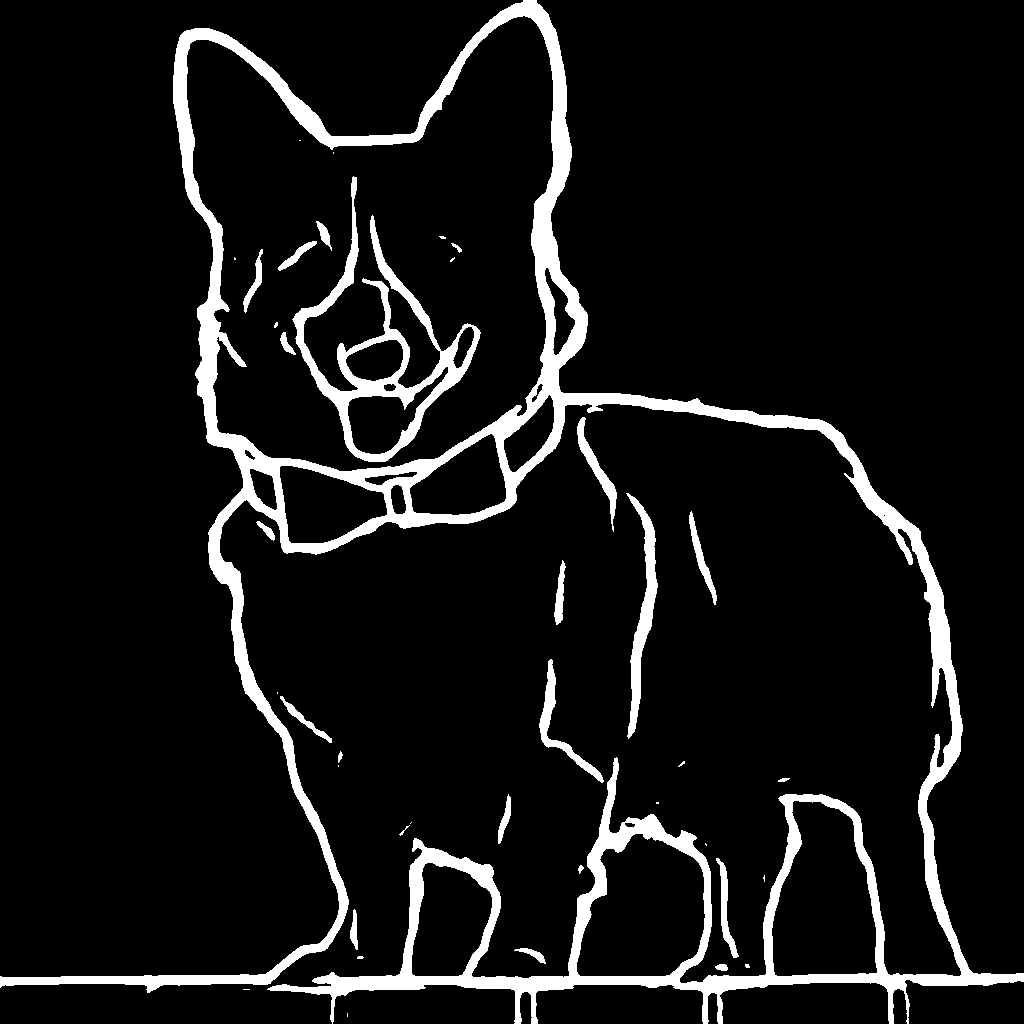
|
||||
|
||||
Then, create the adapter pipeline
|
||||
|
||||
```py
|
||||
import torch
|
||||
from diffusers import (
|
||||
T2IAdapter,
|
||||
StableDiffusionXLAdapterPipeline,
|
||||
DDPMScheduler
|
||||
)
|
||||
from diffusers.models.unet_2d_condition import UNet2DConditionModel
|
||||
|
||||
model_id = "stabilityai/stable-diffusion-xl-base-1.0"
|
||||
adapter = T2IAdapter.from_pretrained("Adapter/t2iadapter", subfolder="sketch_sdxl_1.0",torch_dtype=torch.float16, adapter_type="full_adapter_xl")
|
||||
scheduler = DDPMScheduler.from_pretrained(model_id, subfolder="scheduler")
|
||||
|
||||
pipe = StableDiffusionXLAdapterPipeline.from_pretrained(
|
||||
model_id, adapter=adapter, safety_checker=None, torch_dtype=torch.float16, variant="fp16", scheduler=scheduler
|
||||
)
|
||||
|
||||
pipe.to("cuda")
|
||||
```
|
||||
|
||||
Finally, pass the prompt and control image to the pipeline
|
||||
|
||||
```py
|
||||
# fix the random seed, so you will get the same result as the example
|
||||
generator = torch.Generator().manual_seed(42)
|
||||
|
||||
sketch_image_out = pipe(
|
||||
prompt="a photo of a dog in real world, high quality",
|
||||
negative_prompt="extra digit, fewer digits, cropped, worst quality, low quality",
|
||||
image=sketch_image,
|
||||
generator=generator,
|
||||
guidance_scale=7.5
|
||||
).images[0]
|
||||
```
|
||||
|
||||
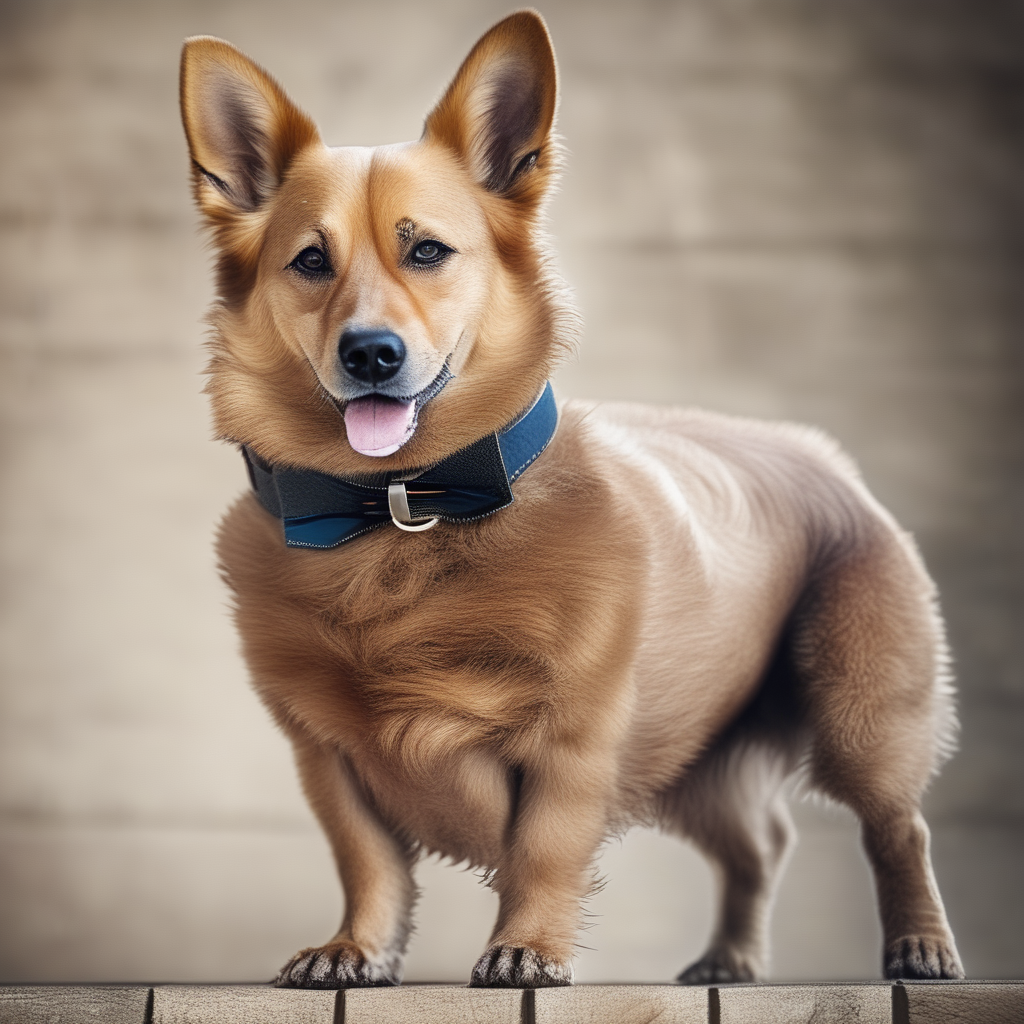
|
||||
|
||||
## Available checkpoints
|
||||
|
||||
@@ -170,9 +113,6 @@ Non-diffusers checkpoints can be found under [TencentARC/T2I-Adapter](https://hu
|
||||
|[TencentARC/t2iadapter_depth_sd15v2](https://huggingface.co/TencentARC/t2iadapter_depth_sd15v2)||
|
||||
|[TencentARC/t2iadapter_sketch_sd15v2](https://huggingface.co/TencentARC/t2iadapter_sketch_sd15v2)||
|
||||
|[TencentARC/t2iadapter_zoedepth_sd15v1](https://huggingface.co/TencentARC/t2iadapter_zoedepth_sd15v1)||
|
||||
|[Adapter/t2iadapter, subfolder='sketch_sdxl_1.0'](https://huggingface.co/Adapter/t2iadapter/tree/main/sketch_sdxl_1.0)||
|
||||
|[Adapter/t2iadapter, subfolder='canny_sdxl_1.0'](https://huggingface.co/Adapter/t2iadapter/tree/main/canny_sdxl_1.0)||
|
||||
|[Adapter/t2iadapter, subfolder='openpose_sdxl_1.0'](https://huggingface.co/Adapter/t2iadapter/tree/main/openpose_sdxl_1.0)||
|
||||
|
||||
## Combining multiple adapters
|
||||
|
||||
@@ -245,14 +185,3 @@ However, T2I-Adapter performs slightly worse than ControlNet.
|
||||
- disable_vae_slicing
|
||||
- enable_xformers_memory_efficient_attention
|
||||
- disable_xformers_memory_efficient_attention
|
||||
|
||||
## StableDiffusionXLAdapterPipeline
|
||||
[[autodoc]] StableDiffusionXLAdapterPipeline
|
||||
- all
|
||||
- __call__
|
||||
- enable_attention_slicing
|
||||
- disable_attention_slicing
|
||||
- enable_vae_slicing
|
||||
- disable_vae_slicing
|
||||
- enable_xformers_memory_efficient_attention
|
||||
- disable_xformers_memory_efficient_attention
|
||||
|
||||
@@ -1,59 +0,0 @@
|
||||
<!--Copyright 2023 The GLIGEN Authors and The HuggingFace Team. All rights reserved.
|
||||
|
||||
Licensed under the Apache License, Version 2.0 (the "License"); you may not use this file except in compliance with
|
||||
the License. You may obtain a copy of the License at
|
||||
|
||||
http://www.apache.org/licenses/LICENSE-2.0
|
||||
|
||||
Unless required by applicable law or agreed to in writing, software distributed under the License is distributed on
|
||||
an "AS IS" BASIS, WITHOUT WARRANTIES OR CONDITIONS OF ANY KIND, either express or implied. See the License for the
|
||||
specific language governing permissions and limitations under the License.
|
||||
-->
|
||||
|
||||
# GLIGEN (Grounded Language-to-Image Generation)
|
||||
|
||||
The GLIGEN model was created by researchers and engineers from [University of Wisconsin-Madison, Columbia University, and Microsoft](https://github.com/gligen/GLIGEN). The [`StableDiffusionGLIGENPipeline`] and [`StableDiffusionGLIGENTextImagePipeline`] can generate photorealistic images conditioned on grounding inputs. Along with text and bounding boxes with [`StableDiffusionGLIGENPipeline`], if input images are given, [`StableDiffusionGLIGENTextImagePipeline`] can insert objects described by text at the region defined by bounding boxes. Otherwise, it'll generate an image described by the caption/prompt and insert objects described by text at the region defined by bounding boxes. It's trained on COCO2014D and COCO2014CD datasets, and the model uses a frozen CLIP ViT-L/14 text encoder to condition itself on grounding inputs.
|
||||
|
||||
The abstract from the [paper](https://huggingface.co/papers/2301.07093) is:
|
||||
|
||||
*Large-scale text-to-image diffusion models have made amazing advances. However, the status quo is to use text input alone, which can impede controllability. In this work, we propose GLIGEN, Grounded-Language-to-Image Generation, a novel approach that builds upon and extends the functionality of existing pre-trained text-to-image diffusion models by enabling them to also be conditioned on grounding inputs. To preserve the vast concept knowledge of the pre-trained model, we freeze all of its weights and inject the grounding information into new trainable layers via a gated mechanism. Our model achieves open-world grounded text2img generation with caption and bounding box condition inputs, and the grounding ability generalizes well to novel spatial configurations and concepts. GLIGEN’s zeroshot performance on COCO and LVIS outperforms existing supervised layout-to-image baselines by a large margin.*
|
||||
|
||||
<Tip>
|
||||
|
||||
Make sure to check out the Stable Diffusion [Tips](https://huggingface.co/docs/diffusers/en/api/pipelines/stable_diffusion/overview#tips) section to learn how to explore the tradeoff between scheduler speed and quality and how to reuse pipeline components efficiently!
|
||||
|
||||
If you want to use one of the official checkpoints for a task, explore the [gligen](https://huggingface.co/gligen) Hub organizations!
|
||||
|
||||
</Tip>
|
||||
|
||||
[`StableDiffusionGLIGENPipeline`] was contributed by [Nikhil Gajendrakumar](https://github.com/nikhil-masterful) and [`StableDiffusionGLIGENTextImagePipeline`] was contributed by [Nguyễn Công Tú Anh](https://github.com/tuanh123789).
|
||||
|
||||
## StableDiffusionGLIGENPipeline
|
||||
|
||||
[[autodoc]] StableDiffusionGLIGENPipeline
|
||||
- all
|
||||
- __call__
|
||||
- enable_vae_slicing
|
||||
- disable_vae_slicing
|
||||
- enable_vae_tiling
|
||||
- disable_vae_tiling
|
||||
- enable_model_cpu_offload
|
||||
- prepare_latents
|
||||
- enable_fuser
|
||||
|
||||
## StableDiffusionGLIGENTextImagePipeline
|
||||
|
||||
[[autodoc]] StableDiffusionGLIGENTextImagePipeline
|
||||
- all
|
||||
- __call__
|
||||
- enable_vae_slicing
|
||||
- disable_vae_slicing
|
||||
- enable_vae_tiling
|
||||
- disable_vae_tiling
|
||||
- enable_model_cpu_offload
|
||||
- prepare_latents
|
||||
- enable_fuser
|
||||
|
||||
## StableDiffusionPipelineOutput
|
||||
|
||||
[[autodoc]] pipelines.stable_diffusion.StableDiffusionPipelineOutput
|
||||
@@ -10,29 +10,382 @@ an "AS IS" BASIS, WITHOUT WARRANTIES OR CONDITIONS OF ANY KIND, either express o
|
||||
specific language governing permissions and limitations under the License.
|
||||
-->
|
||||
|
||||
# Stable Diffusion XL
|
||||
# Stable diffusion XL
|
||||
|
||||
Stable Diffusion XL (SDXL) was proposed in [SDXL: Improving Latent Diffusion Models for High-Resolution Image Synthesis](https://huggingface.co/papers/2307.01952) by Dustin Podell, Zion English, Kyle Lacey, Andreas Blattmann, Tim Dockhorn, Jonas Müller, Joe Penna, and Robin Rombach.
|
||||
Stable Diffusion XL was proposed in [SDXL: Improving Latent Diffusion Models for High-Resolution Image Synthesis](https://arxiv.org/abs/2307.01952) by Dustin Podell, Zion English, Kyle Lacey, Andreas Blattmann, Tim Dockhorn, Jonas Müller, Joe Penna, Robin Rombach
|
||||
|
||||
The abstract from the paper is:
|
||||
The abstract of the paper is the following:
|
||||
|
||||
*We present SDXL, a latent diffusion model for text-to-image synthesis. Compared to previous versions of Stable Diffusion, SDXL leverages a three times larger UNet backbone: The increase of model parameters is mainly due to more attention blocks and a larger cross-attention context as SDXL uses a second text encoder. We design multiple novel conditioning schemes and train SDXL on multiple aspect ratios. We also introduce a refinement model which is used to improve the visual fidelity of samples generated by SDXL using a post-hoc image-to-image technique. We demonstrate that SDXL shows drastically improved performance compared the previous versions of Stable Diffusion and achieves results competitive with those of black-box state-of-the-art image generators.*
|
||||
|
||||
## Tips
|
||||
|
||||
- Most SDXL checkpoints work best with an image size of 1024x1024. Image sizes of 768x768 and 512x512 are also supported, but the results aren't as good. Anything below 512x512 is not recommended and likely won't for for default checkpoints like [stabilityai/stable-diffusion-xl-base-1.0](https://huggingface.co/stabilityai/stable-diffusion-xl-base-1.0).
|
||||
- SDXL can pass a different prompt for each of the text encoders it was trained on. We can even pass different parts of the same prompt to the text encoders.
|
||||
- SDXL output images can be improved by making use of a refiner model in an image-to-image setting.
|
||||
- SDXL offers `negative_original_size`, `negative_crops_coords_top_left`, and `negative_target_size` to negatively condition the model on image resolution and cropping parameters.
|
||||
- Stable Diffusion XL works especially well with images between 768 and 1024.
|
||||
- Stable Diffusion XL can pass a different prompt for each of the text encoders it was trained on as shown below. We can even pass different parts of the same prompt to the text encoders.
|
||||
- Stable Diffusion XL output image can be improved by making use of a refiner as shown below.
|
||||
|
||||
### Available checkpoints:
|
||||
|
||||
- *Text-to-Image (1024x1024 resolution)*: [stabilityai/stable-diffusion-xl-base-1.0](https://huggingface.co/stabilityai/stable-diffusion-xl-base-1.0) with [`StableDiffusionXLPipeline`]
|
||||
- *Image-to-Image / Refiner (1024x1024 resolution)*: [stabilityai/stable-diffusion-xl-refiner-1.0](https://huggingface.co/stabilityai/stable-diffusion-xl-refiner-1.0) with [`StableDiffusionXLImg2ImgPipeline`]
|
||||
|
||||
## Usage Example
|
||||
|
||||
Before using SDXL make sure to have `transformers`, `accelerate`, `safetensors` and `invisible_watermark` installed.
|
||||
You can install the libraries as follows:
|
||||
|
||||
```
|
||||
pip install transformers
|
||||
pip install accelerate
|
||||
pip install safetensors
|
||||
```
|
||||
|
||||
### Watermarker
|
||||
|
||||
We recommend to add an invisible watermark to images generating by Stable Diffusion XL, this can help with identifying if an image is machine-synthesised for downstream applications. To do so, please install
|
||||
the [invisible-watermark library](https://pypi.org/project/invisible-watermark/) via:
|
||||
|
||||
```
|
||||
pip install invisible-watermark>=0.2.0
|
||||
```
|
||||
|
||||
If the `invisible-watermark` library is installed the watermarker will be used **by default**.
|
||||
|
||||
If you have other provisions for generating or deploying images safely, you can disable the watermarker as follows:
|
||||
|
||||
```py
|
||||
pipe = StableDiffusionXLPipeline.from_pretrained(..., add_watermarker=False)
|
||||
```
|
||||
|
||||
### Text-to-Image
|
||||
|
||||
You can use SDXL as follows for *text-to-image*:
|
||||
|
||||
```py
|
||||
from diffusers import StableDiffusionXLPipeline
|
||||
import torch
|
||||
|
||||
pipe = StableDiffusionXLPipeline.from_pretrained(
|
||||
"stabilityai/stable-diffusion-xl-base-1.0", torch_dtype=torch.float16, variant="fp16", use_safetensors=True
|
||||
)
|
||||
pipe.to("cuda")
|
||||
|
||||
prompt = "Astronaut in a jungle, cold color palette, muted colors, detailed, 8k"
|
||||
image = pipe(prompt=prompt).images[0]
|
||||
```
|
||||
|
||||
### Image-to-image
|
||||
|
||||
You can use SDXL as follows for *image-to-image*:
|
||||
|
||||
```py
|
||||
import torch
|
||||
from diffusers import StableDiffusionXLImg2ImgPipeline
|
||||
from diffusers.utils import load_image
|
||||
|
||||
pipe = StableDiffusionXLImg2ImgPipeline.from_pretrained(
|
||||
"stabilityai/stable-diffusion-xl-refiner-1.0", torch_dtype=torch.float16, variant="fp16", use_safetensors=True
|
||||
)
|
||||
pipe = pipe.to("cuda")
|
||||
url = "https://huggingface.co/datasets/patrickvonplaten/images/resolve/main/aa_xl/000000009.png"
|
||||
|
||||
init_image = load_image(url).convert("RGB")
|
||||
prompt = "a photo of an astronaut riding a horse on mars"
|
||||
image = pipe(prompt, image=init_image).images[0]
|
||||
```
|
||||
|
||||
### Inpainting
|
||||
|
||||
You can use SDXL as follows for *inpainting*
|
||||
|
||||
```py
|
||||
import torch
|
||||
from diffusers import StableDiffusionXLInpaintPipeline
|
||||
from diffusers.utils import load_image
|
||||
|
||||
pipe = StableDiffusionXLInpaintPipeline.from_pretrained(
|
||||
"stabilityai/stable-diffusion-xl-base-1.0", torch_dtype=torch.float16, variant="fp16", use_safetensors=True
|
||||
)
|
||||
pipe.to("cuda")
|
||||
|
||||
img_url = "https://raw.githubusercontent.com/CompVis/latent-diffusion/main/data/inpainting_examples/overture-creations-5sI6fQgYIuo.png"
|
||||
mask_url = "https://raw.githubusercontent.com/CompVis/latent-diffusion/main/data/inpainting_examples/overture-creations-5sI6fQgYIuo_mask.png"
|
||||
|
||||
init_image = load_image(img_url).convert("RGB")
|
||||
mask_image = load_image(mask_url).convert("RGB")
|
||||
|
||||
prompt = "A majestic tiger sitting on a bench"
|
||||
image = pipe(prompt=prompt, image=init_image, mask_image=mask_image, num_inference_steps=50, strength=0.80).images[0]
|
||||
```
|
||||
|
||||
### Refining the image output
|
||||
|
||||
In addition to the [base model checkpoint](https://huggingface.co/stabilityai/stable-diffusion-xl-base-1.0),
|
||||
StableDiffusion-XL also includes a [refiner checkpoint](huggingface.co/stabilityai/stable-diffusion-xl-refiner-1.0)
|
||||
that is specialized in denoising low-noise stage images to generate images of improved high-frequency quality.
|
||||
This refiner checkpoint can be used as a "second-step" pipeline after having run the base checkpoint to improve
|
||||
image quality.
|
||||
|
||||
When using the refiner, one can easily
|
||||
- 1.) employ the base model and refiner as an *Ensemble of Expert Denoisers* as first proposed in [eDiff-I](https://research.nvidia.com/labs/dir/eDiff-I/) or
|
||||
- 2.) simply run the refiner in [SDEdit](https://arxiv.org/abs/2108.01073) fashion after the base model.
|
||||
|
||||
**Note**: The idea of using SD-XL base & refiner as an ensemble of experts was first brought forward by
|
||||
a couple community contributors which also helped shape the following `diffusers` implementation, namely:
|
||||
- [SytanSD](https://github.com/SytanSD)
|
||||
- [bghira](https://github.com/bghira)
|
||||
- [Birch-san](https://github.com/Birch-san)
|
||||
- [AmericanPresidentJimmyCarter](https://github.com/AmericanPresidentJimmyCarter)
|
||||
|
||||
#### 1.) Ensemble of Expert Denoisers
|
||||
|
||||
When using the base and refiner model as an ensemble of expert of denoisers, the base model should serve as the
|
||||
expert for the high-noise diffusion stage and the refiner serves as the expert for the low-noise diffusion stage.
|
||||
|
||||
The advantage of 1.) over 2.) is that it requires less overall denoising steps and therefore should be significantly
|
||||
faster. The drawback is that one cannot really inspect the output of the base model; it will still be heavily denoised.
|
||||
|
||||
To use the base model and refiner as an ensemble of expert denoisers, make sure to define the span
|
||||
of timesteps which should be run through the high-noise denoising stage (*i.e.* the base model) and the low-noise
|
||||
denoising stage (*i.e.* the refiner model) respectively. We can set the intervals using the [`denoising_end`](https://huggingface.co/docs/diffusers/main/en/api/pipelines/stable_diffusion/stable_diffusion_xl#diffusers.StableDiffusionXLPipeline.__call__.denoising_end) of the base model
|
||||
and [`denoising_start`](https://huggingface.co/docs/diffusers/main/en/api/pipelines/stable_diffusion/stable_diffusion_xl#diffusers.StableDiffusionXLImg2ImgPipeline.__call__.denoising_start) of the refiner model.
|
||||
|
||||
For both `denoising_end` and `denoising_start` a float value between 0 and 1 should be passed.
|
||||
When passed, the end and start of denoising will be defined by proportions of discrete timesteps as
|
||||
defined by the model schedule.
|
||||
Note that this will override `strength` if it is also declared, since the number of denoising steps
|
||||
is determined by the discrete timesteps the model was trained on and the declared fractional cutoff.
|
||||
|
||||
Let's look at an example.
|
||||
First, we import the two pipelines. Since the text encoders and variational autoencoder are the same
|
||||
you don't have to load those again for the refiner.
|
||||
|
||||
```py
|
||||
from diffusers import DiffusionPipeline
|
||||
import torch
|
||||
|
||||
base = DiffusionPipeline.from_pretrained(
|
||||
"stabilityai/stable-diffusion-xl-base-1.0", torch_dtype=torch.float16, variant="fp16", use_safetensors=True
|
||||
)
|
||||
base.to("cuda")
|
||||
|
||||
refiner = DiffusionPipeline.from_pretrained(
|
||||
"stabilityai/stable-diffusion-xl-refiner-1.0",
|
||||
text_encoder_2=base.text_encoder_2,
|
||||
vae=base.vae,
|
||||
torch_dtype=torch.float16,
|
||||
use_safetensors=True,
|
||||
variant="fp16",
|
||||
)
|
||||
refiner.to("cuda")
|
||||
```
|
||||
|
||||
Now we define the number of inference steps and the point at which the model shall be run through the
|
||||
high-noise denoising stage (*i.e.* the base model).
|
||||
|
||||
```py
|
||||
n_steps = 40
|
||||
high_noise_frac = 0.8
|
||||
```
|
||||
|
||||
Stable Diffusion XL base is trained on timesteps 0-999 and Stable Diffusion XL refiner is finetuned
|
||||
from the base model on low noise timesteps 0-199 inclusive, so we use the base model for the first
|
||||
800 timesteps (high noise) and the refiner for the last 200 timesteps (low noise). Hence, `high_noise_frac`
|
||||
is set to 0.8, so that all steps 200-999 (the first 80% of denoising timesteps) are performed by the
|
||||
base model and steps 0-199 (the last 20% of denoising timesteps) are performed by the refiner model.
|
||||
|
||||
Remember, the denoising process starts at **high value** (high noise) timesteps and ends at
|
||||
**low value** (low noise) timesteps.
|
||||
|
||||
Let's run the two pipelines now. Make sure to set `denoising_end` and
|
||||
`denoising_start` to the same values and keep `num_inference_steps` constant. Also remember that
|
||||
the output of the base model should be in latent space:
|
||||
|
||||
```py
|
||||
prompt = "A majestic lion jumping from a big stone at night"
|
||||
|
||||
image = base(
|
||||
prompt=prompt,
|
||||
num_inference_steps=n_steps,
|
||||
denoising_end=high_noise_frac,
|
||||
output_type="latent",
|
||||
).images
|
||||
image = refiner(
|
||||
prompt=prompt,
|
||||
num_inference_steps=n_steps,
|
||||
denoising_start=high_noise_frac,
|
||||
image=image,
|
||||
).images[0]
|
||||
```
|
||||
|
||||
Let's have a look at the images
|
||||
|
||||
| Original Image | Ensemble of Denoisers Experts |
|
||||
|---|---|
|
||||
| 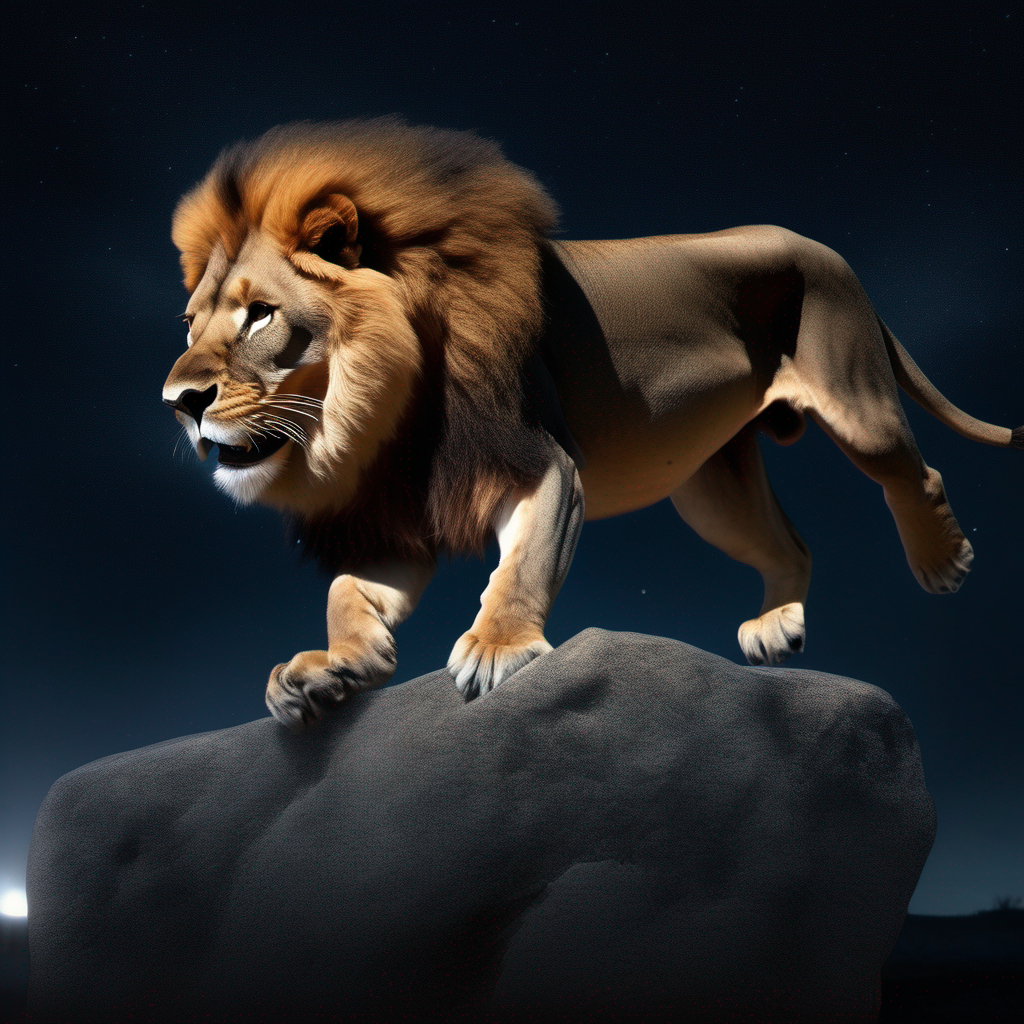 | 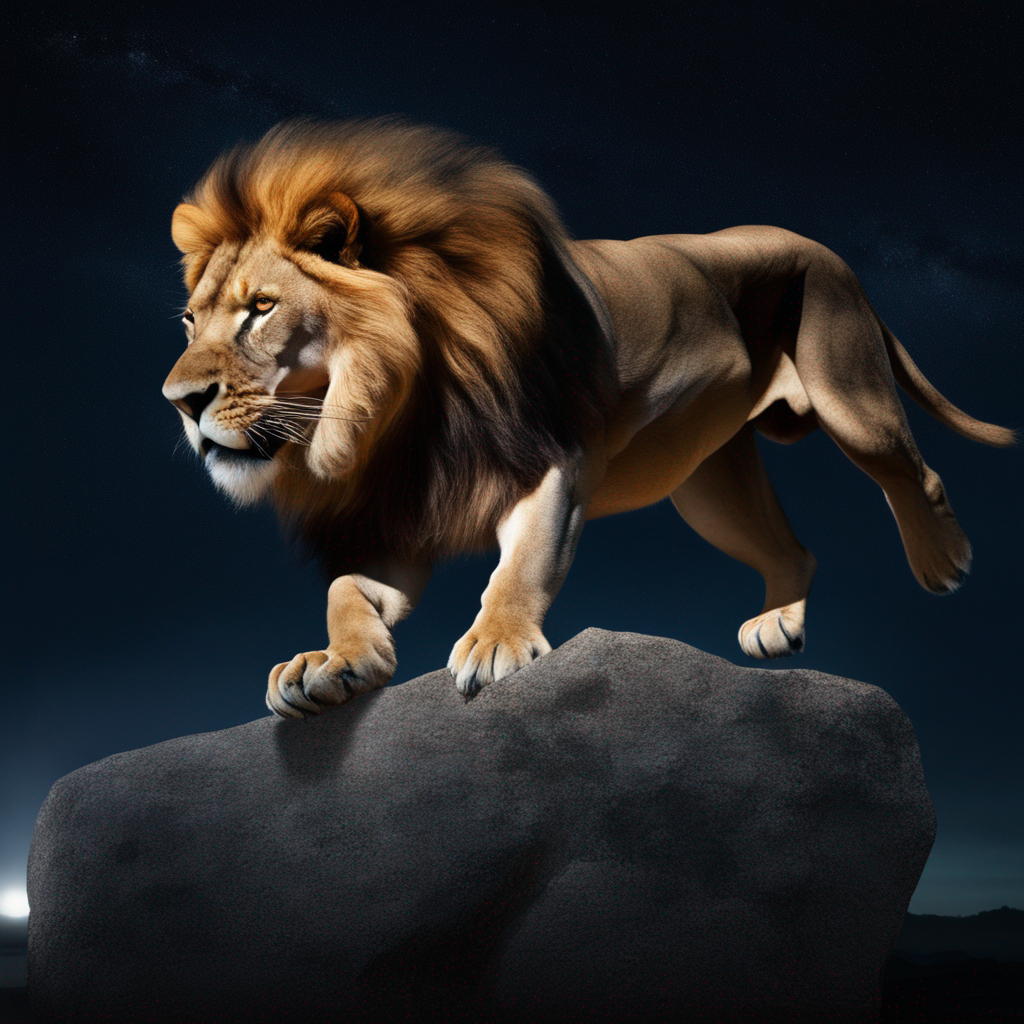
|
||||
|
||||
If we would have just run the base model on the same 40 steps, the image would have been arguably less detailed (e.g. the lion eyes and nose):
|
||||
|
||||
<Tip>
|
||||
|
||||
To learn how to use SDXL for various tasks, how to optimize performance, and other usage examples, take a look at the [Stable Diffusion XL](../../../using-diffusers/sdxl) guide.
|
||||
|
||||
Check out the [Stability AI](https://huggingface.co/stabilityai) Hub organization for the official base and refiner model checkpoints!
|
||||
The ensemble-of-experts method works well on all available schedulers!
|
||||
|
||||
</Tip>
|
||||
|
||||
#### 2.) Refining the image output from fully denoised base image
|
||||
|
||||
In standard [`StableDiffusionImg2ImgPipeline`]-fashion, the fully-denoised image generated of the base model
|
||||
can be further improved using the [refiner checkpoint](huggingface.co/stabilityai/stable-diffusion-xl-refiner-1.0).
|
||||
|
||||
For this, you simply run the refiner as a normal image-to-image pipeline after the "base" text-to-image
|
||||
pipeline. You can leave the outputs of the base model in latent space.
|
||||
|
||||
```py
|
||||
from diffusers import DiffusionPipeline
|
||||
import torch
|
||||
|
||||
pipe = DiffusionPipeline.from_pretrained(
|
||||
"stabilityai/stable-diffusion-xl-base-1.0", torch_dtype=torch.float16, variant="fp16", use_safetensors=True
|
||||
)
|
||||
pipe.to("cuda")
|
||||
|
||||
refiner = DiffusionPipeline.from_pretrained(
|
||||
"stabilityai/stable-diffusion-xl-refiner-1.0",
|
||||
text_encoder_2=pipe.text_encoder_2,
|
||||
vae=pipe.vae,
|
||||
torch_dtype=torch.float16,
|
||||
use_safetensors=True,
|
||||
variant="fp16",
|
||||
)
|
||||
refiner.to("cuda")
|
||||
|
||||
prompt = "Astronaut in a jungle, cold color palette, muted colors, detailed, 8k"
|
||||
|
||||
image = pipe(prompt=prompt, output_type="latent" if use_refiner else "pil").images[0]
|
||||
image = refiner(prompt=prompt, image=image[None, :]).images[0]
|
||||
```
|
||||
|
||||
| Original Image | Refined Image |
|
||||
|---|---|
|
||||
|  |  |
|
||||
|
||||
<Tip>
|
||||
|
||||
The refiner can also very well be used in an in-painting setting. To do so just make
|
||||
sure you use the [`StableDiffusionXLInpaintPipeline`] classes as shown below
|
||||
|
||||
</Tip>
|
||||
|
||||
To use the refiner for inpainting in the Ensemble of Expert Denoisers setting you can do the following:
|
||||
|
||||
```py
|
||||
from diffusers import StableDiffusionXLInpaintPipeline
|
||||
from diffusers.utils import load_image
|
||||
|
||||
pipe = StableDiffusionXLInpaintPipeline.from_pretrained(
|
||||
"stabilityai/stable-diffusion-xl-base-1.0", torch_dtype=torch.float16, variant="fp16", use_safetensors=True
|
||||
)
|
||||
pipe.to("cuda")
|
||||
|
||||
refiner = StableDiffusionXLInpaintPipeline.from_pretrained(
|
||||
"stabilityai/stable-diffusion-xl-refiner-1.0",
|
||||
text_encoder_2=pipe.text_encoder_2,
|
||||
vae=pipe.vae,
|
||||
torch_dtype=torch.float16,
|
||||
use_safetensors=True,
|
||||
variant="fp16",
|
||||
)
|
||||
refiner.to("cuda")
|
||||
|
||||
img_url = "https://raw.githubusercontent.com/CompVis/latent-diffusion/main/data/inpainting_examples/overture-creations-5sI6fQgYIuo.png"
|
||||
mask_url = "https://raw.githubusercontent.com/CompVis/latent-diffusion/main/data/inpainting_examples/overture-creations-5sI6fQgYIuo_mask.png"
|
||||
|
||||
init_image = load_image(img_url).convert("RGB")
|
||||
mask_image = load_image(mask_url).convert("RGB")
|
||||
|
||||
prompt = "A majestic tiger sitting on a bench"
|
||||
num_inference_steps = 75
|
||||
high_noise_frac = 0.7
|
||||
|
||||
image = pipe(
|
||||
prompt=prompt,
|
||||
image=init_image,
|
||||
mask_image=mask_image,
|
||||
num_inference_steps=num_inference_steps,
|
||||
denoising_start=high_noise_frac,
|
||||
output_type="latent",
|
||||
).images
|
||||
image = refiner(
|
||||
prompt=prompt,
|
||||
image=image,
|
||||
mask_image=mask_image,
|
||||
num_inference_steps=num_inference_steps,
|
||||
denoising_start=high_noise_frac,
|
||||
).images[0]
|
||||
```
|
||||
|
||||
To use the refiner for inpainting in the standard SDE-style setting, simply remove `denoising_end` and `denoising_start` and choose a smaller
|
||||
number of inference steps for the refiner.
|
||||
|
||||
### Loading single file checkpoints / original file format
|
||||
|
||||
By making use of [`~diffusers.loaders.FromSingleFileMixin.from_single_file`] you can also load the
|
||||
original file format into `diffusers`:
|
||||
|
||||
```py
|
||||
from diffusers import StableDiffusionXLPipeline, StableDiffusionXLImg2ImgPipeline
|
||||
import torch
|
||||
|
||||
pipe = StableDiffusionXLPipeline.from_single_file(
|
||||
"./sd_xl_base_1.0.safetensors", torch_dtype=torch.float16, variant="fp16", use_safetensors=True
|
||||
)
|
||||
pipe.to("cuda")
|
||||
|
||||
refiner = StableDiffusionXLImg2ImgPipeline.from_single_file(
|
||||
"./sd_xl_refiner_1.0.safetensors", torch_dtype=torch.float16, use_safetensors=True, variant="fp16"
|
||||
)
|
||||
refiner.to("cuda")
|
||||
```
|
||||
|
||||
### Memory optimization via model offloading
|
||||
|
||||
If you are seeing out-of-memory errors, we recommend making use of [`StableDiffusionXLPipeline.enable_model_cpu_offload`].
|
||||
|
||||
```diff
|
||||
- pipe.to("cuda")
|
||||
+ pipe.enable_model_cpu_offload()
|
||||
```
|
||||
|
||||
and
|
||||
|
||||
```diff
|
||||
- refiner.to("cuda")
|
||||
+ refiner.enable_model_cpu_offload()
|
||||
```
|
||||
|
||||
### Speed-up inference with `torch.compile`
|
||||
|
||||
You can speed up inference by making use of `torch.compile`. This should give you **ca.** 20% speed-up.
|
||||
|
||||
```diff
|
||||
+ pipe.unet = torch.compile(pipe.unet, mode="reduce-overhead", fullgraph=True)
|
||||
+ refiner.unet = torch.compile(refiner.unet, mode="reduce-overhead", fullgraph=True)
|
||||
```
|
||||
|
||||
### Running with `torch < 2.0`
|
||||
|
||||
**Note** that if you want to run Stable Diffusion XL with `torch` < 2.0, please make sure to enable xformers
|
||||
attention:
|
||||
|
||||
```
|
||||
pip install xformers
|
||||
```
|
||||
|
||||
```diff
|
||||
+pipe.enable_xformers_memory_efficient_attention()
|
||||
+refiner.enable_xformers_memory_efficient_attention()
|
||||
```
|
||||
|
||||
## StableDiffusionXLPipeline
|
||||
|
||||
[[autodoc]] StableDiffusionXLPipeline
|
||||
@@ -50,3 +403,29 @@ Check out the [Stability AI](https://huggingface.co/stabilityai) Hub organizatio
|
||||
[[autodoc]] StableDiffusionXLInpaintPipeline
|
||||
- all
|
||||
- __call__
|
||||
|
||||
### Passing different prompts to each text-encoder
|
||||
|
||||
Stable Diffusion XL was trained on two text encoders. The default behavior is to pass the same prompt to each. But it is possible to pass a different prompt for each text-encoder, as [some users](https://github.com/huggingface/diffusers/issues/4004#issuecomment-1627764201) noted that it can boost quality.
|
||||
To do so, you can pass `prompt_2` and `negative_prompt_2` in addition to `prompt` and `negative_prompt`. By doing that, you will pass the original prompts and negative prompts (as in `prompt` and `negative_prompt`) to `text_encoder` (in official SDXL 0.9/1.0 that is [OpenAI CLIP-ViT/L-14](https://huggingface.co/openai/clip-vit-large-patch14)),
|
||||
and `prompt_2` and `negative_prompt_2` to `text_encoder_2` (in official SDXL 0.9/1.0 that is [OpenCLIP-ViT/bigG-14](https://huggingface.co/laion/CLIP-ViT-bigG-14-laion2B-39B-b160k)).
|
||||
|
||||
```py
|
||||
from diffusers import StableDiffusionXLPipeline
|
||||
import torch
|
||||
|
||||
pipe = StableDiffusionXLPipeline.from_pretrained(
|
||||
"stabilityai/stable-diffusion-xl-base-1.0", torch_dtype=torch.float16, variant="fp16", use_safetensors=True
|
||||
)
|
||||
pipe.to("cuda")
|
||||
|
||||
# prompt will be passed to OAI CLIP-ViT/L-14
|
||||
prompt = "Astronaut in a jungle, cold color palette, muted colors, detailed, 8k"
|
||||
# prompt_2 will be passed to OpenCLIP-ViT/bigG-14
|
||||
prompt_2 = "monet painting"
|
||||
image = pipe(prompt=prompt, prompt_2=prompt_2).images[0]
|
||||
```
|
||||
|
||||
## Single-file Implementation of SDXL Unet Model
|
||||
|
||||
If you are curious about how SDXL Unet is implemented and would like to make quick modifications / experimentations, you can alternatively head to [`minSDXL`](https://github.com/cloneofsimo/minSDXL) that is very `diffusers` friendly. It is a single-file implementation of SDXL Unet model that is written in PyTorch with exact same model naming and structure as in `diffusers`.
|
||||
@@ -20,12 +20,6 @@ The abstract from the [paper](https://arxiv.org/abs/2303.06555) is:
|
||||
|
||||
You can find the original codebase at [thu-ml/unidiffuser](https://github.com/thu-ml/unidiffuser) and additional checkpoints at [thu-ml](https://huggingface.co/thu-ml).
|
||||
|
||||
<Tip warning={true}>
|
||||
|
||||
There is currently an issue on PyTorch 1.X where the output images are all black or the pixel values become `NaNs`. This issue can be mitigated by switching to PyTorch 2.X.
|
||||
|
||||
</Tip>
|
||||
|
||||
This pipeline was contributed by [dg845](https://github.com/dg845). ❤️
|
||||
|
||||
## Usage Examples
|
||||
|
||||
@@ -1,135 +0,0 @@
|
||||
# Würstchen
|
||||
|
||||
<img src="https://github.com/dome272/Wuerstchen/assets/61938694/0617c863-165a-43ee-9303-2a17299a0cf9">
|
||||
|
||||
[Würstchen: Efficient Pretraining of Text-to-Image Models](https://huggingface.co/papers/2306.00637) is by Pablo Pernias, Dominic Rampas, and Marc Aubreville.
|
||||
|
||||
The abstract from the paper is:
|
||||
|
||||
*We introduce Würstchen, a novel technique for text-to-image synthesis that unites competitive performance with unprecedented cost-effectiveness and ease of training on constrained hardware. Building on recent advancements in machine learning, our approach, which utilizes latent diffusion strategies at strong latent image compression rates, significantly reduces the computational burden, typically associated with state-of-the-art models, while preserving, if not enhancing, the quality of generated images. Wuerstchen achieves notable speed improvements at inference time, thereby rendering real-time applications more viable. One of the key advantages of our method lies in its modest training requirements of only 9,200 GPU hours, slashing the usual costs significantly without compromising the end performance. In a comparison against the state-of-the-art, we found the approach to yield strong competitiveness. This paper opens the door to a new line of research that prioritizes both performance and computational accessibility, hence democratizing the use of sophisticated AI technologies. Through Wuerstchen, we demonstrate a compelling stride forward in the realm of text-to-image synthesis, offering an innovative path to explore in future research.*
|
||||
|
||||
## Würstchen v2 comes to Diffusers
|
||||
|
||||
After the initial paper release, we have improved numerous things in the architecture, training and sampling, making Würstchen competetive to current state-of-the-art models in many ways. We are excited to release this new version together with Diffusers. Here is a list of the improvements.
|
||||
|
||||
- Higher resolution (1024x1024 up to 2048x2048)
|
||||
- Faster inference
|
||||
- Multi Aspect Resolution Sampling
|
||||
- Better quality
|
||||
|
||||
|
||||
We are releasing 3 checkpoints for the text-conditional image generation model (Stage C). Those are:
|
||||
|
||||
- v2-base
|
||||
- v2-aesthetic
|
||||
- v2-interpolated (50% interpolation between v2-base and v2-aesthetic)
|
||||
|
||||
We recommend to use v2-interpolated, as it has a nice touch of both photorealism and aesthetic. Use v2-base for finetunings as it does not have a style bias and use v2-aesthetic for very artistic generations.
|
||||
A comparison can be seen here:
|
||||
|
||||
<img src="https://github.com/dome272/Wuerstchen/assets/61938694/2914830f-cbd3-461c-be64-d50734f4b49d" width=500>
|
||||
|
||||
## Text-to-Image Generation
|
||||
|
||||
For the sake of usability Würstchen can be used with a single pipeline. This pipeline is called `WuerstchenCombinedPipeline` and can be used as follows:
|
||||
|
||||
```python
|
||||
import torch
|
||||
from diffusers import AutoPipelineForText2Image
|
||||
from diffusers.pipelines.wuerstchen import DEFAULT_STAGE_C_TIMESTEPS
|
||||
|
||||
pipe = AutoPipelineForText2Image.from_pretrained("warp-ai/wuerstchen", torch_dtype=torch.float16).to("cuda")
|
||||
|
||||
caption = "Anthropomorphic cat dressed as a fire fighter"
|
||||
images = pipe(
|
||||
caption,
|
||||
width=1024,
|
||||
height=1536,
|
||||
prior_timesteps=DEFAULT_STAGE_C_TIMESTEPS,
|
||||
prior_guidance_scale=4.0,
|
||||
num_images_per_prompt=2,
|
||||
).images
|
||||
```
|
||||
|
||||
For explanation purposes, we can also initialize the two main pipelines of Würstchen individually. Würstchen consists of 3 stages: Stage C, Stage B, Stage A. They all have different jobs and work only together. When generating text-conditional images, Stage C will first generate the latents in a very compressed latent space. This is what happens in the `prior_pipeline`. Afterwards, the generated latents will be passed to Stage B, which decompresses the latents into a bigger latent space of a VQGAN. These latents can then be decoded by Stage A, which is a VQGAN, into the pixel-space. Stage B & Stage A are both encapsulated in the `decoder_pipeline`. For more details, take a look at the [paper](https://huggingface.co/papers/2306.00637).
|
||||
|
||||
```python
|
||||
import torch
|
||||
from diffusers import WuerstchenDecoderPipeline, WuerstchenPriorPipeline
|
||||
from diffusers.pipelines.wuerstchen import DEFAULT_STAGE_C_TIMESTEPS
|
||||
|
||||
device = "cuda"
|
||||
dtype = torch.float16
|
||||
num_images_per_prompt = 2
|
||||
|
||||
prior_pipeline = WuerstchenPriorPipeline.from_pretrained(
|
||||
"warp-ai/wuerstchen-prior", torch_dtype=dtype
|
||||
).to(device)
|
||||
decoder_pipeline = WuerstchenDecoderPipeline.from_pretrained(
|
||||
"warp-ai/wuerstchen", torch_dtype=dtype
|
||||
).to(device)
|
||||
|
||||
caption = "Anthropomorphic cat dressed as a fire fighter"
|
||||
negative_prompt = ""
|
||||
|
||||
prior_output = prior_pipeline(
|
||||
prompt=caption,
|
||||
height=1024,
|
||||
width=1536,
|
||||
timesteps=DEFAULT_STAGE_C_TIMESTEPS,
|
||||
negative_prompt=negative_prompt,
|
||||
guidance_scale=4.0,
|
||||
num_images_per_prompt=num_images_per_prompt,
|
||||
)
|
||||
decoder_output = decoder_pipeline(
|
||||
image_embeddings=prior_output.image_embeddings,
|
||||
prompt=caption,
|
||||
negative_prompt=negative_prompt,
|
||||
num_images_per_prompt=num_images_per_prompt,
|
||||
guidance_scale=0.0,
|
||||
output_type="pil",
|
||||
).images
|
||||
```
|
||||
|
||||
## Speed-Up Inference
|
||||
You can make use of `torch.compile` function and gain a speed-up of about 2-3x:
|
||||
|
||||
```python
|
||||
pipeline.prior = torch.compile(pipeline.prior, mode="reduce-overhead", fullgraph=True)
|
||||
pipeline.decoder = torch.compile(pipeline.decoder, mode="reduce-overhead", fullgraph=True)
|
||||
```
|
||||
|
||||
## Limitations
|
||||
|
||||
- Due to the high compression employed by Würstchen, generations can lack a good amount
|
||||
of detail. To our human eye, this is especially noticeable in faces, hands etc.
|
||||
- **Images can only be generated in 128-pixel steps**, e.g. the next higher resolution
|
||||
after 1024x1024 is 1152x1152
|
||||
- The model lacks the ability to render correct text in images
|
||||
- The model often does not achieve photorealism
|
||||
- Difficult compositional prompts are hard for the model
|
||||
|
||||
The original codebase, as well as experimental ideas, can be found at [dome272/Wuerstchen](https://github.com/dome272/Wuerstchen).
|
||||
|
||||
## WuerschenPipeline
|
||||
|
||||
[[autodoc]] WuerstchenCombinedPipeline
|
||||
- all
|
||||
- __call__
|
||||
|
||||
## WuerstchenPriorPipeline
|
||||
|
||||
[[autodoc]] WuerstchenDecoderPipeline
|
||||
|
||||
- all
|
||||
- __call__
|
||||
|
||||
## WuerstchenPriorPipelineOutput
|
||||
|
||||
[[autodoc]] pipelines.wuerstchen.pipeline_wuerstchen_prior.WuerstchenPriorPipelineOutput
|
||||
|
||||
## WuerstchenDecoderPipeline
|
||||
|
||||
[[autodoc]] WuerstchenDecoderPipeline
|
||||
- all
|
||||
- __call__
|
||||
@@ -1,15 +1,11 @@
|
||||
# CMStochasticIterativeScheduler
|
||||
# Consistency Model Multistep Scheduler
|
||||
|
||||
[Consistency Models](https://huggingface.co/papers/2303.01469) by Yang Song, Prafulla Dhariwal, Mark Chen, and Ilya Sutskever introduced a multistep and onestep scheduler (Algorithm 1) that is capable of generating good samples in one or a small number of steps.
|
||||
## Overview
|
||||
|
||||
The abstract from the paper is:
|
||||
|
||||
*Diffusion models have made significant breakthroughs in image, audio, and video generation, but they depend on an iterative generation process that causes slow sampling speed and caps their potential for real-time applications. To overcome this limitation, we propose consistency models, a new family of generative models that achieve high sample quality without adversarial training. They support fast one-step generation by design, while still allowing for few-step sampling to trade compute for sample quality. They also support zero-shot data editing, like image inpainting, colorization, and super-resolution, without requiring explicit training on these tasks. Consistency models can be trained either as a way to distill pre-trained diffusion models, or as standalone generative models. Through extensive experiments, we demonstrate that they outperform existing distillation techniques for diffusion models in one- and few-step generation. For example, we achieve the new state-of-the-art FID of 3.55 on CIFAR-10 and 6.20 on ImageNet 64x64 for one-step generation. When trained as standalone generative models, consistency models also outperform single-step, non-adversarial generative models on standard benchmarks like CIFAR-10, ImageNet 64x64 and LSUN 256x256.*
|
||||
|
||||
The original codebase can be found at [openai/consistency_models](https://github.com/openai/consistency_models).
|
||||
Multistep and onestep scheduler (Algorithm 1) introduced alongside consistency models in the paper [Consistency Models](https://arxiv.org/abs/2303.01469) by Yang Song, Prafulla Dhariwal, Mark Chen, and Ilya Sutskever.
|
||||
Based on the [original consistency models implementation](https://github.com/openai/consistency_models).
|
||||
Should generate good samples from [`ConsistencyModelPipeline`] in one or a small number of steps.
|
||||
|
||||
## CMStochasticIterativeScheduler
|
||||
[[autodoc]] CMStochasticIterativeScheduler
|
||||
|
||||
## CMStochasticIterativeSchedulerOutput
|
||||
[[autodoc]] schedulers.scheduling_consistency_models.CMStochasticIterativeSchedulerOutput
|
||||
@@ -10,11 +10,13 @@ an "AS IS" BASIS, WITHOUT WARRANTIES OR CONDITIONS OF ANY KIND, either express o
|
||||
specific language governing permissions and limitations under the License.
|
||||
-->
|
||||
|
||||
# DDIMScheduler
|
||||
# Denoising Diffusion Implicit Models (DDIM)
|
||||
|
||||
[Denoising Diffusion Implicit Models](https://huggingface.co/papers/2010.02502) (DDIM) by Jiaming Song, Chenlin Meng and Stefano Ermon.
|
||||
## Overview
|
||||
|
||||
The abstract from the paper is:
|
||||
[Denoising Diffusion Implicit Models](https://arxiv.org/abs/2010.02502) (DDIM) by Jiaming Song, Chenlin Meng and Stefano Ermon.
|
||||
|
||||
The abstract of the paper is the following:
|
||||
|
||||
*Denoising diffusion probabilistic models (DDPMs) have achieved high quality image generation without adversarial training,
|
||||
yet they require simulating a Markov chain for many steps to produce a sample.
|
||||
@@ -24,43 +26,50 @@ We construct a class of non-Markovian diffusion processes that lead to the same
|
||||
We empirically demonstrate that DDIMs can produce high quality samples 10× to 50× faster in terms of wall-clock time compared to DDPMs, allow us to trade off
|
||||
computation for sample quality, and can perform semantically meaningful image interpolation directly in the latent space.*
|
||||
|
||||
The original codebase of this paper can be found at [ermongroup/ddim](https://github.com/ermongroup/ddim), and you can contact the author on [tsong.me](https://tsong.me/).
|
||||
The original codebase of this paper can be found here: [ermongroup/ddim](https://github.com/ermongroup/ddim).
|
||||
For questions, feel free to contact the author on [tsong.me](https://tsong.me/).
|
||||
|
||||
## Tips
|
||||
### Experimental: "Common Diffusion Noise Schedules and Sample Steps are Flawed":
|
||||
|
||||
The paper [Common Diffusion Noise Schedules and Sample Steps are Flawed](https://huggingface.co/papers/2305.08891) claims that a mismatch between the training and inference settings leads to suboptimal inference generation results for Stable Diffusion. To fix this, the authors propose:
|
||||
The paper **[Common Diffusion Noise Schedules and Sample Steps are Flawed](https://arxiv.org/abs/2305.08891)**
|
||||
claims that a mismatch between the training and inference settings leads to suboptimal inference generation results for Stable Diffusion.
|
||||
|
||||
<Tip warning={true}>
|
||||
The abstract reads as follows:
|
||||
|
||||
🧪 This is an experimental feature!
|
||||
|
||||
</Tip>
|
||||
|
||||
1. rescale the noise schedule to enforce zero terminal signal-to-noise ratio (SNR)
|
||||
*We discover that common diffusion noise schedules do not enforce the last timestep to have zero signal-to-noise ratio (SNR),
|
||||
and some implementations of diffusion samplers do not start from the last timestep.
|
||||
Such designs are flawed and do not reflect the fact that the model is given pure Gaussian noise at inference, creating a discrepancy between training and inference.
|
||||
We show that the flawed design causes real problems in existing implementations.
|
||||
In Stable Diffusion, it severely limits the model to only generate images with medium brightness and
|
||||
prevents it from generating very bright and dark samples. We propose a few simple fixes:
|
||||
- (1) rescale the noise schedule to enforce zero terminal SNR;
|
||||
- (2) train the model with v prediction;
|
||||
- (3) change the sampler to always start from the last timestep;
|
||||
- (4) rescale classifier-free guidance to prevent over-exposure.
|
||||
These simple changes ensure the diffusion process is congruent between training and inference and
|
||||
allow the model to generate samples more faithful to the original data distribution.*
|
||||
|
||||
You can apply all of these changes in `diffusers` when using [`DDIMScheduler`]:
|
||||
- (1) rescale the noise schedule to enforce zero terminal SNR;
|
||||
```py
|
||||
pipe.scheduler = DDIMScheduler.from_config(pipe.scheduler.config, rescale_betas_zero_snr=True)
|
||||
```
|
||||
|
||||
2. train a model with `v_prediction` (add the following argument to the [train_text_to_image.py](https://github.com/huggingface/diffusers/blob/main/examples/text_to_image/train_text_to_image.py) or [train_text_to_image_lora.py](https://github.com/huggingface/diffusers/blob/main/examples/text_to_image/train_text_to_image_lora.py) scripts)
|
||||
|
||||
```bash
|
||||
--prediction_type="v_prediction"
|
||||
```
|
||||
|
||||
3. change the sampler to always start from the last timestep
|
||||
|
||||
- (2) train the model with v prediction;
|
||||
Continue fine-tuning a checkpoint with [`train_text_to_image.py`](https://github.com/huggingface/diffusers/blob/main/examples/text_to_image/train_text_to_image.py) or [`train_text_to_image_lora.py`](https://github.com/huggingface/diffusers/blob/main/examples/text_to_image/train_text_to_image_lora.py)
|
||||
and `--prediction_type="v_prediction"`.
|
||||
- (3) change the sampler to always start from the last timestep;
|
||||
```py
|
||||
pipe.scheduler = DDIMScheduler.from_config(pipe.scheduler.config, timestep_spacing="trailing")
|
||||
```
|
||||
|
||||
4. rescale classifier-free guidance to prevent over-exposure
|
||||
|
||||
- (4) rescale classifier-free guidance to prevent over-exposure.
|
||||
```py
|
||||
image = pipeline(prompt, guidance_rescale=0.7).images[0]
|
||||
pipe(..., guidance_rescale=0.7)
|
||||
```
|
||||
|
||||
For example:
|
||||
An example is to use [this checkpoint](https://huggingface.co/ptx0/pseudo-journey-v2)
|
||||
which has been fine-tuned using the `"v_prediction"`.
|
||||
|
||||
The checkpoint can then be run in inference as follows:
|
||||
|
||||
```py
|
||||
from diffusers import DiffusionPipeline, DDIMScheduler
|
||||
@@ -77,6 +86,3 @@ image = pipeline(prompt, guidance_rescale=0.7).images[0]
|
||||
|
||||
## DDIMScheduler
|
||||
[[autodoc]] DDIMScheduler
|
||||
|
||||
## DDIMSchedulerOutput
|
||||
[[autodoc]] schedulers.scheduling_ddim.DDIMSchedulerOutput
|
||||
|
||||
@@ -10,10 +10,12 @@ an "AS IS" BASIS, WITHOUT WARRANTIES OR CONDITIONS OF ANY KIND, either express o
|
||||
specific language governing permissions and limitations under the License.
|
||||
-->
|
||||
|
||||
# DDIMInverseScheduler
|
||||
# Inverse Denoising Diffusion Implicit Models (DDIMInverse)
|
||||
|
||||
`DDIMInverseScheduler` is the inverted scheduler from [Denoising Diffusion Implicit Models](https://huggingface.co/papers/2010.02502) (DDIM) by Jiaming Song, Chenlin Meng and Stefano Ermon.
|
||||
The implementation is mostly based on the DDIM inversion definition from [Null-text Inversion for Editing Real Images using Guided Diffusion Models](https://huggingface.co/papers/2211.09794.pdf).
|
||||
## Overview
|
||||
|
||||
This scheduler is the inverted scheduler of [Denoising Diffusion Implicit Models](https://arxiv.org/abs/2010.02502) (DDIM) by Jiaming Song, Chenlin Meng and Stefano Ermon.
|
||||
The implementation is mostly based on the DDIM inversion definition of [Null-text Inversion for Editing Real Images using Guided Diffusion Models](https://arxiv.org/pdf/2211.09794.pdf)
|
||||
|
||||
## DDIMInverseScheduler
|
||||
[[autodoc]] DDIMInverseScheduler
|
||||
|
||||
@@ -10,16 +10,18 @@ an "AS IS" BASIS, WITHOUT WARRANTIES OR CONDITIONS OF ANY KIND, either express o
|
||||
specific language governing permissions and limitations under the License.
|
||||
-->
|
||||
|
||||
# DDPMScheduler
|
||||
# Denoising Diffusion Probabilistic Models (DDPM)
|
||||
|
||||
[Denoising Diffusion Probabilistic Models](https://huggingface.co/papers/2006.11239) (DDPM) by Jonathan Ho, Ajay Jain and Pieter Abbeel proposes a diffusion based model of the same name. In the context of the 🤗 Diffusers library, DDPM refers to the discrete denoising scheduler from the paper as well as the pipeline.
|
||||
## Overview
|
||||
|
||||
The abstract from the paper is:
|
||||
[Denoising Diffusion Probabilistic Models](https://arxiv.org/abs/2006.11239)
|
||||
(DDPM) by Jonathan Ho, Ajay Jain and Pieter Abbeel proposes the diffusion based model of the same name, but in the context of the 🤗 Diffusers library, DDPM refers to the discrete denoising scheduler from the paper as well as the pipeline.
|
||||
|
||||
*We present high quality image synthesis results using diffusion probabilistic models, a class of latent variable models inspired by considerations from nonequilibrium thermodynamics. Our best results are obtained by training on a weighted variational bound designed according to a novel connection between diffusion probabilistic models and denoising score matching with Langevin dynamics, and our models naturally admit a progressive lossy decompression scheme that can be interpreted as a generalization of autoregressive decoding. On the unconditional CIFAR10 dataset, we obtain an Inception score of 9.46 and a state-of-the-art FID score of 3.17. On 256x256 LSUN, we obtain sample quality similar to ProgressiveGAN.*
|
||||
The abstract of the paper is the following:
|
||||
|
||||
We present high quality image synthesis results using diffusion probabilistic models, a class of latent variable models inspired by considerations from nonequilibrium thermodynamics. Our best results are obtained by training on a weighted variational bound designed according to a novel connection between diffusion probabilistic models and denoising score matching with Langevin dynamics, and our models naturally admit a progressive lossy decompression scheme that can be interpreted as a generalization of autoregressive decoding. On the unconditional CIFAR10 dataset, we obtain an Inception score of 9.46 and a state-of-the-art FID score of 3.17. On 256x256 LSUN, we obtain sample quality similar to ProgressiveGAN.
|
||||
|
||||
The original paper can be found [here](https://arxiv.org/abs/2010.02502).
|
||||
|
||||
## DDPMScheduler
|
||||
[[autodoc]] DDPMScheduler
|
||||
|
||||
## DDPMSchedulerOutput
|
||||
[[autodoc]] schedulers.scheduling_ddpm.DDPMSchedulerOutput
|
||||
@@ -10,27 +10,13 @@ an "AS IS" BASIS, WITHOUT WARRANTIES OR CONDITIONS OF ANY KIND, either express o
|
||||
specific language governing permissions and limitations under the License.
|
||||
-->
|
||||
|
||||
# DEISMultistepScheduler
|
||||
# DEIS
|
||||
|
||||
Diffusion Exponential Integrator Sampler (DEIS) is proposed in [Fast Sampling of Diffusion Models with Exponential Integrator](https://huggingface.co/papers/2204.13902) by Qinsheng Zhang and Yongxin Chen. `DEISMultistepScheduler` is a fast high order solver for diffusion ordinary differential equations (ODEs).
|
||||
Fast Sampling of Diffusion Models with Exponential Integrator.
|
||||
|
||||
This implementation modifies the polynomial fitting formula in log-rho space instead of the original linear `t` space in the DEIS paper. The modification enjoys closed-form coefficients for exponential multistep update instead of replying on the numerical solver.
|
||||
## Overview
|
||||
|
||||
The abstract from the paper is:
|
||||
|
||||
*The past few years have witnessed the great success of Diffusion models~(DMs) in generating high-fidelity samples in generative modeling tasks. A major limitation of the DM is its notoriously slow sampling procedure which normally requires hundreds to thousands of time discretization steps of the learned diffusion process to reach the desired accuracy. Our goal is to develop a fast sampling method for DMs with a much less number of steps while retaining high sample quality. To this end, we systematically analyze the sampling procedure in DMs and identify key factors that affect the sample quality, among which the method of discretization is most crucial. By carefully examining the learned diffusion process, we propose Diffusion Exponential Integrator Sampler~(DEIS). It is based on the Exponential Integrator designed for discretizing ordinary differential equations (ODEs) and leverages a semilinear structure of the learned diffusion process to reduce the discretization error. The proposed method can be applied to any DMs and can generate high-fidelity samples in as few as 10 steps. In our experiments, it takes about 3 minutes on one A6000 GPU to generate 50k images from CIFAR10. Moreover, by directly using pre-trained DMs, we achieve the state-of-art sampling performance when the number of score function evaluation~(NFE) is limited, e.g., 4.17 FID with 10 NFEs, 3.37 FID, and 9.74 IS with only 15 NFEs on CIFAR10. Code is available at [this https URL](https://github.com/qsh-zh/deis).*
|
||||
|
||||
The original codebase can be found at [qsh-zh/deis](https://github.com/qsh-zh/deis).
|
||||
|
||||
## Tips
|
||||
|
||||
It is recommended to set `solver_order` to 2 or 3, while `solver_order=1` is equivalent to [`DDIMScheduler`].
|
||||
|
||||
Dynamic thresholding from [Imagen](https://huggingface.co/papers/2205.11487) is supported, and for pixel-space
|
||||
diffusion models, you can set `thresholding=True` to use the dynamic thresholding.
|
||||
Original paper can be found [here](https://arxiv.org/abs/2204.13902). The original implementation can be found [here](https://github.com/qsh-zh/deis).
|
||||
|
||||
## DEISMultistepScheduler
|
||||
[[autodoc]] DEISMultistepScheduler
|
||||
|
||||
## SchedulerOutput
|
||||
[[autodoc]] schedulers.scheduling_utils.SchedulerOutput
|
||||
@@ -10,14 +10,13 @@ an "AS IS" BASIS, WITHOUT WARRANTIES OR CONDITIONS OF ANY KIND, either express o
|
||||
specific language governing permissions and limitations under the License.
|
||||
-->
|
||||
|
||||
# KDPM2DiscreteScheduler
|
||||
# DPM Discrete Scheduler inspired by Karras et. al paper
|
||||
|
||||
The `KDPM2DiscreteScheduler` is inspired by the [Elucidating the Design Space of Diffusion-Based Generative Models](https://huggingface.co/papers/2206.00364) paper, and the scheduler is ported from and created by [Katherine Crowson](https://github.com/crowsonkb/).
|
||||
## Overview
|
||||
|
||||
The original codebase can be found at [crowsonkb/k-diffusion](https://github.com/crowsonkb/k-diffusion).
|
||||
Inspired by [Karras et. al](https://arxiv.org/abs/2206.00364). Scheduler ported from @crowsonkb's https://github.com/crowsonkb/k-diffusion library:
|
||||
|
||||
All credit for making this scheduler work goes to [Katherine Crowson](https://github.com/crowsonkb/)
|
||||
|
||||
## KDPM2DiscreteScheduler
|
||||
[[autodoc]] KDPM2DiscreteScheduler
|
||||
|
||||
## SchedulerOutput
|
||||
[[autodoc]] schedulers.scheduling_utils.SchedulerOutput
|
||||
[[autodoc]] KDPM2DiscreteScheduler
|
||||
@@ -10,14 +10,13 @@ an "AS IS" BASIS, WITHOUT WARRANTIES OR CONDITIONS OF ANY KIND, either express o
|
||||
specific language governing permissions and limitations under the License.
|
||||
-->
|
||||
|
||||
# KDPM2AncestralDiscreteScheduler
|
||||
# DPM Discrete Scheduler with ancestral sampling inspired by Karras et. al paper
|
||||
|
||||
The `KDPM2DiscreteScheduler` with ancestral sampling is inspired by the [Elucidating the Design Space of Diffusion-Based Generative Models](https://huggingface.co/papers/2206.00364) paper, and the scheduler is ported from and created by [Katherine Crowson](https://github.com/crowsonkb/).
|
||||
## Overview
|
||||
|
||||
The original codebase can be found at [crowsonkb/k-diffusion](https://github.com/crowsonkb/k-diffusion).
|
||||
Inspired by [Karras et. al](https://arxiv.org/abs/2206.00364). Scheduler ported from @crowsonkb's https://github.com/crowsonkb/k-diffusion library:
|
||||
|
||||
All credit for making this scheduler work goes to [Katherine Crowson](https://github.com/crowsonkb/)
|
||||
|
||||
## KDPM2AncestralDiscreteScheduler
|
||||
[[autodoc]] KDPM2AncestralDiscreteScheduler
|
||||
|
||||
## SchedulerOutput
|
||||
[[autodoc]] schedulers.scheduling_utils.SchedulerOutput
|
||||
[[autodoc]] KDPM2AncestralDiscreteScheduler
|
||||
@@ -10,12 +10,14 @@ an "AS IS" BASIS, WITHOUT WARRANTIES OR CONDITIONS OF ANY KIND, either express o
|
||||
specific language governing permissions and limitations under the License.
|
||||
-->
|
||||
|
||||
# DPMSolverSDEScheduler
|
||||
# DPM Stochastic Scheduler inspired by Karras et. al paper
|
||||
|
||||
The `DPMSolverSDEScheduler` is inspired by the stochastic sampler from the [Elucidating the Design Space of Diffusion-Based Generative Models](https://huggingface.co/papers/2206.00364) paper, and the scheduler is ported from and created by [Katherine Crowson](https://github.com/crowsonkb/).
|
||||
## Overview
|
||||
|
||||
Inspired by Stochastic Sampler from [Karras et. al](https://arxiv.org/abs/2206.00364).
|
||||
Scheduler ported from @crowsonkb's https://github.com/crowsonkb/k-diffusion library:
|
||||
|
||||
All credit for making this scheduler work goes to [Katherine Crowson](https://github.com/crowsonkb/)
|
||||
|
||||
## DPMSolverSDEScheduler
|
||||
[[autodoc]] DPMSolverSDEScheduler
|
||||
|
||||
## SchedulerOutput
|
||||
[[autodoc]] schedulers.scheduling_utils.SchedulerOutput
|
||||
[[autodoc]] DPMSolverSDEScheduler
|
||||
@@ -10,13 +10,12 @@ an "AS IS" BASIS, WITHOUT WARRANTIES OR CONDITIONS OF ANY KIND, either express o
|
||||
specific language governing permissions and limitations under the License.
|
||||
-->
|
||||
|
||||
# EulerDiscreteScheduler
|
||||
# Euler scheduler
|
||||
|
||||
The Euler scheduler (Algorithm 2) is from the [Elucidating the Design Space of Diffusion-Based Generative Models](https://huggingface.co/papers/2206.00364) paper by Karras et al. This is a fast scheduler which can often generate good outputs in 20-30 steps. The scheduler is based on the original [k-diffusion](https://github.com/crowsonkb/k-diffusion/blob/481677d114f6ea445aa009cf5bd7a9cdee909e47/k_diffusion/sampling.py#L51) implementation by [Katherine Crowson](https://github.com/crowsonkb/).
|
||||
## Overview
|
||||
|
||||
Euler scheduler (Algorithm 2) from the paper [Elucidating the Design Space of Diffusion-Based Generative Models](https://arxiv.org/abs/2206.00364) by Karras et al. (2022). Based on the original [k-diffusion](https://github.com/crowsonkb/k-diffusion/blob/481677d114f6ea445aa009cf5bd7a9cdee909e47/k_diffusion/sampling.py#L51) implementation by Katherine Crowson.
|
||||
Fast scheduler which often times generates good outputs with 20-30 steps.
|
||||
|
||||
## EulerDiscreteScheduler
|
||||
[[autodoc]] EulerDiscreteScheduler
|
||||
|
||||
## EulerDiscreteSchedulerOutput
|
||||
[[autodoc]] schedulers.scheduling_euler_discrete.EulerDiscreteSchedulerOutput
|
||||
[[autodoc]] EulerDiscreteScheduler
|
||||
@@ -10,12 +10,12 @@ an "AS IS" BASIS, WITHOUT WARRANTIES OR CONDITIONS OF ANY KIND, either express o
|
||||
specific language governing permissions and limitations under the License.
|
||||
-->
|
||||
|
||||
# EulerAncestralDiscreteScheduler
|
||||
# Euler Ancestral scheduler
|
||||
|
||||
A scheduler that uses ancestral sampling with Euler method steps. This is a fast scheduler which can often generate good outputs in 20-30 steps. The scheduler is based on the original [k-diffusion](https://github.com/crowsonkb/k-diffusion/blob/481677d114f6ea445aa009cf5bd7a9cdee909e47/k_diffusion/sampling.py#L72) implementation by [Katherine Crowson](https://github.com/crowsonkb/).
|
||||
## Overview
|
||||
|
||||
Ancestral sampling with Euler method steps. Based on the original [k-diffusion](https://github.com/crowsonkb/k-diffusion/blob/481677d114f6ea445aa009cf5bd7a9cdee909e47/k_diffusion/sampling.py#L72) implementation by Katherine Crowson.
|
||||
Fast scheduler which often times generates good outputs with 20-30 steps.
|
||||
|
||||
## EulerAncestralDiscreteScheduler
|
||||
[[autodoc]] EulerAncestralDiscreteScheduler
|
||||
|
||||
## EulerAncestralDiscreteSchedulerOutput
|
||||
[[autodoc]] schedulers.scheduling_euler_ancestral_discrete.EulerAncestralDiscreteSchedulerOutput
|
||||
@@ -10,12 +10,14 @@ an "AS IS" BASIS, WITHOUT WARRANTIES OR CONDITIONS OF ANY KIND, either express o
|
||||
specific language governing permissions and limitations under the License.
|
||||
-->
|
||||
|
||||
# HeunDiscreteScheduler
|
||||
# Heun scheduler inspired by Karras et. al paper
|
||||
|
||||
The Heun scheduler (Algorithm 1) is from the [Elucidating the Design Space of Diffusion-Based Generative Models](https://huggingface.co/papers/2206.00364) paper by Karras et al. The scheduler is ported from the [k-diffusion](https://github.com/crowsonkb/k-diffusion) library and created by [Katherine Crowson](https://github.com/crowsonkb/).
|
||||
## Overview
|
||||
|
||||
Algorithm 1 of [Karras et. al](https://arxiv.org/abs/2206.00364).
|
||||
Scheduler ported from @crowsonkb's https://github.com/crowsonkb/k-diffusion library:
|
||||
|
||||
All credit for making this scheduler work goes to [Katherine Crowson](https://github.com/crowsonkb/)
|
||||
|
||||
## HeunDiscreteScheduler
|
||||
[[autodoc]] HeunDiscreteScheduler
|
||||
|
||||
## SchedulerOutput
|
||||
[[autodoc]] schedulers.scheduling_utils.SchedulerOutput
|
||||
[[autodoc]] HeunDiscreteScheduler
|
||||
@@ -10,12 +10,11 @@ an "AS IS" BASIS, WITHOUT WARRANTIES OR CONDITIONS OF ANY KIND, either express o
|
||||
specific language governing permissions and limitations under the License.
|
||||
-->
|
||||
|
||||
# IPNDMScheduler
|
||||
# improved pseudo numerical methods for diffusion models (iPNDM)
|
||||
|
||||
`IPNDMScheduler` is a fourth-order Improved Pseudo Linear Multistep scheduler. The original implementation can be found at [crowsonkb/v-diffusion-pytorch](https://github.com/crowsonkb/v-diffusion-pytorch/blob/987f8985e38208345c1959b0ea767a625831cc9b/diffusion/sampling.py#L296).
|
||||
## Overview
|
||||
|
||||
Original implementation can be found [here](https://github.com/crowsonkb/v-diffusion-pytorch/blob/987f8985e38208345c1959b0ea767a625831cc9b/diffusion/sampling.py#L296).
|
||||
|
||||
## IPNDMScheduler
|
||||
[[autodoc]] IPNDMScheduler
|
||||
|
||||
## SchedulerOutput
|
||||
[[autodoc]] schedulers.scheduling_utils.SchedulerOutput
|
||||
[[autodoc]] IPNDMScheduler
|
||||
@@ -10,12 +10,11 @@ an "AS IS" BASIS, WITHOUT WARRANTIES OR CONDITIONS OF ANY KIND, either express o
|
||||
specific language governing permissions and limitations under the License.
|
||||
-->
|
||||
|
||||
# LMSDiscreteScheduler
|
||||
# Linear multistep scheduler for discrete beta schedules
|
||||
|
||||
`LMSDiscreteScheduler` is a linear multistep scheduler for discrete beta schedules. The scheduler is ported from and created by [Katherine Crowson](https://github.com/crowsonkb/), and the original implementation can be found at [crowsonkb/k-diffusion](https://github.com/crowsonkb/k-diffusion/blob/481677d114f6ea445aa009cf5bd7a9cdee909e47/k_diffusion/sampling.py#L181).
|
||||
## Overview
|
||||
|
||||
Original implementation can be found [here](https://arxiv.org/abs/2206.00364).
|
||||
|
||||
## LMSDiscreteScheduler
|
||||
[[autodoc]] LMSDiscreteScheduler
|
||||
|
||||
## LMSDiscreteSchedulerOutput
|
||||
[[autodoc]] schedulers.scheduling_lms_discrete.LMSDiscreteSchedulerOutput
|
||||
[[autodoc]] LMSDiscreteScheduler
|
||||
@@ -10,26 +10,11 @@ an "AS IS" BASIS, WITHOUT WARRANTIES OR CONDITIONS OF ANY KIND, either express o
|
||||
specific language governing permissions and limitations under the License.
|
||||
-->
|
||||
|
||||
# DPMSolverMultistepScheduler
|
||||
# Multistep DPM-Solver
|
||||
|
||||
`DPMSolverMultistep` is a multistep scheduler from [DPM-Solver: A Fast ODE Solver for Diffusion Probabilistic Model Sampling in Around 10 Steps](https://huggingface.co/papers/2206.00927) and [DPM-Solver++: Fast Solver for Guided Sampling of Diffusion Probabilistic Models](https://huggingface.co/papers/2211.01095) by Cheng Lu, Yuhao Zhou, Fan Bao, Jianfei Chen, Chongxuan Li, and Jun Zhu.
|
||||
## Overview
|
||||
|
||||
DPMSolver (and the improved version DPMSolver++) is a fast dedicated high-order solver for diffusion ODEs with convergence order guarantee. Empirically, DPMSolver sampling with only 20 steps can generate high-quality
|
||||
samples, and it can generate quite good samples even in 10 steps.
|
||||
|
||||
## Tips
|
||||
|
||||
It is recommended to set `solver_order` to 2 for guide sampling, and `solver_order=3` for unconditional sampling.
|
||||
|
||||
Dynamic thresholding from Imagen (https://huggingface.co/papers/2205.11487) is supported, and for pixel-space
|
||||
diffusion models, you can set both `algorithm_type="dpmsolver++"` and `thresholding=True` to use the dynamic
|
||||
thresholding. This thresholding method is unsuitable for latent-space diffusion models such as
|
||||
Stable Diffusion.
|
||||
|
||||
The SDE variant of DPMSolver and DPM-Solver++ is also supported, but only for the first and second-order solvers. This is a fast SDE solver for the reverse diffusion SDE. It is recommended to use the second-order `sde-dpmsolver++`.
|
||||
Original paper can be found [here](https://arxiv.org/abs/2206.00927) and the [improved version](https://arxiv.org/abs/2211.01095). The original implementation can be found [here](https://github.com/LuChengTHU/dpm-solver).
|
||||
|
||||
## DPMSolverMultistepScheduler
|
||||
[[autodoc]] DPMSolverMultistepScheduler
|
||||
|
||||
## SchedulerOutput
|
||||
[[autodoc]] schedulers.scheduling_utils.SchedulerOutput
|
||||
[[autodoc]] DPMSolverMultistepScheduler
|
||||
@@ -10,21 +10,13 @@ an "AS IS" BASIS, WITHOUT WARRANTIES OR CONDITIONS OF ANY KIND, either express o
|
||||
specific language governing permissions and limitations under the License.
|
||||
-->
|
||||
|
||||
# DPMSolverMultistepInverse
|
||||
# Inverse Multistep DPM-Solver (DPMSolverMultistepInverse)
|
||||
|
||||
`DPMSolverMultistepInverse` is the inverted scheduler from [DPM-Solver: A Fast ODE Solver for Diffusion Probabilistic Model Sampling in Around 10 Steps](https://huggingface.co/papers/2206.00927) and [DPM-Solver++: Fast Solver for Guided Sampling of Diffusion Probabilistic Models](https://huggingface.co/papers/2211.01095) by Cheng Lu, Yuhao Zhou, Fan Bao, Jianfei Chen, Chongxuan Li, and Jun Zhu.
|
||||
## Overview
|
||||
|
||||
The implementation is mostly based on the DDIM inversion definition of [Null-text Inversion for Editing Real Images using Guided Diffusion Models](https://huggingface.co/papers/2211.09794.pdf) and notebook implementation of the [`DiffEdit`] latent inversion from [Xiang-cd/DiffEdit-stable-diffusion](https://github.com/Xiang-cd/DiffEdit-stable-diffusion/blob/main/diffedit.ipynb).
|
||||
|
||||
## Tips
|
||||
|
||||
Dynamic thresholding from Imagen (https://huggingface.co/papers/2205.11487) is supported, and for pixel-space
|
||||
diffusion models, you can set both `algorithm_type="dpmsolver++"` and `thresholding=True` to use the dynamic
|
||||
thresholding. This thresholding method is unsuitable for latent-space diffusion models such as
|
||||
Stable Diffusion.
|
||||
This scheduler is the inverted scheduler of [DPM-Solver: A Fast ODE Solver for Diffusion Probabilistic Model Sampling in Around 10 Steps](https://arxiv.org/abs/2206.00927) and [DPM-Solver++: Fast Solver for Guided Sampling of Diffusion Probabilistic Models
|
||||
](https://arxiv.org/abs/2211.01095) by Cheng Lu, Yuhao Zhou, Fan Bao, Jianfei Chen, Chongxuan Li, and Jun Zhu.
|
||||
The implementation is mostly based on the DDIM inversion definition of [Null-text Inversion for Editing Real Images using Guided Diffusion Models](https://arxiv.org/pdf/2211.09794.pdf) and the ad-hoc notebook implementation for DiffEdit latent inversion [here](https://github.com/Xiang-cd/DiffEdit-stable-diffusion/blob/main/diffedit.ipynb).
|
||||
|
||||
## DPMSolverMultistepInverseScheduler
|
||||
[[autodoc]] DPMSolverMultistepInverseScheduler
|
||||
|
||||
## SchedulerOutput
|
||||
[[autodoc]] schedulers.scheduling_utils.SchedulerOutput
|
||||
|
||||
@@ -12,53 +12,81 @@ specific language governing permissions and limitations under the License.
|
||||
|
||||
# Schedulers
|
||||
|
||||
🤗 Diffusers provides many scheduler functions for the diffusion process. A scheduler takes a model's output (the sample which the diffusion process is iterating on) and a timestep to return a denoised sample. The timestep is important because it dictates where in the diffusion process the step is; data is generated by iterating forward *n* timesteps and inference occurs by propagating backward through the timesteps. Based on the timestep, a scheduler may be *discrete* in which case the timestep is an `int` or *continuous* in which case the timestep is a `float`.
|
||||
Diffusers contains multiple pre-built schedule functions for the diffusion process.
|
||||
|
||||
Depending on the context, a scheduler defines how to iteratively add noise to an image or how to update a sample based on a model's output:
|
||||
## What is a scheduler?
|
||||
|
||||
- during *training*, a scheduler adds noise (there are different algorithms for how to add noise) to a sample to train a diffusion model
|
||||
- during *inference*, a scheduler defines how to update a sample based on a pretrained model's output
|
||||
The schedule functions, denoted *Schedulers* in the library take in the output of a trained model, a sample which the diffusion process is iterating on, and a timestep to return a denoised sample. That's why schedulers may also be called *Samplers* in other diffusion models implementations.
|
||||
|
||||
Many schedulers are implemented from the [k-diffusion](https://github.com/crowsonkb/k-diffusion) library by [Katherine Crowson](https://github.com/crowsonkb/), and they're also widely used in A1111. To help you map the schedulers from k-diffusion and A1111 to the schedulers in 🤗 Diffusers, take a look at the table below:
|
||||
- Schedulers define the methodology for iteratively adding noise to an image or for updating a sample based on model outputs.
|
||||
- adding noise in different manners represent the algorithmic processes to train a diffusion model by adding noise to images.
|
||||
- for inference, the scheduler defines how to update a sample based on an output from a pretrained model.
|
||||
- Schedulers are often defined by a *noise schedule* and an *update rule* to solve the differential equation solution.
|
||||
|
||||
| A1111/k-diffusion | 🤗 Diffusers | Usage |
|
||||
|---------------------|-------------------------------------|---------------------------------------------------------------------------------------------------------------|
|
||||
| DPM++ 2M | [`DPMSolverMultistepScheduler`] | |
|
||||
| DPM++ 2M Karras | [`DPMSolverMultistepScheduler`] | init with `use_karras_sigmas=True` |
|
||||
| DPM++ 2M SDE | [`DPMSolverMultistepScheduler`] | init with `algorithm_type="sde-dpmsolver++"` |
|
||||
| DPM++ 2M SDE Karras | [`DPMSolverMultistepScheduler`] | init with `use_karras_sigmas=True` and `algorithm_type="sde-dpmsolver++"` |
|
||||
| DPM++ 2S a | N/A | very similar to `DPMSolverSinglestepScheduler` |
|
||||
| DPM++ 2S a Karras | N/A | very similar to `DPMSolverSinglestepScheduler(use_karras_sigmas=True, ...)` |
|
||||
| DPM++ SDE | [`DPMSolverSDEScheduler`] | |
|
||||
| DPM++ SDE Karras | [`DPMSolverSDEScheduler`] | init with `use_karras_sigmas=True` |
|
||||
| DPM2 | [`KDPM2DiscreteScheduler`] | |
|
||||
| DPM2 Karras | [`KDPM2DiscreteScheduler`] | init with `use_karras_sigmas=True` |
|
||||
| DPM2 a | [`KDPM2AncestralDiscreteScheduler`] | |
|
||||
| DPM2 a Karras | [`KDPM2AncestralDiscreteScheduler`] | init with `use_karras_sigmas=True` |
|
||||
| DPM adaptive | N/A | |
|
||||
| DPM fast | N/A | |
|
||||
| Euler | [`EulerDiscreteScheduler`] | |
|
||||
| Euler a | [`EulerAncestralDiscreteScheduler`] | |
|
||||
| Heun | [`HeunDiscreteScheduler`] | |
|
||||
| LMS | [`LMSDiscreteScheduler`] | |
|
||||
| LMS Karras | [`LMSDiscreteScheduler`] | init with `use_karras_sigmas=True` |
|
||||
| N/A | [`DEISMultistepScheduler`] | |
|
||||
| N/A | [`UniPCMultistepScheduler`] | |
|
||||
### Discrete versus continuous schedulers
|
||||
|
||||
All schedulers are built from the base [`SchedulerMixin`] class which implements low level utilities shared by all schedulers.
|
||||
All schedulers take in a timestep to predict the updated version of the sample being diffused.
|
||||
The timesteps dictate where in the diffusion process the step is, where data is generated by iterating forward in time and inference is executed by propagating backwards through timesteps.
|
||||
Different algorithms use timesteps that can be discrete (accepting `int` inputs), such as the [`DDPMScheduler`] or [`PNDMScheduler`], or continuous (accepting `float` inputs), such as the score-based schedulers [`ScoreSdeVeScheduler`] or [`ScoreSdeVpScheduler`].
|
||||
|
||||
## SchedulerMixin
|
||||
## Designing Re-usable schedulers
|
||||
|
||||
The core design principle between the schedule functions is to be model, system, and framework independent.
|
||||
This allows for rapid experimentation and cleaner abstractions in the code, where the model prediction is separated from the sample update.
|
||||
To this end, the design of schedulers is such that:
|
||||
|
||||
- Schedulers can be used interchangeably between diffusion models in inference to find the preferred trade-off between speed and generation quality.
|
||||
- Schedulers are currently by default in PyTorch, but are designed to be framework independent (partial Jax support currently exists).
|
||||
- Many diffusion pipelines, such as [`StableDiffusionPipeline`] and [`DiTPipeline`] can use any of [`KarrasDiffusionSchedulers`]
|
||||
|
||||
## Schedulers Summary
|
||||
|
||||
The following table summarizes all officially supported schedulers, their corresponding paper
|
||||
|
||||
| Scheduler | Paper |
|
||||
|---|---|
|
||||
| [ddim](./ddim) | [**Denoising Diffusion Implicit Models**](https://arxiv.org/abs/2010.02502) |
|
||||
| [ddim_inverse](./ddim_inverse) | [**Denoising Diffusion Implicit Models**](https://arxiv.org/abs/2010.02502) |
|
||||
| [ddpm](./ddpm) | [**Denoising Diffusion Probabilistic Models**](https://arxiv.org/abs/2006.11239) |
|
||||
| [deis](./deis) | [**DEISMultistepScheduler**](https://arxiv.org/abs/2204.13902) |
|
||||
| [singlestep_dpm_solver](./singlestep_dpm_solver) | [**Singlestep DPM-Solver**](https://arxiv.org/abs/2206.00927) |
|
||||
| [multistep_dpm_solver](./multistep_dpm_solver) | [**Multistep DPM-Solver**](https://arxiv.org/abs/2206.00927) |
|
||||
| [heun](./heun) | [**Heun scheduler inspired by Karras et. al paper**](https://arxiv.org/abs/2206.00364) |
|
||||
| [dpm_discrete](./dpm_discrete) | [**DPM Discrete Scheduler inspired by Karras et. al paper**](https://arxiv.org/abs/2206.00364) |
|
||||
| [dpm_discrete_ancestral](./dpm_discrete_ancestral) | [**DPM Discrete Scheduler with ancestral sampling inspired by Karras et. al paper**](https://arxiv.org/abs/2206.00364) |
|
||||
| [stochastic_karras_ve](./stochastic_karras_ve) | [**Variance exploding, stochastic sampling from Karras et. al**](https://arxiv.org/abs/2206.00364) |
|
||||
| [lms_discrete](./lms_discrete) | [**Linear multistep scheduler for discrete beta schedules**](https://arxiv.org/abs/2206.00364) |
|
||||
| [pndm](./pndm) | [**Pseudo numerical methods for diffusion models (PNDM)**](https://github.com/crowsonkb/k-diffusion/blob/481677d114f6ea445aa009cf5bd7a9cdee909e47/k_diffusion/sampling.py#L181) |
|
||||
| [score_sde_ve](./score_sde_ve) | [**variance exploding stochastic differential equation (VE-SDE) scheduler**](https://arxiv.org/abs/2011.13456) |
|
||||
| [ipndm](./ipndm) | [**improved pseudo numerical methods for diffusion models (iPNDM)**](https://github.com/crowsonkb/v-diffusion-pytorch/blob/987f8985e38208345c1959b0ea767a625831cc9b/diffusion/sampling.py#L296) |
|
||||
| [score_sde_vp](./score_sde_vp) | [**Variance preserving stochastic differential equation (VP-SDE) scheduler**](https://arxiv.org/abs/2011.13456) |
|
||||
| [euler](./euler) | [**Euler scheduler**](https://arxiv.org/abs/2206.00364) |
|
||||
| [euler_ancestral](./euler_ancestral) | [**Euler Ancestral scheduler**](https://github.com/crowsonkb/k-diffusion/blob/481677d114f6ea445aa009cf5bd7a9cdee909e47/k_diffusion/sampling.py#L72) |
|
||||
| [vq_diffusion](./vq_diffusion) | [**VQDiffusionScheduler**](https://arxiv.org/abs/2111.14822) |
|
||||
| [unipc](./unipc) | [**UniPCMultistepScheduler**](https://arxiv.org/abs/2302.04867) |
|
||||
| [repaint](./repaint) | [**RePaint scheduler**](https://arxiv.org/abs/2201.09865) |
|
||||
|
||||
## API
|
||||
|
||||
The core API for any new scheduler must follow a limited structure.
|
||||
- Schedulers should provide one or more `def step(...)` functions that should be called to update the generated sample iteratively.
|
||||
- Schedulers should provide a `set_timesteps(...)` method that configures the parameters of a schedule function for a specific inference task.
|
||||
- Schedulers should be framework-specific.
|
||||
|
||||
The base class [`SchedulerMixin`] implements low level utilities used by multiple schedulers.
|
||||
|
||||
### SchedulerMixin
|
||||
[[autodoc]] SchedulerMixin
|
||||
|
||||
## SchedulerOutput
|
||||
### SchedulerOutput
|
||||
The class [`SchedulerOutput`] contains the outputs from any schedulers `step(...)` call.
|
||||
|
||||
[[autodoc]] schedulers.scheduling_utils.SchedulerOutput
|
||||
|
||||
## KarrasDiffusionSchedulers
|
||||
### KarrasDiffusionSchedulers
|
||||
|
||||
[`KarrasDiffusionSchedulers`] are a broad generalization of schedulers in 🤗 Diffusers. The schedulers in this class are distinguished at a high level by their noise sampling strategy, the type of network and scaling, the training strategy, and how the loss is weighed.
|
||||
`KarrasDiffusionSchedulers` encompasses the main generalization of schedulers in Diffusers. The schedulers in this class are distinguished, at a high level, by their noise sampling strategy; the type of network and scaling; and finally the training strategy or how the loss is weighed.
|
||||
|
||||
The different schedulers in this class, depending on the ordinary differential equations (ODE) solver type, fall into the above taxonomy and provide a good abstraction for the design of the main schedulers implemented in 🤗 Diffusers. The schedulers in this class are given [here](https://github.com/huggingface/diffusers/blob/a69754bb879ed55b9b6dc9dd0b3cf4fa4124c765/src/diffusers/schedulers/scheduling_utils.py#L32).
|
||||
The different schedulers, depending on the type of ODE solver, fall into the above taxonomy and provide a good abstraction for the design of the main schedulers implemented in Diffusers. The schedulers in this class are given below:
|
||||
|
||||
## PushToHubMixin
|
||||
|
||||
[[autodoc]] utils.PushToHubMixin
|
||||
[[autodoc]] schedulers.scheduling_utils.KarrasDiffusionSchedulers
|
||||
|
||||
@@ -10,12 +10,11 @@ an "AS IS" BASIS, WITHOUT WARRANTIES OR CONDITIONS OF ANY KIND, either express o
|
||||
specific language governing permissions and limitations under the License.
|
||||
-->
|
||||
|
||||
# PNDMScheduler
|
||||
# Pseudo numerical methods for diffusion models (PNDM)
|
||||
|
||||
`PNDMScheduler`, or pseudo numerical methods for diffusion models, uses more advanced ODE integration techniques like the Runge-Kutta and linear multi-step method. The original implementation can be found at [crowsonkb/k-diffusion](https://github.com/crowsonkb/k-diffusion/blob/481677d114f6ea445aa009cf5bd7a9cdee909e47/k_diffusion/sampling.py#L181).
|
||||
## Overview
|
||||
|
||||
Original implementation can be found [here](https://github.com/crowsonkb/k-diffusion/blob/481677d114f6ea445aa009cf5bd7a9cdee909e47/k_diffusion/sampling.py#L181).
|
||||
|
||||
## PNDMScheduler
|
||||
[[autodoc]] PNDMScheduler
|
||||
|
||||
## SchedulerOutput
|
||||
[[autodoc]] schedulers.scheduling_utils.SchedulerOutput
|
||||
[[autodoc]] PNDMScheduler
|
||||
@@ -10,18 +10,14 @@ an "AS IS" BASIS, WITHOUT WARRANTIES OR CONDITIONS OF ANY KIND, either express o
|
||||
specific language governing permissions and limitations under the License.
|
||||
-->
|
||||
|
||||
# RePaintScheduler
|
||||
# RePaint scheduler
|
||||
|
||||
`RePaintScheduler` is a DDPM-based inpainting scheduler for unsupervised inpainting with extreme masks. It is designed to be used with the [`RePaintPipeline`], and it is based on the paper [RePaint: Inpainting using Denoising Diffusion Probabilistic Models](https://huggingface.co/papers/2201.09865) by Andreas Lugmayr et al.
|
||||
## Overview
|
||||
|
||||
The abstract from the paper is:
|
||||
|
||||
*Free-form inpainting is the task of adding new content to an image in the regions specified by an arbitrary binary mask. Most existing approaches train for a certain distribution of masks, which limits their generalization capabilities to unseen mask types. Furthermore, training with pixel-wise and perceptual losses often leads to simple textural extensions towards the missing areas instead of semantically meaningful generation. In this work, we propose RePaint: A Denoising Diffusion Probabilistic Model (DDPM) based inpainting approach that is applicable to even extreme masks. We employ a pretrained unconditional DDPM as the generative prior. To condition the generation process, we only alter the reverse diffusion iterations by sampling the unmasked regions using the given image information. Since this technique does not modify or condition the original DDPM network itself, the model produces high-quality and diverse output images for any inpainting form. We validate our method for both faces and general-purpose image inpainting using standard and extreme masks. RePaint outperforms state-of-the-art Autoregressive, and GAN approaches for at least five out of six mask distributions. Github Repository: git.io/RePaint*.
|
||||
|
||||
The original implementation can be found at [andreas128/RePaint](https://github.com/andreas128/).
|
||||
DDPM-based inpainting scheduler for unsupervised inpainting with extreme masks.
|
||||
Intended for use with [`RePaintPipeline`].
|
||||
Based on the paper [RePaint: Inpainting using Denoising Diffusion Probabilistic Models](https://arxiv.org/abs/2201.09865)
|
||||
and the original implementation by Andreas Lugmayr et al.: https://github.com/andreas128/RePaint
|
||||
|
||||
## RePaintScheduler
|
||||
[[autodoc]] RePaintScheduler
|
||||
|
||||
## RePaintSchedulerOutput
|
||||
[[autodoc]] schedulers.scheduling_repaint.RePaintSchedulerOutput
|
||||
[[autodoc]] RePaintScheduler
|
||||
@@ -10,16 +10,11 @@ an "AS IS" BASIS, WITHOUT WARRANTIES OR CONDITIONS OF ANY KIND, either express o
|
||||
specific language governing permissions and limitations under the License.
|
||||
-->
|
||||
|
||||
# ScoreSdeVeScheduler
|
||||
# Variance Exploding Stochastic Differential Equation (VE-SDE) scheduler
|
||||
|
||||
`ScoreSdeVeScheduler` is a variance exploding stochastic differential equation (SDE) scheduler. It was introduced in the [Score-Based Generative Modeling through Stochastic Differential Equations](https://huggingface.co/papers/2011.13456) paper by Yang Song, Jascha Sohl-Dickstein, Diederik P. Kingma, Abhishek Kumar, Stefano Ermon, Ben Poole.
|
||||
## Overview
|
||||
|
||||
The abstract from the paper is:
|
||||
|
||||
*Creating noise from data is easy; creating data from noise is generative modeling. We present a stochastic differential equation (SDE) that smoothly transforms a complex data distribution to a known prior distribution by slowly injecting noise, and a corresponding reverse-time SDE that transforms the prior distribution back into the data distribution by slowly removing the noise. Crucially, the reverse-time SDE depends only on the time-dependent gradient field (\aka, score) of the perturbed data distribution. By leveraging advances in score-based generative modeling, we can accurately estimate these scores with neural networks, and use numerical SDE solvers to generate samples. We show that this framework encapsulates previous approaches in score-based generative modeling and diffusion probabilistic modeling, allowing for new sampling procedures and new modeling capabilities. In particular, we introduce a predictor-corrector framework to correct errors in the evolution of the discretized reverse-time SDE. We also derive an equivalent neural ODE that samples from the same distribution as the SDE, but additionally enables exact likelihood computation, and improved sampling efficiency. In addition, we provide a new way to solve inverse problems with score-based models, as demonstrated with experiments on class-conditional generation, image inpainting, and colorization. Combined with multiple architectural improvements, we achieve record-breaking performance for unconditional image generation on CIFAR-10 with an Inception score of 9.89 and FID of 2.20, a competitive likelihood of 2.99 bits/dim, and demonstrate high fidelity generation of 1024 x 1024 images for the first time from a score-based generative model*.
|
||||
Original paper can be found [here](https://arxiv.org/abs/2011.13456).
|
||||
|
||||
## ScoreSdeVeScheduler
|
||||
[[autodoc]] ScoreSdeVeScheduler
|
||||
|
||||
## SdeVeOutput
|
||||
[[autodoc]] schedulers.scheduling_sde_ve.SdeVeOutput
|
||||
@@ -10,17 +10,15 @@ an "AS IS" BASIS, WITHOUT WARRANTIES OR CONDITIONS OF ANY KIND, either express o
|
||||
specific language governing permissions and limitations under the License.
|
||||
-->
|
||||
|
||||
# ScoreSdeVpScheduler
|
||||
# Variance Preserving Stochastic Differential Equation (VP-SDE) scheduler
|
||||
|
||||
`ScoreSdeVpScheduler` is a variance preserving stochastic differential equation (SDE) scheduler. It was introduced in the [Score-Based Generative Modeling through Stochastic Differential Equations](https://huggingface.co/papers/2011.13456) paper by Yang Song, Jascha Sohl-Dickstein, Diederik P. Kingma, Abhishek Kumar, Stefano Ermon, Ben Poole.
|
||||
## Overview
|
||||
|
||||
The abstract from the paper is:
|
||||
|
||||
*Creating noise from data is easy; creating data from noise is generative modeling. We present a stochastic differential equation (SDE) that smoothly transforms a complex data distribution to a known prior distribution by slowly injecting noise, and a corresponding reverse-time SDE that transforms the prior distribution back into the data distribution by slowly removing the noise. Crucially, the reverse-time SDE depends only on the time-dependent gradient field (\aka, score) of the perturbed data distribution. By leveraging advances in score-based generative modeling, we can accurately estimate these scores with neural networks, and use numerical SDE solvers to generate samples. We show that this framework encapsulates previous approaches in score-based generative modeling and diffusion probabilistic modeling, allowing for new sampling procedures and new modeling capabilities. In particular, we introduce a predictor-corrector framework to correct errors in the evolution of the discretized reverse-time SDE. We also derive an equivalent neural ODE that samples from the same distribution as the SDE, but additionally enables exact likelihood computation, and improved sampling efficiency. In addition, we provide a new way to solve inverse problems with score-based models, as demonstrated with experiments on class-conditional generation, image inpainting, and colorization. Combined with multiple architectural improvements, we achieve record-breaking performance for unconditional image generation on CIFAR-10 with an Inception score of 9.89 and FID of 2.20, a competitive likelihood of 2.99 bits/dim, and demonstrate high fidelity generation of 1024 x 1024 images for the first time from a score-based generative model*.
|
||||
Original paper can be found [here](https://arxiv.org/abs/2011.13456).
|
||||
|
||||
<Tip warning={true}>
|
||||
|
||||
🚧 This scheduler is under construction!
|
||||
Score SDE-VP is under construction.
|
||||
|
||||
</Tip>
|
||||
|
||||
|
||||
@@ -10,26 +10,11 @@ an "AS IS" BASIS, WITHOUT WARRANTIES OR CONDITIONS OF ANY KIND, either express o
|
||||
specific language governing permissions and limitations under the License.
|
||||
-->
|
||||
|
||||
# DPMSolverSinglestepScheduler
|
||||
# Singlestep DPM-Solver
|
||||
|
||||
`DPMSolverSinglestepScheduler` is a single step scheduler from [DPM-Solver: A Fast ODE Solver for Diffusion Probabilistic Model Sampling in Around 10 Steps](https://huggingface.co/papers/2206.00927) and [DPM-Solver++: Fast Solver for Guided Sampling of Diffusion Probabilistic Models](https://huggingface.co/papers/2211.01095) by Cheng Lu, Yuhao Zhou, Fan Bao, Jianfei Chen, Chongxuan Li, and Jun Zhu.
|
||||
## Overview
|
||||
|
||||
DPMSolver (and the improved version DPMSolver++) is a fast dedicated high-order solver for diffusion ODEs with convergence order guarantee. Empirically, DPMSolver sampling with only 20 steps can generate high-quality
|
||||
samples, and it can generate quite good samples even in 10 steps.
|
||||
|
||||
The original implementation can be found at [LuChengTHU/dpm-solver](https://github.com/LuChengTHU/dpm-solver).
|
||||
|
||||
## Tips
|
||||
|
||||
It is recommended to set `solver_order` to 2 for guide sampling, and `solver_order=3` for unconditional sampling.
|
||||
|
||||
Dynamic thresholding from Imagen (https://huggingface.co/papers/2205.11487) is supported, and for pixel-space
|
||||
diffusion models, you can set both `algorithm_type="dpmsolver++"` and `thresholding=True` to use dynamic
|
||||
thresholding. This thresholding method is unsuitable for latent-space diffusion models such as
|
||||
Stable Diffusion.
|
||||
Original paper can be found [here](https://arxiv.org/abs/2206.00927) and the [improved version](https://arxiv.org/abs/2211.01095). The original implementation can be found [here](https://github.com/LuChengTHU/dpm-solver).
|
||||
|
||||
## DPMSolverSinglestepScheduler
|
||||
[[autodoc]] DPMSolverSinglestepScheduler
|
||||
|
||||
## SchedulerOutput
|
||||
[[autodoc]] schedulers.scheduling_utils.SchedulerOutput
|
||||
[[autodoc]] DPMSolverSinglestepScheduler
|
||||
@@ -10,12 +10,11 @@ an "AS IS" BASIS, WITHOUT WARRANTIES OR CONDITIONS OF ANY KIND, either express o
|
||||
specific language governing permissions and limitations under the License.
|
||||
-->
|
||||
|
||||
# KarrasVeScheduler
|
||||
# Variance exploding, stochastic sampling from Karras et. al
|
||||
|
||||
`KarrasVeScheduler` is a stochastic sampler tailored o variance-expanding (VE) models. It is based on the [Elucidating the Design Space of Diffusion-Based Generative Models](https://huggingface.co/papers/2206.00364) and [Score-based generative modeling through stochastic differential equations](https://huggingface.co/papers/2011.13456) papers.
|
||||
## Overview
|
||||
|
||||
Original paper can be found [here](https://arxiv.org/abs/2206.00364).
|
||||
|
||||
## KarrasVeScheduler
|
||||
[[autodoc]] KarrasVeScheduler
|
||||
|
||||
## KarrasVeOutput
|
||||
[[autodoc]] schedulers.scheduling_karras_ve.KarrasVeOutput
|
||||
[[autodoc]] KarrasVeScheduler
|
||||
@@ -10,28 +10,15 @@ an "AS IS" BASIS, WITHOUT WARRANTIES OR CONDITIONS OF ANY KIND, either express o
|
||||
specific language governing permissions and limitations under the License.
|
||||
-->
|
||||
|
||||
# UniPCMultistepScheduler
|
||||
# UniPC
|
||||
|
||||
`UniPCMultistepScheduler` is a training-free framework designed for fast sampling of diffusion models. It was introduced in [UniPC: A Unified Predictor-Corrector Framework for Fast Sampling of Diffusion Models](https://huggingface.co/papers/2302.04867) by Wenliang Zhao, Lujia Bai, Yongming Rao, Jie Zhou, Jiwen Lu.
|
||||
## Overview
|
||||
|
||||
It consists of a corrector (UniC) and a predictor (UniP) that share a unified analytical form and support arbitrary orders.
|
||||
UniPC is by design model-agnostic, supporting pixel-space/latent-space DPMs on unconditional/conditional sampling. It can also be applied to both noise prediction and data prediction models. The corrector UniC can be also applied after any off-the-shelf solvers to increase the order of accuracy.
|
||||
UniPC is a training-free framework designed for the fast sampling of diffusion models, which consists of a corrector (UniC) and a predictor (UniP) that share a unified analytical form and support arbitrary orders.
|
||||
|
||||
The abstract from the paper is:
|
||||
For more details about the method, please refer to the [paper](https://arxiv.org/abs/2302.04867) and the [code](https://github.com/wl-zhao/UniPC).
|
||||
|
||||
*Diffusion probabilistic models (DPMs) have demonstrated a very promising ability in high-resolution image synthesis. However, sampling from a pre-trained DPM usually requires hundreds of model evaluations, which is computationally expensive. Despite recent progress in designing high-order solvers for DPMs, there still exists room for further speedup, especially in extremely few steps (e.g., 5~10 steps). Inspired by the predictor-corrector for ODE solvers, we develop a unified corrector (UniC) that can be applied after any existing DPM sampler to increase the order of accuracy without extra model evaluations, and derive a unified predictor (UniP) that supports arbitrary order as a byproduct. Combining UniP and UniC, we propose a unified predictor-corrector framework called UniPC for the fast sampling of DPMs, which has a unified analytical form for any order and can significantly improve the sampling quality over previous methods. We evaluate our methods through extensive experiments including both unconditional and conditional sampling using pixel-space and latent-space DPMs. Our UniPC can achieve 3.87 FID on CIFAR10 (unconditional) and 7.51 FID on ImageNet 256times256 (conditional) with only 10 function evaluations. Code is available at https://github.com/wl-zhao/UniPC*.
|
||||
|
||||
The original codebase can be found at [wl-zhao/UniPC](https://github.com/wl-zhao/UniPC).
|
||||
|
||||
## Tips
|
||||
|
||||
It is recommended to set `solver_order` to 2 for guide sampling, and `solver_order=3` for unconditional sampling.
|
||||
|
||||
Dynamic thresholding from Imagen (https://huggingface.co/papers/2205.11487) is supported, and for pixel-space
|
||||
diffusion models, you can set both `predict_x0=True` and `thresholding=True` to use dynamic thresholding. This thresholding method is unsuitable for latent-space diffusion models such as Stable Diffusion.
|
||||
Fast Sampling of Diffusion Models with Exponential Integrator.
|
||||
|
||||
## UniPCMultistepScheduler
|
||||
[[autodoc]] UniPCMultistepScheduler
|
||||
|
||||
## SchedulerOutput
|
||||
[[autodoc]] schedulers.scheduling_utils.SchedulerOutput
|
||||
@@ -12,14 +12,9 @@ specific language governing permissions and limitations under the License.
|
||||
|
||||
# VQDiffusionScheduler
|
||||
|
||||
`VQDiffusionScheduler` converts the transformer model's output into a sample for the unnoised image at the previous diffusion timestep. It was introduced in [Vector Quantized Diffusion Model for Text-to-Image Synthesis](https://huggingface.co/papers/2111.14822) by Shuyang Gu, Dong Chen, Jianmin Bao, Fang Wen, Bo Zhang, Dongdong Chen, Lu Yuan, Baining Guo.
|
||||
## Overview
|
||||
|
||||
The abstract from the paper is:
|
||||
|
||||
*We present the vector quantized diffusion (VQ-Diffusion) model for text-to-image generation. This method is based on a vector quantized variational autoencoder (VQ-VAE) whose latent space is modeled by a conditional variant of the recently developed Denoising Diffusion Probabilistic Model (DDPM). We find that this latent-space method is well-suited for text-to-image generation tasks because it not only eliminates the unidirectional bias with existing methods but also allows us to incorporate a mask-and-replace diffusion strategy to avoid the accumulation of errors, which is a serious problem with existing methods. Our experiments show that the VQ-Diffusion produces significantly better text-to-image generation results when compared with conventional autoregressive (AR) models with similar numbers of parameters. Compared with previous GAN-based text-to-image methods, our VQ-Diffusion can handle more complex scenes and improve the synthesized image quality by a large margin. Finally, we show that the image generation computation in our method can be made highly efficient by reparameterization. With traditional AR methods, the text-to-image generation time increases linearly with the output image resolution and hence is quite time consuming even for normal size images. The VQ-Diffusion allows us to achieve a better trade-off between quality and speed. Our experiments indicate that the VQ-Diffusion model with the reparameterization is fifteen times faster than traditional AR methods while achieving a better image quality.*
|
||||
Original paper can be found [here](https://arxiv.org/abs/2111.14822)
|
||||
|
||||
## VQDiffusionScheduler
|
||||
[[autodoc]] VQDiffusionScheduler
|
||||
|
||||
## VQDiffusionSchedulerOutput
|
||||
[[autodoc]] schedulers.scheduling_vq_diffusion.VQDiffusionSchedulerOutput
|
||||
[[autodoc]] VQDiffusionScheduler
|
||||
@@ -2,26 +2,22 @@
|
||||
|
||||
Utility and helper functions for working with 🤗 Diffusers.
|
||||
|
||||
## randn_tensor
|
||||
|
||||
[[autodoc]] diffusers.utils.randn_tensor
|
||||
|
||||
## numpy_to_pil
|
||||
|
||||
[[autodoc]] utils.numpy_to_pil
|
||||
[[autodoc]] utils.pil_utils.numpy_to_pil
|
||||
|
||||
## pt_to_pil
|
||||
|
||||
[[autodoc]] utils.pt_to_pil
|
||||
[[autodoc]] utils.pil_utils.pt_to_pil
|
||||
|
||||
## load_image
|
||||
|
||||
[[autodoc]] utils.load_image
|
||||
|
||||
## export_to_gif
|
||||
|
||||
[[autodoc]] utils.export_to_gif
|
||||
[[autodoc]] utils.testing_utils.load_image
|
||||
|
||||
## export_to_video
|
||||
|
||||
[[autodoc]] utils.export_to_video
|
||||
|
||||
## make_image_grid
|
||||
|
||||
[[autodoc]] utils.pil_utils.make_image_grid
|
||||
[[autodoc]] utils.testing_utils.export_to_video
|
||||
@@ -334,7 +334,7 @@ image_processor = CLIPImageProcessor.from_pretrained(clip_id)
|
||||
image_encoder = CLIPVisionModelWithProjection.from_pretrained(clip_id).to(device)
|
||||
```
|
||||
|
||||
Notice that we are using a particular CLIP checkpoint, i.e., `openai/clip-vit-large-patch14`. This is because the Stable Diffusion pre-training was performed with this CLIP variant. For more details, refer to the [documentation](https://huggingface.co/docs/transformers/model_doc/clip).
|
||||
Notice that we are using a particular CLIP checkpoint, i.e., `openai/clip-vit-large-patch14`. This is because the Stable Diffusion pre-training was performed with this CLIP variant. For more details, refer to the [documentation](https://huggingface.co/docs/diffusers/main/en/api/pipelines/stable_diffusion/pix2pix#diffusers.StableDiffusionInstructPix2PixPipeline.text_encoder).
|
||||
|
||||
Next, we prepare a PyTorch `nn.Module` to compute directional similarity:
|
||||
|
||||
|
||||
@@ -51,7 +51,6 @@ from diffusers import DiffusionPipeline
|
||||
pipe = DiffusionPipeline.from_pretrained(
|
||||
"runwayml/stable-diffusion-v1-5",
|
||||
torch_dtype=torch.float16,
|
||||
use_safetensors=True,
|
||||
)
|
||||
pipe = pipe.to("cuda")
|
||||
|
||||
@@ -66,11 +65,42 @@ image = pipe(prompt).images[0]
|
||||
|
||||
</Tip>
|
||||
|
||||
## Sliced attention for additional memory savings
|
||||
|
||||
For even additional memory savings, you can use a sliced version of attention that performs the computation in steps instead of all at once.
|
||||
|
||||
<Tip>
|
||||
Attention slicing is useful even if a batch size of just 1 is used - as long
|
||||
as the model uses more than one attention head. If there is more than one
|
||||
attention head the *QK^T* attention matrix can be computed sequentially for
|
||||
each head which can save a significant amount of memory.
|
||||
</Tip>
|
||||
|
||||
To perform the attention computation sequentially over each head, you only need to invoke [`~DiffusionPipeline.enable_attention_slicing`] in your pipeline before inference, like here:
|
||||
|
||||
```Python
|
||||
import torch
|
||||
from diffusers import DiffusionPipeline
|
||||
|
||||
pipe = DiffusionPipeline.from_pretrained(
|
||||
"runwayml/stable-diffusion-v1-5",
|
||||
torch_dtype=torch.float16,
|
||||
)
|
||||
pipe = pipe.to("cuda")
|
||||
|
||||
prompt = "a photo of an astronaut riding a horse on mars"
|
||||
pipe.enable_attention_slicing()
|
||||
image = pipe(prompt).images[0]
|
||||
```
|
||||
|
||||
There's a small performance penalty of about 10% slower inference times, but this method allows you to use Stable Diffusion in as little as 3.2 GB of VRAM!
|
||||
|
||||
|
||||
## Sliced VAE decode for larger batches
|
||||
|
||||
To decode large batches of images with limited VRAM, or to enable batches with 32 images or more, you can use sliced VAE decode that decodes the batch latents one image at a time.
|
||||
|
||||
You likely want to couple this with [`~StableDiffusionPipeline.enable_xformers_memory_efficient_attention`] to further minimize memory use.
|
||||
You likely want to couple this with [`~StableDiffusionPipeline.enable_attention_slicing`] or [`~StableDiffusionPipeline.enable_xformers_memory_efficient_attention`] to further minimize memory use.
|
||||
|
||||
To perform the VAE decode one image at a time, invoke [`~StableDiffusionPipeline.enable_vae_slicing`] in your pipeline before inference. For example:
|
||||
|
||||
@@ -81,7 +111,6 @@ from diffusers import StableDiffusionPipeline
|
||||
pipe = StableDiffusionPipeline.from_pretrained(
|
||||
"runwayml/stable-diffusion-v1-5",
|
||||
torch_dtype=torch.float16,
|
||||
use_safetensors=True,
|
||||
)
|
||||
pipe = pipe.to("cuda")
|
||||
|
||||
@@ -97,7 +126,7 @@ You may see a small performance boost in VAE decode on multi-image batches. Ther
|
||||
|
||||
Tiled VAE processing makes it possible to work with large images on limited VRAM. For example, generating 4k images in 8GB of VRAM. Tiled VAE decoder splits the image into overlapping tiles, decodes the tiles, and blends the outputs to make the final image.
|
||||
|
||||
You want to couple this with [`~StableDiffusionPipeline.enable_xformers_memory_efficient_attention`] to further minimize memory use.
|
||||
You want to couple this with [`~StableDiffusionPipeline.enable_attention_slicing`] or [`~StableDiffusionPipeline.enable_xformers_memory_efficient_attention`] to further minimize memory use.
|
||||
|
||||
To use tiled VAE processing, invoke [`~StableDiffusionPipeline.enable_vae_tiling`] in your pipeline before inference. For example:
|
||||
|
||||
@@ -108,7 +137,6 @@ from diffusers import StableDiffusionPipeline, UniPCMultistepScheduler
|
||||
pipe = StableDiffusionPipeline.from_pretrained(
|
||||
"runwayml/stable-diffusion-v1-5",
|
||||
torch_dtype=torch.float16,
|
||||
use_safetensors=True,
|
||||
)
|
||||
pipe.scheduler = UniPCMultistepScheduler.from_config(pipe.scheduler.config)
|
||||
pipe = pipe.to("cuda")
|
||||
@@ -136,7 +164,6 @@ from diffusers import StableDiffusionPipeline
|
||||
pipe = StableDiffusionPipeline.from_pretrained(
|
||||
"runwayml/stable-diffusion-v1-5",
|
||||
torch_dtype=torch.float16,
|
||||
use_safetensors=True,
|
||||
)
|
||||
|
||||
prompt = "a photo of an astronaut riding a horse on mars"
|
||||
@@ -161,11 +188,11 @@ from diffusers import StableDiffusionPipeline
|
||||
pipe = StableDiffusionPipeline.from_pretrained(
|
||||
"runwayml/stable-diffusion-v1-5",
|
||||
torch_dtype=torch.float16,
|
||||
use_safetensors=True,
|
||||
)
|
||||
|
||||
prompt = "a photo of an astronaut riding a horse on mars"
|
||||
pipe.enable_sequential_cpu_offload()
|
||||
pipe.enable_attention_slicing(1)
|
||||
|
||||
image = pipe(prompt).images[0]
|
||||
```
|
||||
@@ -194,7 +221,6 @@ from diffusers import StableDiffusionPipeline
|
||||
pipe = StableDiffusionPipeline.from_pretrained(
|
||||
"runwayml/stable-diffusion-v1-5",
|
||||
torch_dtype=torch.float16,
|
||||
use_safetensors=True,
|
||||
)
|
||||
|
||||
prompt = "a photo of an astronaut riding a horse on mars"
|
||||
@@ -211,11 +237,11 @@ from diffusers import StableDiffusionPipeline
|
||||
pipe = StableDiffusionPipeline.from_pretrained(
|
||||
"runwayml/stable-diffusion-v1-5",
|
||||
torch_dtype=torch.float16,
|
||||
use_safetensors=True,
|
||||
)
|
||||
|
||||
prompt = "a photo of an astronaut riding a horse on mars"
|
||||
pipe.enable_model_cpu_offload()
|
||||
pipe.enable_attention_slicing(1)
|
||||
|
||||
image = pipe(prompt).images[0]
|
||||
```
|
||||
@@ -274,7 +300,6 @@ def generate_inputs():
|
||||
pipe = StableDiffusionPipeline.from_pretrained(
|
||||
"runwayml/stable-diffusion-v1-5",
|
||||
torch_dtype=torch.float16,
|
||||
use_safetensors=True,
|
||||
).to("cuda")
|
||||
unet = pipe.unet
|
||||
unet.eval()
|
||||
@@ -338,7 +363,6 @@ class UNet2DConditionOutput:
|
||||
pipe = StableDiffusionPipeline.from_pretrained(
|
||||
"runwayml/stable-diffusion-v1-5",
|
||||
torch_dtype=torch.float16,
|
||||
use_safetensors=True,
|
||||
).to("cuda")
|
||||
|
||||
# use jitted unet
|
||||
@@ -398,7 +422,6 @@ import torch
|
||||
pipe = DiffusionPipeline.from_pretrained(
|
||||
"runwayml/stable-diffusion-v1-5",
|
||||
torch_dtype=torch.float16,
|
||||
use_safetensors=True,
|
||||
).to("cuda")
|
||||
|
||||
pipe.enable_xformers_memory_efficient_attention()
|
||||
|
||||
@@ -39,7 +39,7 @@ pip install --upgrade torch diffusers
|
||||
import torch
|
||||
from diffusers import DiffusionPipeline
|
||||
|
||||
pipe = DiffusionPipeline.from_pretrained("runwayml/stable-diffusion-v1-5", torch_dtype=torch.float16, use_safetensors=True)
|
||||
pipe = DiffusionPipeline.from_pretrained("runwayml/stable-diffusion-v1-5", torch_dtype=torch.float16)
|
||||
pipe = pipe.to("cuda")
|
||||
|
||||
prompt = "a photo of an astronaut riding a horse on mars"
|
||||
@@ -53,7 +53,7 @@ pip install --upgrade torch diffusers
|
||||
from diffusers import DiffusionPipeline
|
||||
+ from diffusers.models.attention_processor import AttnProcessor2_0
|
||||
|
||||
pipe = DiffusionPipeline.from_pretrained("runwayml/stable-diffusion-v1-5", torch_dtype=torch.float16, use_safetensors=True).to("cuda")
|
||||
pipe = DiffusionPipeline.from_pretrained("runwayml/stable-diffusion-v1-5", torch_dtype=torch.float16).to("cuda")
|
||||
+ pipe.unet.set_attn_processor(AttnProcessor2_0())
|
||||
|
||||
prompt = "a photo of an astronaut riding a horse on mars"
|
||||
@@ -69,7 +69,7 @@ pip install --upgrade torch diffusers
|
||||
from diffusers import DiffusionPipeline
|
||||
from diffusers.models.attention_processor import AttnProcessor
|
||||
|
||||
pipe = DiffusionPipeline.from_pretrained("runwayml/stable-diffusion-v1-5", torch_dtype=torch.float16, use_safetensors=True).to("cuda")
|
||||
pipe = DiffusionPipeline.from_pretrained("runwayml/stable-diffusion-v1-5", torch_dtype=torch.float16).to("cuda")
|
||||
pipe.unet.set_default_attn_processor()
|
||||
|
||||
prompt = "a photo of an astronaut riding a horse on mars"
|
||||
@@ -107,7 +107,7 @@ path = "runwayml/stable-diffusion-v1-5"
|
||||
|
||||
run_compile = True # Set True / False
|
||||
|
||||
pipe = DiffusionPipeline.from_pretrained(path, torch_dtype=torch.float16, use_safetensors=True)
|
||||
pipe = DiffusionPipeline.from_pretrained(path, torch_dtype=torch.float16)
|
||||
pipe = pipe.to("cuda")
|
||||
pipe.unet.to(memory_format=torch.channels_last)
|
||||
|
||||
@@ -140,7 +140,7 @@ path = "runwayml/stable-diffusion-v1-5"
|
||||
|
||||
run_compile = True # Set True / False
|
||||
|
||||
pipe = StableDiffusionImg2ImgPipeline.from_pretrained(path, torch_dtype=torch.float16, use_safetensors=True)
|
||||
pipe = StableDiffusionImg2ImgPipeline.from_pretrained(path, torch_dtype=torch.float16)
|
||||
pipe = pipe.to("cuda")
|
||||
pipe.unet.to(memory_format=torch.channels_last)
|
||||
|
||||
@@ -180,7 +180,7 @@ path = "runwayml/stable-diffusion-inpainting"
|
||||
|
||||
run_compile = True # Set True / False
|
||||
|
||||
pipe = StableDiffusionInpaintPipeline.from_pretrained(path, torch_dtype=torch.float16, use_safetensors=True)
|
||||
pipe = StableDiffusionInpaintPipeline.from_pretrained(path, torch_dtype=torch.float16)
|
||||
pipe = pipe.to("cuda")
|
||||
pipe.unet.to(memory_format=torch.channels_last)
|
||||
|
||||
@@ -212,9 +212,9 @@ init_image = init_image.resize((512, 512))
|
||||
path = "runwayml/stable-diffusion-v1-5"
|
||||
|
||||
run_compile = True # Set True / False
|
||||
controlnet = ControlNetModel.from_pretrained("lllyasviel/sd-controlnet-canny", torch_dtype=torch.float16, use_safetensors=True)
|
||||
controlnet = ControlNetModel.from_pretrained("lllyasviel/sd-controlnet-canny", torch_dtype=torch.float16)
|
||||
pipe = StableDiffusionControlNetPipeline.from_pretrained(
|
||||
path, controlnet=controlnet, torch_dtype=torch.float16, use_safetensors=True
|
||||
path, controlnet=controlnet, torch_dtype=torch.float16
|
||||
)
|
||||
|
||||
pipe = pipe.to("cuda")
|
||||
@@ -240,11 +240,11 @@ import torch
|
||||
|
||||
run_compile = True # Set True / False
|
||||
|
||||
pipe = DiffusionPipeline.from_pretrained("DeepFloyd/IF-I-M-v1.0", variant="fp16", text_encoder=None, torch_dtype=torch.float16, use_safetensors=True)
|
||||
pipe = DiffusionPipeline.from_pretrained("DeepFloyd/IF-I-M-v1.0", variant="fp16", text_encoder=None, torch_dtype=torch.float16)
|
||||
pipe.to("cuda")
|
||||
pipe_2 = DiffusionPipeline.from_pretrained("DeepFloyd/IF-II-M-v1.0", variant="fp16", text_encoder=None, torch_dtype=torch.float16, use_safetensors=True)
|
||||
pipe_2 = DiffusionPipeline.from_pretrained("DeepFloyd/IF-II-M-v1.0", variant="fp16", text_encoder=None, torch_dtype=torch.float16)
|
||||
pipe_2.to("cuda")
|
||||
pipe_3 = DiffusionPipeline.from_pretrained("stabilityai/stable-diffusion-x4-upscaler", torch_dtype=torch.float16, use_safetensors=True)
|
||||
pipe_3 = DiffusionPipeline.from_pretrained("stabilityai/stable-diffusion-x4-upscaler", torch_dtype=torch.float16)
|
||||
pipe_3.to("cuda")
|
||||
|
||||
|
||||
|
||||
@@ -67,7 +67,7 @@ Load the model with the [`~DiffusionPipeline.from_pretrained`] method:
|
||||
```python
|
||||
>>> from diffusers import DiffusionPipeline
|
||||
|
||||
>>> pipeline = DiffusionPipeline.from_pretrained("runwayml/stable-diffusion-v1-5", use_safetensors=True)
|
||||
>>> pipeline = DiffusionPipeline.from_pretrained("runwayml/stable-diffusion-v1-5")
|
||||
```
|
||||
|
||||
The [`DiffusionPipeline`] downloads and caches all modeling, tokenization, and scheduling components. You'll see that the Stable Diffusion pipeline is composed of the [`UNet2DConditionModel`] and [`PNDMScheduler`] among other things:
|
||||
@@ -130,7 +130,7 @@ You can also use the pipeline locally. The only difference is you need to downlo
|
||||
Then load the saved weights into the pipeline:
|
||||
|
||||
```python
|
||||
>>> pipeline = DiffusionPipeline.from_pretrained("./stable-diffusion-v1-5", use_safetensors=True)
|
||||
>>> pipeline = DiffusionPipeline.from_pretrained("./stable-diffusion-v1-5")
|
||||
```
|
||||
|
||||
Now you can run the pipeline as you would in the section above.
|
||||
@@ -142,7 +142,7 @@ Different schedulers come with different denoising speeds and quality trade-offs
|
||||
```py
|
||||
>>> from diffusers import EulerDiscreteScheduler
|
||||
|
||||
>>> pipeline = DiffusionPipeline.from_pretrained("runwayml/stable-diffusion-v1-5", use_safetensors=True)
|
||||
>>> pipeline = DiffusionPipeline.from_pretrained("runwayml/stable-diffusion-v1-5")
|
||||
>>> pipeline.scheduler = EulerDiscreteScheduler.from_config(pipeline.scheduler.config)
|
||||
```
|
||||
|
||||
@@ -160,7 +160,7 @@ Models are initiated with the [`~ModelMixin.from_pretrained`] method which also
|
||||
>>> from diffusers import UNet2DModel
|
||||
|
||||
>>> repo_id = "google/ddpm-cat-256"
|
||||
>>> model = UNet2DModel.from_pretrained(repo_id, use_safetensors=True)
|
||||
>>> model = UNet2DModel.from_pretrained(repo_id)
|
||||
```
|
||||
|
||||
To access the model parameters, call `model.config`:
|
||||
|
||||
@@ -26,7 +26,7 @@ Begin by loading the [`runwayml/stable-diffusion-v1-5`](https://huggingface.co/r
|
||||
from diffusers import DiffusionPipeline
|
||||
|
||||
model_id = "runwayml/stable-diffusion-v1-5"
|
||||
pipeline = DiffusionPipeline.from_pretrained(model_id, use_safetensors=True)
|
||||
pipeline = DiffusionPipeline.from_pretrained(model_id)
|
||||
```
|
||||
|
||||
The example prompt you'll use is a portrait of an old warrior chief, but feel free to use your own prompt:
|
||||
@@ -75,7 +75,7 @@ Let's start by loading the model in `float16` and generate an image:
|
||||
```python
|
||||
import torch
|
||||
|
||||
pipeline = DiffusionPipeline.from_pretrained(model_id, torch_dtype=torch.float16, use_safetensors=True)
|
||||
pipeline = DiffusionPipeline.from_pretrained(model_id, torch_dtype=torch.float16)
|
||||
pipeline = pipeline.to("cuda")
|
||||
generator = torch.Generator("cuda").manual_seed(0)
|
||||
image = pipeline(prompt, generator=generator).images[0]
|
||||
@@ -152,13 +152,26 @@ def get_inputs(batch_size=1):
|
||||
return {"prompt": prompts, "generator": generator, "num_inference_steps": num_inference_steps}
|
||||
```
|
||||
|
||||
You'll also need a function that'll display each batch of images:
|
||||
|
||||
```python
|
||||
from PIL import Image
|
||||
|
||||
|
||||
def image_grid(imgs, rows=2, cols=2):
|
||||
w, h = imgs[0].size
|
||||
grid = Image.new("RGB", size=(cols * w, rows * h))
|
||||
|
||||
for i, img in enumerate(imgs):
|
||||
grid.paste(img, box=(i % cols * w, i // cols * h))
|
||||
return grid
|
||||
```
|
||||
|
||||
Start with `batch_size=4` and see how much memory you've consumed:
|
||||
|
||||
```python
|
||||
from diffusers.utils import make_image_grid
|
||||
|
||||
images = pipeline(**get_inputs(batch_size=4)).images
|
||||
make_image_grid(images, 2, 2)
|
||||
image_grid(images)
|
||||
```
|
||||
|
||||
Unless you have a GPU with more RAM, the code above probably returned an `OOM` error! Most of the memory is taken up by the cross-attention layers. Instead of running this operation in a batch, you can run it sequentially to save a significant amount of memory. All you have to do is configure the pipeline to use the [`~DiffusionPipeline.enable_attention_slicing`] function:
|
||||
@@ -171,7 +184,7 @@ Now try increasing the `batch_size` to 8!
|
||||
|
||||
```python
|
||||
images = pipeline(**get_inputs(batch_size=8)).images
|
||||
make_image_grid(images, rows=2, cols=4)
|
||||
image_grid(images, rows=2, cols=4)
|
||||
```
|
||||
|
||||
<div class="flex justify-center">
|
||||
@@ -200,7 +213,7 @@ from diffusers import AutoencoderKL
|
||||
vae = AutoencoderKL.from_pretrained("stabilityai/sd-vae-ft-mse", torch_dtype=torch.float16).to("cuda")
|
||||
pipeline.vae = vae
|
||||
images = pipeline(**get_inputs(batch_size=8)).images
|
||||
make_image_grid(images, rows=2, cols=4)
|
||||
image_grid(images, rows=2, cols=4)
|
||||
```
|
||||
|
||||
<div class="flex justify-center">
|
||||
@@ -225,7 +238,7 @@ Generate a batch of images with the new prompt:
|
||||
|
||||
```python
|
||||
images = pipeline(**get_inputs(batch_size=8)).images
|
||||
make_image_grid(images, rows=2, cols=4)
|
||||
image_grid(images, rows=2, cols=4)
|
||||
```
|
||||
|
||||
<div class="flex justify-center">
|
||||
@@ -244,7 +257,7 @@ prompts = [
|
||||
|
||||
generator = [torch.Generator("cuda").manual_seed(1) for _ in range(len(prompts))]
|
||||
images = pipeline(prompt=prompts, generator=generator, num_inference_steps=25).images
|
||||
make_image_grid(images, 2, 2)
|
||||
image_grid(images)
|
||||
```
|
||||
|
||||
<div class="flex justify-center">
|
||||
|
||||
@@ -11,7 +11,7 @@ A [`UNet2DConditionModel`] by default accepts 4 channels in the [input sample](h
|
||||
```py
|
||||
from diffusers import StableDiffusionPipeline
|
||||
|
||||
pipeline = StableDiffusionPipeline.from_pretrained("runwayml/stable-diffusion-v1-5", use_safetensors=True)
|
||||
pipeline = StableDiffusionPipeline.from_pretrained("runwayml/stable-diffusion-v1-5")
|
||||
pipeline.unet.config["in_channels"]
|
||||
4
|
||||
```
|
||||
@@ -21,7 +21,7 @@ Inpainting requires 9 channels in the input sample. You can check this value in
|
||||
```py
|
||||
from diffusers import StableDiffusionPipeline
|
||||
|
||||
pipeline = StableDiffusionPipeline.from_pretrained("runwayml/stable-diffusion-inpainting", use_safetensors=True)
|
||||
pipeline = StableDiffusionPipeline.from_pretrained("runwayml/stable-diffusion-inpainting")
|
||||
pipeline.unet.config["in_channels"]
|
||||
9
|
||||
```
|
||||
@@ -35,12 +35,7 @@ from diffusers import UNet2DConditionModel
|
||||
|
||||
model_id = "runwayml/stable-diffusion-v1-5"
|
||||
unet = UNet2DConditionModel.from_pretrained(
|
||||
model_id,
|
||||
subfolder="unet",
|
||||
in_channels=9,
|
||||
low_cpu_mem_usage=False,
|
||||
ignore_mismatched_sizes=True,
|
||||
use_safetensors=True,
|
||||
model_id, subfolder="unet", in_channels=9, low_cpu_mem_usage=False, ignore_mismatched_sizes=True
|
||||
)
|
||||
```
|
||||
|
||||
|
||||
@@ -265,7 +265,7 @@ distributed_type: DEEPSPEED
|
||||
|
||||
See [documentation](https://huggingface.co/docs/accelerate/usage_guides/deepspeed) for more DeepSpeed configuration options.
|
||||
|
||||
</Tip>
|
||||
<Tip>
|
||||
|
||||
Changing the default Adam optimizer to DeepSpeed's Adam
|
||||
`deepspeed.ops.adam.DeepSpeedCPUAdam` gives a substantial speedup but
|
||||
@@ -306,9 +306,9 @@ import torch
|
||||
base_model_path = "path to model"
|
||||
controlnet_path = "path to controlnet"
|
||||
|
||||
controlnet = ControlNetModel.from_pretrained(controlnet_path, torch_dtype=torch.float16, use_safetensors=True)
|
||||
controlnet = ControlNetModel.from_pretrained(controlnet_path, torch_dtype=torch.float16)
|
||||
pipe = StableDiffusionControlNetPipeline.from_pretrained(
|
||||
base_model_path, controlnet=controlnet, torch_dtype=torch.float16, use_safetensors=True
|
||||
base_model_path, controlnet=controlnet, torch_dtype=torch.float16
|
||||
)
|
||||
|
||||
# speed up diffusion process with faster scheduler and memory optimization
|
||||
@@ -330,4 +330,4 @@ image.save("./output.png")
|
||||
|
||||
## Stable Diffusion XL
|
||||
|
||||
Training with [Stable Diffusion XL](https://huggingface.co/papers/2307.01952) is also supported via the `train_controlnet_sdxl.py` script. Please refer to the docs [here](https://github.com/huggingface/diffusers/blob/main/examples/controlnet/README_sdxl.md).
|
||||
Training with [Stable Diffusion XL](https://huggingface.co/papers/2307.01952) is also supported via the `train_controlnet_sdxl.py` script. Please refer to the docs [here](https://github.com/huggingface/diffusers/blob/main/examples/controlnet/README_sdxl.md).
|
||||
@@ -222,9 +222,7 @@ Once you have trained a model using the above command, you can run inference usi
|
||||
import torch
|
||||
from diffusers import DiffusionPipeline
|
||||
|
||||
pipe = DiffusionPipeline.from_pretrained(
|
||||
"CompVis/stable-diffusion-v1-4", torch_dtype=torch.float16, use_safetensors=True
|
||||
).to("cuda")
|
||||
pipe = DiffusionPipeline.from_pretrained("CompVis/stable-diffusion-v1-4", torch_dtype=torch.float16).to("cuda")
|
||||
pipe.unet.load_attn_procs("path-to-save-model", weight_name="pytorch_custom_diffusion_weights.bin")
|
||||
pipe.load_textual_inversion("path-to-save-model", weight_name="<new1>.bin")
|
||||
|
||||
@@ -248,7 +246,7 @@ model_id = "sayakpaul/custom-diffusion-cat"
|
||||
card = RepoCard.load(model_id)
|
||||
base_model_id = card.data.to_dict()["base_model"]
|
||||
|
||||
pipe = DiffusionPipeline.from_pretrained(base_model_id, torch_dtype=torch.float16, use_safetensors=True).to("cuda")
|
||||
pipe = DiffusionPipeline.from_pretrained(base_model_id, torch_dtype=torch.float16).to("cuda")
|
||||
pipe.unet.load_attn_procs(model_id, weight_name="pytorch_custom_diffusion_weights.bin")
|
||||
pipe.load_textual_inversion(model_id, weight_name="<new1>.bin")
|
||||
|
||||
@@ -272,7 +270,7 @@ model_id = "sayakpaul/custom-diffusion-cat-wooden-pot"
|
||||
card = RepoCard.load(model_id)
|
||||
base_model_id = card.data.to_dict()["base_model"]
|
||||
|
||||
pipe = DiffusionPipeline.from_pretrained(base_model_id, torch_dtype=torch.float16, use_safetensors=True).to("cuda")
|
||||
pipe = DiffusionPipeline.from_pretrained(base_model_id, torch_dtype=torch.float16).to("cuda")
|
||||
pipe.unet.load_attn_procs(model_id, weight_name="pytorch_custom_diffusion_weights.bin")
|
||||
pipe.load_textual_inversion(model_id, weight_name="<new1>.bin")
|
||||
pipe.load_textual_inversion(model_id, weight_name="<new2>.bin")
|
||||
|
||||
@@ -16,9 +16,7 @@ Now use the [`~accelerate.PartialState.split_between_processes`] utility as a co
|
||||
from accelerate import PartialState
|
||||
from diffusers import DiffusionPipeline
|
||||
|
||||
pipeline = DiffusionPipeline.from_pretrained(
|
||||
"runwayml/stable-diffusion-v1-5", torch_dtype=torch.float16, use_safetensors=True
|
||||
)
|
||||
pipeline = DiffusionPipeline.from_pretrained("runwayml/stable-diffusion-v1-5", torch_dtype=torch.float16)
|
||||
distributed_state = PartialState()
|
||||
pipeline.to(distributed_state.device)
|
||||
|
||||
@@ -52,9 +50,7 @@ import torch.multiprocessing as mp
|
||||
|
||||
from diffusers import DiffusionPipeline
|
||||
|
||||
sd = DiffusionPipeline.from_pretrained(
|
||||
"runwayml/stable-diffusion-v1-5", torch_dtype=torch.float16, use_safetensors=True
|
||||
)
|
||||
sd = DiffusionPipeline.from_pretrained("runwayml/stable-diffusion-v1-5", torch_dtype=torch.float16)
|
||||
```
|
||||
|
||||
You'll want to create a function to run inference; [`init_process_group`](https://pytorch.org/docs/stable/distributed.html?highlight=init_process_group#torch.distributed.init_process_group) handles creating a distributed environment with the type of backend to use, the `rank` of the current process, and the `world_size` or the number of processes participating. If you're running inference in parallel over 2 GPUs, then the `world_size` is 2.
|
||||
|
||||
@@ -303,9 +303,7 @@ unet = UNet2DConditionModel.from_pretrained("/sddata/dreambooth/daruma-v2-1/chec
|
||||
# if you have trained with `--args.train_text_encoder` make sure to also load the text encoder
|
||||
text_encoder = CLIPTextModel.from_pretrained("/sddata/dreambooth/daruma-v2-1/checkpoint-100/text_encoder")
|
||||
|
||||
pipeline = DiffusionPipeline.from_pretrained(
|
||||
model_id, unet=unet, text_encoder=text_encoder, dtype=torch.float16, use_safetensors=True
|
||||
)
|
||||
pipeline = DiffusionPipeline.from_pretrained(model_id, unet=unet, text_encoder=text_encoder, dtype=torch.float16)
|
||||
pipeline.to("cuda")
|
||||
|
||||
# Perform inference, or save, or push to the hub
|
||||
@@ -320,7 +318,7 @@ from diffusers import DiffusionPipeline
|
||||
|
||||
# Load the pipeline with the same arguments (model, revision) that were used for training
|
||||
model_id = "CompVis/stable-diffusion-v1-4"
|
||||
pipeline = DiffusionPipeline.from_pretrained(model_id, use_safetensors=True)
|
||||
pipeline = DiffusionPipeline.from_pretrained(model_id)
|
||||
|
||||
accelerator = Accelerator()
|
||||
|
||||
@@ -335,7 +333,6 @@ pipeline = DiffusionPipeline.from_pretrained(
|
||||
model_id,
|
||||
unet=accelerator.unwrap_model(unet),
|
||||
text_encoder=accelerator.unwrap_model(text_encoder),
|
||||
use_safetensors=True,
|
||||
)
|
||||
|
||||
# Perform inference, or save, or push to the hub
|
||||
@@ -491,7 +488,7 @@ from diffusers import DiffusionPipeline
|
||||
import torch
|
||||
|
||||
model_id = "path_to_saved_model"
|
||||
pipe = DiffusionPipeline.from_pretrained(model_id, torch_dtype=torch.float16, use_safetensors=True).to("cuda")
|
||||
pipe = DiffusionPipeline.from_pretrained(model_id, torch_dtype=torch.float16).to("cuda")
|
||||
|
||||
prompt = "A photo of sks dog in a bucket"
|
||||
image = pipe(prompt, num_inference_steps=50, guidance_scale=7.5).images[0]
|
||||
@@ -513,7 +510,7 @@ must also update the pipeline's scheduler config.
|
||||
```py
|
||||
from diffusers import DiffusionPipeline
|
||||
|
||||
pipe = DiffusionPipeline.from_pretrained("DeepFloyd/IF-I-XL-v1.0", use_safetensors=True)
|
||||
pipe = DiffusionPipeline.from_pretrained("DeepFloyd/IF-I-XL-v1.0")
|
||||
|
||||
pipe.load_lora_weights("<lora weights path>")
|
||||
|
||||
@@ -707,4 +704,4 @@ accelerate launch train_dreambooth.py \
|
||||
|
||||
## Stable Diffusion XL
|
||||
|
||||
We support fine-tuning of the UNet and text encoders shipped in [Stable Diffusion XL](https://huggingface.co/papers/2307.01952) with DreamBooth and LoRA via the `train_dreambooth_lora_sdxl.py` script. Please refer to the docs [here](https://github.com/huggingface/diffusers/blob/main/examples/dreambooth/README_sdxl.md).
|
||||
We support fine-tuning of the UNet shipped in [Stable Diffusion XL](https://huggingface.co/papers/2307.01952) with DreamBooth and LoRA via the `train_dreambooth_lora_sdxl.py` script. Please refer to the docs [here](https://github.com/huggingface/diffusers/blob/main/examples/dreambooth/README_sdxl.md).
|
||||
@@ -165,9 +165,7 @@ import torch
|
||||
from diffusers import StableDiffusionInstructPix2PixPipeline
|
||||
|
||||
model_id = "your_model_id" # <- replace this
|
||||
pipe = StableDiffusionInstructPix2PixPipeline.from_pretrained(
|
||||
model_id, torch_dtype=torch.float16, use_safetensors=True
|
||||
).to("cuda")
|
||||
pipe = StableDiffusionInstructPix2PixPipeline.from_pretrained(model_id, torch_dtype=torch.float16).to("cuda")
|
||||
generator = torch.Generator("cuda").manual_seed(0)
|
||||
|
||||
url = "https://huggingface.co/datasets/sayakpaul/sample-datasets/resolve/main/test_pix2pix_4.png"
|
||||
|
||||
@@ -98,7 +98,7 @@ Now you can use the model for inference by loading the base model in the [`Stabl
|
||||
|
||||
>>> model_base = "runwayml/stable-diffusion-v1-5"
|
||||
|
||||
>>> pipe = StableDiffusionPipeline.from_pretrained(model_base, torch_dtype=torch.float16, use_safetensors=True)
|
||||
>>> pipe = StableDiffusionPipeline.from_pretrained(model_base, torch_dtype=torch.float16)
|
||||
>>> pipe.scheduler = DPMSolverMultistepScheduler.from_config(pipe.scheduler.config)
|
||||
```
|
||||
|
||||
@@ -137,7 +137,7 @@ lora_model_id = "sayakpaul/sd-model-finetuned-lora-t4"
|
||||
card = RepoCard.load(lora_model_id)
|
||||
base_model_id = card.data.to_dict()["base_model"]
|
||||
|
||||
pipe = StableDiffusionPipeline.from_pretrained(base_model_id, torch_dtype=torch.float16, use_safetensors=True)
|
||||
pipe = StableDiffusionPipeline.from_pretrained(base_model_id, torch_dtype=torch.float16)
|
||||
...
|
||||
```
|
||||
|
||||
@@ -211,7 +211,7 @@ Now you can use the model for inference by loading the base model in the [`Stabl
|
||||
|
||||
>>> model_base = "runwayml/stable-diffusion-v1-5"
|
||||
|
||||
>>> pipe = StableDiffusionPipeline.from_pretrained(model_base, torch_dtype=torch.float16, use_safetensors=True)
|
||||
>>> pipe = StableDiffusionPipeline.from_pretrained(model_base, torch_dtype=torch.float16)
|
||||
```
|
||||
|
||||
Load the LoRA weights from your finetuned DreamBooth model *on top of the base model weights*, and then move the pipeline to a GPU for faster inference. When you merge the LoRA weights with the frozen pretrained model weights, you can optionally adjust how much of the weights to merge with the `scale` parameter:
|
||||
@@ -251,7 +251,7 @@ lora_model_id = "sayakpaul/dreambooth-text-encoder-test"
|
||||
card = RepoCard.load(lora_model_id)
|
||||
base_model_id = card.data.to_dict()["base_model"]
|
||||
|
||||
pipe = StableDiffusionPipeline.from_pretrained(base_model_id, torch_dtype=torch.float16, use_safetensors=True)
|
||||
pipe = StableDiffusionPipeline.from_pretrained(base_model_id, torch_dtype=torch.float16)
|
||||
pipe = pipe.to("cuda")
|
||||
pipe.load_lora_weights(lora_model_id)
|
||||
image = pipe("A picture of a sks dog in a bucket", num_inference_steps=25).images[0]
|
||||
@@ -276,76 +276,20 @@ Note that the use of [`~diffusers.loaders.LoraLoaderMixin.load_lora_weights`] is
|
||||
|
||||
* LoRA parameters that have separate identifiers for the UNet and the text encoder such as: [`"sayakpaul/dreambooth"`](https://huggingface.co/sayakpaul/dreambooth).
|
||||
|
||||
<Tip>
|
||||
|
||||
You can also provide a local directory path to [`~diffusers.loaders.LoraLoaderMixin.load_lora_weights`] as well as [`~diffusers.loaders.UNet2DConditionLoadersMixin.load_attn_procs`].
|
||||
|
||||
</Tip>
|
||||
|
||||
## Stable Diffusion XL
|
||||
|
||||
We support fine-tuning with [Stable Diffusion XL](https://huggingface.co/papers/2307.01952). Please refer to the following docs:
|
||||
|
||||
* [text_to_image/README_sdxl.md](https://github.com/huggingface/diffusers/blob/main/examples/text_to_image/README_sdxl.md)
|
||||
* [dreambooth/README_sdxl.md](https://github.com/huggingface/diffusers/blob/main/examples/dreambooth/README_sdxl.md)
|
||||
**Note** that it is possible to provide a local directory path to [`~diffusers.loaders.LoraLoaderMixin.load_lora_weights`] as well as [`~diffusers.loaders.UNet2DConditionLoadersMixin.load_attn_procs`]. To know about the supported inputs,
|
||||
refer to the respective docstrings.
|
||||
|
||||
## Unloading LoRA parameters
|
||||
|
||||
You can call [`~diffusers.loaders.LoraLoaderMixin.unload_lora_weights`] on a pipeline to unload the LoRA parameters.
|
||||
|
||||
## Fusing LoRA parameters
|
||||
## Supporting A1111 themed LoRA checkpoints from Diffusers
|
||||
|
||||
You can call [`~diffusers.loaders.LoraLoaderMixin.fuse_lora`] on a pipeline to merge the LoRA parameters with the original parameters of the underlying model(s). This can lead to a potential speedup in the inference latency.
|
||||
This support was made possible because of our amazing contributors: [@takuma104](https://github.com/takuma104) and [@isidentical](https://github.com/isidentical).
|
||||
|
||||
## Unfusing LoRA parameters
|
||||
|
||||
To undo `fuse_lora`, call [`~diffusers.loaders.LoraLoaderMixin.unfuse_lora`] on a pipeline.
|
||||
|
||||
## Working with different LoRA scales when using LoRA fusion
|
||||
|
||||
If you need to use `scale` when working with `fuse_lora()` to control the influence of the LoRA parameters on the outputs, you should specify `lora_scale` within `fuse_lora()`. Passing the `scale` parameter to `cross_attention_kwargs` when you call the pipeline won't work.
|
||||
|
||||
To use a different `lora_scale` with `fuse_lora()`, you should first call `unfuse_lora()` on the corresponding pipeline and call `fuse_lora()` again with the expected `lora_scale`.
|
||||
|
||||
```python
|
||||
from diffusers import DiffusionPipeline
|
||||
import torch
|
||||
|
||||
pipe = DiffusionPipeline.from_pretrained("stabilityai/stable-diffusion-xl-base-1.0", torch_dtype=torch.float16).to("cuda")
|
||||
lora_model_id = "hf-internal-testing/sdxl-1.0-lora"
|
||||
lora_filename = "sd_xl_offset_example-lora_1.0.safetensors"
|
||||
pipe.load_lora_weights(lora_model_id, weight_name=lora_filename)
|
||||
|
||||
# This uses a default `lora_scale` of 1.0.
|
||||
pipe.fuse_lora()
|
||||
|
||||
generator = torch.manual_seed(0)
|
||||
images_fusion = pipe(
|
||||
"masterpiece, best quality, mountain", output_type="np", generator=generator, num_inference_steps=2
|
||||
).images
|
||||
|
||||
# To work with a different `lora_scale`, first reverse the effects of `fuse_lora()`.
|
||||
pipe.unfuse_lora()
|
||||
|
||||
# Then proceed as follows.
|
||||
pipe.load_lora_weights(lora_model_id, weight_name=lora_filename)
|
||||
pipe.fuse_lora(lora_scale=0.5)
|
||||
|
||||
generator = torch.manual_seed(0)
|
||||
images_fusion = pipe(
|
||||
"masterpiece, best quality, mountain", output_type="np", generator=generator, num_inference_steps=2
|
||||
).images
|
||||
```
|
||||
|
||||
## Supporting different LoRA checkpoints from Diffusers
|
||||
|
||||
🤗 Diffusers supports loading checkpoints from popular LoRA trainers such as [Kohya](https://github.com/kohya-ss/sd-scripts/) and [TheLastBen](https://github.com/TheLastBen/fast-stable-diffusion). In this section, we outline the current API's details and limitations.
|
||||
|
||||
### Kohya
|
||||
|
||||
This support was made possible because of the amazing contributors: [@takuma104](https://github.com/takuma104) and [@isidentical](https://github.com/isidentical).
|
||||
|
||||
We support loading Kohya LoRA checkpoints using [`~diffusers.loaders.LoraLoaderMixin.load_lora_weights`]. In this section, we explain how to load such a checkpoint from [CivitAI](https://civitai.com/)
|
||||
To provide seamless interoperability with A1111 to our users, we support loading A1111 formatted
|
||||
LoRA checkpoints using [`~diffusers.loaders.LoraLoaderMixin.load_lora_weights`] in a limited capacity.
|
||||
In this section, we explain how to load an A1111 formatted LoRA checkpoint from [CivitAI](https://civitai.com/)
|
||||
in Diffusers and perform inference with it.
|
||||
|
||||
First, download a checkpoint. We'll use
|
||||
@@ -363,7 +307,7 @@ import torch
|
||||
from diffusers import StableDiffusionPipeline, DPMSolverMultistepScheduler
|
||||
|
||||
pipeline = StableDiffusionPipeline.from_pretrained(
|
||||
"gsdf/Counterfeit-V2.5", torch_dtype=torch.float16, safety_checker=None, use_safetensors=True
|
||||
"gsdf/Counterfeit-V2.5", torch_dtype=torch.float16, safety_checker=None
|
||||
).to("cuda")
|
||||
pipeline.scheduler = DPMSolverMultistepScheduler.from_config(
|
||||
pipeline.scheduler.config, use_karras_sigmas=True
|
||||
@@ -412,9 +356,9 @@ lora_filename = "light_and_shadow.safetensors"
|
||||
pipeline.load_lora_weights(lora_model_id, weight_name=lora_filename)
|
||||
```
|
||||
|
||||
### Kohya + Stable Diffusion XL
|
||||
### Supporting Stable Diffusion XL LoRAs trained using the Kohya-trainer
|
||||
|
||||
After the release of [Stable Diffusion XL](https://huggingface.co/papers/2307.01952), the community contributed some amazing LoRA checkpoints trained on top of it with the Kohya trainer.
|
||||
With this [PR](https://github.com/huggingface/diffusers/pull/4287), there should now be better support for loading Kohya-style LoRAs trained on Stable Diffusion XL (SDXL).
|
||||
|
||||
Here are some example checkpoints we tried out:
|
||||
|
||||
@@ -455,33 +399,14 @@ If you notice carefully, the inference UX is exactly identical to what we presen
|
||||
|
||||
Thanks to [@isidentical](https://github.com/isidentical) for helping us on integrating this feature.
|
||||
|
||||
<Tip warning={true}>
|
||||
|
||||
**Known limitations specific to the Kohya LoRAs**:
|
||||
### Known limitations specific to the Kohya-styled LoRAs
|
||||
|
||||
* When images don't looks similar to other UIs, such as ComfyUI, it can be because of multiple reasons, as explained [here](https://github.com/huggingface/diffusers/pull/4287/#issuecomment-1655110736).
|
||||
* We don't fully support [LyCORIS checkpoints](https://github.com/KohakuBlueleaf/LyCORIS). To the best of our knowledge, our current `load_lora_weights()` should support LyCORIS checkpoints that have LoRA and LoCon modules but not the other ones, such as Hada, LoKR, etc.
|
||||
|
||||
</Tip>
|
||||
## Stable Diffusion XL
|
||||
|
||||
### TheLastBen
|
||||
We support fine-tuning with [Stable Diffusion XL](https://huggingface.co/papers/2307.01952). Please refer to the following docs:
|
||||
|
||||
Here is an example:
|
||||
|
||||
```python
|
||||
from diffusers import DiffusionPipeline
|
||||
import torch
|
||||
|
||||
pipeline_id = "Lykon/dreamshaper-xl-1-0"
|
||||
|
||||
pipe = DiffusionPipeline.from_pretrained(pipeline_id, torch_dtype=torch.float16)
|
||||
pipe.enable_model_cpu_offload()
|
||||
|
||||
lora_model_id = "TheLastBen/Papercut_SDXL"
|
||||
lora_filename = "papercut.safetensors"
|
||||
pipe.load_lora_weights(lora_model_id, weight_name=lora_filename)
|
||||
|
||||
prompt = "papercut sonic"
|
||||
image = pipe(prompt=prompt, num_inference_steps=20, generator=torch.manual_seed(0)).images[0]
|
||||
image
|
||||
```
|
||||
* [text_to_image/README_sdxl.md](https://github.com/huggingface/diffusers/blob/main/examples/text_to_image/README_sdxl.md)
|
||||
* [dreambooth/README_sdxl.md](https://github.com/huggingface/diffusers/blob/main/examples/dreambooth/README_sdxl.md)
|
||||
|
||||
@@ -34,16 +34,13 @@ If you feel like another important example should exist, we are more than happy
|
||||
Training examples show how to pretrain or fine-tune diffusion models for a variety of tasks. Currently we support:
|
||||
|
||||
- [Unconditional Training](./unconditional_training)
|
||||
- [Text-to-Image Training](./text2image)<sup>*</sup>
|
||||
- [Text-to-Image Training](./text2image)
|
||||
- [Text Inversion](./text_inversion)
|
||||
- [Dreambooth](./dreambooth)<sup>*</sup>
|
||||
- [LoRA Support](./lora)<sup>*</sup>
|
||||
- [ControlNet](./controlnet)<sup>*</sup>
|
||||
- [InstructPix2Pix](./instructpix2pix)<sup>*</sup>
|
||||
- [Dreambooth](./dreambooth)
|
||||
- [LoRA Support](./lora)
|
||||
- [ControlNet](./controlnet)
|
||||
- [InstructPix2Pix](./instructpix2pix)
|
||||
- [Custom Diffusion](./custom_diffusion)
|
||||
- [T2I-Adapters](./t2i_adapters)<sup>*</sup>
|
||||
|
||||
<sup>*</sup>: Supports [Stable Diffusion XL](../api/pipelines/stable_diffusion/stable_diffusion_xl).
|
||||
|
||||
If possible, please [install xFormers](../optimization/xformers) for memory efficient attention. This could help make your training faster and less memory intensive.
|
||||
|
||||
@@ -57,7 +54,6 @@ If possible, please [install xFormers](../optimization/xformers) for memory effi
|
||||
| [**ControlNet**](./controlnet) | ✅ | ✅ | - |
|
||||
| [**InstructPix2Pix**](./instructpix2pix) | ✅ | ✅ | - |
|
||||
| [**Custom Diffusion**](./custom_diffusion) | ✅ | ✅ | - |
|
||||
| [**T2I Adapters**](./t2i_adapters) | ✅ | ✅ | - |
|
||||
|
||||
## Community
|
||||
|
||||
|
||||
@@ -1,143 +0,0 @@
|
||||
<!--Copyright 2023 The HuggingFace Team. All rights reserved.
|
||||
|
||||
Licensed under the Apache License, Version 2.0 (the "License"); you may not use this file except in compliance with
|
||||
the License. You may obtain a copy of the License at
|
||||
|
||||
http://www.apache.org/licenses/LICENSE-2.0
|
||||
|
||||
Unless required by applicable law or agreed to in writing, software distributed under the License is distributed on
|
||||
an "AS IS" BASIS, WITHOUT WARRANTIES OR CONDITIONS OF ANY KIND, either express or implied. See the License for the
|
||||
specific language governing permissions and limitations under the License.
|
||||
-->
|
||||
|
||||
# T2I-Adapters for Stable Diffusion XL (SDXL)
|
||||
|
||||
The `train_t2i_adapter_sdxl.py` script (as shown below) shows how to implement the [T2I-Adapter training procedure](https://hf.co/papers/2302.08453) for [Stable Diffusion XL](https://huggingface.co/papers/2307.01952).
|
||||
|
||||
## Running locally with PyTorch
|
||||
|
||||
### Installing the dependencies
|
||||
|
||||
Before running the scripts, make sure to install the library's training dependencies:
|
||||
|
||||
**Important**
|
||||
|
||||
To make sure you can successfully run the latest versions of the example scripts, we highly recommend **installing from source** and keeping the install up to date as we update the example scripts frequently and install some example-specific requirements. To do this, execute the following steps in a new virtual environment:
|
||||
|
||||
```bash
|
||||
git clone https://github.com/huggingface/diffusers
|
||||
cd diffusers
|
||||
pip install -e .
|
||||
```
|
||||
|
||||
Then cd in the `examples/t2i_adapter` folder and run
|
||||
```bash
|
||||
pip install -r requirements_sdxl.txt
|
||||
```
|
||||
|
||||
And initialize an [🤗Accelerate](https://github.com/huggingface/accelerate/) environment with:
|
||||
|
||||
```bash
|
||||
accelerate config
|
||||
```
|
||||
|
||||
Or for a default accelerate configuration without answering questions about your environment
|
||||
|
||||
```bash
|
||||
accelerate config default
|
||||
```
|
||||
|
||||
Or if your environment doesn't support an interactive shell (e.g., a notebook)
|
||||
|
||||
```python
|
||||
from accelerate.utils import write_basic_config
|
||||
write_basic_config()
|
||||
```
|
||||
|
||||
When running `accelerate config`, if we specify torch compile mode to True there can be dramatic speedups.
|
||||
|
||||
## Circle filling dataset
|
||||
|
||||
The original dataset is hosted in the [ControlNet repo](https://huggingface.co/lllyasviel/ControlNet/blob/main/training/fill50k.zip). We re-uploaded it to be compatible with `datasets` [here](https://huggingface.co/datasets/fusing/fill50k). Note that `datasets` handles dataloading within the training script.
|
||||
|
||||
## Training
|
||||
|
||||
Our training examples use two test conditioning images. They can be downloaded by running
|
||||
|
||||
```sh
|
||||
wget https://huggingface.co/datasets/huggingface/documentation-images/resolve/main/diffusers/controlnet_training/conditioning_image_1.png
|
||||
|
||||
wget https://huggingface.co/datasets/huggingface/documentation-images/resolve/main/diffusers/controlnet_training/conditioning_image_2.png
|
||||
```
|
||||
|
||||
Then run `huggingface-cli login` to log into your Hugging Face account. This is needed to be able to push the trained T2IAdapter parameters to Hugging Face Hub.
|
||||
|
||||
```bash
|
||||
export MODEL_DIR="stabilityai/stable-diffusion-xl-base-1.0"
|
||||
export OUTPUT_DIR="path to save model"
|
||||
|
||||
accelerate launch train_t2i_adapter_sdxl.py \
|
||||
--pretrained_model_name_or_path=$MODEL_DIR \
|
||||
--output_dir=$OUTPUT_DIR \
|
||||
--dataset_name=fusing/fill50k \
|
||||
--mixed_precision="fp16" \
|
||||
--resolution=1024 \
|
||||
--learning_rate=1e-5 \
|
||||
--max_train_steps=15000 \
|
||||
--validation_image "./conditioning_image_1.png" "./conditioning_image_2.png" \
|
||||
--validation_prompt "red circle with blue background" "cyan circle with brown floral background" \
|
||||
--validation_steps=100 \
|
||||
--train_batch_size=1 \
|
||||
--gradient_accumulation_steps=4 \
|
||||
--report_to="wandb" \
|
||||
--seed=42 \
|
||||
--push_to_hub
|
||||
```
|
||||
|
||||
To better track our training experiments, we're using the following flags in the command above:
|
||||
|
||||
* `report_to="wandb` will ensure the training runs are tracked on Weights and Biases. To use it, be sure to install `wandb` with `pip install wandb`.
|
||||
* `validation_image`, `validation_prompt`, and `validation_steps` to allow the script to do a few validation inference runs. This allows us to qualitatively check if the training is progressing as expected.
|
||||
|
||||
Our experiments were conducted on a single 40GB A100 GPU.
|
||||
|
||||
### Inference
|
||||
|
||||
Once training is done, we can perform inference like so:
|
||||
|
||||
```python
|
||||
from diffusers import StableDiffusionXLAdapterPipeline, T2IAdapter, EulerAncestralDiscreteSchedulerTest
|
||||
from diffusers.utils import load_image
|
||||
import torch
|
||||
|
||||
base_model_path = "stabilityai/stable-diffusion-xl-base-1.0"
|
||||
adapter_path = "path to adapter"
|
||||
|
||||
adapter = T2IAdapter.from_pretrained(adapter_path, torch_dtype=torch.float16)
|
||||
pipe = StableDiffusionXLAdapterPipeline.from_pretrained(
|
||||
base_model_path, adapter=adapter, torch_dtype=torch.float16
|
||||
)
|
||||
|
||||
# speed up diffusion process with faster scheduler and memory optimization
|
||||
pipe.scheduler = EulerAncestralDiscreteSchedulerTest.from_config(pipe.scheduler.config)
|
||||
# remove following line if xformers is not installed or when using Torch 2.0.
|
||||
pipe.enable_xformers_memory_efficient_attention()
|
||||
# memory optimization.
|
||||
pipe.enable_model_cpu_offload()
|
||||
|
||||
control_image = load_image("./conditioning_image_1.png")
|
||||
prompt = "pale golden rod circle with old lace background"
|
||||
|
||||
# generate image
|
||||
generator = torch.manual_seed(0)
|
||||
image = pipe(
|
||||
prompt, num_inference_steps=20, generator=generator, image=control_image
|
||||
).images[0]
|
||||
image.save("./output.png")
|
||||
```
|
||||
|
||||
## Notes
|
||||
|
||||
### Specifying a better VAE
|
||||
|
||||
SDXL's VAE is known to suffer from numerical instability issues. This is why we also expose a CLI argument namely `--pretrained_vae_model_name_or_path` that lets you specify the location of a better VAE (such as [this one](https://huggingface.co/madebyollin/sdxl-vae-fp16-fix)).
|
||||
@@ -238,7 +238,7 @@ Now you can load the fine-tuned model for inference by passing the model path or
|
||||
from diffusers import StableDiffusionPipeline
|
||||
|
||||
model_path = "path_to_saved_model"
|
||||
pipe = StableDiffusionPipeline.from_pretrained(model_path, torch_dtype=torch.float16, use_safetensors=True)
|
||||
pipe = StableDiffusionPipeline.from_pretrained(model_path, torch_dtype=torch.float16)
|
||||
pipe.to("cuda")
|
||||
|
||||
image = pipe(prompt="yoda").images[0]
|
||||
@@ -275,9 +275,3 @@ image.save("yoda-pokemon.png")
|
||||
```
|
||||
</jax>
|
||||
</frameworkcontent>
|
||||
|
||||
|
||||
## Stable Diffusion XL
|
||||
|
||||
* We support fine-tuning the UNet shipped in [Stable Diffusion XL](https://huggingface.co/papers/2307.01952) via the `train_text_to_image_sdxl.py` script. Please refer to the docs [here](https://github.com/huggingface/diffusers/blob/main/examples/text_to_image/README_sdxl.md).
|
||||
* We also support fine-tuning of the UNet and Text Encoder shipped in [Stable Diffusion XL](https://huggingface.co/papers/2307.01952) with LoRA via the `train_text_to_image_lora_sdxl.py` script. Please refer to the docs [here](https://github.com/huggingface/diffusers/blob/main/examples/text_to_image/README_sdxl.md).
|
||||
|
||||
@@ -204,7 +204,7 @@ from diffusers import StableDiffusionPipeline
|
||||
import torch
|
||||
|
||||
model_id = "runwayml/stable-diffusion-v1-5"
|
||||
pipe = StableDiffusionPipeline.from_pretrained(model_id, torch_dtype=torch.float16, use_safetensors=True).to("cuda")
|
||||
pipe = StableDiffusionPipeline.from_pretrained(model_id, torch_dtype=torch.float16).to("cuda")
|
||||
```
|
||||
|
||||
Next, we need to load the textual inversion embedding vector which can be done via the [`TextualInversionLoaderMixin.load_textual_inversion`]
|
||||
|
||||
@@ -252,11 +252,18 @@ Then, you'll need a way to evaluate the model. For evaluation, you can use the [
|
||||
|
||||
```py
|
||||
>>> from diffusers import DDPMPipeline
|
||||
>>> from diffusers.utils import make_image_grid
|
||||
>>> import math
|
||||
>>> import os
|
||||
|
||||
|
||||
>>> def make_grid(images, rows, cols):
|
||||
... w, h = images[0].size
|
||||
... grid = Image.new("RGB", size=(cols * w, rows * h))
|
||||
... for i, image in enumerate(images):
|
||||
... grid.paste(image, box=(i % cols * w, i // cols * h))
|
||||
... return grid
|
||||
|
||||
|
||||
>>> def evaluate(config, epoch, pipeline):
|
||||
... # Sample some images from random noise (this is the backward diffusion process).
|
||||
... # The default pipeline output type is `List[PIL.Image]`
|
||||
@@ -266,7 +273,7 @@ Then, you'll need a way to evaluate the model. For evaluation, you can use the [
|
||||
... ).images
|
||||
|
||||
... # Make a grid out of the images
|
||||
... image_grid = make_image_grid(images, rows=4, cols=4)
|
||||
... image_grid = make_grid(images, rows=4, cols=4)
|
||||
|
||||
... # Save the images
|
||||
... test_dir = os.path.join(config.output_dir, "samples")
|
||||
|
||||
@@ -25,7 +25,7 @@ In this guide, you'll use [`DiffusionPipeline`] for text-to-image generation wit
|
||||
```python
|
||||
>>> from diffusers import DiffusionPipeline
|
||||
|
||||
>>> generator = DiffusionPipeline.from_pretrained("runwayml/stable-diffusion-v1-5", use_safetensors=True)
|
||||
>>> generator = DiffusionPipeline.from_pretrained("runwayml/stable-diffusion-v1-5")
|
||||
```
|
||||
|
||||
The [`DiffusionPipeline`] downloads and caches all modeling, tokenization, and scheduling components.
|
||||
|
||||
@@ -94,7 +94,7 @@ output = pipeline()
|
||||
But what's even better is you can load pre-existing weights into the pipeline if the pipeline structure is identical. For example, you can load the [`google/ddpm-cifar10-32`](https://huggingface.co/google/ddpm-cifar10-32) weights into the one-step pipeline:
|
||||
|
||||
```python
|
||||
pipeline = UnetSchedulerOneForwardPipeline.from_pretrained("google/ddpm-cifar10-32", use_safetensors=True)
|
||||
pipeline = UnetSchedulerOneForwardPipeline.from_pretrained("google/ddpm-cifar10-32")
|
||||
|
||||
output = pipeline()
|
||||
```
|
||||
@@ -108,9 +108,7 @@ Once it is merged, anyone with `diffusers >= 0.4.0` installed can use this pipel
|
||||
```python
|
||||
from diffusers import DiffusionPipeline
|
||||
|
||||
pipe = DiffusionPipeline.from_pretrained(
|
||||
"google/ddpm-cifar10-32", custom_pipeline="one_step_unet", use_safetensors=True
|
||||
)
|
||||
pipe = DiffusionPipeline.from_pretrained("google/ddpm-cifar10-32", custom_pipeline="one_step_unet")
|
||||
pipe()
|
||||
```
|
||||
|
||||
@@ -119,9 +117,7 @@ Another way to share your community pipeline is to upload the `one_step_unet.py`
|
||||
```python
|
||||
from diffusers import DiffusionPipeline
|
||||
|
||||
pipeline = DiffusionPipeline.from_pretrained(
|
||||
"google/ddpm-cifar10-32", custom_pipeline="stevhliu/one_step_unet", use_safetensors=True
|
||||
)
|
||||
pipeline = DiffusionPipeline.from_pretrained("google/ddpm-cifar10-32", custom_pipeline="stevhliu/one_step_unet")
|
||||
```
|
||||
|
||||
Take a look at the following table to compare the two sharing workflows to help you decide the best option for you:
|
||||
@@ -165,7 +161,6 @@ pipeline = DiffusionPipeline.from_pretrained(
|
||||
feature_extractor=feature_extractor,
|
||||
scheduler=scheduler,
|
||||
torch_dtype=torch.float16,
|
||||
use_safetensors=True,
|
||||
)
|
||||
```
|
||||
|
||||
|
||||
@@ -24,7 +24,7 @@ Next, configure the following parameters in the [`DDIMScheduler`]:
|
||||
```py
|
||||
>>> from diffusers import DiffusionPipeline, DDIMScheduler
|
||||
|
||||
>>> pipeline = DiffusionPipeline.from_pretrained("ptx0/pseudo-journey-v2", use_safetensors=True)
|
||||
>>> pipeline = DiffusionPipeline.from_pretrained("ptx0/pseudo-journey-v2")
|
||||
# switch the scheduler in the pipeline to use the DDIMScheduler
|
||||
|
||||
>>> pipeline.scheduler = DDIMScheduler.from_config(
|
||||
|
||||
@@ -41,7 +41,6 @@ Unless otherwise mentioned, these are techniques that work with existing models
|
||||
13. [Model Editing](#model-editing)
|
||||
14. [DiffEdit](#diffedit)
|
||||
15. [T2I-Adapter](#t2i-adapter)
|
||||
16. [FABRIC](#fabric)
|
||||
|
||||
For convenience, we provide a table to denote which methods are inference-only and which require fine-tuning/training.
|
||||
|
||||
@@ -62,21 +61,21 @@ For convenience, we provide a table to denote which methods are inference-only a
|
||||
| [Model Editing](#model-editing) | ✅ | ❌ | |
|
||||
| [DiffEdit](#diffedit) | ✅ | ❌ | |
|
||||
| [T2I-Adapter](#t2i-adapter) | ✅ | ❌ | |
|
||||
| [Fabric](#fabric) | ✅ | ❌ | |
|
||||
|
||||
## Instruct Pix2Pix
|
||||
|
||||
[Paper](https://arxiv.org/abs/2211.09800)
|
||||
|
||||
[Instruct Pix2Pix](../api/pipelines/pix2pix) is fine-tuned from stable diffusion to support editing input images. It takes as inputs an image and a prompt describing an edit, and it outputs the edited image.
|
||||
[Instruct Pix2Pix](../api/pipelines/stable_diffusion/pix2pix) is fine-tuned from stable diffusion to support editing input images. It takes as inputs an image and a prompt describing an edit, and it outputs the edited image.
|
||||
Instruct Pix2Pix has been explicitly trained to work well with [InstructGPT](https://openai.com/blog/instruction-following/)-like prompts.
|
||||
|
||||
See [here](../api/pipelines/pix2pix) for more information on how to use it.
|
||||
See [here](../api/pipelines/stable_diffusion/pix2pix) for more information on how to use it.
|
||||
|
||||
## Pix2Pix Zero
|
||||
|
||||
[Paper](https://arxiv.org/abs/2302.03027)
|
||||
|
||||
[Pix2Pix Zero](../api/pipelines/pix2pix_zero) allows modifying an image so that one concept or subject is translated to another one while preserving general image semantics.
|
||||
[Pix2Pix Zero](../api/pipelines/stable_diffusion/pix2pix_zero) allows modifying an image so that one concept or subject is translated to another one while preserving general image semantics.
|
||||
|
||||
The denoising process is guided from one conceptual embedding towards another conceptual embedding. The intermediate latents are optimized during the denoising process to push the attention maps towards reference attention maps. The reference attention maps are from the denoising process of the input image and are used to encourage semantic preservation.
|
||||
|
||||
@@ -89,26 +88,26 @@ Pix2Pix Zero can be used both to edit synthetic images as well as real images.
|
||||
<Tip>
|
||||
|
||||
Pix2Pix Zero is the first model that allows "zero-shot" image editing. This means that the model
|
||||
can edit an image in less than a minute on a consumer GPU as shown [here](../api/pipelines/pix2pix_zero#usage-example).
|
||||
can edit an image in less than a minute on a consumer GPU as shown [here](../api/pipelines/stable_diffusion/pix2pix_zero#usage-example).
|
||||
|
||||
</Tip>
|
||||
|
||||
As mentioned above, Pix2Pix Zero includes optimizing the latents (and not any of the UNet, VAE, or the text encoder) to steer the generation toward a specific concept. This means that the overall
|
||||
pipeline might require more memory than a standard [StableDiffusionPipeline](../api/pipelines/stable_diffusion/text2img).
|
||||
|
||||
See [here](../api/pipelines/pix2pix_zero) for more information on how to use it.
|
||||
See [here](../api/pipelines/stable_diffusion/pix2pix_zero) for more information on how to use it.
|
||||
|
||||
## Attend and Excite
|
||||
|
||||
[Paper](https://arxiv.org/abs/2301.13826)
|
||||
|
||||
[Attend and Excite](../api/pipelines/attend_and_excite) allows subjects in the prompt to be faithfully represented in the final image.
|
||||
[Attend and Excite](../api/pipelines/stable_diffusion/attend_and_excite) allows subjects in the prompt to be faithfully represented in the final image.
|
||||
|
||||
A set of token indices are given as input, corresponding to the subjects in the prompt that need to be present in the image. During denoising, each token index is guaranteed to have a minimum attention threshold for at least one patch of the image. The intermediate latents are iteratively optimized during the denoising process to strengthen the attention of the most neglected subject token until the attention threshold is passed for all subject tokens.
|
||||
|
||||
Like Pix2Pix Zero, Attend and Excite also involves a mini optimization loop (leaving the pre-trained weights untouched) in its pipeline and can require more memory than the usual [StableDiffusionPipeline](../api/pipelines/stable_diffusion/text2img).
|
||||
Like Pix2Pix Zero, Attend and Excite also involves a mini optimization loop (leaving the pre-trained weights untouched) in its pipeline and can require more memory than the usual `StableDiffusionPipeline`.
|
||||
|
||||
See [here](../api/pipelines/attend_and_excite) for more information on how to use it.
|
||||
See [here](../api/pipelines/stable_diffusion/attend_and_excite) for more information on how to use it.
|
||||
|
||||
## Semantic Guidance (SEGA)
|
||||
|
||||
@@ -126,11 +125,11 @@ See [here](../api/pipelines/semantic_stable_diffusion) for more information on h
|
||||
|
||||
[Paper](https://arxiv.org/abs/2210.00939)
|
||||
|
||||
[Self-attention Guidance](../api/pipelines/self_attention_guidance) improves the general quality of images.
|
||||
[Self-attention Guidance](../api/pipelines/stable_diffusion/self_attention_guidance) improves the general quality of images.
|
||||
|
||||
SAG provides guidance from predictions not conditioned on high-frequency details to fully conditioned images. The high frequency details are extracted out of the UNet self-attention maps.
|
||||
|
||||
See [here](../api/pipelines/self_attention_guidance) for more information on how to use it.
|
||||
See [here](../api/pipelines/stable_diffusion/self_attention_guidance) for more information on how to use it.
|
||||
|
||||
## Depth2Image
|
||||
|
||||
@@ -155,9 +154,9 @@ apply Pix2Pix Zero to any of the available Stable Diffusion models.
|
||||
[Paper](https://arxiv.org/abs/2302.08113)
|
||||
|
||||
MultiDiffusion defines a new generation process over a pre-trained diffusion model. This process binds together multiple diffusion generation methods that can be readily applied to generate high quality and diverse images. Results adhere to user-provided controls, such as desired aspect ratio (e.g., panorama), and spatial guiding signals, ranging from tight segmentation masks to bounding boxes.
|
||||
[MultiDiffusion Panorama](../api/pipelines/panorama) allows to generate high-quality images at arbitrary aspect ratios (e.g., panoramas).
|
||||
[MultiDiffusion Panorama](../api/pipelines/stable_diffusion/panorama) allows to generate high-quality images at arbitrary aspect ratios (e.g., panoramas).
|
||||
|
||||
See [here](../api/pipelines/panorama) for more information on how to use it to generate panoramic images.
|
||||
See [here](../api/pipelines/stable_diffusion/panorama) for more information on how to use it to generate panoramic images.
|
||||
|
||||
## Fine-tuning your own models
|
||||
|
||||
@@ -207,20 +206,20 @@ For more details, check out our [official doc](../training/custom_diffusion).
|
||||
|
||||
[Paper](https://arxiv.org/abs/2303.08084)
|
||||
|
||||
The [text-to-image model editing pipeline](../api/pipelines/model_editing) helps you mitigate some of the incorrect implicit assumptions a pre-trained text-to-image
|
||||
The [text-to-image model editing pipeline](../api/pipelines/stable_diffusion/model_editing) helps you mitigate some of the incorrect implicit assumptions a pre-trained text-to-image
|
||||
diffusion model might make about the subjects present in the input prompt. For example, if you prompt Stable Diffusion to generate images for "A pack of roses", the roses in the generated images
|
||||
are more likely to be red. This pipeline helps you change that assumption.
|
||||
|
||||
To know more details, check out the [official doc](../api/pipelines/model_editing).
|
||||
To know more details, check out the [official doc](../api/pipelines/stable_diffusion/model_editing).
|
||||
|
||||
## DiffEdit
|
||||
|
||||
[Paper](https://arxiv.org/abs/2210.11427)
|
||||
|
||||
[DiffEdit](../api/pipelines/diffedit) allows for semantic editing of input images along with
|
||||
[DiffEdit](../api/pipelines/stable_diffusion/diffedit) allows for semantic editing of input images along with
|
||||
input prompts while preserving the original input images as much as possible.
|
||||
|
||||
To know more details, check out the [official doc](../api/pipelines/diffedit).
|
||||
To know more details, check out the [official doc](../api/pipelines/stable_diffusion/model_editing).
|
||||
|
||||
## T2I-Adapter
|
||||
|
||||
@@ -231,14 +230,3 @@ There are 8 canonical pre-trained adapters trained on different conditionings su
|
||||
depth maps, and semantic segmentations.
|
||||
|
||||
See [here](../api/pipelines/stable_diffusion/adapter) for more information on how to use it.
|
||||
|
||||
## Fabric
|
||||
|
||||
[Paper](https://arxiv.org/abs/2307.10159)
|
||||
|
||||
[Fabric](../api/pipelines/fabric) is a training-free
|
||||
approach applicable to a wide range of popular diffusion models, which exploits
|
||||
the self-attention layer present in the most widely used architectures to condition
|
||||
the diffusion process on a set of feedback images.
|
||||
|
||||
To know more details, check out the [official doc](../api/pipelines/fabric).
|
||||
|
||||
@@ -1,529 +0,0 @@
|
||||
# ControlNet
|
||||
|
||||
ControlNet is a type of model for controlling image diffusion models by conditioning the model with an additional input image. There are many types of conditioning inputs (canny edge, user sketching, human pose, depth, and more) you can use to control a diffusion model. This is hugely useful because it affords you greater control over image generation, making it easier to generate specific images without experimenting with different text prompts or denoising values as much.
|
||||
|
||||
<Tip>
|
||||
|
||||
Check out Section 3.5 of the [ControlNet](https://huggingface.co/papers/2302.05543) paper for a list of ControlNet implementations on various conditioning inputs. You can find the official Stable Diffusion ControlNet conditioned models on [lllyasviel](https://huggingface.co/lllyasviel)'s Hub profile, and more [community-trained](https://huggingface.co/models?other=stable-diffusion&other=controlnet) ones on the Hub.
|
||||
|
||||
For Stable Diffusion XL (SDXL) ControlNet models, you can find them on the 🤗 [Diffusers](https://huggingface.co/diffusers) Hub organization, or you can browse [community-trained](https://huggingface.co/models?other=stable-diffusion-xl&other=controlnet) ones on the Hub.
|
||||
|
||||
</Tip>
|
||||
|
||||
A ControlNet model has two sets of weights (or blocks) connected by a zero-convolution layer:
|
||||
|
||||
- a *locked copy* keeps everything a large pretrained diffusion model has learned
|
||||
- a *trainable copy* is trained on the additional conditioning input
|
||||
|
||||
Since the locked copy preserves the pretrained model, training and implementing a ControlNet on a new conditioning input is as fast as finetuning any other model because you aren't training the model from scratch.
|
||||
|
||||
This guide will show you how to use ControlNet for text-to-image, image-to-image, inpainting, and more! There are many types of ControlNet conditioning inputs to choose from, but in this guide we'll only focus on several of them. Feel free to experiment with other conditioning inputs!
|
||||
|
||||
Before you begin, make sure you have the following libraries installed:
|
||||
|
||||
```py
|
||||
# uncomment to install the necessary libraries in Colab
|
||||
#!pip install diffusers transformers accelerate safetensors opencv-python
|
||||
```
|
||||
|
||||
## Text-to-image
|
||||
|
||||
For text-to-image, you normally pass a text prompt to the model. But with ControlNet, you can specify an additional conditioning input. Let's condition the model with a canny image, a white outline of an image on a black background. This way, the ControlNet can use the canny image as a control to guide the model to generate an image with the same outline.
|
||||
|
||||
Load an image and use the [opencv-python](https://github.com/opencv/opencv-python) library to extract the canny image:
|
||||
|
||||
```py
|
||||
from diffusers import StableDiffusionControlNetPipeline
|
||||
from diffusers.utils import load_image
|
||||
from PIL import Image
|
||||
import cv2
|
||||
import numpy as np
|
||||
|
||||
image = load_image(
|
||||
"https://hf.co/datasets/huggingface/documentation-images/resolve/main/diffusers/input_image_vermeer.png"
|
||||
)
|
||||
|
||||
image = np.array(image)
|
||||
|
||||
low_threshold = 100
|
||||
high_threshold = 200
|
||||
|
||||
image = cv2.Canny(image, low_threshold, high_threshold)
|
||||
image = image[:, :, None]
|
||||
image = np.concatenate([image, image, image], axis=2)
|
||||
canny_image = Image.fromarray(image)
|
||||
```
|
||||
|
||||
<div class="flex gap-4">
|
||||
<div>
|
||||
<img class="rounded-xl" src="https://huggingface.co/datasets/huggingface/documentation-images/resolve/main/diffusers/input_image_vermeer.png"/>
|
||||
<figcaption class="mt-2 text-center text-sm text-gray-500">original image</figcaption>
|
||||
</div>
|
||||
<div>
|
||||
<img class="rounded-xl" src="https://huggingface.co/datasets/huggingface/documentation-images/resolve/main/diffusers/vermeer_canny_edged.png"/>
|
||||
<figcaption class="mt-2 text-center text-sm text-gray-500">canny image</figcaption>
|
||||
</div>
|
||||
</div>
|
||||
|
||||
Next, load a ControlNet model conditioned on canny edge detection and pass it to the [`StableDiffusionControlNetPipeline`]. Use the faster [`UniPCMultistepScheduler`] and enable model offloading to speed up inference and reduce memory usage.
|
||||
|
||||
```py
|
||||
from diffusers import StableDiffusionControlNetPipeline, ControlNetModel, UniPCMultistepScheduler
|
||||
import torch
|
||||
|
||||
controlnet = ControlNetModel.from_pretrained("lllyasviel/sd-controlnet-canny", torch_dtype=torch.float16, use_safetensors=True)
|
||||
pipe = StableDiffusionControlNetPipeline.from_pretrained(
|
||||
"runwayml/stable-diffusion-v1-5", controlnet=controlnet, torch_dtype=torch.float16, use_safetensors=True
|
||||
).to("cuda")
|
||||
|
||||
pipe.scheduler = UniPCMultistepScheduler.from_config(pipe.scheduler.config)
|
||||
pipe.enable_model_cpu_offload()
|
||||
```
|
||||
|
||||
Now pass your prompt and canny image to the pipeline:
|
||||
|
||||
```py
|
||||
output = pipe(
|
||||
"the mona lisa", image=canny_image
|
||||
).images[0]
|
||||
```
|
||||
|
||||
<div class="flex justify-center">
|
||||
<img src="https://huggingface.co/datasets/huggingface/documentation-images/resolve/main/diffusers/controlnet-text2img.png"/>
|
||||
</div>
|
||||
|
||||
## Image-to-image
|
||||
|
||||
For image-to-image, you'd typically pass an initial image and a prompt to the pipeline to generate a new image. With ControlNet, you can pass an additional conditioning input to guide the model. Let's condition the model with a depth map, an image which contains spatial information. This way, the ControlNet can use the depth map as a control to guide the model to generate an image that preserves spatial information.
|
||||
|
||||
You'll use the [`StableDiffusionControlNetImg2ImgPipeline`] for this task, which is different from the [`StableDiffusionControlNetPipeline`] because it allows you to pass an initial image as the starting point for the image generation process.
|
||||
|
||||
Load an image and use the `depth-estimation` [`~transformers.Pipeline`] from 🤗 Transformers to extract the depth map of an image:
|
||||
|
||||
```py
|
||||
import torch
|
||||
import numpy as np
|
||||
|
||||
from transformers import pipeline
|
||||
from diffusers.utils import load_image
|
||||
|
||||
image = load_image(
|
||||
"https://huggingface.co/datasets/huggingface/documentation-images/resolve/main/diffusers/controlnet-img2img.jpg"
|
||||
).resize((768, 768))
|
||||
|
||||
|
||||
def get_depth_map(image, depth_estimator):
|
||||
image = depth_estimator(image)["depth"]
|
||||
image = np.array(image)
|
||||
image = image[:, :, None]
|
||||
image = np.concatenate([image, image, image], axis=2)
|
||||
detected_map = torch.from_numpy(image).float() / 255.0
|
||||
depth_map = detected_map.permute(2, 0, 1)
|
||||
return depth_map
|
||||
|
||||
depth_estimator = pipeline("depth-estimation")
|
||||
depth_map = get_depth_map(image, depth_estimator).unsqueeze(0).half().to("cuda")
|
||||
```
|
||||
|
||||
Next, load a ControlNet model conditioned on depth maps and pass it to the [`StableDiffusionControlNetImg2ImgPipeline`]. Use the faster [`UniPCMultistepScheduler`] and enable model offloading to speed up inference and reduce memory usage.
|
||||
|
||||
```py
|
||||
from diffusers import StableDiffusionControlNetImg2ImgPipeline, ControlNetModel, UniPCMultistepScheduler
|
||||
import torch
|
||||
|
||||
controlnet = ControlNetModel.from_pretrained("lllyasviel/control_v11f1p_sd15_depth", torch_dtype=torch.float16, use_safetensors=True)
|
||||
pipe = StableDiffusionControlNetImg2ImgPipeline.from_pretrained(
|
||||
"runwayml/stable-diffusion-v1-5", controlnet=controlnet, torch_dtype=torch.float16, use_safetensors=True
|
||||
).to("cuda")
|
||||
|
||||
pipe.scheduler = UniPCMultistepScheduler.from_config(pipe.scheduler.config)
|
||||
pipe.enable_model_cpu_offload()
|
||||
```
|
||||
|
||||
Now pass your prompt, initial image, and depth map to the pipeline:
|
||||
|
||||
```py
|
||||
output = pipe(
|
||||
"lego batman and robin", image=image, control_image=depth_map,
|
||||
).images[0]
|
||||
```
|
||||
|
||||
<div class="flex gap-4">
|
||||
<div>
|
||||
<img class="rounded-xl" src="https://huggingface.co/datasets/huggingface/documentation-images/resolve/main/diffusers/controlnet-img2img.jpg"/>
|
||||
<figcaption class="mt-2 text-center text-sm text-gray-500">original image</figcaption>
|
||||
</div>
|
||||
<div>
|
||||
<img class="rounded-xl" src="https://huggingface.co/datasets/huggingface/documentation-images/resolve/main/diffusers/controlnet-img2img-2.png"/>
|
||||
<figcaption class="mt-2 text-center text-sm text-gray-500">generated image</figcaption>
|
||||
</div>
|
||||
</div>
|
||||
|
||||
|
||||
## Inpainting
|
||||
|
||||
For inpainting, you need an initial image, a mask image, and a prompt describing what to replace the mask with. ControlNet models allow you to add another control image to condition a model with. Let’s condition the model with a canny image, a white outline of an image on a black background. This way, the ControlNet can use the canny image as a control to guide the model to generate an image with the same outline.
|
||||
|
||||
Load an initial image and a mask image:
|
||||
|
||||
```py
|
||||
from diffusers import StableDiffusionControlNetInpaintPipeline, ControlNetModel, UniPCMultistepScheduler
|
||||
from diffusers.utils import load_image
|
||||
import numpy as np
|
||||
import torch
|
||||
|
||||
init_image = load_image(
|
||||
"https://huggingface.co/datasets/huggingface/documentation-images/resolve/main/diffusers/controlnet-inpaint.jpg"
|
||||
)
|
||||
init_image = init_image.resize((512, 512))
|
||||
|
||||
mask_image = load_image(
|
||||
"https://huggingface.co/datasets/huggingface/documentation-images/resolve/main/diffusers/controlnet-inpaint-mask.jpg"
|
||||
)
|
||||
mask_image = mask_image.resize((512, 512))
|
||||
```
|
||||
|
||||
Create a function to prepare the control image from the initial and mask images. This'll create a tensor to mark the pixels in `init_image` as masked if the corresponding pixel in `mask_image` is over a certain threshold.
|
||||
|
||||
```py
|
||||
def make_inpaint_condition(image, image_mask):
|
||||
image = np.array(image.convert("RGB")).astype(np.float32) / 255.0
|
||||
image_mask = np.array(image_mask.convert("L")).astype(np.float32) / 255.0
|
||||
|
||||
assert image.shape[0:1] == image_mask.shape[0:1]
|
||||
image[image_mask > 0.5] = 1.0 # set as masked pixel
|
||||
image = np.expand_dims(image, 0).transpose(0, 3, 1, 2)
|
||||
image = torch.from_numpy(image)
|
||||
return image
|
||||
|
||||
control_image = make_inpaint_condition(init_image, mask_image)
|
||||
```
|
||||
|
||||
<div class="flex gap-4">
|
||||
<div>
|
||||
<img class="rounded-xl" src="https://huggingface.co/datasets/huggingface/documentation-images/resolve/main/diffusers/controlnet-inpaint.jpg"/>
|
||||
<figcaption class="mt-2 text-center text-sm text-gray-500">original image</figcaption>
|
||||
</div>
|
||||
<div>
|
||||
<img class="rounded-xl" src="https://huggingface.co/datasets/huggingface/documentation-images/resolve/main/diffusers/controlnet-inpaint-mask.jpg"/>
|
||||
<figcaption class="mt-2 text-center text-sm text-gray-500">mask image</figcaption>
|
||||
</div>
|
||||
</div>
|
||||
|
||||
Load a ControlNet model conditioned on inpainting and pass it to the [`StableDiffusionControlNetInpaintPipeline`]. Use the faster [`UniPCMultistepScheduler`] and enable model offloading to speed up inference and reduce memory usage.
|
||||
|
||||
```py
|
||||
from diffusers import StableDiffusionControlNetInpaintPipeline, ControlNetModel, UniPCMultistepScheduler
|
||||
import torch
|
||||
|
||||
controlnet = ControlNetModel.from_pretrained("lllyasviel/control_v11p_sd15_inpaint", torch_dtype=torch.float16, use_safetensors=True)
|
||||
pipe = StableDiffusionControlNetInpaintPipeline.from_pretrained(
|
||||
"runwayml/stable-diffusion-v1-5", controlnet=controlnet, torch_dtype=torch.float16, use_safetensors=True
|
||||
).to("cuda")
|
||||
|
||||
pipe.scheduler = UniPCMultistepScheduler.from_config(pipe.scheduler.config)
|
||||
pipe.enable_model_cpu_offload()
|
||||
```
|
||||
|
||||
Now pass your prompt, initial image, mask image, and control image to the pipeline:
|
||||
|
||||
```py
|
||||
output = pipe(
|
||||
"corgi face with large ears, detailed, pixar, animated, disney",
|
||||
num_inference_steps=20,
|
||||
eta=1.0,
|
||||
image=init_image,
|
||||
mask_image=mask_image,
|
||||
control_image=control_image,
|
||||
).images[0]
|
||||
```
|
||||
|
||||
<div class="flex justify-center">
|
||||
<img src="https://huggingface.co/datasets/huggingface/documentation-images/resolve/main/diffusers/controlnet-inpaint-result.png"/>
|
||||
</div>
|
||||
|
||||
## Guess mode
|
||||
|
||||
[Guess mode](https://github.com/lllyasviel/ControlNet/discussions/188) does not require supplying a prompt to a ControlNet at all! This forces the ControlNet encoder to do it's best to "guess" the contents of the input control map (depth map, pose estimation, canny edge, etc.).
|
||||
|
||||
Guess mode adjusts the scale of the output residuals from a ControlNet by a fixed ratio depending on the block depth. The shallowest `DownBlock` corresponds to 0.1, and as the blocks get deeper, the scale increases exponentially such that the scale of the `MidBlock` output becomes 1.0.
|
||||
|
||||
<Tip>
|
||||
|
||||
Guess mode does not have any impact on prompt conditioning and you can still provide a prompt if you want.
|
||||
|
||||
</Tip>
|
||||
|
||||
Set `guess_mode=True` in the pipeline, and it is [recommended](https://github.com/lllyasviel/ControlNet#guess-mode--non-prompt-mode) to set the `guidance_scale` value between 3.0 and 5.0.
|
||||
|
||||
```py
|
||||
from diffusers import StableDiffusionControlNetPipeline, ControlNetModel
|
||||
import torch
|
||||
|
||||
controlnet = ControlNetModel.from_pretrained("lllyasviel/sd-controlnet-canny", use_safetensors=True)
|
||||
pipe = StableDiffusionControlNetPipeline.from_pretrained("runwayml/stable-diffusion-v1-5", controlnet=controlnet, use_safetensors=True).to(
|
||||
"cuda"
|
||||
)
|
||||
image = pipe("", image=canny_image, guess_mode=True, guidance_scale=3.0).images[0]
|
||||
image
|
||||
```
|
||||
|
||||
<div class="flex gap-4">
|
||||
<div>
|
||||
<img class="rounded-xl" src="https://huggingface.co/takuma104/controlnet_dev/resolve/main/gen_compare_guess_mode/output_images/diffusers/output_bird_canny_0.png"/>
|
||||
<figcaption class="mt-2 text-center text-sm text-gray-500">regular mode with prompt</figcaption>
|
||||
</div>
|
||||
<div>
|
||||
<img class="rounded-xl" src="https://huggingface.co/takuma104/controlnet_dev/resolve/main/gen_compare_guess_mode/output_images/diffusers/output_bird_canny_0_gm.png"/>
|
||||
<figcaption class="mt-2 text-center text-sm text-gray-500">guess mode without prompt</figcaption>
|
||||
</div>
|
||||
</div>
|
||||
|
||||
## ControlNet with Stable Diffusion XL
|
||||
|
||||
There aren't too many ControlNet models compatible with Stable Diffusion XL (SDXL) at the moment, but we've trained two full-sized ControlNet models for SDXL conditioned on canny edge detection and depth maps. We're also experimenting with creating smaller versions of these SDXL-compatible ControlNet models so it is easier to run on resource-constrained hardware. You can find these checkpoints on the 🤗 [Diffusers](https://huggingface.co/diffusers) Hub organization!
|
||||
|
||||
Let's use a SDXL ControlNet conditioned on canny images to generate an image. Start by loading an image and prepare the canny image:
|
||||
|
||||
```py
|
||||
from diffusers import StableDiffusionXLControlNetPipeline, ControlNetModel, AutoencoderKL
|
||||
from diffusers.utils import load_image
|
||||
from PIL import Image
|
||||
import cv2
|
||||
import numpy as np
|
||||
|
||||
image = load_image(
|
||||
"https://huggingface.co/datasets/hf-internal-testing/diffusers-images/resolve/main/sd_controlnet/hf-logo.png"
|
||||
)
|
||||
|
||||
image = np.array(image)
|
||||
|
||||
low_threshold = 100
|
||||
high_threshold = 200
|
||||
|
||||
image = cv2.Canny(image, low_threshold, high_threshold)
|
||||
image = image[:, :, None]
|
||||
image = np.concatenate([image, image, image], axis=2)
|
||||
canny_image = Image.fromarray(image)
|
||||
canny_image
|
||||
```
|
||||
|
||||
<div class="flex gap-4">
|
||||
<div>
|
||||
<img class="rounded-xl" src="https://huggingface.co/datasets/hf-internal-testing/diffusers-images/resolve/main/sd_controlnet/hf-logo.png"/>
|
||||
<figcaption class="mt-2 text-center text-sm text-gray-500">original image</figcaption>
|
||||
</div>
|
||||
<div>
|
||||
<img class="rounded-xl" src="https://huggingface.co/datasets/huggingface/documentation-images/resolve/main/diffusers/hf-logo-canny.png"/>
|
||||
<figcaption class="mt-2 text-center text-sm text-gray-500">canny image</figcaption>
|
||||
</div>
|
||||
</div>
|
||||
|
||||
Load a SDXL ControlNet model conditioned on canny edge detection and pass it to the [`StableDiffusionXLControlNetPipeline`]. You can also enable model offloading to reduce memory usage.
|
||||
|
||||
```py
|
||||
controlnet = ControlNetModel.from_pretrained(
|
||||
"diffusers/controlnet-canny-sdxl-1.0",
|
||||
torch_dtype=torch.float16,
|
||||
use_safetensors=True
|
||||
)
|
||||
vae = AutoencoderKL.from_pretrained("madebyollin/sdxl-vae-fp16-fix", torch_dtype=torch.float16, use_safetensors=True)
|
||||
pipe = StableDiffusionXLControlNetPipeline.from_pretrained(
|
||||
"stabilityai/stable-diffusion-xl-base-1.0",
|
||||
controlnet=controlnet,
|
||||
vae=vae,
|
||||
torch_dtype=torch.float16,
|
||||
use_safetensors=True
|
||||
)
|
||||
pipe.enable_model_cpu_offload()
|
||||
```
|
||||
|
||||
Now pass your prompt (and optionally a negative prompt if you're using one) and canny image to the pipeline:
|
||||
|
||||
<Tip>
|
||||
|
||||
The [`controlnet_conditioning_scale`](https://huggingface.co/docs/diffusers/main/en/api/pipelines/controlnet#diffusers.StableDiffusionControlNetPipeline.__call__.controlnet_conditioning_scale) parameter determines how much weight to assign to the conditioning inputs. A value of 0.5 is recommended for good generalization, but feel free to experiment with this number!
|
||||
|
||||
</Tip>
|
||||
|
||||
```py
|
||||
prompt = "aerial view, a futuristic research complex in a bright foggy jungle, hard lighting"
|
||||
negative_prompt = 'low quality, bad quality, sketches'
|
||||
|
||||
images = pipe(
|
||||
prompt,
|
||||
negative_prompt=negative_prompt,
|
||||
image=image,
|
||||
controlnet_conditioning_scale=0.5,
|
||||
).images[0]
|
||||
images
|
||||
```
|
||||
|
||||
<div class="flex justify-center">
|
||||
<img class="rounded-xl" src="https://huggingface.co/diffusers/controlnet-canny-sdxl-1.0/resolve/main/out_hug_lab_7.png"/>
|
||||
</div>
|
||||
|
||||
You can use [`StableDiffusionXLControlNetPipeline`] in guess mode as well by setting the parameter to `True`:
|
||||
|
||||
```py
|
||||
from diffusers import StableDiffusionXLControlNetPipeline, ControlNetModel, AutoencoderKL
|
||||
from diffusers.utils import load_image
|
||||
import numpy as np
|
||||
import torch
|
||||
|
||||
import cv2
|
||||
from PIL import Image
|
||||
|
||||
prompt = "aerial view, a futuristic research complex in a bright foggy jungle, hard lighting"
|
||||
negative_prompt = "low quality, bad quality, sketches"
|
||||
|
||||
image = load_image(
|
||||
"https://hf.co/datasets/hf-internal-testing/diffusers-images/resolve/main/sd_controlnet/hf-logo.png"
|
||||
)
|
||||
|
||||
controlnet = ControlNetModel.from_pretrained(
|
||||
"diffusers/controlnet-canny-sdxl-1.0", torch_dtype=torch.float16, use_safetensors=True
|
||||
)
|
||||
vae = AutoencoderKL.from_pretrained("madebyollin/sdxl-vae-fp16-fix", torch_dtype=torch.float16, use_safetensors=True)
|
||||
pipe = StableDiffusionXLControlNetPipeline.from_pretrained(
|
||||
"stabilityai/stable-diffusion-xl-base-1.0", controlnet=controlnet, vae=vae, torch_dtype=torch.float16, use_safetensors=True
|
||||
)
|
||||
pipe.enable_model_cpu_offload()
|
||||
|
||||
image = np.array(image)
|
||||
image = cv2.Canny(image, 100, 200)
|
||||
image = image[:, :, None]
|
||||
image = np.concatenate([image, image, image], axis=2)
|
||||
canny_image = Image.fromarray(image)
|
||||
|
||||
image = pipe(
|
||||
prompt, controlnet_conditioning_scale=0.5, image=canny_image, guess_mode=True,
|
||||
).images[0]
|
||||
```
|
||||
|
||||
### MultiControlNet
|
||||
|
||||
<Tip>
|
||||
|
||||
Replace the SDXL model with a model like [runwayml/stable-diffusion-v1-5](https://huggingface.co/runwayml/stable-diffusion-v1-5) to use multiple conditioning inputs with Stable Diffusion models.
|
||||
|
||||
</Tip>
|
||||
|
||||
You can compose multiple ControlNet conditionings from different image inputs to create a *MultiControlNet*. To get better results, it is often helpful to:
|
||||
|
||||
1. mask conditionings such that they don't overlap (for example, mask the area of a canny image where the pose conditioning is located)
|
||||
2. experiment with the [`controlnet_conditioning_scale`](https://huggingface.co/docs/diffusers/main/en/api/pipelines/controlnet#diffusers.StableDiffusionControlNetPipeline.__call__.controlnet_conditioning_scale) parameter to determine how much weight to assign to each conditioning input
|
||||
|
||||
In this example, you'll combine a canny image and a human pose estimation image to generate a new image.
|
||||
|
||||
Prepare the canny image conditioning:
|
||||
|
||||
```py
|
||||
from diffusers.utils import load_image
|
||||
from PIL import Image
|
||||
import numpy as np
|
||||
import cv2
|
||||
|
||||
canny_image = load_image(
|
||||
"https://huggingface.co/datasets/huggingface/documentation-images/resolve/main/diffusers/landscape.png"
|
||||
)
|
||||
canny_image = np.array(canny_image)
|
||||
|
||||
low_threshold = 100
|
||||
high_threshold = 200
|
||||
|
||||
canny_image = cv2.Canny(canny_image, low_threshold, high_threshold)
|
||||
|
||||
# zero out middle columns of image where pose will be overlayed
|
||||
zero_start = canny_image.shape[1] // 4
|
||||
zero_end = zero_start + canny_image.shape[1] // 2
|
||||
canny_image[:, zero_start:zero_end] = 0
|
||||
|
||||
canny_image = canny_image[:, :, None]
|
||||
canny_image = np.concatenate([canny_image, canny_image, canny_image], axis=2)
|
||||
canny_image = Image.fromarray(canny_image).resize((1024, 1024))
|
||||
```
|
||||
|
||||
<div class="flex gap-4">
|
||||
<div>
|
||||
<img class="rounded-xl" src="https://huggingface.co/datasets/huggingface/documentation-images/resolve/main/diffusers/landscape.png"/>
|
||||
<figcaption class="mt-2 text-center text-sm text-gray-500">original image</figcaption>
|
||||
</div>
|
||||
<div>
|
||||
<img class="rounded-xl" src="https://huggingface.co/datasets/huggingface/documentation-images/resolve/main/blog/controlnet/landscape_canny_masked.png"/>
|
||||
<figcaption class="mt-2 text-center text-sm text-gray-500">canny image</figcaption>
|
||||
</div>
|
||||
</div>
|
||||
|
||||
Prepare the human pose estimation conditioning:
|
||||
|
||||
```py
|
||||
from controlnet_aux import OpenposeDetector
|
||||
from diffusers.utils import load_image
|
||||
|
||||
openpose = OpenposeDetector.from_pretrained("lllyasviel/ControlNet")
|
||||
|
||||
openpose_image = load_image(
|
||||
"https://huggingface.co/datasets/huggingface/documentation-images/resolve/main/diffusers/person.png"
|
||||
)
|
||||
openpose_image = openpose(openpose_image).resize((1024, 1024))
|
||||
```
|
||||
|
||||
<div class="flex gap-4">
|
||||
<div>
|
||||
<img class="rounded-xl" src="https://huggingface.co/datasets/huggingface/documentation-images/resolve/main/diffusers/person.png"/>
|
||||
<figcaption class="mt-2 text-center text-sm text-gray-500">original image</figcaption>
|
||||
</div>
|
||||
<div>
|
||||
<img class="rounded-xl" src="https://huggingface.co/datasets/huggingface/documentation-images/resolve/main/blog/controlnet/person_pose.png"/>
|
||||
<figcaption class="mt-2 text-center text-sm text-gray-500">human pose image</figcaption>
|
||||
</div>
|
||||
</div>
|
||||
|
||||
Load a list of ControlNet models that correspond to each conditioning, and pass them to the [`StableDiffusionXLControlNetPipeline`]. Use the faster [`UniPCMultistepScheduler`] and enable model offloading to reduce memory usage.
|
||||
|
||||
```py
|
||||
from diffusers import StableDiffusionXLControlNetPipeline, ControlNetModel, AutoencoderKL, UniPCMultistepScheduler
|
||||
import torch
|
||||
|
||||
controlnets = [
|
||||
ControlNetModel.from_pretrained(
|
||||
"thibaud/controlnet-openpose-sdxl-1.0", torch_dtype=torch.float16, use_safetensors=True
|
||||
),
|
||||
ControlNetModel.from_pretrained(
|
||||
"diffusers/controlnet-canny-sdxl-1.0", torch_dtype=torch.float16, use_safetensors=True
|
||||
),
|
||||
]
|
||||
|
||||
vae = AutoencoderKL.from_pretrained("madebyollin/sdxl-vae-fp16-fix", torch_dtype=torch.float16, use_safetensors=True)
|
||||
pipe = StableDiffusionXLControlNetPipeline.from_pretrained(
|
||||
"stabilityai/stable-diffusion-xl-base-1.0", controlnet=controlnets, vae=vae, torch_dtype=torch.float16, use_safetensors=True
|
||||
)
|
||||
pipe.scheduler = UniPCMultistepScheduler.from_config(pipe.scheduler.config)
|
||||
pipe.enable_model_cpu_offload()
|
||||
```
|
||||
|
||||
Now you can pass your prompt (an optional negative prompt if you're using one), canny image, and pose image to the pipeline:
|
||||
|
||||
```py
|
||||
prompt = "a giant standing in a fantasy landscape, best quality"
|
||||
negative_prompt = "monochrome, lowres, bad anatomy, worst quality, low quality"
|
||||
|
||||
generator = torch.manual_seed(1)
|
||||
|
||||
images = [openpose_image, canny_image]
|
||||
|
||||
images = pipe(
|
||||
prompt,
|
||||
image=images,
|
||||
num_inference_steps=25,
|
||||
generator=generator,
|
||||
negative_prompt=negative_prompt,
|
||||
num_images_per_prompt=3,
|
||||
controlnet_conditioning_scale=[1.0, 0.8],
|
||||
).images[0]
|
||||
```
|
||||
|
||||
<div class="flex justify-center">
|
||||
<img class="rounded-xl" src="https://huggingface.co/datasets/huggingface/documentation-images/resolve/main/diffusers/multicontrolnet.png"/>
|
||||
</div>
|
||||
@@ -32,7 +32,7 @@ If a community doesn't work as expected, please open an issue and ping the autho
|
||||
To load a custom pipeline you just need to pass the `custom_pipeline` argument to `DiffusionPipeline`, as one of the files in `diffusers/examples/community`. Feel free to send a PR with your own pipelines, we will merge them quickly.
|
||||
```py
|
||||
pipe = DiffusionPipeline.from_pretrained(
|
||||
"CompVis/stable-diffusion-v1-4", custom_pipeline="filename_in_the_community_folder", use_safetensors=True
|
||||
"CompVis/stable-diffusion-v1-4", custom_pipeline="filename_in_the_community_folder"
|
||||
)
|
||||
```
|
||||
|
||||
@@ -61,7 +61,6 @@ guided_pipeline = DiffusionPipeline.from_pretrained(
|
||||
clip_model=clip_model,
|
||||
feature_extractor=feature_extractor,
|
||||
torch_dtype=torch.float16,
|
||||
use_safetensors=True,
|
||||
)
|
||||
guided_pipeline.enable_attention_slicing()
|
||||
guided_pipeline = guided_pipeline.to("cuda")
|
||||
@@ -118,7 +117,6 @@ pipe = DiffusionPipeline.from_pretrained(
|
||||
torch_dtype=torch.float16,
|
||||
safety_checker=None, # Very important for videos...lots of false positives while interpolating
|
||||
custom_pipeline="interpolate_stable_diffusion",
|
||||
use_safetensors=True,
|
||||
).to("cuda")
|
||||
pipe.enable_attention_slicing()
|
||||
|
||||
@@ -161,7 +159,6 @@ pipe = DiffusionPipeline.from_pretrained(
|
||||
"CompVis/stable-diffusion-v1-4",
|
||||
custom_pipeline="stable_diffusion_mega",
|
||||
torch_dtype=torch.float16,
|
||||
use_safetensors=True,
|
||||
)
|
||||
pipe.to("cuda")
|
||||
pipe.enable_attention_slicing()
|
||||
@@ -206,7 +203,7 @@ from diffusers import DiffusionPipeline
|
||||
import torch
|
||||
|
||||
pipe = DiffusionPipeline.from_pretrained(
|
||||
"hakurei/waifu-diffusion", custom_pipeline="lpw_stable_diffusion", torch_dtype=torch.float16, use_safetensors=True
|
||||
"hakurei/waifu-diffusion", custom_pipeline="lpw_stable_diffusion", torch_dtype=torch.float16
|
||||
)
|
||||
pipe = pipe.to("cuda")
|
||||
|
||||
@@ -227,7 +224,6 @@ pipe = DiffusionPipeline.from_pretrained(
|
||||
custom_pipeline="lpw_stable_diffusion_onnx",
|
||||
revision="onnx",
|
||||
provider="CUDAExecutionProvider",
|
||||
use_safetensors=True,
|
||||
)
|
||||
|
||||
prompt = "a photo of an astronaut riding a horse on mars, best quality"
|
||||
@@ -271,8 +267,8 @@ diffuser_pipeline = DiffusionPipeline.from_pretrained(
|
||||
custom_pipeline="speech_to_image_diffusion",
|
||||
speech_model=model,
|
||||
speech_processor=processor,
|
||||
|
||||
torch_dtype=torch.float16,
|
||||
use_safetensors=True,
|
||||
)
|
||||
|
||||
diffuser_pipeline.enable_attention_slicing()
|
||||
|
||||
@@ -30,7 +30,7 @@ To load any community pipeline on the Hub, pass the repository id of the communi
|
||||
from diffusers import DiffusionPipeline
|
||||
|
||||
pipeline = DiffusionPipeline.from_pretrained(
|
||||
"google/ddpm-cifar10-32", custom_pipeline="hf-internal-testing/diffusers-dummy-pipeline", use_safetensors=True
|
||||
"google/ddpm-cifar10-32", custom_pipeline="hf-internal-testing/diffusers-dummy-pipeline"
|
||||
)
|
||||
```
|
||||
|
||||
@@ -50,7 +50,6 @@ pipeline = DiffusionPipeline.from_pretrained(
|
||||
custom_pipeline="clip_guided_stable_diffusion",
|
||||
clip_model=clip_model,
|
||||
feature_extractor=feature_extractor,
|
||||
use_safetensors=True,
|
||||
)
|
||||
```
|
||||
|
||||
|
||||
@@ -28,7 +28,6 @@ from diffusers import StableDiffusionDepth2ImgPipeline
|
||||
pipe = StableDiffusionDepth2ImgPipeline.from_pretrained(
|
||||
"stabilityai/stable-diffusion-2-depth",
|
||||
torch_dtype=torch.float16,
|
||||
use_safetensors=True,
|
||||
).to("cuda")
|
||||
```
|
||||
|
||||
|
||||
@@ -1,262 +0,0 @@
|
||||
# DiffEdit
|
||||
|
||||
[[open-in-colab]]
|
||||
|
||||
Image editing typically requires providing a mask of the area to be edited. DiffEdit automatically generates the mask for you based on a text query, making it easier overall to create a mask without image editing software. The DiffEdit algorithm works in three steps:
|
||||
|
||||
1. the diffusion model denoises an image conditioned on some query text and reference text which produces different noise estimates for different areas of the image; the difference is used to infer a mask to identify which area of the image needs to be changed to match the query text
|
||||
2. the input image is encoded into latent space with DDIM
|
||||
3. the latents are decoded with the diffusion model conditioned on the text query, using the mask as a guide such that pixels outside the mask remain the same as in the input image
|
||||
|
||||
This guide will show you how to use DiffEdit to edit images without manually creating a mask.
|
||||
|
||||
Before you begin, make sure you have the following libraries installed:
|
||||
|
||||
```py
|
||||
# uncomment to install the necessary libraries in Colab
|
||||
#!pip install diffusers transformers accelerate safetensors
|
||||
```
|
||||
|
||||
The [`StableDiffusionDiffEditPipeline`] requires an image mask and a set of partially inverted latents. The image mask is generated from the [`~StableDiffusionDiffEditPipeline.generate_mask`] function, and includes two parameters, `source_prompt` and `target_prompt`. These parameters determine what to edit in the image. For example, if you want to change a bowl of *fruits* to a bowl of *pears*, then:
|
||||
|
||||
```py
|
||||
source_prompt = "a bowl of fruits"
|
||||
target_prompt = "a bowl of pears"
|
||||
```
|
||||
|
||||
The partially inverted latents are generated from the [`~StableDiffusionDiffEditPipeline.invert`] function, and it is generally a good idea to include a `prompt` or *caption* describing the image to help guide the inverse latent sampling process. The caption can often be your `source_prompt`, but feel free to experiment with other text descriptions!
|
||||
|
||||
Let's load the pipeline, scheduler, inverse scheduler, and enable some optimizations to reduce memory usage:
|
||||
|
||||
```py
|
||||
import torch
|
||||
from diffusers import DDIMScheduler, DDIMInverseScheduler, StableDiffusionDiffEditPipeline
|
||||
|
||||
pipeline = StableDiffusionDiffEditPipeline.from_pretrained(
|
||||
"stabilityai/stable-diffusion-2-1",
|
||||
torch_dtype=torch.float16,
|
||||
safety_checker=None,
|
||||
use_safetensors=True,
|
||||
)
|
||||
pipeline.scheduler = DDIMScheduler.from_config(pipeline.scheduler.config)
|
||||
pipeline.inverse_scheduler = DDIMInverseScheduler.from_config(pipeline.scheduler.config)
|
||||
pipeline.enable_model_cpu_offload()
|
||||
pipeline.enable_vae_slicing()
|
||||
```
|
||||
|
||||
Load the image to edit:
|
||||
|
||||
```py
|
||||
from diffusers.utils import load_image
|
||||
|
||||
img_url = "https://github.com/Xiang-cd/DiffEdit-stable-diffusion/raw/main/assets/origin.png"
|
||||
raw_image = load_image(img_url).convert("RGB").resize((768, 768))
|
||||
```
|
||||
|
||||
Use the [`~StableDiffusionDiffEditPipeline.generate_mask`] function to generate the image mask. You'll need to pass it the `source_prompt` and `target_prompt` to specify what to edit in the image:
|
||||
|
||||
```py
|
||||
source_prompt = "a bowl of fruits"
|
||||
target_prompt = "a basket of pears"
|
||||
mask_image = pipeline.generate_mask(
|
||||
image=raw_image,
|
||||
source_prompt=source_prompt,
|
||||
target_prompt=target_prompt,
|
||||
)
|
||||
```
|
||||
|
||||
Next, create the inverted latents and pass it a caption describing the image:
|
||||
|
||||
```py
|
||||
inv_latents = pipeline.invert(prompt=source_prompt, image=raw_image).latents
|
||||
```
|
||||
|
||||
Finally, pass the image mask and inverted latents to the pipeline. The `target_prompt` becomes the `prompt` now, and the `source_prompt` is used as the `negative_prompt`:
|
||||
|
||||
```py
|
||||
image = pipeline(
|
||||
prompt=target_prompt,
|
||||
mask_image=mask_image,
|
||||
image_latents=inv_latents,
|
||||
negative_prompt=source_prompt,
|
||||
).images[0]
|
||||
image.save("edited_image.png")
|
||||
```
|
||||
|
||||
<div class="flex gap-4">
|
||||
<div>
|
||||
<img class="rounded-xl" src="https://github.com/Xiang-cd/DiffEdit-stable-diffusion/raw/main/assets/origin.png"/>
|
||||
<figcaption class="mt-2 text-center text-sm text-gray-500">original image</figcaption>
|
||||
</div>
|
||||
<div>
|
||||
<img class="rounded-xl" src="https://github.com/Xiang-cd/DiffEdit-stable-diffusion/blob/main/assets/target.png?raw=true"/>
|
||||
<figcaption class="mt-2 text-center text-sm text-gray-500">edited image</figcaption>
|
||||
</div>
|
||||
</div>
|
||||
|
||||
## Generate source and target embeddings
|
||||
|
||||
The source and target embeddings can be automatically generated with the [Flan-T5](https://huggingface.co/docs/transformers/model_doc/flan-t5) model instead of creating them manually.
|
||||
|
||||
Load the Flan-T5 model and tokenizer from the 🤗 Transformers library:
|
||||
|
||||
```py
|
||||
import torch
|
||||
from transformers import AutoTokenizer, T5ForConditionalGeneration
|
||||
|
||||
tokenizer = AutoTokenizer.from_pretrained("google/flan-t5-xl")
|
||||
model = T5ForConditionalGeneration.from_pretrained("google/flan-t5-xl", device_map="auto", torch_dtype=torch.float16)
|
||||
```
|
||||
|
||||
Provide some initial text to prompt the model to generate the source and target prompts.
|
||||
|
||||
```py
|
||||
source_concept = "bowl"
|
||||
target_concept = "basket"
|
||||
|
||||
source_text = f"Provide a caption for images containing a {source_concept}. "
|
||||
"The captions should be in English and should be no longer than 150 characters."
|
||||
|
||||
target_text = f"Provide a caption for images containing a {target_concept}. "
|
||||
"The captions should be in English and should be no longer than 150 characters."
|
||||
```
|
||||
|
||||
Next, create a utility function to generate the prompts:
|
||||
|
||||
```py
|
||||
@torch.no_grad
|
||||
def generate_prompts(input_prompt):
|
||||
input_ids = tokenizer(input_prompt, return_tensors="pt").input_ids.to("cuda")
|
||||
|
||||
outputs = model.generate(
|
||||
input_ids, temperature=0.8, num_return_sequences=16, do_sample=True, max_new_tokens=128, top_k=10
|
||||
)
|
||||
return tokenizer.batch_decode(outputs, skip_special_tokens=True)
|
||||
|
||||
source_prompts = generate_prompts(source_text)
|
||||
target_prompts = generate_prompts(target_text)
|
||||
print(source_prompts)
|
||||
print(target_prompts)
|
||||
```
|
||||
|
||||
<Tip>
|
||||
|
||||
Check out the [generation strategy](https://huggingface.co/docs/transformers/main/en/generation_strategies) guide if you're interested in learning more about strategies for generating different quality text.
|
||||
|
||||
</Tip>
|
||||
|
||||
Load the text encoder model used by the [`StableDiffusionDiffEditPipeline`] to encode the text. You'll use the text encoder to compute the text embeddings:
|
||||
|
||||
```py
|
||||
import torch
|
||||
from diffusers import StableDiffusionDiffEditPipeline
|
||||
|
||||
pipeline = StableDiffusionDiffEditPipeline.from_pretrained(
|
||||
"stabilityai/stable-diffusion-2-1", torch_dtype=torch.float16, use_safetensors=True
|
||||
).to("cuda")
|
||||
pipeline.enable_model_cpu_offload()
|
||||
pipeline.enable_vae_slicing()
|
||||
|
||||
@torch.no_grad()
|
||||
def embed_prompts(sentences, tokenizer, text_encoder, device="cuda"):
|
||||
embeddings = []
|
||||
for sent in sentences:
|
||||
text_inputs = tokenizer(
|
||||
sent,
|
||||
padding="max_length",
|
||||
max_length=tokenizer.model_max_length,
|
||||
truncation=True,
|
||||
return_tensors="pt",
|
||||
)
|
||||
text_input_ids = text_inputs.input_ids
|
||||
prompt_embeds = text_encoder(text_input_ids.to(device), attention_mask=None)[0]
|
||||
embeddings.append(prompt_embeds)
|
||||
return torch.concatenate(embeddings, dim=0).mean(dim=0).unsqueeze(0)
|
||||
|
||||
source_embeds = embed_prompts(source_prompts, pipeline.tokenizer, pipeline.text_encoder)
|
||||
target_embeds = embed_prompts(target_prompts, pipeline.tokenizer, pipeline.text_encoder)
|
||||
```
|
||||
|
||||
Finally, pass the embeddings to the [`~StableDiffusionDiffEditPipeline.generate_mask`] and [`~StableDiffusionDiffEditPipeline.invert`] functions, and pipeline to generate the image:
|
||||
|
||||
```diff
|
||||
from diffusers import DDIMInverseScheduler, DDIMScheduler
|
||||
from diffusers.utils import load_image
|
||||
|
||||
pipeline.scheduler = DDIMScheduler.from_config(pipeline.scheduler.config)
|
||||
pipeline.inverse_scheduler = DDIMInverseScheduler.from_config(pipeline.scheduler.config)
|
||||
|
||||
img_url = "https://github.com/Xiang-cd/DiffEdit-stable-diffusion/raw/main/assets/origin.png"
|
||||
raw_image = load_image(img_url).convert("RGB").resize((768, 768))
|
||||
|
||||
|
||||
mask_image = pipeline.generate_mask(
|
||||
image=raw_image,
|
||||
+ source_prompt_embeds=source_embeds,
|
||||
+ target_prompt_embeds=target_embeds,
|
||||
)
|
||||
|
||||
inv_latents = pipeline.invert(
|
||||
+ prompt_embeds=source_embeds,
|
||||
image=raw_image,
|
||||
).latents
|
||||
|
||||
images = pipeline(
|
||||
mask_image=mask_image,
|
||||
image_latents=inv_latents,
|
||||
+ prompt_embeds=target_embeds,
|
||||
+ negative_prompt_embeds=source_embeds,
|
||||
).images
|
||||
images[0].save("edited_image.png")
|
||||
```
|
||||
|
||||
## Generate a caption for inversion
|
||||
|
||||
While you can use the `source_prompt` as a caption to help generate the partially inverted latents, you can also use the [BLIP](https://huggingface.co/docs/transformers/model_doc/blip) model to automatically generate a caption.
|
||||
|
||||
Load the BLIP model and processor from the 🤗 Transformers library:
|
||||
|
||||
```py
|
||||
import torch
|
||||
from transformers import BlipForConditionalGeneration, BlipProcessor
|
||||
|
||||
processor = BlipProcessor.from_pretrained("Salesforce/blip-image-captioning-base")
|
||||
model = BlipForConditionalGeneration.from_pretrained("Salesforce/blip-image-captioning-base", torch_dtype=torch.float16, low_cpu_mem_usage=True)
|
||||
```
|
||||
|
||||
Create a utility function to generate a caption from the input image:
|
||||
|
||||
```py
|
||||
@torch.no_grad()
|
||||
def generate_caption(images, caption_generator, caption_processor):
|
||||
text = "a photograph of"
|
||||
|
||||
inputs = caption_processor(images, text, return_tensors="pt").to(device="cuda", dtype=caption_generator.dtype)
|
||||
caption_generator.to("cuda")
|
||||
outputs = caption_generator.generate(**inputs, max_new_tokens=128)
|
||||
|
||||
# offload caption generator
|
||||
caption_generator.to("cpu")
|
||||
|
||||
caption = caption_processor.batch_decode(outputs, skip_special_tokens=True)[0]
|
||||
return caption
|
||||
```
|
||||
|
||||
Load an input image and generate a caption for it using the `generate_caption` function:
|
||||
|
||||
```py
|
||||
from diffusers.utils import load_image
|
||||
|
||||
img_url = "https://github.com/Xiang-cd/DiffEdit-stable-diffusion/raw/main/assets/origin.png"
|
||||
raw_image = load_image(img_url).convert("RGB").resize((768, 768))
|
||||
caption = generate_caption(raw_image, model, processor)
|
||||
```
|
||||
|
||||
<div class="flex justify-center">
|
||||
<figure>
|
||||
<img class="rounded-xl" src="https://github.com/Xiang-cd/DiffEdit-stable-diffusion/raw/main/assets/origin.png"/>
|
||||
<figcaption class="text-center">generated caption: "a photograph of a bowl of fruit on a table"</figcaption>
|
||||
</figure>
|
||||
</div>
|
||||
|
||||
Now you can drop the caption into the [`~StableDiffusionDiffEditPipeline.invert`] function to generate the partially inverted latents!
|
||||
@@ -33,9 +33,9 @@ from io import BytesIO
|
||||
from diffusers import StableDiffusionImg2ImgPipeline
|
||||
|
||||
device = "cuda"
|
||||
pipe = StableDiffusionImg2ImgPipeline.from_pretrained(
|
||||
"nitrosocke/Ghibli-Diffusion", torch_dtype=torch.float16, use_safetensors=True
|
||||
).to(device)
|
||||
pipe = StableDiffusionImg2ImgPipeline.from_pretrained("nitrosocke/Ghibli-Diffusion", torch_dtype=torch.float16).to(
|
||||
device
|
||||
)
|
||||
```
|
||||
|
||||
Download and preprocess an initial image so you can pass it to the pipeline:
|
||||
|
||||
@@ -29,8 +29,6 @@ from diffusers import StableDiffusionInpaintPipeline
|
||||
pipeline = StableDiffusionInpaintPipeline.from_pretrained(
|
||||
"runwayml/stable-diffusion-inpainting",
|
||||
torch_dtype=torch.float16,
|
||||
use_safetensors=True,
|
||||
variant="fp16",
|
||||
)
|
||||
pipeline = pipeline.to("cuda")
|
||||
```
|
||||
@@ -76,49 +74,3 @@ Check out the Spaces below to try out image inpainting yourself!
|
||||
width="850"
|
||||
height="500"
|
||||
></iframe>
|
||||
|
||||
## Preserving the Unmasked Area of the Image
|
||||
|
||||
Generally speaking, [`StableDiffusionInpaintPipeline`] (and other inpainting pipelines) will change the unmasked part of the image as well. If this behavior is undesirable, you can force the unmasked area to remain the same as follows:
|
||||
|
||||
```python
|
||||
import PIL
|
||||
import numpy as np
|
||||
import torch
|
||||
|
||||
from diffusers import StableDiffusionInpaintPipeline
|
||||
from diffusers.utils import load_image
|
||||
|
||||
device = "cuda"
|
||||
pipeline = StableDiffusionInpaintPipeline.from_pretrained(
|
||||
"runwayml/stable-diffusion-inpainting",
|
||||
torch_dtype=torch.float16,
|
||||
)
|
||||
pipeline = pipeline.to(device)
|
||||
|
||||
img_url = "https://raw.githubusercontent.com/CompVis/latent-diffusion/main/data/inpainting_examples/overture-creations-5sI6fQgYIuo.png"
|
||||
mask_url = "https://raw.githubusercontent.com/CompVis/latent-diffusion/main/data/inpainting_examples/overture-creations-5sI6fQgYIuo_mask.png"
|
||||
|
||||
init_image = load_image(img_url).resize((512, 512))
|
||||
mask_image = load_image(mask_url).resize((512, 512))
|
||||
|
||||
prompt = "Face of a yellow cat, high resolution, sitting on a park bench"
|
||||
repainted_image = pipeline(prompt=prompt, image=init_image, mask_image=mask_image).images[0]
|
||||
repainted_image.save("repainted_image.png")
|
||||
|
||||
# Convert mask to grayscale NumPy array
|
||||
mask_image_arr = np.array(mask_image.convert("L"))
|
||||
# Add a channel dimension to the end of the grayscale mask
|
||||
mask_image_arr = mask_image_arr[:, :, None]
|
||||
# Binarize the mask: 1s correspond to the pixels which are repainted
|
||||
mask_image_arr = mask_image_arr.astype(np.float32) / 255.0
|
||||
mask_image_arr[mask_image_arr < 0.5] = 0
|
||||
mask_image_arr[mask_image_arr >= 0.5] = 1
|
||||
|
||||
# Take the masked pixels from the repainted image and the unmasked pixels from the initial image
|
||||
unmasked_unchanged_image_arr = (1 - mask_image_arr) * init_image + mask_image_arr * repainted_image
|
||||
unmasked_unchanged_image = PIL.Image.fromarray(unmasked_unchanged_image_arr.round().astype("uint8"))
|
||||
unmasked_unchanged_image.save("force_unmasked_unchanged.png")
|
||||
```
|
||||
|
||||
Forcing the unmasked portion of the image to remain the same might result in some weird transitions between the unmasked and masked areas, since the model will typically change the masked and unmasked areas to make the transition more natural.
|
||||
|
||||
@@ -39,7 +39,7 @@ The [`DiffusionPipeline`] class is the simplest and most generic way to load any
|
||||
from diffusers import DiffusionPipeline
|
||||
|
||||
repo_id = "runwayml/stable-diffusion-v1-5"
|
||||
pipe = DiffusionPipeline.from_pretrained(repo_id, use_safetensors=True)
|
||||
pipe = DiffusionPipeline.from_pretrained(repo_id)
|
||||
```
|
||||
|
||||
You can also load a checkpoint with it's specific pipeline class. The example above loaded a Stable Diffusion model; to get the same result, use the [`StableDiffusionPipeline`] class:
|
||||
@@ -48,7 +48,7 @@ You can also load a checkpoint with it's specific pipeline class. The example ab
|
||||
from diffusers import StableDiffusionPipeline
|
||||
|
||||
repo_id = "runwayml/stable-diffusion-v1-5"
|
||||
pipe = StableDiffusionPipeline.from_pretrained(repo_id, use_safetensors=True)
|
||||
pipe = StableDiffusionPipeline.from_pretrained(repo_id)
|
||||
```
|
||||
|
||||
A checkpoint (such as [`CompVis/stable-diffusion-v1-4`](https://huggingface.co/CompVis/stable-diffusion-v1-4) or [`runwayml/stable-diffusion-v1-5`](https://huggingface.co/runwayml/stable-diffusion-v1-5)) may also be used for more than one task, like text-to-image or image-to-image. To differentiate what task you want to use the checkpoint for, you have to load it directly with it's corresponding task-specific pipeline class:
|
||||
@@ -65,7 +65,7 @@ pipe = StableDiffusionImg2ImgPipeline.from_pretrained(repo_id)
|
||||
To load a diffusion pipeline locally, use [`git-lfs`](https://git-lfs.github.com/) to manually download the checkpoint (in this case, [`runwayml/stable-diffusion-v1-5`](https://huggingface.co/runwayml/stable-diffusion-v1-5)) to your local disk. This creates a local folder, `./stable-diffusion-v1-5`, on your disk:
|
||||
|
||||
```bash
|
||||
git-lfs install
|
||||
git lfs install
|
||||
git clone https://huggingface.co/runwayml/stable-diffusion-v1-5
|
||||
```
|
||||
|
||||
@@ -75,7 +75,7 @@ Then pass the local path to [`~DiffusionPipeline.from_pretrained`]:
|
||||
from diffusers import DiffusionPipeline
|
||||
|
||||
repo_id = "./stable-diffusion-v1-5"
|
||||
stable_diffusion = DiffusionPipeline.from_pretrained(repo_id, use_safetensors=True)
|
||||
stable_diffusion = DiffusionPipeline.from_pretrained(repo_id)
|
||||
```
|
||||
|
||||
The [`~DiffusionPipeline.from_pretrained`] method won't download any files from the Hub when it detects a local path, but this also means it won't download and cache the latest changes to a checkpoint.
|
||||
@@ -94,7 +94,7 @@ To find out which schedulers are compatible for customization, you can use the `
|
||||
from diffusers import DiffusionPipeline
|
||||
|
||||
repo_id = "runwayml/stable-diffusion-v1-5"
|
||||
stable_diffusion = DiffusionPipeline.from_pretrained(repo_id, use_safetensors=True)
|
||||
stable_diffusion = DiffusionPipeline.from_pretrained(repo_id)
|
||||
stable_diffusion.scheduler.compatibles
|
||||
```
|
||||
|
||||
@@ -109,7 +109,7 @@ repo_id = "runwayml/stable-diffusion-v1-5"
|
||||
|
||||
scheduler = EulerDiscreteScheduler.from_pretrained(repo_id, subfolder="scheduler")
|
||||
|
||||
stable_diffusion = DiffusionPipeline.from_pretrained(repo_id, scheduler=scheduler, use_safetensors=True)
|
||||
stable_diffusion = DiffusionPipeline.from_pretrained(repo_id, scheduler=scheduler)
|
||||
```
|
||||
|
||||
### Safety checker
|
||||
@@ -120,7 +120,7 @@ Diffusion models like Stable Diffusion can generate harmful content, which is wh
|
||||
from diffusers import DiffusionPipeline
|
||||
|
||||
repo_id = "runwayml/stable-diffusion-v1-5"
|
||||
stable_diffusion = DiffusionPipeline.from_pretrained(repo_id, safety_checker=None, use_safetensors=True)
|
||||
stable_diffusion = DiffusionPipeline.from_pretrained(repo_id, safety_checker=None)
|
||||
```
|
||||
|
||||
### Reuse components across pipelines
|
||||
@@ -131,7 +131,7 @@ You can also reuse the same components in multiple pipelines to avoid loading th
|
||||
from diffusers import StableDiffusionPipeline, StableDiffusionImg2ImgPipeline
|
||||
|
||||
model_id = "runwayml/stable-diffusion-v1-5"
|
||||
stable_diffusion_txt2img = StableDiffusionPipeline.from_pretrained(model_id, use_safetensors=True)
|
||||
stable_diffusion_txt2img = StableDiffusionPipeline.from_pretrained(model_id)
|
||||
|
||||
components = stable_diffusion_txt2img.components
|
||||
```
|
||||
@@ -148,7 +148,7 @@ You can also pass the components individually to the pipeline if you want more f
|
||||
from diffusers import StableDiffusionPipeline, StableDiffusionImg2ImgPipeline
|
||||
|
||||
model_id = "runwayml/stable-diffusion-v1-5"
|
||||
stable_diffusion_txt2img = StableDiffusionPipeline.from_pretrained(model_id, use_safetensors=True)
|
||||
stable_diffusion_txt2img = StableDiffusionPipeline.from_pretrained(model_id)
|
||||
stable_diffusion_img2img = StableDiffusionImg2ImgPipeline(
|
||||
vae=stable_diffusion_txt2img.vae,
|
||||
text_encoder=stable_diffusion_txt2img.text_encoder,
|
||||
@@ -194,12 +194,10 @@ import torch
|
||||
|
||||
# load fp16 variant
|
||||
stable_diffusion = DiffusionPipeline.from_pretrained(
|
||||
"runwayml/stable-diffusion-v1-5", variant="fp16", torch_dtype=torch.float16, use_safetensors=True
|
||||
"runwayml/stable-diffusion-v1-5", variant="fp16", torch_dtype=torch.float16
|
||||
)
|
||||
# load non_ema variant
|
||||
stable_diffusion = DiffusionPipeline.from_pretrained(
|
||||
"runwayml/stable-diffusion-v1-5", variant="non_ema", use_safetensors=True
|
||||
)
|
||||
stable_diffusion = DiffusionPipeline.from_pretrained("runwayml/stable-diffusion-v1-5", variant="non_ema")
|
||||
```
|
||||
|
||||
To save a checkpoint stored in a different floating point type or as a non-EMA variant, use the [`DiffusionPipeline.save_pretrained`] method and specify the `variant` argument. You should try and save a variant to the same folder as the original checkpoint, so you can load both from the same folder:
|
||||
@@ -217,12 +215,10 @@ If you don't save the variant to an existing folder, you must specify the `varia
|
||||
|
||||
```python
|
||||
# 👎 this won't work
|
||||
stable_diffusion = DiffusionPipeline.from_pretrained(
|
||||
"./stable-diffusion-v1-5", torch_dtype=torch.float16, use_safetensors=True
|
||||
)
|
||||
stable_diffusion = DiffusionPipeline.from_pretrained("./stable-diffusion-v1-5", torch_dtype=torch.float16)
|
||||
# 👍 this works
|
||||
stable_diffusion = DiffusionPipeline.from_pretrained(
|
||||
"./stable-diffusion-v1-5", variant="fp16", torch_dtype=torch.float16, use_safetensors=True
|
||||
"./stable-diffusion-v1-5", variant="fp16", torch_dtype=torch.float16
|
||||
)
|
||||
```
|
||||
|
||||
@@ -237,7 +233,7 @@ load model variants, e.g.:
|
||||
```python
|
||||
from diffusers import DiffusionPipeline
|
||||
|
||||
pipe = DiffusionPipeline.from_pretrained("CompVis/stable-diffusion-v1-4", revision="fp16", use_safetensors=True)
|
||||
pipe = DiffusionPipeline.from_pretrained("CompVis/stable-diffusion-v1-4", revision="fp16")
|
||||
```
|
||||
|
||||
However, this behavior is now deprecated since the "revision" argument should (just as it's done in GitHub) better be used to load model checkpoints from a specific commit or branch in development.
|
||||
@@ -263,7 +259,7 @@ Models can be loaded from a subfolder with the `subfolder` argument. For example
|
||||
from diffusers import UNet2DConditionModel
|
||||
|
||||
repo_id = "runwayml/stable-diffusion-v1-5"
|
||||
model = UNet2DConditionModel.from_pretrained(repo_id, subfolder="unet", use_safetensors=True)
|
||||
model = UNet2DConditionModel.from_pretrained(repo_id, subfolder="unet")
|
||||
```
|
||||
|
||||
Or directly from a repository's [directory](https://huggingface.co/google/ddpm-cifar10-32/tree/main):
|
||||
@@ -272,7 +268,7 @@ Or directly from a repository's [directory](https://huggingface.co/google/ddpm-c
|
||||
from diffusers import UNet2DModel
|
||||
|
||||
repo_id = "google/ddpm-cifar10-32"
|
||||
model = UNet2DModel.from_pretrained(repo_id, use_safetensors=True)
|
||||
model = UNet2DModel.from_pretrained(repo_id)
|
||||
```
|
||||
|
||||
You can also load and save model variants by specifying the `variant` argument in [`ModelMixin.from_pretrained`] and [`ModelMixin.save_pretrained`]:
|
||||
@@ -280,9 +276,7 @@ You can also load and save model variants by specifying the `variant` argument i
|
||||
```python
|
||||
from diffusers import UNet2DConditionModel
|
||||
|
||||
model = UNet2DConditionModel.from_pretrained(
|
||||
"runwayml/stable-diffusion-v1-5", subfolder="unet", variant="non-ema", use_safetensors=True
|
||||
)
|
||||
model = UNet2DConditionModel.from_pretrained("runwayml/stable-diffusion-v1-5", subfolder="unet", variant="non-ema")
|
||||
model.save_pretrained("./local-unet", variant="non-ema")
|
||||
```
|
||||
|
||||
@@ -316,7 +310,7 @@ euler = EulerDiscreteScheduler.from_pretrained(repo_id, subfolder="scheduler")
|
||||
dpm = DPMSolverMultistepScheduler.from_pretrained(repo_id, subfolder="scheduler")
|
||||
|
||||
# replace `dpm` with any of `ddpm`, `ddim`, `pndm`, `lms`, `euler_anc`, `euler`
|
||||
pipeline = StableDiffusionPipeline.from_pretrained(repo_id, scheduler=dpm, use_safetensors=True)
|
||||
pipeline = StableDiffusionPipeline.from_pretrained(repo_id, scheduler=dpm)
|
||||
```
|
||||
|
||||
## DiffusionPipeline explained
|
||||
@@ -332,7 +326,7 @@ The pipelines underlying folder structure corresponds directly with their class
|
||||
from diffusers import DiffusionPipeline
|
||||
|
||||
repo_id = "runwayml/stable-diffusion-v1-5"
|
||||
pipeline = DiffusionPipeline.from_pretrained(repo_id, use_safetensors=True)
|
||||
pipeline = DiffusionPipeline.from_pretrained(repo_id)
|
||||
print(pipeline)
|
||||
```
|
||||
|
||||
@@ -466,4 +460,4 @@ Every pipeline expects a `model_index.json` file that tells the [`DiffusionPipel
|
||||
"AutoencoderKL"
|
||||
]
|
||||
}
|
||||
```
|
||||
```
|
||||
@@ -111,9 +111,7 @@ If you prefer to run inference with code, click on the **Use in Diffusers** butt
|
||||
```py
|
||||
from diffusers import DiffusionPipeline
|
||||
|
||||
pipeline = DiffusionPipeline.from_pretrained(
|
||||
"sayakpaul/textual-inversion-cat-kerascv_sd_diffusers_pipeline", use_safetensors=True
|
||||
)
|
||||
pipeline = DiffusionPipeline.from_pretrained("sayakpaul/textual-inversion-cat-kerascv_sd_diffusers_pipeline")
|
||||
```
|
||||
|
||||
Then you can generate an image like:
|
||||
@@ -121,9 +119,7 @@ Then you can generate an image like:
|
||||
```py
|
||||
from diffusers import DiffusionPipeline
|
||||
|
||||
pipeline = DiffusionPipeline.from_pretrained(
|
||||
"sayakpaul/textual-inversion-cat-kerascv_sd_diffusers_pipeline", use_safetensors=True
|
||||
)
|
||||
pipeline = DiffusionPipeline.from_pretrained("sayakpaul/textual-inversion-cat-kerascv_sd_diffusers_pipeline")
|
||||
pipeline.to("cuda")
|
||||
|
||||
placeholder_token = "<my-funny-cat-token>"
|
||||
@@ -175,12 +171,22 @@ images = pipeline(
|
||||
).images
|
||||
```
|
||||
|
||||
Display the images:
|
||||
Finally, create a helper function to display the images:
|
||||
|
||||
```py
|
||||
from diffusers.utils import make_image_grid
|
||||
from PIL import Image
|
||||
|
||||
make_image_grid(images, 2, 2)
|
||||
|
||||
def image_grid(imgs, rows=2, cols=2):
|
||||
w, h = imgs[0].size
|
||||
grid = Image.new("RGB", size=(cols * w, rows * h))
|
||||
|
||||
for i, img in enumerate(imgs):
|
||||
grid.paste(img, box=(i % cols * w, i // cols * h))
|
||||
return grid
|
||||
|
||||
|
||||
image_grid(images)
|
||||
```
|
||||
|
||||
<div class="flex justify-center">
|
||||
|
||||
@@ -12,6 +12,6 @@ specific language governing permissions and limitations under the License.
|
||||
|
||||
# Overview
|
||||
|
||||
A pipeline is an end-to-end class that provides a quick and easy way to use a diffusion system for inference by bundling independently trained models and schedulers together. Certain combinations of models and schedulers define specific pipeline types, like [`StableDiffusionXLPipeline`] or [`StableDiffusionControlNetPipeline`], with specific capabilities. All pipeline types inherit from the base [`DiffusionPipeline`] class; pass it any checkpoint, and it'll automatically detect the pipeline type and load the necessary components.
|
||||
A pipeline is an end-to-end class that provides a quick and easy way to use a diffusion system for inference by bundling independently trained models and schedulers together. Certain combinations of models and schedulers define specific pipeline types, like [`StableDiffusionPipeline`] or [`StableDiffusionControlNetPipeline`], with specific capabilities. All pipeline types inherit from the base [`DiffusionPipeline`] class; pass it any checkpoint, and it'll automatically detect the pipeline type and load the necessary components.
|
||||
|
||||
This section introduces you to some of the more complex pipelines like Stable Diffusion XL, ControlNet, and DiffEdit, which require additional inputs. You'll also learn how to use a distilled version of the Stable Diffusion model to speed up inference, how to control randomness on your hardware when generating images, and how to create a community pipeline for a custom task like generating images from speech.
|
||||
This section introduces you to some of the tasks supported by our pipelines such as unconditional image generation and different techniques and variations of text-to-image generation. You'll also learn how to gain more control over the generation process by setting a seed for reproducibility and weighting prompts to adjust the influence certain words in the prompt has over the output. Finally, you'll see how you can create a community pipeline for a custom task like generating images from speech.
|
||||
@@ -1,171 +0,0 @@
|
||||
# Push files to the Hub
|
||||
|
||||
[[open-in-colab]]
|
||||
|
||||
🤗 Diffusers provides a [`~diffusers.utils.PushToHubMixin`] for uploading your model, scheduler, or pipeline to the Hub. It is an easy way to store your files on the Hub, and also allows you to share your work with others. Under the hood, the [`~diffusers.utils.PushToHubMixin`]:
|
||||
|
||||
1. creates a repository on the Hub
|
||||
2. saves your model, scheduler, or pipeline files so they can be reloaded later
|
||||
3. uploads folder containing these files to the Hub
|
||||
|
||||
This guide will show you how to use the [`~diffusers.utils.PushToHubMixin`] to upload your files to the Hub.
|
||||
|
||||
You'll need to log in to your Hub account with your access [token](https://huggingface.co/settings/tokens) first:
|
||||
|
||||
```py
|
||||
from huggingface_hub import notebook_login
|
||||
|
||||
notebook_login()
|
||||
```
|
||||
|
||||
## Models
|
||||
|
||||
To push a model to the Hub, call [`~diffusers.utils.PushToHubMixin.push_to_hub`] and specfiy the repository id of the model to be stored on the Hub:
|
||||
|
||||
```py
|
||||
from diffusers import ControlNetModel
|
||||
|
||||
controlnet = ControlNetModel(
|
||||
block_out_channels=(32, 64),
|
||||
layers_per_block=2,
|
||||
in_channels=4,
|
||||
down_block_types=("DownBlock2D", "CrossAttnDownBlock2D"),
|
||||
cross_attention_dim=32,
|
||||
conditioning_embedding_out_channels=(16, 32),
|
||||
)
|
||||
controlnet.push_to_hub("my-controlnet-model")
|
||||
```
|
||||
|
||||
For model's, you can also specify the [*variant*](loading#checkpoint-variants) of the weights to push to the Hub. For example, to push `fp16` weights:
|
||||
|
||||
```py
|
||||
controlnet.push_to_hub("my-controlnet-model", variant="fp16")
|
||||
```
|
||||
|
||||
The [`~diffusers.utils.PushToHubMixin.push_to_hub`] function saves the model's `config.json` file and the weights are automatically saved in the `safetensors` format.
|
||||
|
||||
Now you can reload the model from your repository on the Hub:
|
||||
|
||||
```py
|
||||
model = ControlNetModel.from_pretrained("your-namespace/my-controlnet-model")
|
||||
```
|
||||
|
||||
## Scheduler
|
||||
|
||||
To push a scheduler to the Hub, call [`~diffusers.utils.PushToHubMixin.push_to_hub`] and specfiy the repository id of the scheduler to be stored on the Hub:
|
||||
|
||||
```py
|
||||
from diffusers import DDIMScheduler
|
||||
|
||||
scheduler = DDIMScheduler(
|
||||
beta_start=0.00085,
|
||||
beta_end=0.012,
|
||||
beta_schedule="scaled_linear",
|
||||
clip_sample=False,
|
||||
set_alpha_to_one=False,
|
||||
)
|
||||
scheduler.push_to_hub("my-controlnet-scheduler")
|
||||
```
|
||||
|
||||
The [`~diffusers.utils.PushToHubMixin.push_to_hub`] function saves the scheduler's `scheduler_config.json` file to the specified repository.
|
||||
|
||||
Now you can reload the scheduler from your repository on the Hub:
|
||||
|
||||
```py
|
||||
scheduler = DDIMScheduler.from_pretrained("your-namepsace/my-controlnet-scheduler")
|
||||
```
|
||||
|
||||
## Pipeline
|
||||
|
||||
You can also push an entire pipeline with all it's components to the Hub. For example, initialize the components of a [`StableDiffusionPipeline`] with the parameters you want:
|
||||
|
||||
```py
|
||||
from diffusers import (
|
||||
UNet2DConditionModel,
|
||||
AutoencoderKL,
|
||||
DDIMScheduler,
|
||||
StableDiffusionPipeline,
|
||||
)
|
||||
from transformers import CLIPTextModel, CLIPTextConfig, CLIPTokenizer
|
||||
|
||||
unet = UNet2DConditionModel(
|
||||
block_out_channels=(32, 64),
|
||||
layers_per_block=2,
|
||||
sample_size=32,
|
||||
in_channels=4,
|
||||
out_channels=4,
|
||||
down_block_types=("DownBlock2D", "CrossAttnDownBlock2D"),
|
||||
up_block_types=("CrossAttnUpBlock2D", "UpBlock2D"),
|
||||
cross_attention_dim=32,
|
||||
)
|
||||
|
||||
scheduler = DDIMScheduler(
|
||||
beta_start=0.00085,
|
||||
beta_end=0.012,
|
||||
beta_schedule="scaled_linear",
|
||||
clip_sample=False,
|
||||
set_alpha_to_one=False,
|
||||
)
|
||||
|
||||
vae = AutoencoderKL(
|
||||
block_out_channels=[32, 64],
|
||||
in_channels=3,
|
||||
out_channels=3,
|
||||
down_block_types=["DownEncoderBlock2D", "DownEncoderBlock2D"],
|
||||
up_block_types=["UpDecoderBlock2D", "UpDecoderBlock2D"],
|
||||
latent_channels=4,
|
||||
)
|
||||
|
||||
text_encoder_config = CLIPTextConfig(
|
||||
bos_token_id=0,
|
||||
eos_token_id=2,
|
||||
hidden_size=32,
|
||||
intermediate_size=37,
|
||||
layer_norm_eps=1e-05,
|
||||
num_attention_heads=4,
|
||||
num_hidden_layers=5,
|
||||
pad_token_id=1,
|
||||
vocab_size=1000,
|
||||
)
|
||||
text_encoder = CLIPTextModel(text_encoder_config)
|
||||
tokenizer = CLIPTokenizer.from_pretrained("hf-internal-testing/tiny-random-clip")
|
||||
```
|
||||
|
||||
Pass all of the components to the [`StableDiffusionPipeline`] and call [`~diffusers.utils.PushToHubMixin.push_to_hub`] to push the pipeline to the Hub:
|
||||
|
||||
```py
|
||||
components = {
|
||||
"unet": unet,
|
||||
"scheduler": scheduler,
|
||||
"vae": vae,
|
||||
"text_encoder": text_encoder,
|
||||
"tokenizer": tokenizer,
|
||||
"safety_checker": None,
|
||||
"feature_extractor": None,
|
||||
}
|
||||
|
||||
pipeline = StableDiffusionPipeline(**components)
|
||||
pipeline.push_to_hub("my-pipeline")
|
||||
```
|
||||
|
||||
The [`~diffusers.utils.PushToHubMixin.push_to_hub`] function saves each component to a subfolder in the repository. Now you can reload the pipeline from your repository on the Hub:
|
||||
|
||||
```py
|
||||
pipeline = StableDiffusionPipeline.from_pretrained("your-namespace/my-pipeline")
|
||||
```
|
||||
|
||||
## Privacy
|
||||
|
||||
Set `private=True` in the [`~diffusers.utils.PushToHubMixin.push_to_hub`] function to keep your model, scheduler, or pipeline files private:
|
||||
|
||||
```py
|
||||
controlnet.push_to_hub("my-controlnet-model", private=True)
|
||||
```
|
||||
|
||||
Private repositories are only visible to you, and other users won't be able to clone the repository and your repository won't appear in search results. Even if a user has the URL to your private repository, they'll receive a `404 - Repo not found error.`
|
||||
|
||||
To load a model, scheduler, or pipeline from a private or gated repositories, set `use_auth_token=True`:
|
||||
|
||||
```py
|
||||
model = ControlNet.from_pretrained("your-namespace/my-controlnet-model", use_auth_token=True)
|
||||
```
|
||||
@@ -28,7 +28,7 @@ This is why it's important to understand how to control sources of randomness in
|
||||
|
||||
## Control randomness
|
||||
|
||||
During inference, pipelines rely heavily on random sampling operations which include creating the
|
||||
During inference, pipelines rely heavily on random sampling operations which include creating the
|
||||
Gaussian noise tensors to denoise and adding noise to the scheduling step.
|
||||
|
||||
Take a look at the tensor values in the [`DDIMPipeline`] after two inference steps:
|
||||
@@ -40,14 +40,14 @@ import numpy as np
|
||||
model_id = "google/ddpm-cifar10-32"
|
||||
|
||||
# load model and scheduler
|
||||
ddim = DDIMPipeline.from_pretrained(model_id, use_safetensors=True)
|
||||
ddim = DDIMPipeline.from_pretrained(model_id)
|
||||
|
||||
# run pipeline for just two steps and return numpy tensor
|
||||
image = ddim(num_inference_steps=2, output_type="np").images
|
||||
print(np.abs(image).sum())
|
||||
```
|
||||
|
||||
Running the code above prints one value, but if you run it again you get a different value. What is going on here?
|
||||
Running the code above prints one value, but if you run it again you get a different value. What is going on here?
|
||||
|
||||
Every time the pipeline is run, [`torch.randn`](https://pytorch.org/docs/stable/generated/torch.randn.html) uses a different random seed to create Gaussian noise which is denoised stepwise. This leads to a different result each time it is run, which is great for diffusion pipelines since it generates a different random image each time.
|
||||
|
||||
@@ -65,7 +65,7 @@ import numpy as np
|
||||
model_id = "google/ddpm-cifar10-32"
|
||||
|
||||
# load model and scheduler
|
||||
ddim = DDIMPipeline.from_pretrained(model_id, use_safetensors=True)
|
||||
ddim = DDIMPipeline.from_pretrained(model_id)
|
||||
|
||||
# create a generator for reproducibility
|
||||
generator = torch.Generator(device="cpu").manual_seed(0)
|
||||
@@ -81,16 +81,16 @@ If you run this code example on your specific hardware and PyTorch version, you
|
||||
|
||||
<Tip>
|
||||
|
||||
💡 It might be a bit unintuitive at first to pass `Generator` objects to the pipeline instead of
|
||||
just integer values representing the seed, but this is the recommended design when dealing with
|
||||
probabilistic models in PyTorch as `Generator`'s are *random states* that can be
|
||||
💡 It might be a bit unintuitive at first to pass `Generator` objects to the pipeline instead of
|
||||
just integer values representing the seed, but this is the recommended design when dealing with
|
||||
probabilistic models in PyTorch as `Generator`'s are *random states* that can be
|
||||
passed to multiple pipelines in a sequence.
|
||||
|
||||
</Tip>
|
||||
|
||||
### GPU
|
||||
|
||||
Writing a reproducible pipeline on a GPU is a bit trickier, and full reproducibility across different hardware is not guaranteed because matrix multiplication - which diffusion pipelines require a lot of - is less deterministic on a GPU than a CPU. For example, if you run the same code example above on a GPU:
|
||||
Writing a reproducible pipeline on a GPU is a bit trickier, and full reproducibility across different hardware is not guaranteed because matrix multiplication - which diffusion pipelines require a lot of - is less deterministic on a GPU than a CPU. For example, if you run the same code example above on a GPU:
|
||||
|
||||
```python
|
||||
import torch
|
||||
@@ -100,7 +100,7 @@ import numpy as np
|
||||
model_id = "google/ddpm-cifar10-32"
|
||||
|
||||
# load model and scheduler
|
||||
ddim = DDIMPipeline.from_pretrained(model_id, use_safetensors=True)
|
||||
ddim = DDIMPipeline.from_pretrained(model_id)
|
||||
ddim.to("cuda")
|
||||
|
||||
# create a generator for reproducibility
|
||||
@@ -113,7 +113,7 @@ print(np.abs(image).sum())
|
||||
|
||||
The result is not the same even though you're using an identical seed because the GPU uses a different random number generator than the CPU.
|
||||
|
||||
To circumvent this problem, 🧨 Diffusers has a [`~diffusers.utils.torch_utils.randn_tensor`] function for creating random noise on the CPU, and then moving the tensor to a GPU if necessary. The `randn_tensor` function is used everywhere inside the pipeline, allowing the user to **always** pass a CPU `Generator` even if the pipeline is run on a GPU.
|
||||
To circumvent this problem, 🧨 Diffusers has a [`~diffusers.utils.randn_tensor`] function for creating random noise on the CPU, and then moving the tensor to a GPU if necessary. The `randn_tensor` function is used everywhere inside the pipeline, allowing the user to **always** pass a CPU `Generator` even if the pipeline is run on a GPU.
|
||||
|
||||
You'll see the results are much closer now!
|
||||
|
||||
@@ -125,7 +125,7 @@ import numpy as np
|
||||
model_id = "google/ddpm-cifar10-32"
|
||||
|
||||
# load model and scheduler
|
||||
ddim = DDIMPipeline.from_pretrained(model_id, use_safetensors=True)
|
||||
ddim = DDIMPipeline.from_pretrained(model_id)
|
||||
ddim.to("cuda")
|
||||
|
||||
# create a generator for reproducibility; notice you don't place it on the GPU!
|
||||
@@ -139,14 +139,14 @@ print(np.abs(image).sum())
|
||||
<Tip>
|
||||
|
||||
💡 If reproducibility is important, we recommend always passing a CPU generator.
|
||||
The performance loss is often neglectable, and you'll generate much more similar
|
||||
The performance loss is often neglectable, and you'll generate much more similar
|
||||
values than if the pipeline had been run on a GPU.
|
||||
|
||||
</Tip>
|
||||
|
||||
Finally, for more complex pipelines such as [`UnCLIPPipeline`], these are often extremely
|
||||
susceptible to precision error propagation. Don't expect similar results across
|
||||
different GPU hardware or PyTorch versions. In this case, you'll need to run
|
||||
Finally, for more complex pipelines such as [`UnCLIPPipeline`], these are often extremely
|
||||
susceptible to precision error propagation. Don't expect similar results across
|
||||
different GPU hardware or PyTorch versions. In this case, you'll need to run
|
||||
exactly the same hardware and PyTorch version for full reproducibility.
|
||||
|
||||
## Deterministic algorithms
|
||||
@@ -174,7 +174,7 @@ from diffusers import DDIMScheduler, StableDiffusionPipeline
|
||||
import numpy as np
|
||||
|
||||
model_id = "runwayml/stable-diffusion-v1-5"
|
||||
pipe = StableDiffusionPipeline.from_pretrained(model_id, use_safetensors=True).to("cuda")
|
||||
pipe = StableDiffusionPipeline.from_pretrained(model_id).to("cuda")
|
||||
pipe.scheduler = DDIMScheduler.from_config(pipe.scheduler.config)
|
||||
g = torch.Generator(device="cuda")
|
||||
|
||||
|
||||
@@ -27,9 +27,7 @@ Instantiate a pipeline with [`DiffusionPipeline.from_pretrained`] and place it o
|
||||
```python
|
||||
>>> from diffusers import DiffusionPipeline
|
||||
|
||||
>>> pipe = DiffusionPipeline.from_pretrained(
|
||||
... "runwayml/stable-diffusion-v1-5", torch_dtype=torch.float16, use_safetensors=True
|
||||
... )
|
||||
>>> pipe = DiffusionPipeline.from_pretrained("runwayml/stable-diffusion-v1-5", torch_dtype=torch.float16)
|
||||
>>> pipe = pipe.to("cuda")
|
||||
```
|
||||
|
||||
|
||||
@@ -39,9 +39,7 @@ import torch
|
||||
|
||||
login()
|
||||
|
||||
pipeline = DiffusionPipeline.from_pretrained(
|
||||
"runwayml/stable-diffusion-v1-5", torch_dtype=torch.float16, use_safetensors=True
|
||||
)
|
||||
pipeline = DiffusionPipeline.from_pretrained("runwayml/stable-diffusion-v1-5", torch_dtype=torch.float16)
|
||||
```
|
||||
|
||||
Next, we move it to GPU:
|
||||
|
||||
@@ -1,429 +0,0 @@
|
||||
# Stable Diffusion XL
|
||||
|
||||
[[open-in-colab]]
|
||||
|
||||
[Stable Diffusion XL](https://huggingface.co/papers/2307.01952) (SDXL) is a powerful text-to-image generation model that iterates on the previous Stable Diffusion models in three key ways:
|
||||
|
||||
1. the UNet is 3x larger and SDXL combines a second text encoder (OpenCLIP ViT-bigG/14) with the original text encoder to significantly increase the number of parameters
|
||||
2. introduces size and crop-conditioning to preserve training data from being discarded and gain more control over how a generated image should be cropped
|
||||
3. introduces a two-stage model process; the *base* model (can also be run as a standalone model) generates an image as an input to the *refiner* model which adds additional high-quality details
|
||||
|
||||
This guide will show you how to use SDXL for text-to-image, image-to-image, and inpainting.
|
||||
|
||||
Before you begin, make sure you have the following libraries installed:
|
||||
|
||||
```py
|
||||
# uncomment to install the necessary libraries in Colab
|
||||
#!pip install diffusers transformers accelerate safetensors omegaconf invisible-watermark>=0.2.0
|
||||
```
|
||||
|
||||
<Tip warning={true}>
|
||||
|
||||
We recommend installing the [invisible-watermark](https://pypi.org/project/invisible-watermark/) library to help identify images that are generated. If the invisible-watermark library is installed, it is used by default. To disable the watermarker:
|
||||
|
||||
```py
|
||||
pipeline = StableDiffusionXLPipeline.from_pretrained(..., add_watermarker=False)
|
||||
```
|
||||
|
||||
</Tip>
|
||||
|
||||
## Load model checkpoints
|
||||
|
||||
Model weights may be stored in separate subfolders on the Hub or locally, in which case, you should use the [`~StableDiffusionXLPipeline.from_pretrained`] method:
|
||||
|
||||
```py
|
||||
from diffusers import StableDiffusionXLPipeline, StableDiffusionXLImg2ImgPipeline
|
||||
import torch
|
||||
|
||||
pipeline = StableDiffusionXLPipeline.from_pretrained(
|
||||
"stabilityai/stable-diffusion-xl-base-1.0", torch_dtype=torch.float16, variant="fp16", use_safetensors=True
|
||||
).to("cuda")
|
||||
|
||||
refiner = StableDiffusionXLImg2ImgPipeline.from_single_file(
|
||||
"stabilityai/stable-diffusion-xl-refiner-1.0", torch_dtype=torch.float16, use_safetensors=True, variant="fp16"
|
||||
).to("cuda")
|
||||
```
|
||||
|
||||
You can also use the [`~StableDiffusionXLPipeline.from_single_file`] method to load a model checkpoint stored in a single file format (`.ckpt` or `.safetensors`) from the Hub or locally:
|
||||
|
||||
```py
|
||||
from diffusers import StableDiffusionXLPipeline, StableDiffusionXLImg2ImgPipeline
|
||||
import torch
|
||||
|
||||
pipeline = StableDiffusionXLPipeline.from_single_file(
|
||||
"https://huggingface.co/stabilityai/stable-diffusion-xl-base-1.0/blob/main/sd_xl_base_1.0.safetensors", torch_dtype=torch.float16, variant="fp16", use_safetensors=True
|
||||
).to("cuda")
|
||||
|
||||
refiner = StableDiffusionXLImg2ImgPipeline.from_single_file(
|
||||
"https://huggingface.co/stabilityai/stable-diffusion-xl-refiner-1.0/blob/main/sd_xl_refiner_1.0.safetensors", torch_dtype=torch.float16, use_safetensors=True, variant="fp16"
|
||||
).to("cuda")
|
||||
```
|
||||
|
||||
## Text-to-image
|
||||
|
||||
For text-to-image, pass a text prompt. By default, SDXL generates a 1024x1024 image for the best results. You can try setting the `height` and `width` parameters to 768x768 or 512x512, but anything below 512x512 is not likely to work.
|
||||
|
||||
```py
|
||||
from diffusers import AutoPipelineForText2Image
|
||||
import torch
|
||||
|
||||
pipeline_text2image = AutoPipelineForText2Image.from_pretrained(
|
||||
"stabilityai/stable-diffusion-xl-base-1.0", torch_dtype=torch.float16, variant="fp16", use_safetensors=True
|
||||
).to("cuda")
|
||||
|
||||
prompt = "Astronaut in a jungle, cold color palette, muted colors, detailed, 8k"
|
||||
image = pipeline(prompt=prompt).images[0]
|
||||
```
|
||||
|
||||
<div class="flex justify-center">
|
||||
<img src="https://huggingface.co/datasets/huggingface/documentation-images/resolve/main/diffusers/sdxl-text2img.png" alt="generated image of an astronaut in a jungle"/>
|
||||
</div>
|
||||
|
||||
## Image-to-image
|
||||
|
||||
For image-to-image, SDXL works especially well with image sizes between 768x768 and 1024x1024. Pass an initial image, and a text prompt to condition the image with:
|
||||
|
||||
```py
|
||||
from diffusers import AutoPipelineForImg2Img
|
||||
from diffusers.utils import load_image
|
||||
|
||||
# use from_pipe to avoid consuming additional memory when loading a checkpoint
|
||||
pipeline = AutoPipelineForImage2Image.from_pipe(pipeline_text2image).to("cuda")
|
||||
url = "https://huggingface.co/datasets/huggingface/documentation-images/resolve/main/diffusers/sdxl-img2img.png"
|
||||
|
||||
init_image = load_image(url).convert("RGB")
|
||||
prompt = "a dog catching a frisbee in the jungle"
|
||||
image = pipeline(prompt, image=init_image, strength=0.8, guidance_scale=10.5).images[0]
|
||||
```
|
||||
|
||||
<div class="flex justify-center">
|
||||
<img src="https://huggingface.co/datasets/huggingface/documentation-images/resolve/main/diffusers/sdxl-img2img.png" alt="generated image of a dog catching a frisbee in a jungle"/>
|
||||
</div>
|
||||
|
||||
## Inpainting
|
||||
|
||||
For inpainting, you'll need the original image and a mask of what you want to replace in the original image. Create a prompt to describe what you want to replace the masked area with.
|
||||
|
||||
```py
|
||||
from diffusers import AutoPipelineForInpainting
|
||||
from diffusers.utils import load_image
|
||||
|
||||
# use from_pipe to avoid consuming additional memory when loading a checkpoint
|
||||
pipeline = AutoPipelineForInpainting.from_pipe(pipeline_text2image).to("cuda")
|
||||
|
||||
img_url = "https://huggingface.co/datasets/huggingface/documentation-images/resolve/main/diffusers/sdxl-text2img.png"
|
||||
mask_url = "https://huggingface.co/datasets/huggingface/documentation-images/resolve/main/diffusers/sdxl-inpaint-mask.png"
|
||||
|
||||
init_image = load_image(img_url).convert("RGB")
|
||||
mask_image = load_image(mask_url).convert("RGB")
|
||||
|
||||
prompt = "A deep sea diver floating"
|
||||
image = pipeline(prompt=prompt, image=init_image, mask_image=mask_image, strength=0.85, guidance_scale=12.5).images[0]
|
||||
```
|
||||
|
||||
<div class="flex justify-center">
|
||||
<img src="https://huggingface.co/datasets/huggingface/documentation-images/resolve/main/diffusers/sdxl-inpaint.png" alt="generated image of a deep sea diver in a jungle"/>
|
||||
</div>
|
||||
|
||||
## Refine image quality
|
||||
|
||||
SDXL includes a [refiner model](https://huggingface.co/stabilityai/stable-diffusion-xl-refiner-1.0) specialized in denoising low-noise stage images to generate higher-quality images from the base model. There are two ways to use the refiner:
|
||||
|
||||
1. use the base and refiner model together to produce a refined image
|
||||
2. use the base model to produce an image, and subsequently use the refiner model to add more details to the image (this is how SDXL is originally trained)
|
||||
|
||||
### Base + refiner model
|
||||
|
||||
When you use the base and refiner model together to generate an image, this is known as an ([*ensemble of expert denoisers*](https://research.nvidia.com/labs/dir/eDiff-I/)). The ensemble of expert denoisers approach requires less overall denoising steps versus passing the base model's output to the refiner model, so it should be significantly faster to run. However, you won't be able to inspect the base model's output because it still contains a large amount of noise.
|
||||
|
||||
As an ensemble of expert denoisers, the base model serves as the expert during the high-noise diffusion stage and the refiner model serves as the expert during the low-noise diffusion stage. Load the base and refiner model:
|
||||
|
||||
```py
|
||||
from diffusers import DiffusionPipeline
|
||||
import torch
|
||||
|
||||
base = DiffusionPipeline.from_pretrained(
|
||||
"stabilityai/stable-diffusion-xl-base-1.0", torch_dtype=torch.float16, variant="fp16", use_safetensors=True
|
||||
).to("cuda")
|
||||
|
||||
refiner = DiffusionPipeline.from_pretrained(
|
||||
"stabilityai/stable-diffusion-xl-refiner-1.0",
|
||||
text_encoder_2=base.text_encoder_2,
|
||||
vae=base.vae,
|
||||
torch_dtype=torch.float16,
|
||||
use_safetensors=True,
|
||||
variant="fp16",
|
||||
).to("cuda")
|
||||
```
|
||||
|
||||
To use this approach, you need to define the number of timesteps for each model to run through their respective stages. For the base model, this is controlled by the [`denoising_end`](https://huggingface.co/docs/diffusers/main/en/api/pipelines/stable_diffusion/stable_diffusion_xl#diffusers.StableDiffusionXLPipeline.__call__.denoising_end) parameter and for the refiner model, it is controlled by the [`denoising_start`](https://huggingface.co/docs/diffusers/main/en/api/pipelines/stable_diffusion/stable_diffusion_xl#diffusers.StableDiffusionXLImg2ImgPipeline.__call__.denoising_start) parameter.
|
||||
|
||||
<Tip>
|
||||
|
||||
The `denoising_end` and `denoising_start` parameters should be a float between 0 and 1. These parameters are represented as a proportion of discrete timesteps as defined by the scheduler. If you're also using the `strength` parameter, it'll be ignored because the number of denoising steps is determined by the discrete timesteps the model is trained on and the declared fractional cutoff.
|
||||
|
||||
</Tip>
|
||||
|
||||
Let's set `denoising_end=0.8` so the base model performs the first 80% of denoising the **high-noise** timesteps and set `denoising_start=0.8` so the refiner model performs the last 20% of denoising the **low-noise** timesteps. The base model output should be in **latent** space instead of a PIL image.
|
||||
|
||||
```py
|
||||
prompt = "A majestic lion jumping from a big stone at night"
|
||||
|
||||
image = base(
|
||||
prompt=prompt,
|
||||
num_inference_steps=40,
|
||||
denoising_end=0.8,
|
||||
output_type="latent",
|
||||
).images
|
||||
image = refiner(
|
||||
prompt=prompt,
|
||||
num_inference_steps=40,
|
||||
denoising_start=0.8,
|
||||
image=image,
|
||||
).images[0]
|
||||
```
|
||||
|
||||
<div class="flex gap-4">
|
||||
<div>
|
||||
<img class="rounded-xl" src="https://huggingface.co/datasets/huggingface/documentation-images/resolve/main/diffusers/lion_base.png" alt="generated image of a lion on a rock at night" />
|
||||
<figcaption class="mt-2 text-center text-sm text-gray-500">base model</figcaption>
|
||||
</div>
|
||||
<div>
|
||||
<img class="rounded-xl" src="https://huggingface.co/datasets/huggingface/documentation-images/resolve/main/diffusers/lion_refined.png" alt="generated image of a lion on a rock at night in higher quality" />
|
||||
<figcaption class="mt-2 text-center text-sm text-gray-500">ensemble of expert denoisers</figcaption>
|
||||
</div>
|
||||
</div>
|
||||
|
||||
The refiner model can also be used for inpainting in the [`StableDiffusionXLInpaintPipeline`]:
|
||||
|
||||
```py
|
||||
from diffusers import StableDiffusionXLInpaintPipeline
|
||||
from diffusers.utils import load_image
|
||||
|
||||
base = StableDiffusionXLInpaintPipeline.from_pretrained(
|
||||
"stabilityai/stable-diffusion-xl-base-1.0", torch_dtype=torch.float16, variant="fp16", use_safetensors=True
|
||||
).to("cuda")
|
||||
|
||||
refiner = StableDiffusionXLInpaintPipeline.from_pretrained(
|
||||
"stabilityai/stable-diffusion-xl-refiner-1.0",
|
||||
text_encoder_2=pipe.text_encoder_2,
|
||||
vae=pipe.vae,
|
||||
torch_dtype=torch.float16,
|
||||
use_safetensors=True,
|
||||
variant="fp16",
|
||||
).to("cuda")
|
||||
|
||||
img_url = "https://raw.githubusercontent.com/CompVis/latent-diffusion/main/data/inpainting_examples/overture-creations-5sI6fQgYIuo.png"
|
||||
mask_url = "https://raw.githubusercontent.com/CompVis/latent-diffusion/main/data/inpainting_examples/overture-creations-5sI6fQgYIuo_mask.png"
|
||||
|
||||
init_image = load_image(img_url).convert("RGB")
|
||||
mask_image = load_image(mask_url).convert("RGB")
|
||||
|
||||
prompt = "A majestic tiger sitting on a bench"
|
||||
num_inference_steps = 75
|
||||
high_noise_frac = 0.7
|
||||
|
||||
image = base(
|
||||
prompt=prompt,
|
||||
image=init_image,
|
||||
mask_image=mask_image,
|
||||
num_inference_steps=num_inference_steps,
|
||||
denoising_end=high_noise_frac,
|
||||
output_type="latent",
|
||||
).images
|
||||
image = refiner(
|
||||
prompt=prompt,
|
||||
image=image,
|
||||
mask_image=mask_image,
|
||||
num_inference_steps=num_inference_steps,
|
||||
denoising_start=high_noise_frac,
|
||||
).images[0]
|
||||
```
|
||||
|
||||
This ensemble of expert denoisers method works well for all available schedulers!
|
||||
|
||||
### Base to refiner model
|
||||
|
||||
SDXL gets a boost in image quality by using the refiner model to add additional high-quality details to the fully-denoised image from the base model, in an image-to-image setting.
|
||||
|
||||
Load the base and refiner models:
|
||||
|
||||
```py
|
||||
from diffusers import DiffusionPipeline
|
||||
import torch
|
||||
|
||||
base = DiffusionPipeline.from_pretrained(
|
||||
"stabilityai/stable-diffusion-xl-base-1.0", torch_dtype=torch.float16, variant="fp16", use_safetensors=True
|
||||
).to("cuda")
|
||||
|
||||
refiner = DiffusionPipeline.from_pretrained(
|
||||
"stabilityai/stable-diffusion-xl-refiner-1.0",
|
||||
text_encoder_2=pipe.text_encoder_2,
|
||||
vae=pipe.vae,
|
||||
torch_dtype=torch.float16,
|
||||
use_safetensors=True,
|
||||
variant="fp16",
|
||||
).to("cuda")
|
||||
```
|
||||
|
||||
Generate an image from the base model, and set the model output to **latent** space:
|
||||
|
||||
```py
|
||||
prompt = "Astronaut in a jungle, cold color palette, muted colors, detailed, 8k"
|
||||
|
||||
image = base(prompt=prompt, output_type="latent").images[0]
|
||||
```
|
||||
|
||||
Pass the generated image to the refiner model:
|
||||
|
||||
```py
|
||||
image = refiner(prompt=prompt, image=image[None, :]).images[0]
|
||||
```
|
||||
|
||||
<div class="flex gap-4">
|
||||
<div>
|
||||
<img class="rounded-xl" src="https://huggingface.co/datasets/diffusers/docs-images/resolve/main/sd_xl/init_image.png" alt="generated image of an astronaut riding a green horse on Mars" />
|
||||
<figcaption class="mt-2 text-center text-sm text-gray-500">base model</figcaption>
|
||||
</div>
|
||||
<div>
|
||||
<img class="rounded-xl" src="https://huggingface.co/datasets/diffusers/docs-images/resolve/main/sd_xl/refined_image.png" alt="higher quality generated image of an astronaut riding a green horse on Mars" />
|
||||
<figcaption class="mt-2 text-center text-sm text-gray-500">base model + refiner model</figcaption>
|
||||
</div>
|
||||
</div>
|
||||
|
||||
For inpainting, load the refiner model in the [`StableDiffusionXLInpaintPipeline`], remove the `denoising_end` and `denoising_start` parameters, and choose a smaller number of inference steps for the refiner.
|
||||
|
||||
## Micro-conditioning
|
||||
|
||||
SDXL training involves several additional conditioning techniques, which are referred to as *micro-conditioning*. These include original image size, target image size, and cropping parameters. The micro-conditionings can be used at inference time to create high-quality, centered images.
|
||||
|
||||
<Tip>
|
||||
|
||||
You can use both micro-conditioning and negative micro-conditioning parameters thanks to classifier-free guidance. They are available in the [`StableDiffusionXLPipeline`], [`StableDiffusionXLImg2ImgPipeline`], [`StableDiffusionXLInpaintPipeline`], and [`StableDiffusionXLControlNetPipeline`].
|
||||
|
||||
</Tip>
|
||||
|
||||
### Size conditioning
|
||||
|
||||
There are two types of size conditioning:
|
||||
|
||||
- [`original_size`](https://huggingface.co/docs/diffusers/main/en/api/pipelines/stable_diffusion/stable_diffusion_xl#diffusers.StableDiffusionXLPipeline.__call__.original_size) conditioning comes from upscaled images in the training batch (because it would be wasteful to discard the smaller images which make up almost 40% of the total training data). This way, SDXL learns that upscaling artifacts are not supposed to be present in high-resolution images. During inference, you can use `original_size` to indicate the original image resolution. Using the default value of `(1024, 1024)` produces higher-quality images that resemble the 1024x1024 images in the dataset. If you choose to use a lower resolution, such as `(256, 256)`, the model still generates 1024x1024 images, but they'll look like the low resolution images (simpler patterns, blurring) in the dataset.
|
||||
|
||||
- [`target_size`](https://huggingface.co/docs/diffusers/main/en/api/pipelines/stable_diffusion/stable_diffusion_xl#diffusers.StableDiffusionXLPipeline.__call__.target_size) conditioning comes from finetuning SDXL to support different image aspect ratios. During inference, if you use the default value of `(1024, 1024)`, you'll get an image that resembles the composition of square images in the dataset. We recommend using the same value for `target_size` and `original_size`, but feel free to experiment with other options!
|
||||
|
||||
🤗 Diffusers also lets you specify negative conditions about an image's size to steer generation away from certain image resolutions:
|
||||
|
||||
```py
|
||||
from diffusers import StableDiffusionXLPipeline
|
||||
import torch
|
||||
|
||||
pipe = StableDiffusionXLPipeline.from_pretrained(
|
||||
"stabilityai/stable-diffusion-xl-base-1.0", torch_dtype=torch.float16, variant="fp16", use_safetensors=True
|
||||
).to("cuda")
|
||||
|
||||
prompt = "Astronaut in a jungle, cold color palette, muted colors, detailed, 8k"
|
||||
image = pipe(
|
||||
prompt=prompt,
|
||||
negative_original_size=(512, 512),
|
||||
negative_target_size=(1024, 1024),
|
||||
).images[0]
|
||||
```
|
||||
|
||||
<div class="flex flex-col justify-center">
|
||||
<img src="https://huggingface.co/datasets/diffusers/docs-images/resolve/main/sd_xl/negative_conditions.png"/>
|
||||
<figcaption class="text-center">Images negative conditioned on image resolutions of (128, 128), (256, 256), and (512, 512).</figcaption>
|
||||
</div>
|
||||
|
||||
### Crop conditioning
|
||||
|
||||
Images generated by previous Stable Diffusion models may sometimes appear to be cropped. This is because images are actually cropped during training so that all the images in a batch have the same size. By conditioning on crop coordinates, SDXL *learns* that no cropping - coordinates `(0, 0)` - usually correlates with centered subjects and complete faces (this is the default value in 🤗 Diffusers). You can experiment with different coordinates if you want to generate off-centered compositions!
|
||||
|
||||
```py
|
||||
from diffusers import StableDiffusionXLPipeline
|
||||
import torch
|
||||
|
||||
|
||||
pipeline = StableDiffusionXLPipeline.from_pretrained(
|
||||
"stabilityai/stable-diffusion-xl-base-1.0", torch_dtype=torch.float16, variant="fp16", use_safetensors=True
|
||||
).to("cuda")
|
||||
|
||||
prompt = "Astronaut in a jungle, cold color palette, muted colors, detailed, 8k"
|
||||
image = pipeline(prompt=prompt, crops_coords_top_left=(256,0)).images[0]
|
||||
```
|
||||
|
||||
<div class="flex justify-center">
|
||||
<img src="https://huggingface.co/datasets/huggingface/documentation-images/resolve/main/diffusers/sdxl-cropped.png" alt="generated image of an astronaut in a jungle, slightly cropped"/>
|
||||
</div>
|
||||
|
||||
You can also specify negative cropping coordinates to steer generation away from certain cropping parameters:
|
||||
|
||||
```py
|
||||
from diffusers import StableDiffusionXLPipeline
|
||||
import torch
|
||||
|
||||
pipe = StableDiffusionXLPipeline.from_pretrained(
|
||||
"stabilityai/stable-diffusion-xl-base-1.0", torch_dtype=torch.float16, variant="fp16", use_safetensors=True
|
||||
).to("cuda")
|
||||
|
||||
prompt = "Astronaut in a jungle, cold color palette, muted colors, detailed, 8k"
|
||||
image = pipe(
|
||||
prompt=prompt,
|
||||
negative_original_size=(512, 512),
|
||||
negative_crops_coords_top_left=(0, 0),
|
||||
negative_target_size=(1024, 1024),
|
||||
).images[0]
|
||||
```
|
||||
|
||||
## Use a different prompt for each text-encoder
|
||||
|
||||
SDXL uses two text-encoders, so it is possible to pass a different prompt to each text-encoder, which can [improve quality](https://github.com/huggingface/diffusers/issues/4004#issuecomment-1627764201). Pass your original prompt to `prompt` and the second prompt to `prompt_2` (use `negative_prompt` and `negative_prompt_2` if you're using a negative prompts):
|
||||
|
||||
```py
|
||||
from diffusers import StableDiffusionXLPipeline
|
||||
import torch
|
||||
|
||||
pipeline = StableDiffusionXLPipeline.from_pretrained(
|
||||
"stabilityai/stable-diffusion-xl-base-1.0", torch_dtype=torch.float16, variant="fp16", use_safetensors=True
|
||||
).to("cuda")
|
||||
|
||||
# prompt is passed to OAI CLIP-ViT/L-14
|
||||
prompt = "Astronaut in a jungle, cold color palette, muted colors, detailed, 8k"
|
||||
# prompt_2 is passed to OpenCLIP-ViT/bigG-14
|
||||
prompt_2 = "Van Gogh painting"
|
||||
image = pipeline(prompt=prompt, prompt_2=prompt_2).images[0]
|
||||
```
|
||||
|
||||
<div class="flex justify-center">
|
||||
<img src="https://huggingface.co/datasets/huggingface/documentation-images/resolve/main/diffusers/sdxl-double-prompt.png" alt="generated image of an astronaut in a jungle in the style of a van gogh painting"/>
|
||||
</div>
|
||||
|
||||
## Optimizations
|
||||
|
||||
SDXL is a large model, and you may need to optimize memory to get it to run on your hardware. Here are some tips to save memory and speed up inference.
|
||||
|
||||
1. Offload the model to the CPU with [`~StableDiffusionXLPipeline.enable_model_cpu_offload`] for out-of-memory errors:
|
||||
|
||||
```diff
|
||||
- base.to("cuda")
|
||||
- refiner.to("cuda")
|
||||
+ base.enable_model_cpu_offload
|
||||
+ refiner.enable_model_cpu_offload
|
||||
```
|
||||
|
||||
2. Use `torch.compile` for ~20% speed-up (you need `torch>2.0`):
|
||||
|
||||
```diff
|
||||
+ base.unet = torch.compile(base.unet, mode="reduce-overhead", fullgraph=True)
|
||||
+ refiner.unet = torch.compile(refiner.unet, mode="reduce-overhead", fullgraph=True)
|
||||
```
|
||||
|
||||
3. Enable [xFormers](/optimization/xformers) to run SDXL if `torch<2.0`:
|
||||
|
||||
```diff
|
||||
+ base.enable_xformers_memory_efficient_attention()
|
||||
+ refiner.enable_xformers_memory_efficient_attention()
|
||||
```
|
||||
|
||||
## Other resources
|
||||
|
||||
If you're interested in experimenting with a minimal version of the [`UNet2DConditionModel`] used in SDXL, take a look at the [minSDXL](https://github.com/cloneofsimo/minSDXL) implementation which is written in PyTorch and directly compatible with 🤗 Diffusers.
|
||||
@@ -1,179 +0,0 @@
|
||||
# Shap-E
|
||||
|
||||
[[open-in-colab]]
|
||||
|
||||
Shap-E is a conditional model for generating 3D assets which could be used for video game development, interior design, and architecture. It is trained on a large dataset of 3D assets, and post-processed to render more views of each object and produce 16K instead of 4K point clouds. The Shap-E model is trained in two steps:
|
||||
|
||||
1. a encoder accepts the point clouds and rendered views of a 3D asset and outputs the parameters of implicit functions that represent the asset
|
||||
2. a diffusion model is trained on the latents produced by the encoder to generate either neural radiance fields (NeRFs) or a textured 3D mesh, making it easier to render and use the 3D asset in downstream applications
|
||||
|
||||
This guide will show you how to use Shap-E to start generating your own 3D assets!
|
||||
|
||||
Before you begin, make sure you have the following libraries installed:
|
||||
|
||||
```py
|
||||
# uncomment to install the necessary libraries in Colab
|
||||
#!pip install diffusers transformers accelerate safetensors trimesh
|
||||
```
|
||||
|
||||
## Text-to-3D
|
||||
|
||||
To generate a gif of a 3D object, pass a text prompt to the [`ShapEPipeline`]. The pipeline generates a list of image frames which are used to create the 3D object.
|
||||
|
||||
```py
|
||||
import torch
|
||||
from diffusers import ShapEPipeline
|
||||
|
||||
device = torch.device("cuda" if torch.cuda.is_available() else "cpu")
|
||||
|
||||
pipe = ShapEPipeline.from_pretrained("openai/shap-e", torch_dtype=torch.float16, variant="fp16", use_safetensors=True)
|
||||
pipe = pipe.to(device)
|
||||
|
||||
guidance_scale = 15.0
|
||||
prompt = ["A firecracker", "A birthday cupcake"]
|
||||
|
||||
images = pipe(
|
||||
prompt,
|
||||
guidance_scale=guidance_scale,
|
||||
num_inference_steps=64,
|
||||
frame_size=256,
|
||||
).images
|
||||
```
|
||||
|
||||
Now use the [`~utils.export_to_gif`] function to turn the list of image frames into a gif of the 3D object.
|
||||
|
||||
```py
|
||||
from diffusers.utils import export_to_gif
|
||||
|
||||
export_to_gif(images[0], "firecracker_3d.gif")
|
||||
export_to_gif(images[1], "cake_3d.gif")
|
||||
```
|
||||
|
||||
<div class="flex gap-4">
|
||||
<div>
|
||||
<img class="rounded-xl" src="https://huggingface.co/datasets/hf-internal-testing/diffusers-images/resolve/main/shap_e/firecracker_out.gif"/>
|
||||
<figcaption class="mt-2 text-center text-sm text-gray-500">firecracker</figcaption>
|
||||
</div>
|
||||
<div>
|
||||
<img class="rounded-xl" src="https://huggingface.co/datasets/hf-internal-testing/diffusers-images/resolve/main/shap_e/cake_out.gif"/>
|
||||
<figcaption class="mt-2 text-center text-sm text-gray-500">cupcake</figcaption>
|
||||
</div>
|
||||
</div>
|
||||
|
||||
## Image-to-3D
|
||||
|
||||
To generate a 3D object from another image, use the [`ShapEImg2ImgPipeline`]. You can use an existing image or generate an entirely new one. Let's use the the [Kandinsky 2.1](../api/pipelines/kandinsky) model to generate a new image.
|
||||
|
||||
```py
|
||||
from diffusers import DiffusionPipeline
|
||||
import torch
|
||||
|
||||
prior_pipeline = DiffusionPipeline.from_pretrained("kandinsky-community/kandinsky-2-1-prior", torch_dtype=torch.float16, use_safetensors=True).to("cuda")
|
||||
pipeline = DiffusionPipeline.from_pretrained("kandinsky-community/kandinsky-2-1", torch_dtype=torch.float16, use_safetensors=True).to("cuda")
|
||||
|
||||
prompt = "A cheeseburger, white background"
|
||||
|
||||
image_embeds, negative_image_embeds = prior_pipeline(prompt, guidance_scale=1.0).to_tuple()
|
||||
image = pipeline(
|
||||
prompt,
|
||||
image_embeds=image_embeds,
|
||||
negative_image_embeds=negative_image_embeds,
|
||||
).images[0]
|
||||
|
||||
image.save("burger.png")
|
||||
```
|
||||
|
||||
Pass the cheeseburger to the [`ShapEImg2ImgPipeline`] to generate a 3D representation of it.
|
||||
|
||||
```py
|
||||
from PIL import Image
|
||||
from diffusers.utils import export_to_gif
|
||||
|
||||
pipe = ShapEImg2ImgPipeline.from_pretrained("openai/shap-e-img2img", torch_dtype=torch.float16, variant="fp16").to("cuda")
|
||||
|
||||
guidance_scale = 3.0
|
||||
image = Image.open("burger.png").resize((256, 256))
|
||||
|
||||
images = pipe(
|
||||
image,
|
||||
guidance_scale=guidance_scale,
|
||||
num_inference_steps=64,
|
||||
frame_size=256,
|
||||
).images
|
||||
|
||||
gif_path = export_to_gif(images[0], "burger_3d.gif")
|
||||
```
|
||||
|
||||
<div class="flex gap-4">
|
||||
<div>
|
||||
<img class="rounded-xl" src="https://huggingface.co/datasets/hf-internal-testing/diffusers-images/resolve/main/shap_e/burger_in.png"/>
|
||||
<figcaption class="mt-2 text-center text-sm text-gray-500">cheeseburger</figcaption>
|
||||
</div>
|
||||
<div>
|
||||
<img class="rounded-xl" src="https://huggingface.co/datasets/hf-internal-testing/diffusers-images/resolve/main/shap_e/burger_out.gif"/>
|
||||
<figcaption class="mt-2 text-center text-sm text-gray-500">3D cheeseburger</figcaption>
|
||||
</div>
|
||||
</div>
|
||||
|
||||
## Generate mesh
|
||||
|
||||
Shap-E is a flexible model that can also generate textured mesh outputs to be rendered for downstream applications. In this example, you'll convert the output into a `glb` file because the 🤗 Datasets library supports mesh visualization of `glb` files which can be rendered by the [Dataset viewer](https://huggingface.co/docs/hub/datasets-viewer#dataset-preview).
|
||||
|
||||
You can generate mesh outputs for both the [`ShapEPipeline`] and [`ShapEImg2ImgPipeline`] by specifying the `output_type` parameter as `"mesh"`:
|
||||
|
||||
```py
|
||||
import torch
|
||||
from diffusers import ShapEPipeline
|
||||
|
||||
device = torch.device("cuda" if torch.cuda.is_available() else "cpu")
|
||||
|
||||
pipe = ShapEPipeline.from_pretrained("openai/shap-e", torch_dtype=torch.float16, variant="fp16", use_safetensors=True)
|
||||
pipe = pipe.to(device)
|
||||
|
||||
guidance_scale = 15.0
|
||||
prompt = "A birthday cupcake"
|
||||
|
||||
images = pipe(prompt, guidance_scale=guidance_scale, num_inference_steps=64, frame_size=256, output_type="mesh").images
|
||||
```
|
||||
|
||||
Use the [`~utils.export_to_ply`] function to save the mesh output as a `ply` file:
|
||||
|
||||
<Tip>
|
||||
|
||||
You can optionally save the mesh output as an `obj` file with the [`~utils.export_to_obj`] function. The ability to save the mesh output in a variety of formats makes it more flexible for downstream usage!
|
||||
|
||||
</Tip>
|
||||
|
||||
```py
|
||||
from diffusers.utils import export_to_ply
|
||||
|
||||
ply_path = export_to_ply(images[0], "3d_cake.ply")
|
||||
print(f"saved to folder: {ply_path}")
|
||||
```
|
||||
|
||||
Then you can convert the `ply` file to a `glb` file with the trimesh library:
|
||||
|
||||
```py
|
||||
import trimesh
|
||||
|
||||
mesh = trimesh.load("3d_cake.ply")
|
||||
mesh.export("3d_cake.glb", file_type="glb")
|
||||
```
|
||||
|
||||
By default, the mesh output is focused from the bottom viewpoint but you can change the default viewpoint by applying a rotation transform:
|
||||
|
||||
```py
|
||||
import trimesh
|
||||
import numpy as np
|
||||
|
||||
mesh = trimesh.load("3d_cake.ply")
|
||||
rot = trimesh.transformations.rotation_matrix(-np.pi / 2, [1, 0, 0])
|
||||
mesh = mesh.apply_transform(rot)
|
||||
mesh.export("3d_cake.glb", file_type="glb")
|
||||
```
|
||||
|
||||
Upload the mesh file to your dataset repository to visualize it with the Dataset viewer!
|
||||
|
||||
<div class="flex justify-center">
|
||||
<img class="rounded-xl" src="https://huggingface.co/datasets/huggingface/documentation-images/resolve/main/diffusers/3D-cake.gif"/>
|
||||
</div>
|
||||
@@ -153,10 +153,19 @@ images = pipeline.numpy_to_pil(images)
|
||||
|
||||
### Visualization
|
||||
|
||||
```python
|
||||
from diffusers import make_image_grid
|
||||
Let's create a helper function to display images in a grid.
|
||||
|
||||
make_image_grid(images, 2, 4)
|
||||
```python
|
||||
def image_grid(imgs, rows, cols):
|
||||
w, h = imgs[0].size
|
||||
grid = Image.new("RGB", size=(cols * w, rows * h))
|
||||
for i, img in enumerate(imgs):
|
||||
grid.paste(img, box=(i % cols * w, i // cols * h))
|
||||
return grid
|
||||
```
|
||||
|
||||
```python
|
||||
image_grid(images, 2, 4)
|
||||
```
|
||||
|
||||
|
||||
@@ -189,7 +198,7 @@ images = pipeline(prompt_ids, p_params, rng, jit=True).images
|
||||
images = images.reshape((images.shape[0] * images.shape[1],) + images.shape[-3:])
|
||||
images = pipeline.numpy_to_pil(images)
|
||||
|
||||
make_image_grid(images, 2, 4)
|
||||
image_grid(images, 2, 4)
|
||||
```
|
||||
|
||||
|
||||
|
||||
@@ -14,7 +14,7 @@ from huggingface_hub import notebook_login
|
||||
notebook_login()
|
||||
```
|
||||
|
||||
Import the necessary libraries:
|
||||
Import the necessary libraries, and create a helper function to visualize the generated images:
|
||||
|
||||
```py
|
||||
import os
|
||||
@@ -24,8 +24,19 @@ import PIL
|
||||
from PIL import Image
|
||||
|
||||
from diffusers import StableDiffusionPipeline
|
||||
from diffusers.utils import make_image_grid
|
||||
from transformers import CLIPFeatureExtractor, CLIPTextModel, CLIPTokenizer
|
||||
|
||||
|
||||
def image_grid(imgs, rows, cols):
|
||||
assert len(imgs) == rows * cols
|
||||
|
||||
w, h = imgs[0].size
|
||||
grid = Image.new("RGB", size=(cols * w, rows * h))
|
||||
grid_w, grid_h = grid.size
|
||||
|
||||
for i, img in enumerate(imgs):
|
||||
grid.paste(img, box=(i % cols * w, i // cols * h))
|
||||
return grid
|
||||
```
|
||||
|
||||
Pick a Stable Diffusion checkpoint and a pre-learned concept from the [Stable Diffusion Conceptualizer](https://huggingface.co/spaces/sd-concepts-library/stable-diffusion-conceptualizer):
|
||||
@@ -38,9 +49,7 @@ repo_id_embeds = "sd-concepts-library/cat-toy"
|
||||
Now you can load a pipeline, and pass the pre-learned concept to it:
|
||||
|
||||
```py
|
||||
pipeline = StableDiffusionPipeline.from_pretrained(
|
||||
pretrained_model_name_or_path, torch_dtype=torch.float16, use_safetensors=True
|
||||
).to("cuda")
|
||||
pipeline = StableDiffusionPipeline.from_pretrained(pretrained_model_name_or_path, torch_dtype=torch.float16).to("cuda")
|
||||
|
||||
pipeline.load_textual_inversion(repo_id_embeds)
|
||||
```
|
||||
@@ -62,7 +71,7 @@ for _ in range(num_rows):
|
||||
images = pipe(prompt, num_images_per_prompt=num_samples, num_inference_steps=50, guidance_scale=7.5).images
|
||||
all_images.extend(images)
|
||||
|
||||
grid = make_image_grid(all_images, num_samples, num_rows)
|
||||
grid = image_grid(all_images, num_samples, num_rows)
|
||||
grid
|
||||
```
|
||||
|
||||
|
||||
@@ -32,7 +32,7 @@ In this guide, you'll use [`DiffusionPipeline`] for unconditional image generati
|
||||
```python
|
||||
>>> from diffusers import DiffusionPipeline
|
||||
|
||||
>>> generator = DiffusionPipeline.from_pretrained("anton-l/ddpm-butterflies-128", use_safetensors=True)
|
||||
>>> generator = DiffusionPipeline.from_pretrained("anton-l/ddpm-butterflies-128")
|
||||
```
|
||||
|
||||
The [`DiffusionPipeline`] downloads and caches all modeling, tokenization, and scheduling components.
|
||||
|
||||
@@ -40,9 +40,7 @@ You can use the model with the new `.safetensors` weights by specifying the refe
|
||||
```py
|
||||
from diffusers import DiffusionPipeline
|
||||
|
||||
pipeline = DiffusionPipeline.from_pretrained(
|
||||
"stabilityai/stable-diffusion-2-1", revision="refs/pr/22", use_safetensors=True
|
||||
)
|
||||
pipeline = DiffusionPipeline.from_pretrained("stabilityai/stable-diffusion-2-1", revision="refs/pr/22")
|
||||
```
|
||||
|
||||
## Why use safetensors?
|
||||
@@ -57,7 +55,7 @@ There are several reasons for using safetensors:
|
||||
```py
|
||||
from diffusers import StableDiffusionPipeline
|
||||
|
||||
pipeline = StableDiffusionPipeline.from_pretrained("stabilityai/stable-diffusion-2-1", use_safetensors=True)
|
||||
pipeline = StableDiffusionPipeline.from_pretrained("stabilityai/stable-diffusion-2-1")
|
||||
"Loaded in safetensors 0:00:02.033658"
|
||||
"Loaded in PyTorch 0:00:02.663379"
|
||||
```
|
||||
|
||||
@@ -10,36 +10,34 @@ an "AS IS" BASIS, WITHOUT WARRANTIES OR CONDITIONS OF ANY KIND, either express o
|
||||
specific language governing permissions and limitations under the License.
|
||||
-->
|
||||
|
||||
# Prompt weighting
|
||||
# Weighting prompts
|
||||
|
||||
[[open-in-colab]]
|
||||
|
||||
Prompt weighting provides a way to emphasize or de-emphasize certain parts of a prompt, allowing for more control over the generated image. A prompt can include several concepts, which gets turned into contextualized text embeddings. The embeddings are used by the model to condition its cross-attention layers to generate an image (read the Stable Diffusion [blog post](https://huggingface.co/blog/stable_diffusion) to learn more about how it works).
|
||||
Text-guided diffusion models generate images based on a given text prompt. The text prompt
|
||||
can include multiple concepts that the model should generate and it's often desirable to weight
|
||||
certain parts of the prompt more or less.
|
||||
|
||||
Prompt weighting works by increasing or decreasing the scale of the text embedding vector that corresponds to its concept in the prompt because you may not necessarily want the model to focus on all concepts equally. The easiest way to prepare the prompt-weighted embeddings is to use [Compel](https://github.com/damian0815/compel), a text prompt-weighting and blending library. Once you have the prompt-weighted embeddings, you can pass them to any pipeline that has a [`prompt_embeds`](https://huggingface.co/docs/diffusers/en/api/pipelines/stable_diffusion/text2img#diffusers.StableDiffusionPipeline.__call__.prompt_embeds) (and optionally [`negative_prompt_embeds`](https://huggingface.co/docs/diffusers/en/api/pipelines/stable_diffusion/text2img#diffusers.StableDiffusionPipeline.__call__.negative_prompt_embeds)) parameter, such as [`StableDiffusionPipeline`], [`StableDiffusionControlNetPipeline`], and [`StableDiffusionXLPipeline`].
|
||||
Diffusion models work by conditioning the cross attention layers of the diffusion model with contextualized text embeddings (see the [Stable Diffusion Guide for more information](../stable-diffusion)).
|
||||
Thus a simple way to emphasize (or de-emphasize) certain parts of the prompt is by increasing or reducing the scale of the text embedding vector that corresponds to the relevant part of the prompt.
|
||||
This is called "prompt-weighting" and has been a highly demanded feature by the community (see issue [here](https://github.com/huggingface/diffusers/issues/2431)).
|
||||
|
||||
<Tip>
|
||||
## How to do prompt-weighting in Diffusers
|
||||
|
||||
If your favorite pipeline doesn't have a `prompt_embeds` parameter, please open an [issue](https://github.com/huggingface/diffusers/issues/new/choose) so we can add it!
|
||||
We believe the role of `diffusers` is to be a toolbox that provides essential features that enable other projects, such as [InvokeAI](https://github.com/invoke-ai/InvokeAI) or [diffuzers](https://github.com/abhishekkrthakur/diffuzers), to build powerful UIs. In order to support arbitrary methods to manipulate prompts, `diffusers` exposes a [`prompt_embeds`](https://huggingface.co/docs/diffusers/en/api/pipelines/stable_diffusion/text2img#diffusers.StableDiffusionPipeline.__call__.prompt_embeds) function argument and an optional [`negative_prompt_embeds`](https://huggingface.co/docs/diffusers/en/api/pipelines/stable_diffusion/text2img#diffusers.StableDiffusionPipeline.__call__.negative_prompt_embeds) function argument to many pipelines such as [`StableDiffusionPipeline`], [`StableDiffusionControlNetPipeline`], [`StableDiffusionXLPipeline`], allowing to directly pass the "prompt-weighted"/scaled text embeddings to the pipeline.
|
||||
|
||||
</Tip>
|
||||
The [compel library](https://github.com/damian0815/compel) provides an easy way to emphasize or de-emphasize portions of the prompt for you. We strongly recommend it instead of preparing the embeddings yourself.
|
||||
|
||||
This guide will show you how to weight and blend your prompts with Compel in 🤗 Diffusers.
|
||||
Let's look at a simple example. Imagine you want to generate an image of `"a red cat playing with a ball"` as
|
||||
follows:
|
||||
|
||||
Before you begin, make sure you have the latest version of Compel installed:
|
||||
|
||||
```py
|
||||
# uncomment to install in Colab
|
||||
#!pip install compel --upgrade
|
||||
```
|
||||
|
||||
For this guide, let's generate an image with the prompt `"a red cat playing with a ball"` using the [`StableDiffusionPipeline`]:
|
||||
### StableDiffusionPipeline
|
||||
|
||||
```py
|
||||
from diffusers import StableDiffusionPipeline, UniPCMultistepScheduler
|
||||
import torch
|
||||
|
||||
pipe = StableDiffusionPipeline.from_pretrained("CompVis/stable-diffusion-v1-4", use_safetensors=True)
|
||||
pipe = StableDiffusionPipeline.from_pretrained("CompVis/stable-diffusion-v1-4")
|
||||
pipe.scheduler = UniPCMultistepScheduler.from_config(pipe.scheduler.config)
|
||||
|
||||
prompt = "a red cat playing with a ball"
|
||||
@@ -50,13 +48,19 @@ image = pipe(prompt, generator=generator, num_inference_steps=20).images[0]
|
||||
image
|
||||
```
|
||||
|
||||
<div class="flex justify-center">
|
||||
<img class="rounded-xl" src="https://huggingface.co/datasets/hf-internal-testing/diffusers-images/resolve/main/compel/forest_0.png"/>
|
||||
</div>
|
||||
This gives you:
|
||||
|
||||
## Weighting
|
||||
|
||||
|
||||
You'll notice there is no "ball" in the image! Let's use compel to upweight the concept of "ball" in the prompt. Create a [`Compel`](https://github.com/damian0815/compel/blob/main/doc/compel.md#compel-objects) object, and pass it a tokenizer and text encoder:
|
||||
As you can see, there is no "ball" in the image. Let's emphasize this part!
|
||||
|
||||
For this we should install the `compel` library:
|
||||
|
||||
```py
|
||||
pip install compel --upgrade
|
||||
```
|
||||
|
||||
and then create a `Compel` object:
|
||||
|
||||
```py
|
||||
from compel import Compel
|
||||
@@ -64,114 +68,40 @@ from compel import Compel
|
||||
compel_proc = Compel(tokenizer=pipe.tokenizer, text_encoder=pipe.text_encoder)
|
||||
```
|
||||
|
||||
compel uses `+` or `-` to increase or decrease the weight of a word in the prompt. To increase the weight of "ball":
|
||||
|
||||
<Tip>
|
||||
|
||||
`+` corresponds to the value `1.1`, `++` corresponds to `1.1^2`, and so on. Similarly, `-` corresponds to `0.9` and `--` corresponds to `0.9^2`. Feel free to experiment with adding more `+` or `-` in your prompt!
|
||||
|
||||
</Tip>
|
||||
Now we emphasize the part "ball" with the `"++"` syntax:
|
||||
|
||||
```py
|
||||
prompt = "a red cat playing with a ball++"
|
||||
```
|
||||
|
||||
Pass the prompt to `compel_proc` to create the new prompt embeddings which are passed to the pipeline:
|
||||
and instead of passing this to the pipeline directly, we have to process it using `compel_proc`:
|
||||
|
||||
```py
|
||||
prompt_embeds = compel_proc(prompt)
|
||||
generator = torch.manual_seed(33)
|
||||
```
|
||||
|
||||
image = pipe(prompt_embeds=prompt_embeds, generator=generator, num_inference_steps=20).images[0]
|
||||
Now we can pass `prompt_embeds` directly to the pipeline:
|
||||
|
||||
```py
|
||||
generator = torch.Generator(device="cpu").manual_seed(33)
|
||||
|
||||
images = pipe(prompt_embeds=prompt_embeds, generator=generator, num_inference_steps=20).images[0]
|
||||
image
|
||||
```
|
||||
|
||||
<div class="flex justify-center">
|
||||
<img class="rounded-xl" src="https://huggingface.co/datasets/hf-internal-testing/diffusers-images/resolve/main/compel/forest_1.png"/>
|
||||
</div>
|
||||
We now get the following image which has a "ball"!
|
||||
|
||||
To downweight parts of the prompt, use the `-` suffix:
|
||||

|
||||
|
||||
```py
|
||||
prompt = "a red------- cat playing with a ball"
|
||||
prompt_embeds = compel_proc(prompt)
|
||||
Similarly, we de-emphasize parts of the sentence by using the `--` suffix for words, feel free to give it
|
||||
a try!
|
||||
|
||||
generator = torch.manual_seed(33)
|
||||
If your favorite pipeline does not have a `prompt_embeds` input, please make sure to open an issue, the
|
||||
diffusers team tries to be as responsive as possible.
|
||||
|
||||
Compel 1.1.6 adds a utility class to simplify using textual inversions. Instantiate a `DiffusersTextualInversionManager` and pass it to Compel init:
|
||||
|
||||
image = pipe(prompt_embeds=prompt_embeds, generator=generator, num_inference_steps=20).images[0]
|
||||
image
|
||||
```
|
||||
|
||||
<div class="flex justify-center">
|
||||
<img class="rounded-xl" src="https://huggingface.co/datasets/huggingface/documentation-images/resolve/main/diffusers/compel-neg.png"/>
|
||||
</div>
|
||||
|
||||
You can even up or downweight multiple concepts in the same prompt:
|
||||
|
||||
```py
|
||||
prompt = "a red cat++ playing with a ball----"
|
||||
prompt_embeds = compel_proc(prompt)
|
||||
|
||||
generator = torch.manual_seed(33)
|
||||
|
||||
image = pipe(prompt_embeds=prompt_embeds, generator=generator, num_inference_steps=20).images[0]
|
||||
image
|
||||
```
|
||||
|
||||
<div class="flex justify-center">
|
||||
<img class="rounded-xl" src="https://huggingface.co/datasets/huggingface/documentation-images/resolve/main/diffusers/compel-pos-neg.png"/>
|
||||
</div>
|
||||
|
||||
## Blending
|
||||
|
||||
You can also create a weighted *blend* of prompts by adding `.blend()` to a list of prompts and passing it some weights. Your blend may not always produce the result you expect because it breaks some assumptions about how the text encoder functions, so just have fun and experiment with it!
|
||||
|
||||
```py
|
||||
prompt_embeds = compel_proc('("a red cat playing with a ball", "jungle").blend(0.7, 0.8)')
|
||||
generator = torch.Generator(device="cuda").manual_seed(33)
|
||||
|
||||
image = pipe(prompt_embeds=prompt_embeds, generator=generator, num_inference_steps=20).images[0]
|
||||
image
|
||||
```
|
||||
|
||||
<div class="flex justify-center">
|
||||
<img class="rounded-xl" src="https://huggingface.co/datasets/huggingface/documentation-images/resolve/main/diffusers/compel-blend.png"/>
|
||||
</div>
|
||||
|
||||
## Conjunction
|
||||
|
||||
A conjunction diffuses each prompt independently and concatenates their results by their weighted sum. Add `.and()` to the end of a list of prompts to create a conjunction:
|
||||
|
||||
```py
|
||||
prompt_embeds = compel_proc('["a red cat", "playing with a", "ball"].and()')
|
||||
generator = torch.Generator(device="cuda").manual_seed(55)
|
||||
|
||||
image = pipe(prompt_embeds=prompt_embeds, generator=generator, num_inference_steps=20).images[0]
|
||||
image
|
||||
```
|
||||
|
||||
<div class="flex justify-center">
|
||||
<img class="rounded-xl" src="https://huggingface.co/datasets/huggingface/documentation-images/resolve/main/diffusers/compel-conj.png"/>
|
||||
</div>
|
||||
|
||||
## Textual inversion
|
||||
|
||||
[Textual inversion](../training/text_inversion) is a technique for learning a specific concept from some images which you can use to generate new images conditioned on that concept.
|
||||
|
||||
Create a pipeline and use the [`~loaders.TextualInversionLoaderMixin.load_textual_inversion`] function to load the textual inversion embeddings (feel free to browse the [Stable Diffusion Conceptualizer](https://huggingface.co/spaces/sd-concepts-library/stable-diffusion-conceptualizer) for 100+ trained concepts):
|
||||
|
||||
```py
|
||||
import torch
|
||||
from diffusers import StableDiffusionPipeline
|
||||
from compel import Compel, DiffusersTextualInversionManager
|
||||
|
||||
pipe = StableDiffusionPipeline.from_pretrained("runwayml/stable-diffusion-v1-5", torch_dtype=torch.float16, use_safetensors=True, variant="fp16").to("cuda")
|
||||
pipe.load_textual_inversion("sd-concepts-library/midjourney-style")
|
||||
```
|
||||
|
||||
Compel provides a `DiffusersTextualInversionManager` class to simplify prompt weighting with textual inversion. Instantiate `DiffusersTextualInversionManager` and pass it to the `Compel` class:
|
||||
|
||||
```py
|
||||
textual_inversion_manager = DiffusersTextualInversionManager(pipe)
|
||||
compel = Compel(
|
||||
tokenizer=pipe.tokenizer,
|
||||
@@ -179,48 +109,15 @@ compel = Compel(
|
||||
textual_inversion_manager=textual_inversion_manager)
|
||||
```
|
||||
|
||||
Incorporate the concept to condition a prompt with using the `<concept>` syntax:
|
||||
Also, please check out the documentation of the [compel](https://github.com/damian0815/compel) library for
|
||||
more information.
|
||||
|
||||
```py
|
||||
prompt_embeds = compel_proc('("A red cat++ playing with a ball <midjourney-style>")')
|
||||
### StableDiffusionXLPipeline
|
||||
|
||||
image = pipe(prompt_embeds=prompt_embeds).images[0]
|
||||
image
|
||||
```
|
||||
For StableDiffusionXL we need to not only pass `prompt_embeds` (and optionally `negative_prompt_embeds`), but also [`pooled_prompt_embeds`](https://huggingface.co/docs/diffusers/en/api/pipelines/stable_diffusion/stable_diffusion_xl#diffusers.StableDiffusionXLInpaintPipeline.__call__.pooled_prompt_embeds) and optionally [`negative_pooled_prompt_embeds`](https://huggingface.co/docs/diffusers/en/api/pipelines/stable_diffusion/stable_diffusion_xl#diffusers.StableDiffusionXLInpaintPipeline.__call__.negative_pooled_prompt_embeds).
|
||||
In addition, [`StableDiffusionXLPipeline`] has two tokenizers and two text encoders which both need to be used to weight the prompt.
|
||||
Luckily, [`compel`](https://github.com/damian0815/compel) takes care of SDXL's special needs - all we have to do is to pass both tokenizers and text encoders to the `Compel` class.
|
||||
|
||||
<div class="flex justify-center">
|
||||
<img class="rounded-xl" src="https://huggingface.co/datasets/huggingface/documentation-images/resolve/main/diffusers/compel-text-inversion.png"/>
|
||||
</div>
|
||||
|
||||
## DreamBooth
|
||||
|
||||
[DreamBooth](../training/dreambooth) is a technique for generating contextualized images of a subject given just a few images of the subject to train on. It is similar to textual inversion, but DreamBooth trains the full model whereas textual inversion only fine-tunes the text embeddings. This means you should use [`~DiffusionPipeline.from_pretrained`] to load the DreamBooth model (feel free to browse the [Stable Diffusion Dreambooth Concepts Library](https://huggingface.co/sd-dreambooth-library) for 100+ trained models):
|
||||
|
||||
```py
|
||||
import torch
|
||||
from diffusers import DiffusionPipeline, UniPCMultistepScheduler
|
||||
from compel import Compel
|
||||
|
||||
pipe = DiffusionPipeline.from_pretrained("sd-dreambooth-library/dndcoverart-v1", torch_dtype=torch.float16).to("cuda")
|
||||
pipe.scheduler = UniPCMultistepScheduler.from_config(pipe.scheduler.config)
|
||||
```
|
||||
|
||||
Create a `Compel` class with a tokenizer and text encoder, and pass your prompt to it. Depending on the model you use, you'll need to incorporate the model's unique identifier into your prompt. For example, the `dndcoverart-v1` model uses the identifier `dndcoverart`:
|
||||
|
||||
```py
|
||||
compel_proc = Compel(tokenizer=pipe.tokenizer, text_encoder=pipe.text_encoder)
|
||||
prompt_embeds = compel_proc('("magazine cover of a dndcoverart dragon, high quality, intricate details, larry elmore art style").and()')
|
||||
image = pipe(prompt_embeds=prompt_embeds).images[0]
|
||||
image
|
||||
```
|
||||
|
||||
<div class="flex justify-center">
|
||||
<img class="rounded-xl" src="https://huggingface.co/datasets/huggingface/documentation-images/resolve/main/diffusers/compel-dreambooth.png"/>
|
||||
</div>
|
||||
|
||||
## Stable Diffusion XL
|
||||
|
||||
Stable Diffusion XL (SDXL) has two tokenizers and text encoders so it's usage is a bit different. To address this, you should pass both tokenizers and encoders to the `Compel` class:
|
||||
|
||||
```py
|
||||
from compel import Compel, ReturnedEmbeddingsType
|
||||
@@ -241,18 +138,22 @@ compel = Compel(
|
||||
)
|
||||
```
|
||||
|
||||
This time, let's upweight "ball" by a factor of 1.5 for the first prompt, and downweight "ball" by 0.6 for the second prompt. The [`StableDiffusionXLPipeline`] also requires [`pooled_prompt_embeds`](https://huggingface.co/docs/diffusers/en/api/pipelines/stable_diffusion/stable_diffusion_xl#diffusers.StableDiffusionXLInpaintPipeline.__call__.pooled_prompt_embeds) (and optionally [`negative_pooled_prompt_embeds`](https://huggingface.co/docs/diffusers/en/api/pipelines/stable_diffusion/stable_diffusion_xl#diffusers.StableDiffusionXLInpaintPipeline.__call__.negative_pooled_prompt_embeds)) so you should pass those to the pipeline along with the conditioning tensors:
|
||||
Let's try our example from above again. We use the same seed for both prompts and upweight ball by a factor of 1.5 for the first
|
||||
prompt and downweight ball by 40% for the second prompt.
|
||||
|
||||
```py
|
||||
# apply weights
|
||||
# upweight "ball"
|
||||
prompt = ["a red cat playing with a (ball)1.5", "a red cat playing with a (ball)0.6"]
|
||||
conditioning, pooled = compel(prompt)
|
||||
|
||||
|
||||
# generate image
|
||||
generator = [torch.Generator().manual_seed(33) for _ in range(len(prompt))]
|
||||
images = pipeline(prompt_embeds=conditioning, pooled_prompt_embeds=pooled, generator=generator, num_inference_steps=30).images
|
||||
```
|
||||
|
||||
Let's have a look at the result.
|
||||
|
||||
<div class="flex gap-4">
|
||||
<div>
|
||||
<img class="rounded-xl" src="https://huggingface.co/datasets/hf-internal-testing/diffusers-images/resolve/main/compel/sdxl_ball1.png"/>
|
||||
@@ -260,6 +161,9 @@ images = pipeline(prompt_embeds=conditioning, pooled_prompt_embeds=pooled, gener
|
||||
</div>
|
||||
<div>
|
||||
<img class="rounded-xl" src="https://huggingface.co/datasets/hf-internal-testing/diffusers-images/resolve/main/compel/sdxl_ball2.png"/>
|
||||
<figcaption class="mt-2 text-center text-sm text-gray-500">"a red cat playing with a (ball)0.6"</figcaption>
|
||||
<figcaption class="mt-2 text-center text-sm text-gray-500">a red cat playing with a (ball)0.6</figcaption>
|
||||
</div>
|
||||
</div>
|
||||
</div>
|
||||
|
||||
We can see that the ball is almost completely gone on the right image while it's clearly visible on the left image.
|
||||
For more information and more tricks you can use `compel` with, please have a look at the [compel docs](https://github.com/damian0815/compel/blob/main/doc/syntax.md) as well.
|
||||
|
||||
@@ -25,7 +25,7 @@ A pipeline is a quick and easy way to run a model for inference, requiring no mo
|
||||
```py
|
||||
>>> from diffusers import DDPMPipeline
|
||||
|
||||
>>> ddpm = DDPMPipeline.from_pretrained("google/ddpm-cat-256", use_safetensors=True).to("cuda")
|
||||
>>> ddpm = DDPMPipeline.from_pretrained("google/ddpm-cat-256").to("cuda")
|
||||
>>> image = ddpm(num_inference_steps=25).images[0]
|
||||
>>> image
|
||||
```
|
||||
@@ -46,7 +46,7 @@ To recreate the pipeline with the model and scheduler separately, let's write ou
|
||||
>>> from diffusers import DDPMScheduler, UNet2DModel
|
||||
|
||||
>>> scheduler = DDPMScheduler.from_pretrained("google/ddpm-cat-256")
|
||||
>>> model = UNet2DModel.from_pretrained("google/ddpm-cat-256", use_safetensors=True).to("cuda")
|
||||
>>> model = UNet2DModel.from_pretrained("google/ddpm-cat-256").to("cuda")
|
||||
```
|
||||
|
||||
2. Set the number of timesteps to run the denoising process for:
|
||||
@@ -124,14 +124,10 @@ Now that you know what you need for the Stable Diffusion pipeline, load all thes
|
||||
>>> from transformers import CLIPTextModel, CLIPTokenizer
|
||||
>>> from diffusers import AutoencoderKL, UNet2DConditionModel, PNDMScheduler
|
||||
|
||||
>>> vae = AutoencoderKL.from_pretrained("CompVis/stable-diffusion-v1-4", subfolder="vae", use_safetensors=True)
|
||||
>>> vae = AutoencoderKL.from_pretrained("CompVis/stable-diffusion-v1-4", subfolder="vae")
|
||||
>>> tokenizer = CLIPTokenizer.from_pretrained("CompVis/stable-diffusion-v1-4", subfolder="tokenizer")
|
||||
>>> text_encoder = CLIPTextModel.from_pretrained(
|
||||
... "CompVis/stable-diffusion-v1-4", subfolder="text_encoder", use_safetensors=True
|
||||
... )
|
||||
>>> unet = UNet2DConditionModel.from_pretrained(
|
||||
... "CompVis/stable-diffusion-v1-4", subfolder="unet", use_safetensors=True
|
||||
... )
|
||||
>>> text_encoder = CLIPTextModel.from_pretrained("CompVis/stable-diffusion-v1-4", subfolder="text_encoder")
|
||||
>>> unet = UNet2DConditionModel.from_pretrained("CompVis/stable-diffusion-v1-4", subfolder="unet")
|
||||
```
|
||||
|
||||
Instead of the default [`PNDMScheduler`], exchange it for the [`UniPCMultistepScheduler`] to see how easy it is to plug a different scheduler in:
|
||||
|
||||
@@ -3,7 +3,7 @@
|
||||
title: "🧨 Diffusers"
|
||||
- local: quicktour
|
||||
title: "훑어보기"
|
||||
- local: stable_diffusion
|
||||
- local: in_translation
|
||||
title: Stable Diffusion
|
||||
- local: installation
|
||||
title: "설치"
|
||||
@@ -13,14 +13,12 @@
|
||||
title: 개요
|
||||
- local: using-diffusers/write_own_pipeline
|
||||
title: 모델과 스케줄러 이해하기
|
||||
- local: in_translation
|
||||
title: AutoPipeline
|
||||
- local: tutorials/basic_training
|
||||
title: Diffusion 모델 학습하기
|
||||
title: Tutorials
|
||||
- sections:
|
||||
- sections:
|
||||
- local: using-diffusers/loading_overview
|
||||
- local: in_translation
|
||||
title: 개요
|
||||
- local: using-diffusers/loading
|
||||
title: 파이프라인, 모델, 스케줄러 불러오기
|
||||
@@ -32,15 +30,13 @@
|
||||
title: 세이프텐서 불러오기
|
||||
- local: using-diffusers/other-formats
|
||||
title: 다른 형식의 Stable Diffusion 불러오기
|
||||
- local: in_translation
|
||||
title: Hub에 파일 push하기
|
||||
title: 불러오기 & 허브
|
||||
- sections:
|
||||
- local: using-diffusers/pipeline_overview
|
||||
title: 개요
|
||||
- local: using-diffusers/unconditional_image_generation
|
||||
title: Unconditional 이미지 생성
|
||||
- local: using-diffusers/conditional_image_generation
|
||||
- local: in_translation
|
||||
title: Text-to-image 생성
|
||||
- local: using-diffusers/img2img
|
||||
title: Text-guided image-to-image
|
||||
@@ -48,31 +44,27 @@
|
||||
title: Text-guided 이미지 인페인팅
|
||||
- local: using-diffusers/depth2img
|
||||
title: Text-guided depth-to-image
|
||||
- local: using-diffusers/textual_inversion_inference
|
||||
title: Textual inversion
|
||||
- local: training/distributed_inference
|
||||
title: 여러 GPU를 사용한 분산 추론
|
||||
- local: in_translation
|
||||
title: Distilled Stable Diffusion 추론
|
||||
title: Textual inversion
|
||||
- local: in_translation
|
||||
title: 여러 GPU를 사용한 분산 추론
|
||||
- local: using-diffusers/reusing_seeds
|
||||
title: Deterministic 생성으로 이미지 퀄리티 높이기
|
||||
- local: using-diffusers/control_brightness
|
||||
title: 이미지 밝기 조정하기
|
||||
- local: using-diffusers/reproducibility
|
||||
- local: in_translation
|
||||
title: 재현 가능한 파이프라인 생성하기
|
||||
- local: using-diffusers/custom_pipeline_examples
|
||||
title: 커뮤니티 파이프라인들
|
||||
- local: using-diffusers/contribute_pipeline
|
||||
- local: in_translation
|
||||
title: 커뮤티니 파이프라인에 기여하는 방법
|
||||
- local: using-diffusers/stable_diffusion_jax_how_to
|
||||
- local: in_translation
|
||||
title: JAX/Flax에서의 Stable Diffusion
|
||||
- local: using-diffusers/weighted_prompts
|
||||
- local: in_translation
|
||||
title: Weighting Prompts
|
||||
title: 추론을 위한 파이프라인
|
||||
- sections:
|
||||
- local: training/overview
|
||||
title: 개요
|
||||
- local: training/create_dataset
|
||||
- local: in_translation
|
||||
title: 학습을 위한 데이터셋 생성하기
|
||||
- local: training/adapt_a_model
|
||||
title: 새로운 태스크에 모델 적용하기
|
||||
@@ -86,11 +78,11 @@
|
||||
title: Text-to-image
|
||||
- local: training/lora
|
||||
title: Low-Rank Adaptation of Large Language Models (LoRA)
|
||||
- local: training/controlnet
|
||||
- local: in_translation
|
||||
title: ControlNet
|
||||
- local: training/instructpix2pix
|
||||
- local: in_translation
|
||||
title: InstructPix2Pix 학습
|
||||
- local: training/custom_diffusion
|
||||
- local: in_translation
|
||||
title: Custom Diffusion
|
||||
title: Training
|
||||
title: Diffusers 사용하기
|
||||
@@ -107,26 +99,12 @@
|
||||
title: ONNX
|
||||
- local: optimization/open_vino
|
||||
title: OpenVINO
|
||||
- local: optimization/coreml
|
||||
- local: in_translation
|
||||
title: Core ML
|
||||
- local: optimization/mps
|
||||
title: MPS
|
||||
- local: optimization/habana
|
||||
title: Habana Gaudi
|
||||
- local: optimization/tome
|
||||
- local: in_translation
|
||||
title: Token Merging
|
||||
title: 최적화/특수 하드웨어
|
||||
- sections:
|
||||
- local: using-diffusers/controlling_generation
|
||||
title: 제어된 생성
|
||||
- local: in_translation
|
||||
title: Diffusion Models 평가하기
|
||||
title: 개념 가이드
|
||||
- sections:
|
||||
- sections:
|
||||
- sections:
|
||||
- local: api/pipelines/stable_diffusion/stable_diffusion_xl
|
||||
title: Stable Diffusion XL
|
||||
title: Stable Diffusion
|
||||
title: Pipelines
|
||||
title: API
|
||||
@@ -1,400 +0,0 @@
|
||||
<!--Copyright 2023 The HuggingFace Team. All rights reserved.
|
||||
|
||||
Licensed under the Apache License, Version 2.0 (the "License"); you may not use this file except in compliance with
|
||||
the License. You may obtain a copy of the License at
|
||||
|
||||
http://www.apache.org/licenses/LICENSE-2.0
|
||||
|
||||
Unless required by applicable law or agreed to in writing, software distributed under the License is distributed on
|
||||
an "AS IS" BASIS, WITHOUT WARRANTIES OR CONDITIONS OF ANY KIND, either express or implied. See the License for the
|
||||
specific language governing permissions and limitations under the License.
|
||||
-->
|
||||
|
||||
# Stable diffusion XL
|
||||
|
||||
Stable Diffusion XL은 Dustin Podell, Zion English, Kyle Lacey, Andreas Blattmann, Tim Dockhorn, Jonas Müller, Joe Penna, Robin Rombach에 의해 [SDXL: Improving Latent Diffusion Models for High-Resolution Image Synthesis](https://arxiv.org/abs/2307.01952)에서 제안되었습니다.
|
||||
|
||||
논문 초록은 다음을 따릅니다:
|
||||
|
||||
*text-to-image의 latent diffusion 모델인 SDXL을 소개합니다. 이전 버전의 Stable Diffusion과 비교하면, SDXL은 세 배 더큰 규모의 UNet 백본을 포함합니다: 모델 파라미터의 증가는 많은 attention 블럭을 사용하고 더 큰 cross-attention context를 SDXL의 두 번째 텍스트 인코더에 사용하기 때문입니다. 다중 종횡비에 다수의 새로운 conditioning 방법을 구성했습니다. 또한 후에 수정하는 image-to-image 기술을 사용함으로써 SDXL에 의해 생성된 시각적 품질을 향상하기 위해 정제된 모델을 소개합니다. SDXL은 이전 버전의 Stable Diffusion보다 성능이 향상되었고, 이러한 black-box 최신 이미지 생성자와 경쟁력있는 결과를 달성했습니다.*
|
||||
|
||||
## 팁
|
||||
|
||||
- Stable Diffusion XL은 특히 786과 1024사이의 이미지에 잘 작동합니다.
|
||||
- Stable Diffusion XL은 아래와 같이 학습된 각 텍스트 인코더에 대해 서로 다른 프롬프트를 전달할 수 있습니다. 동일한 프롬프트의 다른 부분을 텍스트 인코더에 전달할 수도 있습니다.
|
||||
- Stable Diffusion XL 결과 이미지는 아래에 보여지듯이 정제기(refiner)를 사용함으로써 향상될 수 있습니다.
|
||||
|
||||
### 이용가능한 체크포인트:
|
||||
|
||||
- *Text-to-Image (1024x1024 해상도)*: [`StableDiffusionXLPipeline`]을 사용한 [stabilityai/stable-diffusion-xl-base-1.0](https://huggingface.co/stabilityai/stable-diffusion-xl-base-1.0)
|
||||
- *Image-to-Image / 정제기(refiner) (1024x1024 해상도)*: [`StableDiffusionXLImg2ImgPipeline`]를 사용한 [stabilityai/stable-diffusion-xl-refiner-1.0](https://huggingface.co/stabilityai/stable-diffusion-xl-refiner-1.0)
|
||||
|
||||
## 사용 예시
|
||||
|
||||
SDXL을 사용하기 전에 `transformers`, `accelerate`, `safetensors` 와 `invisible_watermark`를 설치하세요.
|
||||
다음과 같이 라이브러리를 설치할 수 있습니다:
|
||||
|
||||
```
|
||||
pip install transformers
|
||||
pip install accelerate
|
||||
pip install safetensors
|
||||
pip install invisible-watermark>=0.2.0
|
||||
```
|
||||
|
||||
### 워터마커
|
||||
|
||||
Stable Diffusion XL로 이미지를 생성할 때 워터마크가 보이지 않도록 추가하는 것을 권장하는데, 이는 다운스트림(downstream) 어플리케이션에서 기계에 합성되었는지를 식별하는데 도움을 줄 수 있습니다. 그렇게 하려면 [invisible_watermark 라이브러리](https://pypi.org/project/invisible-watermark/)를 통해 설치해주세요:
|
||||
|
||||
|
||||
```
|
||||
pip install invisible-watermark>=0.2.0
|
||||
```
|
||||
|
||||
`invisible-watermark` 라이브러리가 설치되면 워터마커가 **기본적으로** 사용될 것입니다.
|
||||
|
||||
생성 또는 안전하게 이미지를 배포하기 위해 다른 규정이 있다면, 다음과 같이 워터마커를 비활성화할 수 있습니다:
|
||||
|
||||
```py
|
||||
pipe = StableDiffusionXLPipeline.from_pretrained(..., add_watermarker=False)
|
||||
```
|
||||
|
||||
### Text-to-Image
|
||||
|
||||
*text-to-image*를 위해 다음과 같이 SDXL을 사용할 수 있습니다:
|
||||
|
||||
```py
|
||||
from diffusers import StableDiffusionXLPipeline
|
||||
import torch
|
||||
|
||||
pipe = StableDiffusionXLPipeline.from_pretrained(
|
||||
"stabilityai/stable-diffusion-xl-base-1.0", torch_dtype=torch.float16, variant="fp16", use_safetensors=True
|
||||
)
|
||||
pipe.to("cuda")
|
||||
|
||||
prompt = "Astronaut in a jungle, cold color palette, muted colors, detailed, 8k"
|
||||
image = pipe(prompt=prompt).images[0]
|
||||
```
|
||||
|
||||
### Image-to-image
|
||||
|
||||
*image-to-image*를 위해 다음과 같이 SDXL을 사용할 수 있습니다:
|
||||
|
||||
```py
|
||||
import torch
|
||||
from diffusers import StableDiffusionXLImg2ImgPipeline
|
||||
from diffusers.utils import load_image
|
||||
|
||||
pipe = StableDiffusionXLImg2ImgPipeline.from_pretrained(
|
||||
"stabilityai/stable-diffusion-xl-refiner-1.0", torch_dtype=torch.float16, variant="fp16", use_safetensors=True
|
||||
)
|
||||
pipe = pipe.to("cuda")
|
||||
url = "https://huggingface.co/datasets/patrickvonplaten/images/resolve/main/aa_xl/000000009.png"
|
||||
|
||||
init_image = load_image(url).convert("RGB")
|
||||
prompt = "a photo of an astronaut riding a horse on mars"
|
||||
image = pipe(prompt, image=init_image).images[0]
|
||||
```
|
||||
|
||||
### 인페인팅
|
||||
|
||||
*inpainting*를 위해 다음과 같이 SDXL을 사용할 수 있습니다:
|
||||
|
||||
```py
|
||||
import torch
|
||||
from diffusers import StableDiffusionXLInpaintPipeline
|
||||
from diffusers.utils import load_image
|
||||
|
||||
pipe = StableDiffusionXLInpaintPipeline.from_pretrained(
|
||||
"stabilityai/stable-diffusion-xl-base-1.0", torch_dtype=torch.float16, variant="fp16", use_safetensors=True
|
||||
)
|
||||
pipe.to("cuda")
|
||||
|
||||
img_url = "https://raw.githubusercontent.com/CompVis/latent-diffusion/main/data/inpainting_examples/overture-creations-5sI6fQgYIuo.png"
|
||||
mask_url = "https://raw.githubusercontent.com/CompVis/latent-diffusion/main/data/inpainting_examples/overture-creations-5sI6fQgYIuo_mask.png"
|
||||
|
||||
init_image = load_image(img_url).convert("RGB")
|
||||
mask_image = load_image(mask_url).convert("RGB")
|
||||
|
||||
prompt = "A majestic tiger sitting on a bench"
|
||||
image = pipe(prompt=prompt, image=init_image, mask_image=mask_image, num_inference_steps=50, strength=0.80).images[0]
|
||||
```
|
||||
|
||||
### 이미지 결과물을 정제하기
|
||||
|
||||
[base 모델 체크포인트](https://huggingface.co/stabilityai/stable-diffusion-xl-base-1.0)에서, StableDiffusion-XL 또한 고주파 품질을 향상시키는 이미지를 생성하기 위해 낮은 노이즈 단계 이미지를 제거하는데 특화된 [refiner 체크포인트](huggingface.co/stabilityai/stable-diffusion-xl-refiner-1.0)를 포함하고 있습니다. 이 refiner 체크포인트는 이미지 품질을 향상시키기 위해 base 체크포인트를 실행한 후 "두 번째 단계" 파이프라인에 사용될 수 있습니다.
|
||||
|
||||
refiner를 사용할 때, 쉽게 사용할 수 있습니다
|
||||
- 1.) base 모델과 refiner을 사용하는데, 이는 *Denoisers의 앙상블*을 위한 첫 번째 제안된 [eDiff-I](https://research.nvidia.com/labs/dir/eDiff-I/)를 사용하거나
|
||||
- 2.) base 모델을 거친 후 [SDEdit](https://arxiv.org/abs/2108.01073) 방법으로 단순하게 refiner를 실행시킬 수 있습니다.
|
||||
|
||||
**참고**: SD-XL base와 refiner를 앙상블로 사용하는 아이디어는 커뮤니티 기여자들이 처음으로 제안했으며, 이는 다음과 같은 `diffusers`를 구현하는 데도 도움을 주셨습니다.
|
||||
- [SytanSD](https://github.com/SytanSD)
|
||||
- [bghira](https://github.com/bghira)
|
||||
- [Birch-san](https://github.com/Birch-san)
|
||||
- [AmericanPresidentJimmyCarter](https://github.com/AmericanPresidentJimmyCarter)
|
||||
|
||||
#### 1.) Denoisers의 앙상블
|
||||
|
||||
base와 refiner 모델을 denoiser의 앙상블로 사용할 때, base 모델은 고주파 diffusion 단계를 위한 전문가의 역할을 해야하고, refiner는 낮은 노이즈 diffusion 단계를 위한 전문가의 역할을 해야 합니다.
|
||||
|
||||
2.)에 비해 1.)의 장점은 전체적으로 denoising 단계가 덜 필요하므로 속도가 훨씬 더 빨라집니다. 단점은 base 모델의 결과를 검사할 수 없다는 것입니다. 즉, 여전히 노이즈가 심하게 제거됩니다.
|
||||
|
||||
base 모델과 refiner를 denoiser의 앙상블로 사용하기 위해 각각 고노이즈(high-nosise) (*즉* base 모델)와 저노이즈 (*즉* refiner 모델)의 노이즈를 제거하는 단계를 거쳐야하는 타임스텝의 기간을 정의해야 합니다.
|
||||
base 모델의 [`denoising_end`](https://huggingface.co/docs/diffusers/main/en/api/pipelines/stable_diffusion/stable_diffusion_xl#diffusers.StableDiffusionXLPipeline.__call__.denoising_end)와 refiner 모델의 [`denoising_start`](https://huggingface.co/docs/diffusers/main/en/api/pipelines/stable_diffusion/stable_diffusion_xl#diffusers.StableDiffusionXLImg2ImgPipeline.__call__.denoising_start)를 사용해 간격을 정합니다.
|
||||
|
||||
`denoising_end`와 `denoising_start` 모두 0과 1사이의 실수 값으로 전달되어야 합니다.
|
||||
전달되면 노이즈 제거의 끝과 시작은 모델 스케줄에 의해 정의된 이산적(discrete) 시간 간격의 비율로 정의됩니다.
|
||||
노이즈 제거 단계의 수는 모델이 학습된 불연속적인 시간 간격과 선언된 fractional cutoff에 의해 결정되므로 '강도' 또한 선언된 경우 이 값이 '강도'를 재정의합니다.
|
||||
|
||||
예시를 들어보겠습니다.
|
||||
우선, 두 개의 파이프라인을 가져옵니다. 텍스트 인코더와 variational autoencoder는 동일하므로 refiner를 위해 다시 불러오지 않아도 됩니다.
|
||||
|
||||
```py
|
||||
from diffusers import DiffusionPipeline
|
||||
import torch
|
||||
|
||||
base = DiffusionPipeline.from_pretrained(
|
||||
"stabilityai/stable-diffusion-xl-base-1.0", torch_dtype=torch.float16, variant="fp16", use_safetensors=True
|
||||
)
|
||||
pipe.to("cuda")
|
||||
|
||||
refiner = DiffusionPipeline.from_pretrained(
|
||||
"stabilityai/stable-diffusion-xl-refiner-1.0",
|
||||
text_encoder_2=base.text_encoder_2,
|
||||
vae=base.vae,
|
||||
torch_dtype=torch.float16,
|
||||
use_safetensors=True,
|
||||
variant="fp16",
|
||||
)
|
||||
refiner.to("cuda")
|
||||
```
|
||||
|
||||
이제 추론 단계의 수와 고노이즈에서 노이즈를 제거하는 단계(*즉* base 모델)를 거쳐 실행되는 지점을 정의합니다.
|
||||
|
||||
```py
|
||||
n_steps = 40
|
||||
high_noise_frac = 0.8
|
||||
```
|
||||
|
||||
Stable Diffusion XL base 모델은 타임스텝 0-999에 학습되며 Stable Diffusion XL refiner는 포괄적인 낮은 노이즈 타임스텝인 0-199에 base 모델로 부터 파인튜닝되어, 첫 800 타임스텝 (높은 노이즈)에 base 모델을 사용하고 마지막 200 타입스텝 (낮은 노이즈)에서 refiner가 사용됩니다. 따라서, `high_noise_frac`는 0.8로 설정하고, 모든 200-999 스텝(노이즈 제거 타임스텝의 첫 80%)은 base 모델에 의해 수행되며 0-199 스텝(노이즈 제거 타임스텝의 마지막 20%)은 refiner 모델에 의해 수행됩니다.
|
||||
|
||||
기억하세요, 노이즈 제거 절차는 **높은 값**(높은 노이즈) 타임스텝에서 시작되고, **낮은 값** (낮은 노이즈) 타임스텝에서 끝납니다.
|
||||
|
||||
이제 두 파이프라인을 실행해봅시다. `denoising_end`과 `denoising_start`를 같은 값으로 설정하고 `num_inference_steps`는 상수로 유지합니다. 또한 base 모델의 출력은 잠재 공간에 있어야 한다는 점을 기억하세요:
|
||||
|
||||
```py
|
||||
prompt = "A majestic lion jumping from a big stone at night"
|
||||
|
||||
image = base(
|
||||
prompt=prompt,
|
||||
num_inference_steps=n_steps,
|
||||
denoising_end=high_noise_frac,
|
||||
output_type="latent",
|
||||
).images
|
||||
image = refiner(
|
||||
prompt=prompt,
|
||||
num_inference_steps=n_steps,
|
||||
denoising_start=high_noise_frac,
|
||||
image=image,
|
||||
).images[0]
|
||||
```
|
||||
|
||||
이미지를 살펴보겠습니다.
|
||||
|
||||
| 원래의 이미지 | Denoiser들의 앙상블 |
|
||||
|---|---|
|
||||
|  | 
|
||||
|
||||
동일한 40 단계에서 base 모델을 실행한다면, 이미지의 디테일(예: 사자의 눈과 코)이 떨어졌을 것입니다:
|
||||
|
||||
<Tip>
|
||||
|
||||
앙상블 방식은 사용 가능한 모든 스케줄러에서 잘 작동합니다!
|
||||
|
||||
</Tip>
|
||||
|
||||
#### 2.) 노이즈가 완전히 제거된 기본 이미지에서 이미지 출력을 정제하기
|
||||
|
||||
일반적인 [`StableDiffusionImg2ImgPipeline`] 방식에서, 기본 모델에서 생성된 완전히 노이즈가 제거된 이미지는 [refiner checkpoint](huggingface.co/stabilityai/stable-diffusion-xl-refiner-1.0)를 사용해 더 향상시킬 수 있습니다.
|
||||
|
||||
이를 위해, 보통의 "base" text-to-image 파이프라인을 수행 후에 image-to-image 파이프라인으로써 refiner를 실행시킬 수 있습니다. base 모델의 출력을 잠재 공간에 남겨둘 수 있습니다.
|
||||
|
||||
```py
|
||||
from diffusers import DiffusionPipeline
|
||||
import torch
|
||||
|
||||
pipe = DiffusionPipeline.from_pretrained(
|
||||
"stabilityai/stable-diffusion-xl-base-1.0", torch_dtype=torch.float16, variant="fp16", use_safetensors=True
|
||||
)
|
||||
pipe.to("cuda")
|
||||
|
||||
refiner = DiffusionPipeline.from_pretrained(
|
||||
"stabilityai/stable-diffusion-xl-refiner-1.0",
|
||||
text_encoder_2=pipe.text_encoder_2,
|
||||
vae=pipe.vae,
|
||||
torch_dtype=torch.float16,
|
||||
use_safetensors=True,
|
||||
variant="fp16",
|
||||
)
|
||||
refiner.to("cuda")
|
||||
|
||||
prompt = "Astronaut in a jungle, cold color palette, muted colors, detailed, 8k"
|
||||
|
||||
image = pipe(prompt=prompt, output_type="latent" if use_refiner else "pil").images[0]
|
||||
image = refiner(prompt=prompt, image=image[None, :]).images[0]
|
||||
```
|
||||
|
||||
| 원래의 이미지 | 정제된 이미지 |
|
||||
|---|---|
|
||||
|  |  |
|
||||
|
||||
<Tip>
|
||||
|
||||
refiner는 또한 인페인팅 설정에 잘 사용될 수 있습니다. 아래에 보여지듯이 [`StableDiffusionXLInpaintPipeline`] 클래스를 사용해서 만들어보세요.
|
||||
|
||||
</Tip>
|
||||
|
||||
Denoiser 앙상블 설정에서 인페인팅에 refiner를 사용하려면 다음을 수행하면 됩니다:
|
||||
|
||||
```py
|
||||
from diffusers import StableDiffusionXLInpaintPipeline
|
||||
from diffusers.utils import load_image
|
||||
|
||||
pipe = StableDiffusionXLInpaintPipeline.from_pretrained(
|
||||
"stabilityai/stable-diffusion-xl-base-1.0", torch_dtype=torch.float16, variant="fp16", use_safetensors=True
|
||||
)
|
||||
pipe.to("cuda")
|
||||
|
||||
refiner = StableDiffusionXLInpaintPipeline.from_pretrained(
|
||||
"stabilityai/stable-diffusion-xl-refiner-1.0",
|
||||
text_encoder_2=pipe.text_encoder_2,
|
||||
vae=pipe.vae,
|
||||
torch_dtype=torch.float16,
|
||||
use_safetensors=True,
|
||||
variant="fp16",
|
||||
)
|
||||
refiner.to("cuda")
|
||||
|
||||
img_url = "https://raw.githubusercontent.com/CompVis/latent-diffusion/main/data/inpainting_examples/overture-creations-5sI6fQgYIuo.png"
|
||||
mask_url = "https://raw.githubusercontent.com/CompVis/latent-diffusion/main/data/inpainting_examples/overture-creations-5sI6fQgYIuo_mask.png"
|
||||
|
||||
init_image = load_image(img_url).convert("RGB")
|
||||
mask_image = load_image(mask_url).convert("RGB")
|
||||
|
||||
prompt = "A majestic tiger sitting on a bench"
|
||||
num_inference_steps = 75
|
||||
high_noise_frac = 0.7
|
||||
|
||||
image = pipe(
|
||||
prompt=prompt,
|
||||
image=init_image,
|
||||
mask_image=mask_image,
|
||||
num_inference_steps=num_inference_steps,
|
||||
denoising_start=high_noise_frac,
|
||||
output_type="latent",
|
||||
).images
|
||||
image = refiner(
|
||||
prompt=prompt,
|
||||
image=image,
|
||||
mask_image=mask_image,
|
||||
num_inference_steps=num_inference_steps,
|
||||
denoising_start=high_noise_frac,
|
||||
).images[0]
|
||||
```
|
||||
|
||||
일반적인 SDE 설정에서 인페인팅에 refiner를 사용하기 위해, `denoising_end`와 `denoising_start`를 제거하고 refiner의 추론 단계의 수를 적게 선택하세요.
|
||||
|
||||
### 단독 체크포인트 파일 / 원래의 파일 형식으로 불러오기
|
||||
|
||||
[`~diffusers.loaders.FromSingleFileMixin.from_single_file`]를 사용함으로써 원래의 파일 형식을 `diffusers` 형식으로 불러올 수 있습니다:
|
||||
|
||||
```py
|
||||
from diffusers import StableDiffusionXLPipeline, StableDiffusionXLImg2ImgPipeline
|
||||
import torch
|
||||
|
||||
pipe = StableDiffusionXLPipeline.from_single_file(
|
||||
"./sd_xl_base_1.0.safetensors", torch_dtype=torch.float16, variant="fp16", use_safetensors=True
|
||||
)
|
||||
pipe.to("cuda")
|
||||
|
||||
refiner = StableDiffusionXLImg2ImgPipeline.from_single_file(
|
||||
"./sd_xl_refiner_1.0.safetensors", torch_dtype=torch.float16, use_safetensors=True, variant="fp16"
|
||||
)
|
||||
refiner.to("cuda")
|
||||
```
|
||||
|
||||
### 모델 offloading을 통해 메모리 최적화하기
|
||||
|
||||
out-of-memory 에러가 난다면, [`StableDiffusionXLPipeline.enable_model_cpu_offload`]을 사용하는 것을 권장합니다.
|
||||
|
||||
```diff
|
||||
- pipe.to("cuda")
|
||||
+ pipe.enable_model_cpu_offload()
|
||||
```
|
||||
|
||||
그리고
|
||||
|
||||
```diff
|
||||
- refiner.to("cuda")
|
||||
+ refiner.enable_model_cpu_offload()
|
||||
```
|
||||
|
||||
### `torch.compile`로 추론 속도를 올리기
|
||||
|
||||
`torch.compile`를 사용함으로써 추론 속도를 올릴 수 있습니다. 이는 **ca.** 20% 속도 향상이 됩니다.
|
||||
|
||||
```diff
|
||||
+ pipe.unet = torch.compile(pipe.unet, mode="reduce-overhead", fullgraph=True)
|
||||
+ refiner.unet = torch.compile(refiner.unet, mode="reduce-overhead", fullgraph=True)
|
||||
```
|
||||
|
||||
### `torch < 2.0`일 때 실행하기
|
||||
|
||||
**참고** Stable Diffusion XL을 `torch`가 2.0 버전 미만에서 실행시키고 싶을 때, xformers 어텐션을 사용해주세요:
|
||||
|
||||
```
|
||||
pip install xformers
|
||||
```
|
||||
|
||||
```diff
|
||||
+pipe.enable_xformers_memory_efficient_attention()
|
||||
+refiner.enable_xformers_memory_efficient_attention()
|
||||
```
|
||||
|
||||
## StableDiffusionXLPipeline
|
||||
|
||||
[[autodoc]] StableDiffusionXLPipeline
|
||||
- all
|
||||
- __call__
|
||||
|
||||
## StableDiffusionXLImg2ImgPipeline
|
||||
|
||||
[[autodoc]] StableDiffusionXLImg2ImgPipeline
|
||||
- all
|
||||
- __call__
|
||||
|
||||
## StableDiffusionXLInpaintPipeline
|
||||
|
||||
[[autodoc]] StableDiffusionXLInpaintPipeline
|
||||
- all
|
||||
- __call__
|
||||
|
||||
### 각 텍스트 인코더에 다른 프롬프트를 전달하기
|
||||
|
||||
Stable Diffusion XL는 두 개의 텍스트 인코더에 학습되었습니다. 기본 동작은 각 프롬프트에 동일한 프롬프트를 전달하는 것입니다. 그러나 [일부 사용자](https://github.com/huggingface/diffusers/issues/4004#issuecomment-1627764201)가 품질을 향상시킬 수 있다고 지적한 것처럼 텍스트 인코더마다 다른 프롬프트를 전달할 수 있습니다. 그렇게 하려면, `prompt_2`와 `negative_prompt_2`를 `prompt`와 `negative_prompt`에 전달해야 합니다. 그렇게 함으로써, 원래의 프롬프트들(`prompt`)과 부정 프롬프트들(`negative_prompt`)를 `텍스트 인코더`에 전달할 것입니다.(공식 SDXL 0.9/1.0의 [OpenAI CLIP-ViT/L-14](https://huggingface.co/openai/clip-vit-large-patch14)에서 볼 수 있습니다.) 그리고 `prompt_2`와 `negative_prompt_2`는 `text_encoder_2`에 전달됩니다.(공식 SDXL 0.9/1.0의 [OpenCLIP-ViT/bigG-14](https://huggingface.co/laion/CLIP-ViT-bigG-14-laion2B-39B-b160k)에서 볼 수 있습니다.)
|
||||
|
||||
```py
|
||||
from diffusers import StableDiffusionXLPipeline
|
||||
import torch
|
||||
|
||||
pipe = StableDiffusionXLPipeline.from_pretrained(
|
||||
"stabilityai/stable-diffusion-xl-base-0.9", torch_dtype=torch.float16, variant="fp16", use_safetensors=True
|
||||
)
|
||||
pipe.to("cuda")
|
||||
|
||||
# OAI CLIP-ViT/L-14에 prompt가 전달됩니다
|
||||
prompt = "Astronaut in a jungle, cold color palette, muted colors, detailed, 8k"
|
||||
# OpenCLIP-ViT/bigG-14에 prompt_2가 전달됩니다
|
||||
prompt_2 = "monet painting"
|
||||
image = pipe(prompt=prompt, prompt_2=prompt_2).images[0]
|
||||
```
|
||||
@@ -16,82 +16,48 @@ specific language governing permissions and limitations under the License.
|
||||
<br>
|
||||
</p>
|
||||
|
||||
# 🧨 Diffusers
|
||||
|
||||
# Diffusers
|
||||
🤗 Diffusers는 사전학습된 비전 및 오디오 확산 모델을 제공하고, 추론 및 학습을 위한 모듈식 도구 상자 역할을 합니다.
|
||||
|
||||
🤗 Diffusers는 이미지, 오디오, 심지어 분자의 3D 구조를 생성하기 위한 최첨단 사전 훈련된 diffusion 모델을 위한 라이브러리입니다. 간단한 추론 솔루션을 찾고 있든, 자체 diffusion 모델을 훈련하고 싶든, 🤗 Diffusers는 두 가지 모두를 지원하는 모듈식 툴박스입니다. 저희 라이브러리는 [성능보다 사용성](conceptual/philosophy#usability-over-performance), [간편함보다 단순함](conceptual/philosophy#simple-over-easy), 그리고 [추상화보다 사용자 지정 가능성](conceptual/philosophy#tweakable-contributorfriendly-over-abstraction)에 중점을 두고 설계되었습니다.
|
||||
보다 정확하게, 🤗 Diffusers는 다음을 제공합니다:
|
||||
|
||||
이 라이브러리에는 세 가지 주요 구성 요소가 있습니다:
|
||||
- 단 몇 줄의 코드로 추론을 실행할 수 있는 최신 확산 파이프라인을 제공합니다. ([**Using Diffusers**](./using-diffusers/conditional_image_generation)를 살펴보세요) 지원되는 모든 파이프라인과 해당 논문에 대한 개요를 보려면 [**Pipelines**](#pipelines)을 살펴보세요.
|
||||
- 추론에서 속도 vs 품질의 절충을 위해 상호교환적으로 사용할 수 있는 다양한 노이즈 스케줄러를 제공합니다. 자세한 내용은 [**Schedulers**](./api/schedulers/overview)를 참고하세요.
|
||||
- UNet과 같은 여러 유형의 모델을 end-to-end 확산 시스템의 구성 요소로 사용할 수 있습니다. 자세한 내용은 [**Models**](./api/models)을 참고하세요.
|
||||
- 가장 인기있는 확산 모델 테스크를 학습하는 방법을 보여주는 예제들을 제공합니다. 자세한 내용은 [**Training**](./training/overview)를 참고하세요.
|
||||
|
||||
- 몇 줄의 코드만으로 추론할 수 있는 최첨단 [diffusion 파이프라인](api/pipelines/overview).
|
||||
- 생성 속도와 품질 간의 균형을 맞추기 위해 상호교환적으로 사용할 수 있는 [노이즈 스케줄러](api/schedulers/overview).
|
||||
- 빌딩 블록으로 사용할 수 있고 스케줄러와 결합하여 자체적인 end-to-end diffusion 시스템을 만들 수 있는 사전 학습된 [모델](api/models).
|
||||
## 🧨 Diffusers 파이프라인
|
||||
|
||||
<div class="mt-10">
|
||||
<div class="w-full flex flex-col space-y-4 md:space-y-0 md:grid md:grid-cols-2 md:gap-y-4 md:gap-x-5">
|
||||
<a class="!no-underline border dark:border-gray-700 p-5 rounded-lg shadow hover:shadow-lg" href="./tutorials/tutorial_overview"
|
||||
><div class="w-full text-center bg-gradient-to-br from-blue-400 to-blue-500 rounded-lg py-1.5 font-semibold mb-5 text-white text-lg leading-relaxed">Tutorials</div>
|
||||
<p class="text-gray-700">결과물을 생성하고, 나만의 diffusion 시스템을 구축하고, 확산 모델을 훈련하는 데 필요한 기본 기술을 배워보세요. 🤗 Diffusers를 처음 사용하는 경우 여기에서 시작하는 것이 좋습니다!</p>
|
||||
</a>
|
||||
<a class="!no-underline border dark:border-gray-700 p-5 rounded-lg shadow hover:shadow-lg" href="./using-diffusers/loading_overview"
|
||||
><div class="w-full text-center bg-gradient-to-br from-indigo-400 to-indigo-500 rounded-lg py-1.5 font-semibold mb-5 text-white text-lg leading-relaxed">How-to guides</div>
|
||||
<p class="text-gray-700">파이프라인, 모델, 스케줄러를 로드하는 데 도움이 되는 실용적인 가이드입니다. 또한 특정 작업에 파이프라인을 사용하고, 출력 생성 방식을 제어하고, 추론 속도에 맞게 최적화하고, 다양한 학습 기법을 사용하는 방법도 배울 수 있습니다.</p>
|
||||
</a>
|
||||
<a class="!no-underline border dark:border-gray-700 p-5 rounded-lg shadow hover:shadow-lg" href="./conceptual/philosophy"
|
||||
><div class="w-full text-center bg-gradient-to-br from-pink-400 to-pink-500 rounded-lg py-1.5 font-semibold mb-5 text-white text-lg leading-relaxed">Conceptual guides</div>
|
||||
<p class="text-gray-700">라이브러리가 왜 이런 방식으로 설계되었는지 이해하고, 라이브러리 이용에 대한 윤리적 가이드라인과 안전 구현에 대해 자세히 알아보세요.</p>
|
||||
</a>
|
||||
<a class="!no-underline border dark:border-gray-700 p-5 rounded-lg shadow hover:shadow-lg" href="./api/models"
|
||||
><div class="w-full text-center bg-gradient-to-br from-purple-400 to-purple-500 rounded-lg py-1.5 font-semibold mb-5 text-white text-lg leading-relaxed">Reference</div>
|
||||
<p class="text-gray-700">🤗 Diffusers 클래스 및 메서드의 작동 방식에 대한 기술 설명.</p>
|
||||
</a>
|
||||
</div>
|
||||
</div>
|
||||
다음 표에는 공시적으로 지원되는 모든 파이프라인, 관련 논문, 직접 사용해 볼 수 있는 Colab 노트북(사용 가능한 경우)이 요약되어 있습니다.
|
||||
|
||||
## Supported pipelines
|
||||
| Pipeline | Paper | Tasks | Colab
|
||||
|---|---|:---:|:---:|
|
||||
| [alt_diffusion](./api/pipelines/alt_diffusion) | [**AltDiffusion**](https://arxiv.org/abs/2211.06679) | Image-to-Image Text-Guided Generation |
|
||||
| [audio_diffusion](./api/pipelines/audio_diffusion) | [**Audio Diffusion**](https://github.com/teticio/audio-diffusion.git) | Unconditional Audio Generation | [](https://colab.research.google.com/github/teticio/audio-diffusion/blob/master/notebooks/audio_diffusion_pipeline.ipynb)
|
||||
| [cycle_diffusion](./api/pipelines/cycle_diffusion) | [**Cycle Diffusion**](https://arxiv.org/abs/2210.05559) | Image-to-Image Text-Guided Generation |
|
||||
| [dance_diffusion](./api/pipelines/dance_diffusion) | [**Dance Diffusion**](https://github.com/williamberman/diffusers.git) | Unconditional Audio Generation |
|
||||
| [ddpm](./api/pipelines/ddpm) | [**Denoising Diffusion Probabilistic Models**](https://arxiv.org/abs/2006.11239) | Unconditional Image Generation |
|
||||
| [ddim](./api/pipelines/ddim) | [**Denoising Diffusion Implicit Models**](https://arxiv.org/abs/2010.02502) | Unconditional Image Generation |
|
||||
| [latent_diffusion](./api/pipelines/latent_diffusion) | [**High-Resolution Image Synthesis with Latent Diffusion Models**](https://arxiv.org/abs/2112.10752)| Text-to-Image Generation |
|
||||
| [latent_diffusion](./api/pipelines/latent_diffusion) | [**High-Resolution Image Synthesis with Latent Diffusion Models**](https://arxiv.org/abs/2112.10752)| Super Resolution Image-to-Image |
|
||||
| [latent_diffusion_uncond](./api/pipelines/latent_diffusion_uncond) | [**High-Resolution Image Synthesis with Latent Diffusion Models**](https://arxiv.org/abs/2112.10752) | Unconditional Image Generation |
|
||||
| [paint_by_example](./api/pipelines/paint_by_example) | [**Paint by Example: Exemplar-based Image Editing with Diffusion Models**](https://arxiv.org/abs/2211.13227) | Image-Guided Image Inpainting |
|
||||
| [pndm](./api/pipelines/pndm) | [**Pseudo Numerical Methods for Diffusion Models on Manifolds**](https://arxiv.org/abs/2202.09778) | Unconditional Image Generation |
|
||||
| [score_sde_ve](./api/pipelines/score_sde_ve) | [**Score-Based Generative Modeling through Stochastic Differential Equations**](https://openreview.net/forum?id=PxTIG12RRHS) | Unconditional Image Generation |
|
||||
| [score_sde_vp](./api/pipelines/score_sde_vp) | [**Score-Based Generative Modeling through Stochastic Differential Equations**](https://openreview.net/forum?id=PxTIG12RRHS) | Unconditional Image Generation |
|
||||
| [stable_diffusion](./api/pipelines/stable_diffusion/text2img) | [**Stable Diffusion**](https://stability.ai/blog/stable-diffusion-public-release) | Text-to-Image Generation | [](https://colab.research.google.com/github/huggingface/notebooks/blob/main/diffusers/training_example.ipynb)
|
||||
| [stable_diffusion](./api/pipelines/stable_diffusion/img2img) | [**Stable Diffusion**](https://stability.ai/blog/stable-diffusion-public-release) | Image-to-Image Text-Guided Generation | [](https://colab.research.google.com/github/huggingface/notebooks/blob/main/diffusers/image_2_image_using_diffusers.ipynb)
|
||||
| [stable_diffusion](./api/pipelines/stable_diffusion/inpaint) | [**Stable Diffusion**](https://stability.ai/blog/stable-diffusion-public-release) | Text-Guided Image Inpainting | [](https://colab.research.google.com/github/huggingface/notebooks/blob/main/diffusers/in_painting_with_stable_diffusion_using_diffusers.ipynb)
|
||||
| [stable_diffusion_2](./api/pipelines/stable_diffusion_2) | [**Stable Diffusion 2**](https://stability.ai/blog/stable-diffusion-v2-release) | Text-to-Image Generation |
|
||||
| [stable_diffusion_2](./api/pipelines/stable_diffusion_2) | [**Stable Diffusion 2**](https://stability.ai/blog/stable-diffusion-v2-release) | Text-Guided Image Inpainting |
|
||||
| [stable_diffusion_2](./api/pipelines/stable_diffusion_2) | [**Stable Diffusion 2**](https://stability.ai/blog/stable-diffusion-v2-release) | Text-Guided Super Resolution Image-to-Image |
|
||||
| [stable_diffusion_safe](./api/pipelines/stable_diffusion_safe) | [**Safe Stable Diffusion**](https://arxiv.org/abs/2211.05105) | Text-Guided Generation | [](https://colab.research.google.com/github/ml-research/safe-latent-diffusion/blob/main/examples/Safe%20Latent%20Diffusion.ipynb)
|
||||
| [stochastic_karras_ve](./api/pipelines/stochastic_karras_ve) | [**Elucidating the Design Space of Diffusion-Based Generative Models**](https://arxiv.org/abs/2206.00364) | Unconditional Image Generation |
|
||||
| [unclip](./api/pipelines/unclip) | [Hierarchical Text-Conditional Image Generation with CLIP Latents](https://arxiv.org/abs/2204.06125) | Text-to-Image Generation |
|
||||
| [versatile_diffusion](./api/pipelines/versatile_diffusion) | [Versatile Diffusion: Text, Images and Variations All in One Diffusion Model](https://arxiv.org/abs/2211.08332) | Text-to-Image Generation |
|
||||
| [versatile_diffusion](./api/pipelines/versatile_diffusion) | [Versatile Diffusion: Text, Images and Variations All in One Diffusion Model](https://arxiv.org/abs/2211.08332) | Image Variations Generation |
|
||||
| [versatile_diffusion](./api/pipelines/versatile_diffusion) | [Versatile Diffusion: Text, Images and Variations All in One Diffusion Model](https://arxiv.org/abs/2211.08332) | Dual Image and Text Guided Generation |
|
||||
| [vq_diffusion](./api/pipelines/vq_diffusion) | [Vector Quantized Diffusion Model for Text-to-Image Synthesis](https://arxiv.org/abs/2111.14822) | Text-to-Image Generation |
|
||||
|
||||
| Pipeline | Paper/Repository | Tasks |
|
||||
|---|---|:---:|
|
||||
| [alt_diffusion](./api/pipelines/alt_diffusion) | [AltCLIP: Altering the Language Encoder in CLIP for Extended Language Capabilities](https://arxiv.org/abs/2211.06679) | Image-to-Image Text-Guided Generation |
|
||||
| [audio_diffusion](./api/pipelines/audio_diffusion) | [Audio Diffusion](https://github.com/teticio/audio-diffusion.git) | Unconditional Audio Generation |
|
||||
| [controlnet](./api/pipelines/stable_diffusion/controlnet) | [Adding Conditional Control to Text-to-Image Diffusion Models](https://arxiv.org/abs/2302.05543) | Image-to-Image Text-Guided Generation |
|
||||
| [cycle_diffusion](./api/pipelines/cycle_diffusion) | [Unifying Diffusion Models' Latent Space, with Applications to CycleDiffusion and Guidance](https://arxiv.org/abs/2210.05559) | Image-to-Image Text-Guided Generation |
|
||||
| [dance_diffusion](./api/pipelines/dance_diffusion) | [Dance Diffusion](https://github.com/williamberman/diffusers.git) | Unconditional Audio Generation |
|
||||
| [ddpm](./api/pipelines/ddpm) | [Denoising Diffusion Probabilistic Models](https://arxiv.org/abs/2006.11239) | Unconditional Image Generation |
|
||||
| [ddim](./api/pipelines/ddim) | [Denoising Diffusion Implicit Models](https://arxiv.org/abs/2010.02502) | Unconditional Image Generation |
|
||||
| [if](./if) | [**IF**](./api/pipelines/if) | Image Generation |
|
||||
| [if_img2img](./if) | [**IF**](./api/pipelines/if) | Image-to-Image Generation |
|
||||
| [if_inpainting](./if) | [**IF**](./api/pipelines/if) | Image-to-Image Generation |
|
||||
| [latent_diffusion](./api/pipelines/latent_diffusion) | [High-Resolution Image Synthesis with Latent Diffusion Models](https://arxiv.org/abs/2112.10752)| Text-to-Image Generation |
|
||||
| [latent_diffusion](./api/pipelines/latent_diffusion) | [High-Resolution Image Synthesis with Latent Diffusion Models](https://arxiv.org/abs/2112.10752)| Super Resolution Image-to-Image |
|
||||
| [latent_diffusion_uncond](./api/pipelines/latent_diffusion_uncond) | [High-Resolution Image Synthesis with Latent Diffusion Models](https://arxiv.org/abs/2112.10752) | Unconditional Image Generation |
|
||||
| [paint_by_example](./api/pipelines/paint_by_example) | [Paint by Example: Exemplar-based Image Editing with Diffusion Models](https://arxiv.org/abs/2211.13227) | Image-Guided Image Inpainting |
|
||||
| [pndm](./api/pipelines/pndm) | [Pseudo Numerical Methods for Diffusion Models on Manifolds](https://arxiv.org/abs/2202.09778) | Unconditional Image Generation |
|
||||
| [score_sde_ve](./api/pipelines/score_sde_ve) | [Score-Based Generative Modeling through Stochastic Differential Equations](https://openreview.net/forum?id=PxTIG12RRHS) | Unconditional Image Generation |
|
||||
| [score_sde_vp](./api/pipelines/score_sde_vp) | [Score-Based Generative Modeling through Stochastic Differential Equations](https://openreview.net/forum?id=PxTIG12RRHS) | Unconditional Image Generation |
|
||||
| [semantic_stable_diffusion](./api/pipelines/semantic_stable_diffusion) | [Semantic Guidance](https://arxiv.org/abs/2301.12247) | Text-Guided Generation |
|
||||
| [stable_diffusion_text2img](./api/pipelines/stable_diffusion/text2img) | [Stable Diffusion](https://stability.ai/blog/stable-diffusion-public-release) | Text-to-Image Generation |
|
||||
| [stable_diffusion_img2img](./api/pipelines/stable_diffusion/img2img) | [Stable Diffusion](https://stability.ai/blog/stable-diffusion-public-release) | Image-to-Image Text-Guided Generation |
|
||||
| [stable_diffusion_inpaint](./api/pipelines/stable_diffusion/inpaint) | [Stable Diffusion](https://stability.ai/blog/stable-diffusion-public-release) | Text-Guided Image Inpainting |
|
||||
| [stable_diffusion_panorama](./api/pipelines/stable_diffusion/panorama) | [MultiDiffusion](https://multidiffusion.github.io/) | Text-to-Panorama Generation |
|
||||
| [stable_diffusion_pix2pix](./api/pipelines/stable_diffusion/pix2pix) | [InstructPix2Pix: Learning to Follow Image Editing Instructions](https://arxiv.org/abs/2211.09800) | Text-Guided Image Editing|
|
||||
| [stable_diffusion_pix2pix_zero](./api/pipelines/stable_diffusion/pix2pix_zero) | [Zero-shot Image-to-Image Translation](https://pix2pixzero.github.io/) | Text-Guided Image Editing |
|
||||
| [stable_diffusion_attend_and_excite](./api/pipelines/stable_diffusion/attend_and_excite) | [Attend-and-Excite: Attention-Based Semantic Guidance for Text-to-Image Diffusion Models](https://arxiv.org/abs/2301.13826) | Text-to-Image Generation |
|
||||
| [stable_diffusion_self_attention_guidance](./api/pipelines/stable_diffusion/self_attention_guidance) | [Improving Sample Quality of Diffusion Models Using Self-Attention Guidance](https://arxiv.org/abs/2210.00939) | Text-to-Image Generation Unconditional Image Generation |
|
||||
| [stable_diffusion_image_variation](./stable_diffusion/image_variation) | [Stable Diffusion Image Variations](https://github.com/LambdaLabsML/lambda-diffusers#stable-diffusion-image-variations) | Image-to-Image Generation |
|
||||
| [stable_diffusion_latent_upscale](./stable_diffusion/latent_upscale) | [Stable Diffusion Latent Upscaler](https://twitter.com/StabilityAI/status/1590531958815064065) | Text-Guided Super Resolution Image-to-Image |
|
||||
| [stable_diffusion_model_editing](./api/pipelines/stable_diffusion/model_editing) | [Editing Implicit Assumptions in Text-to-Image Diffusion Models](https://time-diffusion.github.io/) | Text-to-Image Model Editing |
|
||||
| [stable_diffusion_2](./api/pipelines/stable_diffusion_2) | [Stable Diffusion 2](https://stability.ai/blog/stable-diffusion-v2-release) | Text-to-Image Generation |
|
||||
| [stable_diffusion_2](./api/pipelines/stable_diffusion_2) | [Stable Diffusion 2](https://stability.ai/blog/stable-diffusion-v2-release) | Text-Guided Image Inpainting |
|
||||
| [stable_diffusion_2](./api/pipelines/stable_diffusion_2) | [Depth-Conditional Stable Diffusion](https://github.com/Stability-AI/stablediffusion#depth-conditional-stable-diffusion) | Depth-to-Image Generation |
|
||||
| [stable_diffusion_2](./api/pipelines/stable_diffusion_2) | [Stable Diffusion 2](https://stability.ai/blog/stable-diffusion-v2-release) | Text-Guided Super Resolution Image-to-Image |
|
||||
| [stable_diffusion_safe](./api/pipelines/stable_diffusion_safe) | [Safe Stable Diffusion](https://arxiv.org/abs/2211.05105) | Text-Guided Generation |
|
||||
| [stable_unclip](./stable_unclip) | Stable unCLIP | Text-to-Image Generation |
|
||||
| [stable_unclip](./stable_unclip) | Stable unCLIP | Image-to-Image Text-Guided Generation |
|
||||
| [stochastic_karras_ve](./api/pipelines/stochastic_karras_ve) | [Elucidating the Design Space of Diffusion-Based Generative Models](https://arxiv.org/abs/2206.00364) | Unconditional Image Generation |
|
||||
| [text_to_video_sd](./api/pipelines/text_to_video) | [Modelscope's Text-to-video-synthesis Model in Open Domain](https://modelscope.cn/models/damo/text-to-video-synthesis/summary) | Text-to-Video Generation |
|
||||
| [unclip](./api/pipelines/unclip) | [Hierarchical Text-Conditional Image Generation with CLIP Latents](https://arxiv.org/abs/2204.06125)(implementation by [kakaobrain](https://github.com/kakaobrain/karlo)) | Text-to-Image Generation |
|
||||
| [versatile_diffusion](./api/pipelines/versatile_diffusion) | [Versatile Diffusion: Text, Images and Variations All in One Diffusion Model](https://arxiv.org/abs/2211.08332) | Text-to-Image Generation |
|
||||
| [versatile_diffusion](./api/pipelines/versatile_diffusion) | [Versatile Diffusion: Text, Images and Variations All in One Diffusion Model](https://arxiv.org/abs/2211.08332) | Image Variations Generation |
|
||||
| [versatile_diffusion](./api/pipelines/versatile_diffusion) | [Versatile Diffusion: Text, Images and Variations All in One Diffusion Model](https://arxiv.org/abs/2211.08332) | Dual Image and Text Guided Generation |
|
||||
| [vq_diffusion](./api/pipelines/vq_diffusion) | [Vector Quantized Diffusion Model for Text-to-Image Synthesis](https://arxiv.org/abs/2111.14822) | Text-to-Image Generation |
|
||||
**참고**: 파이프라인은 해당 문서에 설명된 대로 확산 시스템을 사용한 방법에 대한 간단한 예입니다.
|
||||
|
||||
@@ -1,168 +0,0 @@
|
||||
<!--Copyright 2023 The HuggingFace Team. All rights reserved.
|
||||
|
||||
Licensed under the Apache License, Version 2.0 (the "License"); you may not use this file except in compliance with
|
||||
the License. You may obtain a copy of the License at
|
||||
|
||||
http://www.apache.org/licenses/LICENSE-2.0
|
||||
|
||||
Unless required by applicable law or agreed to in writing, software distributed under the License is distributed on
|
||||
an "AS IS" BASIS, WITHOUT WARRANTIES OR CONDITIONS OF ANY KIND, either express or implied. See the License for the
|
||||
specific language governing permissions and limitations under the License.
|
||||
-->
|
||||
|
||||
# Core ML로 Stable Diffusion을 실행하는 방법
|
||||
|
||||
[Core ML](https://developer.apple.com/documentation/coreml)은 Apple 프레임워크에서 지원하는 모델 형식 및 머신 러닝 라이브러리입니다. macOS 또는 iOS/iPadOS 앱 내에서 Stable Diffusion 모델을 실행하는 데 관심이 있는 경우, 이 가이드에서는 기존 PyTorch 체크포인트를 Core ML 형식으로 변환하고 이를 Python 또는 Swift로 추론에 사용하는 방법을 설명합니다.
|
||||
|
||||
Core ML 모델은 Apple 기기에서 사용할 수 있는 모든 컴퓨팅 엔진들, 즉 CPU, GPU, Apple Neural Engine(또는 Apple Silicon Mac 및 최신 iPhone/iPad에서 사용할 수 있는 텐서 최적화 가속기인 ANE)을 활용할 수 있습니다. 모델과 실행 중인 기기에 따라 Core ML은 컴퓨팅 엔진도 혼합하여 사용할 수 있으므로, 예를 들어 모델의 일부가 CPU에서 실행되는 반면 다른 부분은 GPU에서 실행될 수 있습니다.
|
||||
|
||||
<Tip>
|
||||
|
||||
PyTorch에 내장된 `mps` 가속기를 사용하여 Apple Silicon Macs에서 `diffusers` Python 코드베이스를 실행할 수도 있습니다. 이 방법은 [mps 가이드]에 자세히 설명되어 있지만 네이티브 앱과 호환되지 않습니다.
|
||||
|
||||
</Tip>
|
||||
|
||||
## Stable Diffusion Core ML 체크포인트
|
||||
|
||||
Stable Diffusion 가중치(또는 체크포인트)는 PyTorch 형식으로 저장되기 때문에 네이티브 앱에서 사용하기 위해서는 Core ML 형식으로 변환해야 합니다.
|
||||
|
||||
다행히도 Apple 엔지니어들이 `diffusers`를 기반으로 한 [변환 툴](https://github.com/apple/ml-stable-diffusion#-converting-models-to-core-ml)을 개발하여 PyTorch 체크포인트를 Core ML로 변환할 수 있습니다.
|
||||
|
||||
모델을 변환하기 전에 잠시 시간을 내어 Hugging Face Hub를 살펴보세요. 관심 있는 모델이 이미 Core ML 형식으로 제공되고 있을 가능성이 높습니다:
|
||||
|
||||
- [Apple](https://huggingface.co/apple) organization에는 Stable Diffusion 버전 1.4, 1.5, 2.0 base 및 2.1 base가 포함되어 있습니다.
|
||||
- [coreml](https://huggingface.co/coreml) organization에는 커스텀 DreamBooth가 적용되거나, 파인튜닝된 모델이 포함되어 있습니다.
|
||||
- 이 [필터](https://huggingface.co/models?pipeline_tag=text-to-image&library=coreml&p=2&sort=likes)를 사용하여 사용 가능한 모든 Core ML 체크포인트들을 반환합니다.
|
||||
|
||||
원하는 모델을 찾을 수 없는 경우 Apple의 [모델을 Core ML로 변환하기](https://github.com/apple/ml-stable-diffusion#-converting-models-to-core-ml) 지침을 따르는 것이 좋습니다.
|
||||
|
||||
## 사용할 Core ML 변형(Variant) 선택하기
|
||||
|
||||
Stable Diffusion 모델은 다양한 목적에 따라 다른 Core ML 변형으로 변환할 수 있습니다:
|
||||
|
||||
- 사용되는 어텐션 블록 유형. 어텐션 연산은 이미지 표현의 여러 영역 간의 관계에 '주의를 기울이고' 이미지와 텍스트 표현이 어떻게 연관되어 있는지 이해하는 데 사용됩니다. 어텐션 연산은 컴퓨팅 및 메모리 집약적이므로 다양한 장치의 하드웨어 특성을 고려한 다양한 구현이 존재합니다. Core ML Stable Diffusion 모델의 경우 두 가지 주의 변형이 있습니다:
|
||||
* `split_einsum` ([Apple에서 도입](https://machinelearning.apple.com/research/neural-engine-transformers)은 최신 iPhone, iPad 및 M 시리즈 컴퓨터에서 사용할 수 있는 ANE 장치에 최적화되어 있습니다.
|
||||
* "원본" 어텐션(`diffusers`에 사용되는 기본 구현)는 CPU/GPU와만 호환되며 ANE와는 호환되지 않습니다. "원본" 어텐션을 사용하여 CPU + GPU에서 모델을 실행하는 것이 ANE보다 *더* 빠를 수 있습니다. 자세한 내용은 [이 성능 벤치마크](https://huggingface.co/blog/fast-mac-diffusers#performance-benchmarks)와 커뮤니티에서 제공하는 일부 [추가 측정](https://github.com/huggingface/swift-coreml-diffusers/issues/31)을 참조하십시오.
|
||||
|
||||
- 지원되는 추론 프레임워크
|
||||
* `packages`는 Python 추론에 적합합니다. 네이티브 앱에 통합하기 전에 변환된 Core ML 모델을 테스트하거나, Core ML 성능을 알고 싶지만 네이티브 앱을 지원할 필요는 없는 경우에 사용할 수 있습니다. 예를 들어, 웹 UI가 있는 애플리케이션은 Python Core ML 백엔드를 완벽하게 사용할 수 있습니다.
|
||||
* Swift 코드에는 `컴파일된` 모델이 필요합니다. Hub의 `컴파일된` 모델은 iOS 및 iPadOS 기기와의 호환성을 위해 큰 UNet 모델 가중치를 여러 파일로 분할합니다. 이는 [`--chunk-unet` 변환 옵션](https://github.com/apple/ml-stable-diffusion#-converting-models-to-core-ml)에 해당합니다. 네이티브 앱을 지원하려면 `컴파일된` 변형을 선택해야 합니다.
|
||||
|
||||
공식 Core ML Stable Diffusion [모델](https://huggingface.co/apple/coreml-stable-diffusion-v1-4/tree/main)에는 이러한 변형이 포함되어 있지만 커뮤니티 버전은 다를 수 있습니다:
|
||||
|
||||
```
|
||||
coreml-stable-diffusion-v1-4
|
||||
├── README.md
|
||||
├── original
|
||||
│ ├── compiled
|
||||
│ └── packages
|
||||
└── split_einsum
|
||||
├── compiled
|
||||
└── packages
|
||||
```
|
||||
|
||||
아래와 같이 필요한 변형을 다운로드하여 사용할 수 있습니다.
|
||||
|
||||
## Python에서 Core ML 추론
|
||||
|
||||
Python에서 Core ML 추론을 실행하려면 다음 라이브러리를 설치하세요:
|
||||
|
||||
```bash
|
||||
pip install huggingface_hub
|
||||
pip install git+https://github.com/apple/ml-stable-diffusion
|
||||
```
|
||||
|
||||
### 모델 체크포인트 다운로드하기
|
||||
|
||||
`컴파일된` 버전은 Swift와만 호환되므로 Python에서 추론을 실행하려면 `packages` 폴더에 저장된 버전 중 하나를 사용하세요. `원본` 또는 `split_einsum` 어텐션 중 어느 것을 사용할지 선택할 수 있습니다.
|
||||
|
||||
다음은 Hub에서 'models'라는 디렉토리로 'original' 어텐션 변형을 다운로드하는 방법입니다:
|
||||
|
||||
```Python
|
||||
from huggingface_hub import snapshot_download
|
||||
from pathlib import Path
|
||||
|
||||
repo_id = "apple/coreml-stable-diffusion-v1-4"
|
||||
variant = "original/packages"
|
||||
|
||||
model_path = Path("./models") / (repo_id.split("/")[-1] + "_" + variant.replace("/", "_"))
|
||||
snapshot_download(repo_id, allow_patterns=f"{variant}/*", local_dir=model_path, local_dir_use_symlinks=False)
|
||||
print(f"Model downloaded at {model_path}")
|
||||
```
|
||||
|
||||
|
||||
### 추론[[python-inference]]
|
||||
|
||||
모델의 snapshot을 다운로드한 후에는 Apple의 Python 스크립트를 사용하여 테스트할 수 있습니다.
|
||||
|
||||
```shell
|
||||
python -m python_coreml_stable_diffusion.pipeline --prompt "a photo of an astronaut riding a horse on mars" -i models/coreml-stable-diffusion-v1-4_original_packages -o </path/to/output/image> --compute-unit CPU_AND_GPU --seed 93
|
||||
```
|
||||
|
||||
`<output-mlpackages-directory>`는 위 단계에서 다운로드한 체크포인트를 가리켜야 하며, `--compute-unit`은 추론을 허용할 하드웨어를 나타냅니다. 이는 다음 옵션 중 하나이어야 합니다: `ALL`, `CPU_AND_GPU`, `CPU_ONLY`, `CPU_AND_NE`. 선택적 출력 경로와 재현성을 위한 시드를 제공할 수도 있습니다.
|
||||
|
||||
추론 스크립트에서는 Stable Diffusion 모델의 원래 버전인 `CompVis/stable-diffusion-v1-4`를 사용한다고 가정합니다. 다른 모델을 사용하는 경우 추론 명령줄에서 `--model-version` 옵션을 사용하여 해당 허브 ID를 *지정*해야 합니다. 이는 이미 지원되는 모델과 사용자가 직접 학습하거나 파인튜닝한 사용자 지정 모델에 적용됩니다.
|
||||
|
||||
예를 들어, [`runwayml/stable-diffusion-v1-5`](https://huggingface.co/runwayml/stable-diffusion-v1-5)를 사용하려는 경우입니다:
|
||||
|
||||
```shell
|
||||
python -m python_coreml_stable_diffusion.pipeline --prompt "a photo of an astronaut riding a horse on mars" --compute-unit ALL -o output --seed 93 -i models/coreml-stable-diffusion-v1-5_original_packages --model-version runwayml/stable-diffusion-v1-5
|
||||
```
|
||||
|
||||
|
||||
## Swift에서 Core ML 추론하기
|
||||
|
||||
Swift에서 추론을 실행하는 것은 모델이 이미 `mlmodelc` 형식으로 컴파일되어 있기 때문에 Python보다 약간 빠릅니다. 이는 앱이 시작될 때 모델이 불러와지는 것이 눈에 띄지만, 이후 여러 번 실행하면 눈에 띄지 않을 것입니다.
|
||||
|
||||
### 다운로드
|
||||
|
||||
Mac에서 Swift에서 추론을 실행하려면 `컴파일된` 체크포인트 버전 중 하나가 필요합니다. 이전 예제와 유사하지만 `컴파일된` 변형 중 하나를 사용하여 Python 코드를 로컬로 다운로드하는 것이 좋습니다:
|
||||
|
||||
```Python
|
||||
from huggingface_hub import snapshot_download
|
||||
from pathlib import Path
|
||||
|
||||
repo_id = "apple/coreml-stable-diffusion-v1-4"
|
||||
variant = "original/compiled"
|
||||
|
||||
model_path = Path("./models") / (repo_id.split("/")[-1] + "_" + variant.replace("/", "_"))
|
||||
snapshot_download(repo_id, allow_patterns=f"{variant}/*", local_dir=model_path, local_dir_use_symlinks=False)
|
||||
print(f"Model downloaded at {model_path}")
|
||||
```
|
||||
|
||||
### 추론[[swift-inference]]
|
||||
|
||||
추론을 실행하기 위해서, Apple의 리포지토리를 복제하세요:
|
||||
|
||||
```bash
|
||||
git clone https://github.com/apple/ml-stable-diffusion
|
||||
cd ml-stable-diffusion
|
||||
```
|
||||
|
||||
그 다음 Apple의 명령어 도구인 [Swift 패키지 관리자](https://www.swift.org/package-manager/#)를 사용합니다:
|
||||
|
||||
```bash
|
||||
swift run StableDiffusionSample --resource-path models/coreml-stable-diffusion-v1-4_original_compiled --compute-units all "a photo of an astronaut riding a horse on mars"
|
||||
```
|
||||
|
||||
`--resource-path`에 이전 단계에서 다운로드한 체크포인트 중 하나를 지정해야 하므로 확장자가 `.mlmodelc`인 컴파일된 Core ML 번들이 포함되어 있는지 확인하시기 바랍니다. `--compute-units`는 다음 값 중 하나이어야 합니다: `all`, `cpuOnly`, `cpuAndGPU`, `cpuAndNeuralEngine`.
|
||||
|
||||
자세한 내용은 [Apple의 리포지토리 안의 지침](https://github.com/apple/ml-stable-diffusion)을 참고하시기 바랍니다.
|
||||
|
||||
|
||||
## 지원되는 Diffusers 기능
|
||||
|
||||
Core ML 모델과 추론 코드는 🧨 Diffusers의 많은 기능, 옵션 및 유연성을 지원하지 않습니다. 다음은 유의해야 할 몇 가지 제한 사항입니다:
|
||||
|
||||
- Core ML 모델은 추론에만 적합합니다. 학습이나 파인튜닝에는 사용할 수 없습니다.
|
||||
- Swift에 포팅된 스케줄러는 Stable Diffusion에서 사용하는 기본 스케줄러와 `diffusers` 구현에서 Swift로 포팅한 `DPMSolverMultistepScheduler` 두 개뿐입니다. 이들 중 약 절반의 스텝으로 동일한 품질을 생성하는 `DPMSolverMultistepScheduler`를 사용하는 것이 좋습니다.
|
||||
- 추론 코드에서 네거티브 프롬프트, classifier-free guidance scale 및 image-to-image 작업을 사용할 수 있습니다. depth guidance, ControlNet, latent upscalers와 같은 고급 기능은 아직 사용할 수 없습니다.
|
||||
|
||||
Apple의 [변환 및 추론 리포지토리](https://github.com/apple/ml-stable-diffusion)와 자체 [swift-coreml-diffusers](https://github.com/huggingface/swift-coreml-diffusers) 리포지토리는 다른 개발자들이 구축할 수 있는 기술적인 데모입니다.
|
||||
|
||||
누락된 기능이 있다고 생각되면 언제든지 기능을 요청하거나, 더 좋은 방법은 기여 PR을 열어주세요. :)
|
||||
|
||||
|
||||
## 네이티브 Diffusers Swift 앱
|
||||
|
||||
자체 Apple 하드웨어에서 Stable Diffusion을 실행하는 쉬운 방법 중 하나는 `diffusers`와 Apple의 변환 및 추론 리포지토리를 기반으로 하는 [자체 오픈 소스 Swift 리포지토리](https://github.com/huggingface/swift-coreml-diffusers)를 사용하는 것입니다. 코드를 공부하고 [Xcode](https://developer.apple.com/xcode/)로 컴파일하여 필요에 맞게 조정할 수 있습니다. 편의를 위해 앱스토어에 [독립형 Mac 앱](https://apps.apple.com/app/diffusers/id1666309574)도 있으므로 코드나 IDE를 다루지 않고도 사용할 수 있습니다. 개발자로서 Core ML이 Stable Diffusion 앱을 구축하는 데 가장 적합한 솔루션이라고 판단했다면, 이 가이드의 나머지 부분을 사용하여 프로젝트를 시작할 수 있습니다. 여러분이 무엇을 빌드할지 기대됩니다. :)
|
||||
@@ -1,121 +0,0 @@
|
||||
<!--Copyright 2023 The HuggingFace Team. All rights reserved.
|
||||
|
||||
Licensed under the Apache License, Version 2.0 (the "License"); you may not use this file except in compliance with
|
||||
the License. You may obtain a copy of the License at
|
||||
|
||||
http://www.apache.org/licenses/LICENSE-2.0
|
||||
|
||||
Unless required by applicable law or agreed to in writing, software distributed under the License is distributed on
|
||||
an "AS IS" BASIS, WITHOUT WARRANTIES OR CONDITIONS OF ANY KIND, either express or implied. See the License for the
|
||||
specific language governing permissions and limitations under the License.
|
||||
-->
|
||||
|
||||
# Token Merging (토큰 병합)
|
||||
|
||||
Token Merging (introduced in [Token Merging: Your ViT But Faster](https://arxiv.org/abs/2210.09461))은 트랜스포머 기반 네트워크의 forward pass에서 중복 토큰이나 패치를 점진적으로 병합하는 방식으로 작동합니다. 이를 통해 기반 네트워크의 추론 지연 시간을 단축할 수 있습니다.
|
||||
|
||||
Token Merging(ToMe)이 출시된 후, 저자들은 [Fast Stable Diffusion을 위한 토큰 병합](https://arxiv.org/abs/2303.17604)을 발표하여 Stable Diffusion과 더 잘 호환되는 ToMe 버전을 소개했습니다. ToMe를 사용하면 [`DiffusionPipeline`]의 추론 지연 시간을 부드럽게 단축할 수 있습니다. 이 문서에서는 ToMe를 [`StableDiffusionPipeline`]에 적용하는 방법, 예상되는 속도 향상, [`StableDiffusionPipeline`]에서 ToMe를 사용할 때의 질적 측면에 대해 설명합니다.
|
||||
|
||||
## ToMe 사용하기
|
||||
|
||||
ToMe의 저자들은 [`tomesd`](https://github.com/dbolya/tomesd)라는 편리한 Python 라이브러리를 공개했는데, 이 라이브러리를 이용하면 [`DiffusionPipeline`]에 ToMe를 다음과 같이 적용할 수 있습니다:
|
||||
|
||||
```diff
|
||||
from diffusers import StableDiffusionPipeline
|
||||
import tomesd
|
||||
|
||||
pipeline = StableDiffusionPipeline.from_pretrained(
|
||||
"runwayml/stable-diffusion-v1-5", torch_dtype=torch.float16
|
||||
).to("cuda")
|
||||
+ tomesd.apply_patch(pipeline, ratio=0.5)
|
||||
|
||||
image = pipeline("a photo of an astronaut riding a horse on mars").images[0]
|
||||
```
|
||||
|
||||
이것이 다입니다!
|
||||
|
||||
`tomesd.apply_patch()`는 파이프라인 추론 속도와 생성된 토큰의 품질 사이의 균형을 맞출 수 있도록 [여러 개의 인자](https://github.com/dbolya/tomesd#usage)를 노출합니다. 이러한 인수 중 가장 중요한 것은 `ratio(비율)`입니다. `ratio`은 forward pass 중에 병합될 토큰의 수를 제어합니다. `tomesd`에 대한 자세한 내용은 해당 리포지토리(https://github.com/dbolya/tomesd) 및 [논문](https://arxiv.org/abs/2303.17604)을 참고하시기 바랍니다.
|
||||
|
||||
## `StableDiffusionPipeline`으로 `tomesd` 벤치마킹하기
|
||||
|
||||
We benchmarked the impact of using `tomesd` on [`StableDiffusionPipeline`] along with [xformers](https://huggingface.co/docs/diffusers/optimization/xformers) across different image resolutions. We used A100 and V100 as our test GPU devices with the following development environment (with Python 3.8.5):
|
||||
다양한 이미지 해상도에서 [xformers](https://huggingface.co/docs/diffusers/optimization/xformers)를 적용한 상태에서, [`StableDiffusionPipeline`]에 `tomesd`를 사용했을 때의 영향을 벤치마킹했습니다. 테스트 GPU 장치로 A100과 V100을 사용했으며 개발 환경은 다음과 같습니다(Python 3.8.5 사용):
|
||||
|
||||
```bash
|
||||
- `diffusers` version: 0.15.1
|
||||
- Python version: 3.8.16
|
||||
- PyTorch version (GPU?): 1.13.1+cu116 (True)
|
||||
- Huggingface_hub version: 0.13.2
|
||||
- Transformers version: 4.27.2
|
||||
- Accelerate version: 0.18.0
|
||||
- xFormers version: 0.0.16
|
||||
- tomesd version: 0.1.2
|
||||
```
|
||||
|
||||
벤치마킹에는 다음 스크립트를 사용했습니다: [https://gist.github.com/sayakpaul/27aec6bca7eb7b0e0aa4112205850335](https://gist.github.com/sayakpaul/27aec6bca7eb7b0e0aa4112205850335). 결과는 다음과 같습니다:
|
||||
|
||||
### A100
|
||||
|
||||
| 해상도 | 배치 크기 | Vanilla | ToMe | ToMe + xFormers | ToMe 속도 향상 (%) | ToMe + xFormers 속도 향상 (%) |
|
||||
| --- | --- | --- | --- | --- | --- | --- |
|
||||
| 512 | 10 | 6.88 | 5.26 | 4.69 | 23.54651163 | 31.83139535 |
|
||||
| | | | | | | |
|
||||
| 768 | 10 | OOM | 14.71 | 11 | | |
|
||||
| | 8 | OOM | 11.56 | 8.84 | | |
|
||||
| | 4 | OOM | 5.98 | 4.66 | | |
|
||||
| | 2 | 4.99 | 3.24 | 3.1 | 35.07014028 | 37.8757515 |
|
||||
| | 1 | 3.29 | 2.24 | 2.03 | 31.91489362 | 38.29787234 |
|
||||
| | | | | | | |
|
||||
| 1024 | 10 | OOM | OOM | OOM | | |
|
||||
| | 8 | OOM | OOM | OOM | | |
|
||||
| | 4 | OOM | 12.51 | 9.09 | | |
|
||||
| | 2 | OOM | 6.52 | 4.96 | | |
|
||||
| | 1 | 6.4 | 3.61 | 2.81 | 43.59375 | 56.09375 |
|
||||
|
||||
***결과는 초 단위입니다. 속도 향상은 `Vanilla`과 비교해 계산됩니다.***
|
||||
|
||||
### V100
|
||||
|
||||
| 해상도 | 배치 크기 | Vanilla | ToMe | ToMe + xFormers | ToMe 속도 향상 (%) | ToMe + xFormers 속도 향상 (%) |
|
||||
| --- | --- | --- | --- | --- | --- | --- |
|
||||
| 512 | 10 | OOM | 10.03 | 9.29 | | |
|
||||
| | 8 | OOM | 8.05 | 7.47 | | |
|
||||
| | 4 | 5.7 | 4.3 | 3.98 | 24.56140351 | 30.1754386 |
|
||||
| | 2 | 3.14 | 2.43 | 2.27 | 22.61146497 | 27.70700637 |
|
||||
| | 1 | 1.88 | 1.57 | 1.57 | 16.4893617 | 16.4893617 |
|
||||
| | | | | | | |
|
||||
| 768 | 10 | OOM | OOM | 23.67 | | |
|
||||
| | 8 | OOM | OOM | 18.81 | | |
|
||||
| | 4 | OOM | 11.81 | 9.7 | | |
|
||||
| | 2 | OOM | 6.27 | 5.2 | | |
|
||||
| | 1 | 5.43 | 3.38 | 2.82 | 37.75322284 | 48.06629834 |
|
||||
| | | | | | | |
|
||||
| 1024 | 10 | OOM | OOM | OOM | | |
|
||||
| | 8 | OOM | OOM | OOM | | |
|
||||
| | 4 | OOM | OOM | 19.35 | | |
|
||||
| | 2 | OOM | 13 | 10.78 | | |
|
||||
| | 1 | OOM | 6.66 | 5.54 | | |
|
||||
|
||||
위의 표에서 볼 수 있듯이, 이미지 해상도가 높을수록 `tomesd`를 사용한 속도 향상이 더욱 두드러집니다. 또한 `tomesd`를 사용하면 1024x1024와 같은 더 높은 해상도에서 파이프라인을 실행할 수 있다는 점도 흥미롭습니다.
|
||||
|
||||
[`torch.compile()`](https://huggingface.co/docs/diffusers/optimization/torch2.0)을 사용하면 추론 속도를 더욱 높일 수 있습니다.
|
||||
|
||||
## 품질
|
||||
|
||||
As reported in [the paper](https://arxiv.org/abs/2303.17604), ToMe can preserve the quality of the generated images to a great extent while speeding up inference. By increasing the `ratio`, it is possible to further speed up inference, but that might come at the cost of a deterioration in the image quality.
|
||||
|
||||
To test the quality of the generated samples using our setup, we sampled a few prompts from the “Parti Prompts” (introduced in [Parti](https://parti.research.google/)) and performed inference with the [`StableDiffusionPipeline`] in the following settings:
|
||||
|
||||
[논문](https://arxiv.org/abs/2303.17604)에 보고된 바와 같이, ToMe는 생성된 이미지의 품질을 상당 부분 보존하면서 추론 속도를 높일 수 있습니다. `ratio`을 높이면 추론 속도를 더 높일 수 있지만, 이미지 품질이 저하될 수 있습니다.
|
||||
|
||||
해당 설정을 사용하여 생성된 샘플의 품질을 테스트하기 위해, "Parti 프롬프트"([Parti](https://parti.research.google/)에서 소개)에서 몇 가지 프롬프트를 샘플링하고 다음 설정에서 [`StableDiffusionPipeline`]을 사용하여 추론을 수행했습니다:
|
||||
|
||||
- Vanilla [`StableDiffusionPipeline`]
|
||||
- [`StableDiffusionPipeline`] + ToMe
|
||||
- [`StableDiffusionPipeline`] + ToMe + xformers
|
||||
|
||||
생성된 샘플의 품질이 크게 저하되는 것을 발견하지 못했습니다. 다음은 샘플입니다:
|
||||
|
||||
|
||||
|
||||
생성된 샘플은 [여기](https://wandb.ai/sayakpaul/tomesd-results/runs/23j4bj3i?workspace=)에서 확인할 수 있습니다. 이 실험을 수행하기 위해 [이 스크립트](https://gist.github.com/sayakpaul/8cac98d7f22399085a060992f411ecbd)를 사용했습니다.
|
||||
@@ -9,59 +9,43 @@ Unless required by applicable law or agreed to in writing, software distributed
|
||||
an "AS IS" BASIS, WITHOUT WARRANTIES OR CONDITIONS OF ANY KIND, either express or implied. See the License for the
|
||||
specific language governing permissions and limitations under the License.
|
||||
-->
|
||||
[[open-in-colab]]
|
||||
|
||||
# 훑어보기
|
||||
|
||||
Diffusion 모델은 이미지나 오디오와 같은 관심 샘플들을 생성하기 위해 랜덤 가우시안 노이즈를 단계별로 제거하도록 학습됩니다. 이로 인해 생성 AI에 대한 관심이 매우 높아졌으며, 인터넷에서 diffusion 생성 이미지의 예를 본 적이 있을 것입니다. 🧨 Diffusers는 누구나 diffusion 모델들을 널리 이용할 수 있도록 하기 위한 라이브러리입니다.
|
||||
🧨 Diffusers로 빠르게 시작하고 실행하세요!
|
||||
이 훑어보기는 여러분이 개발자, 일반사용자 상관없이 시작하는 데 도움을 주며, 추론을 위해 [`DiffusionPipeline`] 사용하는 방법을 보여줍니다.
|
||||
|
||||
개발자든 일반 사용자든 이 훑어보기를 통해 🧨 diffusers를 소개하고 빠르게 생성할 수 있도록 도와드립니다! 알아야 할 라이브러리의 주요 구성 요소는 크게 세 가지입니다:
|
||||
시작하기에 앞서서, 필요한 모든 라이브러리가 설치되어 있는지 확인하세요:
|
||||
|
||||
* [`DiffusionPipeline`]은 추론을 위해 사전 학습된 diffusion 모델에서 샘플을 빠르게 생성하도록 설계된 높은 수준의 엔드투엔드 클래스입니다.
|
||||
* Diffusion 시스템 생성을 위한 빌딩 블록으로 사용할 수 있는 널리 사용되는 사전 학습된 [model](./api/models) 아키텍처 및 모듈.
|
||||
* 다양한 [schedulers](./api/schedulers/overview) - 학습을 위해 노이즈를 추가하는 방법과 추론 중에 노이즈 제거된 이미지를 생성하는 방법을 제어하는 알고리즘입니다.
|
||||
|
||||
훑어보기에서는 추론을 위해 [`DiffusionPipeline`]을 사용하는 방법을 보여준 다음, 모델과 스케줄러를 결합하여 [`DiffusionPipeline`] 내부에서 일어나는 일을 복제하는 방법을 안내합니다.
|
||||
|
||||
<Tip>
|
||||
|
||||
훑어보기는 간결한 버전의 🧨 Diffusers 소개로서 [노트북](https://colab.research.google.com/github/huggingface/notebooks/blob/main/diffusers/diffusers_intro.ipynb) 빠르게 시작할 수 있도록 도와드립니다. 디퓨저의 목표, 디자인 철학, 핵심 API에 대한 추가 세부 정보를 자세히 알아보려면 노트북을 확인하세요!
|
||||
|
||||
</Tip>
|
||||
|
||||
시작하기 전에 필요한 라이브러리가 모두 설치되어 있는지 확인하세요:
|
||||
|
||||
```py
|
||||
# 주석 풀어서 Colab에 필요한 라이브러리 설치하기.
|
||||
#!pip install --upgrade diffusers accelerate transformers
|
||||
```bash
|
||||
pip install --upgrade diffusers accelerate transformers
|
||||
```
|
||||
|
||||
- [🤗 Accelerate](https://huggingface.co/docs/accelerate/index)는 추론 및 학습을 위한 모델 로딩 속도를 높여줍니다.
|
||||
- [🤗 Transformers](https://huggingface.co/docs/transformers/index)는 [Stable Diffusion](https://huggingface.co/docs/diffusers/api/pipelines/stable_diffusion/overview)과 같이 가장 많이 사용되는 diffusion 모델을 실행하는 데 필요합니다.
|
||||
- [`accelerate`](https://huggingface.co/docs/accelerate/index)은 추론 및 학습을 위한 모델 불러오기 속도를 높입니다.
|
||||
- [`transformers`](https://huggingface.co/docs/transformers/index)는 [Stable Diffusion](https://huggingface.co/docs/diffusers/api/pipelines/stable_diffusion/overview)과 같이 가장 널리 사용되는 확산 모델을 실행하기 위해 필요합니다.
|
||||
|
||||
## DiffusionPipeline
|
||||
|
||||
[`DiffusionPipeline`] 은 추론을 위해 사전 학습된 diffusion 시스템을 사용하는 가장 쉬운 방법입니다. 모델과 스케줄러를 포함하는 엔드 투 엔드 시스템입니다. 다양한 작업에 [`DiffusionPipeline`]을 바로 사용할 수 있습니다. 아래 표에서 지원되는 몇 가지 작업을 살펴보고, 지원되는 작업의 전체 목록은 [🧨 Diffusers Summary](./api/pipelines/overview#diffusers-summary) 표에서 확인할 수 있습니다.
|
||||
[`DiffusionPipeline`]은 추론을 위해 사전학습된 확산 시스템을 사용하는 가장 쉬운 방법입니다. 다양한 양식의 많은 작업에 [`DiffusionPipeline`]을 바로 사용할 수 있습니다. 지원되는 작업은 아래의 표를 참고하세요:
|
||||
|
||||
| **Task** | **Description** | **Pipeline**
|
||||
|------------------------------|--------------------------------------------------------------------------------------------------------------|-----------------|
|
||||
| Unconditional Image Generation | generate an image from Gaussian noise | [unconditional_image_generation](./using-diffusers/unconditional_image_generation) |
|
||||
| Text-Guided Image Generation | generate an image given a text prompt | [conditional_image_generation](./using-diffusers/conditional_image_generation) |
|
||||
| Text-Guided Image-to-Image Translation | adapt an image guided by a text prompt | [img2img](./using-diffusers/img2img) |
|
||||
| Text-Guided Image-Inpainting | fill the masked part of an image given the image, the mask and a text prompt | [inpaint](./using-diffusers/inpaint) |
|
||||
| Text-Guided Depth-to-Image Translation | adapt parts of an image guided by a text prompt while preserving structure via depth estimation | [depth2img](./using-diffusers/depth2img) |
|
||||
| Unconditional Image Generation | 가우시안 노이즈에서 이미지 생성 | [unconditional_image_generation](./using-diffusers/unconditional_image_generation`) |
|
||||
| Text-Guided Image Generation | 텍스트 프롬프트로 이미지 생성 | [conditional_image_generation](./using-diffusers/conditional_image_generation) |
|
||||
| Text-Guided Image-to-Image Translation | 텍스트 프롬프트에 따라 이미지 조정 | [img2img](./using-diffusers/img2img) |
|
||||
| Text-Guided Image-Inpainting | 마스크 및 텍스트 프롬프트가 주어진 이미지의 마스킹된 부분을 채우기 | [inpaint](./using-diffusers/inpaint) |
|
||||
| Text-Guided Depth-to-Image Translation | 깊이 추정을 통해 구조를 유지하면서 텍스트 프롬프트에 따라 이미지의 일부를 조정 | [depth2image](./using-diffusers/depth2image) |
|
||||
|
||||
먼저 [`DiffusionPipeline`]의 인스턴스를 생성하고 다운로드할 파이프라인 체크포인트를 지정합니다.
|
||||
허깅페이스 허브에 저장된 모든 [checkpoint](https://huggingface.co/models?library=diffusers&sort=downloads)에 대해 [`DiffusionPipeline`]을 사용할 수 있습니다.
|
||||
이 훑어보기에서는 text-to-image 생성을 위한 [`stable-diffusion-v1-5`](https://huggingface.co/runwayml/stable-diffusion-v1-5) 체크포인트를 로드합니다.
|
||||
확산 파이프라인이 다양한 작업에 대해 어떻게 작동하는지는 [**Using Diffusers**](./using-diffusers/overview)를 참고하세요.
|
||||
|
||||
<Tip warning={true}>
|
||||
예를들어, [`DiffusionPipeline`] 인스턴스를 생성하여 시작하고, 다운로드하려는 파이프라인 체크포인트를 지정합니다.
|
||||
모든 [Diffusers' checkpoint](https://huggingface.co/models?library=diffusers&sort=downloads)에 대해 [`DiffusionPipeline`]을 사용할 수 있습니다.
|
||||
하지만, 이 가이드에서는 [Stable Diffusion](https://huggingface.co/CompVis/stable-diffusion)을 사용하여 text-to-image를 하는데 [`DiffusionPipeline`]을 사용합니다.
|
||||
|
||||
[Stable Diffusion](https://huggingface.co/CompVis/stable-diffusion) 모델의 경우, 모델을 실행하기 전에 [라이선스](https://huggingface.co/spaces/CompVis/stable-diffusion-license)를 먼저 주의 깊게 읽어주세요. 🧨 Diffusers는 불쾌하거나 유해한 콘텐츠를 방지하기 위해 [`safety_checker`](https://github.com/huggingface/diffusers/blob/main/src/diffusers/pipelines/stable_diffusion/safety_checker.py)를 구현하고 있지만, 모델의 향상된 이미지 생성 기능으로 인해 여전히 잠재적으로 유해한 콘텐츠가 생성될 수 있습니다.
|
||||
[Stable Diffusion](https://huggingface.co/CompVis/stable-diffusion) 기반 모델을 실행하기 전에 [license](https://huggingface.co/spaces/CompVis/stable-diffusion-license)를 주의 깊게 읽으세요.
|
||||
이는 모델의 향상된 이미지 생성 기능과 이것으로 생성될 수 있는 유해한 콘텐츠 때문입니다. 선택한 Stable Diffusion 모델(*예*: [`runwayml/stable-diffusion-v1-5`](https://huggingface.co/runwayml/stable-diffusion-v1-5))로 이동하여 라이센스를 읽으세요.
|
||||
|
||||
</Tip>
|
||||
|
||||
[`~DiffusionPipeline.from_pretrained`] 방법으로 모델 로드하기:
|
||||
다음과 같이 모델을 로드할 수 있습니다:
|
||||
|
||||
```python
|
||||
>>> from diffusers import DiffusionPipeline
|
||||
@@ -69,245 +53,71 @@ Diffusion 모델은 이미지나 오디오와 같은 관심 샘플들을 생성
|
||||
>>> pipeline = DiffusionPipeline.from_pretrained("runwayml/stable-diffusion-v1-5")
|
||||
```
|
||||
|
||||
The [`DiffusionPipeline`]은 모든 모델링, 토큰화, 스케줄링 컴포넌트를 다운로드하고 캐시합니다. Stable Diffusion Pipeline은 무엇보다도 [`UNet2DConditionModel`]과 [`PNDMScheduler`]로 구성되어 있음을 알 수 있습니다:
|
||||
|
||||
```py
|
||||
>>> pipeline
|
||||
StableDiffusionPipeline {
|
||||
"_class_name": "StableDiffusionPipeline",
|
||||
"_diffusers_version": "0.13.1",
|
||||
...,
|
||||
"scheduler": [
|
||||
"diffusers",
|
||||
"PNDMScheduler"
|
||||
],
|
||||
...,
|
||||
"unet": [
|
||||
"diffusers",
|
||||
"UNet2DConditionModel"
|
||||
],
|
||||
"vae": [
|
||||
"diffusers",
|
||||
"AutoencoderKL"
|
||||
]
|
||||
}
|
||||
```
|
||||
|
||||
이 모델은 약 14억 개의 파라미터로 구성되어 있으므로 GPU에서 파이프라인을 실행할 것을 강력히 권장합니다.
|
||||
PyTorch에서와 마찬가지로 제너레이터 객체를 GPU로 이동할 수 있습니다:
|
||||
[`DiffusionPipeline`]은 모든 모델링, 토큰화 및 스케줄링 구성요소를 다운로드하고 캐시합니다.
|
||||
모델은 약 14억개의 매개변수로 구성되어 있으므로 GPU에서 실행하는 것이 좋습니다.
|
||||
PyTorch에서와 마찬가지로 생성기 객체를 GPU로 옮길 수 있습니다.
|
||||
|
||||
```python
|
||||
>>> pipeline.to("cuda")
|
||||
```
|
||||
|
||||
이제 `파이프라인`에 텍스트 프롬프트를 전달하여 이미지를 생성한 다음 노이즈가 제거된 이미지에 액세스할 수 있습니다. 기본적으로 이미지 출력은 [`PIL.Image`](https://pillow.readthedocs.io/en/stable/reference/Image.html?highlight=image#the-image-class) 객체로 감싸집니다.
|
||||
이제 `pipeline`을 사용할 수 있습니다:
|
||||
|
||||
```python
|
||||
>>> image = pipeline("An image of a squirrel in Picasso style").images[0]
|
||||
>>> image
|
||||
```
|
||||
|
||||
<div class="flex justify-center">
|
||||
<img src="https://huggingface.co/datasets/huggingface/documentation-images/resolve/main/image_of_squirrel_painting.png"/>
|
||||
</div>
|
||||
출력은 기본적으로 [PIL Image object](https://pillow.readthedocs.io/en/stable/reference/Image.html?highlight=image#the-image-class)로 래핑됩니다.
|
||||
|
||||
`save`를 호출하여 이미지를 저장합니다:
|
||||
다음과 같이 함수를 호출하여 이미지를 저장할 수 있습니다:
|
||||
|
||||
```python
|
||||
>>> image.save("image_of_squirrel_painting.png")
|
||||
```
|
||||
|
||||
### 로컬 파이프라인
|
||||
**참고**: 다음을 통해 가중치를 다운로드하여 로컬에서 파이프라인을 사용할 수도 있습니다:
|
||||
|
||||
파이프라인을 로컬에서 사용할 수도 있습니다. 유일한 차이점은 가중치를 먼저 다운로드해야 한다는 점입니다:
|
||||
|
||||
```bash
|
||||
!git lfs install
|
||||
!git clone https://huggingface.co/runwayml/stable-diffusion-v1-5
|
||||
```
|
||||
git lfs install
|
||||
git clone https://huggingface.co/runwayml/stable-diffusion-v1-5
|
||||
```
|
||||
|
||||
그런 다음 저장된 가중치를 파이프라인에 로드합니다:
|
||||
그리고 저장된 가중치를 파이프라인에 불러옵니다.
|
||||
|
||||
```python
|
||||
>>> pipeline = DiffusionPipeline.from_pretrained("./stable-diffusion-v1-5")
|
||||
```
|
||||
|
||||
이제 위 섹션에서와 같이 파이프라인을 실행할 수 있습니다.
|
||||
파이프라인 실행은 동일한 모델 아키텍처이므로 위의 코드와 동일합니다.
|
||||
|
||||
### 스케줄러 교체
|
||||
```python
|
||||
>>> generator.to("cuda")
|
||||
>>> image = generator("An image of a squirrel in Picasso style").images[0]
|
||||
>>> image.save("image_of_squirrel_painting.png")
|
||||
```
|
||||
|
||||
스케줄러마다 노이즈 제거 속도와 품질이 서로 다릅니다. 자신에게 가장 적합한 스케줄러를 찾는 가장 좋은 방법은 직접 사용해 보는 것입니다! 🧨 Diffusers의 주요 기능 중 하나는 스케줄러 간에 쉽게 전환이 가능하다는 것입니다. 예를 들어, 기본 스케줄러인 [`PNDMScheduler`]를 [`EulerDiscreteScheduler`]로 바꾸려면, [`~diffusers.ConfigMixin.from_config`] 메서드를 사용하여 로드하세요:
|
||||
확산 시스템은 각각 장점이 있는 여러 다른 [schedulers](./api/schedulers/overview)와 함께 사용할 수 있습니다. 기본적으로 Stable Diffusion은 `PNDMScheduler`로 실행되지만 다른 스케줄러를 사용하는 방법은 매우 간단합니다. *예* [`EulerDiscreteScheduler`] 스케줄러를 사용하려는 경우, 다음과 같이 사용할 수 있습니다:
|
||||
|
||||
```py
|
||||
```python
|
||||
>>> from diffusers import EulerDiscreteScheduler
|
||||
|
||||
>>> pipeline = DiffusionPipeline.from_pretrained("runwayml/stable-diffusion-v1-5")
|
||||
>>> pipeline = StableDiffusionPipeline.from_pretrained("runwayml/stable-diffusion-v1-5")
|
||||
|
||||
>>> # change scheduler to Euler
|
||||
>>> pipeline.scheduler = EulerDiscreteScheduler.from_config(pipeline.scheduler.config)
|
||||
```
|
||||
|
||||
새 스케줄러로 이미지를 생성해보고 어떤 차이가 있는지 확인해 보세요!
|
||||
스케줄러 변경 방법에 대한 자세한 내용은 [Using Schedulers](./using-diffusers/schedulers) 가이드를 참고하세요.
|
||||
|
||||
다음 섹션에서는 모델과 스케줄러라는 [`DiffusionPipeline`]을 구성하는 컴포넌트를 자세히 살펴보고 이러한 컴포넌트를 사용하여 고양이 이미지를 생성하는 방법을 배워보겠습니다.
|
||||
[Stability AI's](https://stability.ai/)의 Stable Diffusion 모델은 인상적인 이미지 생성 모델이며 텍스트에서 이미지를 생성하는 것보다 훨씬 더 많은 작업을 수행할 수 있습니다. 우리는 Stable Diffusion만을 위한 전체 문서 페이지를 제공합니다 [link](./conceptual/stable_diffusion).
|
||||
|
||||
## 모델
|
||||
만약 더 적은 메모리, 더 높은 추론 속도, Mac과 같은 특정 하드웨어 또는 ONNX 런타임에서 실행되도록 Stable Diffusion을 최적화하는 방법을 알고 싶다면 최적화 페이지를 살펴보세요:
|
||||
|
||||
대부분의 모델은 노이즈가 있는 샘플을 가져와 각 시간 간격마다 노이즈가 적은 이미지와 입력 이미지 사이의 차이인 *노이즈 잔차*(다른 모델은 이전 샘플을 직접 예측하거나 속도 또는 [`v-prediction`](https://github.com/huggingface/diffusers/blob/5e5ce13e2f89ac45a0066cb3f369462a3cf1d9ef/src/diffusers/schedulers/scheduling_ddim.py#L110)을 예측하는 학습을 합니다)을 예측합니다. 모델을 믹스 앤 매치하여 다른 diffusion 시스템을 만들 수 있습니다.
|
||||
- [Optimized PyTorch on GPU](./optimization/fp16)
|
||||
- [Mac OS with PyTorch](./optimization/mps)
|
||||
- [ONNX](./optimization/onnx)
|
||||
- [OpenVINO](./optimization/open_vino)
|
||||
|
||||
모델은 [`~ModelMixin.from_pretrained`] 메서드로 시작되며, 이 메서드는 모델 가중치를 로컬에 캐시하여 다음에 모델을 로드할 때 더 빠르게 로드할 수 있습니다. 훑어보기에서는 고양이 이미지에 대해 학습된 체크포인트가 있는 기본적인 unconditional 이미지 생성 모델인 [`UNet2DModel`]을 로드합니다:
|
||||
확산 모델을 미세조정하거나 학습시키려면, [**training section**](./training/overview)을 살펴보세요.
|
||||
|
||||
```py
|
||||
>>> from diffusers import UNet2DModel
|
||||
|
||||
>>> repo_id = "google/ddpm-cat-256"
|
||||
>>> model = UNet2DModel.from_pretrained(repo_id)
|
||||
```
|
||||
|
||||
모델 매개변수에 액세스하려면 `model.config`를 호출합니다:
|
||||
|
||||
```py
|
||||
>>> model.config
|
||||
```
|
||||
|
||||
모델 구성은 🧊 고정된 🧊 딕셔너리로, 모델이 생성된 후에는 해당 매개 변수들을 변경할 수 없습니다. 이는 의도적인 것으로, 처음에 모델 아키텍처를 정의하는 데 사용된 매개변수는 동일하게 유지하면서 다른 매개변수는 추론 중에 조정할 수 있도록 하기 위한 것입니다.
|
||||
|
||||
가장 중요한 매개변수들은 다음과 같습니다:
|
||||
|
||||
* `sample_size`: 입력 샘플의 높이 및 너비 치수입니다.
|
||||
* `in_channels`: 입력 샘플의 입력 채널 수입니다.
|
||||
* `down_block_types` 및 `up_block_types`: UNet 아키텍처를 생성하는 데 사용되는 다운 및 업샘플링 블록의 유형.
|
||||
* `block_out_channels`: 다운샘플링 블록의 출력 채널 수. 업샘플링 블록의 입력 채널 수에 역순으로 사용되기도 합니다.
|
||||
* `layers_per_block`: 각 UNet 블록에 존재하는 ResNet 블록의 수입니다.
|
||||
|
||||
추론에 모델을 사용하려면 랜덤 가우시안 노이즈로 이미지 모양을 만듭니다. 모델이 여러 개의 무작위 노이즈를 수신할 수 있으므로 'batch' 축, 입력 채널 수에 해당하는 'channel' 축, 이미지의 높이와 너비를 나타내는 'sample_size' 축이 있어야 합니다:
|
||||
|
||||
```py
|
||||
>>> import torch
|
||||
|
||||
>>> torch.manual_seed(0)
|
||||
|
||||
>>> noisy_sample = torch.randn(1, model.config.in_channels, model.config.sample_size, model.config.sample_size)
|
||||
>>> noisy_sample.shape
|
||||
torch.Size([1, 3, 256, 256])
|
||||
```
|
||||
|
||||
추론을 위해 모델에 노이즈가 있는 이미지와 `timestep`을 전달합니다. 'timestep'은 입력 이미지의 노이즈 정도를 나타내며, 시작 부분에 더 많은 노이즈가 있고 끝 부분에 더 적은 노이즈가 있습니다. 이를 통해 모델이 diffusion 과정에서 시작 또는 끝에 더 가까운 위치를 결정할 수 있습니다. `sample` 메서드를 사용하여 모델 출력을 얻습니다:
|
||||
|
||||
```py
|
||||
>>> with torch.no_grad():
|
||||
... noisy_residual = model(sample=noisy_sample, timestep=2).sample
|
||||
```
|
||||
|
||||
하지만 실제 예를 생성하려면 노이즈 제거 프로세스를 안내할 스케줄러가 필요합니다. 다음 섹션에서는 모델을 스케줄러와 결합하는 방법에 대해 알아봅니다.
|
||||
|
||||
## 스케줄러
|
||||
|
||||
스케줄러는 모델 출력이 주어졌을 때 노이즈가 많은 샘플에서 노이즈가 적은 샘플로 전환하는 것을 관리합니다 - 이 경우 'noisy_residual'.
|
||||
|
||||
<Tip>
|
||||
|
||||
🧨 Diffusers는 Diffusion 시스템을 구축하기 위한 툴박스입니다. [`DiffusionPipeline`]을 사용하면 미리 만들어진 Diffusion 시스템을 편리하게 시작할 수 있지만, 모델과 스케줄러 구성 요소를 개별적으로 선택하여 사용자 지정 Diffusion 시스템을 구축할 수도 있습니다.
|
||||
|
||||
</Tip>
|
||||
|
||||
훑어보기의 경우, [`~diffusers.ConfigMixin.from_config`] 메서드를 사용하여 [`DDPMScheduler`]를 인스턴스화합니다:
|
||||
|
||||
```py
|
||||
>>> from diffusers import DDPMScheduler
|
||||
|
||||
>>> scheduler = DDPMScheduler.from_config(repo_id)
|
||||
>>> scheduler
|
||||
DDPMScheduler {
|
||||
"_class_name": "DDPMScheduler",
|
||||
"_diffusers_version": "0.13.1",
|
||||
"beta_end": 0.02,
|
||||
"beta_schedule": "linear",
|
||||
"beta_start": 0.0001,
|
||||
"clip_sample": true,
|
||||
"clip_sample_range": 1.0,
|
||||
"num_train_timesteps": 1000,
|
||||
"prediction_type": "epsilon",
|
||||
"trained_betas": null,
|
||||
"variance_type": "fixed_small"
|
||||
}
|
||||
```
|
||||
|
||||
<Tip>
|
||||
|
||||
💡 스케줄러가 구성에서 어떻게 인스턴스화되는지 주목하세요. 모델과 달리 스케줄러에는 학습 가능한 가중치가 없으며 매개변수도 없습니다!
|
||||
|
||||
</Tip>
|
||||
|
||||
가장 중요한 매개변수는 다음과 같습니다:
|
||||
|
||||
* `num_train_timesteps`: 노이즈 제거 프로세스의 길이, 즉 랜덤 가우스 노이즈를 데이터 샘플로 처리하는 데 필요한 타임스텝 수입니다.
|
||||
* `beta_schedule`: 추론 및 학습에 사용할 노이즈 스케줄 유형입니다.
|
||||
* `beta_start` 및 `beta_end`: 노이즈 스케줄의 시작 및 종료 노이즈 값입니다.
|
||||
|
||||
노이즈가 약간 적은 이미지를 예측하려면 스케줄러의 [`~diffusers.DDPMScheduler.step`] 메서드에 모델 출력, `timestep`, 현재 `sample`을 전달하세요.
|
||||
|
||||
```py
|
||||
>>> less_noisy_sample = scheduler.step(model_output=noisy_residual, timestep=2, sample=noisy_sample).prev_sample
|
||||
>>> less_noisy_sample.shape
|
||||
```
|
||||
|
||||
`less_noisy_sample`을 다음 `timestep`으로 넘기면 노이즈가 더 줄어듭니다! 이제 이 모든 것을 한데 모아 전체 노이즈 제거 과정을 시각화해 보겠습니다.
|
||||
|
||||
먼저 노이즈 제거된 이미지를 후처리하여 `PIL.Image`로 표시하는 함수를 만듭니다:
|
||||
|
||||
```py
|
||||
>>> import PIL.Image
|
||||
>>> import numpy as np
|
||||
|
||||
|
||||
>>> def display_sample(sample, i):
|
||||
... image_processed = sample.cpu().permute(0, 2, 3, 1)
|
||||
... image_processed = (image_processed + 1.0) * 127.5
|
||||
... image_processed = image_processed.numpy().astype(np.uint8)
|
||||
|
||||
... image_pil = PIL.Image.fromarray(image_processed[0])
|
||||
... display(f"Image at step {i}")
|
||||
... display(image_pil)
|
||||
```
|
||||
|
||||
노이즈 제거 프로세스의 속도를 높이려면 입력과 모델을 GPU로 옮기세요:
|
||||
|
||||
```py
|
||||
>>> model.to("cuda")
|
||||
>>> noisy_sample = noisy_sample.to("cuda")
|
||||
```
|
||||
|
||||
이제 노이즈가 적은 샘플의 잔차를 예측하고 스케줄러로 노이즈가 적은 샘플을 계산하는 노이즈 제거 루프를 생성합니다:
|
||||
|
||||
```py
|
||||
>>> import tqdm
|
||||
|
||||
>>> sample = noisy_sample
|
||||
|
||||
>>> for i, t in enumerate(tqdm.tqdm(scheduler.timesteps)):
|
||||
... # 1. predict noise residual
|
||||
... with torch.no_grad():
|
||||
... residual = model(sample, t).sample
|
||||
|
||||
... # 2. compute less noisy image and set x_t -> x_t-1
|
||||
... sample = scheduler.step(residual, t, sample).prev_sample
|
||||
|
||||
... # 3. optionally look at image
|
||||
... if (i + 1) % 50 == 0:
|
||||
... display_sample(sample, i + 1)
|
||||
```
|
||||
|
||||
가만히 앉아서 고양이가 소음으로만 생성되는 것을 지켜보세요!😻
|
||||
|
||||
<div class="flex justify-center">
|
||||
<img src="https://huggingface.co/datasets/huggingface/documentation-images/resolve/main/diffusers/diffusion-quicktour.png"/>
|
||||
</div>
|
||||
|
||||
## 다음 단계
|
||||
|
||||
이번 훑어보기에서 🧨 Diffusers로 멋진 이미지를 만들어 보셨기를 바랍니다! 다음 단계로 넘어가세요:
|
||||
|
||||
* [training](./tutorials/basic_training) 튜토리얼에서 모델을 학습하거나 파인튜닝하여 나만의 이미지를 생성할 수 있습니다.
|
||||
* 다양한 사용 사례는 공식 및 커뮤니티 [학습 또는 파인튜닝 스크립트](https://github.com/huggingface/diffusers/tree/main/examples#-diffusers-examples) 예시를 참조하세요.
|
||||
* 스케줄러 로드, 액세스, 변경 및 비교에 대한 자세한 내용은 [다른 스케줄러 사용](./using-diffusers/schedulers) 가이드에서 확인하세요.
|
||||
* [Stable Diffusion](./stable_diffusion) 가이드에서 프롬프트 엔지니어링, 속도 및 메모리 최적화, 고품질 이미지 생성을 위한 팁과 요령을 살펴보세요.
|
||||
* [GPU에서 파이토치 최적화](./optimization/fp16) 가이드와 [애플 실리콘(M1/M2)에서의 Stable Diffusion](./optimization/mps) 및 [ONNX 런타임](./optimization/onnx) 실행에 대한 추론 가이드를 통해 🧨 Diffuser 속도를 높이는 방법을 더 자세히 알아보세요.
|
||||
마지막으로, 생성된 이미지를 공개적으로 배포할 때 신중을 기해 주세요 🤗.
|
||||
@@ -1,279 +0,0 @@
|
||||
<!--Copyright 2023 The HuggingFace Team. All rights reserved.
|
||||
|
||||
Licensed under the Apache License, Version 2.0 (the "License"); you may not use this file except in compliance with
|
||||
the License. You may obtain a copy of the License at
|
||||
|
||||
http://www.apache.org/licenses/LICENSE-2.0
|
||||
|
||||
Unless required by applicable law or agreed to in writing, software distributed under the License is distributed on
|
||||
an "AS IS" BASIS, WITHOUT WARRANTIES OR CONDITIONS OF ANY KIND, either express or implied. See the License for the
|
||||
specific language governing permissions and limitations under the License.
|
||||
-->
|
||||
|
||||
# 효과적이고 효율적인 Diffusion
|
||||
|
||||
[[open-in-colab]]
|
||||
|
||||
특정 스타일로 이미지를 생성하거나 원하는 내용을 포함하도록[`DiffusionPipeline`]을 설정하는 것은 까다로울 수 있습니다. 종종 만족스러운 이미지를 얻기까지 [`DiffusionPipeline`]을 여러 번 실행해야 하는 경우가 많습니다. 그러나 무에서 유를 창조하는 것은 특히 추론을 반복해서 실행하는 경우 계산 집약적인 프로세스입니다.
|
||||
|
||||
그렇기 때문에 파이프라인에서 *계산*(속도) 및 *메모리*(GPU RAM) 효율성을 극대화하여 추론 주기 사이의 시간을 단축하여 더 빠르게 반복할 수 있도록 하는 것이 중요합니다.
|
||||
|
||||
이 튜토리얼에서는 [`DiffusionPipeline`]을 사용하여 더 빠르고 효과적으로 생성하는 방법을 안내합니다.
|
||||
|
||||
[`runwayml/stable-diffusion-v1-5`](https://huggingface.co/runwayml/stable-diffusion-v1-5) 모델을 불러와서 시작합니다:
|
||||
|
||||
```python
|
||||
from diffusers import DiffusionPipeline
|
||||
|
||||
model_id = "runwayml/stable-diffusion-v1-5"
|
||||
pipeline = DiffusionPipeline.from_pretrained(model_id)
|
||||
```
|
||||
|
||||
예제 프롬프트는 "portrait of an old warrior chief" 이지만, 자유롭게 자신만의 프롬프트를 사용해도 됩니다:
|
||||
|
||||
```python
|
||||
prompt = "portrait photo of a old warrior chief"
|
||||
```
|
||||
|
||||
## 속도
|
||||
|
||||
<Tip>
|
||||
|
||||
💡 GPU에 액세스할 수 없는 경우 다음과 같은 GPU 제공업체에서 무료로 사용할 수 있습니다!. [Colab](https://colab.research.google.com/)
|
||||
|
||||
</Tip>
|
||||
|
||||
추론 속도를 높이는 가장 간단한 방법 중 하나는 Pytorch 모듈을 사용할 때와 같은 방식으로 GPU에 파이프라인을 배치하는 것입니다:
|
||||
|
||||
```python
|
||||
pipeline = pipeline.to("cuda")
|
||||
```
|
||||
|
||||
동일한 이미지를 사용하고 개선할 수 있는지 확인하려면 [`Generator`](https://pytorch.org/docs/stable/generated/torch.Generator.html)를 사용하고 [재현성](./using-diffusers/reproducibility)에 대한 시드를 설정하세요:
|
||||
|
||||
```python
|
||||
import torch
|
||||
|
||||
generator = torch.Generator("cuda").manual_seed(0)
|
||||
```
|
||||
|
||||
이제 이미지를 생성할 수 있습니다:
|
||||
|
||||
```python
|
||||
image = pipeline(prompt, generator=generator).images[0]
|
||||
image
|
||||
```
|
||||
|
||||
<div class="flex justify-center">
|
||||
<img src="https://huggingface.co/datasets/diffusers/docs-images/resolve/main/stable_diffusion_101/sd_101_1.png">
|
||||
</div>
|
||||
|
||||
이 프로세스는 T4 GPU에서 약 30초가 소요되었습니다(할당된 GPU가 T4보다 나은 경우 더 빠를 수 있음). 기본적으로 [`DiffusionPipeline`]은 50개의 추론 단계에 대해 전체 `float32` 정밀도로 추론을 실행합니다. `float16`과 같은 더 낮은 정밀도로 전환하거나 추론 단계를 더 적게 실행하여 속도를 높일 수 있습니다.
|
||||
|
||||
`float16`으로 모델을 로드하고 이미지를 생성해 보겠습니다:
|
||||
|
||||
|
||||
```python
|
||||
import torch
|
||||
|
||||
pipeline = DiffusionPipeline.from_pretrained(model_id, torch_dtype=torch.float16)
|
||||
pipeline = pipeline.to("cuda")
|
||||
generator = torch.Generator("cuda").manual_seed(0)
|
||||
image = pipeline(prompt, generator=generator).images[0]
|
||||
image
|
||||
```
|
||||
|
||||
<div class="flex justify-center">
|
||||
<img src="https://huggingface.co/datasets/diffusers/docs-images/resolve/main/stable_diffusion_101/sd_101_2.png">
|
||||
</div>
|
||||
|
||||
이번에는 이미지를 생성하는 데 약 11초밖에 걸리지 않아 이전보다 3배 가까이 빨라졌습니다!
|
||||
|
||||
<Tip>
|
||||
|
||||
💡 파이프라인은 항상 `float16`에서 실행할 것을 강력히 권장하며, 지금까지 출력 품질이 저하되는 경우는 거의 없었습니다.
|
||||
|
||||
</Tip>
|
||||
|
||||
또 다른 옵션은 추론 단계의 수를 줄이는 것입니다. 보다 효율적인 스케줄러를 선택하면 출력 품질 저하 없이 단계 수를 줄이는 데 도움이 될 수 있습니다. 현재 모델과 호환되는 스케줄러는 `compatibles` 메서드를 호출하여 [`DiffusionPipeline`]에서 찾을 수 있습니다:
|
||||
|
||||
```python
|
||||
pipeline.scheduler.compatibles
|
||||
[
|
||||
diffusers.schedulers.scheduling_lms_discrete.LMSDiscreteScheduler,
|
||||
diffusers.schedulers.scheduling_unipc_multistep.UniPCMultistepScheduler,
|
||||
diffusers.schedulers.scheduling_k_dpm_2_discrete.KDPM2DiscreteScheduler,
|
||||
diffusers.schedulers.scheduling_deis_multistep.DEISMultistepScheduler,
|
||||
diffusers.schedulers.scheduling_euler_discrete.EulerDiscreteScheduler,
|
||||
diffusers.schedulers.scheduling_dpmsolver_multistep.DPMSolverMultistepScheduler,
|
||||
diffusers.schedulers.scheduling_ddpm.DDPMScheduler,
|
||||
diffusers.schedulers.scheduling_dpmsolver_singlestep.DPMSolverSinglestepScheduler,
|
||||
diffusers.schedulers.scheduling_k_dpm_2_ancestral_discrete.KDPM2AncestralDiscreteScheduler,
|
||||
diffusers.schedulers.scheduling_heun_discrete.HeunDiscreteScheduler,
|
||||
diffusers.schedulers.scheduling_pndm.PNDMScheduler,
|
||||
diffusers.schedulers.scheduling_euler_ancestral_discrete.EulerAncestralDiscreteScheduler,
|
||||
diffusers.schedulers.scheduling_ddim.DDIMScheduler,
|
||||
]
|
||||
```
|
||||
|
||||
Stable Diffusion 모델은 일반적으로 약 50개의 추론 단계가 필요한 [`PNDMScheduler`]를 기본으로 사용하지만, [`DPMSolverMultistepScheduler`]와 같이 성능이 더 뛰어난 스케줄러는 약 20개 또는 25개의 추론 단계만 필요로 합니다. 새 스케줄러를 로드하려면 [`ConfigMixin.from_config`] 메서드를 사용합니다:
|
||||
|
||||
```python
|
||||
from diffusers import DPMSolverMultistepScheduler
|
||||
|
||||
pipeline.scheduler = DPMSolverMultistepScheduler.from_config(pipeline.scheduler.config)
|
||||
```
|
||||
|
||||
`num_inference_steps`를 20으로 설정합니다:
|
||||
|
||||
```python
|
||||
generator = torch.Generator("cuda").manual_seed(0)
|
||||
image = pipeline(prompt, generator=generator, num_inference_steps=20).images[0]
|
||||
image
|
||||
```
|
||||
|
||||
<div class="flex justify-center">
|
||||
<img src="https://huggingface.co/datasets/diffusers/docs-images/resolve/main/stable_diffusion_101/sd_101_3.png">
|
||||
</div>
|
||||
|
||||
추론시간을 4초로 단축할 수 있었습니다! ⚡️
|
||||
|
||||
## 메모리
|
||||
|
||||
파이프라인 성능 향상의 또 다른 핵심은 메모리 사용량을 줄이는 것인데, 초당 생성되는 이미지 수를 최대화하려고 하는 경우가 많기 때문에 간접적으로 더 빠른 속도를 의미합니다. 한 번에 생성할 수 있는 이미지 수를 확인하는 가장 쉬운 방법은 `OutOfMemoryError`(OOM)이 발생할 때까지 다양한 배치 크기를 시도해 보는 것입니다.
|
||||
|
||||
프롬프트 목록과 `Generators`에서 이미지 배치를 생성하는 함수를 만듭니다. 좋은 결과를 생성하는 경우 재사용할 수 있도록 각 `Generator`에 시드를 할당해야 합니다.
|
||||
|
||||
```python
|
||||
def get_inputs(batch_size=1):
|
||||
generator = [torch.Generator("cuda").manual_seed(i) for i in range(batch_size)]
|
||||
prompts = batch_size * [prompt]
|
||||
num_inference_steps = 20
|
||||
|
||||
return {"prompt": prompts, "generator": generator, "num_inference_steps": num_inference_steps}
|
||||
```
|
||||
|
||||
또한 각 이미지 배치를 보여주는 기능이 필요합니다:
|
||||
|
||||
```python
|
||||
from PIL import Image
|
||||
|
||||
|
||||
def image_grid(imgs, rows=2, cols=2):
|
||||
w, h = imgs[0].size
|
||||
grid = Image.new("RGB", size=(cols * w, rows * h))
|
||||
|
||||
for i, img in enumerate(imgs):
|
||||
grid.paste(img, box=(i % cols * w, i // cols * h))
|
||||
return grid
|
||||
```
|
||||
|
||||
`batch_size=4`부터 시작해 얼마나 많은 메모리를 소비했는지 확인합니다:
|
||||
|
||||
```python
|
||||
images = pipeline(**get_inputs(batch_size=4)).images
|
||||
image_grid(images)
|
||||
```
|
||||
|
||||
RAM이 더 많은 GPU가 아니라면 위의 코드에서 `OOM` 오류가 반환되었을 것입니다! 대부분의 메모리는 cross-attention 레이어가 차지합니다. 이 작업을 배치로 실행하는 대신 순차적으로 실행하면 상당한 양의 메모리를 절약할 수 있습니다. 파이프라인을 구성하여 [`~DiffusionPipeline.enable_attention_slicing`] 함수를 사용하기만 하면 됩니다:
|
||||
|
||||
|
||||
```python
|
||||
pipeline.enable_attention_slicing()
|
||||
```
|
||||
|
||||
이제 `batch_size`를 8로 늘려보세요!
|
||||
|
||||
```python
|
||||
images = pipeline(**get_inputs(batch_size=8)).images
|
||||
image_grid(images, rows=2, cols=4)
|
||||
```
|
||||
|
||||
<div class="flex justify-center">
|
||||
<img src="https://huggingface.co/datasets/diffusers/docs-images/resolve/main/stable_diffusion_101/sd_101_5.png">
|
||||
</div>
|
||||
|
||||
이전에는 4개의 이미지를 배치로 생성할 수도 없었지만, 이제는 이미지당 약 3.5초 만에 8개의 이미지를 배치로 생성할 수 있습니다! 이는 아마도 품질 저하 없이 T4 GPU에서 가장 빠른 속도일 것입니다.
|
||||
|
||||
## 품질
|
||||
|
||||
지난 두 섹션에서는 `fp16`을 사용하여 파이프라인의 속도를 최적화하고, 더 성능이 좋은 스케줄러를 사용하여 추론 단계의 수를 줄이고, attention slicing을 활성화하여 메모리 소비를 줄이는 방법을 배웠습니다. 이제 생성된 이미지의 품질을 개선하는 방법에 대해 집중적으로 알아보겠습니다.
|
||||
|
||||
|
||||
### 더 나은 체크포인트
|
||||
|
||||
가장 확실한 단계는 더 나은 체크포인트를 사용하는 것입니다. Stable Diffusion 모델은 좋은 출발점이며, 공식 출시 이후 몇 가지 개선된 버전도 출시되었습니다. 하지만 최신 버전을 사용한다고 해서 자동으로 더 나은 결과를 얻을 수 있는 것은 아닙니다. 여전히 다양한 체크포인트를 직접 실험해보고, [negative prompts](https://minimaxir.com/2022/11/stable-diffusion-negative-prompt/) 사용 등 약간의 조사를 통해 최상의 결과를 얻어야 합니다.
|
||||
|
||||
이 분야가 성장함에 따라 특정 스타일을 연출할 수 있도록 세밀하게 조정된 고품질 체크포인트가 점점 더 많아지고 있습니다. [Hub](https://huggingface.co/models?library=diffusers&sort=downloads)와 [Diffusers Gallery](https://huggingface.co/spaces/huggingface-projects/diffusers-gallery)를 둘러보고 관심 있는 것을 찾아보세요!
|
||||
|
||||
|
||||
### 더 나은 파이프라인 구성 요소
|
||||
|
||||
현재 파이프라인 구성 요소를 최신 버전으로 교체해 볼 수도 있습니다. Stability AI의 최신 [autodecoder](https://huggingface.co/stabilityai/stable-diffusion-2-1/tree/main/vae)를 파이프라인에 로드하고 몇 가지 이미지를 생성해 보겠습니다:
|
||||
|
||||
|
||||
```python
|
||||
from diffusers import AutoencoderKL
|
||||
|
||||
vae = AutoencoderKL.from_pretrained("stabilityai/sd-vae-ft-mse", torch_dtype=torch.float16).to("cuda")
|
||||
pipeline.vae = vae
|
||||
images = pipeline(**get_inputs(batch_size=8)).images
|
||||
image_grid(images, rows=2, cols=4)
|
||||
```
|
||||
|
||||
<div class="flex justify-center">
|
||||
<img src="https://huggingface.co/datasets/diffusers/docs-images/resolve/main/stable_diffusion_101/sd_101_6.png">
|
||||
</div>
|
||||
|
||||
### 더 나은 프롬프트 엔지니어링
|
||||
|
||||
이미지를 생성하는 데 사용하는 텍스트 프롬프트는 *prompt engineering*이라고 할 정도로 매우 중요합니다. 프롬프트 엔지니어링 시 고려해야 할 몇 가지 사항은 다음과 같습니다:
|
||||
|
||||
- 생성하려는 이미지 또는 유사한 이미지가 인터넷에 어떻게 저장되어 있는가?
|
||||
- 내가 원하는 스타일로 모델을 유도하기 위해 어떤 추가 세부 정보를 제공할 수 있는가?
|
||||
|
||||
이를 염두에 두고 색상과 더 높은 품질의 디테일을 포함하도록 프롬프트를 개선해 봅시다:
|
||||
|
||||
|
||||
```python
|
||||
prompt += ", tribal panther make up, blue on red, side profile, looking away, serious eyes"
|
||||
prompt += " 50mm portrait photography, hard rim lighting photography--beta --ar 2:3 --beta --upbeta"
|
||||
```
|
||||
|
||||
새로운 프롬프트로 이미지 배치를 생성합니다:
|
||||
|
||||
```python
|
||||
images = pipeline(**get_inputs(batch_size=8)).images
|
||||
image_grid(images, rows=2, cols=4)
|
||||
```
|
||||
|
||||
<div class="flex justify-center">
|
||||
<img src="https://huggingface.co/datasets/diffusers/docs-images/resolve/main/stable_diffusion_101/sd_101_7.png">
|
||||
</div>
|
||||
|
||||
꽤 인상적입니다! `1`의 시드를 가진 `Generator`에 해당하는 두 번째 이미지에 피사체의 나이에 대한 텍스트를 추가하여 조금 더 조정해 보겠습니다:
|
||||
|
||||
```python
|
||||
prompts = [
|
||||
"portrait photo of the oldest warrior chief, tribal panther make up, blue on red, side profile, looking away, serious eyes 50mm portrait photography, hard rim lighting photography--beta --ar 2:3 --beta --upbeta",
|
||||
"portrait photo of a old warrior chief, tribal panther make up, blue on red, side profile, looking away, serious eyes 50mm portrait photography, hard rim lighting photography--beta --ar 2:3 --beta --upbeta",
|
||||
"portrait photo of a warrior chief, tribal panther make up, blue on red, side profile, looking away, serious eyes 50mm portrait photography, hard rim lighting photography--beta --ar 2:3 --beta --upbeta",
|
||||
"portrait photo of a young warrior chief, tribal panther make up, blue on red, side profile, looking away, serious eyes 50mm portrait photography, hard rim lighting photography--beta --ar 2:3 --beta --upbeta",
|
||||
]
|
||||
|
||||
generator = [torch.Generator("cuda").manual_seed(1) for _ in range(len(prompts))]
|
||||
images = pipeline(prompt=prompts, generator=generator, num_inference_steps=25).images
|
||||
image_grid(images)
|
||||
```
|
||||
|
||||
<div class="flex justify-center">
|
||||
<img src="https://huggingface.co/datasets/diffusers/docs-images/resolve/main/stable_diffusion_101/sd_101_8.png">
|
||||
</div>
|
||||
|
||||
## 다음 단계
|
||||
|
||||
이 튜토리얼에서는 계산 및 메모리 효율을 높이고 생성된 출력의 품질을 개선하기 위해 [`DiffusionPipeline`]을 최적화하는 방법을 배웠습니다. 파이프라인을 더 빠르게 만드는 데 관심이 있다면 다음 리소스를 살펴보세요:
|
||||
|
||||
- [PyTorch 2.0](./optimization/torch2.0) 및 [`torch.compile`](https://pytorch.org/docs/stable/generated/torch.compile.html)이 어떻게 추론 속도를 5~300% 향상시킬 수 있는지 알아보세요. A100 GPU에서는 추론 속도가 최대 50%까지 빨라질 수 있습니다!
|
||||
- PyTorch 2를 사용할 수 없는 경우, [xFormers](./optimization/xformers)를 설치하는 것이 좋습니다. 메모리 효율적인 어텐션 메커니즘은 PyTorch 1.13.1과 함께 사용하면 속도가 빨라지고 메모리 소비가 줄어듭니다.
|
||||
- 모델 오프로딩과 같은 다른 최적화 기법은 [이 가이드](./optimization/fp16)에서 다루고 있습니다.
|
||||
@@ -1,331 +0,0 @@
|
||||
<!--Copyright 2023 The HuggingFace Team. All rights reserved.
|
||||
|
||||
Licensed under the Apache License, Version 2.0 (the "License"); you may not use this file except in compliance with
|
||||
the License. You may obtain a copy of the License at
|
||||
|
||||
http://www.apache.org/licenses/LICENSE-2.0
|
||||
|
||||
Unless required by applicable law or agreed to in writing, software distributed under the License is distributed on
|
||||
an "AS IS" BASIS, WITHOUT WARRANTIES OR CONDITIONS OF ANY KIND, either express or implied. See the License for the
|
||||
specific language governing permissions and limitations under the License.
|
||||
-->
|
||||
|
||||
# ControlNet
|
||||
|
||||
[Adding Conditional Control to Text-to-Image Diffusion Models](https://arxiv.org/abs/2302.05543) (ControlNet)은 Lvmin Zhang과 Maneesh Agrawala에 의해 쓰여졌습니다.
|
||||
|
||||
이 예시는 [원본 ControlNet 리포지토리에서 예시 학습하기](https://github.com/lllyasviel/ControlNet/blob/main/docs/train.md)에 기반합니다. ControlNet은 원들을 채우기 위해 [small synthetic dataset](https://huggingface.co/datasets/fusing/fill50k)을 사용해서 학습됩니다.
|
||||
|
||||
## 의존성 설치하기
|
||||
|
||||
아래의 스크립트를 실행하기 전에, 라이브러리의 학습 의존성을 설치해야 합니다.
|
||||
|
||||
<Tip warning={true}>
|
||||
|
||||
가장 최신 버전의 예시 스크립트를 성공적으로 실행하기 위해서는, 소스에서 설치하고 최신 버전의 설치를 유지하는 것을 강력하게 추천합니다. 우리는 예시 스크립트들을 자주 업데이트하고 예시에 맞춘 특정한 요구사항을 설치합니다.
|
||||
|
||||
</Tip>
|
||||
|
||||
위 사항을 만족시키기 위해서, 새로운 가상환경에서 다음 일련의 스텝을 실행하세요:
|
||||
|
||||
```bash
|
||||
git clone https://github.com/huggingface/diffusers
|
||||
cd diffusers
|
||||
pip install -e .
|
||||
```
|
||||
|
||||
그 다음에는 [예시 폴더](https://github.com/huggingface/diffusers/tree/main/examples/controlnet)으로 이동합니다.
|
||||
|
||||
```bash
|
||||
cd examples/controlnet
|
||||
```
|
||||
|
||||
이제 실행하세요:
|
||||
|
||||
```bash
|
||||
pip install -r requirements.txt
|
||||
```
|
||||
|
||||
[🤗Accelerate](https://github.com/huggingface/accelerate/) 환경을 초기화 합니다:
|
||||
|
||||
```bash
|
||||
accelerate config
|
||||
```
|
||||
|
||||
혹은 여러분의 환경이 무엇인지 몰라도 기본적인 🤗Accelerate 구성으로 초기화할 수 있습니다:
|
||||
|
||||
```bash
|
||||
accelerate config default
|
||||
```
|
||||
|
||||
혹은 당신의 환경이 노트북 같은 상호작용하는 쉘을 지원하지 않는다면, 아래의 코드로 초기화 할 수 있습니다:
|
||||
|
||||
```python
|
||||
from accelerate.utils import write_basic_config
|
||||
|
||||
write_basic_config()
|
||||
```
|
||||
|
||||
## 원을 채우는 데이터셋
|
||||
|
||||
원본 데이터셋은 ControlNet [repo](https://huggingface.co/lllyasviel/ControlNet/blob/main/training/fill50k.zip)에 올라와있지만, 우리는 [여기](https://huggingface.co/datasets/fusing/fill50k)에 새롭게 다시 올려서 🤗 Datasets 과 호환가능합니다. 그래서 학습 스크립트 상에서 데이터 불러오기를 다룰 수 있습니다.
|
||||
|
||||
우리의 학습 예시는 원래 ControlNet의 학습에 쓰였던 [`runwayml/stable-diffusion-v1-5`](https://huggingface.co/runwayml/stable-diffusion-v1-5)을 사용합니다. 그렇지만 ControlNet은 대응되는 어느 Stable Diffusion 모델([`CompVis/stable-diffusion-v1-4`](https://huggingface.co/CompVis/stable-diffusion-v1-4)) 혹은 [`stabilityai/stable-diffusion-2-1`](https://huggingface.co/stabilityai/stable-diffusion-2-1)의 증가를 위해 학습될 수 있습니다.
|
||||
|
||||
자체 데이터셋을 사용하기 위해서는 [학습을 위한 데이터셋 생성하기](create_dataset) 가이드를 확인하세요.
|
||||
|
||||
## 학습
|
||||
|
||||
이 학습에 사용될 다음 이미지들을 다운로드하세요:
|
||||
|
||||
```sh
|
||||
wget https://huggingface.co/datasets/huggingface/documentation-images/resolve/main/diffusers/controlnet_training/conditioning_image_1.png
|
||||
|
||||
wget https://huggingface.co/datasets/huggingface/documentation-images/resolve/main/diffusers/controlnet_training/conditioning_image_2.png
|
||||
```
|
||||
|
||||
`MODEL_NAME` 환경 변수 (Hub 모델 리포지토리 아이디 혹은 모델 가중치가 있는 디렉토리로 가는 주소)를 명시하고 [`pretrained_model_name_or_path`](https://huggingface.co/docs/diffusers/en/api/diffusion_pipeline#diffusers.DiffusionPipeline.from_pretrained.pretrained_model_name_or_path) 인자로 환경변수를 보냅니다.
|
||||
|
||||
학습 스크립트는 당신의 리포지토리에 `diffusion_pytorch_model.bin` 파일을 생성하고 저장합니다.
|
||||
|
||||
```bash
|
||||
export MODEL_DIR="runwayml/stable-diffusion-v1-5"
|
||||
export OUTPUT_DIR="path to save model"
|
||||
|
||||
accelerate launch train_controlnet.py \
|
||||
--pretrained_model_name_or_path=$MODEL_DIR \
|
||||
--output_dir=$OUTPUT_DIR \
|
||||
--dataset_name=fusing/fill50k \
|
||||
--resolution=512 \
|
||||
--learning_rate=1e-5 \
|
||||
--validation_image "./conditioning_image_1.png" "./conditioning_image_2.png" \
|
||||
--validation_prompt "red circle with blue background" "cyan circle with brown floral background" \
|
||||
--train_batch_size=4 \
|
||||
--push_to_hub
|
||||
```
|
||||
|
||||
이 기본적인 설정으로는 ~38GB VRAM이 필요합니다.
|
||||
|
||||
기본적으로 학습 스크립트는 결과를 텐서보드에 기록합니다. 가중치(weight)와 편향(bias)을 사용하기 위해 `--report_to wandb` 를 전달합니다.
|
||||
|
||||
더 작은 batch(배치) 크기로 gradient accumulation(기울기 누적)을 하면 학습 요구사항을 ~20 GB VRAM으로 줄일 수 있습니다.
|
||||
|
||||
```bash
|
||||
export MODEL_DIR="runwayml/stable-diffusion-v1-5"
|
||||
export OUTPUT_DIR="path to save model"
|
||||
|
||||
accelerate launch train_controlnet.py \
|
||||
--pretrained_model_name_or_path=$MODEL_DIR \
|
||||
--output_dir=$OUTPUT_DIR \
|
||||
--dataset_name=fusing/fill50k \
|
||||
--resolution=512 \
|
||||
--learning_rate=1e-5 \
|
||||
--validation_image "./conditioning_image_1.png" "./conditioning_image_2.png" \
|
||||
--validation_prompt "red circle with blue background" "cyan circle with brown floral background" \
|
||||
--train_batch_size=1 \
|
||||
--gradient_accumulation_steps=4 \
|
||||
--push_to_hub
|
||||
```
|
||||
|
||||
## 여러개 GPU로 학습하기
|
||||
|
||||
`accelerate` 은 seamless multi-GPU 학습을 고려합니다. `accelerate`과 함께 분산된 학습을 실행하기 위해 [여기](https://huggingface.co/docs/accelerate/basic_tutorials/launch)
|
||||
의 설명을 확인하세요. 아래는 예시 명령어입니다:
|
||||
|
||||
```bash
|
||||
export MODEL_DIR="runwayml/stable-diffusion-v1-5"
|
||||
export OUTPUT_DIR="path to save model"
|
||||
|
||||
accelerate launch --mixed_precision="fp16" --multi_gpu train_controlnet.py \
|
||||
--pretrained_model_name_or_path=$MODEL_DIR \
|
||||
--output_dir=$OUTPUT_DIR \
|
||||
--dataset_name=fusing/fill50k \
|
||||
--resolution=512 \
|
||||
--learning_rate=1e-5 \
|
||||
--validation_image "./conditioning_image_1.png" "./conditioning_image_2.png" \
|
||||
--validation_prompt "red circle with blue background" "cyan circle with brown floral background" \
|
||||
--train_batch_size=4 \
|
||||
--mixed_precision="fp16" \
|
||||
--tracker_project_name="controlnet-demo" \
|
||||
--report_to=wandb \
|
||||
--push_to_hub
|
||||
```
|
||||
|
||||
## 예시 결과
|
||||
|
||||
#### 배치 사이즈 8로 300 스텝 이후:
|
||||
|
||||
| | |
|
||||
|-------------------|:-------------------------:|
|
||||
| | 푸른 배경과 빨간 원 |
|
||||
 |  |
|
||||
| | 갈색 꽃 배경과 청록색 원 |
|
||||
 |  |
|
||||
|
||||
#### 배치 사이즈 8로 6000 스텝 이후:
|
||||
|
||||
| | |
|
||||
|-------------------|:-------------------------:|
|
||||
| | 푸른 배경과 빨간 원 |
|
||||
 |  |
|
||||
| | 갈색 꽃 배경과 청록색 원 |
|
||||
 |  |
|
||||
|
||||
## 16GB GPU에서 학습하기
|
||||
|
||||
16GB GPU에서 학습하기 위해 다음의 최적화를 진행하세요:
|
||||
|
||||
- 기울기 체크포인트 저장하기
|
||||
- bitsandbyte의 [8-bit optimizer](https://github.com/TimDettmers/bitsandbytes#requirements--installation)가 설치되지 않았다면 링크에 연결된 설명서를 보세요.
|
||||
|
||||
이제 학습 스크립트를 시작할 수 있습니다:
|
||||
|
||||
```bash
|
||||
export MODEL_DIR="runwayml/stable-diffusion-v1-5"
|
||||
export OUTPUT_DIR="path to save model"
|
||||
|
||||
accelerate launch train_controlnet.py \
|
||||
--pretrained_model_name_or_path=$MODEL_DIR \
|
||||
--output_dir=$OUTPUT_DIR \
|
||||
--dataset_name=fusing/fill50k \
|
||||
--resolution=512 \
|
||||
--learning_rate=1e-5 \
|
||||
--validation_image "./conditioning_image_1.png" "./conditioning_image_2.png" \
|
||||
--validation_prompt "red circle with blue background" "cyan circle with brown floral background" \
|
||||
--train_batch_size=1 \
|
||||
--gradient_accumulation_steps=4 \
|
||||
--gradient_checkpointing \
|
||||
--use_8bit_adam \
|
||||
--push_to_hub
|
||||
```
|
||||
|
||||
## 12GB GPU에서 학습하기
|
||||
|
||||
12GB GPU에서 실행하기 위해 다음의 최적화를 진행하세요:
|
||||
|
||||
- 기울기 체크포인트 저장하기
|
||||
- bitsandbyte의 8-bit [optimizer](https://github.com/TimDettmers/bitsandbytes#requirements--installation)(가 설치되지 않았다면 링크에 연결된 설명서를 보세요)
|
||||
- [xFormers](https://huggingface.co/docs/diffusers/training/optimization/xformers)(가 설치되지 않았다면 링크에 연결된 설명서를 보세요)
|
||||
- 기울기를 `None`으로 설정
|
||||
|
||||
```bash
|
||||
export MODEL_DIR="runwayml/stable-diffusion-v1-5"
|
||||
export OUTPUT_DIR="path to save model"
|
||||
|
||||
accelerate launch train_controlnet.py \
|
||||
--pretrained_model_name_or_path=$MODEL_DIR \
|
||||
--output_dir=$OUTPUT_DIR \
|
||||
--dataset_name=fusing/fill50k \
|
||||
--resolution=512 \
|
||||
--learning_rate=1e-5 \
|
||||
--validation_image "./conditioning_image_1.png" "./conditioning_image_2.png" \
|
||||
--validation_prompt "red circle with blue background" "cyan circle with brown floral background" \
|
||||
--train_batch_size=1 \
|
||||
--gradient_accumulation_steps=4 \
|
||||
--gradient_checkpointing \
|
||||
--use_8bit_adam \
|
||||
--enable_xformers_memory_efficient_attention \
|
||||
--set_grads_to_none \
|
||||
--push_to_hub
|
||||
```
|
||||
|
||||
`pip install xformers`으로 `xformers`을 확실히 설치하고 `enable_xformers_memory_efficient_attention`을 사용하세요.
|
||||
|
||||
## 8GB GPU에서 학습하기
|
||||
|
||||
우리는 ControlNet을 지원하기 위한 DeepSpeed를 철저하게 테스트하지 않았습니다. 환경설정이 메모리를 저장할 때,
|
||||
그 환경이 성공적으로 학습했는지를 확정하지 않았습니다. 성공한 학습 실행을 위해 설정을 변경해야 할 가능성이 높습니다.
|
||||
|
||||
8GB GPU에서 실행하기 위해 다음의 최적화를 진행하세요:
|
||||
|
||||
- 기울기 체크포인트 저장하기
|
||||
- bitsandbyte의 8-bit [optimizer](https://github.com/TimDettmers/bitsandbytes#requirements--installation)(가 설치되지 않았다면 링크에 연결된 설명서를 보세요)
|
||||
- [xFormers](https://huggingface.co/docs/diffusers/training/optimization/xformers)(가 설치되지 않았다면 링크에 연결된 설명서를 보세요)
|
||||
- 기울기를 `None`으로 설정
|
||||
- DeepSpeed stage 2 변수와 optimizer 없에기
|
||||
- fp16 혼합 정밀도(precision)
|
||||
|
||||
[DeepSpeed](https://www.deepspeed.ai/)는 CPU 또는 NVME로 텐서를 VRAM에서 오프로드할 수 있습니다.
|
||||
이를 위해서 훨씬 더 많은 RAM(약 25 GB)가 필요합니다.
|
||||
|
||||
DeepSpeed stage 2를 활성화하기 위해서 `accelerate config`로 환경을 구성해야합니다.
|
||||
|
||||
구성(configuration) 파일은 이런 모습이어야 합니다:
|
||||
|
||||
```yaml
|
||||
compute_environment: LOCAL_MACHINE
|
||||
deepspeed_config:
|
||||
gradient_accumulation_steps: 4
|
||||
offload_optimizer_device: cpu
|
||||
offload_param_device: cpu
|
||||
zero3_init_flag: false
|
||||
zero_stage: 2
|
||||
distributed_type: DEEPSPEED
|
||||
```
|
||||
|
||||
<팁>
|
||||
|
||||
[문서](https://huggingface.co/docs/accelerate/usage_guides/deepspeed)를 더 많은 DeepSpeed 설정 옵션을 위해 보세요.
|
||||
|
||||
<팁>
|
||||
|
||||
기본 Adam optimizer를 DeepSpeed'의 Adam
|
||||
`deepspeed.ops.adam.DeepSpeedCPUAdam` 으로 바꾸면 상당한 속도 향상을 이룰수 있지만,
|
||||
Pytorch와 같은 버전의 CUDA toolchain이 필요합니다. 8-비트 optimizer는 현재 DeepSpeed와
|
||||
호환되지 않는 것 같습니다.
|
||||
|
||||
```bash
|
||||
export MODEL_DIR="runwayml/stable-diffusion-v1-5"
|
||||
export OUTPUT_DIR="path to save model"
|
||||
|
||||
accelerate launch train_controlnet.py \
|
||||
--pretrained_model_name_or_path=$MODEL_DIR \
|
||||
--output_dir=$OUTPUT_DIR \
|
||||
--dataset_name=fusing/fill50k \
|
||||
--resolution=512 \
|
||||
--validation_image "./conditioning_image_1.png" "./conditioning_image_2.png" \
|
||||
--validation_prompt "red circle with blue background" "cyan circle with brown floral background" \
|
||||
--train_batch_size=1 \
|
||||
--gradient_accumulation_steps=4 \
|
||||
--gradient_checkpointing \
|
||||
--enable_xformers_memory_efficient_attention \
|
||||
--set_grads_to_none \
|
||||
--mixed_precision fp16 \
|
||||
--push_to_hub
|
||||
```
|
||||
|
||||
## 추론
|
||||
|
||||
학습된 모델은 [`StableDiffusionControlNetPipeline`]과 함께 실행될 수 있습니다.
|
||||
`base_model_path`와 `controlnet_path` 에 값을 지정하세요 `--pretrained_model_name_or_path` 와
|
||||
`--output_dir` 는 학습 스크립트에 개별적으로 지정됩니다.
|
||||
|
||||
```py
|
||||
from diffusers import StableDiffusionControlNetPipeline, ControlNetModel, UniPCMultistepScheduler
|
||||
from diffusers.utils import load_image
|
||||
import torch
|
||||
|
||||
base_model_path = "path to model"
|
||||
controlnet_path = "path to controlnet"
|
||||
|
||||
controlnet = ControlNetModel.from_pretrained(controlnet_path, torch_dtype=torch.float16)
|
||||
pipe = StableDiffusionControlNetPipeline.from_pretrained(
|
||||
base_model_path, controlnet=controlnet, torch_dtype=torch.float16
|
||||
)
|
||||
|
||||
# 더 빠른 스케줄러와 메모리 최적화로 diffusion 프로세스 속도 올리기
|
||||
pipe.scheduler = UniPCMultistepScheduler.from_config(pipe.scheduler.config)
|
||||
# xformers가 설치되지 않으면 아래 줄을 삭제하기
|
||||
pipe.enable_xformers_memory_efficient_attention()
|
||||
|
||||
pipe.enable_model_cpu_offload()
|
||||
|
||||
control_image = load_image("./conditioning_image_1.png")
|
||||
prompt = "pale golden rod circle with old lace background"
|
||||
|
||||
# 이미지 생성하기
|
||||
generator = torch.manual_seed(0)
|
||||
image = pipe(prompt, num_inference_steps=20, generator=generator, image=control_image).images[0]
|
||||
|
||||
image.save("./output.png")
|
||||
```
|
||||
@@ -1,98 +0,0 @@
|
||||
# 학습을 위한 데이터셋 만들기
|
||||
|
||||
[Hub](https://huggingface.co/datasets?task_categories=task_categories:text-to-image&sort=downloads) 에는 모델 교육을 위한 많은 데이터셋이 있지만,
|
||||
관심이 있거나 사용하고 싶은 데이터셋을 찾을 수 없는 경우 🤗 [Datasets](hf.co/docs/datasets) 라이브러리를 사용하여 데이터셋을 만들 수 있습니다.
|
||||
데이터셋 구조는 모델을 학습하려는 작업에 따라 달라집니다.
|
||||
가장 기본적인 데이터셋 구조는 unconditional 이미지 생성과 같은 작업을 위한 이미지 디렉토리입니다.
|
||||
또 다른 데이터셋 구조는 이미지 디렉토리와 text-to-image 생성과 같은 작업에 해당하는 텍스트 캡션이 포함된 텍스트 파일일 수 있습니다.
|
||||
|
||||
이 가이드에는 파인 튜닝할 데이터셋을 만드는 두 가지 방법을 소개합니다:
|
||||
|
||||
- 이미지 폴더를 `--train_data_dir` 인수에 제공합니다.
|
||||
- 데이터셋을 Hub에 업로드하고 데이터셋 리포지토리 id를 `--dataset_name` 인수에 전달합니다.
|
||||
|
||||
<Tip>
|
||||
|
||||
💡 학습에 사용할 이미지 데이터셋을 만드는 방법에 대한 자세한 내용은 [이미지 데이터셋 만들기](https://huggingface.co/docs/datasets/image_dataset) 가이드를 참고하세요.
|
||||
|
||||
</Tip>
|
||||
|
||||
## 폴더 형태로 데이터셋 구축하기
|
||||
|
||||
Unconditional 생성을 위해 이미지 폴더로 자신의 데이터셋을 구축할 수 있습니다.
|
||||
학습 스크립트는 🤗 Datasets의 [ImageFolder](https://huggingface.co/docs/datasets/en/image_dataset#imagefolder) 빌더를 사용하여
|
||||
자동으로 폴더에서 데이터셋을 구축합니다. 디렉토리 구조는 다음과 같아야 합니다 :
|
||||
|
||||
```bash
|
||||
data_dir/xxx.png
|
||||
data_dir/xxy.png
|
||||
data_dir/[...]/xxz.png
|
||||
```
|
||||
|
||||
데이터셋 디렉터리의 경로를 `--train_data_dir` 인수로 전달한 다음 학습을 시작할 수 있습니다:
|
||||
|
||||
```bash
|
||||
accelerate launch train_unconditional.py \
|
||||
# argument로 폴더 지정하기 \
|
||||
--train_data_dir <path-to-train-directory> \
|
||||
<other-arguments>
|
||||
```
|
||||
|
||||
## Hub에 데이터 올리기
|
||||
|
||||
<Tip>
|
||||
|
||||
💡 데이터셋을 만들고 Hub에 업로드하는 것에 대한 자세한 내용은 [🤗 Datasets을 사용한 이미지 검색](https://huggingface.co/blog/image-search-datasets) 게시물을 참고하세요.
|
||||
|
||||
</Tip>
|
||||
|
||||
PIL 인코딩된 이미지가 포함된 `이미지` 열을 생성하는 [이미지 폴더](https://huggingface.co/docs/datasets/image_load#imagefolder) 기능을 사용하여 데이터셋 생성을 시작합니다.
|
||||
|
||||
`data_dir` 또는 `data_files` 매개 변수를 사용하여 데이터셋의 위치를 지정할 수 있습니다.
|
||||
`data_files` 매개변수는 특정 파일을 `train` 이나 `test` 로 분리한 데이터셋에 매핑하는 것을 지원합니다:
|
||||
|
||||
```python
|
||||
from datasets import load_dataset
|
||||
|
||||
# 예시 1: 로컬 폴더
|
||||
dataset = load_dataset("imagefolder", data_dir="path_to_your_folder")
|
||||
|
||||
# 예시 2: 로컬 파일 (지원 포맷 : tar, gzip, zip, xz, rar, zstd)
|
||||
dataset = load_dataset("imagefolder", data_files="path_to_zip_file")
|
||||
|
||||
# 예시 3: 원격 파일 (지원 포맷 : tar, gzip, zip, xz, rar, zstd)
|
||||
dataset = load_dataset(
|
||||
"imagefolder",
|
||||
data_files="https://download.microsoft.com/download/3/E/1/3E1C3F21-ECDB-4869-8368-6DEBA77B919F/kagglecatsanddogs_3367a.zip",
|
||||
)
|
||||
|
||||
# 예시 4: 여러개로 분할
|
||||
dataset = load_dataset(
|
||||
"imagefolder", data_files={"train": ["path/to/file1", "path/to/file2"], "test": ["path/to/file3", "path/to/file4"]}
|
||||
)
|
||||
```
|
||||
|
||||
[push_to_hub(https://huggingface.co/docs/datasets/v2.13.1/en/package_reference/main_classes#datasets.Dataset.push_to_hub) 을 사용해서 Hub에 데이터셋을 업로드 합니다:
|
||||
|
||||
```python
|
||||
# 터미널에서 huggingface-cli login 커맨드를 이미 실행했다고 가정합니다
|
||||
dataset.push_to_hub("name_of_your_dataset")
|
||||
|
||||
# 개인 repo로 push 하고 싶다면, `private=True` 을 추가하세요:
|
||||
dataset.push_to_hub("name_of_your_dataset", private=True)
|
||||
```
|
||||
|
||||
이제 데이터셋 이름을 `--dataset_name` 인수에 전달하여 데이터셋을 학습에 사용할 수 있습니다:
|
||||
|
||||
```bash
|
||||
accelerate launch --mixed_precision="fp16" train_text_to_image.py \
|
||||
--pretrained_model_name_or_path="runwayml/stable-diffusion-v1-5" \
|
||||
--dataset_name="name_of_your_dataset" \
|
||||
<other-arguments>
|
||||
```
|
||||
|
||||
## 다음 단계
|
||||
|
||||
데이터셋을 생성했으니 이제 학습 스크립트의 `train_data_dir` (데이터셋이 로컬이면) 혹은 `dataset_name` (Hub에 데이터셋을 올렸으면) 인수에 연결할 수 있습니다.
|
||||
|
||||
다음 단계에서는 데이터셋을 사용하여 [unconditional 생성](https://huggingface.co/docs/diffusers/v0.18.2/en/training/unconditional_training) 또는 [텍스트-이미지 생성](https://huggingface.co/docs/diffusers/training/text2image)을 위한 모델을 학습시켜보세요!
|
||||
@@ -1,300 +0,0 @@
|
||||
<!--Copyright 2023 Custom Diffusion authors The HuggingFace Team. All rights reserved.
|
||||
|
||||
Licensed under the Apache License, Version 2.0 (the "License"); you may not use this file except in compliance with
|
||||
the License. You may obtain a copy of the License at
|
||||
|
||||
http://www.apache.org/licenses/LICENSE-2.0
|
||||
|
||||
Unless required by applicable law or agreed to in writing, software distributed under the License is distributed on
|
||||
an "AS IS" BASIS, WITHOUT WARRANTIES OR CONDITIONS OF ANY KIND, either express or implied. See the License for the
|
||||
specific language governing permissions and limitations under the License.
|
||||
-->
|
||||
|
||||
# 커스텀 Diffusion 학습 예제
|
||||
|
||||
[커스텀 Diffusion](https://arxiv.org/abs/2212.04488)은 피사체의 이미지 몇 장(4~5장)만 주어지면 Stable Diffusion처럼 text-to-image 모델을 커스터마이징하는 방법입니다.
|
||||
'train_custom_diffusion.py' 스크립트는 학습 과정을 구현하고 이를 Stable Diffusion에 맞게 조정하는 방법을 보여줍니다.
|
||||
|
||||
이 교육 사례는 [Nupur Kumari](https://nupurkmr9.github.io/)가 제공하였습니다. (Custom Diffusion의 저자 중 한명).
|
||||
|
||||
## 로컬에서 PyTorch로 실행하기
|
||||
|
||||
### Dependencies 설치하기
|
||||
|
||||
스크립트를 실행하기 전에 라이브러리의 학습 dependencies를 설치해야 합니다:
|
||||
|
||||
**중요**
|
||||
|
||||
예제 스크립트의 최신 버전을 성공적으로 실행하려면 **소스로부터 설치**하는 것을 매우 권장하며, 예제 스크립트를 자주 업데이트하는 만큼 일부 예제별 요구 사항을 설치하고 설치를 최신 상태로 유지하는 것이 좋습니다. 이를 위해 새 가상 환경에서 다음 단계를 실행하세요:
|
||||
|
||||
|
||||
```bash
|
||||
git clone https://github.com/huggingface/diffusers
|
||||
cd diffusers
|
||||
pip install -e .
|
||||
```
|
||||
|
||||
[example folder](https://github.com/huggingface/diffusers/tree/main/examples/custom_diffusion)로 cd하여 이동하세요.
|
||||
|
||||
```
|
||||
cd examples/custom_diffusion
|
||||
```
|
||||
|
||||
이제 실행
|
||||
|
||||
```bash
|
||||
pip install -r requirements.txt
|
||||
pip install clip-retrieval
|
||||
```
|
||||
|
||||
그리고 [🤗Accelerate](https://github.com/huggingface/accelerate/) 환경을 초기화:
|
||||
|
||||
```bash
|
||||
accelerate config
|
||||
```
|
||||
|
||||
또는 사용자 환경에 대한 질문에 답하지 않고 기본 가속 구성을 사용하려면 다음과 같이 하세요.
|
||||
|
||||
```bash
|
||||
accelerate config default
|
||||
```
|
||||
|
||||
또는 사용 중인 환경이 대화형 셸을 지원하지 않는 경우(예: jupyter notebook)
|
||||
|
||||
```python
|
||||
from accelerate.utils import write_basic_config
|
||||
|
||||
write_basic_config()
|
||||
```
|
||||
### 고양이 예제 😺
|
||||
|
||||
이제 데이터셋을 가져옵니다. [여기](https://www.cs.cmu.edu/~custom-diffusion/assets/data.zip)에서 데이터셋을 다운로드하고 압축을 풉니다. 직접 데이터셋을 사용하려면 [학습용 데이터셋 생성하기](create_dataset) 가이드를 참고하세요.
|
||||
|
||||
또한 'clip-retrieval'을 사용하여 200개의 실제 이미지를 수집하고, regularization으로서 이를 학습 데이터셋의 타겟 이미지와 결합합니다. 이렇게 하면 주어진 타겟 이미지에 대한 과적합을 방지할 수 있습니다. 다음 플래그를 사용하면 `prior_loss_weight=1.`로 `prior_preservation`, `real_prior` regularization을 활성화할 수 있습니다.
|
||||
클래스_프롬프트`는 대상 이미지와 동일한 카테고리 이름이어야 합니다. 수집된 실제 이미지에는 `class_prompt`와 유사한 텍스트 캡션이 있습니다. 검색된 이미지는 `class_data_dir`에 저장됩니다. 생성된 이미지를 regularization으로 사용하기 위해 `real_prior`를 비활성화할 수 있습니다. 실제 이미지를 수집하려면 훈련 전에 이 명령을 먼저 사용하십시오.
|
||||
|
||||
```bash
|
||||
pip install clip-retrieval
|
||||
python retrieve.py --class_prompt cat --class_data_dir real_reg/samples_cat --num_class_images 200
|
||||
```
|
||||
|
||||
**___참고: [stable-diffusion-2](https://huggingface.co/stabilityai/stable-diffusion-2) 768x768 모델을 사용하는 경우 '해상도'를 768로 변경하세요.___**
|
||||
|
||||
스크립트는 모델 체크포인트와 `pytorch_custom_diffusion_weights.bin` 파일을 생성하여 저장소에 저장합니다.
|
||||
|
||||
```bash
|
||||
export MODEL_NAME="CompVis/stable-diffusion-v1-4"
|
||||
export OUTPUT_DIR="path-to-save-model"
|
||||
export INSTANCE_DIR="./data/cat"
|
||||
|
||||
accelerate launch train_custom_diffusion.py \
|
||||
--pretrained_model_name_or_path=$MODEL_NAME \
|
||||
--instance_data_dir=$INSTANCE_DIR \
|
||||
--output_dir=$OUTPUT_DIR \
|
||||
--class_data_dir=./real_reg/samples_cat/ \
|
||||
--with_prior_preservation --real_prior --prior_loss_weight=1.0 \
|
||||
--class_prompt="cat" --num_class_images=200 \
|
||||
--instance_prompt="photo of a <new1> cat" \
|
||||
--resolution=512 \
|
||||
--train_batch_size=2 \
|
||||
--learning_rate=1e-5 \
|
||||
--lr_warmup_steps=0 \
|
||||
--max_train_steps=250 \
|
||||
--scale_lr --hflip \
|
||||
--modifier_token "<new1>" \
|
||||
--push_to_hub
|
||||
```
|
||||
|
||||
**더 낮은 VRAM 요구 사항(GPU당 16GB)으로 더 빠르게 훈련하려면 `--enable_xformers_memory_efficient_attention`을 사용하세요. 설치 방법은 [가이드](https://github.com/facebookresearch/xformers)를 따르세요.**
|
||||
|
||||
가중치 및 편향(`wandb`)을 사용하여 실험을 추적하고 중간 결과를 저장하려면(강력히 권장합니다) 다음 단계를 따르세요:
|
||||
|
||||
* `wandb` 설치: `pip install wandb`.
|
||||
* 로그인 : `wandb login`.
|
||||
* 그런 다음 트레이닝을 시작하는 동안 `validation_prompt`를 지정하고 `report_to`를 `wandb`로 설정합니다. 다음과 같은 관련 인수를 구성할 수도 있습니다:
|
||||
* `num_validation_images`
|
||||
* `validation_steps`
|
||||
|
||||
```bash
|
||||
accelerate launch train_custom_diffusion.py \
|
||||
--pretrained_model_name_or_path=$MODEL_NAME \
|
||||
--instance_data_dir=$INSTANCE_DIR \
|
||||
--output_dir=$OUTPUT_DIR \
|
||||
--class_data_dir=./real_reg/samples_cat/ \
|
||||
--with_prior_preservation --real_prior --prior_loss_weight=1.0 \
|
||||
--class_prompt="cat" --num_class_images=200 \
|
||||
--instance_prompt="photo of a <new1> cat" \
|
||||
--resolution=512 \
|
||||
--train_batch_size=2 \
|
||||
--learning_rate=1e-5 \
|
||||
--lr_warmup_steps=0 \
|
||||
--max_train_steps=250 \
|
||||
--scale_lr --hflip \
|
||||
--modifier_token "<new1>" \
|
||||
--validation_prompt="<new1> cat sitting in a bucket" \
|
||||
--report_to="wandb" \
|
||||
--push_to_hub
|
||||
```
|
||||
|
||||
다음은 [Weights and Biases page](https://wandb.ai/sayakpaul/custom-diffusion/runs/26ghrcau)의 예시이며, 여러 학습 세부 정보와 함께 중간 결과들을 확인할 수 있습니다.
|
||||
|
||||
`--push_to_hub`를 지정하면 학습된 파라미터가 허깅 페이스 허브의 리포지토리에 푸시됩니다. 다음은 [예제 리포지토리](https://huggingface.co/sayakpaul/custom-diffusion-cat)입니다.
|
||||
|
||||
### 멀티 컨셉에 대한 학습 🐱🪵
|
||||
|
||||
[this](https://github.com/ShivamShrirao/diffusers/blob/main/examples/dreambooth/train_dreambooth.py)와 유사하게 각 컨셉에 대한 정보가 포함된 [json](https://github.com/adobe-research/custom-diffusion/blob/main/assets/concept_list.json) 파일을 제공합니다.
|
||||
|
||||
실제 이미지를 수집하려면 json 파일의 각 컨셉에 대해 이 명령을 실행합니다.
|
||||
|
||||
```bash
|
||||
pip install clip-retrieval
|
||||
python retrieve.py --class_prompt {} --class_data_dir {} --num_class_images 200
|
||||
```
|
||||
|
||||
그럼 우리는 학습시킬 준비가 되었습니다!
|
||||
|
||||
```bash
|
||||
export MODEL_NAME="CompVis/stable-diffusion-v1-4"
|
||||
export OUTPUT_DIR="path-to-save-model"
|
||||
|
||||
accelerate launch train_custom_diffusion.py \
|
||||
--pretrained_model_name_or_path=$MODEL_NAME \
|
||||
--output_dir=$OUTPUT_DIR \
|
||||
--concepts_list=./concept_list.json \
|
||||
--with_prior_preservation --real_prior --prior_loss_weight=1.0 \
|
||||
--resolution=512 \
|
||||
--train_batch_size=2 \
|
||||
--learning_rate=1e-5 \
|
||||
--lr_warmup_steps=0 \
|
||||
--max_train_steps=500 \
|
||||
--num_class_images=200 \
|
||||
--scale_lr --hflip \
|
||||
--modifier_token "<new1>+<new2>" \
|
||||
--push_to_hub
|
||||
```
|
||||
|
||||
다음은 [Weights and Biases page](https://wandb.ai/sayakpaul/custom-diffusion/runs/3990tzkg)의 예시이며, 다른 학습 세부 정보와 함께 중간 결과들을 확인할 수 있습니다.
|
||||
|
||||
### 사람 얼굴에 대한 학습
|
||||
|
||||
사람 얼굴에 대한 파인튜닝을 위해 다음과 같은 설정이 더 효과적이라는 것을 확인했습니다: `learning_rate=5e-6`, `max_train_steps=1000 to 2000`, `freeze_model=crossattn`을 최소 15~20개의 이미지로 설정합니다.
|
||||
|
||||
실제 이미지를 수집하려면 훈련 전에 이 명령을 먼저 사용하십시오.
|
||||
|
||||
```bash
|
||||
pip install clip-retrieval
|
||||
python retrieve.py --class_prompt person --class_data_dir real_reg/samples_person --num_class_images 200
|
||||
```
|
||||
|
||||
이제 학습을 시작하세요!
|
||||
|
||||
```bash
|
||||
export MODEL_NAME="CompVis/stable-diffusion-v1-4"
|
||||
export OUTPUT_DIR="path-to-save-model"
|
||||
export INSTANCE_DIR="path-to-images"
|
||||
|
||||
accelerate launch train_custom_diffusion.py \
|
||||
--pretrained_model_name_or_path=$MODEL_NAME \
|
||||
--instance_data_dir=$INSTANCE_DIR \
|
||||
--output_dir=$OUTPUT_DIR \
|
||||
--class_data_dir=./real_reg/samples_person/ \
|
||||
--with_prior_preservation --real_prior --prior_loss_weight=1.0 \
|
||||
--class_prompt="person" --num_class_images=200 \
|
||||
--instance_prompt="photo of a <new1> person" \
|
||||
--resolution=512 \
|
||||
--train_batch_size=2 \
|
||||
--learning_rate=5e-6 \
|
||||
--lr_warmup_steps=0 \
|
||||
--max_train_steps=1000 \
|
||||
--scale_lr --hflip --noaug \
|
||||
--freeze_model crossattn \
|
||||
--modifier_token "<new1>" \
|
||||
--enable_xformers_memory_efficient_attention \
|
||||
--push_to_hub
|
||||
```
|
||||
|
||||
## 추론
|
||||
|
||||
위 프롬프트를 사용하여 모델을 학습시킨 후에는 아래 프롬프트를 사용하여 추론을 실행할 수 있습니다. 프롬프트에 'modifier token'(예: 위 예제에서는 \<new1\>)을 반드시 포함해야 합니다.
|
||||
|
||||
```python
|
||||
import torch
|
||||
from diffusers import DiffusionPipeline
|
||||
|
||||
pipe = DiffusionPipeline.from_pretrained("CompVis/stable-diffusion-v1-4", torch_dtype=torch.float16).to("cuda")
|
||||
pipe.unet.load_attn_procs("path-to-save-model", weight_name="pytorch_custom_diffusion_weights.bin")
|
||||
pipe.load_textual_inversion("path-to-save-model", weight_name="<new1>.bin")
|
||||
|
||||
image = pipe(
|
||||
"<new1> cat sitting in a bucket",
|
||||
num_inference_steps=100,
|
||||
guidance_scale=6.0,
|
||||
eta=1.0,
|
||||
).images[0]
|
||||
image.save("cat.png")
|
||||
```
|
||||
|
||||
허브 리포지토리에서 이러한 매개변수를 직접 로드할 수 있습니다:
|
||||
|
||||
```python
|
||||
import torch
|
||||
from huggingface_hub.repocard import RepoCard
|
||||
from diffusers import DiffusionPipeline
|
||||
|
||||
model_id = "sayakpaul/custom-diffusion-cat"
|
||||
card = RepoCard.load(model_id)
|
||||
base_model_id = card.data.to_dict()["base_model"]
|
||||
|
||||
pipe = DiffusionPipeline.from_pretrained(base_model_id, torch_dtype=torch.float16).to("cuda")
|
||||
pipe.unet.load_attn_procs(model_id, weight_name="pytorch_custom_diffusion_weights.bin")
|
||||
pipe.load_textual_inversion(model_id, weight_name="<new1>.bin")
|
||||
|
||||
image = pipe(
|
||||
"<new1> cat sitting in a bucket",
|
||||
num_inference_steps=100,
|
||||
guidance_scale=6.0,
|
||||
eta=1.0,
|
||||
).images[0]
|
||||
image.save("cat.png")
|
||||
```
|
||||
|
||||
다음은 여러 컨셉으로 추론을 수행하는 예제입니다:
|
||||
|
||||
```python
|
||||
import torch
|
||||
from huggingface_hub.repocard import RepoCard
|
||||
from diffusers import DiffusionPipeline
|
||||
|
||||
model_id = "sayakpaul/custom-diffusion-cat-wooden-pot"
|
||||
card = RepoCard.load(model_id)
|
||||
base_model_id = card.data.to_dict()["base_model"]
|
||||
|
||||
pipe = DiffusionPipeline.from_pretrained(base_model_id, torch_dtype=torch.float16).to("cuda")
|
||||
pipe.unet.load_attn_procs(model_id, weight_name="pytorch_custom_diffusion_weights.bin")
|
||||
pipe.load_textual_inversion(model_id, weight_name="<new1>.bin")
|
||||
pipe.load_textual_inversion(model_id, weight_name="<new2>.bin")
|
||||
|
||||
image = pipe(
|
||||
"the <new1> cat sculpture in the style of a <new2> wooden pot",
|
||||
num_inference_steps=100,
|
||||
guidance_scale=6.0,
|
||||
eta=1.0,
|
||||
).images[0]
|
||||
image.save("multi-subject.png")
|
||||
```
|
||||
|
||||
여기서 '고양이'와 '나무 냄비'는 여러 컨셉을 말합니다.
|
||||
|
||||
### 학습된 체크포인트에서 추론하기
|
||||
|
||||
`--checkpointing_steps` 인수를 사용한 경우 학습 과정에서 저장된 전체 체크포인트 중 하나에서 추론을 수행할 수도 있습니다.
|
||||
|
||||
## Grads를 None으로 설정
|
||||
|
||||
더 많은 메모리를 절약하려면 스크립트에 `--set_grads_to_none` 인수를 전달하세요. 이렇게 하면 성적이 0이 아닌 없음으로 설정됩니다. 그러나 특정 동작이 변경되므로 문제가 발생하면 이 인수를 제거하세요.
|
||||
|
||||
자세한 정보: https://pytorch.org/docs/stable/generated/torch.optim.Optimizer.zero_grad.html
|
||||
|
||||
## 실험 결과
|
||||
|
||||
실험에 대한 자세한 내용은 [당사 웹페이지](https://www.cs.cmu.edu/~custom-diffusion/)를 참조하세요.
|
||||
@@ -1,92 +0,0 @@
|
||||
# 여러 GPU를 사용한 분산 추론
|
||||
|
||||
분산 설정에서는 여러 개의 프롬프트를 동시에 생성할 때 유용한 🤗 [Accelerate](https://huggingface.co/docs/accelerate/index) 또는 [PyTorch Distributed](https://pytorch.org/tutorials/beginner/dist_overview.html)를 사용하여 여러 GPU에서 추론을 실행할 수 있습니다.
|
||||
|
||||
이 가이드에서는 분산 추론을 위해 🤗 Accelerate와 PyTorch Distributed를 사용하는 방법을 보여드립니다.
|
||||
|
||||
## 🤗 Accelerate
|
||||
|
||||
🤗 [Accelerate](https://huggingface.co/docs/accelerate/index)는 분산 설정에서 추론을 쉽게 훈련하거나 실행할 수 있도록 설계된 라이브러리입니다. 분산 환경 설정 프로세스를 간소화하여 PyTorch 코드에 집중할 수 있도록 해줍니다.
|
||||
|
||||
시작하려면 Python 파일을 생성하고 [`accelerate.PartialState`]를 초기화하여 분산 환경을 생성하면, 설정이 자동으로 감지되므로 `rank` 또는 `world_size`를 명시적으로 정의할 필요가 없습니다. ['DiffusionPipeline`]을 `distributed_state.device`로 이동하여 각 프로세스에 GPU를 할당합니다.
|
||||
|
||||
이제 컨텍스트 관리자로 [`~accelerate.PartialState.split_between_processes`] 유틸리티를 사용하여 프로세스 수에 따라 프롬프트를 자동으로 분배합니다.
|
||||
|
||||
|
||||
```py
|
||||
from accelerate import PartialState
|
||||
from diffusers import DiffusionPipeline
|
||||
|
||||
pipeline = DiffusionPipeline.from_pretrained("runwayml/stable-diffusion-v1-5", torch_dtype=torch.float16)
|
||||
distributed_state = PartialState()
|
||||
pipeline.to(distributed_state.device)
|
||||
|
||||
with distributed_state.split_between_processes(["a dog", "a cat"]) as prompt:
|
||||
result = pipeline(prompt).images[0]
|
||||
result.save(f"result_{distributed_state.process_index}.png")
|
||||
```
|
||||
|
||||
Use the `--num_processes` argument to specify the number of GPUs to use, and call `accelerate launch` to run the script:
|
||||
|
||||
```bash
|
||||
accelerate launch run_distributed.py --num_processes=2
|
||||
```
|
||||
|
||||
<Tip>자세한 내용은 [🤗 Accelerate를 사용한 분산 추론](https://huggingface.co/docs/accelerate/en/usage_guides/distributed_inference#distributed-inference-with-accelerate) 가이드를 참조하세요.
|
||||
|
||||
</Tip>
|
||||
|
||||
## Pytoerch 분산
|
||||
|
||||
PyTorch는 데이터 병렬 처리를 가능하게 하는 [`DistributedDataParallel`](https://pytorch.org/docs/stable/generated/torch.nn.parallel.DistributedDataParallel.html)을 지원합니다.
|
||||
|
||||
시작하려면 Python 파일을 생성하고 `torch.distributed` 및 `torch.multiprocessing`을 임포트하여 분산 프로세스 그룹을 설정하고 각 GPU에서 추론용 프로세스를 생성합니다. 그리고 [`DiffusionPipeline`]도 초기화해야 합니다:
|
||||
|
||||
확산 파이프라인을 `rank`로 이동하고 `get_rank`를 사용하여 각 프로세스에 GPU를 할당하면 각 프로세스가 다른 프롬프트를 처리합니다:
|
||||
|
||||
```py
|
||||
import torch
|
||||
import torch.distributed as dist
|
||||
import torch.multiprocessing as mp
|
||||
|
||||
from diffusers import DiffusionPipeline
|
||||
|
||||
sd = DiffusionPipeline.from_pretrained("runwayml/stable-diffusion-v1-5", torch_dtype=torch.float16)
|
||||
```
|
||||
|
||||
사용할 백엔드 유형, 현재 프로세스의 `rank`, `world_size` 또는 참여하는 프로세스 수로 분산 환경 생성을 처리하는 함수[`init_process_group`]를 만들어 추론을 실행해야 합니다.
|
||||
|
||||
2개의 GPU에서 추론을 병렬로 실행하는 경우 `world_size`는 2입니다.
|
||||
|
||||
```py
|
||||
def run_inference(rank, world_size):
|
||||
dist.init_process_group("nccl", rank=rank, world_size=world_size)
|
||||
|
||||
sd.to(rank)
|
||||
|
||||
if torch.distributed.get_rank() == 0:
|
||||
prompt = "a dog"
|
||||
elif torch.distributed.get_rank() == 1:
|
||||
prompt = "a cat"
|
||||
|
||||
image = sd(prompt).images[0]
|
||||
image.save(f"./{'_'.join(prompt)}.png")
|
||||
```
|
||||
|
||||
분산 추론을 실행하려면 [`mp.spawn`](https://pytorch.org/docs/stable/multiprocessing.html#torch.multiprocessing.spawn)을 호출하여 `world_size`에 정의된 GPU 수에 대해 `run_inference` 함수를 실행합니다:
|
||||
|
||||
```py
|
||||
def main():
|
||||
world_size = 2
|
||||
mp.spawn(run_inference, args=(world_size,), nprocs=world_size, join=True)
|
||||
|
||||
|
||||
if __name__ == "__main__":
|
||||
main()
|
||||
```
|
||||
|
||||
추론 스크립트를 완료했으면 `--nproc_per_node` 인수를 사용하여 사용할 GPU 수를 지정하고 `torchrun`을 호출하여 스크립트를 실행합니다:
|
||||
|
||||
```bash
|
||||
torchrun run_distributed.py --nproc_per_node=2
|
||||
```
|
||||
Some files were not shown because too many files have changed in this diff Show More
Reference in New Issue
Block a user