mirror of
https://github.com/huggingface/diffusers.git
synced 2025-12-09 14:04:37 +08:00
Compare commits
7 Commits
debug-add-
...
v0.19.1
| Author | SHA1 | Date | |
|---|---|---|---|

|
aa4634a7fa | ||
|
|
0709650e9d | ||
|
|
a9829164f4 | ||
|
|
49c95178ad | ||
|
|
c2f755bc62 | ||
|
|
2fb877b66c | ||
|
|
ef9824f9f7 |
46
.github/ISSUE_TEMPLATE/bug-report.yml
vendored
46
.github/ISSUE_TEMPLATE/bug-report.yml
vendored
@@ -13,9 +13,8 @@ body:
|
||||
*Give your issue a fitting title. Assume that someone which very limited knowledge of diffusers can understand your issue. Add links to the source code, documentation other issues, pull requests etc...*
|
||||
- 2. If your issue is about something not working, **always** provide a reproducible code snippet. The reader should be able to reproduce your issue by **only copy-pasting your code snippet into a Python shell**.
|
||||
*The community cannot solve your issue if it cannot reproduce it. If your bug is related to training, add your training script and make everything needed to train public. Otherwise, just add a simple Python code snippet.*
|
||||
- 3. Add the **minimum** amount of code / context that is needed to understand, reproduce your issue.
|
||||
- 3. Add the **minimum amount of code / context that is needed to understand, reproduce your issue**.
|
||||
*Make the life of maintainers easy. `diffusers` is getting many issues every day. Make sure your issue is about one bug and one bug only. Make sure you add only the context, code needed to understand your issues - nothing more. Generally, every issue is a way of documenting this library, try to make it a good documentation entry.*
|
||||
- 4. For issues related to community pipelines (i.e., the pipelines located in the `examples/community` folder), please tag the author of the pipeline in your issue thread as those pipelines are not maintained.
|
||||
- type: markdown
|
||||
attributes:
|
||||
value: |
|
||||
@@ -61,46 +60,21 @@ body:
|
||||
All issues are read by one of the core maintainers, so if you don't know who to tag, just leave this blank and
|
||||
a core maintainer will ping the right person.
|
||||
|
||||
Please tag a maximum of 2 people.
|
||||
Please tag fewer than 3 people.
|
||||
|
||||
General library related questions: @patrickvonplaten and @sayakpaul
|
||||
|
||||
Questions on DiffusionPipeline (Saving, Loading, From pretrained, ...):
|
||||
Questions on the training examples: @williamberman, @sayakpaul, @yiyixuxu
|
||||
|
||||
Questions on pipelines:
|
||||
- Stable Diffusion @yiyixuxu @DN6 @patrickvonplaten @sayakpaul @patrickvonplaten
|
||||
- Stable Diffusion XL @yiyixuxu @sayakpaul @DN6 @patrickvonplaten
|
||||
- Kandinsky @yiyixuxu @patrickvonplaten
|
||||
- ControlNet @sayakpaul @yiyixuxu @DN6 @patrickvonplaten
|
||||
- T2I Adapter @sayakpaul @yiyixuxu @DN6 @patrickvonplaten
|
||||
- IF @DN6 @patrickvonplaten
|
||||
- Text-to-Video / Video-to-Video @DN6 @sayakpaul @patrickvonplaten
|
||||
- Wuerstchen @DN6 @patrickvonplaten
|
||||
- Other: @yiyixuxu @DN6
|
||||
Questions on memory optimizations, LoRA, float16, etc.: @williamberman, @patrickvonplaten, and @sayakpaul
|
||||
|
||||
Questions on models:
|
||||
- UNet @DN6 @yiyixuxu @sayakpaul @patrickvonplaten
|
||||
- VAE @sayakpaul @DN6 @yiyixuxu @patrickvonplaten
|
||||
- Transformers/Attention @DN6 @yiyixuxu @sayakpaul @DN6 @patrickvonplaten
|
||||
Questions on schedulers: @patrickvonplaten and @williamberman
|
||||
|
||||
Questions on Schedulers: @yiyixuxu @patrickvonplaten
|
||||
|
||||
Questions on LoRA: @sayakpaul @patrickvonplaten
|
||||
|
||||
Questions on Textual Inversion: @sayakpaul @patrickvonplaten
|
||||
|
||||
Questions on Training:
|
||||
- DreamBooth @sayakpaul @patrickvonplaten
|
||||
- Text-to-Image Fine-tuning @sayakpaul @patrickvonplaten
|
||||
- Textual Inversion @sayakpaul @patrickvonplaten
|
||||
- ControlNet @sayakpaul @patrickvonplaten
|
||||
|
||||
Questions on Tests: @DN6 @sayakpaul @yiyixuxu
|
||||
|
||||
Questions on Documentation: @stevhliu
|
||||
Questions on models and pipelines: @patrickvonplaten, @sayakpaul, and @williamberman
|
||||
|
||||
Questions on JAX- and MPS-related things: @pcuenca
|
||||
|
||||
Questions on audio pipelines: @DN6 @patrickvonplaten
|
||||
|
||||
|
||||
Questions on audio pipelines: @patrickvonplaten, @kashif, and @sanchit-gandhi
|
||||
|
||||
Documentation: @stevhliu and @yiyixuxu
|
||||
placeholder: "@Username ..."
|
||||
|
||||
2
.github/PULL_REQUEST_TEMPLATE.md
vendored
2
.github/PULL_REQUEST_TEMPLATE.md
vendored
@@ -41,7 +41,7 @@ Core library:
|
||||
- Schedulers: @williamberman and @patrickvonplaten
|
||||
- Pipelines: @patrickvonplaten and @sayakpaul
|
||||
- Training examples: @sayakpaul and @patrickvonplaten
|
||||
- Docs: @stevhliu and @yiyixuxu
|
||||
- Docs: @stevenliu and @yiyixu
|
||||
- JAX and MPS: @pcuenca
|
||||
- Audio: @sanchit-gandhi
|
||||
- General functionalities: @patrickvonplaten and @sayakpaul
|
||||
|
||||
2
.github/workflows/build_docker_images.yml
vendored
2
.github/workflows/build_docker_images.yml
vendored
@@ -26,8 +26,6 @@ jobs:
|
||||
image-name:
|
||||
- diffusers-pytorch-cpu
|
||||
- diffusers-pytorch-cuda
|
||||
- diffusers-pytorch-compile-cuda
|
||||
- diffusers-pytorch-xformers-cuda
|
||||
- diffusers-flax-cpu
|
||||
- diffusers-flax-tpu
|
||||
- diffusers-onnxruntime-cpu
|
||||
|
||||
2
.github/workflows/pr_dependency_test.yml
vendored
2
.github/workflows/pr_dependency_test.yml
vendored
@@ -20,7 +20,7 @@ jobs:
|
||||
- name: Set up Python
|
||||
uses: actions/setup-python@v4
|
||||
with:
|
||||
python-version: "3.8"
|
||||
python-version: "3.7"
|
||||
- name: Install dependencies
|
||||
run: |
|
||||
python -m pip install --upgrade pip
|
||||
|
||||
4
.github/workflows/pr_quality.yml
vendored
4
.github/workflows/pr_quality.yml
vendored
@@ -20,7 +20,7 @@ jobs:
|
||||
- name: Set up Python
|
||||
uses: actions/setup-python@v4
|
||||
with:
|
||||
python-version: "3.8"
|
||||
python-version: "3.7"
|
||||
- name: Install dependencies
|
||||
run: |
|
||||
python -m pip install --upgrade pip
|
||||
@@ -38,7 +38,7 @@ jobs:
|
||||
- name: Set up Python
|
||||
uses: actions/setup-python@v4
|
||||
with:
|
||||
python-version: "3.8"
|
||||
python-version: "3.7"
|
||||
- name: Install dependencies
|
||||
run: |
|
||||
python -m pip install --upgrade pip
|
||||
|
||||
67
.github/workflows/pr_test_peft_backend.yml
vendored
67
.github/workflows/pr_test_peft_backend.yml
vendored
@@ -1,67 +0,0 @@
|
||||
name: Fast tests for PRs - PEFT backend
|
||||
|
||||
on:
|
||||
pull_request:
|
||||
branches:
|
||||
- main
|
||||
|
||||
concurrency:
|
||||
group: ${{ github.workflow }}-${{ github.head_ref || github.run_id }}
|
||||
cancel-in-progress: true
|
||||
|
||||
env:
|
||||
DIFFUSERS_IS_CI: yes
|
||||
OMP_NUM_THREADS: 4
|
||||
MKL_NUM_THREADS: 4
|
||||
PYTEST_TIMEOUT: 60
|
||||
|
||||
jobs:
|
||||
run_fast_tests:
|
||||
strategy:
|
||||
fail-fast: false
|
||||
matrix:
|
||||
config:
|
||||
- name: LoRA
|
||||
framework: lora
|
||||
runner: docker-cpu
|
||||
image: diffusers/diffusers-pytorch-cpu
|
||||
report: torch_cpu_lora
|
||||
|
||||
|
||||
name: ${{ matrix.config.name }}
|
||||
|
||||
runs-on: ${{ matrix.config.runner }}
|
||||
|
||||
container:
|
||||
image: ${{ matrix.config.image }}
|
||||
options: --shm-size "16gb" --ipc host -v /mnt/hf_cache:/mnt/cache/
|
||||
|
||||
defaults:
|
||||
run:
|
||||
shell: bash
|
||||
|
||||
steps:
|
||||
- name: Checkout diffusers
|
||||
uses: actions/checkout@v3
|
||||
with:
|
||||
fetch-depth: 2
|
||||
|
||||
- name: Install dependencies
|
||||
run: |
|
||||
apt-get update && apt-get install libsndfile1-dev libgl1 -y
|
||||
python -m pip install -e .[quality,test]
|
||||
python -m pip install git+https://github.com/huggingface/accelerate.git
|
||||
python -m pip install -U git+https://github.com/huggingface/transformers.git
|
||||
python -m pip install -U git+https://github.com/huggingface/peft.git
|
||||
|
||||
- name: Environment
|
||||
run: |
|
||||
python utils/print_env.py
|
||||
|
||||
- name: Run fast PyTorch LoRA CPU tests with PEFT backend
|
||||
if: ${{ matrix.config.framework == 'lora' }}
|
||||
run: |
|
||||
python -m pytest -n 2 --max-worker-restart=0 --dist=loadfile \
|
||||
-s -v \
|
||||
--make-reports=tests_${{ matrix.config.report }} \
|
||||
tests/lora/test_lora_layers_peft.py
|
||||
71
.github/workflows/pr_tests.yml
vendored
71
.github/workflows/pr_tests.yml
vendored
@@ -34,11 +34,6 @@ jobs:
|
||||
runner: docker-cpu
|
||||
image: diffusers/diffusers-pytorch-cpu
|
||||
report: torch_cpu_models_schedulers
|
||||
- name: LoRA
|
||||
framework: lora
|
||||
runner: docker-cpu
|
||||
image: diffusers/diffusers-pytorch-cpu
|
||||
report: torch_cpu_lora
|
||||
- name: Fast Flax CPU tests
|
||||
framework: flax
|
||||
runner: docker-cpu
|
||||
@@ -72,7 +67,6 @@ jobs:
|
||||
run: |
|
||||
apt-get update && apt-get install libsndfile1-dev libgl1 -y
|
||||
python -m pip install -e .[quality,test]
|
||||
python -m pip install git+https://github.com/huggingface/accelerate.git
|
||||
|
||||
- name: Environment
|
||||
run: |
|
||||
@@ -94,14 +88,6 @@ jobs:
|
||||
--make-reports=tests_${{ matrix.config.report }} \
|
||||
tests/models tests/schedulers tests/others
|
||||
|
||||
- name: Run fast PyTorch LoRA CPU tests
|
||||
if: ${{ matrix.config.framework == 'lora' }}
|
||||
run: |
|
||||
python -m pytest -n 2 --max-worker-restart=0 --dist=loadfile \
|
||||
-s -v -k "not Flax and not Onnx and not Dependency" \
|
||||
--make-reports=tests_${{ matrix.config.report }} \
|
||||
tests/lora
|
||||
|
||||
- name: Run fast Flax TPU tests
|
||||
if: ${{ matrix.config.framework == 'flax' }}
|
||||
run: |
|
||||
@@ -127,60 +113,3 @@ jobs:
|
||||
with:
|
||||
name: pr_${{ matrix.config.report }}_test_reports
|
||||
path: reports
|
||||
|
||||
run_staging_tests:
|
||||
strategy:
|
||||
fail-fast: false
|
||||
matrix:
|
||||
config:
|
||||
- name: Hub tests for models, schedulers, and pipelines
|
||||
framework: hub_tests_pytorch
|
||||
runner: docker-cpu
|
||||
image: diffusers/diffusers-pytorch-cpu
|
||||
report: torch_hub
|
||||
|
||||
name: ${{ matrix.config.name }}
|
||||
|
||||
runs-on: ${{ matrix.config.runner }}
|
||||
|
||||
container:
|
||||
image: ${{ matrix.config.image }}
|
||||
options: --shm-size "16gb" --ipc host -v /mnt/hf_cache:/mnt/cache/
|
||||
|
||||
defaults:
|
||||
run:
|
||||
shell: bash
|
||||
|
||||
steps:
|
||||
- name: Checkout diffusers
|
||||
uses: actions/checkout@v3
|
||||
with:
|
||||
fetch-depth: 2
|
||||
|
||||
- name: Install dependencies
|
||||
run: |
|
||||
apt-get update && apt-get install libsndfile1-dev libgl1 -y
|
||||
python -m pip install -e .[quality,test]
|
||||
|
||||
- name: Environment
|
||||
run: |
|
||||
python utils/print_env.py
|
||||
|
||||
- name: Run Hub tests for models, schedulers, and pipelines on a staging env
|
||||
if: ${{ matrix.config.framework == 'hub_tests_pytorch' }}
|
||||
run: |
|
||||
HUGGINGFACE_CO_STAGING=true python -m pytest \
|
||||
-m "is_staging_test" \
|
||||
--make-reports=tests_${{ matrix.config.report }} \
|
||||
tests
|
||||
|
||||
- name: Failure short reports
|
||||
if: ${{ failure() }}
|
||||
run: cat reports/tests_${{ matrix.config.report }}_failures_short.txt
|
||||
|
||||
- name: Test suite reports artifacts
|
||||
if: ${{ always() }}
|
||||
uses: actions/upload-artifact@v2
|
||||
with:
|
||||
name: pr_${{ matrix.config.report }}_test_reports
|
||||
path: reports
|
||||
|
||||
306
.github/workflows/push_tests.yml
vendored
306
.github/workflows/push_tests.yml
vendored
@@ -1,11 +1,10 @@
|
||||
name: Slow Tests on main
|
||||
name: Slow tests on main
|
||||
|
||||
on:
|
||||
push:
|
||||
branches:
|
||||
- main
|
||||
|
||||
|
||||
env:
|
||||
DIFFUSERS_IS_CI: yes
|
||||
HF_HOME: /mnt/cache
|
||||
@@ -13,321 +12,104 @@ env:
|
||||
MKL_NUM_THREADS: 8
|
||||
PYTEST_TIMEOUT: 600
|
||||
RUN_SLOW: yes
|
||||
PIPELINE_USAGE_CUTOFF: 50000
|
||||
|
||||
jobs:
|
||||
setup_torch_cuda_pipeline_matrix:
|
||||
name: Setup Torch Pipelines CUDA Slow Tests Matrix
|
||||
runs-on: docker-gpu
|
||||
container:
|
||||
image: diffusers/diffusers-pytorch-cpu # this is a CPU image, but we need it to fetch the matrix
|
||||
options: --shm-size "16gb" --ipc host
|
||||
outputs:
|
||||
pipeline_test_matrix: ${{ steps.fetch_pipeline_matrix.outputs.pipeline_test_matrix }}
|
||||
steps:
|
||||
- name: Checkout diffusers
|
||||
uses: actions/checkout@v3
|
||||
with:
|
||||
fetch-depth: 2
|
||||
- name: Install dependencies
|
||||
run: |
|
||||
apt-get update && apt-get install libsndfile1-dev libgl1 -y
|
||||
python -m pip install -e .[quality,test]
|
||||
python -m pip install git+https://github.com/huggingface/accelerate.git
|
||||
|
||||
- name: Environment
|
||||
run: |
|
||||
python utils/print_env.py
|
||||
|
||||
- name: Fetch Pipeline Matrix
|
||||
id: fetch_pipeline_matrix
|
||||
run: |
|
||||
matrix=$(python utils/fetch_torch_cuda_pipeline_test_matrix.py)
|
||||
echo $matrix
|
||||
echo "pipeline_test_matrix=$matrix" >> $GITHUB_OUTPUT
|
||||
|
||||
- name: Pipeline Tests Artifacts
|
||||
if: ${{ always() }}
|
||||
uses: actions/upload-artifact@v2
|
||||
with:
|
||||
name: test-pipelines.json
|
||||
path: reports
|
||||
|
||||
torch_pipelines_cuda_tests:
|
||||
name: Torch Pipelines CUDA Slow Tests
|
||||
needs: setup_torch_cuda_pipeline_matrix
|
||||
run_slow_tests:
|
||||
strategy:
|
||||
fail-fast: false
|
||||
max-parallel: 1
|
||||
matrix:
|
||||
module: ${{ fromJson(needs.setup_torch_cuda_pipeline_matrix.outputs.pipeline_test_matrix) }}
|
||||
runs-on: docker-gpu
|
||||
container:
|
||||
image: diffusers/diffusers-pytorch-cuda
|
||||
options: --shm-size "16gb" --ipc host -v /mnt/hf_cache:/mnt/cache/ --gpus 0
|
||||
steps:
|
||||
- name: Checkout diffusers
|
||||
uses: actions/checkout@v3
|
||||
with:
|
||||
fetch-depth: 2
|
||||
- name: NVIDIA-SMI
|
||||
run: |
|
||||
nvidia-smi
|
||||
- name: Install dependencies
|
||||
run: |
|
||||
apt-get update && apt-get install libsndfile1-dev libgl1 -y
|
||||
python -m pip install -e .[quality,test]
|
||||
python -m pip install git+https://github.com/huggingface/accelerate.git
|
||||
- name: Environment
|
||||
run: |
|
||||
python utils/print_env.py
|
||||
- name: Slow PyTorch CUDA checkpoint tests on Ubuntu
|
||||
env:
|
||||
HUGGING_FACE_HUB_TOKEN: ${{ secrets.HUGGING_FACE_HUB_TOKEN }}
|
||||
# https://pytorch.org/docs/stable/notes/randomness.html#avoiding-nondeterministic-algorithms
|
||||
CUBLAS_WORKSPACE_CONFIG: :16:8
|
||||
run: |
|
||||
python -m pytest -n 1 --max-worker-restart=0 --dist=loadfile \
|
||||
-s -v -k "not Flax and not Onnx" \
|
||||
--make-reports=tests_pipeline_${{ matrix.module }}_cuda \
|
||||
tests/pipelines/${{ matrix.module }}
|
||||
- name: Failure short reports
|
||||
if: ${{ failure() }}
|
||||
run: |
|
||||
cat reports/tests_pipeline_${{ matrix.module }}_cuda_stats.txt
|
||||
cat reports/tests_pipeline_${{ matrix.module }}_cuda_failures_short.txt
|
||||
config:
|
||||
- name: Slow PyTorch CUDA tests on Ubuntu
|
||||
framework: pytorch
|
||||
runner: docker-gpu
|
||||
image: diffusers/diffusers-pytorch-cuda
|
||||
report: torch_cuda
|
||||
- name: Slow Flax TPU tests on Ubuntu
|
||||
framework: flax
|
||||
runner: docker-tpu
|
||||
image: diffusers/diffusers-flax-tpu
|
||||
report: flax_tpu
|
||||
- name: Slow ONNXRuntime CUDA tests on Ubuntu
|
||||
framework: onnxruntime
|
||||
runner: docker-gpu
|
||||
image: diffusers/diffusers-onnxruntime-cuda
|
||||
report: onnx_cuda
|
||||
|
||||
- name: Test suite reports artifacts
|
||||
if: ${{ always() }}
|
||||
uses: actions/upload-artifact@v2
|
||||
with:
|
||||
name: pipeline_${{ matrix.module }}_test_reports
|
||||
path: reports
|
||||
name: ${{ matrix.config.name }}
|
||||
|
||||
runs-on: ${{ matrix.config.runner }}
|
||||
|
||||
torch_cuda_tests:
|
||||
name: Torch CUDA Tests
|
||||
runs-on: docker-gpu
|
||||
container:
|
||||
image: diffusers/diffusers-pytorch-cuda
|
||||
options: --shm-size "16gb" --ipc host -v /mnt/hf_cache:/mnt/cache/ --gpus 0
|
||||
image: ${{ matrix.config.image }}
|
||||
options: --shm-size "16gb" --ipc host -v /mnt/hf_cache:/mnt/cache/ ${{ matrix.config.runner == 'docker-tpu' && '--privileged' || '--gpus 0'}}
|
||||
|
||||
defaults:
|
||||
run:
|
||||
shell: bash
|
||||
strategy:
|
||||
matrix:
|
||||
module: [models, schedulers, lora, others]
|
||||
|
||||
steps:
|
||||
- name: Checkout diffusers
|
||||
uses: actions/checkout@v3
|
||||
with:
|
||||
fetch-depth: 2
|
||||
|
||||
- name: NVIDIA-SMI
|
||||
if : ${{ matrix.config.runner == 'docker-gpu' }}
|
||||
run: |
|
||||
nvidia-smi
|
||||
|
||||
- name: Install dependencies
|
||||
run: |
|
||||
apt-get update && apt-get install libsndfile1-dev libgl1 -y
|
||||
python -m pip install -e .[quality,test]
|
||||
python -m pip install git+https://github.com/huggingface/accelerate.git
|
||||
|
||||
- name: Environment
|
||||
run: |
|
||||
python utils/print_env.py
|
||||
|
||||
- name: Run slow PyTorch CUDA tests
|
||||
if: ${{ matrix.config.framework == 'pytorch' }}
|
||||
env:
|
||||
HUGGING_FACE_HUB_TOKEN: ${{ secrets.HUGGING_FACE_HUB_TOKEN }}
|
||||
# https://pytorch.org/docs/stable/notes/randomness.html#avoiding-nondeterministic-algorithms
|
||||
CUBLAS_WORKSPACE_CONFIG: :16:8
|
||||
CUBLAS_WORKSPACE_CONFIG: :16:8
|
||||
|
||||
run: |
|
||||
python -m pytest -n 1 --max-worker-restart=0 --dist=loadfile \
|
||||
-s -v -k "not Flax and not Onnx" \
|
||||
--make-reports=tests_torch_cuda \
|
||||
tests/${{ matrix.module }}
|
||||
|
||||
- name: Failure short reports
|
||||
if: ${{ failure() }}
|
||||
run: |
|
||||
cat reports/tests_torch_cuda_stats.txt
|
||||
cat reports/tests_torch_cuda_failures_short.txt
|
||||
|
||||
- name: Test suite reports artifacts
|
||||
if: ${{ always() }}
|
||||
uses: actions/upload-artifact@v2
|
||||
with:
|
||||
name: torch_cuda_test_reports
|
||||
path: reports
|
||||
|
||||
flax_tpu_tests:
|
||||
name: Flax TPU Tests
|
||||
runs-on: docker-tpu
|
||||
container:
|
||||
image: diffusers/diffusers-flax-tpu
|
||||
options: --shm-size "16gb" --ipc host -v /mnt/hf_cache:/mnt/cache/ --privileged
|
||||
defaults:
|
||||
run:
|
||||
shell: bash
|
||||
steps:
|
||||
- name: Checkout diffusers
|
||||
uses: actions/checkout@v3
|
||||
with:
|
||||
fetch-depth: 2
|
||||
|
||||
- name: Install dependencies
|
||||
run: |
|
||||
apt-get update && apt-get install libsndfile1-dev libgl1 -y
|
||||
python -m pip install -e .[quality,test]
|
||||
python -m pip install git+https://github.com/huggingface/accelerate.git
|
||||
|
||||
- name: Environment
|
||||
run: |
|
||||
python utils/print_env.py
|
||||
--make-reports=tests_${{ matrix.config.report }} \
|
||||
tests/
|
||||
|
||||
- name: Run slow Flax TPU tests
|
||||
if: ${{ matrix.config.framework == 'flax' }}
|
||||
env:
|
||||
HUGGING_FACE_HUB_TOKEN: ${{ secrets.HUGGING_FACE_HUB_TOKEN }}
|
||||
run: |
|
||||
python -m pytest -n 0 \
|
||||
-s -v -k "Flax" \
|
||||
--make-reports=tests_flax_tpu \
|
||||
--make-reports=tests_${{ matrix.config.report }} \
|
||||
tests/
|
||||
|
||||
- name: Failure short reports
|
||||
if: ${{ failure() }}
|
||||
run: |
|
||||
cat reports/tests_flax_tpu_stats.txt
|
||||
cat reports/tests_flax_tpu_failures_short.txt
|
||||
|
||||
- name: Test suite reports artifacts
|
||||
if: ${{ always() }}
|
||||
uses: actions/upload-artifact@v2
|
||||
with:
|
||||
name: flax_tpu_test_reports
|
||||
path: reports
|
||||
|
||||
onnx_cuda_tests:
|
||||
name: ONNX CUDA Tests
|
||||
runs-on: docker-gpu
|
||||
container:
|
||||
image: diffusers/diffusers-onnxruntime-cuda
|
||||
options: --shm-size "16gb" --ipc host -v /mnt/hf_cache:/mnt/cache/ --gpus 0
|
||||
defaults:
|
||||
run:
|
||||
shell: bash
|
||||
steps:
|
||||
- name: Checkout diffusers
|
||||
uses: actions/checkout@v3
|
||||
with:
|
||||
fetch-depth: 2
|
||||
|
||||
- name: Install dependencies
|
||||
run: |
|
||||
apt-get update && apt-get install libsndfile1-dev libgl1 -y
|
||||
python -m pip install -e .[quality,test]
|
||||
python -m pip install git+https://github.com/huggingface/accelerate.git
|
||||
|
||||
- name: Environment
|
||||
run: |
|
||||
python utils/print_env.py
|
||||
|
||||
- name: Run slow ONNXRuntime CUDA tests
|
||||
if: ${{ matrix.config.framework == 'onnxruntime' }}
|
||||
env:
|
||||
HUGGING_FACE_HUB_TOKEN: ${{ secrets.HUGGING_FACE_HUB_TOKEN }}
|
||||
run: |
|
||||
python -m pytest -n 1 --max-worker-restart=0 --dist=loadfile \
|
||||
-s -v -k "Onnx" \
|
||||
--make-reports=tests_onnx_cuda \
|
||||
--make-reports=tests_${{ matrix.config.report }} \
|
||||
tests/
|
||||
|
||||
- name: Failure short reports
|
||||
if: ${{ failure() }}
|
||||
run: |
|
||||
cat reports/tests_onnx_cuda_stats.txt
|
||||
cat reports/tests_onnx_cuda_failures_short.txt
|
||||
run: cat reports/tests_${{ matrix.config.report }}_failures_short.txt
|
||||
|
||||
- name: Test suite reports artifacts
|
||||
if: ${{ always() }}
|
||||
uses: actions/upload-artifact@v2
|
||||
with:
|
||||
name: onnx_cuda_test_reports
|
||||
path: reports
|
||||
|
||||
run_torch_compile_tests:
|
||||
name: PyTorch Compile CUDA tests
|
||||
|
||||
runs-on: docker-gpu
|
||||
|
||||
container:
|
||||
image: diffusers/diffusers-pytorch-compile-cuda
|
||||
options: --gpus 0 --shm-size "16gb" --ipc host -v /mnt/hf_cache:/mnt/cache/
|
||||
|
||||
steps:
|
||||
- name: Checkout diffusers
|
||||
uses: actions/checkout@v3
|
||||
with:
|
||||
fetch-depth: 2
|
||||
|
||||
- name: NVIDIA-SMI
|
||||
run: |
|
||||
nvidia-smi
|
||||
- name: Install dependencies
|
||||
run: |
|
||||
python -m pip install -e .[quality,test,training]
|
||||
- name: Environment
|
||||
run: |
|
||||
python utils/print_env.py
|
||||
- name: Run example tests on GPU
|
||||
env:
|
||||
HUGGING_FACE_HUB_TOKEN: ${{ secrets.HUGGING_FACE_HUB_TOKEN }}
|
||||
run: |
|
||||
python -m pytest -n 1 --max-worker-restart=0 --dist=loadfile -s -v -k "compile" --make-reports=tests_torch_compile_cuda tests/
|
||||
- name: Failure short reports
|
||||
if: ${{ failure() }}
|
||||
run: cat reports/tests_torch_compile_cuda_failures_short.txt
|
||||
|
||||
- name: Test suite reports artifacts
|
||||
if: ${{ always() }}
|
||||
uses: actions/upload-artifact@v2
|
||||
with:
|
||||
name: torch_compile_test_reports
|
||||
path: reports
|
||||
|
||||
run_xformers_tests:
|
||||
name: PyTorch xformers CUDA tests
|
||||
|
||||
runs-on: docker-gpu
|
||||
|
||||
container:
|
||||
image: diffusers/diffusers-pytorch-xformers-cuda
|
||||
options: --gpus 0 --shm-size "16gb" --ipc host -v /mnt/hf_cache:/mnt/cache/
|
||||
|
||||
steps:
|
||||
- name: Checkout diffusers
|
||||
uses: actions/checkout@v3
|
||||
with:
|
||||
fetch-depth: 2
|
||||
|
||||
- name: NVIDIA-SMI
|
||||
run: |
|
||||
nvidia-smi
|
||||
- name: Install dependencies
|
||||
run: |
|
||||
python -m pip install -e .[quality,test,training]
|
||||
- name: Environment
|
||||
run: |
|
||||
python utils/print_env.py
|
||||
- name: Run example tests on GPU
|
||||
env:
|
||||
HUGGING_FACE_HUB_TOKEN: ${{ secrets.HUGGING_FACE_HUB_TOKEN }}
|
||||
run: |
|
||||
python -m pytest -n 1 --max-worker-restart=0 --dist=loadfile -s -v -k "xformers" --make-reports=tests_torch_xformers_cuda tests/
|
||||
- name: Failure short reports
|
||||
if: ${{ failure() }}
|
||||
run: cat reports/tests_torch_xformers_cuda_failures_short.txt
|
||||
|
||||
- name: Test suite reports artifacts
|
||||
if: ${{ always() }}
|
||||
uses: actions/upload-artifact@v2
|
||||
with:
|
||||
name: torch_xformers_test_reports
|
||||
name: ${{ matrix.config.report }}_test_reports
|
||||
path: reports
|
||||
|
||||
run_examples_tests:
|
||||
@@ -365,13 +147,11 @@ jobs:
|
||||
|
||||
- name: Failure short reports
|
||||
if: ${{ failure() }}
|
||||
run: |
|
||||
cat reports/examples_torch_cuda_stats.txt
|
||||
cat reports/examples_torch_cuda_failures_short.txt
|
||||
run: cat reports/examples_torch_cuda_failures_short.txt
|
||||
|
||||
- name: Test suite reports artifacts
|
||||
if: ${{ always() }}
|
||||
uses: actions/upload-artifact@v2
|
||||
with:
|
||||
name: examples_test_reports
|
||||
path: reports
|
||||
path: reports
|
||||
|
||||
2
.github/workflows/push_tests_mps.yml
vendored
2
.github/workflows/push_tests_mps.yml
vendored
@@ -40,7 +40,7 @@ jobs:
|
||||
${CONDA_RUN} python -m pip install --upgrade pip
|
||||
${CONDA_RUN} python -m pip install -e .[quality,test]
|
||||
${CONDA_RUN} python -m pip install torch torchvision torchaudio
|
||||
${CONDA_RUN} python -m pip install git+https://github.com/huggingface/accelerate.git
|
||||
${CONDA_RUN} python -m pip install accelerate --upgrade
|
||||
${CONDA_RUN} python -m pip install transformers --upgrade
|
||||
|
||||
- name: Environment
|
||||
|
||||
2
.github/workflows/stale.yml
vendored
2
.github/workflows/stale.yml
vendored
@@ -17,7 +17,7 @@ jobs:
|
||||
- name: Setup Python
|
||||
uses: actions/setup-python@v1
|
||||
with:
|
||||
python-version: 3.8
|
||||
python-version: 3.7
|
||||
|
||||
- name: Install requirements
|
||||
run: |
|
||||
|
||||
@@ -40,7 +40,7 @@ In the following, we give an overview of different ways to contribute, ranked by
|
||||
As said before, **all contributions are valuable to the community**.
|
||||
In the following, we will explain each contribution a bit more in detail.
|
||||
|
||||
For all contributions 4.-9. you will need to open a PR. It is explained in detail how to do so in [Opening a pull request](#how-to-open-a-pr)
|
||||
For all contributions 4.-9. you will need to open a PR. It is explained in detail how to do so in [Opening a pull requst](#how-to-open-a-pr)
|
||||
|
||||
### 1. Asking and answering questions on the Diffusers discussion forum or on the Diffusers Discord
|
||||
|
||||
@@ -63,7 +63,7 @@ In the same spirit, you are of immense help to the community by answering such q
|
||||
|
||||
**Please** keep in mind that the more effort you put into asking or answering a question, the higher
|
||||
the quality of the publicly documented knowledge. In the same way, well-posed and well-answered questions create a high-quality knowledge database accessible to everybody, while badly posed questions or answers reduce the overall quality of the public knowledge database.
|
||||
In short, a high quality question or answer is *precise*, *concise*, *relevant*, *easy-to-understand*, *accessible*, and *well-formated/well-posed*. For more information, please have a look through the [How to write a good issue](#how-to-write-a-good-issue) section.
|
||||
In short, a high quality question or answer is *precise*, *concise*, *relevant*, *easy-to-understand*, *accesible*, and *well-formated/well-posed*. For more information, please have a look through the [How to write a good issue](#how-to-write-a-good-issue) section.
|
||||
|
||||
**NOTE about channels**:
|
||||
[*The forum*](https://discuss.huggingface.co/c/discussion-related-to-httpsgithubcomhuggingfacediffusers/63) is much better indexed by search engines, such as Google. Posts are ranked by popularity rather than chronologically. Hence, it's easier to look up questions and answers that we posted some time ago.
|
||||
@@ -168,7 +168,7 @@ more precise, provide the link to a duplicated issue or redirect them to [the fo
|
||||
If you have verified that the issued bug report is correct and requires a correction in the source code,
|
||||
please have a look at the next sections.
|
||||
|
||||
For all of the following contributions, you will need to open a PR. It is explained in detail how to do so in the [Opening a pull request](#how-to-open-a-pr) section.
|
||||
For all of the following contributions, you will need to open a PR. It is explained in detail how to do so in the [Opening a pull requst](#how-to-open-a-pr) section.
|
||||
|
||||
### 4. Fixing a "Good first issue"
|
||||
|
||||
|
||||
2
Makefile
2
Makefile
@@ -78,7 +78,7 @@ test:
|
||||
# Run tests for examples
|
||||
|
||||
test-examples:
|
||||
python -m pytest -n auto --dist=loadfile -s -v ./examples/
|
||||
python -m pytest -n auto --dist=loadfile -s -v ./examples/pytorch/
|
||||
|
||||
|
||||
# Release stuff
|
||||
|
||||
@@ -90,7 +90,7 @@ The following design principles are followed:
|
||||
- To integrate new model checkpoints whose general architecture can be classified as an architecture that already exists in Diffusers, the existing model architecture shall be adapted to make it work with the new checkpoint. One should only create a new file if the model architecture is fundamentally different.
|
||||
- Models should be designed to be easily extendable to future changes. This can be achieved by limiting public function arguments, configuration arguments, and "foreseeing" future changes, *e.g.* it is usually better to add `string` "...type" arguments that can easily be extended to new future types instead of boolean `is_..._type` arguments. Only the minimum amount of changes shall be made to existing architectures to make a new model checkpoint work.
|
||||
- The model design is a difficult trade-off between keeping code readable and concise and supporting many model checkpoints. For most parts of the modeling code, classes shall be adapted for new model checkpoints, while there are some exceptions where it is preferred to add new classes to make sure the code is kept concise and
|
||||
readable longterm, such as [UNet blocks](https://github.com/huggingface/diffusers/blob/main/src/diffusers/models/unet_2d_blocks.py) and [Attention processors](https://github.com/huggingface/diffusers/blob/main/src/diffusers/models/attention_processor.py).
|
||||
readable longterm, such as [UNet blocks](https://github.com/huggingface/diffusers/blob/main/src/diffusers/models/unet_2d_blocks.py) and [Attention processors](https://github.com/huggingface/diffusers/blob/main/src/diffusers/models/cross_attention.py).
|
||||
|
||||
### Schedulers
|
||||
|
||||
|
||||
@@ -1,6 +1,6 @@
|
||||
<p align="center">
|
||||
<br>
|
||||
<img src="https://raw.githubusercontent.com/huggingface/diffusers/main/docs/source/en/imgs/diffusers_library.jpg" width="400"/>
|
||||
<img src="https://github.com/huggingface/diffusers/blob/main/docs/source/en/imgs/diffusers_library.jpg" width="400"/>
|
||||
<br>
|
||||
<p>
|
||||
<p align="center">
|
||||
@@ -10,9 +10,6 @@
|
||||
<a href="https://github.com/huggingface/diffusers/releases">
|
||||
<img alt="GitHub release" src="https://img.shields.io/github/release/huggingface/diffusers.svg">
|
||||
</a>
|
||||
<a href="https://pepy.tech/project/diffusers">
|
||||
<img alt="GitHub release" src="https://static.pepy.tech/badge/diffusers/month">
|
||||
</a>
|
||||
<a href="CODE_OF_CONDUCT.md">
|
||||
<img alt="Contributor Covenant" src="https://img.shields.io/badge/Contributor%20Covenant-2.0-4baaaa.svg">
|
||||
</a>
|
||||
|
||||
@@ -1,46 +0,0 @@
|
||||
FROM nvidia/cuda:12.1.0-runtime-ubuntu20.04
|
||||
LABEL maintainer="Hugging Face"
|
||||
LABEL repository="diffusers"
|
||||
|
||||
ENV DEBIAN_FRONTEND=noninteractive
|
||||
|
||||
RUN apt update && \
|
||||
apt install -y bash \
|
||||
build-essential \
|
||||
git \
|
||||
git-lfs \
|
||||
curl \
|
||||
ca-certificates \
|
||||
libsndfile1-dev \
|
||||
libgl1 \
|
||||
python3.9 \
|
||||
python3.9-dev \
|
||||
python3-pip \
|
||||
python3.9-venv && \
|
||||
rm -rf /var/lib/apt/lists
|
||||
|
||||
# make sure to use venv
|
||||
RUN python3.9 -m venv /opt/venv
|
||||
ENV PATH="/opt/venv/bin:$PATH"
|
||||
|
||||
# pre-install the heavy dependencies (these can later be overridden by the deps from setup.py)
|
||||
RUN python3.9 -m pip install --no-cache-dir --upgrade pip && \
|
||||
python3.9 -m pip install --no-cache-dir \
|
||||
torch \
|
||||
torchvision \
|
||||
torchaudio \
|
||||
invisible_watermark && \
|
||||
python3.9 -m pip install --no-cache-dir \
|
||||
accelerate \
|
||||
datasets \
|
||||
hf-doc-builder \
|
||||
huggingface-hub \
|
||||
Jinja2 \
|
||||
librosa \
|
||||
numpy \
|
||||
scipy \
|
||||
tensorboard \
|
||||
transformers \
|
||||
omegaconf
|
||||
|
||||
CMD ["/bin/bash"]
|
||||
@@ -1,4 +1,4 @@
|
||||
FROM nvidia/cuda:12.1.0-runtime-ubuntu20.04
|
||||
FROM nvidia/cuda:11.7.1-cudnn8-runtime-ubuntu20.04
|
||||
LABEL maintainer="Hugging Face"
|
||||
LABEL repository="diffusers"
|
||||
|
||||
@@ -6,16 +6,16 @@ ENV DEBIAN_FRONTEND=noninteractive
|
||||
|
||||
RUN apt update && \
|
||||
apt install -y bash \
|
||||
build-essential \
|
||||
git \
|
||||
git-lfs \
|
||||
curl \
|
||||
ca-certificates \
|
||||
libsndfile1-dev \
|
||||
libgl1 \
|
||||
python3.8 \
|
||||
python3-pip \
|
||||
python3.8-venv && \
|
||||
build-essential \
|
||||
git \
|
||||
git-lfs \
|
||||
curl \
|
||||
ca-certificates \
|
||||
libsndfile1-dev \
|
||||
libgl1 \
|
||||
python3.8 \
|
||||
python3-pip \
|
||||
python3.8-venv && \
|
||||
rm -rf /var/lib/apt/lists
|
||||
|
||||
# make sure to use venv
|
||||
@@ -25,21 +25,23 @@ ENV PATH="/opt/venv/bin:$PATH"
|
||||
# pre-install the heavy dependencies (these can later be overridden by the deps from setup.py)
|
||||
RUN python3 -m pip install --no-cache-dir --upgrade pip && \
|
||||
python3 -m pip install --no-cache-dir \
|
||||
torch \
|
||||
torchvision \
|
||||
torchaudio \
|
||||
invisible_watermark && \
|
||||
torch \
|
||||
torchvision \
|
||||
torchaudio \
|
||||
invisible_watermark && \
|
||||
python3 -m pip install --no-cache-dir \
|
||||
accelerate \
|
||||
datasets \
|
||||
hf-doc-builder \
|
||||
huggingface-hub \
|
||||
Jinja2 \
|
||||
librosa \
|
||||
numpy \
|
||||
scipy \
|
||||
tensorboard \
|
||||
transformers \
|
||||
omegaconf
|
||||
accelerate \
|
||||
datasets \
|
||||
hf-doc-builder \
|
||||
huggingface-hub \
|
||||
Jinja2 \
|
||||
librosa \
|
||||
numpy \
|
||||
scipy \
|
||||
tensorboard \
|
||||
transformers \
|
||||
omegaconf \
|
||||
pytorch-lightning \
|
||||
xformers
|
||||
|
||||
CMD ["/bin/bash"]
|
||||
|
||||
@@ -1,46 +0,0 @@
|
||||
FROM nvidia/cuda:11.7.1-cudnn8-runtime-ubuntu20.04
|
||||
LABEL maintainer="Hugging Face"
|
||||
LABEL repository="diffusers"
|
||||
|
||||
ENV DEBIAN_FRONTEND=noninteractive
|
||||
|
||||
RUN apt update && \
|
||||
apt install -y bash \
|
||||
build-essential \
|
||||
git \
|
||||
git-lfs \
|
||||
curl \
|
||||
ca-certificates \
|
||||
libsndfile1-dev \
|
||||
libgl1 \
|
||||
python3.8 \
|
||||
python3-pip \
|
||||
python3.8-venv && \
|
||||
rm -rf /var/lib/apt/lists
|
||||
|
||||
# make sure to use venv
|
||||
RUN python3 -m venv /opt/venv
|
||||
ENV PATH="/opt/venv/bin:$PATH"
|
||||
|
||||
# pre-install the heavy dependencies (these can later be overridden by the deps from setup.py)
|
||||
RUN python3 -m pip install --no-cache-dir --upgrade pip && \
|
||||
python3 -m pip install --no-cache-dir \
|
||||
torch==2.0.1 \
|
||||
torchvision==0.15.2 \
|
||||
torchaudio \
|
||||
invisible_watermark && \
|
||||
python3 -m pip install --no-cache-dir \
|
||||
accelerate \
|
||||
datasets \
|
||||
hf-doc-builder \
|
||||
huggingface-hub \
|
||||
Jinja2 \
|
||||
librosa \
|
||||
numpy \
|
||||
scipy \
|
||||
tensorboard \
|
||||
transformers \
|
||||
omegaconf \
|
||||
xformers
|
||||
|
||||
CMD ["/bin/bash"]
|
||||
@@ -128,7 +128,7 @@ When adding a new pipeline:
|
||||
- Possible an end-to-end example of how to use it
|
||||
- Add all the pipeline classes that should be linked in the diffusion model. These classes should be added using our Markdown syntax. By default as follows:
|
||||
|
||||
```py
|
||||
```
|
||||
## XXXPipeline
|
||||
|
||||
[[autodoc]] XXXPipeline
|
||||
@@ -138,7 +138,7 @@ When adding a new pipeline:
|
||||
|
||||
This will include every public method of the pipeline that is documented, as well as the `__call__` method that is not documented by default. If you just want to add additional methods that are not documented, you can put the list of all methods to add in a list that contains `all`.
|
||||
|
||||
```py
|
||||
```
|
||||
[[autodoc]] XXXPipeline
|
||||
- all
|
||||
- __call__
|
||||
@@ -172,7 +172,7 @@ Arguments should be defined with the `Args:` (or `Arguments:` or `Parameters:`)
|
||||
an indentation. The argument should be followed by its type, with its shape if it is a tensor, a colon, and its
|
||||
description:
|
||||
|
||||
```py
|
||||
```
|
||||
Args:
|
||||
n_layers (`int`): The number of layers of the model.
|
||||
```
|
||||
@@ -182,7 +182,7 @@ after the argument.
|
||||
|
||||
Here's an example showcasing everything so far:
|
||||
|
||||
```py
|
||||
```
|
||||
Args:
|
||||
input_ids (`torch.LongTensor` of shape `(batch_size, sequence_length)`):
|
||||
Indices of input sequence tokens in the vocabulary.
|
||||
@@ -196,13 +196,13 @@ Here's an example showcasing everything so far:
|
||||
For optional arguments or arguments with defaults we follow the following syntax: imagine we have a function with the
|
||||
following signature:
|
||||
|
||||
```py
|
||||
```
|
||||
def my_function(x: str = None, a: float = 1):
|
||||
```
|
||||
|
||||
then its documentation should look like this:
|
||||
|
||||
```py
|
||||
```
|
||||
Args:
|
||||
x (`str`, *optional*):
|
||||
This argument controls ...
|
||||
@@ -235,14 +235,14 @@ building the return.
|
||||
|
||||
Here's an example of a single value return:
|
||||
|
||||
```py
|
||||
```
|
||||
Returns:
|
||||
`List[int]`: A list of integers in the range [0, 1] --- 1 for a special token, 0 for a sequence token.
|
||||
```
|
||||
|
||||
Here's an example of a tuple return, comprising several objects:
|
||||
|
||||
```py
|
||||
```
|
||||
Returns:
|
||||
`tuple(torch.FloatTensor)` comprising various elements depending on the configuration ([`BertConfig`]) and inputs:
|
||||
- ** loss** (*optional*, returned when `masked_lm_labels` is provided) `torch.FloatTensor` of shape `(1,)` --
|
||||
|
||||
@@ -13,12 +13,8 @@
|
||||
title: Overview
|
||||
- local: using-diffusers/write_own_pipeline
|
||||
title: Understanding models and schedulers
|
||||
- local: tutorials/autopipeline
|
||||
title: AutoPipeline
|
||||
- local: tutorials/basic_training
|
||||
title: Train a diffusion model
|
||||
- local: tutorials/using_peft_for_inference
|
||||
title: Inference with PEFT
|
||||
title: Tutorials
|
||||
- sections:
|
||||
- sections:
|
||||
@@ -34,22 +30,20 @@
|
||||
title: Load safetensors
|
||||
- local: using-diffusers/other-formats
|
||||
title: Load different Stable Diffusion formats
|
||||
- local: using-diffusers/push_to_hub
|
||||
title: Push files to the Hub
|
||||
title: Loading & Hub
|
||||
- sections:
|
||||
- local: using-diffusers/pipeline_overview
|
||||
title: Overview
|
||||
- local: using-diffusers/unconditional_image_generation
|
||||
title: Unconditional image generation
|
||||
- local: using-diffusers/conditional_image_generation
|
||||
title: Text-to-image
|
||||
title: Text-to-image generation
|
||||
- local: using-diffusers/img2img
|
||||
title: Image-to-image
|
||||
title: Text-guided image-to-image
|
||||
- local: using-diffusers/inpaint
|
||||
title: Inpainting
|
||||
title: Text-guided image-inpainting
|
||||
- local: using-diffusers/depth2img
|
||||
title: Depth-to-image
|
||||
title: Tasks
|
||||
- sections:
|
||||
title: Text-guided depth-to-image
|
||||
- local: using-diffusers/textual_inversion_inference
|
||||
title: Textual inversion
|
||||
- local: training/distributed_inference
|
||||
@@ -58,30 +52,16 @@
|
||||
title: Improve image quality with deterministic generation
|
||||
- local: using-diffusers/control_brightness
|
||||
title: Control image brightness
|
||||
- local: using-diffusers/weighted_prompts
|
||||
title: Prompt weighting
|
||||
- local: using-diffusers/freeu
|
||||
title: Improve generation quality with FreeU
|
||||
title: Techniques
|
||||
- sections:
|
||||
- local: using-diffusers/pipeline_overview
|
||||
title: Overview
|
||||
- local: using-diffusers/sdxl
|
||||
title: Stable Diffusion XL
|
||||
- local: using-diffusers/controlnet
|
||||
title: ControlNet
|
||||
- local: using-diffusers/shap-e
|
||||
title: Shap-E
|
||||
- local: using-diffusers/diffedit
|
||||
title: DiffEdit
|
||||
- local: using-diffusers/distilled_sd
|
||||
title: Distilled Stable Diffusion inference
|
||||
- local: using-diffusers/reproducibility
|
||||
title: Create reproducible pipelines
|
||||
- local: using-diffusers/custom_pipeline_examples
|
||||
title: Community pipelines
|
||||
- local: using-diffusers/contribute_pipeline
|
||||
title: How to contribute a community pipeline
|
||||
- local: using-diffusers/stable_diffusion_jax_how_to
|
||||
title: Stable Diffusion in JAX/Flax
|
||||
- local: using-diffusers/weighted_prompts
|
||||
title: Weighting Prompts
|
||||
title: Pipelines for Inference
|
||||
- sections:
|
||||
- local: training/overview
|
||||
@@ -106,10 +86,6 @@
|
||||
title: InstructPix2Pix Training
|
||||
- local: training/custom_diffusion
|
||||
title: Custom Diffusion
|
||||
- local: training/t2i_adapters
|
||||
title: T2I-Adapters
|
||||
- local: training/ddpo
|
||||
title: Reinforcement learning training with DDPO
|
||||
title: Training
|
||||
- sections:
|
||||
- local: using-diffusers/other-modalities
|
||||
@@ -119,35 +95,25 @@
|
||||
- sections:
|
||||
- local: optimization/opt_overview
|
||||
title: Overview
|
||||
- sections:
|
||||
- local: optimization/fp16
|
||||
title: Speed up inference
|
||||
- local: optimization/memory
|
||||
title: Reduce memory usage
|
||||
- local: optimization/torch2.0
|
||||
title: Torch 2.0
|
||||
- local: optimization/xformers
|
||||
title: xFormers
|
||||
- local: optimization/tome
|
||||
title: Token merging
|
||||
title: General optimizations
|
||||
- sections:
|
||||
- local: using-diffusers/stable_diffusion_jax_how_to
|
||||
title: JAX/Flax
|
||||
- local: optimization/onnx
|
||||
title: ONNX
|
||||
- local: optimization/open_vino
|
||||
title: OpenVINO
|
||||
- local: optimization/coreml
|
||||
title: Core ML
|
||||
title: Optimized model types
|
||||
- sections:
|
||||
- local: optimization/mps
|
||||
title: Metal Performance Shaders (MPS)
|
||||
- local: optimization/habana
|
||||
title: Habana Gaudi
|
||||
title: Optimized hardware
|
||||
title: Optimization
|
||||
- local: optimization/fp16
|
||||
title: Memory and Speed
|
||||
- local: optimization/torch2.0
|
||||
title: Torch2.0 support
|
||||
- local: optimization/xformers
|
||||
title: xFormers
|
||||
- local: optimization/onnx
|
||||
title: ONNX
|
||||
- local: optimization/open_vino
|
||||
title: OpenVINO
|
||||
- local: optimization/coreml
|
||||
title: Core ML
|
||||
- local: optimization/mps
|
||||
title: MPS
|
||||
- local: optimization/habana
|
||||
title: Habana Gaudi
|
||||
- local: optimization/tome
|
||||
title: Token Merging
|
||||
title: Optimization/Special Hardware
|
||||
- sections:
|
||||
- local: conceptual/philosophy
|
||||
title: Philosophy
|
||||
@@ -196,8 +162,6 @@
|
||||
title: AutoencoderKL
|
||||
- local: api/models/asymmetricautoencoderkl
|
||||
title: AsymmetricAutoencoderKL
|
||||
- local: api/models/autoencoder_tiny
|
||||
title: Tiny AutoEncoder
|
||||
- local: api/models/transformer2d
|
||||
title: Transformer2D
|
||||
- local: api/models/transformer_temporal
|
||||
@@ -218,18 +182,12 @@
|
||||
title: Audio Diffusion
|
||||
- local: api/pipelines/audioldm
|
||||
title: AudioLDM
|
||||
- local: api/pipelines/audioldm2
|
||||
title: AudioLDM 2
|
||||
- local: api/pipelines/auto_pipeline
|
||||
title: AutoPipeline
|
||||
- local: api/pipelines/blip_diffusion
|
||||
title: BLIP Diffusion
|
||||
- local: api/pipelines/consistency_models
|
||||
title: Consistency Models
|
||||
- local: api/pipelines/controlnet
|
||||
title: ControlNet
|
||||
- local: api/pipelines/controlnet_sdxl
|
||||
title: ControlNet with Stable Diffusion XL
|
||||
- local: api/pipelines/cycle_diffusion
|
||||
title: Cycle Diffusion
|
||||
- local: api/pipelines/dance_diffusion
|
||||
@@ -254,8 +212,6 @@
|
||||
title: Latent Diffusion
|
||||
- local: api/pipelines/panorama
|
||||
title: MultiDiffusion
|
||||
- local: api/pipelines/musicldm
|
||||
title: MusicLDM
|
||||
- local: api/pipelines/paint_by_example
|
||||
title: PaintByExample
|
||||
- local: api/pipelines/paradigms
|
||||
@@ -303,8 +259,6 @@
|
||||
title: LDM3D Text-to-(RGB, Depth)
|
||||
- local: api/pipelines/stable_diffusion/adapter
|
||||
title: Stable Diffusion T2I-adapter
|
||||
- local: api/pipelines/stable_diffusion/gligen
|
||||
title: GLIGEN (Grounded Language-to-Image Generation)
|
||||
title: Stable Diffusion
|
||||
- local: api/pipelines/stable_unclip
|
||||
title: Stable unCLIP
|
||||
@@ -328,56 +282,54 @@
|
||||
title: Versatile Diffusion
|
||||
- local: api/pipelines/vq_diffusion
|
||||
title: VQ Diffusion
|
||||
- local: api/pipelines/wuerstchen
|
||||
title: Wuerstchen
|
||||
title: Pipelines
|
||||
- sections:
|
||||
- local: api/schedulers/overview
|
||||
title: Overview
|
||||
- local: api/schedulers/cm_stochastic_iterative
|
||||
title: CMStochasticIterativeScheduler
|
||||
- local: api/schedulers/ddim_inverse
|
||||
title: DDIMInverseScheduler
|
||||
title: Consistency Model Multistep Scheduler
|
||||
- local: api/schedulers/ddim
|
||||
title: DDIMScheduler
|
||||
title: DDIM
|
||||
- local: api/schedulers/ddim_inverse
|
||||
title: DDIMInverse
|
||||
- local: api/schedulers/ddpm
|
||||
title: DDPMScheduler
|
||||
title: DDPM
|
||||
- local: api/schedulers/deis
|
||||
title: DEISMultistepScheduler
|
||||
- local: api/schedulers/multistep_dpm_solver_inverse
|
||||
title: DPMSolverMultistepInverse
|
||||
- local: api/schedulers/multistep_dpm_solver
|
||||
title: DPMSolverMultistepScheduler
|
||||
title: DEIS
|
||||
- local: api/schedulers/dpm_discrete
|
||||
title: DPM Discrete Scheduler
|
||||
- local: api/schedulers/dpm_discrete_ancestral
|
||||
title: DPM Discrete Scheduler with ancestral sampling
|
||||
- local: api/schedulers/dpm_sde
|
||||
title: DPMSolverSDEScheduler
|
||||
- local: api/schedulers/singlestep_dpm_solver
|
||||
title: DPMSolverSinglestepScheduler
|
||||
- local: api/schedulers/euler_ancestral
|
||||
title: EulerAncestralDiscreteScheduler
|
||||
title: Euler Ancestral Scheduler
|
||||
- local: api/schedulers/euler
|
||||
title: EulerDiscreteScheduler
|
||||
title: Euler scheduler
|
||||
- local: api/schedulers/heun
|
||||
title: HeunDiscreteScheduler
|
||||
title: Heun Scheduler
|
||||
- local: api/schedulers/multistep_dpm_solver_inverse
|
||||
title: Inverse Multistep DPM-Solver
|
||||
- local: api/schedulers/ipndm
|
||||
title: IPNDMScheduler
|
||||
- local: api/schedulers/stochastic_karras_ve
|
||||
title: KarrasVeScheduler
|
||||
- local: api/schedulers/dpm_discrete_ancestral
|
||||
title: KDPM2AncestralDiscreteScheduler
|
||||
- local: api/schedulers/dpm_discrete
|
||||
title: KDPM2DiscreteScheduler
|
||||
title: IPNDM
|
||||
- local: api/schedulers/lms_discrete
|
||||
title: LMSDiscreteScheduler
|
||||
title: Linear Multistep
|
||||
- local: api/schedulers/multistep_dpm_solver
|
||||
title: Multistep DPM-Solver
|
||||
- local: api/schedulers/pndm
|
||||
title: PNDMScheduler
|
||||
title: PNDM
|
||||
- local: api/schedulers/repaint
|
||||
title: RePaintScheduler
|
||||
- local: api/schedulers/score_sde_ve
|
||||
title: ScoreSdeVeScheduler
|
||||
- local: api/schedulers/score_sde_vp
|
||||
title: ScoreSdeVpScheduler
|
||||
title: RePaint Scheduler
|
||||
- local: api/schedulers/singlestep_dpm_solver
|
||||
title: Singlestep DPM-Solver
|
||||
- local: api/schedulers/stochastic_karras_ve
|
||||
title: Stochastic Kerras VE
|
||||
- local: api/schedulers/unipc
|
||||
title: UniPCMultistepScheduler
|
||||
- local: api/schedulers/score_sde_ve
|
||||
title: VE-SDE
|
||||
- local: api/schedulers/score_sde_vp
|
||||
title: VP-SDE
|
||||
- local: api/schedulers/vq_diffusion
|
||||
title: VQDiffusionScheduler
|
||||
title: Schedulers
|
||||
|
||||
@@ -17,9 +17,6 @@ An attention processor is a class for applying different types of attention mech
|
||||
## CustomDiffusionAttnProcessor
|
||||
[[autodoc]] models.attention_processor.CustomDiffusionAttnProcessor
|
||||
|
||||
## CustomDiffusionAttnProcessor2_0
|
||||
[[autodoc]] models.attention_processor.CustomDiffusionAttnProcessor2_0
|
||||
|
||||
## AttnAddedKVProcessor
|
||||
[[autodoc]] models.attention_processor.AttnAddedKVProcessor
|
||||
|
||||
@@ -42,4 +39,4 @@ An attention processor is a class for applying different types of attention mech
|
||||
[[autodoc]] models.attention_processor.SlicedAttnProcessor
|
||||
|
||||
## SlicedAttnAddedKVProcessor
|
||||
[[autodoc]] models.attention_processor.SlicedAttnAddedKVProcessor
|
||||
[[autodoc]] models.attention_processor.SlicedAttnAddedKVProcessor
|
||||
@@ -28,10 +28,6 @@ Adapters (textual inversion, LoRA, hypernetworks) allow you to modify a diffusio
|
||||
|
||||
[[autodoc]] loaders.TextualInversionLoaderMixin
|
||||
|
||||
## StableDiffusionXLLoraLoaderMixin
|
||||
|
||||
[[autodoc]] loaders.StableDiffusionXLLoraLoaderMixin
|
||||
|
||||
## LoraLoaderMixin
|
||||
|
||||
[[autodoc]] loaders.LoraLoaderMixin
|
||||
|
||||
@@ -67,30 +67,30 @@ By default, `tqdm` progress bars are displayed during model download. [`logging.
|
||||
|
||||
## Base setters
|
||||
|
||||
[[autodoc]] utils.logging.set_verbosity_error
|
||||
[[autodoc]] logging.set_verbosity_error
|
||||
|
||||
[[autodoc]] utils.logging.set_verbosity_warning
|
||||
[[autodoc]] logging.set_verbosity_warning
|
||||
|
||||
[[autodoc]] utils.logging.set_verbosity_info
|
||||
[[autodoc]] logging.set_verbosity_info
|
||||
|
||||
[[autodoc]] utils.logging.set_verbosity_debug
|
||||
[[autodoc]] logging.set_verbosity_debug
|
||||
|
||||
## Other functions
|
||||
|
||||
[[autodoc]] utils.logging.get_verbosity
|
||||
[[autodoc]] logging.get_verbosity
|
||||
|
||||
[[autodoc]] utils.logging.set_verbosity
|
||||
[[autodoc]] logging.set_verbosity
|
||||
|
||||
[[autodoc]] utils.logging.get_logger
|
||||
[[autodoc]] logging.get_logger
|
||||
|
||||
[[autodoc]] utils.logging.enable_default_handler
|
||||
[[autodoc]] logging.enable_default_handler
|
||||
|
||||
[[autodoc]] utils.logging.disable_default_handler
|
||||
[[autodoc]] logging.disable_default_handler
|
||||
|
||||
[[autodoc]] utils.logging.enable_explicit_format
|
||||
[[autodoc]] logging.enable_explicit_format
|
||||
|
||||
[[autodoc]] utils.logging.reset_format
|
||||
[[autodoc]] logging.reset_format
|
||||
|
||||
[[autodoc]] utils.logging.enable_progress_bar
|
||||
[[autodoc]] logging.enable_progress_bar
|
||||
|
||||
[[autodoc]] utils.logging.disable_progress_bar
|
||||
[[autodoc]] logging.disable_progress_bar
|
||||
|
||||
@@ -1,45 +0,0 @@
|
||||
# Tiny AutoEncoder
|
||||
|
||||
Tiny AutoEncoder for Stable Diffusion (TAESD) was introduced in [madebyollin/taesd](https://github.com/madebyollin/taesd) by Ollin Boer Bohan. It is a tiny distilled version of Stable Diffusion's VAE that can quickly decode the latents in a [`StableDiffusionPipeline`] or [`StableDiffusionXLPipeline`] almost instantly.
|
||||
|
||||
To use with Stable Diffusion v-2.1:
|
||||
|
||||
```python
|
||||
import torch
|
||||
from diffusers import DiffusionPipeline, AutoencoderTiny
|
||||
|
||||
pipe = DiffusionPipeline.from_pretrained(
|
||||
"stabilityai/stable-diffusion-2-1-base", torch_dtype=torch.float16
|
||||
)
|
||||
pipe.vae = AutoencoderTiny.from_pretrained("madebyollin/taesd", torch_dtype=torch.float16)
|
||||
pipe = pipe.to("cuda")
|
||||
|
||||
prompt = "slice of delicious New York-style berry cheesecake"
|
||||
image = pipe(prompt, num_inference_steps=25).images[0]
|
||||
image.save("cheesecake.png")
|
||||
```
|
||||
|
||||
To use with Stable Diffusion XL 1.0
|
||||
|
||||
```python
|
||||
import torch
|
||||
from diffusers import DiffusionPipeline, AutoencoderTiny
|
||||
|
||||
pipe = DiffusionPipeline.from_pretrained(
|
||||
"stabilityai/stable-diffusion-xl-base-1.0", torch_dtype=torch.float16
|
||||
)
|
||||
pipe.vae = AutoencoderTiny.from_pretrained("madebyollin/taesdxl", torch_dtype=torch.float16)
|
||||
pipe = pipe.to("cuda")
|
||||
|
||||
prompt = "slice of delicious New York-style berry cheesecake"
|
||||
image = pipe(prompt, num_inference_steps=25).images[0]
|
||||
image.save("cheesecake_sdxl.png")
|
||||
```
|
||||
|
||||
## AutoencoderTiny
|
||||
|
||||
[[autodoc]] AutoencoderTiny
|
||||
|
||||
## AutoencoderTinyOutput
|
||||
|
||||
[[autodoc]] models.autoencoder_tiny.AutoencoderTinyOutput
|
||||
@@ -9,8 +9,4 @@ All models are built from the base [`ModelMixin`] class which is a [`torch.nn.mo
|
||||
|
||||
## FlaxModelMixin
|
||||
|
||||
[[autodoc]] FlaxModelMixin
|
||||
|
||||
## PushToHubMixin
|
||||
|
||||
[[autodoc]] utils.PushToHubMixin
|
||||
[[autodoc]] FlaxModelMixin
|
||||
@@ -46,5 +46,6 @@ Make sure to check out the Schedulers [guide](/using-diffusers/schedulers) to le
|
||||
- all
|
||||
- __call__
|
||||
|
||||
## AudioPipelineOutput
|
||||
[[autodoc]] pipelines.AudioPipelineOutput
|
||||
## StableDiffusionPipelineOutput
|
||||
|
||||
[[autodoc]] pipelines.stable_diffusion.StableDiffusionPipelineOutput
|
||||
@@ -1,93 +0,0 @@
|
||||
<!--Copyright 2023 The HuggingFace Team. All rights reserved.
|
||||
|
||||
Licensed under the Apache License, Version 2.0 (the "License"); you may not use this file except in compliance with
|
||||
the License. You may obtain a copy of the License at
|
||||
|
||||
http://www.apache.org/licenses/LICENSE-2.0
|
||||
|
||||
Unless required by applicable law or agreed to in writing, software distributed under the License is distributed on
|
||||
an "AS IS" BASIS, WITHOUT WARRANTIES OR CONDITIONS OF ANY KIND, either express or implied. See the License for the
|
||||
specific language governing permissions and limitations under the License.
|
||||
-->
|
||||
|
||||
# AudioLDM 2
|
||||
|
||||
AudioLDM 2 was proposed in [AudioLDM 2: Learning Holistic Audio Generation with Self-supervised Pretraining](https://arxiv.org/abs/2308.05734)
|
||||
by Haohe Liu et al. AudioLDM 2 takes a text prompt as input and predicts the corresponding audio. It can generate
|
||||
text-conditional sound effects, human speech and music.
|
||||
|
||||
Inspired by [Stable Diffusion](https://huggingface.co/docs/diffusers/api/pipelines/stable_diffusion/overview), AudioLDM 2
|
||||
is a text-to-audio _latent diffusion model (LDM)_ that learns continuous audio representations from text embeddings. Two
|
||||
text encoder models are used to compute the text embeddings from a prompt input: the text-branch of [CLAP](https://huggingface.co/docs/transformers/main/en/model_doc/clap)
|
||||
and the encoder of [Flan-T5](https://huggingface.co/docs/transformers/main/en/model_doc/flan-t5). These text embeddings
|
||||
are then projected to a shared embedding space by an [AudioLDM2ProjectionModel](https://huggingface.co/docs/diffusers/main/api/pipelines/audioldm2#diffusers.AudioLDM2ProjectionModel).
|
||||
A [GPT2](https://huggingface.co/docs/transformers/main/en/model_doc/gpt2) _language model (LM)_ is used to auto-regressively
|
||||
predict eight new embedding vectors, conditional on the projected CLAP and Flan-T5 embeddings. The generated embedding
|
||||
vectors and Flan-T5 text embeddings are used as cross-attention conditioning in the LDM. The [UNet](https://huggingface.co/docs/diffusers/main/en/api/pipelines/audioldm2#diffusers.AudioLDM2UNet2DConditionModel)
|
||||
of AudioLDM 2 is unique in the sense that it takes **two** cross-attention embeddings, as opposed to one cross-attention
|
||||
conditioning, as in most other LDMs.
|
||||
|
||||
The abstract of the paper is the following:
|
||||
|
||||
*Although audio generation shares commonalities across different types of audio, such as speech, music, and sound effects, designing models for each type requires careful consideration of specific objectives and biases that can significantly differ from those of other types. To bring us closer to a unified perspective of audio generation, this paper proposes a framework that utilizes the same learning method for speech, music, and sound effect generation. Our framework introduces a general representation of audio, called language of audio (LOA). Any audio can be translated into LOA based on AudioMAE, a self-supervised pre-trained representation learning model. In the generation process, we translate any modalities into LOA by using a GPT-2 model, and we perform self-supervised audio generation learning with a latent diffusion model conditioned on LOA. The proposed framework naturally brings advantages such as in-context learning abilities and reusable self-supervised pretrained AudioMAE and latent diffusion models. Experiments on the major benchmarks of text-to-audio, text-to-music, and text-to-speech demonstrate new state-of-the-art or competitive performance to previous approaches.*
|
||||
|
||||
This pipeline was contributed by [sanchit-gandhi](https://huggingface.co/sanchit-gandhi). The original codebase can be
|
||||
found at [haoheliu/audioldm2](https://github.com/haoheliu/audioldm2).
|
||||
|
||||
## Tips
|
||||
|
||||
### Choosing a checkpoint
|
||||
|
||||
AudioLDM2 comes in three variants. Two of these checkpoints are applicable to the general task of text-to-audio
|
||||
generation. The third checkpoint is trained exclusively on text-to-music generation.
|
||||
|
||||
All checkpoints share the same model size for the text encoders and VAE. They differ in the size and depth of the UNet.
|
||||
See table below for details on the three checkpoints:
|
||||
|
||||
| Checkpoint | Task | UNet Model Size | Total Model Size | Training Data / h |
|
||||
|-----------------------------------------------------------------|---------------|-----------------|------------------|-------------------|
|
||||
| [audioldm2](https://huggingface.co/cvssp/audioldm2) | Text-to-audio | 350M | 1.1B | 1150k |
|
||||
| [audioldm2-large](https://huggingface.co/cvssp/audioldm2-large) | Text-to-audio | 750M | 1.5B | 1150k |
|
||||
| [audioldm2-music](https://huggingface.co/cvssp/audioldm2-music) | Text-to-music | 350M | 1.1B | 665k |
|
||||
|
||||
### Constructing a prompt
|
||||
|
||||
* Descriptive prompt inputs work best: use adjectives to describe the sound (e.g. "high quality" or "clear") and make the prompt context specific (e.g. "water stream in a forest" instead of "stream").
|
||||
* It's best to use general terms like "cat" or "dog" instead of specific names or abstract objects the model may not be familiar with.
|
||||
* Using a **negative prompt** can significantly improve the quality of the generated waveform, by guiding the generation away from terms that correspond to poor quality audio. Try using a negative prompt of "Low quality."
|
||||
|
||||
### Controlling inference
|
||||
|
||||
* The _quality_ of the predicted audio sample can be controlled by the `num_inference_steps` argument; higher steps give higher quality audio at the expense of slower inference.
|
||||
* The _length_ of the predicted audio sample can be controlled by varying the `audio_length_in_s` argument.
|
||||
|
||||
### Evaluating generated waveforms:
|
||||
|
||||
* The quality of the generated waveforms can vary significantly based on the seed. Try generating with different seeds until you find a satisfactory generation
|
||||
* Multiple waveforms can be generated in one go: set `num_waveforms_per_prompt` to a value greater than 1. Automatic scoring will be performed between the generated waveforms and prompt text, and the audios ranked from best to worst accordingly.
|
||||
|
||||
The following example demonstrates how to construct good music generation using the aforementioned tips: [example](https://huggingface.co/docs/diffusers/main/en/api/pipelines/audioldm2#diffusers.AudioLDM2Pipeline.__call__.example).
|
||||
|
||||
<Tip>
|
||||
|
||||
Make sure to check out the Schedulers [guide](/using-diffusers/schedulers) to learn how to explore the tradeoff between
|
||||
scheduler speed and quality, and see the [reuse components across pipelines](/using-diffusers/loading#reuse-components-across-pipelines)
|
||||
section to learn how to efficiently load the same components into multiple pipelines.
|
||||
|
||||
</Tip>
|
||||
|
||||
## AudioLDM2Pipeline
|
||||
[[autodoc]] AudioLDM2Pipeline
|
||||
- all
|
||||
- __call__
|
||||
|
||||
## AudioLDM2ProjectionModel
|
||||
[[autodoc]] AudioLDM2ProjectionModel
|
||||
- forward
|
||||
|
||||
## AudioLDM2UNet2DConditionModel
|
||||
[[autodoc]] AudioLDM2UNet2DConditionModel
|
||||
- forward
|
||||
|
||||
## AudioPipelineOutput
|
||||
[[autodoc]] pipelines.AudioPipelineOutput
|
||||
@@ -12,41 +12,35 @@ specific language governing permissions and limitations under the License.
|
||||
|
||||
# AutoPipeline
|
||||
|
||||
`AutoPipeline` is designed to:
|
||||
In many cases, one checkpoint can be used for multiple tasks. For example, you may be able to use the same checkpoint for Text-to-Image, Image-to-Image, and Inpainting. However, you'll need to know the pipeline class names linked to your checkpoint.
|
||||
|
||||
1. make it easy for you to load a checkpoint for a task without knowing the specific pipeline class to use
|
||||
2. use multiple pipelines in your workflow
|
||||
AutoPipeline is designed to make it easy for you to use multiple pipelines in your workflow. We currently provide 3 AutoPipeline classes to perform three different tasks, i.e. [`AutoPipelineForText2Image`], [`AutoPipelineForImage2Image`], and [`AutoPipelineForInpainting`]. You'll need to choose the AutoPipeline class based on the task you want to perform and use it to automatically retrieve the relevant pipeline given the name/path to the pre-trained weights.
|
||||
|
||||
Based on the task, the `AutoPipeline` class automatically retrieves the relevant pipeline given the name or path to the pretrained weights with the `from_pretrained()` method.
|
||||
For example, to perform Image-to-Image with the SD1.5 checkpoint, you can do
|
||||
|
||||
To seamlessly switch between tasks with the same checkpoint without reallocating additional memory, use the `from_pipe()` method to transfer the components from the original pipeline to the new one.
|
||||
```python
|
||||
from diffusers import PipelineForImageToImage
|
||||
|
||||
```py
|
||||
from diffusers import AutoPipelineForText2Image
|
||||
import torch
|
||||
|
||||
pipeline = AutoPipelineForText2Image.from_pretrained(
|
||||
"runwayml/stable-diffusion-v1-5", torch_dtype=torch.float16, use_safetensors=True
|
||||
).to("cuda")
|
||||
prompt = "Astronaut in a jungle, cold color palette, muted colors, detailed, 8k"
|
||||
|
||||
image = pipeline(prompt, num_inference_steps=25).images[0]
|
||||
pipe_i2i = PipelineForImageoImage.from_pretrained("runwayml/stable-diffusion-v1-5")
|
||||
```
|
||||
|
||||
<Tip>
|
||||
It will also help you switch between tasks seamlessly using the same checkpoint without reallocating additional memory. For example, to re-use the Image-to-Image pipeline we just created for inpainting, you can do
|
||||
|
||||
Check out the [AutoPipeline](/tutorials/autopipeline) tutorial to learn how to use this API!
|
||||
```python
|
||||
from diffusers import PipelineForInpainting
|
||||
|
||||
</Tip>
|
||||
pipe_inpaint = AutoPipelineForInpainting.from_pipe(pipe_i2i)
|
||||
```
|
||||
All the components will be transferred to the inpainting pipeline with zero cost.
|
||||
|
||||
`AutoPipeline` supports text-to-image, image-to-image, and inpainting for the following diffusion models:
|
||||
|
||||
- [Stable Diffusion](./stable_diffusion)
|
||||
- [ControlNet](./controlnet)
|
||||
- [Stable Diffusion XL (SDXL)](./stable_diffusion/stable_diffusion_xl)
|
||||
- [DeepFloyd IF](./if)
|
||||
Currently AutoPipeline support the Text-to-Image, Image-to-Image, and Inpainting tasks for below diffusion models:
|
||||
- [stable Diffusion](./stable_diffusion)
|
||||
- [Stable Diffusion Controlnet](./api/pipelines/controlnet)
|
||||
- [Stable Diffusion XL](./stable_diffusion/stable_diffusion_xl)
|
||||
- [IF](./if)
|
||||
- [Kandinsky](./kandinsky)
|
||||
- [Kandinsky 2.2](./kandinsky#kandinsky-22)
|
||||
- [Kandinsky 2.2](./kandinsky)
|
||||
|
||||
|
||||
## AutoPipelineForText2Image
|
||||
|
||||
@@ -1,29 +0,0 @@
|
||||
# Blip Diffusion
|
||||
|
||||
Blip Diffusion was proposed in [BLIP-Diffusion: Pre-trained Subject Representation for Controllable Text-to-Image Generation and Editing](https://arxiv.org/abs/2305.14720). It enables zero-shot subject-driven generation and control-guided zero-shot generation.
|
||||
|
||||
|
||||
The abstract from the paper is:
|
||||
|
||||
*Subject-driven text-to-image generation models create novel renditions of an input subject based on text prompts. Existing models suffer from lengthy fine-tuning and difficulties preserving the subject fidelity. To overcome these limitations, we introduce BLIP-Diffusion, a new subject-driven image generation model that supports multimodal control which consumes inputs of subject images and text prompts. Unlike other subject-driven generation models, BLIP-Diffusion introduces a new multimodal encoder which is pre-trained to provide subject representation. We first pre-train the multimodal encoder following BLIP-2 to produce visual representation aligned with the text. Then we design a subject representation learning task which enables a diffusion model to leverage such visual representation and generates new subject renditions. Compared with previous methods such as DreamBooth, our model enables zero-shot subject-driven generation, and efficient fine-tuning for customized subject with up to 20x speedup. We also demonstrate that BLIP-Diffusion can be flexibly combined with existing techniques such as ControlNet and prompt-to-prompt to enable novel subject-driven generation and editing applications.*
|
||||
|
||||
The original codebase can be found at [salesforce/LAVIS](https://github.com/salesforce/LAVIS/tree/main/projects/blip-diffusion). You can find the official BLIP Diffusion checkpoints under the [hf.co/SalesForce](https://hf.co/SalesForce) organization.
|
||||
|
||||
`BlipDiffusionPipeline` and `BlipDiffusionControlNetPipeline` were contributed by [`ayushtues`](https://github.com/ayushtues/).
|
||||
|
||||
<Tip>
|
||||
|
||||
Make sure to check out the Schedulers [guide](/using-diffusers/schedulers) to learn how to explore the tradeoff between scheduler speed and quality, and see the [reuse components across pipelines](/using-diffusers/loading#reuse-components-across-pipelines) section to learn how to efficiently load the same components into multiple pipelines.
|
||||
|
||||
</Tip>
|
||||
|
||||
|
||||
## BlipDiffusionPipeline
|
||||
[[autodoc]] BlipDiffusionPipeline
|
||||
- all
|
||||
- __call__
|
||||
|
||||
## BlipDiffusionControlNetPipeline
|
||||
[[autodoc]] BlipDiffusionControlNetPipeline
|
||||
- all
|
||||
- __call__
|
||||
@@ -12,9 +12,9 @@ specific language governing permissions and limitations under the License.
|
||||
|
||||
# ControlNet
|
||||
|
||||
ControlNet was introduced in [Adding Conditional Control to Text-to-Image Diffusion Models](https://huggingface.co/papers/2302.05543) by Lvmin Zhang and Maneesh Agrawala.
|
||||
[Adding Conditional Control to Text-to-Image Diffusion Models](https://huggingface.co/papers/2302.05543) by Lvmin Zhang and Maneesh Agrawala.
|
||||
|
||||
With a ControlNet model, you can provide an additional control image to condition and control Stable Diffusion generation. For example, if you provide a depth map, the ControlNet model generates an image that'll preserve the spatial information from the depth map. It is a more flexible and accurate way to control the image generation process.
|
||||
Using a pretrained model, we can provide control images (for example, a depth map) to control Stable Diffusion text-to-image generation so that it follows the structure of the depth image and fills in the details.
|
||||
|
||||
The abstract from the paper is:
|
||||
|
||||
@@ -22,13 +22,290 @@ The abstract from the paper is:
|
||||
|
||||
This model was contributed by [takuma104](https://huggingface.co/takuma104). ❤️
|
||||
|
||||
The original codebase can be found at [lllyasviel/ControlNet](https://github.com/lllyasviel/ControlNet), and you can find official ControlNet checkpoints on [lllyasviel's](https://huggingface.co/lllyasviel) Hub profile.
|
||||
The original codebase can be found at [lllyasviel/ControlNet](https://github.com/lllyasviel/ControlNet).
|
||||
|
||||
<Tip>
|
||||
## Usage example
|
||||
|
||||
Make sure to check out the Schedulers [guide](/using-diffusers/schedulers) to learn how to explore the tradeoff between scheduler speed and quality, and see the [reuse components across pipelines](/using-diffusers/loading#reuse-components-across-pipelines) section to learn how to efficiently load the same components into multiple pipelines.
|
||||
In the following we give a simple example of how to use a *ControlNet* checkpoint with Diffusers for inference.
|
||||
The inference pipeline is the same for all pipelines:
|
||||
|
||||
</Tip>
|
||||
* 1. Take an image and run it through a pre-conditioning processor.
|
||||
* 2. Run the pre-processed image through the [`StableDiffusionControlNetPipeline`].
|
||||
|
||||
Let's have a look at a simple example using the [Canny Edge ControlNet](https://huggingface.co/lllyasviel/sd-controlnet-canny).
|
||||
|
||||
```python
|
||||
from diffusers import StableDiffusionControlNetPipeline
|
||||
from diffusers.utils import load_image
|
||||
|
||||
# Let's load the popular vermeer image
|
||||
image = load_image(
|
||||
"https://hf.co/datasets/huggingface/documentation-images/resolve/main/diffusers/input_image_vermeer.png"
|
||||
)
|
||||
```
|
||||
|
||||
|
||||
|
||||
Next, we process the image to get the canny image. This is step *1.* - running the pre-conditioning processor. The pre-conditioning processor is different for every ControlNet. Please see the model cards of the [official checkpoints](#controlnet-with-stable-diffusion-1.5) for more information about other models.
|
||||
|
||||
First, we need to install opencv:
|
||||
|
||||
```
|
||||
pip install opencv-contrib-python
|
||||
```
|
||||
|
||||
Next, let's also install all required Hugging Face libraries:
|
||||
|
||||
```
|
||||
pip install diffusers transformers git+https://github.com/huggingface/accelerate.git
|
||||
```
|
||||
|
||||
Then we can retrieve the canny edges of the image.
|
||||
|
||||
```python
|
||||
import cv2
|
||||
from PIL import Image
|
||||
import numpy as np
|
||||
|
||||
image = np.array(image)
|
||||
|
||||
low_threshold = 100
|
||||
high_threshold = 200
|
||||
|
||||
image = cv2.Canny(image, low_threshold, high_threshold)
|
||||
image = image[:, :, None]
|
||||
image = np.concatenate([image, image, image], axis=2)
|
||||
canny_image = Image.fromarray(image)
|
||||
```
|
||||
|
||||
Let's take a look at the processed image.
|
||||
|
||||
|
||||
|
||||
Now, we load the official [Stable Diffusion 1.5 Model](runwayml/stable-diffusion-v1-5) as well as the ControlNet for canny edges.
|
||||
|
||||
```py
|
||||
from diffusers import StableDiffusionControlNetPipeline, ControlNetModel
|
||||
import torch
|
||||
|
||||
controlnet = ControlNetModel.from_pretrained("lllyasviel/sd-controlnet-canny", torch_dtype=torch.float16)
|
||||
pipe = StableDiffusionControlNetPipeline.from_pretrained(
|
||||
"runwayml/stable-diffusion-v1-5", controlnet=controlnet, torch_dtype=torch.float16
|
||||
)
|
||||
```
|
||||
|
||||
To speed-up things and reduce memory, let's enable model offloading and use the fast [`UniPCMultistepScheduler`].
|
||||
|
||||
```py
|
||||
from diffusers import UniPCMultistepScheduler
|
||||
|
||||
pipe.scheduler = UniPCMultistepScheduler.from_config(pipe.scheduler.config)
|
||||
|
||||
# this command loads the individual model components on GPU on-demand.
|
||||
pipe.enable_model_cpu_offload()
|
||||
```
|
||||
|
||||
Finally, we can run the pipeline:
|
||||
|
||||
```py
|
||||
generator = torch.manual_seed(0)
|
||||
|
||||
out_image = pipe(
|
||||
"disco dancer with colorful lights", num_inference_steps=20, generator=generator, image=canny_image
|
||||
).images[0]
|
||||
```
|
||||
|
||||
This should take only around 3-4 seconds on GPU (depending on hardware). The output image then looks as follows:
|
||||
|
||||
|
||||
|
||||
|
||||
**Note**: To see how to run all other ControlNet checkpoints, please have a look at [ControlNet with Stable Diffusion 1.5](#controlnet-with-stable-diffusion-1.5).
|
||||
|
||||
<!-- TODO: add space -->
|
||||
|
||||
## Combining multiple conditionings
|
||||
|
||||
Multiple ControlNet conditionings can be combined for a single image generation. Pass a list of ControlNets to the pipeline's constructor and a corresponding list of conditionings to `__call__`.
|
||||
|
||||
When combining conditionings, it is helpful to mask conditionings such that they do not overlap. In the example, we mask the middle of the canny map where the pose conditioning is located.
|
||||
|
||||
It can also be helpful to vary the `controlnet_conditioning_scales` to emphasize one conditioning over the other.
|
||||
|
||||
### Canny conditioning
|
||||
|
||||
The original image:
|
||||
|
||||
<img src="https://huggingface.co/datasets/huggingface/documentation-images/resolve/main/diffusers/landscape.png"/>
|
||||
|
||||
Prepare the conditioning:
|
||||
|
||||
```python
|
||||
from diffusers.utils import load_image
|
||||
from PIL import Image
|
||||
import cv2
|
||||
import numpy as np
|
||||
from diffusers.utils import load_image
|
||||
|
||||
canny_image = load_image(
|
||||
"https://huggingface.co/datasets/huggingface/documentation-images/resolve/main/diffusers/landscape.png"
|
||||
)
|
||||
canny_image = np.array(canny_image)
|
||||
|
||||
low_threshold = 100
|
||||
high_threshold = 200
|
||||
|
||||
canny_image = cv2.Canny(canny_image, low_threshold, high_threshold)
|
||||
|
||||
# zero out middle columns of image where pose will be overlayed
|
||||
zero_start = canny_image.shape[1] // 4
|
||||
zero_end = zero_start + canny_image.shape[1] // 2
|
||||
canny_image[:, zero_start:zero_end] = 0
|
||||
|
||||
canny_image = canny_image[:, :, None]
|
||||
canny_image = np.concatenate([canny_image, canny_image, canny_image], axis=2)
|
||||
canny_image = Image.fromarray(canny_image)
|
||||
```
|
||||
|
||||
<img src="https://huggingface.co/datasets/huggingface/documentation-images/resolve/main/blog/controlnet/landscape_canny_masked.png"/>
|
||||
|
||||
### Openpose conditioning
|
||||
|
||||
The original image:
|
||||
|
||||
<img src="https://huggingface.co/datasets/huggingface/documentation-images/resolve/main/diffusers/person.png" width=600/>
|
||||
|
||||
Prepare the conditioning:
|
||||
|
||||
```python
|
||||
from controlnet_aux import OpenposeDetector
|
||||
from diffusers.utils import load_image
|
||||
|
||||
openpose = OpenposeDetector.from_pretrained("lllyasviel/ControlNet")
|
||||
|
||||
openpose_image = load_image(
|
||||
"https://huggingface.co/datasets/huggingface/documentation-images/resolve/main/diffusers/person.png"
|
||||
)
|
||||
openpose_image = openpose(openpose_image)
|
||||
```
|
||||
|
||||
<img src="https://huggingface.co/datasets/huggingface/documentation-images/resolve/main/blog/controlnet/person_pose.png" width=600/>
|
||||
|
||||
### Running ControlNet with multiple conditionings
|
||||
|
||||
```python
|
||||
from diffusers import StableDiffusionControlNetPipeline, ControlNetModel, UniPCMultistepScheduler
|
||||
import torch
|
||||
|
||||
controlnet = [
|
||||
ControlNetModel.from_pretrained("lllyasviel/sd-controlnet-openpose", torch_dtype=torch.float16),
|
||||
ControlNetModel.from_pretrained("lllyasviel/sd-controlnet-canny", torch_dtype=torch.float16),
|
||||
]
|
||||
|
||||
pipe = StableDiffusionControlNetPipeline.from_pretrained(
|
||||
"runwayml/stable-diffusion-v1-5", controlnet=controlnet, torch_dtype=torch.float16
|
||||
)
|
||||
pipe.scheduler = UniPCMultistepScheduler.from_config(pipe.scheduler.config)
|
||||
|
||||
pipe.enable_xformers_memory_efficient_attention()
|
||||
pipe.enable_model_cpu_offload()
|
||||
|
||||
prompt = "a giant standing in a fantasy landscape, best quality"
|
||||
negative_prompt = "monochrome, lowres, bad anatomy, worst quality, low quality"
|
||||
|
||||
generator = torch.Generator(device="cpu").manual_seed(1)
|
||||
|
||||
images = [openpose_image, canny_image]
|
||||
|
||||
image = pipe(
|
||||
prompt,
|
||||
images,
|
||||
num_inference_steps=20,
|
||||
generator=generator,
|
||||
negative_prompt=negative_prompt,
|
||||
controlnet_conditioning_scale=[1.0, 0.8],
|
||||
).images[0]
|
||||
|
||||
image.save("./multi_controlnet_output.png")
|
||||
```
|
||||
|
||||
<img src="https://huggingface.co/datasets/huggingface/documentation-images/resolve/main/blog/controlnet/multi_controlnet_output.png" width=600/>
|
||||
|
||||
### Guess Mode
|
||||
|
||||
Guess Mode is [a ControlNet feature that was implemented](https://github.com/lllyasviel/ControlNet#guess-mode--non-prompt-mode) after the publication of [the paper](https://arxiv.org/abs/2302.05543). The description states:
|
||||
|
||||
>In this mode, the ControlNet encoder will try best to recognize the content of the input control map, like depth map, edge map, scribbles, etc, even if you remove all prompts.
|
||||
|
||||
#### The core implementation:
|
||||
|
||||
It adjusts the scale of the output residuals from ControlNet by a fixed ratio depending on the block depth. The shallowest DownBlock corresponds to `0.1`. As the blocks get deeper, the scale increases exponentially, and the scale for the output of the MidBlock becomes `1.0`.
|
||||
|
||||
Since the core implementation is just this, **it does not have any impact on prompt conditioning**. While it is common to use it without specifying any prompts, it is also possible to provide prompts if desired.
|
||||
|
||||
#### Usage:
|
||||
|
||||
Just specify `guess_mode=True` in the pipe() function. A `guidance_scale` between 3.0 and 5.0 is [recommended](https://github.com/lllyasviel/ControlNet#guess-mode--non-prompt-mode).
|
||||
```py
|
||||
from diffusers import StableDiffusionControlNetPipeline, ControlNetModel
|
||||
import torch
|
||||
|
||||
controlnet = ControlNetModel.from_pretrained("lllyasviel/sd-controlnet-canny")
|
||||
pipe = StableDiffusionControlNetPipeline.from_pretrained("runwayml/stable-diffusion-v1-5", controlnet=controlnet).to(
|
||||
"cuda"
|
||||
)
|
||||
image = pipe("", image=canny_image, guess_mode=True, guidance_scale=3.0).images[0]
|
||||
image.save("guess_mode_generated.png")
|
||||
```
|
||||
|
||||
#### Output image comparison:
|
||||
Canny Control Example
|
||||
|
||||
|no guess_mode with prompt|guess_mode without prompt|
|
||||
|---|---|
|
||||
|<a href="https://huggingface.co/takuma104/controlnet_dev/resolve/main/gen_compare_guess_mode/output_images/diffusers/output_bird_canny_0.png"><img width="128" src="https://huggingface.co/takuma104/controlnet_dev/resolve/main/gen_compare_guess_mode/output_images/diffusers/output_bird_canny_0.png"/></a>|<a href="https://huggingface.co/takuma104/controlnet_dev/resolve/main/gen_compare_guess_mode/output_images/diffusers/output_bird_canny_0_gm.png"><img width="128" src="https://huggingface.co/takuma104/controlnet_dev/resolve/main/gen_compare_guess_mode/output_images/diffusers/output_bird_canny_0_gm.png"/></a>|
|
||||
|
||||
|
||||
## Available checkpoints
|
||||
|
||||
ControlNet requires a *control image* in addition to the text-to-image *prompt*.
|
||||
Each pretrained model is trained using a different conditioning method that requires different images for conditioning the generated outputs. For example, Canny edge conditioning requires the control image to be the output of a Canny filter, while depth conditioning requires the control image to be a depth map. See the overview and image examples below to know more.
|
||||
|
||||
All checkpoints can be found under the authors' namespace [lllyasviel](https://huggingface.co/lllyasviel).
|
||||
|
||||
**13.04.2024 Update**: The author has released improved controlnet checkpoints v1.1 - see [here](#controlnet-v1.1).
|
||||
|
||||
### ControlNet v1.0
|
||||
|
||||
| Model Name | Control Image Overview| Control Image Example | Generated Image Example |
|
||||
|---|---|---|---|
|
||||
|[lllyasviel/sd-controlnet-canny](https://huggingface.co/lllyasviel/sd-controlnet-canny)<br/> *Trained with canny edge detection* | A monochrome image with white edges on a black background.|<a href="https://huggingface.co/takuma104/controlnet_dev/blob/main/gen_compare/control_images/converted/control_bird_canny.png"><img width="64" style="margin:0;padding:0;" src="https://huggingface.co/takuma104/controlnet_dev/resolve/main/gen_compare/control_images/converted/control_bird_canny.png"/></a>|<a href="https://huggingface.co/takuma104/controlnet_dev/resolve/main/gen_compare/output_images/diffusers/output_bird_canny_1.png"><img width="64" src="https://huggingface.co/takuma104/controlnet_dev/resolve/main/gen_compare/output_images/diffusers/output_bird_canny_1.png"/></a>|
|
||||
|[lllyasviel/sd-controlnet-depth](https://huggingface.co/lllyasviel/sd-controlnet-depth)<br/> *Trained with Midas depth estimation* |A grayscale image with black representing deep areas and white representing shallow areas.|<a href="https://huggingface.co/takuma104/controlnet_dev/blob/main/gen_compare/control_images/converted/control_vermeer_depth.png"><img width="64" src="https://huggingface.co/takuma104/controlnet_dev/resolve/main/gen_compare/control_images/converted/control_vermeer_depth.png"/></a>|<a href="https://huggingface.co/takuma104/controlnet_dev/resolve/main/gen_compare/output_images/diffusers/output_vermeer_depth_2.png"><img width="64" src="https://huggingface.co/takuma104/controlnet_dev/resolve/main/gen_compare/output_images/diffusers/output_vermeer_depth_2.png"/></a>|
|
||||
|[lllyasviel/sd-controlnet-hed](https://huggingface.co/lllyasviel/sd-controlnet-hed)<br/> *Trained with HED edge detection (soft edge)* |A monochrome image with white soft edges on a black background.|<a href="https://huggingface.co/takuma104/controlnet_dev/blob/main/gen_compare/control_images/converted/control_bird_hed.png"><img width="64" src="https://huggingface.co/takuma104/controlnet_dev/resolve/main/gen_compare/control_images/converted/control_bird_hed.png"/></a>|<a href="https://huggingface.co/takuma104/controlnet_dev/resolve/main/gen_compare/output_images/diffusers/output_bird_hed_1.png"><img width="64" src="https://huggingface.co/takuma104/controlnet_dev/resolve/main/gen_compare/output_images/diffusers/output_bird_hed_1.png"/></a> |
|
||||
|[lllyasviel/sd-controlnet-mlsd](https://huggingface.co/lllyasviel/sd-controlnet-mlsd)<br/> *Trained with M-LSD line detection* |A monochrome image composed only of white straight lines on a black background.|<a href="https://huggingface.co/takuma104/controlnet_dev/blob/main/gen_compare/control_images/converted/control_room_mlsd.png"><img width="64" src="https://huggingface.co/takuma104/controlnet_dev/resolve/main/gen_compare/control_images/converted/control_room_mlsd.png"/></a>|<a href="https://huggingface.co/takuma104/controlnet_dev/resolve/main/gen_compare/output_images/diffusers/output_room_mlsd_0.png"><img width="64" src="https://huggingface.co/takuma104/controlnet_dev/resolve/main/gen_compare/output_images/diffusers/output_room_mlsd_0.png"/></a>|
|
||||
|[lllyasviel/sd-controlnet-normal](https://huggingface.co/lllyasviel/sd-controlnet-normal)<br/> *Trained with normal map* |A [normal mapped](https://en.wikipedia.org/wiki/Normal_mapping) image.|<a href="https://huggingface.co/takuma104/controlnet_dev/blob/main/gen_compare/control_images/converted/control_human_normal.png"><img width="64" src="https://huggingface.co/takuma104/controlnet_dev/resolve/main/gen_compare/control_images/converted/control_human_normal.png"/></a>|<a href="https://huggingface.co/takuma104/controlnet_dev/resolve/main/gen_compare/output_images/diffusers/output_human_normal_1.png"><img width="64" src="https://huggingface.co/takuma104/controlnet_dev/resolve/main/gen_compare/output_images/diffusers/output_human_normal_1.png"/></a>|
|
||||
|[lllyasviel/sd-controlnet-openpose](https://huggingface.co/lllyasviel/sd-controlnet_openpose)<br/> *Trained with OpenPose bone image* |A [OpenPose bone](https://github.com/CMU-Perceptual-Computing-Lab/openpose) image.|<a href="https://huggingface.co/takuma104/controlnet_dev/blob/main/gen_compare/control_images/converted/control_human_openpose.png"><img width="64" src="https://huggingface.co/takuma104/controlnet_dev/resolve/main/gen_compare/control_images/converted/control_human_openpose.png"/></a>|<a href="https://huggingface.co/takuma104/controlnet_dev/resolve/main/gen_compare/output_images/diffusers/output_human_openpose_0.png"><img width="64" src="https://huggingface.co/takuma104/controlnet_dev/resolve/main/gen_compare/output_images/diffusers/output_human_openpose_0.png"/></a>|
|
||||
|[lllyasviel/sd-controlnet-scribble](https://huggingface.co/lllyasviel/sd-controlnet_scribble)<br/> *Trained with human scribbles* |A hand-drawn monochrome image with white outlines on a black background.|<a href="https://huggingface.co/takuma104/controlnet_dev/blob/main/gen_compare/control_images/converted/control_vermeer_scribble.png"><img width="64" src="https://huggingface.co/takuma104/controlnet_dev/resolve/main/gen_compare/control_images/converted/control_vermeer_scribble.png"/></a>|<a href="https://huggingface.co/takuma104/controlnet_dev/resolve/main/gen_compare/output_images/diffusers/output_vermeer_scribble_0.png"><img width="64" src="https://huggingface.co/takuma104/controlnet_dev/resolve/main/gen_compare/output_images/diffusers/output_vermeer_scribble_0.png"/></a> |
|
||||
|[lllyasviel/sd-controlnet-seg](https://huggingface.co/lllyasviel/sd-controlnet_seg)<br/>*Trained with semantic segmentation* |An [ADE20K](https://groups.csail.mit.edu/vision/datasets/ADE20K/)'s segmentation protocol image.|<a href="https://huggingface.co/takuma104/controlnet_dev/blob/main/gen_compare/control_images/converted/control_room_seg.png"><img width="64" src="https://huggingface.co/takuma104/controlnet_dev/resolve/main/gen_compare/control_images/converted/control_room_seg.png"/></a>|<a href="https://huggingface.co/takuma104/controlnet_dev/resolve/main/gen_compare/output_images/diffusers/output_room_seg_1.png"><img width="64" src="https://huggingface.co/takuma104/controlnet_dev/resolve/main/gen_compare/output_images/diffusers/output_room_seg_1.png"/></a> |
|
||||
|
||||
### ControlNet v1.1
|
||||
|
||||
| Model Name | Control Image Overview| Condition Image | Control Image Example | Generated Image Example |
|
||||
|---|---|---|---|---|
|
||||
|[lllyasviel/control_v11p_sd15_canny](https://huggingface.co/lllyasviel/control_v11p_sd15_canny)<br/> | *Trained with canny edge detection* | A monochrome image with white edges on a black background.|<a href="https://huggingface.co/lllyasviel/control_v11p_sd15_canny/resolve/main/images/control.png"><img width="64" style="margin:0;padding:0;" src="https://huggingface.co/lllyasviel/control_v11p_sd15_canny/resolve/main/images/control.png"/></a>|<a href="https://huggingface.co/lllyasviel/control_v11p_sd15_canny/resolve/main/images/image_out.png"><img width="64" src="https://huggingface.co/lllyasviel/control_v11p_sd15_canny/resolve/main/images/image_out.png"/></a>|
|
||||
|[lllyasviel/control_v11e_sd15_ip2p](https://huggingface.co/lllyasviel/control_v11e_sd15_ip2p)<br/> | *Trained with pixel to pixel instruction* | No condition .|<a href="https://huggingface.co/lllyasviel/control_v11e_sd15_ip2p/resolve/main/images/control.png"><img width="64" style="margin:0;padding:0;" src="https://huggingface.co/lllyasviel/control_v11e_sd15_ip2p/resolve/main/images/control.png"/></a>|<a href="https://huggingface.co/lllyasviel/control_v11e_sd15_ip2p/resolve/main/images/image_out.png"><img width="64" src="https://huggingface.co/lllyasviel/control_v11e_sd15_ip2p/resolve/main/images/image_out.png"/></a>|
|
||||
|[lllyasviel/control_v11p_sd15_inpaint](https://huggingface.co/lllyasviel/control_v11p_sd15_inpaint)<br/> | Trained with image inpainting | No condition.|<a href="https://huggingface.co/lllyasviel/control_v11p_sd15_inpaint/resolve/main/images/control.png"><img width="64" style="margin:0;padding:0;" src="https://huggingface.co/lllyasviel/control_v11p_sd15_inpaint/resolve/main/images/control.png"/></a>|<a href="https://huggingface.co/lllyasviel/control_v11p_sd15_inpaint/resolve/main/images/output.png"><img width="64" src="https://huggingface.co/lllyasviel/control_v11p_sd15_inpaint/resolve/main/images/output.png"/></a>|
|
||||
|[lllyasviel/control_v11p_sd15_mlsd](https://huggingface.co/lllyasviel/control_v11p_sd15_mlsd)<br/> | Trained with multi-level line segment detection | An image with annotated line segments.|<a href="https://huggingface.co/lllyasviel/control_v11p_sd15_mlsd/resolve/main/images/control.png"><img width="64" style="margin:0;padding:0;" src="https://huggingface.co/lllyasviel/control_v11p_sd15_mlsd/resolve/main/images/control.png"/></a>|<a href="https://huggingface.co/lllyasviel/control_v11p_sd15_mlsd/resolve/main/images/image_out.png"><img width="64" src="https://huggingface.co/lllyasviel/control_v11p_sd15_mlsd/resolve/main/images/image_out.png"/></a>|
|
||||
|[lllyasviel/control_v11f1p_sd15_depth](https://huggingface.co/lllyasviel/control_v11f1p_sd15_depth)<br/> | Trained with depth estimation | An image with depth information, usually represented as a grayscale image.|<a href="https://huggingface.co/lllyasviel/control_v11f1p_sd15_depth/resolve/main/images/control.png"><img width="64" style="margin:0;padding:0;" src="https://huggingface.co/lllyasviel/control_v11f1p_sd15_depth/resolve/main/images/control.png"/></a>|<a href="https://huggingface.co/lllyasviel/control_v11f1p_sd15_depth/resolve/main/images/image_out.png"><img width="64" src="https://huggingface.co/lllyasviel/control_v11f1p_sd15_depth/resolve/main/images/image_out.png"/></a>|
|
||||
|[lllyasviel/control_v11p_sd15_normalbae](https://huggingface.co/lllyasviel/control_v11p_sd15_normalbae)<br/> | Trained with surface normal estimation | An image with surface normal information, usually represented as a color-coded image.|<a href="https://huggingface.co/lllyasviel/control_v11p_sd15_normalbae/resolve/main/images/control.png"><img width="64" style="margin:0;padding:0;" src="https://huggingface.co/lllyasviel/control_v11p_sd15_normalbae/resolve/main/images/control.png"/></a>|<a href="https://huggingface.co/lllyasviel/control_v11p_sd15_normalbae/resolve/main/images/image_out.png"><img width="64" src="https://huggingface.co/lllyasviel/control_v11p_sd15_normalbae/resolve/main/images/image_out.png"/></a>|
|
||||
|[lllyasviel/control_v11p_sd15_seg](https://huggingface.co/lllyasviel/control_v11p_sd15_seg)<br/> | Trained with image segmentation | An image with segmented regions, usually represented as a color-coded image.|<a href="https://huggingface.co/lllyasviel/control_v11p_sd15_seg/resolve/main/images/control.png"><img width="64" style="margin:0;padding:0;" src="https://huggingface.co/lllyasviel/control_v11p_sd15_seg/resolve/main/images/control.png"/></a>|<a href="https://huggingface.co/lllyasviel/control_v11p_sd15_seg/resolve/main/images/image_out.png"><img width="64" src="https://huggingface.co/lllyasviel/control_v11p_sd15_seg/resolve/main/images/image_out.png"/></a>|
|
||||
|[lllyasviel/control_v11p_sd15_lineart](https://huggingface.co/lllyasviel/control_v11p_sd15_lineart)<br/> | Trained with line art generation | An image with line art, usually black lines on a white background.|<a href="https://huggingface.co/lllyasviel/control_v11p_sd15_lineart/resolve/main/images/control.png"><img width="64" style="margin:0;padding:0;" src="https://huggingface.co/lllyasviel/control_v11p_sd15_lineart/resolve/main/images/control.png"/></a>|<a href="https://huggingface.co/lllyasviel/control_v11p_sd15_lineart/resolve/main/images/image_out.png"><img width="64" src="https://huggingface.co/lllyasviel/control_v11p_sd15_lineart/resolve/main/images/image_out.png"/></a>|
|
||||
|[lllyasviel/control_v11p_sd15s2_lineart_anime](https://huggingface.co/lllyasviel/control_v11p_sd15s2_lineart_anime)<br/> | Trained with anime line art generation | An image with anime-style line art.|<a href="https://huggingface.co/lllyasviel/control_v11p_sd15s2_lineart_anime/resolve/main/images/control.png"><img width="64" style="margin:0;padding:0;" src="https://huggingface.co/lllyasviel/control_v11p_sd15s2_lineart_anime/resolve/main/images/control.png"/></a>|<a href="https://huggingface.co/lllyasviel/control_v11p_sd15s2_lineart_anime/resolve/main/images/image_out.png"><img width="64" src="https://huggingface.co/lllyasviel/control_v11p_sd15s2_lineart_anime/resolve/main/images/image_out.png"/></a>|
|
||||
|[lllyasviel/control_v11p_sd15_openpose](https://huggingface.co/lllyasviel/control_v11p_sd15s2_lineart_anime)<br/> | Trained with human pose estimation | An image with human poses, usually represented as a set of keypoints or skeletons.|<a href="https://huggingface.co/lllyasviel/control_v11p_sd15_openpose/resolve/main/images/control.png"><img width="64" style="margin:0;padding:0;" src="https://huggingface.co/lllyasviel/control_v11p_sd15_openpose/resolve/main/images/control.png"/></a>|<a href="https://huggingface.co/lllyasviel/control_v11p_sd15_openpose/resolve/main/images/image_out.png"><img width="64" src="https://huggingface.co/lllyasviel/control_v11p_sd15_openpose/resolve/main/images/image_out.png"/></a>|
|
||||
|[lllyasviel/control_v11p_sd15_scribble](https://huggingface.co/lllyasviel/control_v11p_sd15_scribble)<br/> | Trained with scribble-based image generation | An image with scribbles, usually random or user-drawn strokes.|<a href="https://huggingface.co/lllyasviel/control_v11p_sd15_scribble/resolve/main/images/control.png"><img width="64" style="margin:0;padding:0;" src="https://huggingface.co/lllyasviel/control_v11p_sd15_scribble/resolve/main/images/control.png"/></a>|<a href="https://huggingface.co/lllyasviel/control_v11p_sd15_scribble/resolve/main/images/image_out.png"><img width="64" src="https://huggingface.co/lllyasviel/control_v11p_sd15_scribble/resolve/main/images/image_out.png"/></a>|
|
||||
|[lllyasviel/control_v11p_sd15_softedge](https://huggingface.co/lllyasviel/control_v11p_sd15_softedge)<br/> | Trained with soft edge image generation | An image with soft edges, usually to create a more painterly or artistic effect.|<a href="https://huggingface.co/lllyasviel/control_v11p_sd15_softedge/resolve/main/images/control.png"><img width="64" style="margin:0;padding:0;" src="https://huggingface.co/lllyasviel/control_v11p_sd15_softedge/resolve/main/images/control.png"/></a>|<a href="https://huggingface.co/lllyasviel/control_v11p_sd15_softedge/resolve/main/images/image_out.png"><img width="64" src="https://huggingface.co/lllyasviel/control_v11p_sd15_softedge/resolve/main/images/image_out.png"/></a>|
|
||||
|[lllyasviel/control_v11e_sd15_shuffle](https://huggingface.co/lllyasviel/control_v11e_sd15_shuffle)<br/> | Trained with image shuffling | An image with shuffled patches or regions.|<a href="https://huggingface.co/lllyasviel/control_v11e_sd15_shuffle/resolve/main/images/control.png"><img width="64" style="margin:0;padding:0;" src="https://huggingface.co/lllyasviel/control_v11e_sd15_shuffle/resolve/main/images/control.png"/></a>|<a href="https://huggingface.co/lllyasviel/control_v11e_sd15_shuffle/resolve/main/images/image_out.png"><img width="64" src="https://huggingface.co/lllyasviel/control_v11e_sd15_shuffle/resolve/main/images/image_out.png"/></a>|
|
||||
|[lllyasviel/control_v11f1e_sd15_tile](https://huggingface.co/lllyasviel/control_v11f1e_sd15_tile)<br/> | Trained with image tiling | A blurry image or part of an image .|<a href="https://huggingface.co/lllyasviel/control_v11f1e_sd15_tile/resolve/main/images/original.png"><img width="64" style="margin:0;padding:0;" src="https://huggingface.co/lllyasviel/control_v11f1e_sd15_tile/resolve/main/images/original.png"/></a>|<a href="https://huggingface.co/lllyasviel/control_v11f1e_sd15_tile/resolve/main/images/output.png"><img width="64" src="https://huggingface.co/lllyasviel/control_v11f1e_sd15_tile/resolve/main/images/output.png"/></a>|
|
||||
|
||||
## StableDiffusionControlNetPipeline
|
||||
[[autodoc]] StableDiffusionControlNetPipeline
|
||||
@@ -66,15 +343,8 @@ Make sure to check out the Schedulers [guide](/using-diffusers/schedulers) to le
|
||||
- disable_xformers_memory_efficient_attention
|
||||
- load_textual_inversion
|
||||
|
||||
## StableDiffusionPipelineOutput
|
||||
|
||||
[[autodoc]] pipelines.stable_diffusion.StableDiffusionPipelineOutput
|
||||
|
||||
## FlaxStableDiffusionControlNetPipeline
|
||||
[[autodoc]] FlaxStableDiffusionControlNetPipeline
|
||||
- all
|
||||
- __call__
|
||||
|
||||
## FlaxStableDiffusionControlNetPipelineOutput
|
||||
|
||||
[[autodoc]] pipelines.stable_diffusion.FlaxStableDiffusionPipelineOutput
|
||||
@@ -1,46 +0,0 @@
|
||||
<!--Copyright 2023 The HuggingFace Team. All rights reserved.
|
||||
|
||||
Licensed under the Apache License, Version 2.0 (the "License"); you may not use this file except in compliance with
|
||||
the License. You may obtain a copy of the License at
|
||||
|
||||
http://www.apache.org/licenses/LICENSE-2.0
|
||||
|
||||
Unless required by applicable law or agreed to in writing, software distributed under the License is distributed on
|
||||
an "AS IS" BASIS, WITHOUT WARRANTIES OR CONDITIONS OF ANY KIND, either express or implied. See the License for the
|
||||
specific language governing permissions and limitations under the License.
|
||||
-->
|
||||
|
||||
# ControlNet with Stable Diffusion XL
|
||||
|
||||
ControlNet was introduced in [Adding Conditional Control to Text-to-Image Diffusion Models](https://huggingface.co/papers/2302.05543) by Lvmin Zhang and Maneesh Agrawala.
|
||||
|
||||
With a ControlNet model, you can provide an additional control image to condition and control Stable Diffusion generation. For example, if you provide a depth map, the ControlNet model generates an image that'll preserve the spatial information from the depth map. It is a more flexible and accurate way to control the image generation process.
|
||||
|
||||
The abstract from the paper is:
|
||||
|
||||
*We present a neural network structure, ControlNet, to control pretrained large diffusion models to support additional input conditions. The ControlNet learns task-specific conditions in an end-to-end way, and the learning is robust even when the training dataset is small (< 50k). Moreover, training a ControlNet is as fast as fine-tuning a diffusion model, and the model can be trained on a personal devices. Alternatively, if powerful computation clusters are available, the model can scale to large amounts (millions to billions) of data. We report that large diffusion models like Stable Diffusion can be augmented with ControlNets to enable conditional inputs like edge maps, segmentation maps, keypoints, etc. This may enrich the methods to control large diffusion models and further facilitate related applications.*
|
||||
|
||||
You can find additional smaller Stable Diffusion XL (SDXL) ControlNet checkpoints from the 🤗 [Diffusers](https://huggingface.co/diffusers) Hub organization, and browse [community-trained](https://huggingface.co/models?other=stable-diffusion-xl&other=controlnet) checkpoints on the Hub.
|
||||
|
||||
<Tip warning={true}>
|
||||
|
||||
🧪 Many of the SDXL ControlNet checkpoints are experimental, and there is a lot of room for improvement. Feel free to open an [Issue](https://github.com/huggingface/diffusers/issues/new/choose) and leave us feedback on how we can improve!
|
||||
|
||||
</Tip>
|
||||
|
||||
If you don't see a checkpoint you're interested in, you can train your own SDXL ControlNet with our [training script](https://github.com/huggingface/diffusers/blob/main/examples/controlnet/README_sdxl.md).
|
||||
|
||||
<Tip>
|
||||
|
||||
Make sure to check out the Schedulers [guide](/using-diffusers/schedulers) to learn how to explore the tradeoff between scheduler speed and quality, and see the [reuse components across pipelines](/using-diffusers/loading#reuse-components-across-pipelines) section to learn how to efficiently load the same components into multiple pipelines.
|
||||
|
||||
</Tip>
|
||||
|
||||
## StableDiffusionXLControlNetPipeline
|
||||
[[autodoc]] StableDiffusionXLControlNetPipeline
|
||||
- all
|
||||
- __call__
|
||||
|
||||
## StableDiffusionPipelineOutput
|
||||
|
||||
[[autodoc]] pipelines.stable_diffusion.StableDiffusionPipelineOutput
|
||||
@@ -24,32 +24,325 @@ This pipeline was contributed by [clarencechen](https://github.com/clarencechen)
|
||||
|
||||
## Tips
|
||||
|
||||
* The pipeline can generate masks that can be fed into other inpainting pipelines.
|
||||
* In order to generate an image using this pipeline, both an image mask (source and target prompts can be manually specified or generated, and passed to [`~StableDiffusionDiffEditPipeline.generate_mask`])
|
||||
and a set of partially inverted latents (generated using [`~StableDiffusionDiffEditPipeline.invert`]) _must_ be provided as arguments when calling the pipeline to generate the final edited image.
|
||||
* The function [`~StableDiffusionDiffEditPipeline.generate_mask`] exposes two prompt arguments, `source_prompt` and `target_prompt`
|
||||
* The pipeline can generate masks that can be fed into other inpainting pipelines. Check out the code examples below to know more.
|
||||
* In order to generate an image using this pipeline, both an image mask (manually specified or generated using `generate_mask`)
|
||||
and a set of partially inverted latents (generated using `invert`) _must_ be provided as arguments when calling the pipeline to generate the final edited image.
|
||||
Refer to the code examples below for more details.
|
||||
* The function `generate_mask` exposes two prompt arguments, `source_prompt` and `target_prompt`,
|
||||
that let you control the locations of the semantic edits in the final image to be generated. Let's say,
|
||||
you wanted to translate from "cat" to "dog". In this case, the edit direction will be "cat -> dog". To reflect
|
||||
this in the generated mask, you simply have to set the embeddings related to the phrases including "cat" to
|
||||
`source_prompt` and "dog" to `target_prompt`.
|
||||
`source_prompt_embeds` and "dog" to `target_prompt_embeds`. Refer to the code example below for more details.
|
||||
* When generating partially inverted latents using `invert`, assign a caption or text embedding describing the
|
||||
overall image to the `prompt` argument to help guide the inverse latent sampling process. In most cases, the
|
||||
source concept is sufficiently descriptive to yield good results, but feel free to explore alternatives.
|
||||
source concept is sufficently descriptive to yield good results, but feel free to explore alternatives.
|
||||
Please refer to [this code example](#generating-image-captions-for-inversion) for more details.
|
||||
* When calling the pipeline to generate the final edited image, assign the source concept to `negative_prompt`
|
||||
and the target concept to `prompt`. Taking the above example, you simply have to set the embeddings related to
|
||||
the phrases including "cat" to `negative_prompt` and "dog" to `prompt`.
|
||||
the phrases including "cat" to `negative_prompt_embeds` and "dog" to `prompt_embeds`. Refer to the code example
|
||||
below for more details.
|
||||
* If you wanted to reverse the direction in the example above, i.e., "dog -> cat", then it's recommended to:
|
||||
* Swap the `source_prompt` and `target_prompt` in the arguments to `generate_mask`.
|
||||
* Change the input prompt in [`~StableDiffusionDiffEditPipeline.invert`] to include "dog".
|
||||
* Change the input prompt for `invert` to include "dog".
|
||||
* Swap the `prompt` and `negative_prompt` in the arguments to call the pipeline to generate the final edited image.
|
||||
* The source and target prompts, or their corresponding embeddings, can also be automatically generated. Please refer to the [DiffEdit](/using-diffusers/diffedit) guide for more details.
|
||||
* Note that the source and target prompts, or their corresponding embeddings, can also be automatically generated. Please, refer to [this discussion](#generating-source-and-target-embeddings) for more details.
|
||||
|
||||
## Usage example
|
||||
|
||||
### Based on an input image with a caption
|
||||
|
||||
When the pipeline is conditioned on an input image, we first obtain partially inverted latents from the input image using a
|
||||
`DDIMInverseScheduler` with the help of a caption. Then we generate an editing mask to identify relevant regions in the image using the source and target prompts. Finally,
|
||||
the inverted noise and generated mask is used to start the generation process.
|
||||
|
||||
First, let's load our pipeline:
|
||||
|
||||
```py
|
||||
import torch
|
||||
from diffusers import DDIMScheduler, DDIMInverseScheduler, StableDiffusionDiffEditPipeline
|
||||
|
||||
sd_model_ckpt = "stabilityai/stable-diffusion-2-1"
|
||||
pipeline = StableDiffusionDiffEditPipeline.from_pretrained(
|
||||
sd_model_ckpt,
|
||||
torch_dtype=torch.float16,
|
||||
safety_checker=None,
|
||||
)
|
||||
pipeline.scheduler = DDIMScheduler.from_config(pipeline.scheduler.config)
|
||||
pipeline.inverse_scheduler = DDIMInverseScheduler.from_config(pipeline.scheduler.config)
|
||||
pipeline.enable_model_cpu_offload()
|
||||
pipeline.enable_vae_slicing()
|
||||
generator = torch.manual_seed(0)
|
||||
```
|
||||
|
||||
Then, we load an input image to edit using our method:
|
||||
|
||||
```py
|
||||
from diffusers.utils import load_image
|
||||
|
||||
img_url = "https://github.com/Xiang-cd/DiffEdit-stable-diffusion/raw/main/assets/origin.png"
|
||||
raw_image = load_image(img_url).convert("RGB").resize((768, 768))
|
||||
```
|
||||
|
||||
Then, we employ the source and target prompts to generate the editing mask:
|
||||
|
||||
```py
|
||||
# See the "Generating source and target embeddings" section below to
|
||||
# automate the generation of these captions with a pre-trained model like Flan-T5 as explained below.
|
||||
|
||||
source_prompt = "a bowl of fruits"
|
||||
target_prompt = "a basket of fruits"
|
||||
mask_image = pipeline.generate_mask(
|
||||
image=raw_image,
|
||||
source_prompt=source_prompt,
|
||||
target_prompt=target_prompt,
|
||||
generator=generator,
|
||||
)
|
||||
```
|
||||
|
||||
Then, we employ the caption and the input image to get the inverted latents:
|
||||
|
||||
```py
|
||||
inv_latents = pipeline.invert(prompt=source_prompt, image=raw_image, generator=generator).latents
|
||||
```
|
||||
|
||||
Now, generate the image with the inverted latents and semantically generated mask:
|
||||
|
||||
```py
|
||||
image = pipeline(
|
||||
prompt=target_prompt,
|
||||
mask_image=mask_image,
|
||||
image_latents=inv_latents,
|
||||
generator=generator,
|
||||
negative_prompt=source_prompt,
|
||||
).images[0]
|
||||
image.save("edited_image.png")
|
||||
```
|
||||
|
||||
## Generating image captions for inversion
|
||||
|
||||
The authors originally used the source concept prompt as the caption for generating the partially inverted latents. However, we can also leverage open source and public image captioning models for the same purpose.
|
||||
Below, we provide an end-to-end example with the [BLIP](https://huggingface.co/docs/transformers/model_doc/blip) model
|
||||
for generating captions.
|
||||
|
||||
First, let's load our automatic image captioning model:
|
||||
|
||||
```py
|
||||
import torch
|
||||
from transformers import BlipForConditionalGeneration, BlipProcessor
|
||||
|
||||
captioner_id = "Salesforce/blip-image-captioning-base"
|
||||
processor = BlipProcessor.from_pretrained(captioner_id)
|
||||
model = BlipForConditionalGeneration.from_pretrained(captioner_id, torch_dtype=torch.float16, low_cpu_mem_usage=True)
|
||||
```
|
||||
|
||||
Then, we define a utility to generate captions from an input image using the model:
|
||||
|
||||
```py
|
||||
@torch.no_grad()
|
||||
def generate_caption(images, caption_generator, caption_processor):
|
||||
text = "a photograph of"
|
||||
|
||||
inputs = caption_processor(images, text, return_tensors="pt").to(device="cuda", dtype=caption_generator.dtype)
|
||||
caption_generator.to("cuda")
|
||||
outputs = caption_generator.generate(**inputs, max_new_tokens=128)
|
||||
|
||||
# offload caption generator
|
||||
caption_generator.to("cpu")
|
||||
|
||||
caption = caption_processor.batch_decode(outputs, skip_special_tokens=True)[0]
|
||||
return caption
|
||||
```
|
||||
|
||||
Then, we load an input image for conditioning and obtain a suitable caption for it:
|
||||
|
||||
```py
|
||||
from diffusers.utils import load_image
|
||||
|
||||
img_url = "https://github.com/Xiang-cd/DiffEdit-stable-diffusion/raw/main/assets/origin.png"
|
||||
raw_image = load_image(img_url).convert("RGB").resize((768, 768))
|
||||
caption = generate_caption(raw_image, model, processor)
|
||||
```
|
||||
|
||||
Then, we employ the generated caption and the input image to get the inverted latents:
|
||||
|
||||
```py
|
||||
from diffusers import DDIMInverseScheduler, DDIMScheduler
|
||||
|
||||
pipeline = StableDiffusionDiffEditPipeline.from_pretrained(
|
||||
"stabilityai/stable-diffusion-2-1", torch_dtype=torch.float16
|
||||
)
|
||||
pipeline = pipeline.to("cuda")
|
||||
pipeline.enable_model_cpu_offload()
|
||||
pipeline.enable_vae_slicing()
|
||||
|
||||
pipeline.scheduler = DDIMScheduler.from_config(pipeline.scheduler.config)
|
||||
pipeline.inverse_scheduler = DDIMInverseScheduler.from_config(pipeline.scheduler.config)
|
||||
|
||||
generator = torch.manual_seed(0)
|
||||
inv_latents = pipeline.invert(prompt=caption, image=raw_image, generator=generator).latents
|
||||
```
|
||||
|
||||
Now, generate the image with the inverted latents and semantically generated mask from our source and target prompts:
|
||||
|
||||
```py
|
||||
source_prompt = "a bowl of fruits"
|
||||
target_prompt = "a basket of fruits"
|
||||
|
||||
mask_image = pipeline.generate_mask(
|
||||
image=raw_image,
|
||||
source_prompt=source_prompt,
|
||||
target_prompt=target_prompt,
|
||||
generator=generator,
|
||||
)
|
||||
|
||||
image = pipeline(
|
||||
prompt=target_prompt,
|
||||
mask_image=mask_image,
|
||||
image_latents=inv_latents,
|
||||
generator=generator,
|
||||
negative_prompt=source_prompt,
|
||||
).images[0]
|
||||
image.save("edited_image.png")
|
||||
```
|
||||
|
||||
## Generating source and target embeddings
|
||||
|
||||
The authors originally required the user to manually provide the source and target prompts for discovering
|
||||
edit directions. However, we can also leverage open source and public models for the same purpose.
|
||||
Below, we provide an end-to-end example with the [Flan-T5](https://huggingface.co/docs/transformers/model_doc/flan-t5) model
|
||||
for generating source an target embeddings.
|
||||
|
||||
**1. Load the generation model**:
|
||||
|
||||
```py
|
||||
import torch
|
||||
from transformers import AutoTokenizer, T5ForConditionalGeneration
|
||||
|
||||
tokenizer = AutoTokenizer.from_pretrained("google/flan-t5-xl")
|
||||
model = T5ForConditionalGeneration.from_pretrained("google/flan-t5-xl", device_map="auto", torch_dtype=torch.float16)
|
||||
```
|
||||
|
||||
**2. Construct a starting prompt**:
|
||||
|
||||
```py
|
||||
source_concept = "bowl"
|
||||
target_concept = "basket"
|
||||
|
||||
source_text = f"Provide a caption for images containing a {source_concept}. "
|
||||
"The captions should be in English and should be no longer than 150 characters."
|
||||
|
||||
target_text = f"Provide a caption for images containing a {target_concept}. "
|
||||
"The captions should be in English and should be no longer than 150 characters."
|
||||
```
|
||||
|
||||
Here, we're interested in the "bowl -> basket" direction.
|
||||
|
||||
**3. Generate prompts**:
|
||||
|
||||
We can use a utility like so for this purpose.
|
||||
|
||||
```py
|
||||
@torch.no_grad
|
||||
def generate_prompts(input_prompt):
|
||||
input_ids = tokenizer(input_prompt, return_tensors="pt").input_ids.to("cuda")
|
||||
|
||||
outputs = model.generate(
|
||||
input_ids, temperature=0.8, num_return_sequences=16, do_sample=True, max_new_tokens=128, top_k=10
|
||||
)
|
||||
return tokenizer.batch_decode(outputs, skip_special_tokens=True)
|
||||
```
|
||||
|
||||
And then we just call it to generate our prompts:
|
||||
|
||||
```py
|
||||
source_prompts = generate_prompts(source_text)
|
||||
target_prompts = generate_prompts(target_text)
|
||||
```
|
||||
|
||||
We encourage you to play around with the different parameters supported by the
|
||||
`generate()` method ([documentation](https://huggingface.co/docs/transformers/main/en/main_classes/text_generation#transformers.generation_tf_utils.TFGenerationMixin.generate)) for the generation quality you are looking for.
|
||||
|
||||
**4. Load the embedding model**:
|
||||
|
||||
Here, we need to use the same text encoder model used by the subsequent Stable Diffusion model.
|
||||
|
||||
```py
|
||||
from diffusers import StableDiffusionDiffEditPipeline
|
||||
|
||||
pipeline = StableDiffusionDiffEditPipeline.from_pretrained(
|
||||
"stabilityai/stable-diffusion-2-1", torch_dtype=torch.float16
|
||||
)
|
||||
pipeline = pipeline.to("cuda")
|
||||
pipeline.enable_model_cpu_offload()
|
||||
pipeline.enable_vae_slicing()
|
||||
|
||||
generator = torch.manual_seed(0)
|
||||
```
|
||||
|
||||
**5. Compute embeddings**:
|
||||
|
||||
```py
|
||||
import torch
|
||||
|
||||
@torch.no_grad()
|
||||
def embed_prompts(sentences, tokenizer, text_encoder, device="cuda"):
|
||||
embeddings = []
|
||||
for sent in sentences:
|
||||
text_inputs = tokenizer(
|
||||
sent,
|
||||
padding="max_length",
|
||||
max_length=tokenizer.model_max_length,
|
||||
truncation=True,
|
||||
return_tensors="pt",
|
||||
)
|
||||
text_input_ids = text_inputs.input_ids
|
||||
prompt_embeds = text_encoder(text_input_ids.to(device), attention_mask=None)[0]
|
||||
embeddings.append(prompt_embeds)
|
||||
return torch.concatenate(embeddings, dim=0).mean(dim=0).unsqueeze(0)
|
||||
|
||||
source_embeddings = embed_prompts(source_prompts, pipeline.tokenizer, pipeline.text_encoder)
|
||||
target_embeddings = embed_prompts(target_captions, pipeline.tokenizer, pipeline.text_encoder)
|
||||
```
|
||||
|
||||
And you're done! Now, you can use these embeddings directly while calling the pipeline:
|
||||
|
||||
```py
|
||||
from diffusers import DDIMInverseScheduler, DDIMScheduler
|
||||
from diffusers.utils import load_image
|
||||
|
||||
pipeline.scheduler = DDIMScheduler.from_config(pipeline.scheduler.config)
|
||||
pipeline.inverse_scheduler = DDIMInverseScheduler.from_config(pipeline.scheduler.config)
|
||||
|
||||
img_url = "https://github.com/Xiang-cd/DiffEdit-stable-diffusion/raw/main/assets/origin.png"
|
||||
raw_image = load_image(img_url).convert("RGB").resize((768, 768))
|
||||
|
||||
|
||||
mask_image = pipeline.generate_mask(
|
||||
image=raw_image,
|
||||
source_prompt_embeds=source_embeds,
|
||||
target_prompt_embeds=target_embeds,
|
||||
generator=generator,
|
||||
)
|
||||
|
||||
inv_latents = pipeline.invert(
|
||||
prompt_embeds=source_embeds,
|
||||
image=raw_image,
|
||||
generator=generator,
|
||||
).latents
|
||||
|
||||
images = pipeline(
|
||||
mask_image=mask_image,
|
||||
image_latents=inv_latents,
|
||||
prompt_embeds=target_embeddings,
|
||||
negative_prompt_embeds=source_embeddings,
|
||||
generator=generator,
|
||||
).images
|
||||
images[0].save("edited_image.png")
|
||||
```
|
||||
|
||||
## StableDiffusionDiffEditPipeline
|
||||
[[autodoc]] StableDiffusionDiffEditPipeline
|
||||
- all
|
||||
- generate_mask
|
||||
- invert
|
||||
- __call__
|
||||
|
||||
## StableDiffusionPipelineOutput
|
||||
[[autodoc]] pipelines.stable_diffusion.StableDiffusionPipelineOutput
|
||||
- __call__
|
||||
@@ -107,13 +107,13 @@ One cheeseburger monster coming up! Enjoy!
|
||||
|
||||
<Tip>
|
||||
|
||||
We also provide an end-to-end Kandinsky pipeline [`KandinskyCombinedPipeline`], which combines both the prior pipeline and text-to-image pipeline, and lets you perform inference in a single step. You can create the combined pipeline with the [`~AutoPipelineForText2Image.from_pretrained`] method
|
||||
We also provide an end-to-end Kandinsky pipeline [`KandinskyCombinedPipeline`], which combines both the prior pipeline and text-to-image pipeline, and lets you perform inference in a single step. You can create the combined pipeline with the [`~AutoPipelineForTextToImage.from_pretrained`] method
|
||||
|
||||
```python
|
||||
from diffusers import AutoPipelineForText2Image
|
||||
from diffusers import AutoPipelineForTextToImage
|
||||
import torch
|
||||
|
||||
pipe = AutoPipelineForText2Image.from_pretrained(
|
||||
pipe = AutoPipelineForTextToImage.from_pretrained(
|
||||
"kandinsky-community/kandinsky-2-1", torch_dtype=torch.float16
|
||||
)
|
||||
pipe.enable_model_cpu_offload()
|
||||
@@ -396,7 +396,7 @@ t2i_pipe.unet.set_attn_processor(AttnAddedKVProcessor())
|
||||
```
|
||||
|
||||
With PyTorch >= 2.0, you can also use Kandinsky with `torch.compile` which depending
|
||||
on your hardware can significantly speed-up your inference time once the model is compiled.
|
||||
on your hardware can signficantly speed-up your inference time once the model is compiled.
|
||||
To use Kandinsksy with `torch.compile`, you can do:
|
||||
|
||||
```py
|
||||
|
||||
@@ -263,7 +263,7 @@ t2i_pipe.unet.set_attn_processor(AttnAddedKVProcessor())
|
||||
```
|
||||
|
||||
With PyTorch >= 2.0, you can also use Kandinsky with `torch.compile` which depending
|
||||
on your hardware can significantly speed-up your inference time once the model is compiled.
|
||||
on your hardware can signficantly speed-up your inference time once the model is compiled.
|
||||
To use Kandinsksy with `torch.compile`, you can do:
|
||||
|
||||
```py
|
||||
|
||||
@@ -1,57 +0,0 @@
|
||||
<!--Copyright 2023 The HuggingFace Team. All rights reserved.
|
||||
|
||||
Licensed under the Apache License, Version 2.0 (the "License"); you may not use this file except in compliance with
|
||||
the License. You may obtain a copy of the License at
|
||||
|
||||
http://www.apache.org/licenses/LICENSE-2.0
|
||||
|
||||
Unless required by applicable law or agreed to in writing, software distributed under the License is distributed on
|
||||
an "AS IS" BASIS, WITHOUT WARRANTIES OR CONDITIONS OF ANY KIND, either express or implied. See the License for the
|
||||
specific language governing permissions and limitations under the License.
|
||||
-->
|
||||
|
||||
# MusicLDM
|
||||
|
||||
MusicLDM was proposed in [MusicLDM: Enhancing Novelty in Text-to-Music Generation Using Beat-Synchronous Mixup Strategies](https://huggingface.co/papers/2308.01546) by Ke Chen, Yusong Wu, Haohe Liu, Marianna Nezhurina, Taylor Berg-Kirkpatrick, Shlomo Dubnov.
|
||||
MusicLDM takes a text prompt as input and predicts the corresponding music sample.
|
||||
|
||||
Inspired by [Stable Diffusion](https://huggingface.co/docs/diffusers/api/pipelines/stable_diffusion/overview) and [AudioLDM](https://huggingface.co/docs/diffusers/api/pipelines/audioldm/overview),
|
||||
MusicLDM is a text-to-music _latent diffusion model (LDM)_ that learns continuous audio representations from [CLAP](https://huggingface.co/docs/transformers/main/model_doc/clap)
|
||||
latents.
|
||||
|
||||
MusicLDM is trained on a corpus of 466 hours of music data. Beat-synchronous data augmentation strategies are applied to
|
||||
the music samples, both in the time domain and in the latent space. Using beat-synchronous data augmentation strategies
|
||||
encourages the model to interpolate between the training samples, but stay within the domain of the training data. The
|
||||
result is generated music that is more diverse while staying faithful to the corresponding style.
|
||||
|
||||
The abstract of the paper is the following:
|
||||
|
||||
*In this paper, we present MusicLDM, a state-of-the-art text-to-music model that adapts Stable Diffusion and AudioLDM architectures to the music domain. We achieve this by retraining the contrastive language-audio pretraining model (CLAP) and the Hifi-GAN vocoder, as components of MusicLDM, on a collection of music data samples. Then, we leverage a beat tracking model and propose two different mixup strategies for data augmentation: beat-synchronous audio mixup and beat-synchronous latent mixup, to encourage the model to generate music more diverse while still staying faithful to the corresponding style.*
|
||||
|
||||
This pipeline was contributed by [sanchit-gandhi](https://huggingface.co/sanchit-gandhi).
|
||||
|
||||
## Tips
|
||||
|
||||
When constructing a prompt, keep in mind:
|
||||
|
||||
* Descriptive prompt inputs work best; use adjectives to describe the sound (for example, "high quality" or "clear") and make the prompt context specific where possible (e.g. "melodic techno with a fast beat and synths" works better than "techno").
|
||||
* Using a *negative prompt* can significantly improve the quality of the generated audio. Try using a negative prompt of "low quality, average quality".
|
||||
|
||||
During inference:
|
||||
|
||||
* The _quality_ of the generated audio sample can be controlled by the `num_inference_steps` argument; higher steps give higher quality audio at the expense of slower inference.
|
||||
* Multiple waveforms can be generated in one go: set `num_waveforms_per_prompt` to a value greater than 1 to enable. Automatic scoring will be performed between the generated waveforms and prompt text, and the audios ranked from best to worst accordingly.
|
||||
* The _length_ of the generated audio sample can be controlled by varying the `audio_length_in_s` argument.
|
||||
|
||||
<Tip>
|
||||
|
||||
Make sure to check out the Schedulers [guide](/using-diffusers/schedulers) to learn how to explore the tradeoff between
|
||||
scheduler speed and quality, and see the [reuse components across pipelines](/using-diffusers/loading#reuse-components-across-pipelines)
|
||||
section to learn how to efficiently load the same components into multiple pipelines.
|
||||
|
||||
</Tip>
|
||||
|
||||
## MusicLDMPipeline
|
||||
[[autodoc]] MusicLDMPipeline
|
||||
- all
|
||||
- __call__
|
||||
@@ -34,7 +34,3 @@ Pipelines do not offer any training functionality. You'll notice PyTorch's autog
|
||||
## FlaxDiffusionPipeline
|
||||
|
||||
[[autodoc]] pipelines.pipeline_flax_utils.FlaxDiffusionPipeline
|
||||
|
||||
## PushToHubMixin
|
||||
|
||||
[[autodoc]] utils.PushToHubMixin
|
||||
|
||||
@@ -34,7 +34,5 @@ Make sure to check out the Schedulers [guide](/using-diffusers/schedulers) to le
|
||||
- load_lora_weights
|
||||
- save_lora_weights
|
||||
|
||||
## StableDiffusionXLInstructPix2PixPipeline
|
||||
[[autodoc]] StableDiffusionXLInstructPix2PixPipeline
|
||||
- __call__
|
||||
- all
|
||||
## StableDiffusionPipelineOutput
|
||||
[[autodoc]] pipelines.stable_diffusion.StableDiffusionPipelineOutput
|
||||
@@ -31,5 +31,5 @@ Make sure to check out the Schedulers [guide](/using-diffusers/schedulers) to le
|
||||
- __call__
|
||||
|
||||
## StableDiffusionSafePipelineOutput
|
||||
[[autodoc]] pipelines.semantic_stable_diffusion.pipeline_output.SemanticStableDiffusionPipelineOutput
|
||||
- all
|
||||
[[autodoc]] pipelines.semantic_stable_diffusion.SemanticStableDiffusionPipelineOutput
|
||||
- all
|
||||
@@ -9,7 +9,7 @@ specific language governing permissions and limitations under the License.
|
||||
|
||||
# Shap-E
|
||||
|
||||
The Shap-E model was proposed in [Shap-E: Generating Conditional 3D Implicit Functions](https://huggingface.co/papers/2305.02463) by Alex Nichol and Heewon Jun from [OpenAI](https://github.com/openai).
|
||||
The Shap-E model was proposed in [Shap-E: Generating Conditional 3D Implicit Functions](https://huggingface.co/papers/2305.02463) by Alex Nichol and Heewon Jun from [OpenAI](https://github.com/openai).
|
||||
|
||||
The abstract from the paper is:
|
||||
|
||||
@@ -19,10 +19,163 @@ The original codebase can be found at [openai/shap-e](https://github.com/openai/
|
||||
|
||||
<Tip>
|
||||
|
||||
See the [reuse components across pipelines](/using-diffusers/loading#reuse-components-across-pipelines) section to learn how to efficiently load the same components into multiple pipelines.
|
||||
Make sure to check out the Schedulers [guide](/using-diffusers/schedulers) to learn how to explore the tradeoff between scheduler speed and quality, and see the [reuse components across pipelines](/using-diffusers/loading#reuse-components-across-pipelines) section to learn how to efficiently load the same components into multiple pipelines.
|
||||
|
||||
</Tip>
|
||||
|
||||
## Usage Examples
|
||||
|
||||
In the following, we will walk you through some examples of how to use Shap-E pipelines to create 3D objects in gif format.
|
||||
|
||||
### Text-to-3D image generation
|
||||
|
||||
We can use [`ShapEPipeline`] to create 3D object based on a text prompt. In this example, we will make a birthday cupcake for :firecracker: diffusers library's 1 year birthday. The workflow to use the Shap-E text-to-image pipeline is same as how you would use other text-to-image pipelines in diffusers.
|
||||
|
||||
```python
|
||||
import torch
|
||||
|
||||
from diffusers import DiffusionPipeline
|
||||
|
||||
device = torch.device("cuda" if torch.cuda.is_available() else "cpu")
|
||||
|
||||
repo = "openai/shap-e"
|
||||
pipe = DiffusionPipeline.from_pretrained(repo, torch_dtype=torch.float16)
|
||||
pipe = pipe.to(device)
|
||||
|
||||
guidance_scale = 15.0
|
||||
prompt = ["A firecracker", "A birthday cupcake"]
|
||||
|
||||
images = pipe(
|
||||
prompt,
|
||||
guidance_scale=guidance_scale,
|
||||
num_inference_steps=64,
|
||||
frame_size=256,
|
||||
).images
|
||||
```
|
||||
|
||||
The output of [`ShapEPipeline`] is a list of lists of images frames. Each list of frames can be used to create a 3D object. Let's use the `export_to_gif` utility function in diffusers to make a 3D cupcake!
|
||||
|
||||
```python
|
||||
from diffusers.utils import export_to_gif
|
||||
|
||||
export_to_gif(images[0], "firecracker_3d.gif")
|
||||
export_to_gif(images[1], "cake_3d.gif")
|
||||
```
|
||||
|
||||
|
||||
|
||||
|
||||
### Image-to-Image generation
|
||||
|
||||
You can use [`ShapEImg2ImgPipeline`] along with other text-to-image pipelines in diffusers and turn your 2D generation into 3D.
|
||||
|
||||
In this example, We will first genrate a cheeseburger with a simple prompt "A cheeseburger, white background"
|
||||
|
||||
```python
|
||||
from diffusers import DiffusionPipeline
|
||||
import torch
|
||||
|
||||
pipe_prior = DiffusionPipeline.from_pretrained("kandinsky-community/kandinsky-2-1-prior", torch_dtype=torch.float16)
|
||||
pipe_prior.to("cuda")
|
||||
|
||||
t2i_pipe = DiffusionPipeline.from_pretrained("kandinsky-community/kandinsky-2-1", torch_dtype=torch.float16)
|
||||
t2i_pipe.to("cuda")
|
||||
|
||||
prompt = "A cheeseburger, white background"
|
||||
|
||||
image_embeds, negative_image_embeds = pipe_prior(prompt, guidance_scale=1.0).to_tuple()
|
||||
image = t2i_pipe(
|
||||
prompt,
|
||||
image_embeds=image_embeds,
|
||||
negative_image_embeds=negative_image_embeds,
|
||||
).images[0]
|
||||
|
||||
image.save("burger.png")
|
||||
```
|
||||
|
||||
|
||||
|
||||
we will then use the Shap-E image-to-image pipeline to turn it into a 3D cheeseburger :)
|
||||
|
||||
```python
|
||||
from PIL import Image
|
||||
from diffusers.utils import export_to_gif
|
||||
|
||||
repo = "openai/shap-e-img2img"
|
||||
pipe = DiffusionPipeline.from_pretrained(repo, torch_dtype=torch.float16)
|
||||
pipe = pipe.to("cuda")
|
||||
|
||||
guidance_scale = 3.0
|
||||
image = Image.open("burger.png").resize((256, 256))
|
||||
|
||||
images = pipe(
|
||||
image,
|
||||
guidance_scale=guidance_scale,
|
||||
num_inference_steps=64,
|
||||
frame_size=256,
|
||||
).images
|
||||
|
||||
gif_path = export_to_gif(images[0], "burger_3d.gif")
|
||||
```
|
||||
|
||||
|
||||
### Generate mesh
|
||||
|
||||
For both [`ShapEPipeline`] and [`ShapEImg2ImgPipeline`], you can generate mesh output by passing `output_type` as `mesh` to the pipeline, and then use the [`ShapEPipeline.export_to_ply`] utility function to save the output as a `ply` file. We also provide a [`ShapEPipeline.export_to_obj`] function that you can use to save mesh outputs as `obj` files.
|
||||
|
||||
```python
|
||||
import torch
|
||||
|
||||
from diffusers import DiffusionPipeline
|
||||
from diffusers.utils import export_to_ply
|
||||
|
||||
device = torch.device("cuda" if torch.cuda.is_available() else "cpu")
|
||||
|
||||
repo = "openai/shap-e"
|
||||
pipe = DiffusionPipeline.from_pretrained(repo, torch_dtype=torch.float16, variant="fp16")
|
||||
pipe = pipe.to(device)
|
||||
|
||||
guidance_scale = 15.0
|
||||
prompt = "A birthday cupcake"
|
||||
|
||||
images = pipe(prompt, guidance_scale=guidance_scale, num_inference_steps=64, frame_size=256, output_type="mesh").images
|
||||
|
||||
ply_path = export_to_ply(images[0], "3d_cake.ply")
|
||||
print(f"saved to folder: {ply_path}")
|
||||
```
|
||||
|
||||
Huggingface Datasets supports mesh visualization for mesh files in `glb` format. Below we will show you how to convert your mesh file into `glb` format so that you can use the Dataset viewer to render 3D objects.
|
||||
|
||||
We need to install `trimesh` library.
|
||||
|
||||
```
|
||||
pip install trimesh
|
||||
```
|
||||
|
||||
To convert the mesh file into `glb` format,
|
||||
|
||||
```python
|
||||
import trimesh
|
||||
|
||||
mesh = trimesh.load("3d_cake.ply")
|
||||
mesh.export("3d_cake.glb", file_type="glb")
|
||||
```
|
||||
|
||||
By default, the mesh output of Shap-E is from the bottom viewpoint; you can change the default viewpoint by applying a rotation transformation
|
||||
|
||||
```python
|
||||
import trimesh
|
||||
import numpy as np
|
||||
|
||||
mesh = trimesh.load("3d_cake.ply")
|
||||
rot = trimesh.transformations.rotation_matrix(-np.pi / 2, [1, 0, 0])
|
||||
mesh = mesh.apply_transform(rot)
|
||||
mesh.export("3d_cake.glb", file_type="glb")
|
||||
```
|
||||
|
||||
Now you can upload your mesh file to your dataset and visualize it! Here is the link to the 3D cake we just generated
|
||||
https://huggingface.co/datasets/hf-internal-testing/diffusers-images/blob/main/shap_e/3d_cake.glb
|
||||
|
||||
## ShapEPipeline
|
||||
[[autodoc]] ShapEPipeline
|
||||
- all
|
||||
|
||||
@@ -28,12 +28,11 @@ This model was contributed by the community contributor [HimariO](https://github
|
||||
|
||||
| Pipeline | Tasks | Demo
|
||||
|---|---|:---:|
|
||||
| [StableDiffusionAdapterPipeline](https://github.com/huggingface/diffusers/blob/main/src/diffusers/pipelines/t2i_adapter/pipeline_stable_diffusion_adapter.py) | *Text-to-Image Generation with T2I-Adapter Conditioning* | -
|
||||
| [StableDiffusionXLAdapterPipeline](https://github.com/huggingface/diffusers/blob/main/src/diffusers/pipelines/t2i_adapter/pipeline_stable_diffusion_xl_adapter.py) | *Text-to-Image Generation with T2I-Adapter Conditioning on StableDiffusion-XL* | -
|
||||
| [StableDiffusionAdapterPipeline](https://github.com/huggingface/diffusers/blob/main/src/diffusers/pipelines/stable_diffusion/pipeline_stable_diffusion_adapter.py) | *Text-to-Image Generation with T2I-Adapter Conditioning* | -
|
||||
|
||||
## Usage example with the base model of StableDiffusion-1.4/1.5
|
||||
## Usage example
|
||||
|
||||
In the following we give a simple example of how to use a *T2IAdapter* checkpoint with Diffusers for inference based on StableDiffusion-1.4/1.5.
|
||||
In the following we give a simple example of how to use a *T2IAdapter* checkpoint with Diffusers for inference.
|
||||
All adapters use the same pipeline.
|
||||
|
||||
1. Images are first converted into the appropriate *control image* format.
|
||||
@@ -70,7 +69,7 @@ Next, create the adapter pipeline
|
||||
import torch
|
||||
from diffusers import StableDiffusionAdapterPipeline, T2IAdapter
|
||||
|
||||
adapter = T2IAdapter.from_pretrained("TencentARC/t2iadapter_color_sd14v1", torch_dtype=torch.float16)
|
||||
adapter = T2IAdapter.from_pretrained("TencentARC/t2iadapter_color_sd14v1")
|
||||
pipe = StableDiffusionAdapterPipeline.from_pretrained(
|
||||
"CompVis/stable-diffusion-v1-4",
|
||||
adapter=adapter,
|
||||
@@ -94,62 +93,6 @@ out_image = pipe(
|
||||
|
||||
|
||||
|
||||
## Usage example with the base model of StableDiffusion-XL
|
||||
|
||||
In the following we give a simple example of how to use a *T2IAdapter* checkpoint with Diffusers for inference based on StableDiffusion-XL.
|
||||
All adapters use the same pipeline.
|
||||
|
||||
1. Images are first downloaded into the appropriate *control image* format.
|
||||
2. The *control image* and *prompt* are passed to the [`StableDiffusionXLAdapterPipeline`].
|
||||
|
||||
Let's have a look at a simple example using the [Sketch Adapter](https://huggingface.co/Adapter/t2iadapter/tree/main/sketch_sdxl_1.0).
|
||||
|
||||
```python
|
||||
from diffusers.utils import load_image
|
||||
|
||||
sketch_image = load_image("https://huggingface.co/Adapter/t2iadapter/resolve/main/sketch.png").convert("L")
|
||||
```
|
||||
|
||||
|
||||
|
||||
Then, create the adapter pipeline
|
||||
|
||||
```py
|
||||
import torch
|
||||
from diffusers import (
|
||||
T2IAdapter,
|
||||
StableDiffusionXLAdapterPipeline,
|
||||
DDPMScheduler
|
||||
)
|
||||
from diffusers.models.unet_2d_condition import UNet2DConditionModel
|
||||
|
||||
model_id = "stabilityai/stable-diffusion-xl-base-1.0"
|
||||
adapter = T2IAdapter.from_pretrained("Adapter/t2iadapter", subfolder="sketch_sdxl_1.0",torch_dtype=torch.float16, adapter_type="full_adapter_xl")
|
||||
scheduler = DDPMScheduler.from_pretrained(model_id, subfolder="scheduler")
|
||||
|
||||
pipe = StableDiffusionXLAdapterPipeline.from_pretrained(
|
||||
model_id, adapter=adapter, safety_checker=None, torch_dtype=torch.float16, variant="fp16", scheduler=scheduler
|
||||
)
|
||||
|
||||
pipe.to("cuda")
|
||||
```
|
||||
|
||||
Finally, pass the prompt and control image to the pipeline
|
||||
|
||||
```py
|
||||
# fix the random seed, so you will get the same result as the example
|
||||
generator = torch.Generator().manual_seed(42)
|
||||
|
||||
sketch_image_out = pipe(
|
||||
prompt="a photo of a dog in real world, high quality",
|
||||
negative_prompt="extra digit, fewer digits, cropped, worst quality, low quality",
|
||||
image=sketch_image,
|
||||
generator=generator,
|
||||
guidance_scale=7.5
|
||||
).images[0]
|
||||
```
|
||||
|
||||
|
||||
|
||||
## Available checkpoints
|
||||
|
||||
@@ -170,9 +113,6 @@ Non-diffusers checkpoints can be found under [TencentARC/T2I-Adapter](https://hu
|
||||
|[TencentARC/t2iadapter_depth_sd15v2](https://huggingface.co/TencentARC/t2iadapter_depth_sd15v2)||
|
||||
|[TencentARC/t2iadapter_sketch_sd15v2](https://huggingface.co/TencentARC/t2iadapter_sketch_sd15v2)||
|
||||
|[TencentARC/t2iadapter_zoedepth_sd15v1](https://huggingface.co/TencentARC/t2iadapter_zoedepth_sd15v1)||
|
||||
|[Adapter/t2iadapter, subfolder='sketch_sdxl_1.0'](https://huggingface.co/Adapter/t2iadapter/tree/main/sketch_sdxl_1.0)||
|
||||
|[Adapter/t2iadapter, subfolder='canny_sdxl_1.0'](https://huggingface.co/Adapter/t2iadapter/tree/main/canny_sdxl_1.0)||
|
||||
|[Adapter/t2iadapter, subfolder='openpose_sdxl_1.0'](https://huggingface.co/Adapter/t2iadapter/tree/main/openpose_sdxl_1.0)||
|
||||
|
||||
## Combining multiple adapters
|
||||
|
||||
@@ -245,14 +185,3 @@ However, T2I-Adapter performs slightly worse than ControlNet.
|
||||
- disable_vae_slicing
|
||||
- enable_xformers_memory_efficient_attention
|
||||
- disable_xformers_memory_efficient_attention
|
||||
|
||||
## StableDiffusionXLAdapterPipeline
|
||||
[[autodoc]] StableDiffusionXLAdapterPipeline
|
||||
- all
|
||||
- __call__
|
||||
- enable_attention_slicing
|
||||
- disable_attention_slicing
|
||||
- enable_vae_slicing
|
||||
- disable_vae_slicing
|
||||
- enable_xformers_memory_efficient_attention
|
||||
- disable_xformers_memory_efficient_attention
|
||||
|
||||
@@ -1,59 +0,0 @@
|
||||
<!--Copyright 2023 The GLIGEN Authors and The HuggingFace Team. All rights reserved.
|
||||
|
||||
Licensed under the Apache License, Version 2.0 (the "License"); you may not use this file except in compliance with
|
||||
the License. You may obtain a copy of the License at
|
||||
|
||||
http://www.apache.org/licenses/LICENSE-2.0
|
||||
|
||||
Unless required by applicable law or agreed to in writing, software distributed under the License is distributed on
|
||||
an "AS IS" BASIS, WITHOUT WARRANTIES OR CONDITIONS OF ANY KIND, either express or implied. See the License for the
|
||||
specific language governing permissions and limitations under the License.
|
||||
-->
|
||||
|
||||
# GLIGEN (Grounded Language-to-Image Generation)
|
||||
|
||||
The GLIGEN model was created by researchers and engineers from [University of Wisconsin-Madison, Columbia University, and Microsoft](https://github.com/gligen/GLIGEN). The [`StableDiffusionGLIGENPipeline`] and [`StableDiffusionGLIGENTextImagePipeline`] can generate photorealistic images conditioned on grounding inputs. Along with text and bounding boxes with [`StableDiffusionGLIGENPipeline`], if input images are given, [`StableDiffusionGLIGENTextImagePipeline`] can insert objects described by text at the region defined by bounding boxes. Otherwise, it'll generate an image described by the caption/prompt and insert objects described by text at the region defined by bounding boxes. It's trained on COCO2014D and COCO2014CD datasets, and the model uses a frozen CLIP ViT-L/14 text encoder to condition itself on grounding inputs.
|
||||
|
||||
The abstract from the [paper](https://huggingface.co/papers/2301.07093) is:
|
||||
|
||||
*Large-scale text-to-image diffusion models have made amazing advances. However, the status quo is to use text input alone, which can impede controllability. In this work, we propose GLIGEN, Grounded-Language-to-Image Generation, a novel approach that builds upon and extends the functionality of existing pre-trained text-to-image diffusion models by enabling them to also be conditioned on grounding inputs. To preserve the vast concept knowledge of the pre-trained model, we freeze all of its weights and inject the grounding information into new trainable layers via a gated mechanism. Our model achieves open-world grounded text2img generation with caption and bounding box condition inputs, and the grounding ability generalizes well to novel spatial configurations and concepts. GLIGEN’s zeroshot performance on COCO and LVIS outperforms existing supervised layout-to-image baselines by a large margin.*
|
||||
|
||||
<Tip>
|
||||
|
||||
Make sure to check out the Stable Diffusion [Tips](https://huggingface.co/docs/diffusers/en/api/pipelines/stable_diffusion/overview#tips) section to learn how to explore the tradeoff between scheduler speed and quality and how to reuse pipeline components efficiently!
|
||||
|
||||
If you want to use one of the official checkpoints for a task, explore the [gligen](https://huggingface.co/gligen) Hub organizations!
|
||||
|
||||
</Tip>
|
||||
|
||||
[`StableDiffusionGLIGENPipeline`] was contributed by [Nikhil Gajendrakumar](https://github.com/nikhil-masterful) and [`StableDiffusionGLIGENTextImagePipeline`] was contributed by [Nguyễn Công Tú Anh](https://github.com/tuanh123789).
|
||||
|
||||
## StableDiffusionGLIGENPipeline
|
||||
|
||||
[[autodoc]] StableDiffusionGLIGENPipeline
|
||||
- all
|
||||
- __call__
|
||||
- enable_vae_slicing
|
||||
- disable_vae_slicing
|
||||
- enable_vae_tiling
|
||||
- disable_vae_tiling
|
||||
- enable_model_cpu_offload
|
||||
- prepare_latents
|
||||
- enable_fuser
|
||||
|
||||
## StableDiffusionGLIGENTextImagePipeline
|
||||
|
||||
[[autodoc]] StableDiffusionGLIGENTextImagePipeline
|
||||
- all
|
||||
- __call__
|
||||
- enable_vae_slicing
|
||||
- disable_vae_slicing
|
||||
- enable_vae_tiling
|
||||
- disable_vae_tiling
|
||||
- enable_model_cpu_offload
|
||||
- prepare_latents
|
||||
- enable_fuser
|
||||
|
||||
## StableDiffusionPipelineOutput
|
||||
|
||||
[[autodoc]] pipelines.stable_diffusion.StableDiffusionPipelineOutput
|
||||
@@ -30,8 +30,8 @@ Make sure to check out the Stable Diffusion [Tips](overview#tips) section to lea
|
||||
- all
|
||||
- __call__
|
||||
|
||||
## LDM3DPipelineOutput
|
||||
## StableDiffusionPipelineOutput
|
||||
|
||||
[[autodoc]] pipelines.stable_diffusion.pipeline_stable_diffusion_ldm3d.LDM3DPipelineOutput
|
||||
[[autodoc]] pipelines.stable_diffusion.StableDiffusionPipelineOutput
|
||||
- all
|
||||
- __call__
|
||||
|
||||
@@ -10,29 +10,366 @@ an "AS IS" BASIS, WITHOUT WARRANTIES OR CONDITIONS OF ANY KIND, either express o
|
||||
specific language governing permissions and limitations under the License.
|
||||
-->
|
||||
|
||||
# Stable Diffusion XL
|
||||
# Stable diffusion XL
|
||||
|
||||
Stable Diffusion XL (SDXL) was proposed in [SDXL: Improving Latent Diffusion Models for High-Resolution Image Synthesis](https://huggingface.co/papers/2307.01952) by Dustin Podell, Zion English, Kyle Lacey, Andreas Blattmann, Tim Dockhorn, Jonas Müller, Joe Penna, and Robin Rombach.
|
||||
Stable Diffusion XL was proposed in [SDXL: Improving Latent Diffusion Models for High-Resolution Image Synthesis](https://arxiv.org/abs/2307.01952) by Dustin Podell, Zion English, Kyle Lacey, Andreas Blattmann, Tim Dockhorn, Jonas Müller, Joe Penna, Robin Rombach
|
||||
|
||||
The abstract from the paper is:
|
||||
The abstract of the paper is the following:
|
||||
|
||||
*We present SDXL, a latent diffusion model for text-to-image synthesis. Compared to previous versions of Stable Diffusion, SDXL leverages a three times larger UNet backbone: The increase of model parameters is mainly due to more attention blocks and a larger cross-attention context as SDXL uses a second text encoder. We design multiple novel conditioning schemes and train SDXL on multiple aspect ratios. We also introduce a refinement model which is used to improve the visual fidelity of samples generated by SDXL using a post-hoc image-to-image technique. We demonstrate that SDXL shows drastically improved performance compared the previous versions of Stable Diffusion and achieves results competitive with those of black-box state-of-the-art image generators.*
|
||||
|
||||
## Tips
|
||||
|
||||
- Most SDXL checkpoints work best with an image size of 1024x1024. Image sizes of 768x768 and 512x512 are also supported, but the results aren't as good. Anything below 512x512 is not recommended and likely won't for for default checkpoints like [stabilityai/stable-diffusion-xl-base-1.0](https://huggingface.co/stabilityai/stable-diffusion-xl-base-1.0).
|
||||
- SDXL can pass a different prompt for each of the text encoders it was trained on. We can even pass different parts of the same prompt to the text encoders.
|
||||
- SDXL output images can be improved by making use of a refiner model in an image-to-image setting.
|
||||
- SDXL offers `negative_original_size`, `negative_crops_coords_top_left`, and `negative_target_size` to negatively condition the model on image resolution and cropping parameters.
|
||||
- Stable Diffusion XL works especially well with images between 768 and 1024.
|
||||
- Stable Diffusion XL can pass a different prompt for each of the text encoders it was trained on as shown below. We can even pass different parts of the same prompt to the text encoders.
|
||||
- Stable Diffusion XL output image can be improved by making use of a refiner as shown below.
|
||||
|
||||
### Available checkpoints:
|
||||
|
||||
- *Text-to-Image (1024x1024 resolution)*: [stabilityai/stable-diffusion-xl-base-1.0](https://huggingface.co/stabilityai/stable-diffusion-xl-base-1.0) with [`StableDiffusionXLPipeline`]
|
||||
- *Image-to-Image / Refiner (1024x1024 resolution)*: [stabilityai/stable-diffusion-xl-refiner-1.0](https://huggingface.co/stabilityai/stable-diffusion-xl-refiner-1.0) with [`StableDiffusionXLImg2ImgPipeline`]
|
||||
|
||||
## Usage Example
|
||||
|
||||
Before using SDXL make sure to have `transformers`, `accelerate`, `safetensors` and `invisible_watermark` installed.
|
||||
You can install the libraries as follows:
|
||||
|
||||
```
|
||||
pip install transformers
|
||||
pip install accelerate
|
||||
pip install safetensors
|
||||
pip install invisible-watermark>=0.2.0
|
||||
```
|
||||
|
||||
### Text-to-Image
|
||||
|
||||
You can use SDXL as follows for *text-to-image*:
|
||||
|
||||
```py
|
||||
from diffusers import StableDiffusionXLPipeline
|
||||
import torch
|
||||
|
||||
pipe = StableDiffusionXLPipeline.from_pretrained(
|
||||
"stabilityai/stable-diffusion-xl-base-1.0", torch_dtype=torch.float16, variant="fp16", use_safetensors=True
|
||||
)
|
||||
pipe.to("cuda")
|
||||
|
||||
prompt = "Astronaut in a jungle, cold color palette, muted colors, detailed, 8k"
|
||||
image = pipe(prompt=prompt).images[0]
|
||||
```
|
||||
|
||||
### Image-to-image
|
||||
|
||||
You can use SDXL as follows for *image-to-image*:
|
||||
|
||||
```py
|
||||
import torch
|
||||
from diffusers import StableDiffusionXLImg2ImgPipeline
|
||||
from diffusers.utils import load_image
|
||||
|
||||
pipe = StableDiffusionXLImg2ImgPipeline.from_pretrained(
|
||||
"stabilityai/stable-diffusion-xl-refiner-1.0", torch_dtype=torch.float16, variant="fp16", use_safetensors=True
|
||||
)
|
||||
pipe = pipe.to("cuda")
|
||||
url = "https://huggingface.co/datasets/patrickvonplaten/images/resolve/main/aa_xl/000000009.png"
|
||||
|
||||
init_image = load_image(url).convert("RGB")
|
||||
prompt = "a photo of an astronaut riding a horse on mars"
|
||||
image = pipe(prompt, image=init_image).images[0]
|
||||
```
|
||||
|
||||
### Inpainting
|
||||
|
||||
You can use SDXL as follows for *inpainting*
|
||||
|
||||
```py
|
||||
import torch
|
||||
from diffusers import StableDiffusionXLInpaintPipeline
|
||||
from diffusers.utils import load_image
|
||||
|
||||
pipe = StableDiffusionXLInpaintPipeline.from_pretrained(
|
||||
"stabilityai/stable-diffusion-xl-base-1.0", torch_dtype=torch.float16, variant="fp16", use_safetensors=True
|
||||
)
|
||||
pipe.to("cuda")
|
||||
|
||||
img_url = "https://raw.githubusercontent.com/CompVis/latent-diffusion/main/data/inpainting_examples/overture-creations-5sI6fQgYIuo.png"
|
||||
mask_url = "https://raw.githubusercontent.com/CompVis/latent-diffusion/main/data/inpainting_examples/overture-creations-5sI6fQgYIuo_mask.png"
|
||||
|
||||
init_image = load_image(img_url).convert("RGB")
|
||||
mask_image = load_image(mask_url).convert("RGB")
|
||||
|
||||
prompt = "A majestic tiger sitting on a bench"
|
||||
image = pipe(prompt=prompt, image=init_image, mask_image=mask_image, num_inference_steps=50, strength=0.80).images[0]
|
||||
```
|
||||
|
||||
### Refining the image output
|
||||
|
||||
In addition to the [base model checkpoint](https://huggingface.co/stabilityai/stable-diffusion-xl-base-1.0),
|
||||
StableDiffusion-XL also includes a [refiner checkpoint](huggingface.co/stabilityai/stable-diffusion-xl-refiner-1.0)
|
||||
that is specialized in denoising low-noise stage images to generate images of improved high-frequency quality.
|
||||
This refiner checkpoint can be used as a "second-step" pipeline after having run the base checkpoint to improve
|
||||
image quality.
|
||||
|
||||
When using the refiner, one can easily
|
||||
- 1.) employ the base model and refiner as an *Ensemble of Expert Denoisers* as first proposed in [eDiff-I](https://research.nvidia.com/labs/dir/eDiff-I/) or
|
||||
- 2.) simply run the refiner in [SDEdit](https://arxiv.org/abs/2108.01073) fashion after the base model.
|
||||
|
||||
**Note**: The idea of using SD-XL base & refiner as an ensemble of experts was first brought forward by
|
||||
a couple community contributors which also helped shape the following `diffusers` implementation, namely:
|
||||
- [SytanSD](https://github.com/SytanSD)
|
||||
- [bghira](https://github.com/bghira)
|
||||
- [Birch-san](https://github.com/Birch-san)
|
||||
- [AmericanPresidentJimmyCarter](https://github.com/AmericanPresidentJimmyCarter)
|
||||
|
||||
#### 1.) Ensemble of Expert Denoisers
|
||||
|
||||
When using the base and refiner model as an ensemble of expert of denoisers, the base model should serve as the
|
||||
expert for the high-noise diffusion stage and the refiner serves as the expert for the low-noise diffusion stage.
|
||||
|
||||
The advantage of 1.) over 2.) is that it requires less overall denoising steps and therefore should be significantly
|
||||
faster. The drawback is that one cannot really inspect the output of the base model; it will still be heavily denoised.
|
||||
|
||||
To use the base model and refiner as an ensemble of expert denoisers, make sure to define the span
|
||||
of timesteps which should be run through the high-noise denoising stage (*i.e.* the base model) and the low-noise
|
||||
denoising stage (*i.e.* the refiner model) respectively. We can set the intervals using the [`denoising_end`](https://huggingface.co/docs/diffusers/main/en/api/pipelines/stable_diffusion/stable_diffusion_xl#diffusers.StableDiffusionXLPipeline.__call__.denoising_end) of the base model
|
||||
and [`denoising_start`](https://huggingface.co/docs/diffusers/main/en/api/pipelines/stable_diffusion/stable_diffusion_xl#diffusers.StableDiffusionXLImg2ImgPipeline.__call__.denoising_start) of the refiner model.
|
||||
|
||||
For both `denoising_end` and `denoising_start` a float value between 0 and 1 should be passed.
|
||||
When passed, the end and start of denoising will be defined by proportions of discrete timesteps as
|
||||
defined by the model schedule.
|
||||
Note that this will override `strength` if it is also declared, since the number of denoising steps
|
||||
is determined by the discrete timesteps the model was trained on and the declared fractional cutoff.
|
||||
|
||||
Let's look at an example.
|
||||
First, we import the two pipelines. Since the text encoders and variational autoencoder are the same
|
||||
you don't have to load those again for the refiner.
|
||||
|
||||
```py
|
||||
from diffusers import DiffusionPipeline
|
||||
import torch
|
||||
|
||||
base = DiffusionPipeline.from_pretrained(
|
||||
"stabilityai/stable-diffusion-xl-base-1.0", torch_dtype=torch.float16, variant="fp16", use_safetensors=True
|
||||
)
|
||||
base.to("cuda")
|
||||
|
||||
refiner = DiffusionPipeline.from_pretrained(
|
||||
"stabilityai/stable-diffusion-xl-refiner-1.0",
|
||||
text_encoder_2=base.text_encoder_2,
|
||||
vae=base.vae,
|
||||
torch_dtype=torch.float16,
|
||||
use_safetensors=True,
|
||||
variant="fp16",
|
||||
)
|
||||
refiner.to("cuda")
|
||||
```
|
||||
|
||||
Now we define the number of inference steps and the point at which the model shall be run through the
|
||||
high-noise denoising stage (*i.e.* the base model).
|
||||
|
||||
```py
|
||||
n_steps = 40
|
||||
high_noise_frac = 0.8
|
||||
```
|
||||
|
||||
Stable Diffusion XL base is trained on timesteps 0-999 and Stable Diffusion XL refiner is finetuned
|
||||
from the base model on low noise timesteps 0-199 inclusive, so we use the base model for the first
|
||||
800 timesteps (high noise) and the refiner for the last 200 timesteps (low noise). Hence, `high_noise_frac`
|
||||
is set to 0.8, so that all steps 200-999 (the first 80% of denoising timesteps) are performed by the
|
||||
base model and steps 0-199 (the last 20% of denoising timesteps) are performed by the refiner model.
|
||||
|
||||
Remember, the denoising process starts at **high value** (high noise) timesteps and ends at
|
||||
**low value** (low noise) timesteps.
|
||||
|
||||
Let's run the two pipelines now. Make sure to set `denoising_end` and
|
||||
`denoising_start` to the same values and keep `num_inference_steps` constant. Also remember that
|
||||
the output of the base model should be in latent space:
|
||||
|
||||
```py
|
||||
prompt = "A majestic lion jumping from a big stone at night"
|
||||
|
||||
image = base(
|
||||
prompt=prompt,
|
||||
num_inference_steps=n_steps,
|
||||
denoising_end=high_noise_frac,
|
||||
output_type="latent",
|
||||
).images
|
||||
image = refiner(
|
||||
prompt=prompt,
|
||||
num_inference_steps=n_steps,
|
||||
denoising_start=high_noise_frac,
|
||||
image=image,
|
||||
).images[0]
|
||||
```
|
||||
|
||||
Let's have a look at the images
|
||||
|
||||
| Original Image | Ensemble of Denoisers Experts |
|
||||
|---|---|
|
||||
|  | 
|
||||
|
||||
If we would have just run the base model on the same 40 steps, the image would have been arguably less detailed (e.g. the lion eyes and nose):
|
||||
|
||||
<Tip>
|
||||
|
||||
To learn how to use SDXL for various tasks, how to optimize performance, and other usage examples, take a look at the [Stable Diffusion XL](../../../using-diffusers/sdxl) guide.
|
||||
|
||||
Check out the [Stability AI](https://huggingface.co/stabilityai) Hub organization for the official base and refiner model checkpoints!
|
||||
The ensemble-of-experts method works well on all available schedulers!
|
||||
|
||||
</Tip>
|
||||
|
||||
#### 2.) Refining the image output from fully denoised base image
|
||||
|
||||
In standard [`StableDiffusionImg2ImgPipeline`]-fashion, the fully-denoised image generated of the base model
|
||||
can be further improved using the [refiner checkpoint](huggingface.co/stabilityai/stable-diffusion-xl-refiner-1.0).
|
||||
|
||||
For this, you simply run the refiner as a normal image-to-image pipeline after the "base" text-to-image
|
||||
pipeline. You can leave the outputs of the base model in latent space.
|
||||
|
||||
```py
|
||||
from diffusers import DiffusionPipeline
|
||||
import torch
|
||||
|
||||
pipe = DiffusionPipeline.from_pretrained(
|
||||
"stabilityai/stable-diffusion-xl-base-1.0", torch_dtype=torch.float16, variant="fp16", use_safetensors=True
|
||||
)
|
||||
pipe.to("cuda")
|
||||
|
||||
refiner = DiffusionPipeline.from_pretrained(
|
||||
"stabilityai/stable-diffusion-xl-refiner-1.0",
|
||||
text_encoder_2=pipe.text_encoder_2,
|
||||
vae=pipe.vae,
|
||||
torch_dtype=torch.float16,
|
||||
use_safetensors=True,
|
||||
variant="fp16",
|
||||
)
|
||||
refiner.to("cuda")
|
||||
|
||||
prompt = "Astronaut in a jungle, cold color palette, muted colors, detailed, 8k"
|
||||
|
||||
image = pipe(prompt=prompt, output_type="latent" if use_refiner else "pil").images[0]
|
||||
image = refiner(prompt=prompt, image=image[None, :]).images[0]
|
||||
```
|
||||
|
||||
| Original Image | Refined Image |
|
||||
|---|---|
|
||||
|  |  |
|
||||
|
||||
<Tip>
|
||||
|
||||
The refiner can also very well be used in an in-painting setting. To do so just make
|
||||
sure you use the [`StableDiffusionXLInpaintPipeline`] classes as shown below
|
||||
|
||||
</Tip>
|
||||
|
||||
To use the refiner for inpainting in the Ensemble of Expert Denoisers setting you can do the following:
|
||||
|
||||
```py
|
||||
from diffusers import StableDiffusionXLInpaintPipeline
|
||||
from diffusers.utils import load_image
|
||||
|
||||
pipe = StableDiffusionXLInpaintPipeline.from_pretrained(
|
||||
"stabilityai/stable-diffusion-xl-base-1.0", torch_dtype=torch.float16, variant="fp16", use_safetensors=True
|
||||
)
|
||||
pipe.to("cuda")
|
||||
|
||||
refiner = StableDiffusionXLInpaintPipeline.from_pretrained(
|
||||
"stabilityai/stable-diffusion-xl-refiner-1.0",
|
||||
text_encoder_2=pipe.text_encoder_2,
|
||||
vae=pipe.vae,
|
||||
torch_dtype=torch.float16,
|
||||
use_safetensors=True,
|
||||
variant="fp16",
|
||||
)
|
||||
refiner.to("cuda")
|
||||
|
||||
img_url = "https://raw.githubusercontent.com/CompVis/latent-diffusion/main/data/inpainting_examples/overture-creations-5sI6fQgYIuo.png"
|
||||
mask_url = "https://raw.githubusercontent.com/CompVis/latent-diffusion/main/data/inpainting_examples/overture-creations-5sI6fQgYIuo_mask.png"
|
||||
|
||||
init_image = load_image(img_url).convert("RGB")
|
||||
mask_image = load_image(mask_url).convert("RGB")
|
||||
|
||||
prompt = "A majestic tiger sitting on a bench"
|
||||
num_inference_steps = 75
|
||||
high_noise_frac = 0.7
|
||||
|
||||
image = pipe(
|
||||
prompt=prompt,
|
||||
image=init_image,
|
||||
mask_image=mask_image,
|
||||
num_inference_steps=num_inference_steps,
|
||||
denoising_start=high_noise_frac,
|
||||
output_type="latent",
|
||||
).images
|
||||
image = refiner(
|
||||
prompt=prompt,
|
||||
image=image,
|
||||
mask_image=mask_image,
|
||||
num_inference_steps=num_inference_steps,
|
||||
denoising_start=high_noise_frac,
|
||||
).images[0]
|
||||
```
|
||||
|
||||
To use the refiner for inpainting in the standard SDE-style setting, simply remove `denoising_end` and `denoising_start` and choose a smaller
|
||||
number of inference steps for the refiner.
|
||||
|
||||
### Loading single file checkpoints / original file format
|
||||
|
||||
By making use of [`~diffusers.loaders.FromSingleFileMixin.from_single_file`] you can also load the
|
||||
original file format into `diffusers`:
|
||||
|
||||
```py
|
||||
from diffusers import StableDiffusionXLPipeline, StableDiffusionXLImg2ImgPipeline
|
||||
import torch
|
||||
|
||||
pipe = StableDiffusionXLPipeline.from_single_file(
|
||||
"./sd_xl_base_1.0.safetensors", torch_dtype=torch.float16, variant="fp16", use_safetensors=True
|
||||
)
|
||||
pipe.to("cuda")
|
||||
|
||||
refiner = StableDiffusionXLImg2ImgPipeline.from_single_file(
|
||||
"./sd_xl_refiner_1.0.safetensors", torch_dtype=torch.float16, use_safetensors=True, variant="fp16"
|
||||
)
|
||||
refiner.to("cuda")
|
||||
```
|
||||
|
||||
### Memory optimization via model offloading
|
||||
|
||||
If you are seeing out-of-memory errors, we recommend making use of [`StableDiffusionXLPipeline.enable_model_cpu_offload`].
|
||||
|
||||
```diff
|
||||
- pipe.to("cuda")
|
||||
+ pipe.enable_model_cpu_offload()
|
||||
```
|
||||
|
||||
and
|
||||
|
||||
```diff
|
||||
- refiner.to("cuda")
|
||||
+ refiner.enable_model_cpu_offload()
|
||||
```
|
||||
|
||||
### Speed-up inference with `torch.compile`
|
||||
|
||||
You can speed up inference by making use of `torch.compile`. This should give you **ca.** 20% speed-up.
|
||||
|
||||
```diff
|
||||
+ pipe.unet = torch.compile(pipe.unet, mode="reduce-overhead", fullgraph=True)
|
||||
+ refiner.unet = torch.compile(refiner.unet, mode="reduce-overhead", fullgraph=True)
|
||||
```
|
||||
|
||||
### Running with `torch < 2.0`
|
||||
|
||||
**Note** that if you want to run Stable Diffusion XL with `torch` < 2.0, please make sure to enable xformers
|
||||
attention:
|
||||
|
||||
```
|
||||
pip install xformers
|
||||
```
|
||||
|
||||
```diff
|
||||
+pipe.enable_xformers_memory_efficient_attention()
|
||||
+refiner.enable_xformers_memory_efficient_attention()
|
||||
```
|
||||
|
||||
## StableDiffusionXLPipeline
|
||||
|
||||
[[autodoc]] StableDiffusionXLPipeline
|
||||
@@ -50,3 +387,25 @@ Check out the [Stability AI](https://huggingface.co/stabilityai) Hub organizatio
|
||||
[[autodoc]] StableDiffusionXLInpaintPipeline
|
||||
- all
|
||||
- __call__
|
||||
|
||||
### Passing different prompts to each text-encoder
|
||||
|
||||
Stable Diffusion XL was trained on two text encoders. The default behavior is to pass the same prompt to each. But it is possible to pass a different prompt for each text-encoder, as [some users](https://github.com/huggingface/diffusers/issues/4004#issuecomment-1627764201) noted that it can boost quality.
|
||||
To do so, you can pass `prompt_2` and `negative_prompt_2` in addition to `prompt` and `negative_prompt`. By doing that, you will pass the original prompts and negative prompts (as in `prompt` and `negative_prompt`) to `text_encoder` (in official SDXL 0.9/1.0 that is [OpenAI CLIP-ViT/L-14](https://huggingface.co/openai/clip-vit-large-patch14)),
|
||||
and `prompt_2` and `negative_prompt_2` to `text_encoder_2` (in official SDXL 0.9/1.0 that is [OpenCLIP-ViT/bigG-14](https://huggingface.co/laion/CLIP-ViT-bigG-14-laion2B-39B-b160k)).
|
||||
|
||||
```py
|
||||
from diffusers import StableDiffusionXLPipeline
|
||||
import torch
|
||||
|
||||
pipe = StableDiffusionXLPipeline.from_pretrained(
|
||||
"stabilityai/stable-diffusion-xl-base-1.0", torch_dtype=torch.float16, variant="fp16", use_safetensors=True
|
||||
)
|
||||
pipe.to("cuda")
|
||||
|
||||
# prompt will be passed to OAI CLIP-ViT/L-14
|
||||
prompt = "Astronaut in a jungle, cold color palette, muted colors, detailed, 8k"
|
||||
# prompt_2 will be passed to OpenCLIP-ViT/bigG-14
|
||||
prompt_2 = "monet painting"
|
||||
image = pipe(prompt=prompt, prompt_2=prompt_2).images[0]
|
||||
```
|
||||
|
||||
@@ -20,12 +20,6 @@ The abstract from the [paper](https://arxiv.org/abs/2303.06555) is:
|
||||
|
||||
You can find the original codebase at [thu-ml/unidiffuser](https://github.com/thu-ml/unidiffuser) and additional checkpoints at [thu-ml](https://huggingface.co/thu-ml).
|
||||
|
||||
<Tip warning={true}>
|
||||
|
||||
There is currently an issue on PyTorch 1.X where the output images are all black or the pixel values become `NaNs`. This issue can be mitigated by switching to PyTorch 2.X.
|
||||
|
||||
</Tip>
|
||||
|
||||
This pipeline was contributed by [dg845](https://github.com/dg845). ❤️
|
||||
|
||||
## Usage Examples
|
||||
|
||||
@@ -1,149 +0,0 @@
|
||||
# Würstchen
|
||||
|
||||
<img src="https://github.com/dome272/Wuerstchen/assets/61938694/0617c863-165a-43ee-9303-2a17299a0cf9">
|
||||
|
||||
[Würstchen: Efficient Pretraining of Text-to-Image Models](https://huggingface.co/papers/2306.00637) is by Pablo Pernias, Dominic Rampas, Mats L. Richter and Christopher Pal and Marc Aubreville.
|
||||
|
||||
The abstract from the paper is:
|
||||
|
||||
*We introduce Würstchen, a novel technique for text-to-image synthesis that unites competitive performance with unprecedented cost-effectiveness and ease of training on constrained hardware. Building on recent advancements in machine learning, our approach, which utilizes latent diffusion strategies at strong latent image compression rates, significantly reduces the computational burden, typically associated with state-of-the-art models, while preserving, if not enhancing, the quality of generated images. Wuerstchen achieves notable speed improvements at inference time, thereby rendering real-time applications more viable. One of the key advantages of our method lies in its modest training requirements of only 9,200 GPU hours, slashing the usual costs significantly without compromising the end performance. In a comparison against the state-of-the-art, we found the approach to yield strong competitiveness. This paper opens the door to a new line of research that prioritizes both performance and computational accessibility, hence democratizing the use of sophisticated AI technologies. Through Wuerstchen, we demonstrate a compelling stride forward in the realm of text-to-image synthesis, offering an innovative path to explore in future research.*
|
||||
|
||||
## Würstchen Overview
|
||||
Würstchen is a diffusion model, whose text-conditional model works in a highly compressed latent space of images. Why is this important? Compressing data can reduce computational costs for both training and inference by magnitudes. Training on 1024x1024 images is way more expensive than training on 32x32. Usually, other works make use of a relatively small compression, in the range of 4x - 8x spatial compression. Würstchen takes this to an extreme. Through its novel design, we achieve a 42x spatial compression. This was unseen before because common methods fail to faithfully reconstruct detailed images after 16x spatial compression. Würstchen employs a two-stage compression, what we call Stage A and Stage B. Stage A is a VQGAN, and Stage B is a Diffusion Autoencoder (more details can be found in the [paper](https://huggingface.co/papers/2306.00637) ). A third model, Stage C, is learned in that highly compressed latent space. This training requires fractions of the compute used for current top-performing models, while also allowing cheaper and faster inference.
|
||||
|
||||
## Würstchen v2 comes to Diffusers
|
||||
|
||||
After the initial paper release, we have improved numerous things in the architecture, training and sampling, making Würstchen competitive to current state-of-the-art models in many ways. We are excited to release this new version together with Diffusers. Here is a list of the improvements.
|
||||
|
||||
- Higher resolution (1024x1024 up to 2048x2048)
|
||||
- Faster inference
|
||||
- Multi Aspect Resolution Sampling
|
||||
- Better quality
|
||||
|
||||
|
||||
We are releasing 3 checkpoints for the text-conditional image generation model (Stage C). Those are:
|
||||
|
||||
- v2-base
|
||||
- v2-aesthetic
|
||||
- **(default)** v2-interpolated (50% interpolation between v2-base and v2-aesthetic)
|
||||
|
||||
We recommend using v2-interpolated, as it has a nice touch of both photorealism and aesthetics. Use v2-base for finetunings as it does not have a style bias and use v2-aesthetic for very artistic generations.
|
||||
A comparison can be seen here:
|
||||
|
||||
<img src="https://github.com/dome272/Wuerstchen/assets/61938694/2914830f-cbd3-461c-be64-d50734f4b49d" width=500>
|
||||
|
||||
## Text-to-Image Generation
|
||||
|
||||
For the sake of usability, Würstchen can be used with a single pipeline. This pipeline can be used as follows:
|
||||
|
||||
```python
|
||||
import torch
|
||||
from diffusers import AutoPipelineForText2Image
|
||||
from diffusers.pipelines.wuerstchen import DEFAULT_STAGE_C_TIMESTEPS
|
||||
|
||||
pipe = AutoPipelineForText2Image.from_pretrained("warp-ai/wuerstchen", torch_dtype=torch.float16).to("cuda")
|
||||
|
||||
caption = "Anthropomorphic cat dressed as a fire fighter"
|
||||
images = pipe(
|
||||
caption,
|
||||
width=1024,
|
||||
height=1536,
|
||||
prior_timesteps=DEFAULT_STAGE_C_TIMESTEPS,
|
||||
prior_guidance_scale=4.0,
|
||||
num_images_per_prompt=2,
|
||||
).images
|
||||
```
|
||||
|
||||
For explanation purposes, we can also initialize the two main pipelines of Würstchen individually. Würstchen consists of 3 stages: Stage C, Stage B, Stage A. They all have different jobs and work only together. When generating text-conditional images, Stage C will first generate the latents in a very compressed latent space. This is what happens in the `prior_pipeline`. Afterwards, the generated latents will be passed to Stage B, which decompresses the latents into a bigger latent space of a VQGAN. These latents can then be decoded by Stage A, which is a VQGAN, into the pixel-space. Stage B & Stage A are both encapsulated in the `decoder_pipeline`. For more details, take a look at the [paper](https://huggingface.co/papers/2306.00637).
|
||||
|
||||
```python
|
||||
import torch
|
||||
from diffusers import WuerstchenDecoderPipeline, WuerstchenPriorPipeline
|
||||
from diffusers.pipelines.wuerstchen import DEFAULT_STAGE_C_TIMESTEPS
|
||||
|
||||
device = "cuda"
|
||||
dtype = torch.float16
|
||||
num_images_per_prompt = 2
|
||||
|
||||
prior_pipeline = WuerstchenPriorPipeline.from_pretrained(
|
||||
"warp-ai/wuerstchen-prior", torch_dtype=dtype
|
||||
).to(device)
|
||||
decoder_pipeline = WuerstchenDecoderPipeline.from_pretrained(
|
||||
"warp-ai/wuerstchen", torch_dtype=dtype
|
||||
).to(device)
|
||||
|
||||
caption = "Anthropomorphic cat dressed as a fire fighter"
|
||||
negative_prompt = ""
|
||||
|
||||
prior_output = prior_pipeline(
|
||||
prompt=caption,
|
||||
height=1024,
|
||||
width=1536,
|
||||
timesteps=DEFAULT_STAGE_C_TIMESTEPS,
|
||||
negative_prompt=negative_prompt,
|
||||
guidance_scale=4.0,
|
||||
num_images_per_prompt=num_images_per_prompt,
|
||||
)
|
||||
decoder_output = decoder_pipeline(
|
||||
image_embeddings=prior_output.image_embeddings,
|
||||
prompt=caption,
|
||||
negative_prompt=negative_prompt,
|
||||
guidance_scale=0.0,
|
||||
output_type="pil",
|
||||
).images
|
||||
```
|
||||
|
||||
## Speed-Up Inference
|
||||
You can make use of `torch.compile` function and gain a speed-up of about 2-3x:
|
||||
|
||||
```python
|
||||
prior_pipeline.prior = torch.compile(prior_pipeline.prior, mode="reduce-overhead", fullgraph=True)
|
||||
decoder_pipeline.decoder = torch.compile(decoder_pipeline.decoder, mode="reduce-overhead", fullgraph=True)
|
||||
```
|
||||
|
||||
## Limitations
|
||||
|
||||
- Due to the high compression employed by Würstchen, generations can lack a good amount
|
||||
of detail. To our human eye, this is especially noticeable in faces, hands etc.
|
||||
- **Images can only be generated in 128-pixel steps**, e.g. the next higher resolution
|
||||
after 1024x1024 is 1152x1152
|
||||
- The model lacks the ability to render correct text in images
|
||||
- The model often does not achieve photorealism
|
||||
- Difficult compositional prompts are hard for the model
|
||||
|
||||
The original codebase, as well as experimental ideas, can be found at [dome272/Wuerstchen](https://github.com/dome272/Wuerstchen).
|
||||
|
||||
## WuerstchenCombinedPipeline
|
||||
|
||||
[[autodoc]] WuerstchenCombinedPipeline
|
||||
- all
|
||||
- __call__
|
||||
|
||||
## WuerstchenPriorPipeline
|
||||
|
||||
[[autodoc]] WuerstchenPriorPipeline
|
||||
- all
|
||||
- __call__
|
||||
|
||||
## WuerstchenPriorPipelineOutput
|
||||
|
||||
[[autodoc]] pipelines.wuerstchen.pipeline_wuerstchen_prior.WuerstchenPriorPipelineOutput
|
||||
|
||||
## WuerstchenDecoderPipeline
|
||||
|
||||
[[autodoc]] WuerstchenDecoderPipeline
|
||||
- all
|
||||
- __call__
|
||||
|
||||
## Citation
|
||||
|
||||
```bibtex
|
||||
@misc{pernias2023wuerstchen,
|
||||
title={Wuerstchen: Efficient Pretraining of Text-to-Image Models},
|
||||
author={Pablo Pernias and Dominic Rampas and Mats L. Richter and Christopher Pal and Marc Aubreville},
|
||||
year={2023},
|
||||
eprint={2306.00637},
|
||||
archivePrefix={arXiv},
|
||||
primaryClass={cs.CV}
|
||||
}
|
||||
```
|
||||
@@ -1,15 +1,11 @@
|
||||
# CMStochasticIterativeScheduler
|
||||
# Consistency Model Multistep Scheduler
|
||||
|
||||
[Consistency Models](https://huggingface.co/papers/2303.01469) by Yang Song, Prafulla Dhariwal, Mark Chen, and Ilya Sutskever introduced a multistep and onestep scheduler (Algorithm 1) that is capable of generating good samples in one or a small number of steps.
|
||||
## Overview
|
||||
|
||||
The abstract from the paper is:
|
||||
|
||||
*Diffusion models have made significant breakthroughs in image, audio, and video generation, but they depend on an iterative generation process that causes slow sampling speed and caps their potential for real-time applications. To overcome this limitation, we propose consistency models, a new family of generative models that achieve high sample quality without adversarial training. They support fast one-step generation by design, while still allowing for few-step sampling to trade compute for sample quality. They also support zero-shot data editing, like image inpainting, colorization, and super-resolution, without requiring explicit training on these tasks. Consistency models can be trained either as a way to distill pre-trained diffusion models, or as standalone generative models. Through extensive experiments, we demonstrate that they outperform existing distillation techniques for diffusion models in one- and few-step generation. For example, we achieve the new state-of-the-art FID of 3.55 on CIFAR-10 and 6.20 on ImageNet 64x64 for one-step generation. When trained as standalone generative models, consistency models also outperform single-step, non-adversarial generative models on standard benchmarks like CIFAR-10, ImageNet 64x64 and LSUN 256x256.*
|
||||
|
||||
The original codebase can be found at [openai/consistency_models](https://github.com/openai/consistency_models).
|
||||
Multistep and onestep scheduler (Algorithm 1) introduced alongside consistency models in the paper [Consistency Models](https://arxiv.org/abs/2303.01469) by Yang Song, Prafulla Dhariwal, Mark Chen, and Ilya Sutskever.
|
||||
Based on the [original consistency models implementation](https://github.com/openai/consistency_models).
|
||||
Should generate good samples from [`ConsistencyModelPipeline`] in one or a small number of steps.
|
||||
|
||||
## CMStochasticIterativeScheduler
|
||||
[[autodoc]] CMStochasticIterativeScheduler
|
||||
|
||||
## CMStochasticIterativeSchedulerOutput
|
||||
[[autodoc]] schedulers.scheduling_consistency_models.CMStochasticIterativeSchedulerOutput
|
||||
@@ -10,11 +10,13 @@ an "AS IS" BASIS, WITHOUT WARRANTIES OR CONDITIONS OF ANY KIND, either express o
|
||||
specific language governing permissions and limitations under the License.
|
||||
-->
|
||||
|
||||
# DDIMScheduler
|
||||
# Denoising Diffusion Implicit Models (DDIM)
|
||||
|
||||
[Denoising Diffusion Implicit Models](https://huggingface.co/papers/2010.02502) (DDIM) by Jiaming Song, Chenlin Meng and Stefano Ermon.
|
||||
## Overview
|
||||
|
||||
The abstract from the paper is:
|
||||
[Denoising Diffusion Implicit Models](https://arxiv.org/abs/2010.02502) (DDIM) by Jiaming Song, Chenlin Meng and Stefano Ermon.
|
||||
|
||||
The abstract of the paper is the following:
|
||||
|
||||
*Denoising diffusion probabilistic models (DDPMs) have achieved high quality image generation without adversarial training,
|
||||
yet they require simulating a Markov chain for many steps to produce a sample.
|
||||
@@ -24,43 +26,50 @@ We construct a class of non-Markovian diffusion processes that lead to the same
|
||||
We empirically demonstrate that DDIMs can produce high quality samples 10× to 50× faster in terms of wall-clock time compared to DDPMs, allow us to trade off
|
||||
computation for sample quality, and can perform semantically meaningful image interpolation directly in the latent space.*
|
||||
|
||||
The original codebase of this paper can be found at [ermongroup/ddim](https://github.com/ermongroup/ddim), and you can contact the author on [tsong.me](https://tsong.me/).
|
||||
The original codebase of this paper can be found here: [ermongroup/ddim](https://github.com/ermongroup/ddim).
|
||||
For questions, feel free to contact the author on [tsong.me](https://tsong.me/).
|
||||
|
||||
## Tips
|
||||
### Experimental: "Common Diffusion Noise Schedules and Sample Steps are Flawed":
|
||||
|
||||
The paper [Common Diffusion Noise Schedules and Sample Steps are Flawed](https://huggingface.co/papers/2305.08891) claims that a mismatch between the training and inference settings leads to suboptimal inference generation results for Stable Diffusion. To fix this, the authors propose:
|
||||
The paper **[Common Diffusion Noise Schedules and Sample Steps are Flawed](https://arxiv.org/abs/2305.08891)**
|
||||
claims that a mismatch between the training and inference settings leads to suboptimal inference generation results for Stable Diffusion.
|
||||
|
||||
<Tip warning={true}>
|
||||
The abstract reads as follows:
|
||||
|
||||
🧪 This is an experimental feature!
|
||||
|
||||
</Tip>
|
||||
|
||||
1. rescale the noise schedule to enforce zero terminal signal-to-noise ratio (SNR)
|
||||
*We discover that common diffusion noise schedules do not enforce the last timestep to have zero signal-to-noise ratio (SNR),
|
||||
and some implementations of diffusion samplers do not start from the last timestep.
|
||||
Such designs are flawed and do not reflect the fact that the model is given pure Gaussian noise at inference, creating a discrepancy between training and inference.
|
||||
We show that the flawed design causes real problems in existing implementations.
|
||||
In Stable Diffusion, it severely limits the model to only generate images with medium brightness and
|
||||
prevents it from generating very bright and dark samples. We propose a few simple fixes:
|
||||
- (1) rescale the noise schedule to enforce zero terminal SNR;
|
||||
- (2) train the model with v prediction;
|
||||
- (3) change the sampler to always start from the last timestep;
|
||||
- (4) rescale classifier-free guidance to prevent over-exposure.
|
||||
These simple changes ensure the diffusion process is congruent between training and inference and
|
||||
allow the model to generate samples more faithful to the original data distribution.*
|
||||
|
||||
You can apply all of these changes in `diffusers` when using [`DDIMScheduler`]:
|
||||
- (1) rescale the noise schedule to enforce zero terminal SNR;
|
||||
```py
|
||||
pipe.scheduler = DDIMScheduler.from_config(pipe.scheduler.config, rescale_betas_zero_snr=True)
|
||||
```
|
||||
|
||||
2. train a model with `v_prediction` (add the following argument to the [train_text_to_image.py](https://github.com/huggingface/diffusers/blob/main/examples/text_to_image/train_text_to_image.py) or [train_text_to_image_lora.py](https://github.com/huggingface/diffusers/blob/main/examples/text_to_image/train_text_to_image_lora.py) scripts)
|
||||
|
||||
```bash
|
||||
--prediction_type="v_prediction"
|
||||
```
|
||||
|
||||
3. change the sampler to always start from the last timestep
|
||||
|
||||
- (2) train the model with v prediction;
|
||||
Continue fine-tuning a checkpoint with [`train_text_to_image.py`](https://github.com/huggingface/diffusers/blob/main/examples/text_to_image/train_text_to_image.py) or [`train_text_to_image_lora.py`](https://github.com/huggingface/diffusers/blob/main/examples/text_to_image/train_text_to_image_lora.py)
|
||||
and `--prediction_type="v_prediction"`.
|
||||
- (3) change the sampler to always start from the last timestep;
|
||||
```py
|
||||
pipe.scheduler = DDIMScheduler.from_config(pipe.scheduler.config, timestep_spacing="trailing")
|
||||
```
|
||||
|
||||
4. rescale classifier-free guidance to prevent over-exposure
|
||||
|
||||
- (4) rescale classifier-free guidance to prevent over-exposure.
|
||||
```py
|
||||
image = pipeline(prompt, guidance_rescale=0.7).images[0]
|
||||
pipe(..., guidance_rescale=0.7)
|
||||
```
|
||||
|
||||
For example:
|
||||
An example is to use [this checkpoint](https://huggingface.co/ptx0/pseudo-journey-v2)
|
||||
which has been fine-tuned using the `"v_prediction"`.
|
||||
|
||||
The checkpoint can then be run in inference as follows:
|
||||
|
||||
```py
|
||||
from diffusers import DiffusionPipeline, DDIMScheduler
|
||||
@@ -77,6 +86,3 @@ image = pipeline(prompt, guidance_rescale=0.7).images[0]
|
||||
|
||||
## DDIMScheduler
|
||||
[[autodoc]] DDIMScheduler
|
||||
|
||||
## DDIMSchedulerOutput
|
||||
[[autodoc]] schedulers.scheduling_ddim.DDIMSchedulerOutput
|
||||
|
||||
@@ -10,10 +10,12 @@ an "AS IS" BASIS, WITHOUT WARRANTIES OR CONDITIONS OF ANY KIND, either express o
|
||||
specific language governing permissions and limitations under the License.
|
||||
-->
|
||||
|
||||
# DDIMInverseScheduler
|
||||
# Inverse Denoising Diffusion Implicit Models (DDIMInverse)
|
||||
|
||||
`DDIMInverseScheduler` is the inverted scheduler from [Denoising Diffusion Implicit Models](https://huggingface.co/papers/2010.02502) (DDIM) by Jiaming Song, Chenlin Meng and Stefano Ermon.
|
||||
The implementation is mostly based on the DDIM inversion definition from [Null-text Inversion for Editing Real Images using Guided Diffusion Models](https://huggingface.co/papers/2211.09794.pdf).
|
||||
## Overview
|
||||
|
||||
This scheduler is the inverted scheduler of [Denoising Diffusion Implicit Models](https://arxiv.org/abs/2010.02502) (DDIM) by Jiaming Song, Chenlin Meng and Stefano Ermon.
|
||||
The implementation is mostly based on the DDIM inversion definition of [Null-text Inversion for Editing Real Images using Guided Diffusion Models](https://arxiv.org/pdf/2211.09794.pdf)
|
||||
|
||||
## DDIMInverseScheduler
|
||||
[[autodoc]] DDIMInverseScheduler
|
||||
|
||||
@@ -10,16 +10,18 @@ an "AS IS" BASIS, WITHOUT WARRANTIES OR CONDITIONS OF ANY KIND, either express o
|
||||
specific language governing permissions and limitations under the License.
|
||||
-->
|
||||
|
||||
# DDPMScheduler
|
||||
# Denoising Diffusion Probabilistic Models (DDPM)
|
||||
|
||||
[Denoising Diffusion Probabilistic Models](https://huggingface.co/papers/2006.11239) (DDPM) by Jonathan Ho, Ajay Jain and Pieter Abbeel proposes a diffusion based model of the same name. In the context of the 🤗 Diffusers library, DDPM refers to the discrete denoising scheduler from the paper as well as the pipeline.
|
||||
## Overview
|
||||
|
||||
The abstract from the paper is:
|
||||
[Denoising Diffusion Probabilistic Models](https://arxiv.org/abs/2006.11239)
|
||||
(DDPM) by Jonathan Ho, Ajay Jain and Pieter Abbeel proposes the diffusion based model of the same name, but in the context of the 🤗 Diffusers library, DDPM refers to the discrete denoising scheduler from the paper as well as the pipeline.
|
||||
|
||||
*We present high quality image synthesis results using diffusion probabilistic models, a class of latent variable models inspired by considerations from nonequilibrium thermodynamics. Our best results are obtained by training on a weighted variational bound designed according to a novel connection between diffusion probabilistic models and denoising score matching with Langevin dynamics, and our models naturally admit a progressive lossy decompression scheme that can be interpreted as a generalization of autoregressive decoding. On the unconditional CIFAR10 dataset, we obtain an Inception score of 9.46 and a state-of-the-art FID score of 3.17. On 256x256 LSUN, we obtain sample quality similar to ProgressiveGAN.*
|
||||
The abstract of the paper is the following:
|
||||
|
||||
We present high quality image synthesis results using diffusion probabilistic models, a class of latent variable models inspired by considerations from nonequilibrium thermodynamics. Our best results are obtained by training on a weighted variational bound designed according to a novel connection between diffusion probabilistic models and denoising score matching with Langevin dynamics, and our models naturally admit a progressive lossy decompression scheme that can be interpreted as a generalization of autoregressive decoding. On the unconditional CIFAR10 dataset, we obtain an Inception score of 9.46 and a state-of-the-art FID score of 3.17. On 256x256 LSUN, we obtain sample quality similar to ProgressiveGAN.
|
||||
|
||||
The original paper can be found [here](https://arxiv.org/abs/2010.02502).
|
||||
|
||||
## DDPMScheduler
|
||||
[[autodoc]] DDPMScheduler
|
||||
|
||||
## DDPMSchedulerOutput
|
||||
[[autodoc]] schedulers.scheduling_ddpm.DDPMSchedulerOutput
|
||||
@@ -10,27 +10,13 @@ an "AS IS" BASIS, WITHOUT WARRANTIES OR CONDITIONS OF ANY KIND, either express o
|
||||
specific language governing permissions and limitations under the License.
|
||||
-->
|
||||
|
||||
# DEISMultistepScheduler
|
||||
# DEIS
|
||||
|
||||
Diffusion Exponential Integrator Sampler (DEIS) is proposed in [Fast Sampling of Diffusion Models with Exponential Integrator](https://huggingface.co/papers/2204.13902) by Qinsheng Zhang and Yongxin Chen. `DEISMultistepScheduler` is a fast high order solver for diffusion ordinary differential equations (ODEs).
|
||||
Fast Sampling of Diffusion Models with Exponential Integrator.
|
||||
|
||||
This implementation modifies the polynomial fitting formula in log-rho space instead of the original linear `t` space in the DEIS paper. The modification enjoys closed-form coefficients for exponential multistep update instead of replying on the numerical solver.
|
||||
## Overview
|
||||
|
||||
The abstract from the paper is:
|
||||
|
||||
*The past few years have witnessed the great success of Diffusion models~(DMs) in generating high-fidelity samples in generative modeling tasks. A major limitation of the DM is its notoriously slow sampling procedure which normally requires hundreds to thousands of time discretization steps of the learned diffusion process to reach the desired accuracy. Our goal is to develop a fast sampling method for DMs with a much less number of steps while retaining high sample quality. To this end, we systematically analyze the sampling procedure in DMs and identify key factors that affect the sample quality, among which the method of discretization is most crucial. By carefully examining the learned diffusion process, we propose Diffusion Exponential Integrator Sampler~(DEIS). It is based on the Exponential Integrator designed for discretizing ordinary differential equations (ODEs) and leverages a semilinear structure of the learned diffusion process to reduce the discretization error. The proposed method can be applied to any DMs and can generate high-fidelity samples in as few as 10 steps. In our experiments, it takes about 3 minutes on one A6000 GPU to generate 50k images from CIFAR10. Moreover, by directly using pre-trained DMs, we achieve the state-of-art sampling performance when the number of score function evaluation~(NFE) is limited, e.g., 4.17 FID with 10 NFEs, 3.37 FID, and 9.74 IS with only 15 NFEs on CIFAR10. Code is available at [this https URL](https://github.com/qsh-zh/deis).*
|
||||
|
||||
The original codebase can be found at [qsh-zh/deis](https://github.com/qsh-zh/deis).
|
||||
|
||||
## Tips
|
||||
|
||||
It is recommended to set `solver_order` to 2 or 3, while `solver_order=1` is equivalent to [`DDIMScheduler`].
|
||||
|
||||
Dynamic thresholding from [Imagen](https://huggingface.co/papers/2205.11487) is supported, and for pixel-space
|
||||
diffusion models, you can set `thresholding=True` to use the dynamic thresholding.
|
||||
Original paper can be found [here](https://arxiv.org/abs/2204.13902). The original implementation can be found [here](https://github.com/qsh-zh/deis).
|
||||
|
||||
## DEISMultistepScheduler
|
||||
[[autodoc]] DEISMultistepScheduler
|
||||
|
||||
## SchedulerOutput
|
||||
[[autodoc]] schedulers.scheduling_utils.SchedulerOutput
|
||||
@@ -10,14 +10,13 @@ an "AS IS" BASIS, WITHOUT WARRANTIES OR CONDITIONS OF ANY KIND, either express o
|
||||
specific language governing permissions and limitations under the License.
|
||||
-->
|
||||
|
||||
# KDPM2DiscreteScheduler
|
||||
# DPM Discrete Scheduler inspired by Karras et. al paper
|
||||
|
||||
The `KDPM2DiscreteScheduler` is inspired by the [Elucidating the Design Space of Diffusion-Based Generative Models](https://huggingface.co/papers/2206.00364) paper, and the scheduler is ported from and created by [Katherine Crowson](https://github.com/crowsonkb/).
|
||||
## Overview
|
||||
|
||||
The original codebase can be found at [crowsonkb/k-diffusion](https://github.com/crowsonkb/k-diffusion).
|
||||
Inspired by [Karras et. al](https://arxiv.org/abs/2206.00364). Scheduler ported from @crowsonkb's https://github.com/crowsonkb/k-diffusion library:
|
||||
|
||||
All credit for making this scheduler work goes to [Katherine Crowson](https://github.com/crowsonkb/)
|
||||
|
||||
## KDPM2DiscreteScheduler
|
||||
[[autodoc]] KDPM2DiscreteScheduler
|
||||
|
||||
## SchedulerOutput
|
||||
[[autodoc]] schedulers.scheduling_utils.SchedulerOutput
|
||||
[[autodoc]] KDPM2DiscreteScheduler
|
||||
@@ -10,14 +10,13 @@ an "AS IS" BASIS, WITHOUT WARRANTIES OR CONDITIONS OF ANY KIND, either express o
|
||||
specific language governing permissions and limitations under the License.
|
||||
-->
|
||||
|
||||
# KDPM2AncestralDiscreteScheduler
|
||||
# DPM Discrete Scheduler with ancestral sampling inspired by Karras et. al paper
|
||||
|
||||
The `KDPM2DiscreteScheduler` with ancestral sampling is inspired by the [Elucidating the Design Space of Diffusion-Based Generative Models](https://huggingface.co/papers/2206.00364) paper, and the scheduler is ported from and created by [Katherine Crowson](https://github.com/crowsonkb/).
|
||||
## Overview
|
||||
|
||||
The original codebase can be found at [crowsonkb/k-diffusion](https://github.com/crowsonkb/k-diffusion).
|
||||
Inspired by [Karras et. al](https://arxiv.org/abs/2206.00364). Scheduler ported from @crowsonkb's https://github.com/crowsonkb/k-diffusion library:
|
||||
|
||||
All credit for making this scheduler work goes to [Katherine Crowson](https://github.com/crowsonkb/)
|
||||
|
||||
## KDPM2AncestralDiscreteScheduler
|
||||
[[autodoc]] KDPM2AncestralDiscreteScheduler
|
||||
|
||||
## SchedulerOutput
|
||||
[[autodoc]] schedulers.scheduling_utils.SchedulerOutput
|
||||
[[autodoc]] KDPM2AncestralDiscreteScheduler
|
||||
@@ -10,12 +10,14 @@ an "AS IS" BASIS, WITHOUT WARRANTIES OR CONDITIONS OF ANY KIND, either express o
|
||||
specific language governing permissions and limitations under the License.
|
||||
-->
|
||||
|
||||
# DPMSolverSDEScheduler
|
||||
# DPM Stochastic Scheduler inspired by Karras et. al paper
|
||||
|
||||
The `DPMSolverSDEScheduler` is inspired by the stochastic sampler from the [Elucidating the Design Space of Diffusion-Based Generative Models](https://huggingface.co/papers/2206.00364) paper, and the scheduler is ported from and created by [Katherine Crowson](https://github.com/crowsonkb/).
|
||||
## Overview
|
||||
|
||||
Inspired by Stochastic Sampler from [Karras et. al](https://arxiv.org/abs/2206.00364).
|
||||
Scheduler ported from @crowsonkb's https://github.com/crowsonkb/k-diffusion library:
|
||||
|
||||
All credit for making this scheduler work goes to [Katherine Crowson](https://github.com/crowsonkb/)
|
||||
|
||||
## DPMSolverSDEScheduler
|
||||
[[autodoc]] DPMSolverSDEScheduler
|
||||
|
||||
## SchedulerOutput
|
||||
[[autodoc]] schedulers.scheduling_utils.SchedulerOutput
|
||||
[[autodoc]] DPMSolverSDEScheduler
|
||||
@@ -10,13 +10,12 @@ an "AS IS" BASIS, WITHOUT WARRANTIES OR CONDITIONS OF ANY KIND, either express o
|
||||
specific language governing permissions and limitations under the License.
|
||||
-->
|
||||
|
||||
# EulerDiscreteScheduler
|
||||
# Euler scheduler
|
||||
|
||||
The Euler scheduler (Algorithm 2) is from the [Elucidating the Design Space of Diffusion-Based Generative Models](https://huggingface.co/papers/2206.00364) paper by Karras et al. This is a fast scheduler which can often generate good outputs in 20-30 steps. The scheduler is based on the original [k-diffusion](https://github.com/crowsonkb/k-diffusion/blob/481677d114f6ea445aa009cf5bd7a9cdee909e47/k_diffusion/sampling.py#L51) implementation by [Katherine Crowson](https://github.com/crowsonkb/).
|
||||
## Overview
|
||||
|
||||
Euler scheduler (Algorithm 2) from the paper [Elucidating the Design Space of Diffusion-Based Generative Models](https://arxiv.org/abs/2206.00364) by Karras et al. (2022). Based on the original [k-diffusion](https://github.com/crowsonkb/k-diffusion/blob/481677d114f6ea445aa009cf5bd7a9cdee909e47/k_diffusion/sampling.py#L51) implementation by Katherine Crowson.
|
||||
Fast scheduler which often times generates good outputs with 20-30 steps.
|
||||
|
||||
## EulerDiscreteScheduler
|
||||
[[autodoc]] EulerDiscreteScheduler
|
||||
|
||||
## EulerDiscreteSchedulerOutput
|
||||
[[autodoc]] schedulers.scheduling_euler_discrete.EulerDiscreteSchedulerOutput
|
||||
[[autodoc]] EulerDiscreteScheduler
|
||||
@@ -10,12 +10,12 @@ an "AS IS" BASIS, WITHOUT WARRANTIES OR CONDITIONS OF ANY KIND, either express o
|
||||
specific language governing permissions and limitations under the License.
|
||||
-->
|
||||
|
||||
# EulerAncestralDiscreteScheduler
|
||||
# Euler Ancestral scheduler
|
||||
|
||||
A scheduler that uses ancestral sampling with Euler method steps. This is a fast scheduler which can often generate good outputs in 20-30 steps. The scheduler is based on the original [k-diffusion](https://github.com/crowsonkb/k-diffusion/blob/481677d114f6ea445aa009cf5bd7a9cdee909e47/k_diffusion/sampling.py#L72) implementation by [Katherine Crowson](https://github.com/crowsonkb/).
|
||||
## Overview
|
||||
|
||||
Ancestral sampling with Euler method steps. Based on the original [k-diffusion](https://github.com/crowsonkb/k-diffusion/blob/481677d114f6ea445aa009cf5bd7a9cdee909e47/k_diffusion/sampling.py#L72) implementation by Katherine Crowson.
|
||||
Fast scheduler which often times generates good outputs with 20-30 steps.
|
||||
|
||||
## EulerAncestralDiscreteScheduler
|
||||
[[autodoc]] EulerAncestralDiscreteScheduler
|
||||
|
||||
## EulerAncestralDiscreteSchedulerOutput
|
||||
[[autodoc]] schedulers.scheduling_euler_ancestral_discrete.EulerAncestralDiscreteSchedulerOutput
|
||||
@@ -10,12 +10,14 @@ an "AS IS" BASIS, WITHOUT WARRANTIES OR CONDITIONS OF ANY KIND, either express o
|
||||
specific language governing permissions and limitations under the License.
|
||||
-->
|
||||
|
||||
# HeunDiscreteScheduler
|
||||
# Heun scheduler inspired by Karras et. al paper
|
||||
|
||||
The Heun scheduler (Algorithm 1) is from the [Elucidating the Design Space of Diffusion-Based Generative Models](https://huggingface.co/papers/2206.00364) paper by Karras et al. The scheduler is ported from the [k-diffusion](https://github.com/crowsonkb/k-diffusion) library and created by [Katherine Crowson](https://github.com/crowsonkb/).
|
||||
## Overview
|
||||
|
||||
Algorithm 1 of [Karras et. al](https://arxiv.org/abs/2206.00364).
|
||||
Scheduler ported from @crowsonkb's https://github.com/crowsonkb/k-diffusion library:
|
||||
|
||||
All credit for making this scheduler work goes to [Katherine Crowson](https://github.com/crowsonkb/)
|
||||
|
||||
## HeunDiscreteScheduler
|
||||
[[autodoc]] HeunDiscreteScheduler
|
||||
|
||||
## SchedulerOutput
|
||||
[[autodoc]] schedulers.scheduling_utils.SchedulerOutput
|
||||
[[autodoc]] HeunDiscreteScheduler
|
||||
@@ -10,12 +10,11 @@ an "AS IS" BASIS, WITHOUT WARRANTIES OR CONDITIONS OF ANY KIND, either express o
|
||||
specific language governing permissions and limitations under the License.
|
||||
-->
|
||||
|
||||
# IPNDMScheduler
|
||||
# improved pseudo numerical methods for diffusion models (iPNDM)
|
||||
|
||||
`IPNDMScheduler` is a fourth-order Improved Pseudo Linear Multistep scheduler. The original implementation can be found at [crowsonkb/v-diffusion-pytorch](https://github.com/crowsonkb/v-diffusion-pytorch/blob/987f8985e38208345c1959b0ea767a625831cc9b/diffusion/sampling.py#L296).
|
||||
## Overview
|
||||
|
||||
Original implementation can be found [here](https://github.com/crowsonkb/v-diffusion-pytorch/blob/987f8985e38208345c1959b0ea767a625831cc9b/diffusion/sampling.py#L296).
|
||||
|
||||
## IPNDMScheduler
|
||||
[[autodoc]] IPNDMScheduler
|
||||
|
||||
## SchedulerOutput
|
||||
[[autodoc]] schedulers.scheduling_utils.SchedulerOutput
|
||||
[[autodoc]] IPNDMScheduler
|
||||
@@ -10,12 +10,11 @@ an "AS IS" BASIS, WITHOUT WARRANTIES OR CONDITIONS OF ANY KIND, either express o
|
||||
specific language governing permissions and limitations under the License.
|
||||
-->
|
||||
|
||||
# LMSDiscreteScheduler
|
||||
# Linear multistep scheduler for discrete beta schedules
|
||||
|
||||
`LMSDiscreteScheduler` is a linear multistep scheduler for discrete beta schedules. The scheduler is ported from and created by [Katherine Crowson](https://github.com/crowsonkb/), and the original implementation can be found at [crowsonkb/k-diffusion](https://github.com/crowsonkb/k-diffusion/blob/481677d114f6ea445aa009cf5bd7a9cdee909e47/k_diffusion/sampling.py#L181).
|
||||
## Overview
|
||||
|
||||
Original implementation can be found [here](https://arxiv.org/abs/2206.00364).
|
||||
|
||||
## LMSDiscreteScheduler
|
||||
[[autodoc]] LMSDiscreteScheduler
|
||||
|
||||
## LMSDiscreteSchedulerOutput
|
||||
[[autodoc]] schedulers.scheduling_lms_discrete.LMSDiscreteSchedulerOutput
|
||||
[[autodoc]] LMSDiscreteScheduler
|
||||
@@ -10,26 +10,11 @@ an "AS IS" BASIS, WITHOUT WARRANTIES OR CONDITIONS OF ANY KIND, either express o
|
||||
specific language governing permissions and limitations under the License.
|
||||
-->
|
||||
|
||||
# DPMSolverMultistepScheduler
|
||||
# Multistep DPM-Solver
|
||||
|
||||
`DPMSolverMultistep` is a multistep scheduler from [DPM-Solver: A Fast ODE Solver for Diffusion Probabilistic Model Sampling in Around 10 Steps](https://huggingface.co/papers/2206.00927) and [DPM-Solver++: Fast Solver for Guided Sampling of Diffusion Probabilistic Models](https://huggingface.co/papers/2211.01095) by Cheng Lu, Yuhao Zhou, Fan Bao, Jianfei Chen, Chongxuan Li, and Jun Zhu.
|
||||
## Overview
|
||||
|
||||
DPMSolver (and the improved version DPMSolver++) is a fast dedicated high-order solver for diffusion ODEs with convergence order guarantee. Empirically, DPMSolver sampling with only 20 steps can generate high-quality
|
||||
samples, and it can generate quite good samples even in 10 steps.
|
||||
|
||||
## Tips
|
||||
|
||||
It is recommended to set `solver_order` to 2 for guide sampling, and `solver_order=3` for unconditional sampling.
|
||||
|
||||
Dynamic thresholding from Imagen (https://huggingface.co/papers/2205.11487) is supported, and for pixel-space
|
||||
diffusion models, you can set both `algorithm_type="dpmsolver++"` and `thresholding=True` to use the dynamic
|
||||
thresholding. This thresholding method is unsuitable for latent-space diffusion models such as
|
||||
Stable Diffusion.
|
||||
|
||||
The SDE variant of DPMSolver and DPM-Solver++ is also supported, but only for the first and second-order solvers. This is a fast SDE solver for the reverse diffusion SDE. It is recommended to use the second-order `sde-dpmsolver++`.
|
||||
Original paper can be found [here](https://arxiv.org/abs/2206.00927) and the [improved version](https://arxiv.org/abs/2211.01095). The original implementation can be found [here](https://github.com/LuChengTHU/dpm-solver).
|
||||
|
||||
## DPMSolverMultistepScheduler
|
||||
[[autodoc]] DPMSolverMultistepScheduler
|
||||
|
||||
## SchedulerOutput
|
||||
[[autodoc]] schedulers.scheduling_utils.SchedulerOutput
|
||||
[[autodoc]] DPMSolverMultistepScheduler
|
||||
@@ -10,21 +10,13 @@ an "AS IS" BASIS, WITHOUT WARRANTIES OR CONDITIONS OF ANY KIND, either express o
|
||||
specific language governing permissions and limitations under the License.
|
||||
-->
|
||||
|
||||
# DPMSolverMultistepInverse
|
||||
# Inverse Multistep DPM-Solver (DPMSolverMultistepInverse)
|
||||
|
||||
`DPMSolverMultistepInverse` is the inverted scheduler from [DPM-Solver: A Fast ODE Solver for Diffusion Probabilistic Model Sampling in Around 10 Steps](https://huggingface.co/papers/2206.00927) and [DPM-Solver++: Fast Solver for Guided Sampling of Diffusion Probabilistic Models](https://huggingface.co/papers/2211.01095) by Cheng Lu, Yuhao Zhou, Fan Bao, Jianfei Chen, Chongxuan Li, and Jun Zhu.
|
||||
## Overview
|
||||
|
||||
The implementation is mostly based on the DDIM inversion definition of [Null-text Inversion for Editing Real Images using Guided Diffusion Models](https://huggingface.co/papers/2211.09794.pdf) and notebook implementation of the [`DiffEdit`] latent inversion from [Xiang-cd/DiffEdit-stable-diffusion](https://github.com/Xiang-cd/DiffEdit-stable-diffusion/blob/main/diffedit.ipynb).
|
||||
|
||||
## Tips
|
||||
|
||||
Dynamic thresholding from Imagen (https://huggingface.co/papers/2205.11487) is supported, and for pixel-space
|
||||
diffusion models, you can set both `algorithm_type="dpmsolver++"` and `thresholding=True` to use the dynamic
|
||||
thresholding. This thresholding method is unsuitable for latent-space diffusion models such as
|
||||
Stable Diffusion.
|
||||
This scheduler is the inverted scheduler of [DPM-Solver: A Fast ODE Solver for Diffusion Probabilistic Model Sampling in Around 10 Steps](https://arxiv.org/abs/2206.00927) and [DPM-Solver++: Fast Solver for Guided Sampling of Diffusion Probabilistic Models
|
||||
](https://arxiv.org/abs/2211.01095) by Cheng Lu, Yuhao Zhou, Fan Bao, Jianfei Chen, Chongxuan Li, and Jun Zhu.
|
||||
The implementation is mostly based on the DDIM inversion definition of [Null-text Inversion for Editing Real Images using Guided Diffusion Models](https://arxiv.org/pdf/2211.09794.pdf) and the ad-hoc notebook implementation for DiffEdit latent inversion [here](https://github.com/Xiang-cd/DiffEdit-stable-diffusion/blob/main/diffedit.ipynb).
|
||||
|
||||
## DPMSolverMultistepInverseScheduler
|
||||
[[autodoc]] DPMSolverMultistepInverseScheduler
|
||||
|
||||
## SchedulerOutput
|
||||
[[autodoc]] schedulers.scheduling_utils.SchedulerOutput
|
||||
|
||||
@@ -12,53 +12,81 @@ specific language governing permissions and limitations under the License.
|
||||
|
||||
# Schedulers
|
||||
|
||||
🤗 Diffusers provides many scheduler functions for the diffusion process. A scheduler takes a model's output (the sample which the diffusion process is iterating on) and a timestep to return a denoised sample. The timestep is important because it dictates where in the diffusion process the step is; data is generated by iterating forward *n* timesteps and inference occurs by propagating backward through the timesteps. Based on the timestep, a scheduler may be *discrete* in which case the timestep is an `int` or *continuous* in which case the timestep is a `float`.
|
||||
Diffusers contains multiple pre-built schedule functions for the diffusion process.
|
||||
|
||||
Depending on the context, a scheduler defines how to iteratively add noise to an image or how to update a sample based on a model's output:
|
||||
## What is a scheduler?
|
||||
|
||||
- during *training*, a scheduler adds noise (there are different algorithms for how to add noise) to a sample to train a diffusion model
|
||||
- during *inference*, a scheduler defines how to update a sample based on a pretrained model's output
|
||||
The schedule functions, denoted *Schedulers* in the library take in the output of a trained model, a sample which the diffusion process is iterating on, and a timestep to return a denoised sample. That's why schedulers may also be called *Samplers* in other diffusion models implementations.
|
||||
|
||||
Many schedulers are implemented from the [k-diffusion](https://github.com/crowsonkb/k-diffusion) library by [Katherine Crowson](https://github.com/crowsonkb/), and they're also widely used in A1111. To help you map the schedulers from k-diffusion and A1111 to the schedulers in 🤗 Diffusers, take a look at the table below:
|
||||
- Schedulers define the methodology for iteratively adding noise to an image or for updating a sample based on model outputs.
|
||||
- adding noise in different manners represent the algorithmic processes to train a diffusion model by adding noise to images.
|
||||
- for inference, the scheduler defines how to update a sample based on an output from a pretrained model.
|
||||
- Schedulers are often defined by a *noise schedule* and an *update rule* to solve the differential equation solution.
|
||||
|
||||
| A1111/k-diffusion | 🤗 Diffusers | Usage |
|
||||
|---------------------|-------------------------------------|---------------------------------------------------------------------------------------------------------------|
|
||||
| DPM++ 2M | [`DPMSolverMultistepScheduler`] | |
|
||||
| DPM++ 2M Karras | [`DPMSolverMultistepScheduler`] | init with `use_karras_sigmas=True` |
|
||||
| DPM++ 2M SDE | [`DPMSolverMultistepScheduler`] | init with `algorithm_type="sde-dpmsolver++"` |
|
||||
| DPM++ 2M SDE Karras | [`DPMSolverMultistepScheduler`] | init with `use_karras_sigmas=True` and `algorithm_type="sde-dpmsolver++"` |
|
||||
| DPM++ 2S a | N/A | very similar to `DPMSolverSinglestepScheduler` |
|
||||
| DPM++ 2S a Karras | N/A | very similar to `DPMSolverSinglestepScheduler(use_karras_sigmas=True, ...)` |
|
||||
| DPM++ SDE | [`DPMSolverSinglestepScheduler`] | |
|
||||
| DPM++ SDE Karras | [`DPMSolverSinglestepScheduler`] | init with `use_karras_sigmas=True` |
|
||||
| DPM2 | [`KDPM2DiscreteScheduler`] | |
|
||||
| DPM2 Karras | [`KDPM2DiscreteScheduler`] | init with `use_karras_sigmas=True` |
|
||||
| DPM2 a | [`KDPM2AncestralDiscreteScheduler`] | |
|
||||
| DPM2 a Karras | [`KDPM2AncestralDiscreteScheduler`] | init with `use_karras_sigmas=True` |
|
||||
| DPM adaptive | N/A | |
|
||||
| DPM fast | N/A | |
|
||||
| Euler | [`EulerDiscreteScheduler`] | |
|
||||
| Euler a | [`EulerAncestralDiscreteScheduler`] | |
|
||||
| Heun | [`HeunDiscreteScheduler`] | |
|
||||
| LMS | [`LMSDiscreteScheduler`] | |
|
||||
| LMS Karras | [`LMSDiscreteScheduler`] | init with `use_karras_sigmas=True` |
|
||||
| N/A | [`DEISMultistepScheduler`] | |
|
||||
| N/A | [`UniPCMultistepScheduler`] | |
|
||||
### Discrete versus continuous schedulers
|
||||
|
||||
All schedulers are built from the base [`SchedulerMixin`] class which implements low level utilities shared by all schedulers.
|
||||
All schedulers take in a timestep to predict the updated version of the sample being diffused.
|
||||
The timesteps dictate where in the diffusion process the step is, where data is generated by iterating forward in time and inference is executed by propagating backwards through timesteps.
|
||||
Different algorithms use timesteps that can be discrete (accepting `int` inputs), such as the [`DDPMScheduler`] or [`PNDMScheduler`], or continuous (accepting `float` inputs), such as the score-based schedulers [`ScoreSdeVeScheduler`] or [`ScoreSdeVpScheduler`].
|
||||
|
||||
## SchedulerMixin
|
||||
## Designing Re-usable schedulers
|
||||
|
||||
The core design principle between the schedule functions is to be model, system, and framework independent.
|
||||
This allows for rapid experimentation and cleaner abstractions in the code, where the model prediction is separated from the sample update.
|
||||
To this end, the design of schedulers is such that:
|
||||
|
||||
- Schedulers can be used interchangeably between diffusion models in inference to find the preferred trade-off between speed and generation quality.
|
||||
- Schedulers are currently by default in PyTorch, but are designed to be framework independent (partial Jax support currently exists).
|
||||
- Many diffusion pipelines, such as [`StableDiffusionPipeline`] and [`DiTPipeline`] can use any of [`KarrasDiffusionSchedulers`]
|
||||
|
||||
## Schedulers Summary
|
||||
|
||||
The following table summarizes all officially supported schedulers, their corresponding paper
|
||||
|
||||
| Scheduler | Paper |
|
||||
|---|---|
|
||||
| [ddim](./ddim) | [**Denoising Diffusion Implicit Models**](https://arxiv.org/abs/2010.02502) |
|
||||
| [ddim_inverse](./ddim_inverse) | [**Denoising Diffusion Implicit Models**](https://arxiv.org/abs/2010.02502) |
|
||||
| [ddpm](./ddpm) | [**Denoising Diffusion Probabilistic Models**](https://arxiv.org/abs/2006.11239) |
|
||||
| [deis](./deis) | [**DEISMultistepScheduler**](https://arxiv.org/abs/2204.13902) |
|
||||
| [singlestep_dpm_solver](./singlestep_dpm_solver) | [**Singlestep DPM-Solver**](https://arxiv.org/abs/2206.00927) |
|
||||
| [multistep_dpm_solver](./multistep_dpm_solver) | [**Multistep DPM-Solver**](https://arxiv.org/abs/2206.00927) |
|
||||
| [heun](./heun) | [**Heun scheduler inspired by Karras et. al paper**](https://arxiv.org/abs/2206.00364) |
|
||||
| [dpm_discrete](./dpm_discrete) | [**DPM Discrete Scheduler inspired by Karras et. al paper**](https://arxiv.org/abs/2206.00364) |
|
||||
| [dpm_discrete_ancestral](./dpm_discrete_ancestral) | [**DPM Discrete Scheduler with ancestral sampling inspired by Karras et. al paper**](https://arxiv.org/abs/2206.00364) |
|
||||
| [stochastic_karras_ve](./stochastic_karras_ve) | [**Variance exploding, stochastic sampling from Karras et. al**](https://arxiv.org/abs/2206.00364) |
|
||||
| [lms_discrete](./lms_discrete) | [**Linear multistep scheduler for discrete beta schedules**](https://arxiv.org/abs/2206.00364) |
|
||||
| [pndm](./pndm) | [**Pseudo numerical methods for diffusion models (PNDM)**](https://github.com/crowsonkb/k-diffusion/blob/481677d114f6ea445aa009cf5bd7a9cdee909e47/k_diffusion/sampling.py#L181) |
|
||||
| [score_sde_ve](./score_sde_ve) | [**variance exploding stochastic differential equation (VE-SDE) scheduler**](https://arxiv.org/abs/2011.13456) |
|
||||
| [ipndm](./ipndm) | [**improved pseudo numerical methods for diffusion models (iPNDM)**](https://github.com/crowsonkb/v-diffusion-pytorch/blob/987f8985e38208345c1959b0ea767a625831cc9b/diffusion/sampling.py#L296) |
|
||||
| [score_sde_vp](./score_sde_vp) | [**Variance preserving stochastic differential equation (VP-SDE) scheduler**](https://arxiv.org/abs/2011.13456) |
|
||||
| [euler](./euler) | [**Euler scheduler**](https://arxiv.org/abs/2206.00364) |
|
||||
| [euler_ancestral](./euler_ancestral) | [**Euler Ancestral scheduler**](https://github.com/crowsonkb/k-diffusion/blob/481677d114f6ea445aa009cf5bd7a9cdee909e47/k_diffusion/sampling.py#L72) |
|
||||
| [vq_diffusion](./vq_diffusion) | [**VQDiffusionScheduler**](https://arxiv.org/abs/2111.14822) |
|
||||
| [unipc](./unipc) | [**UniPCMultistepScheduler**](https://arxiv.org/abs/2302.04867) |
|
||||
| [repaint](./repaint) | [**RePaint scheduler**](https://arxiv.org/abs/2201.09865) |
|
||||
|
||||
## API
|
||||
|
||||
The core API for any new scheduler must follow a limited structure.
|
||||
- Schedulers should provide one or more `def step(...)` functions that should be called to update the generated sample iteratively.
|
||||
- Schedulers should provide a `set_timesteps(...)` method that configures the parameters of a schedule function for a specific inference task.
|
||||
- Schedulers should be framework-specific.
|
||||
|
||||
The base class [`SchedulerMixin`] implements low level utilities used by multiple schedulers.
|
||||
|
||||
### SchedulerMixin
|
||||
[[autodoc]] SchedulerMixin
|
||||
|
||||
## SchedulerOutput
|
||||
### SchedulerOutput
|
||||
The class [`SchedulerOutput`] contains the outputs from any schedulers `step(...)` call.
|
||||
|
||||
[[autodoc]] schedulers.scheduling_utils.SchedulerOutput
|
||||
|
||||
## KarrasDiffusionSchedulers
|
||||
### KarrasDiffusionSchedulers
|
||||
|
||||
[`KarrasDiffusionSchedulers`] are a broad generalization of schedulers in 🤗 Diffusers. The schedulers in this class are distinguished at a high level by their noise sampling strategy, the type of network and scaling, the training strategy, and how the loss is weighed.
|
||||
`KarrasDiffusionSchedulers` encompasses the main generalization of schedulers in Diffusers. The schedulers in this class are distinguished, at a high level, by their noise sampling strategy; the type of network and scaling; and finally the training strategy or how the loss is weighed.
|
||||
|
||||
The different schedulers in this class, depending on the ordinary differential equations (ODE) solver type, fall into the above taxonomy and provide a good abstraction for the design of the main schedulers implemented in 🤗 Diffusers. The schedulers in this class are given [here](https://github.com/huggingface/diffusers/blob/a69754bb879ed55b9b6dc9dd0b3cf4fa4124c765/src/diffusers/schedulers/scheduling_utils.py#L32).
|
||||
The different schedulers, depending on the type of ODE solver, fall into the above taxonomy and provide a good abstraction for the design of the main schedulers implemented in Diffusers. The schedulers in this class are given below:
|
||||
|
||||
## PushToHubMixin
|
||||
|
||||
[[autodoc]] utils.PushToHubMixin
|
||||
[[autodoc]] schedulers.scheduling_utils.KarrasDiffusionSchedulers
|
||||
|
||||
@@ -10,12 +10,11 @@ an "AS IS" BASIS, WITHOUT WARRANTIES OR CONDITIONS OF ANY KIND, either express o
|
||||
specific language governing permissions and limitations under the License.
|
||||
-->
|
||||
|
||||
# PNDMScheduler
|
||||
# Pseudo numerical methods for diffusion models (PNDM)
|
||||
|
||||
`PNDMScheduler`, or pseudo numerical methods for diffusion models, uses more advanced ODE integration techniques like the Runge-Kutta and linear multi-step method. The original implementation can be found at [crowsonkb/k-diffusion](https://github.com/crowsonkb/k-diffusion/blob/481677d114f6ea445aa009cf5bd7a9cdee909e47/k_diffusion/sampling.py#L181).
|
||||
## Overview
|
||||
|
||||
Original implementation can be found [here](https://github.com/crowsonkb/k-diffusion/blob/481677d114f6ea445aa009cf5bd7a9cdee909e47/k_diffusion/sampling.py#L181).
|
||||
|
||||
## PNDMScheduler
|
||||
[[autodoc]] PNDMScheduler
|
||||
|
||||
## SchedulerOutput
|
||||
[[autodoc]] schedulers.scheduling_utils.SchedulerOutput
|
||||
[[autodoc]] PNDMScheduler
|
||||
@@ -10,18 +10,14 @@ an "AS IS" BASIS, WITHOUT WARRANTIES OR CONDITIONS OF ANY KIND, either express o
|
||||
specific language governing permissions and limitations under the License.
|
||||
-->
|
||||
|
||||
# RePaintScheduler
|
||||
# RePaint scheduler
|
||||
|
||||
`RePaintScheduler` is a DDPM-based inpainting scheduler for unsupervised inpainting with extreme masks. It is designed to be used with the [`RePaintPipeline`], and it is based on the paper [RePaint: Inpainting using Denoising Diffusion Probabilistic Models](https://huggingface.co/papers/2201.09865) by Andreas Lugmayr et al.
|
||||
## Overview
|
||||
|
||||
The abstract from the paper is:
|
||||
|
||||
*Free-form inpainting is the task of adding new content to an image in the regions specified by an arbitrary binary mask. Most existing approaches train for a certain distribution of masks, which limits their generalization capabilities to unseen mask types. Furthermore, training with pixel-wise and perceptual losses often leads to simple textural extensions towards the missing areas instead of semantically meaningful generation. In this work, we propose RePaint: A Denoising Diffusion Probabilistic Model (DDPM) based inpainting approach that is applicable to even extreme masks. We employ a pretrained unconditional DDPM as the generative prior. To condition the generation process, we only alter the reverse diffusion iterations by sampling the unmasked regions using the given image information. Since this technique does not modify or condition the original DDPM network itself, the model produces high-quality and diverse output images for any inpainting form. We validate our method for both faces and general-purpose image inpainting using standard and extreme masks. RePaint outperforms state-of-the-art Autoregressive, and GAN approaches for at least five out of six mask distributions. Github Repository: git.io/RePaint*.
|
||||
|
||||
The original implementation can be found at [andreas128/RePaint](https://github.com/andreas128/).
|
||||
DDPM-based inpainting scheduler for unsupervised inpainting with extreme masks.
|
||||
Intended for use with [`RePaintPipeline`].
|
||||
Based on the paper [RePaint: Inpainting using Denoising Diffusion Probabilistic Models](https://arxiv.org/abs/2201.09865)
|
||||
and the original implementation by Andreas Lugmayr et al.: https://github.com/andreas128/RePaint
|
||||
|
||||
## RePaintScheduler
|
||||
[[autodoc]] RePaintScheduler
|
||||
|
||||
## RePaintSchedulerOutput
|
||||
[[autodoc]] schedulers.scheduling_repaint.RePaintSchedulerOutput
|
||||
[[autodoc]] RePaintScheduler
|
||||
@@ -10,16 +10,11 @@ an "AS IS" BASIS, WITHOUT WARRANTIES OR CONDITIONS OF ANY KIND, either express o
|
||||
specific language governing permissions and limitations under the License.
|
||||
-->
|
||||
|
||||
# ScoreSdeVeScheduler
|
||||
# Variance Exploding Stochastic Differential Equation (VE-SDE) scheduler
|
||||
|
||||
`ScoreSdeVeScheduler` is a variance exploding stochastic differential equation (SDE) scheduler. It was introduced in the [Score-Based Generative Modeling through Stochastic Differential Equations](https://huggingface.co/papers/2011.13456) paper by Yang Song, Jascha Sohl-Dickstein, Diederik P. Kingma, Abhishek Kumar, Stefano Ermon, Ben Poole.
|
||||
## Overview
|
||||
|
||||
The abstract from the paper is:
|
||||
|
||||
*Creating noise from data is easy; creating data from noise is generative modeling. We present a stochastic differential equation (SDE) that smoothly transforms a complex data distribution to a known prior distribution by slowly injecting noise, and a corresponding reverse-time SDE that transforms the prior distribution back into the data distribution by slowly removing the noise. Crucially, the reverse-time SDE depends only on the time-dependent gradient field (\aka, score) of the perturbed data distribution. By leveraging advances in score-based generative modeling, we can accurately estimate these scores with neural networks, and use numerical SDE solvers to generate samples. We show that this framework encapsulates previous approaches in score-based generative modeling and diffusion probabilistic modeling, allowing for new sampling procedures and new modeling capabilities. In particular, we introduce a predictor-corrector framework to correct errors in the evolution of the discretized reverse-time SDE. We also derive an equivalent neural ODE that samples from the same distribution as the SDE, but additionally enables exact likelihood computation, and improved sampling efficiency. In addition, we provide a new way to solve inverse problems with score-based models, as demonstrated with experiments on class-conditional generation, image inpainting, and colorization. Combined with multiple architectural improvements, we achieve record-breaking performance for unconditional image generation on CIFAR-10 with an Inception score of 9.89 and FID of 2.20, a competitive likelihood of 2.99 bits/dim, and demonstrate high fidelity generation of 1024 x 1024 images for the first time from a score-based generative model*.
|
||||
Original paper can be found [here](https://arxiv.org/abs/2011.13456).
|
||||
|
||||
## ScoreSdeVeScheduler
|
||||
[[autodoc]] ScoreSdeVeScheduler
|
||||
|
||||
## SdeVeOutput
|
||||
[[autodoc]] schedulers.scheduling_sde_ve.SdeVeOutput
|
||||
@@ -10,17 +10,15 @@ an "AS IS" BASIS, WITHOUT WARRANTIES OR CONDITIONS OF ANY KIND, either express o
|
||||
specific language governing permissions and limitations under the License.
|
||||
-->
|
||||
|
||||
# ScoreSdeVpScheduler
|
||||
# Variance Preserving Stochastic Differential Equation (VP-SDE) scheduler
|
||||
|
||||
`ScoreSdeVpScheduler` is a variance preserving stochastic differential equation (SDE) scheduler. It was introduced in the [Score-Based Generative Modeling through Stochastic Differential Equations](https://huggingface.co/papers/2011.13456) paper by Yang Song, Jascha Sohl-Dickstein, Diederik P. Kingma, Abhishek Kumar, Stefano Ermon, Ben Poole.
|
||||
## Overview
|
||||
|
||||
The abstract from the paper is:
|
||||
|
||||
*Creating noise from data is easy; creating data from noise is generative modeling. We present a stochastic differential equation (SDE) that smoothly transforms a complex data distribution to a known prior distribution by slowly injecting noise, and a corresponding reverse-time SDE that transforms the prior distribution back into the data distribution by slowly removing the noise. Crucially, the reverse-time SDE depends only on the time-dependent gradient field (\aka, score) of the perturbed data distribution. By leveraging advances in score-based generative modeling, we can accurately estimate these scores with neural networks, and use numerical SDE solvers to generate samples. We show that this framework encapsulates previous approaches in score-based generative modeling and diffusion probabilistic modeling, allowing for new sampling procedures and new modeling capabilities. In particular, we introduce a predictor-corrector framework to correct errors in the evolution of the discretized reverse-time SDE. We also derive an equivalent neural ODE that samples from the same distribution as the SDE, but additionally enables exact likelihood computation, and improved sampling efficiency. In addition, we provide a new way to solve inverse problems with score-based models, as demonstrated with experiments on class-conditional generation, image inpainting, and colorization. Combined with multiple architectural improvements, we achieve record-breaking performance for unconditional image generation on CIFAR-10 with an Inception score of 9.89 and FID of 2.20, a competitive likelihood of 2.99 bits/dim, and demonstrate high fidelity generation of 1024 x 1024 images for the first time from a score-based generative model*.
|
||||
Original paper can be found [here](https://arxiv.org/abs/2011.13456).
|
||||
|
||||
<Tip warning={true}>
|
||||
|
||||
🚧 This scheduler is under construction!
|
||||
Score SDE-VP is under construction.
|
||||
|
||||
</Tip>
|
||||
|
||||
|
||||
@@ -10,26 +10,11 @@ an "AS IS" BASIS, WITHOUT WARRANTIES OR CONDITIONS OF ANY KIND, either express o
|
||||
specific language governing permissions and limitations under the License.
|
||||
-->
|
||||
|
||||
# DPMSolverSinglestepScheduler
|
||||
# Singlestep DPM-Solver
|
||||
|
||||
`DPMSolverSinglestepScheduler` is a single step scheduler from [DPM-Solver: A Fast ODE Solver for Diffusion Probabilistic Model Sampling in Around 10 Steps](https://huggingface.co/papers/2206.00927) and [DPM-Solver++: Fast Solver for Guided Sampling of Diffusion Probabilistic Models](https://huggingface.co/papers/2211.01095) by Cheng Lu, Yuhao Zhou, Fan Bao, Jianfei Chen, Chongxuan Li, and Jun Zhu.
|
||||
## Overview
|
||||
|
||||
DPMSolver (and the improved version DPMSolver++) is a fast dedicated high-order solver for diffusion ODEs with convergence order guarantee. Empirically, DPMSolver sampling with only 20 steps can generate high-quality
|
||||
samples, and it can generate quite good samples even in 10 steps.
|
||||
|
||||
The original implementation can be found at [LuChengTHU/dpm-solver](https://github.com/LuChengTHU/dpm-solver).
|
||||
|
||||
## Tips
|
||||
|
||||
It is recommended to set `solver_order` to 2 for guide sampling, and `solver_order=3` for unconditional sampling.
|
||||
|
||||
Dynamic thresholding from Imagen (https://huggingface.co/papers/2205.11487) is supported, and for pixel-space
|
||||
diffusion models, you can set both `algorithm_type="dpmsolver++"` and `thresholding=True` to use dynamic
|
||||
thresholding. This thresholding method is unsuitable for latent-space diffusion models such as
|
||||
Stable Diffusion.
|
||||
Original paper can be found [here](https://arxiv.org/abs/2206.00927) and the [improved version](https://arxiv.org/abs/2211.01095). The original implementation can be found [here](https://github.com/LuChengTHU/dpm-solver).
|
||||
|
||||
## DPMSolverSinglestepScheduler
|
||||
[[autodoc]] DPMSolverSinglestepScheduler
|
||||
|
||||
## SchedulerOutput
|
||||
[[autodoc]] schedulers.scheduling_utils.SchedulerOutput
|
||||
[[autodoc]] DPMSolverSinglestepScheduler
|
||||
@@ -10,12 +10,11 @@ an "AS IS" BASIS, WITHOUT WARRANTIES OR CONDITIONS OF ANY KIND, either express o
|
||||
specific language governing permissions and limitations under the License.
|
||||
-->
|
||||
|
||||
# KarrasVeScheduler
|
||||
# Variance exploding, stochastic sampling from Karras et. al
|
||||
|
||||
`KarrasVeScheduler` is a stochastic sampler tailored o variance-expanding (VE) models. It is based on the [Elucidating the Design Space of Diffusion-Based Generative Models](https://huggingface.co/papers/2206.00364) and [Score-based generative modeling through stochastic differential equations](https://huggingface.co/papers/2011.13456) papers.
|
||||
## Overview
|
||||
|
||||
Original paper can be found [here](https://arxiv.org/abs/2206.00364).
|
||||
|
||||
## KarrasVeScheduler
|
||||
[[autodoc]] KarrasVeScheduler
|
||||
|
||||
## KarrasVeOutput
|
||||
[[autodoc]] schedulers.scheduling_karras_ve.KarrasVeOutput
|
||||
[[autodoc]] KarrasVeScheduler
|
||||
@@ -10,28 +10,15 @@ an "AS IS" BASIS, WITHOUT WARRANTIES OR CONDITIONS OF ANY KIND, either express o
|
||||
specific language governing permissions and limitations under the License.
|
||||
-->
|
||||
|
||||
# UniPCMultistepScheduler
|
||||
# UniPC
|
||||
|
||||
`UniPCMultistepScheduler` is a training-free framework designed for fast sampling of diffusion models. It was introduced in [UniPC: A Unified Predictor-Corrector Framework for Fast Sampling of Diffusion Models](https://huggingface.co/papers/2302.04867) by Wenliang Zhao, Lujia Bai, Yongming Rao, Jie Zhou, Jiwen Lu.
|
||||
## Overview
|
||||
|
||||
It consists of a corrector (UniC) and a predictor (UniP) that share a unified analytical form and support arbitrary orders.
|
||||
UniPC is by design model-agnostic, supporting pixel-space/latent-space DPMs on unconditional/conditional sampling. It can also be applied to both noise prediction and data prediction models. The corrector UniC can be also applied after any off-the-shelf solvers to increase the order of accuracy.
|
||||
UniPC is a training-free framework designed for the fast sampling of diffusion models, which consists of a corrector (UniC) and a predictor (UniP) that share a unified analytical form and support arbitrary orders.
|
||||
|
||||
The abstract from the paper is:
|
||||
For more details about the method, please refer to the [paper](https://arxiv.org/abs/2302.04867) and the [code](https://github.com/wl-zhao/UniPC).
|
||||
|
||||
*Diffusion probabilistic models (DPMs) have demonstrated a very promising ability in high-resolution image synthesis. However, sampling from a pre-trained DPM usually requires hundreds of model evaluations, which is computationally expensive. Despite recent progress in designing high-order solvers for DPMs, there still exists room for further speedup, especially in extremely few steps (e.g., 5~10 steps). Inspired by the predictor-corrector for ODE solvers, we develop a unified corrector (UniC) that can be applied after any existing DPM sampler to increase the order of accuracy without extra model evaluations, and derive a unified predictor (UniP) that supports arbitrary order as a byproduct. Combining UniP and UniC, we propose a unified predictor-corrector framework called UniPC for the fast sampling of DPMs, which has a unified analytical form for any order and can significantly improve the sampling quality over previous methods. We evaluate our methods through extensive experiments including both unconditional and conditional sampling using pixel-space and latent-space DPMs. Our UniPC can achieve 3.87 FID on CIFAR10 (unconditional) and 7.51 FID on ImageNet 256times256 (conditional) with only 10 function evaluations. Code is available at https://github.com/wl-zhao/UniPC*.
|
||||
|
||||
The original codebase can be found at [wl-zhao/UniPC](https://github.com/wl-zhao/UniPC).
|
||||
|
||||
## Tips
|
||||
|
||||
It is recommended to set `solver_order` to 2 for guide sampling, and `solver_order=3` for unconditional sampling.
|
||||
|
||||
Dynamic thresholding from Imagen (https://huggingface.co/papers/2205.11487) is supported, and for pixel-space
|
||||
diffusion models, you can set both `predict_x0=True` and `thresholding=True` to use dynamic thresholding. This thresholding method is unsuitable for latent-space diffusion models such as Stable Diffusion.
|
||||
Fast Sampling of Diffusion Models with Exponential Integrator.
|
||||
|
||||
## UniPCMultistepScheduler
|
||||
[[autodoc]] UniPCMultistepScheduler
|
||||
|
||||
## SchedulerOutput
|
||||
[[autodoc]] schedulers.scheduling_utils.SchedulerOutput
|
||||
@@ -12,14 +12,9 @@ specific language governing permissions and limitations under the License.
|
||||
|
||||
# VQDiffusionScheduler
|
||||
|
||||
`VQDiffusionScheduler` converts the transformer model's output into a sample for the unnoised image at the previous diffusion timestep. It was introduced in [Vector Quantized Diffusion Model for Text-to-Image Synthesis](https://huggingface.co/papers/2111.14822) by Shuyang Gu, Dong Chen, Jianmin Bao, Fang Wen, Bo Zhang, Dongdong Chen, Lu Yuan, Baining Guo.
|
||||
## Overview
|
||||
|
||||
The abstract from the paper is:
|
||||
|
||||
*We present the vector quantized diffusion (VQ-Diffusion) model for text-to-image generation. This method is based on a vector quantized variational autoencoder (VQ-VAE) whose latent space is modeled by a conditional variant of the recently developed Denoising Diffusion Probabilistic Model (DDPM). We find that this latent-space method is well-suited for text-to-image generation tasks because it not only eliminates the unidirectional bias with existing methods but also allows us to incorporate a mask-and-replace diffusion strategy to avoid the accumulation of errors, which is a serious problem with existing methods. Our experiments show that the VQ-Diffusion produces significantly better text-to-image generation results when compared with conventional autoregressive (AR) models with similar numbers of parameters. Compared with previous GAN-based text-to-image methods, our VQ-Diffusion can handle more complex scenes and improve the synthesized image quality by a large margin. Finally, we show that the image generation computation in our method can be made highly efficient by reparameterization. With traditional AR methods, the text-to-image generation time increases linearly with the output image resolution and hence is quite time consuming even for normal size images. The VQ-Diffusion allows us to achieve a better trade-off between quality and speed. Our experiments indicate that the VQ-Diffusion model with the reparameterization is fifteen times faster than traditional AR methods while achieving a better image quality.*
|
||||
Original paper can be found [here](https://arxiv.org/abs/2111.14822)
|
||||
|
||||
## VQDiffusionScheduler
|
||||
[[autodoc]] VQDiffusionScheduler
|
||||
|
||||
## VQDiffusionSchedulerOutput
|
||||
[[autodoc]] schedulers.scheduling_vq_diffusion.VQDiffusionSchedulerOutput
|
||||
[[autodoc]] VQDiffusionScheduler
|
||||
@@ -2,26 +2,22 @@
|
||||
|
||||
Utility and helper functions for working with 🤗 Diffusers.
|
||||
|
||||
## randn_tensor
|
||||
|
||||
[[autodoc]] diffusers.utils.randn_tensor
|
||||
|
||||
## numpy_to_pil
|
||||
|
||||
[[autodoc]] utils.numpy_to_pil
|
||||
[[autodoc]] utils.pil_utils.numpy_to_pil
|
||||
|
||||
## pt_to_pil
|
||||
|
||||
[[autodoc]] utils.pt_to_pil
|
||||
[[autodoc]] utils.pil_utils.pt_to_pil
|
||||
|
||||
## load_image
|
||||
|
||||
[[autodoc]] utils.load_image
|
||||
|
||||
## export_to_gif
|
||||
|
||||
[[autodoc]] utils.export_to_gif
|
||||
[[autodoc]] utils.testing_utils.load_image
|
||||
|
||||
## export_to_video
|
||||
|
||||
[[autodoc]] utils.export_to_video
|
||||
|
||||
## make_image_grid
|
||||
|
||||
[[autodoc]] utils.pil_utils.make_image_grid
|
||||
[[autodoc]] utils.testing_utils.export_to_video
|
||||
@@ -40,7 +40,7 @@ In the following, we give an overview of different ways to contribute, ranked by
|
||||
As said before, **all contributions are valuable to the community**.
|
||||
In the following, we will explain each contribution a bit more in detail.
|
||||
|
||||
For all contributions 4.-9. you will need to open a PR. It is explained in detail how to do so in [Opening a pull request](#how-to-open-a-pr)
|
||||
For all contributions 4.-9. you will need to open a PR. It is explained in detail how to do so in [Opening a pull requst](#how-to-open-a-pr)
|
||||
|
||||
### 1. Asking and answering questions on the Diffusers discussion forum or on the Diffusers Discord
|
||||
|
||||
@@ -63,7 +63,7 @@ In the same spirit, you are of immense help to the community by answering such q
|
||||
|
||||
**Please** keep in mind that the more effort you put into asking or answering a question, the higher
|
||||
the quality of the publicly documented knowledge. In the same way, well-posed and well-answered questions create a high-quality knowledge database accessible to everybody, while badly posed questions or answers reduce the overall quality of the public knowledge database.
|
||||
In short, a high quality question or answer is *precise*, *concise*, *relevant*, *easy-to-understand*, *accessible*, and *well-formated/well-posed*. For more information, please have a look through the [How to write a good issue](#how-to-write-a-good-issue) section.
|
||||
In short, a high quality question or answer is *precise*, *concise*, *relevant*, *easy-to-understand*, *accesible*, and *well-formated/well-posed*. For more information, please have a look through the [How to write a good issue](#how-to-write-a-good-issue) section.
|
||||
|
||||
**NOTE about channels**:
|
||||
[*The forum*](https://discuss.huggingface.co/c/discussion-related-to-httpsgithubcomhuggingfacediffusers/63) is much better indexed by search engines, such as Google. Posts are ranked by popularity rather than chronologically. Hence, it's easier to look up questions and answers that we posted some time ago.
|
||||
@@ -168,7 +168,7 @@ more precise, provide the link to a duplicated issue or redirect them to [the fo
|
||||
If you have verified that the issued bug report is correct and requires a correction in the source code,
|
||||
please have a look at the next sections.
|
||||
|
||||
For all of the following contributions, you will need to open a PR. It is explained in detail how to do so in the [Opening a pull request](#how-to-open-a-pr) section.
|
||||
For all of the following contributions, you will need to open a PR. It is explained in detail how to do so in the [Opening a pull requst](#how-to-open-a-pr) section.
|
||||
|
||||
### 4. Fixing a `Good first issue`
|
||||
|
||||
|
||||
@@ -334,7 +334,7 @@ image_processor = CLIPImageProcessor.from_pretrained(clip_id)
|
||||
image_encoder = CLIPVisionModelWithProjection.from_pretrained(clip_id).to(device)
|
||||
```
|
||||
|
||||
Notice that we are using a particular CLIP checkpoint, i.e., `openai/clip-vit-large-patch14`. This is because the Stable Diffusion pre-training was performed with this CLIP variant. For more details, refer to the [documentation](https://huggingface.co/docs/transformers/model_doc/clip).
|
||||
Notice that we are using a particular CLIP checkpoint, i.e., `openai/clip-vit-large-patch14`. This is because the Stable Diffusion pre-training was performed with this CLIP variant. For more details, refer to the [documentation](https://huggingface.co/docs/diffusers/main/en/api/pipelines/stable_diffusion/pix2pix#diffusers.StableDiffusionInstructPix2PixPipeline.text_encoder).
|
||||
|
||||
Next, we prepare a PyTorch `nn.Module` to compute directional similarity:
|
||||
|
||||
|
||||
@@ -90,7 +90,7 @@ The following design principles are followed:
|
||||
- To integrate new model checkpoints whose general architecture can be classified as an architecture that already exists in Diffusers, the existing model architecture shall be adapted to make it work with the new checkpoint. One should only create a new file if the model architecture is fundamentally different.
|
||||
- Models should be designed to be easily extendable to future changes. This can be achieved by limiting public function arguments, configuration arguments, and "foreseeing" future changes, *e.g.* it is usually better to add `string` "...type" arguments that can easily be extended to new future types instead of boolean `is_..._type` arguments. Only the minimum amount of changes shall be made to existing architectures to make a new model checkpoint work.
|
||||
- The model design is a difficult trade-off between keeping code readable and concise and supporting many model checkpoints. For most parts of the modeling code, classes shall be adapted for new model checkpoints, while there are some exceptions where it is preferred to add new classes to make sure the code is kept concise and
|
||||
readable longterm, such as [UNet blocks](https://github.com/huggingface/diffusers/blob/main/src/diffusers/models/unet_2d_blocks.py) and [Attention processors](https://github.com/huggingface/diffusers/blob/main/src/diffusers/models/attention_processor.py).
|
||||
readable longterm, such as [UNet blocks](https://github.com/huggingface/diffusers/blob/main/src/diffusers/models/unet_2d_blocks.py) and [Attention processors](https://github.com/huggingface/diffusers/blob/main/src/diffusers/models/cross_attention.py).
|
||||
|
||||
### Schedulers
|
||||
|
||||
|
||||
@@ -14,7 +14,7 @@ specific language governing permissions and limitations under the License.
|
||||
|
||||
Install 🤗 Diffusers for whichever deep learning library you're working with.
|
||||
|
||||
🤗 Diffusers is tested on Python 3.8+, PyTorch 1.7.0+ and Flax. Follow the installation instructions below for the deep learning library you are using:
|
||||
🤗 Diffusers is tested on Python 3.7+, PyTorch 1.7.0+ and Flax. Follow the installation instructions below for the deep learning library you are using:
|
||||
|
||||
- [PyTorch](https://pytorch.org/get-started/locally/) installation instructions.
|
||||
- [Flax](https://flax.readthedocs.io/en/latest/) installation instructions.
|
||||
@@ -106,7 +106,7 @@ pip install -e ".[flax]"
|
||||
|
||||
These commands will link the folder you cloned the repository to and your Python library paths.
|
||||
Python will now look inside the folder you cloned to in addition to the normal library paths.
|
||||
For example, if your Python packages are typically installed in `~/anaconda3/envs/main/lib/python3.8/site-packages/`, Python will also search the `~/diffusers/` folder you cloned to.
|
||||
For example, if your Python packages are typically installed in `~/anaconda3/envs/main/lib/python3.7/site-packages/`, Python will also search the `~/diffusers/` folder you cloned to.
|
||||
|
||||
<Tip warning={true}>
|
||||
|
||||
|
||||
@@ -10,19 +10,13 @@ an "AS IS" BASIS, WITHOUT WARRANTIES OR CONDITIONS OF ANY KIND, either express o
|
||||
specific language governing permissions and limitations under the License.
|
||||
-->
|
||||
|
||||
# Speed up inference
|
||||
# Memory and speed
|
||||
|
||||
There are several ways to optimize 🤗 Diffusers for inference speed. As a general rule of thumb, we recommend using either [xFormers](xformers) or `torch.nn.functional.scaled_dot_product_attention` in PyTorch 2.0 for their memory-efficient attention.
|
||||
We present some techniques and ideas to optimize 🤗 Diffusers _inference_ for memory or speed. As a general rule, we recommend the use of [xFormers](https://github.com/facebookresearch/xformers) for memory efficient attention, please see the recommended [installation instructions](xformers).
|
||||
|
||||
<Tip>
|
||||
We'll discuss how the following settings impact performance and memory.
|
||||
|
||||
In many cases, optimizing for speed or memory leads to improved performance in the other, so you should try to optimize for both whenever you can. This guide focuses on inference speed, but you can learn more about preserving memory in the [Reduce memory usage](memory) guide.
|
||||
|
||||
</Tip>
|
||||
|
||||
The results below are obtained from generating a single 512x512 image from the prompt `a photo of an astronaut riding a horse on mars` with 50 DDIM steps on a Nvidia Titan RTX, demonstrating the speed-up you can expect.
|
||||
|
||||
| | latency | speed-up |
|
||||
| | Latency | Speedup |
|
||||
| ---------------- | ------- | ------- |
|
||||
| original | 9.50s | x1 |
|
||||
| fp16 | 3.61s | x2.63 |
|
||||
@@ -30,9 +24,15 @@ The results below are obtained from generating a single 512x512 image from the p
|
||||
| traced UNet | 3.21s | x2.96 |
|
||||
| memory efficient attention | 2.63s | x3.61 |
|
||||
|
||||
## Use TensorFloat-32
|
||||
<em>
|
||||
obtained on NVIDIA TITAN RTX by generating a single image of size 512x512 from
|
||||
the prompt "a photo of an astronaut riding a horse on mars" with 50 DDIM
|
||||
steps.
|
||||
</em>
|
||||
|
||||
On Ampere and later CUDA devices, matrix multiplications and convolutions can use the [TensorFloat-32 (TF32)](https://blogs.nvidia.com/blog/2020/05/14/tensorfloat-32-precision-format/) mode for faster, but slightly less accurate computations. By default, PyTorch enables TF32 mode for convolutions but not matrix multiplications. Unless your network requires full float32 precision, we recommend enabling TF32 for matrix multiplications. It can significantly speeds up computations with typically negligible loss in numerical accuracy.
|
||||
### Use tf32 instead of fp32 (on Ampere and later CUDA devices)
|
||||
|
||||
On Ampere and later CUDA devices matrix multiplications and convolutions can use the TensorFloat32 (TF32) mode for faster but slightly less accurate computations. By default PyTorch enables TF32 mode for convolutions but not matrix multiplications, and unless a network requires full float32 precision we recommend enabling this setting for matrix multiplications, too. It can significantly speed up computations with typically negligible loss of numerical accuracy. You can read more about it [here](https://huggingface.co/docs/transformers/v4.18.0/en/performance#tf32). All you need to do is to add this before your inference:
|
||||
|
||||
```python
|
||||
import torch
|
||||
@@ -40,11 +40,9 @@ import torch
|
||||
torch.backends.cuda.matmul.allow_tf32 = True
|
||||
```
|
||||
|
||||
You can learn more about TF32 in the [Mixed precision training](https://huggingface.co/docs/transformers/en/perf_train_gpu_one#tf32) guide.
|
||||
## Half precision weights
|
||||
|
||||
## Half-precision weights
|
||||
|
||||
To save GPU memory and get more speed, try loading and running the model weights directly in half-precision or float16:
|
||||
To save more GPU memory and get more speed, you can load and run the model weights directly in half precision. This involves loading the float16 version of the weights, which was saved to a branch named `fp16`, and telling PyTorch to use the `float16` type when loading them:
|
||||
|
||||
```Python
|
||||
import torch
|
||||
@@ -53,7 +51,6 @@ from diffusers import DiffusionPipeline
|
||||
pipe = DiffusionPipeline.from_pretrained(
|
||||
"runwayml/stable-diffusion-v1-5",
|
||||
torch_dtype=torch.float16,
|
||||
use_safetensors=True,
|
||||
)
|
||||
pipe = pipe.to("cuda")
|
||||
|
||||
@@ -63,6 +60,375 @@ image = pipe(prompt).images[0]
|
||||
|
||||
<Tip warning={true}>
|
||||
|
||||
Don't use [`torch.autocast`](https://pytorch.org/docs/stable/amp.html#torch.autocast) in any of the pipelines as it can lead to black images and is always slower than pure float16 precision.
|
||||
It is strongly discouraged to make use of [`torch.autocast`](https://pytorch.org/docs/stable/amp.html#torch.autocast) in any of the pipelines as it can lead to black images and is always slower than using pure
|
||||
float16 precision.
|
||||
|
||||
</Tip>
|
||||
</Tip>
|
||||
|
||||
## Sliced attention for additional memory savings
|
||||
|
||||
For even additional memory savings, you can use a sliced version of attention that performs the computation in steps instead of all at once.
|
||||
|
||||
<Tip>
|
||||
Attention slicing is useful even if a batch size of just 1 is used - as long
|
||||
as the model uses more than one attention head. If there is more than one
|
||||
attention head the *QK^T* attention matrix can be computed sequentially for
|
||||
each head which can save a significant amount of memory.
|
||||
</Tip>
|
||||
|
||||
To perform the attention computation sequentially over each head, you only need to invoke [`~DiffusionPipeline.enable_attention_slicing`] in your pipeline before inference, like here:
|
||||
|
||||
```Python
|
||||
import torch
|
||||
from diffusers import DiffusionPipeline
|
||||
|
||||
pipe = DiffusionPipeline.from_pretrained(
|
||||
"runwayml/stable-diffusion-v1-5",
|
||||
torch_dtype=torch.float16,
|
||||
)
|
||||
pipe = pipe.to("cuda")
|
||||
|
||||
prompt = "a photo of an astronaut riding a horse on mars"
|
||||
pipe.enable_attention_slicing()
|
||||
image = pipe(prompt).images[0]
|
||||
```
|
||||
|
||||
There's a small performance penalty of about 10% slower inference times, but this method allows you to use Stable Diffusion in as little as 3.2 GB of VRAM!
|
||||
|
||||
|
||||
## Sliced VAE decode for larger batches
|
||||
|
||||
To decode large batches of images with limited VRAM, or to enable batches with 32 images or more, you can use sliced VAE decode that decodes the batch latents one image at a time.
|
||||
|
||||
You likely want to couple this with [`~StableDiffusionPipeline.enable_attention_slicing`] or [`~StableDiffusionPipeline.enable_xformers_memory_efficient_attention`] to further minimize memory use.
|
||||
|
||||
To perform the VAE decode one image at a time, invoke [`~StableDiffusionPipeline.enable_vae_slicing`] in your pipeline before inference. For example:
|
||||
|
||||
```Python
|
||||
import torch
|
||||
from diffusers import StableDiffusionPipeline
|
||||
|
||||
pipe = StableDiffusionPipeline.from_pretrained(
|
||||
"runwayml/stable-diffusion-v1-5",
|
||||
torch_dtype=torch.float16,
|
||||
)
|
||||
pipe = pipe.to("cuda")
|
||||
|
||||
prompt = "a photo of an astronaut riding a horse on mars"
|
||||
pipe.enable_vae_slicing()
|
||||
images = pipe([prompt] * 32).images
|
||||
```
|
||||
|
||||
You may see a small performance boost in VAE decode on multi-image batches. There should be no performance impact on single-image batches.
|
||||
|
||||
|
||||
## Tiled VAE decode and encode for large images
|
||||
|
||||
Tiled VAE processing makes it possible to work with large images on limited VRAM. For example, generating 4k images in 8GB of VRAM. Tiled VAE decoder splits the image into overlapping tiles, decodes the tiles, and blends the outputs to make the final image.
|
||||
|
||||
You want to couple this with [`~StableDiffusionPipeline.enable_attention_slicing`] or [`~StableDiffusionPipeline.enable_xformers_memory_efficient_attention`] to further minimize memory use.
|
||||
|
||||
To use tiled VAE processing, invoke [`~StableDiffusionPipeline.enable_vae_tiling`] in your pipeline before inference. For example:
|
||||
|
||||
```python
|
||||
import torch
|
||||
from diffusers import StableDiffusionPipeline, UniPCMultistepScheduler
|
||||
|
||||
pipe = StableDiffusionPipeline.from_pretrained(
|
||||
"runwayml/stable-diffusion-v1-5",
|
||||
torch_dtype=torch.float16,
|
||||
)
|
||||
pipe.scheduler = UniPCMultistepScheduler.from_config(pipe.scheduler.config)
|
||||
pipe = pipe.to("cuda")
|
||||
prompt = "a beautiful landscape photograph"
|
||||
pipe.enable_vae_tiling()
|
||||
pipe.enable_xformers_memory_efficient_attention()
|
||||
|
||||
image = pipe([prompt], width=3840, height=2224, num_inference_steps=20).images[0]
|
||||
```
|
||||
|
||||
The output image will have some tile-to-tile tone variation from the tiles having separate decoders, but you shouldn't see sharp seams between the tiles. The tiling is turned off for images that are 512x512 or smaller.
|
||||
|
||||
|
||||
<a name="sequential_offloading"></a>
|
||||
## Offloading to CPU with accelerate for memory savings
|
||||
|
||||
For additional memory savings, you can offload the weights to CPU and only load them to GPU when performing the forward pass.
|
||||
|
||||
To perform CPU offloading, all you have to do is invoke [`~StableDiffusionPipeline.enable_sequential_cpu_offload`]:
|
||||
|
||||
```Python
|
||||
import torch
|
||||
from diffusers import StableDiffusionPipeline
|
||||
|
||||
pipe = StableDiffusionPipeline.from_pretrained(
|
||||
"runwayml/stable-diffusion-v1-5",
|
||||
torch_dtype=torch.float16,
|
||||
)
|
||||
|
||||
prompt = "a photo of an astronaut riding a horse on mars"
|
||||
pipe.enable_sequential_cpu_offload()
|
||||
image = pipe(prompt).images[0]
|
||||
```
|
||||
|
||||
And you can get the memory consumption to < 3GB.
|
||||
|
||||
Note that this method works at the submodule level, not on whole models. This is the best way to minimize memory consumption, but inference is much slower due to the iterative nature of the process. The UNet component of the pipeline runs several times (as many as `num_inference_steps`); each time, the different submodules of the UNet are sequentially onloaded and then offloaded as they are needed, so the number of memory transfers is large.
|
||||
|
||||
<Tip>
|
||||
Consider using <a href="#model_offloading">model offloading</a> as another point in the optimization space: it will be much faster, but memory savings won't be as large.
|
||||
</Tip>
|
||||
|
||||
It is also possible to chain offloading with attention slicing for minimal memory consumption (< 2GB).
|
||||
|
||||
```Python
|
||||
import torch
|
||||
from diffusers import StableDiffusionPipeline
|
||||
|
||||
pipe = StableDiffusionPipeline.from_pretrained(
|
||||
"runwayml/stable-diffusion-v1-5",
|
||||
torch_dtype=torch.float16,
|
||||
)
|
||||
|
||||
prompt = "a photo of an astronaut riding a horse on mars"
|
||||
pipe.enable_sequential_cpu_offload()
|
||||
pipe.enable_attention_slicing(1)
|
||||
|
||||
image = pipe(prompt).images[0]
|
||||
```
|
||||
|
||||
**Note**: When using `enable_sequential_cpu_offload()`, it is important to **not** move the pipeline to CUDA beforehand or else the gain in memory consumption will only be minimal. See [this issue](https://github.com/huggingface/diffusers/issues/1934) for more information.
|
||||
|
||||
**Note**: `enable_sequential_cpu_offload()` is a stateful operation that installs hooks on the models.
|
||||
|
||||
|
||||
<a name="model_offloading"></a>
|
||||
## Model offloading for fast inference and memory savings
|
||||
|
||||
[Sequential CPU offloading](#sequential_offloading), as discussed in the previous section, preserves a lot of memory but makes inference slower, because submodules are moved to GPU as needed, and immediately returned to CPU when a new module runs.
|
||||
|
||||
Full-model offloading is an alternative that moves whole models to the GPU, instead of handling each model's constituent _modules_. This results in a negligible impact on inference time (compared with moving the pipeline to `cuda`), while still providing some memory savings.
|
||||
|
||||
In this scenario, only one of the main components of the pipeline (typically: text encoder, unet and vae)
|
||||
will be in the GPU while the others wait in the CPU. Components like the UNet that run for multiple iterations will stay on GPU until they are no longer needed.
|
||||
|
||||
This feature can be enabled by invoking `enable_model_cpu_offload()` on the pipeline, as shown below.
|
||||
|
||||
```Python
|
||||
import torch
|
||||
from diffusers import StableDiffusionPipeline
|
||||
|
||||
pipe = StableDiffusionPipeline.from_pretrained(
|
||||
"runwayml/stable-diffusion-v1-5",
|
||||
torch_dtype=torch.float16,
|
||||
)
|
||||
|
||||
prompt = "a photo of an astronaut riding a horse on mars"
|
||||
pipe.enable_model_cpu_offload()
|
||||
image = pipe(prompt).images[0]
|
||||
```
|
||||
|
||||
This is also compatible with attention slicing for additional memory savings.
|
||||
|
||||
```Python
|
||||
import torch
|
||||
from diffusers import StableDiffusionPipeline
|
||||
|
||||
pipe = StableDiffusionPipeline.from_pretrained(
|
||||
"runwayml/stable-diffusion-v1-5",
|
||||
torch_dtype=torch.float16,
|
||||
)
|
||||
|
||||
prompt = "a photo of an astronaut riding a horse on mars"
|
||||
pipe.enable_model_cpu_offload()
|
||||
pipe.enable_attention_slicing(1)
|
||||
|
||||
image = pipe(prompt).images[0]
|
||||
```
|
||||
|
||||
<Tip>
|
||||
This feature requires `accelerate` version 0.17.0 or larger.
|
||||
</Tip>
|
||||
|
||||
**Note**: `enable_model_cpu_offload()` is a stateful operation that installs hooks on the models and state on the pipeline. In order to properly offload
|
||||
models after they are called, it is required that the entire pipeline is run and models are called in the order the pipeline expects them to be. Exercise caution
|
||||
if models are re-used outside the context of the pipeline after hooks have been installed. See [accelerate](https://huggingface.co/docs/accelerate/v0.18.0/en/package_reference/big_modeling#accelerate.hooks.remove_hook_from_module)
|
||||
for further docs on removing hooks.
|
||||
|
||||
## Using Channels Last memory format
|
||||
|
||||
Channels last memory format is an alternative way of ordering NCHW tensors in memory preserving dimensions ordering. Channels last tensors ordered in such a way that channels become the densest dimension (aka storing images pixel-per-pixel). Since not all operators currently support channels last format it may result in a worst performance, so it's better to try it and see if it works for your model.
|
||||
|
||||
For example, in order to set the UNet model in our pipeline to use channels last format, we can use the following:
|
||||
|
||||
```python
|
||||
print(pipe.unet.conv_out.state_dict()["weight"].stride()) # (2880, 9, 3, 1)
|
||||
pipe.unet.to(memory_format=torch.channels_last) # in-place operation
|
||||
print(
|
||||
pipe.unet.conv_out.state_dict()["weight"].stride()
|
||||
) # (2880, 1, 960, 320) having a stride of 1 for the 2nd dimension proves that it works
|
||||
```
|
||||
|
||||
## Tracing
|
||||
|
||||
Tracing runs an example input tensor through your model, and captures the operations that are invoked as that input makes its way through the model's layers so that an executable or `ScriptFunction` is returned that will be optimized using just-in-time compilation.
|
||||
|
||||
To trace our UNet model, we can use the following:
|
||||
|
||||
```python
|
||||
import time
|
||||
import torch
|
||||
from diffusers import StableDiffusionPipeline
|
||||
import functools
|
||||
|
||||
# torch disable grad
|
||||
torch.set_grad_enabled(False)
|
||||
|
||||
# set variables
|
||||
n_experiments = 2
|
||||
unet_runs_per_experiment = 50
|
||||
|
||||
|
||||
# load inputs
|
||||
def generate_inputs():
|
||||
sample = torch.randn(2, 4, 64, 64).half().cuda()
|
||||
timestep = torch.rand(1).half().cuda() * 999
|
||||
encoder_hidden_states = torch.randn(2, 77, 768).half().cuda()
|
||||
return sample, timestep, encoder_hidden_states
|
||||
|
||||
|
||||
pipe = StableDiffusionPipeline.from_pretrained(
|
||||
"runwayml/stable-diffusion-v1-5",
|
||||
torch_dtype=torch.float16,
|
||||
).to("cuda")
|
||||
unet = pipe.unet
|
||||
unet.eval()
|
||||
unet.to(memory_format=torch.channels_last) # use channels_last memory format
|
||||
unet.forward = functools.partial(unet.forward, return_dict=False) # set return_dict=False as default
|
||||
|
||||
# warmup
|
||||
for _ in range(3):
|
||||
with torch.inference_mode():
|
||||
inputs = generate_inputs()
|
||||
orig_output = unet(*inputs)
|
||||
|
||||
# trace
|
||||
print("tracing..")
|
||||
unet_traced = torch.jit.trace(unet, inputs)
|
||||
unet_traced.eval()
|
||||
print("done tracing")
|
||||
|
||||
|
||||
# warmup and optimize graph
|
||||
for _ in range(5):
|
||||
with torch.inference_mode():
|
||||
inputs = generate_inputs()
|
||||
orig_output = unet_traced(*inputs)
|
||||
|
||||
|
||||
# benchmarking
|
||||
with torch.inference_mode():
|
||||
for _ in range(n_experiments):
|
||||
torch.cuda.synchronize()
|
||||
start_time = time.time()
|
||||
for _ in range(unet_runs_per_experiment):
|
||||
orig_output = unet_traced(*inputs)
|
||||
torch.cuda.synchronize()
|
||||
print(f"unet traced inference took {time.time() - start_time:.2f} seconds")
|
||||
for _ in range(n_experiments):
|
||||
torch.cuda.synchronize()
|
||||
start_time = time.time()
|
||||
for _ in range(unet_runs_per_experiment):
|
||||
orig_output = unet(*inputs)
|
||||
torch.cuda.synchronize()
|
||||
print(f"unet inference took {time.time() - start_time:.2f} seconds")
|
||||
|
||||
# save the model
|
||||
unet_traced.save("unet_traced.pt")
|
||||
```
|
||||
|
||||
Then we can replace the `unet` attribute of the pipeline with the traced model like the following
|
||||
|
||||
```python
|
||||
from diffusers import StableDiffusionPipeline
|
||||
import torch
|
||||
from dataclasses import dataclass
|
||||
|
||||
|
||||
@dataclass
|
||||
class UNet2DConditionOutput:
|
||||
sample: torch.FloatTensor
|
||||
|
||||
|
||||
pipe = StableDiffusionPipeline.from_pretrained(
|
||||
"runwayml/stable-diffusion-v1-5",
|
||||
torch_dtype=torch.float16,
|
||||
).to("cuda")
|
||||
|
||||
# use jitted unet
|
||||
unet_traced = torch.jit.load("unet_traced.pt")
|
||||
|
||||
|
||||
# del pipe.unet
|
||||
class TracedUNet(torch.nn.Module):
|
||||
def __init__(self):
|
||||
super().__init__()
|
||||
self.in_channels = pipe.unet.in_channels
|
||||
self.device = pipe.unet.device
|
||||
|
||||
def forward(self, latent_model_input, t, encoder_hidden_states):
|
||||
sample = unet_traced(latent_model_input, t, encoder_hidden_states)[0]
|
||||
return UNet2DConditionOutput(sample=sample)
|
||||
|
||||
|
||||
pipe.unet = TracedUNet()
|
||||
|
||||
with torch.inference_mode():
|
||||
image = pipe([prompt] * 1, num_inference_steps=50).images[0]
|
||||
```
|
||||
|
||||
|
||||
## Memory Efficient Attention
|
||||
|
||||
Recent work on optimizing the bandwitdh in the attention block has generated huge speed ups and gains in GPU memory usage. The most recent being Flash Attention from @tridao: [code](https://github.com/HazyResearch/flash-attention), [paper](https://arxiv.org/pdf/2205.14135.pdf).
|
||||
|
||||
Here are the speedups we obtain on a few Nvidia GPUs when running the inference at 512x512 with a batch size of 1 (one prompt):
|
||||
|
||||
| GPU | Base Attention FP16 | Memory Efficient Attention FP16 |
|
||||
|------------------ |--------------------- |--------------------------------- |
|
||||
| NVIDIA Tesla T4 | 3.5it/s | 5.5it/s |
|
||||
| NVIDIA 3060 RTX | 4.6it/s | 7.8it/s |
|
||||
| NVIDIA A10G | 8.88it/s | 15.6it/s |
|
||||
| NVIDIA RTX A6000 | 11.7it/s | 21.09it/s |
|
||||
| NVIDIA TITAN RTX | 12.51it/s | 18.22it/s |
|
||||
| A100-SXM4-40GB | 18.6it/s | 29.it/s |
|
||||
| A100-SXM-80GB | 18.7it/s | 29.5it/s |
|
||||
|
||||
To leverage it just make sure you have:
|
||||
|
||||
<Tip warning={true}>
|
||||
|
||||
If you have PyTorch 2.0 installed, you shouldn't use xFormers!
|
||||
|
||||
</Tip>
|
||||
|
||||
- PyTorch > 1.12
|
||||
- Cuda available
|
||||
- [Installed the xformers library](xformers).
|
||||
```python
|
||||
from diffusers import DiffusionPipeline
|
||||
import torch
|
||||
|
||||
pipe = DiffusionPipeline.from_pretrained(
|
||||
"runwayml/stable-diffusion-v1-5",
|
||||
torch_dtype=torch.float16,
|
||||
).to("cuda")
|
||||
|
||||
pipe.enable_xformers_memory_efficient_attention()
|
||||
|
||||
with torch.inference_mode():
|
||||
sample = pipe("a small cat")
|
||||
|
||||
# optional: You can disable it via
|
||||
# pipe.disable_xformers_memory_efficient_attention()
|
||||
```
|
||||
|
||||
@@ -10,22 +10,25 @@ an "AS IS" BASIS, WITHOUT WARRANTIES OR CONDITIONS OF ANY KIND, either express o
|
||||
specific language governing permissions and limitations under the License.
|
||||
-->
|
||||
|
||||
# Habana Gaudi
|
||||
# How to use Stable Diffusion on Habana Gaudi
|
||||
|
||||
🤗 Diffusers is compatible with Habana Gaudi through 🤗 [Optimum](https://huggingface.co/docs/optimum/habana/usage_guides/stable_diffusion). Follow the [installation](https://docs.habana.ai/en/latest/Installation_Guide/index.html) guide to install the SynapseAI and Gaudi drivers, and then install Optimum Habana:
|
||||
🤗 Diffusers is compatible with Habana Gaudi through 🤗 [Optimum Habana](https://huggingface.co/docs/optimum/habana/usage_guides/stable_diffusion).
|
||||
|
||||
```bash
|
||||
python -m pip install --upgrade-strategy eager optimum[habana]
|
||||
```
|
||||
## Requirements
|
||||
|
||||
- Optimum Habana 1.6 or later, [here](https://huggingface.co/docs/optimum/habana/installation) is how to install it.
|
||||
- SynapseAI 1.10.
|
||||
|
||||
|
||||
## Inference Pipeline
|
||||
|
||||
To generate images with Stable Diffusion 1 and 2 on Gaudi, you need to instantiate two instances:
|
||||
- A pipeline with [`GaudiStableDiffusionPipeline`](https://huggingface.co/docs/optimum/habana/package_reference/stable_diffusion_pipeline). This pipeline supports *text-to-image generation*.
|
||||
- A scheduler with [`GaudiDDIMScheduler`](https://huggingface.co/docs/optimum/habana/package_reference/stable_diffusion_pipeline#optimum.habana.diffusers.GaudiDDIMScheduler). This scheduler has been optimized for Habana Gaudi.
|
||||
|
||||
- [`~optimum.habana.diffusers.GaudiStableDiffusionPipeline`], a pipeline for text-to-image generation.
|
||||
- [`~optimum.habana.diffusers.GaudiDDIMScheduler`], a Gaudi-optimized scheduler.
|
||||
|
||||
When you initialize the pipeline, you have to specify `use_habana=True` to deploy it on HPUs and to get the fastest possible generation, you should enable **HPU graphs** with `use_hpu_graphs=True`.
|
||||
|
||||
Finally, specify a [`~optimum.habana.GaudiConfig`] which can be downloaded from the [Habana](https://huggingface.co/Habana) organization on the Hub.
|
||||
When initializing the pipeline, you have to specify `use_habana=True` to deploy it on HPUs.
|
||||
Furthermore, in order to get the fastest possible generations you should enable **HPU graphs** with `use_hpu_graphs=True`.
|
||||
Finally, you will need to specify a [Gaudi configuration](https://huggingface.co/docs/optimum/habana/package_reference/gaudi_config) which can be downloaded from the [Hugging Face Hub](https://huggingface.co/Habana).
|
||||
|
||||
```python
|
||||
from optimum.habana import GaudiConfig
|
||||
@@ -42,8 +45,7 @@ pipeline = GaudiStableDiffusionPipeline.from_pretrained(
|
||||
)
|
||||
```
|
||||
|
||||
Now you can call the pipeline to generate images by batches from one or several prompts:
|
||||
|
||||
You can then call the pipeline to generate images by batches from one or several prompts:
|
||||
```python
|
||||
outputs = pipeline(
|
||||
prompt=[
|
||||
@@ -55,21 +57,21 @@ outputs = pipeline(
|
||||
)
|
||||
```
|
||||
|
||||
For more information, check out 🤗 Optimum Habana's [documentation](https://huggingface.co/docs/optimum/habana/usage_guides/stable_diffusion) and the [example](https://github.com/huggingface/optimum-habana/tree/main/examples/stable-diffusion) provided in the official Github repository.
|
||||
For more information, check out Optimum Habana's [documentation](https://huggingface.co/docs/optimum/habana/usage_guides/stable_diffusion) and the [example](https://github.com/huggingface/optimum-habana/tree/main/examples/stable-diffusion) provided in the official Github repository.
|
||||
|
||||
|
||||
## Benchmark
|
||||
|
||||
We benchmarked Habana's first-generation Gaudi and Gaudi2 with the [Habana/stable-diffusion](https://huggingface.co/Habana/stable-diffusion) and [Habana/stable-diffusion-2](https://huggingface.co/Habana/stable-diffusion-2) Gaudi configurations (mixed precision bf16/fp32) to demonstrate their performance.
|
||||
Here are the latencies for Habana first-generation Gaudi and Gaudi2 with the [Habana/stable-diffusion](https://huggingface.co/Habana/stable-diffusion) and [Habana/stable-diffusion-2](https://huggingface.co/Habana/stable-diffusion-2) Gaudi configurations (mixed precision bf16/fp32):
|
||||
|
||||
For [Stable Diffusion v1.5](https://huggingface.co/runwayml/stable-diffusion-v1-5) on 512x512 images:
|
||||
- [Stable Diffusion v1.5](https://huggingface.co/runwayml/stable-diffusion-v1-5) (512x512 resolution):
|
||||
|
||||
| | Latency (batch size = 1) | Throughput |
|
||||
| | Latency (batch size = 1) | Throughput (batch size = 8) |
|
||||
| ---------------------- |:------------------------:|:---------------------------:|
|
||||
| first-generation Gaudi | 3.80s | 0.308 images/s (batch size = 8) |
|
||||
| Gaudi2 | 1.33s | 1.081 images/s (batch size = 8) |
|
||||
| first-generation Gaudi | 3.80s | 0.308 images/s |
|
||||
| Gaudi2 | 1.33s | 1.081 images/s |
|
||||
|
||||
For [Stable Diffusion v2.1](https://huggingface.co/stabilityai/stable-diffusion-2-1) on 768x768 images:
|
||||
- [Stable Diffusion v2.1](https://huggingface.co/stabilityai/stable-diffusion-2-1) (768x768 resolution):
|
||||
|
||||
| | Latency (batch size = 1) | Throughput |
|
||||
| ---------------------- |:------------------------:|:-------------------------------:|
|
||||
|
||||
@@ -1,357 +0,0 @@
|
||||
# Reduce memory usage
|
||||
|
||||
A barrier to using diffusion models is the large amount of memory required. To overcome this challenge, there are several memory-reducing techniques you can use to run even some of the largest models on free-tier or consumer GPUs. Some of these techniques can even be combined to further reduce memory usage.
|
||||
|
||||
<Tip>
|
||||
|
||||
In many cases, optimizing for memory or speed leads to improved performance in the other, so you should try to optimize for both whenever you can. This guide focuses on minimizing memory usage, but you can also learn more about how to [Speed up inference](fp16).
|
||||
|
||||
</Tip>
|
||||
|
||||
The results below are obtained from generating a single 512x512 image from the prompt a photo of an astronaut riding a horse on mars with 50 DDIM steps on a Nvidia Titan RTX, demonstrating the speed-up you can expect as a result of reduced memory consumption.
|
||||
|
||||
| | latency | speed-up |
|
||||
| ---------------- | ------- | ------- |
|
||||
| original | 9.50s | x1 |
|
||||
| fp16 | 3.61s | x2.63 |
|
||||
| channels last | 3.30s | x2.88 |
|
||||
| traced UNet | 3.21s | x2.96 |
|
||||
| memory-efficient attention | 2.63s | x3.61 |
|
||||
|
||||
|
||||
## Sliced VAE
|
||||
|
||||
Sliced VAE enables decoding large batches of images with limited VRAM or batches with 32 images or more by decoding the batches of latents one image at a time. You'll likely want to couple this with [`~ModelMixin.enable_xformers_memory_efficient_attention`] to further reduce memory use.
|
||||
|
||||
To use sliced VAE, call [`~StableDiffusionPipeline.enable_vae_slicing`] on your pipeline before inference:
|
||||
|
||||
```python
|
||||
import torch
|
||||
from diffusers import StableDiffusionPipeline
|
||||
|
||||
pipe = StableDiffusionPipeline.from_pretrained(
|
||||
"runwayml/stable-diffusion-v1-5",
|
||||
torch_dtype=torch.float16,
|
||||
use_safetensors=True,
|
||||
)
|
||||
pipe = pipe.to("cuda")
|
||||
|
||||
prompt = "a photo of an astronaut riding a horse on mars"
|
||||
pipe.enable_vae_slicing()
|
||||
images = pipe([prompt] * 32).images
|
||||
```
|
||||
|
||||
You may see a small performance boost in VAE decoding on multi-image batches, and there should be no performance impact on single-image batches.
|
||||
|
||||
## Tiled VAE
|
||||
|
||||
Tiled VAE processing also enables working with large images on limited VRAM (for example, generating 4k images on 8GB of VRAM) by splitting the image into overlapping tiles, decoding the tiles, and then blending the outputs together to compose the final image. You should also used tiled VAE with [`~ModelMixin.enable_xformers_memory_efficient_attention`] to further reduce memory use.
|
||||
|
||||
To use tiled VAE processing, call [`~StableDiffusionPipeline.enable_vae_tiling`] on your pipeline before inference:
|
||||
|
||||
```python
|
||||
import torch
|
||||
from diffusers import StableDiffusionPipeline, UniPCMultistepScheduler
|
||||
|
||||
pipe = StableDiffusionPipeline.from_pretrained(
|
||||
"runwayml/stable-diffusion-v1-5",
|
||||
torch_dtype=torch.float16,
|
||||
use_safetensors=True,
|
||||
)
|
||||
pipe.scheduler = UniPCMultistepScheduler.from_config(pipe.scheduler.config)
|
||||
pipe = pipe.to("cuda")
|
||||
prompt = "a beautiful landscape photograph"
|
||||
pipe.enable_vae_tiling()
|
||||
pipe.enable_xformers_memory_efficient_attention()
|
||||
|
||||
image = pipe([prompt], width=3840, height=2224, num_inference_steps=20).images[0]
|
||||
```
|
||||
|
||||
The output image has some tile-to-tile tone variation because the tiles are decoded separately, but you shouldn't see any sharp and obvious seams between the tiles. Tiling is turned off for images that are 512x512 or smaller.
|
||||
|
||||
## CPU offloading
|
||||
|
||||
Offloading the weights to the CPU and only loading them on the GPU when performing the forward pass can also save memory. Often, this technique can reduce memory consumption to less than 3GB.
|
||||
|
||||
To perform CPU offloading, call [`~StableDiffusionPipeline.enable_sequential_cpu_offload`]:
|
||||
|
||||
```Python
|
||||
import torch
|
||||
from diffusers import StableDiffusionPipeline
|
||||
|
||||
pipe = StableDiffusionPipeline.from_pretrained(
|
||||
"runwayml/stable-diffusion-v1-5",
|
||||
torch_dtype=torch.float16,
|
||||
use_safetensors=True,
|
||||
)
|
||||
|
||||
prompt = "a photo of an astronaut riding a horse on mars"
|
||||
pipe.enable_sequential_cpu_offload()
|
||||
image = pipe(prompt).images[0]
|
||||
```
|
||||
|
||||
CPU offloading works on submodules rather than whole models. This is the best way to minimize memory consumption, but inference is much slower due to the iterative nature of the diffusion process. The UNet component of the pipeline runs several times (as many as `num_inference_steps`); each time, the different UNet submodules are sequentially onloaded and offloaded as needed, resulting in a large number of memory transfers.
|
||||
|
||||
<Tip>
|
||||
|
||||
Consider using [model offloading](#model-offloading) if you want to optimize for speed because it is much faster. The tradeoff is your memory savings won't be as large.
|
||||
|
||||
</Tip>
|
||||
|
||||
CPU offloading can also be chained with attention slicing to reduce memory consumption to less than 2GB.
|
||||
|
||||
```Python
|
||||
import torch
|
||||
from diffusers import StableDiffusionPipeline
|
||||
|
||||
pipe = StableDiffusionPipeline.from_pretrained(
|
||||
"runwayml/stable-diffusion-v1-5",
|
||||
torch_dtype=torch.float16,
|
||||
use_safetensors=True,
|
||||
)
|
||||
|
||||
prompt = "a photo of an astronaut riding a horse on mars"
|
||||
pipe.enable_sequential_cpu_offload()
|
||||
|
||||
image = pipe(prompt).images[0]
|
||||
```
|
||||
|
||||
<Tip warning={true}>
|
||||
|
||||
When using [`~StableDiffusionPipeline.enable_sequential_cpu_offload`], don't move the pipeline to CUDA beforehand or else the gain in memory consumption will only be minimal (see this [issue](https://github.com/huggingface/diffusers/issues/1934) for more information).
|
||||
|
||||
[`~StableDiffusionPipeline.enable_sequential_cpu_offload`] is a stateful operation that installs hooks on the models.
|
||||
|
||||
</Tip>
|
||||
|
||||
## Model offloading
|
||||
|
||||
<Tip>
|
||||
|
||||
Model offloading requires 🤗 Accelerate version 0.17.0 or higher.
|
||||
|
||||
</Tip>
|
||||
|
||||
[Sequential CPU offloading](#cpu-offloading) preserves a lot of memory but it makes inference slower because submodules are moved to GPU as needed, and they're immediately returned to the CPU when a new module runs.
|
||||
|
||||
Full-model offloading is an alternative that moves whole models to the GPU, instead of handling each model's constituent *submodules*. There is a negligible impact on inference time (compared with moving the pipeline to `cuda`), and it still provides some memory savings.
|
||||
|
||||
During model offloading, only one of the main components of the pipeline (typically the text encoder, UNet and VAE)
|
||||
is placed on the GPU while the others wait on the CPU. Components like the UNet that run for multiple iterations stay on the GPU until they're no longer needed.
|
||||
|
||||
Enable model offloading by calling [`~StableDiffusionPipeline.enable_model_cpu_offload`] on the pipeline:
|
||||
|
||||
```Python
|
||||
import torch
|
||||
from diffusers import StableDiffusionPipeline
|
||||
|
||||
pipe = StableDiffusionPipeline.from_pretrained(
|
||||
"runwayml/stable-diffusion-v1-5",
|
||||
torch_dtype=torch.float16,
|
||||
use_safetensors=True,
|
||||
)
|
||||
|
||||
prompt = "a photo of an astronaut riding a horse on mars"
|
||||
pipe.enable_model_cpu_offload()
|
||||
image = pipe(prompt).images[0]
|
||||
```
|
||||
|
||||
Model offloading can also be combined with attention slicing for additional memory savings.
|
||||
|
||||
```Python
|
||||
import torch
|
||||
from diffusers import StableDiffusionPipeline
|
||||
|
||||
pipe = StableDiffusionPipeline.from_pretrained(
|
||||
"runwayml/stable-diffusion-v1-5",
|
||||
torch_dtype=torch.float16,
|
||||
use_safetensors=True,
|
||||
)
|
||||
|
||||
prompt = "a photo of an astronaut riding a horse on mars"
|
||||
pipe.enable_model_cpu_offload()
|
||||
|
||||
image = pipe(prompt).images[0]
|
||||
```
|
||||
|
||||
<Tip warning={true}>
|
||||
|
||||
In order to properly offload models after they're called, it is required to run the entire pipeline and models are called in the pipeline's expected order. Exercise caution if models are reused outside the context of the pipeline after hooks have been installed. See [Removing Hooks](https://huggingface.co/docs/accelerate/en/package_reference/big_modeling#accelerate.hooks.remove_hook_from_module)
|
||||
for more information.
|
||||
|
||||
[`~StableDiffusionPipeline.enable_model_cpu_offload`] is a stateful operation that installs hooks on the models and state on the pipeline.
|
||||
|
||||
</Tip>
|
||||
|
||||
## Channels-last memory format
|
||||
|
||||
The channels-last memory format is an alternative way of ordering NCHW tensors in memory to preserve dimension ordering. Channels-last tensors are ordered in such a way that the channels become the densest dimension (storing images pixel-per-pixel). Since not all operators currently support the channels-last format, it may result in worst performance but you should still try and see if it works for your model.
|
||||
|
||||
For example, to set the pipeline's UNet to use the channels-last format:
|
||||
|
||||
```python
|
||||
print(pipe.unet.conv_out.state_dict()["weight"].stride()) # (2880, 9, 3, 1)
|
||||
pipe.unet.to(memory_format=torch.channels_last) # in-place operation
|
||||
print(
|
||||
pipe.unet.conv_out.state_dict()["weight"].stride()
|
||||
) # (2880, 1, 960, 320) having a stride of 1 for the 2nd dimension proves that it works
|
||||
```
|
||||
|
||||
## Tracing
|
||||
|
||||
Tracing runs an example input tensor through the model and captures the operations that are performed on it as that input makes its way through the model's layers. The executable or `ScriptFunction` that is returned is optimized with just-in-time compilation.
|
||||
|
||||
To trace a UNet:
|
||||
|
||||
```python
|
||||
import time
|
||||
import torch
|
||||
from diffusers import StableDiffusionPipeline
|
||||
import functools
|
||||
|
||||
# torch disable grad
|
||||
torch.set_grad_enabled(False)
|
||||
|
||||
# set variables
|
||||
n_experiments = 2
|
||||
unet_runs_per_experiment = 50
|
||||
|
||||
|
||||
# load inputs
|
||||
def generate_inputs():
|
||||
sample = torch.randn(2, 4, 64, 64).half().cuda()
|
||||
timestep = torch.rand(1).half().cuda() * 999
|
||||
encoder_hidden_states = torch.randn(2, 77, 768).half().cuda()
|
||||
return sample, timestep, encoder_hidden_states
|
||||
|
||||
|
||||
pipe = StableDiffusionPipeline.from_pretrained(
|
||||
"runwayml/stable-diffusion-v1-5",
|
||||
torch_dtype=torch.float16,
|
||||
use_safetensors=True,
|
||||
).to("cuda")
|
||||
unet = pipe.unet
|
||||
unet.eval()
|
||||
unet.to(memory_format=torch.channels_last) # use channels_last memory format
|
||||
unet.forward = functools.partial(unet.forward, return_dict=False) # set return_dict=False as default
|
||||
|
||||
# warmup
|
||||
for _ in range(3):
|
||||
with torch.inference_mode():
|
||||
inputs = generate_inputs()
|
||||
orig_output = unet(*inputs)
|
||||
|
||||
# trace
|
||||
print("tracing..")
|
||||
unet_traced = torch.jit.trace(unet, inputs)
|
||||
unet_traced.eval()
|
||||
print("done tracing")
|
||||
|
||||
|
||||
# warmup and optimize graph
|
||||
for _ in range(5):
|
||||
with torch.inference_mode():
|
||||
inputs = generate_inputs()
|
||||
orig_output = unet_traced(*inputs)
|
||||
|
||||
|
||||
# benchmarking
|
||||
with torch.inference_mode():
|
||||
for _ in range(n_experiments):
|
||||
torch.cuda.synchronize()
|
||||
start_time = time.time()
|
||||
for _ in range(unet_runs_per_experiment):
|
||||
orig_output = unet_traced(*inputs)
|
||||
torch.cuda.synchronize()
|
||||
print(f"unet traced inference took {time.time() - start_time:.2f} seconds")
|
||||
for _ in range(n_experiments):
|
||||
torch.cuda.synchronize()
|
||||
start_time = time.time()
|
||||
for _ in range(unet_runs_per_experiment):
|
||||
orig_output = unet(*inputs)
|
||||
torch.cuda.synchronize()
|
||||
print(f"unet inference took {time.time() - start_time:.2f} seconds")
|
||||
|
||||
# save the model
|
||||
unet_traced.save("unet_traced.pt")
|
||||
```
|
||||
|
||||
Replace the `unet` attribute of the pipeline with the traced model:
|
||||
|
||||
```python
|
||||
from diffusers import StableDiffusionPipeline
|
||||
import torch
|
||||
from dataclasses import dataclass
|
||||
|
||||
|
||||
@dataclass
|
||||
class UNet2DConditionOutput:
|
||||
sample: torch.FloatTensor
|
||||
|
||||
|
||||
pipe = StableDiffusionPipeline.from_pretrained(
|
||||
"runwayml/stable-diffusion-v1-5",
|
||||
torch_dtype=torch.float16,
|
||||
use_safetensors=True,
|
||||
).to("cuda")
|
||||
|
||||
# use jitted unet
|
||||
unet_traced = torch.jit.load("unet_traced.pt")
|
||||
|
||||
|
||||
# del pipe.unet
|
||||
class TracedUNet(torch.nn.Module):
|
||||
def __init__(self):
|
||||
super().__init__()
|
||||
self.in_channels = pipe.unet.in_channels
|
||||
self.device = pipe.unet.device
|
||||
|
||||
def forward(self, latent_model_input, t, encoder_hidden_states):
|
||||
sample = unet_traced(latent_model_input, t, encoder_hidden_states)[0]
|
||||
return UNet2DConditionOutput(sample=sample)
|
||||
|
||||
|
||||
pipe.unet = TracedUNet()
|
||||
|
||||
with torch.inference_mode():
|
||||
image = pipe([prompt] * 1, num_inference_steps=50).images[0]
|
||||
```
|
||||
|
||||
## Memory-efficient attention
|
||||
|
||||
Recent work on optimizing bandwidth in the attention block has generated huge speed-ups and reductions in GPU memory usage. The most recent type of memory-efficient attention is [Flash Attention](https://arxiv.org/pdf/2205.14135.pdf) (you can check out the original code at [HazyResearch/flash-attention](https://github.com/HazyResearch/flash-attention)).
|
||||
|
||||
<Tip>
|
||||
|
||||
If you have PyTorch >= 2.0 installed, you should not expect a speed-up for inference when enabling `xformers`.
|
||||
|
||||
</Tip>
|
||||
|
||||
To use Flash Attention, install the following:
|
||||
|
||||
- PyTorch > 1.12
|
||||
- CUDA available
|
||||
- [xFormers](xformers)
|
||||
|
||||
Then call [`~ModelMixin.enable_xformers_memory_efficient_attention`] on the pipeline:
|
||||
|
||||
```python
|
||||
from diffusers import DiffusionPipeline
|
||||
import torch
|
||||
|
||||
pipe = DiffusionPipeline.from_pretrained(
|
||||
"runwayml/stable-diffusion-v1-5",
|
||||
torch_dtype=torch.float16,
|
||||
use_safetensors=True,
|
||||
).to("cuda")
|
||||
|
||||
pipe.enable_xformers_memory_efficient_attention()
|
||||
|
||||
with torch.inference_mode():
|
||||
sample = pipe("a small cat")
|
||||
|
||||
# optional: You can disable it via
|
||||
# pipe.disable_xformers_memory_efficient_attention()
|
||||
```
|
||||
|
||||
The iteration speed when using `xformers` should match the iteration speed of Torch 2.0 as described [here](torch2.0).
|
||||
@@ -10,16 +10,29 @@ an "AS IS" BASIS, WITHOUT WARRANTIES OR CONDITIONS OF ANY KIND, either express o
|
||||
specific language governing permissions and limitations under the License.
|
||||
-->
|
||||
|
||||
# Metal Performance Shaders (MPS)
|
||||
# How to use Stable Diffusion in Apple Silicon (M1/M2)
|
||||
|
||||
🤗 Diffusers is compatible with Apple silicon (M1/M2 chips) using the PyTorch [`mps`](https://pytorch.org/docs/stable/notes/mps.html) device, which uses the Metal framework to leverage the GPU on MacOS devices. You'll need to have:
|
||||
🤗 Diffusers is compatible with Apple silicon for Stable Diffusion inference, using the PyTorch `mps` device. These are the steps you need to follow to use your M1 or M2 computer with Stable Diffusion.
|
||||
|
||||
- macOS computer with Apple silicon (M1/M2) hardware
|
||||
- macOS 12.6 or later (13.0 or later recommended)
|
||||
- arm64 version of Python
|
||||
- [PyTorch 2.0](https://pytorch.org/get-started/locally/) (recommended) or 1.13 (minimum version supported for `mps`)
|
||||
## Requirements
|
||||
|
||||
The `mps` backend uses PyTorch's `.to()` interface to move the Stable Diffusion pipeline on to your M1 or M2 device:
|
||||
- Mac computer with Apple silicon (M1/M2) hardware.
|
||||
- macOS 12.6 or later (13.0 or later recommended).
|
||||
- arm64 version of Python.
|
||||
- PyTorch 2.0 (recommended) or 1.13 (minimum version supported for `mps`). You can install it with `pip` or `conda` using the instructions in https://pytorch.org/get-started/locally/.
|
||||
|
||||
|
||||
## Inference Pipeline
|
||||
|
||||
The snippet below demonstrates how to use the `mps` backend using the familiar `to()` interface to move the Stable Diffusion pipeline to your M1 or M2 device.
|
||||
|
||||
<Tip warning={true}>
|
||||
|
||||
**If you are using PyTorch 1.13** you need to "prime" the pipeline using an additional one-time pass through it. This is a temporary workaround for a weird issue we detected: the first inference pass produces slightly different results than subsequent ones. You only need to do this pass once, and it's ok to use just one inference step and discard the result.
|
||||
|
||||
</Tip>
|
||||
|
||||
We strongly recommend you use PyTorch 2 or better, as it solves a number of problems like the one described in the previous tip.
|
||||
|
||||
```python
|
||||
from diffusers import DiffusionPipeline
|
||||
@@ -31,41 +44,24 @@ pipe = pipe.to("mps")
|
||||
pipe.enable_attention_slicing()
|
||||
|
||||
prompt = "a photo of an astronaut riding a horse on mars"
|
||||
```
|
||||
|
||||
<Tip warning={true}>
|
||||
|
||||
Generating multiple prompts in a batch can [crash](https://github.com/huggingface/diffusers/issues/363) or fail to work reliably. We believe this is related to the [`mps`](https://github.com/pytorch/pytorch/issues/84039) backend in PyTorch. While this is being investigated, you should iterate instead of batching.
|
||||
|
||||
</Tip>
|
||||
|
||||
If you're using **PyTorch 1.13**, you need to "prime" the pipeline with an additional one-time pass through it. This is a temporary workaround for an issue where the first inference pass produces slightly different results than subsequent ones. You only need to do this pass once, and after just one inference step you can discard the result.
|
||||
|
||||
```diff
|
||||
from diffusers import DiffusionPipeline
|
||||
|
||||
pipe = DiffusionPipeline.from_pretrained("runwayml/stable-diffusion-v1-5").to("mps")
|
||||
pipe.enable_attention_slicing()
|
||||
|
||||
prompt = "a photo of an astronaut riding a horse on mars"
|
||||
# First-time "warmup" pass if PyTorch version is 1.13
|
||||
+ _ = pipe(prompt, num_inference_steps=1)
|
||||
# First-time "warmup" pass if PyTorch version is 1.13 (see explanation above)
|
||||
_ = pipe(prompt, num_inference_steps=1)
|
||||
|
||||
# Results match those from the CPU device after the warmup pass.
|
||||
image = pipe(prompt).images[0]
|
||||
image = pipe(prompt).images[0]
|
||||
```
|
||||
|
||||
## Troubleshoot
|
||||
## Performance Recommendations
|
||||
|
||||
M1/M2 performance is very sensitive to memory pressure. When this occurs, the system automatically swaps if it needs to which significantly degrades performance.
|
||||
M1/M2 performance is very sensitive to memory pressure. The system will automatically swap if it needs to, but performance will degrade significantly when it does.
|
||||
|
||||
To prevent this from happening, we recommend *attention slicing* to reduce memory pressure during inference and prevent swapping. This is especially relevant if your computer has less than 64GB of system RAM, or if you generate images at non-standard resolutions larger than 512×512 pixels. Call the [`~DiffusionPipeline.enable_attention_slicing`] function on your pipeline:
|
||||
We recommend you use _attention slicing_ to reduce memory pressure during inference and prevent swapping, particularly if your computer has less than 64 GB of system RAM, or if you generate images at non-standard resolutions larger than 512 × 512 pixels. Attention slicing performs the costly attention operation in multiple steps instead of all at once. It usually has a performance impact of ~20% in computers without universal memory, but we have observed _better performance_ in most Apple Silicon computers, unless you have 64 GB or more.
|
||||
|
||||
```py
|
||||
from diffusers import DiffusionPipeline
|
||||
|
||||
pipeline = DiffusionPipeline.from_pretrained("runwayml/stable-diffusion-v1-5", torch_dtype=torch.float16, variant="fp16", use_safetensors=True).to("mps")
|
||||
```python
|
||||
pipeline.enable_attention_slicing()
|
||||
```
|
||||
|
||||
Attention slicing performs the costly attention operation in multiple steps instead of all at once. It usually improves performance by ~20% in computers without universal memory, but we've observed *better performance* in most Apple silicon computers unless you have 64GB of RAM or more.
|
||||
## Known Issues
|
||||
|
||||
- Generating multiple prompts in a batch [crashes or doesn't work reliably](https://github.com/huggingface/diffusers/issues/363). We believe this is related to the [`mps` backend in PyTorch](https://github.com/pytorch/pytorch/issues/84039). This is being resolved, but for now we recommend to iterate instead of batching.
|
||||
|
||||
@@ -11,19 +11,23 @@ specific language governing permissions and limitations under the License.
|
||||
-->
|
||||
|
||||
|
||||
# ONNX Runtime
|
||||
# How to use the ONNX Runtime for inference
|
||||
|
||||
🤗 [Optimum](https://github.com/huggingface/optimum) provides a Stable Diffusion pipeline compatible with ONNX Runtime. You'll need to install 🤗 Optimum with the following command for ONNX Runtime support:
|
||||
🤗 [Optimum](https://github.com/huggingface/optimum) provides a Stable Diffusion pipeline compatible with ONNX Runtime.
|
||||
|
||||
```bash
|
||||
## Installation
|
||||
|
||||
Install 🤗 Optimum with the following command for ONNX Runtime support:
|
||||
|
||||
```
|
||||
pip install optimum["onnxruntime"]
|
||||
```
|
||||
|
||||
This guide will show you how to use the Stable Diffusion and Stable Diffusion XL (SDXL) pipelines with ONNX Runtime.
|
||||
|
||||
## Stable Diffusion
|
||||
|
||||
To load and run inference, use the [`~optimum.onnxruntime.ORTStableDiffusionPipeline`]. If you want to load a PyTorch model and convert it to the ONNX format on-the-fly, set `export=True`:
|
||||
### Inference
|
||||
|
||||
To load an ONNX model and run inference with the ONNX Runtime, you need to replace [`StableDiffusionPipeline`] with `ORTStableDiffusionPipeline`. In case you want to load a PyTorch model and convert it to the ONNX format on-the-fly, you can set `export=True`.
|
||||
|
||||
```python
|
||||
from optimum.onnxruntime import ORTStableDiffusionPipeline
|
||||
@@ -35,20 +39,14 @@ image = pipeline(prompt).images[0]
|
||||
pipeline.save_pretrained("./onnx-stable-diffusion-v1-5")
|
||||
```
|
||||
|
||||
<Tip warning={true}>
|
||||
|
||||
Generating multiple prompts in a batch seems to take too much memory. While we look into it, you may need to iterate instead of batching.
|
||||
|
||||
</Tip>
|
||||
|
||||
To export the pipeline in the ONNX format offline and use it later for inference,
|
||||
use the [`optimum-cli export`](https://huggingface.co/docs/optimum/main/en/exporters/onnx/usage_guides/export_a_model#exporting-a-model-to-onnx-using-the-cli) command:
|
||||
If you want to export the pipeline in the ONNX format offline and later use it for inference,
|
||||
you can use the [`optimum-cli export`](https://huggingface.co/docs/optimum/main/en/exporters/onnx/usage_guides/export_a_model#exporting-a-model-to-onnx-using-the-cli) command:
|
||||
|
||||
```bash
|
||||
optimum-cli export onnx --model runwayml/stable-diffusion-v1-5 sd_v15_onnx/
|
||||
```
|
||||
|
||||
Then to perform inference (you don't have to specify `export=True` again):
|
||||
Then perform inference:
|
||||
|
||||
```python
|
||||
from optimum.onnxruntime import ORTStableDiffusionPipeline
|
||||
@@ -59,29 +57,52 @@ prompt = "sailing ship in storm by Leonardo da Vinci"
|
||||
image = pipeline(prompt).images[0]
|
||||
```
|
||||
|
||||
Notice that we didn't have to specify `export=True` above.
|
||||
|
||||
<div class="flex justify-center">
|
||||
<img src="https://huggingface.co/datasets/optimum/documentation-images/resolve/main/onnxruntime/stable_diffusion_v1_5_ort_sail_boat.png">
|
||||
</div>
|
||||
|
||||
You can find more examples in 🤗 Optimum [documentation](https://huggingface.co/docs/optimum/), and Stable Diffusion is supported for text-to-image, image-to-image, and inpainting.
|
||||
You can find more examples in [optimum documentation](https://huggingface.co/docs/optimum/).
|
||||
|
||||
|
||||
### Supported tasks
|
||||
|
||||
| Task | Loading Class |
|
||||
|--------------------------------------|--------------------------------------|
|
||||
| `text-to-image` | `ORTStableDiffusionPipeline` |
|
||||
| `image-to-image` | `ORTStableDiffusionImg2ImgPipeline` |
|
||||
| `inpaint` | `ORTStableDiffusionInpaintPipeline` |
|
||||
|
||||
## Stable Diffusion XL
|
||||
|
||||
To load and run inference with SDXL, use the [`~optimum.onnxruntime.ORTStableDiffusionXLPipeline`]:
|
||||
### Export
|
||||
|
||||
```python
|
||||
from optimum.onnxruntime import ORTStableDiffusionXLPipeline
|
||||
|
||||
model_id = "stabilityai/stable-diffusion-xl-base-1.0"
|
||||
pipeline = ORTStableDiffusionXLPipeline.from_pretrained(model_id)
|
||||
prompt = "sailing ship in storm by Leonardo da Vinci"
|
||||
image = pipeline(prompt).images[0]
|
||||
```
|
||||
|
||||
To export the pipeline in the ONNX format and use it later for inference, use the [`optimum-cli export`](https://huggingface.co/docs/optimum/main/en/exporters/onnx/usage_guides/export_a_model#exporting-a-model-to-onnx-using-the-cli) command:
|
||||
To export your model to ONNX, you can use the [Optimum CLI](https://huggingface.co/docs/optimum/main/en/exporters/onnx/usage_guides/export_a_model#exporting-a-model-to-onnx-using-the-cli) as follows :
|
||||
|
||||
```bash
|
||||
optimum-cli export onnx --model stabilityai/stable-diffusion-xl-base-1.0 --task stable-diffusion-xl sd_xl_onnx/
|
||||
```
|
||||
|
||||
SDXL in the ONNX format is supported for text-to-image and image-to-image.
|
||||
### Inference
|
||||
|
||||
To load an ONNX model and run inference with ONNX Runtime, you need to replace `StableDiffusionPipelineXL` with `ORTStableDiffusionPipelineXL` :
|
||||
|
||||
```python
|
||||
from optimum.onnxruntime import ORTStableDiffusionXLPipeline
|
||||
|
||||
pipeline = ORTStableDiffusionXLPipeline.from_pretrained("sd_xl_onnx")
|
||||
prompt = "sailing ship in storm by Leonardo da Vinci"
|
||||
image = pipeline(prompt).images[0]
|
||||
```
|
||||
|
||||
### Supported tasks
|
||||
|
||||
| Task | Loading Class |
|
||||
|--------------------------------------|--------------------------------------|
|
||||
| `text-to-image` | `ORTStableDiffusionXLPipeline` |
|
||||
| `image-to-image` | `ORTStableDiffusionXLImg2ImgPipeline`|
|
||||
|
||||
## Known Issues
|
||||
|
||||
- Generating multiple prompts in a batch seems to take too much memory. While we look into it, you may need to iterate instead of batching.
|
||||
|
||||
@@ -11,21 +11,26 @@ specific language governing permissions and limitations under the License.
|
||||
-->
|
||||
|
||||
|
||||
# OpenVINO
|
||||
# How to use OpenVINO for inference
|
||||
|
||||
🤗 [Optimum](https://github.com/huggingface/optimum-intel) provides Stable Diffusion pipelines compatible with OpenVINO to perform inference on a variety of Intel processors (see the [full list]((https://docs.openvino.ai/latest/openvino_docs_OV_UG_supported_plugins_Supported_Devices.html)) of supported devices).
|
||||
🤗 [Optimum](https://github.com/huggingface/optimum-intel) provides Stable Diffusion pipelines compatible with OpenVINO. You can now easily perform inference with OpenVINO Runtime on a variety of Intel processors ([see](https://docs.openvino.ai/latest/openvino_docs_OV_UG_supported_plugins_Supported_Devices.html) the full list of supported devices).
|
||||
|
||||
You'll need to install 🤗 Optimum Intel with the `--upgrade-strategy eager` option to ensure [`optimum-intel`](https://github.com/huggingface/optimum-intel) is using the latest version:
|
||||
## Installation
|
||||
|
||||
Install 🤗 Optimum Intel with the following command:
|
||||
|
||||
```
|
||||
pip install --upgrade-strategy eager optimum["openvino"]
|
||||
```
|
||||
|
||||
This guide will show you how to use the Stable Diffusion and Stable Diffusion XL (SDXL) pipelines with OpenVINO.
|
||||
The `--upgrade-strategy eager` option is needed to ensure [`optimum-intel`](https://github.com/huggingface/optimum-intel) is upgraded to its latest version.
|
||||
|
||||
|
||||
## Stable Diffusion
|
||||
|
||||
To load and run inference, use the [`~optimum.intel.OVStableDiffusionPipeline`]. If you want to load a PyTorch model and convert it to the OpenVINO format on-the-fly, set `export=True`:
|
||||
### Inference
|
||||
|
||||
To load an OpenVINO model and run inference with OpenVINO Runtime, you need to replace `StableDiffusionPipeline` with `OVStableDiffusionPipeline`. In case you want to load a PyTorch model and convert it to the OpenVINO format on-the-fly, you can set `export=True`.
|
||||
|
||||
```python
|
||||
from optimum.intel import OVStableDiffusionPipeline
|
||||
@@ -39,7 +44,7 @@ image = pipeline(prompt).images[0]
|
||||
pipeline.save_pretrained("openvino-sd-v1-5")
|
||||
```
|
||||
|
||||
To further speed-up inference, statically reshape the model. If you change any parameters such as the outputs height or width, you’ll need to statically reshape your model again.
|
||||
To further speed up inference, the model can be statically reshaped :
|
||||
|
||||
```python
|
||||
# Define the shapes related to the inputs and desired outputs
|
||||
@@ -57,25 +62,47 @@ image = pipeline(
|
||||
num_images_per_prompt=num_images,
|
||||
).images[0]
|
||||
```
|
||||
|
||||
In case you want to change any parameters such as the outputs height or width, you’ll need to statically reshape your model once again.
|
||||
|
||||
<div class="flex justify-center">
|
||||
<img src="https://huggingface.co/datasets/optimum/documentation-images/resolve/main/intel/openvino/stable_diffusion_v1_5_sail_boat_rembrandt.png">
|
||||
</div>
|
||||
|
||||
You can find more examples in the 🤗 Optimum [documentation](https://huggingface.co/docs/optimum/intel/inference#stable-diffusion), and Stable Diffusion is supported for text-to-image, image-to-image, and inpainting.
|
||||
|
||||
### Supported tasks
|
||||
|
||||
| Task | Loading Class |
|
||||
|--------------------------------------|--------------------------------------|
|
||||
| `text-to-image` | `OVStableDiffusionPipeline` |
|
||||
| `image-to-image` | `OVStableDiffusionImg2ImgPipeline` |
|
||||
| `inpaint` | `OVStableDiffusionInpaintPipeline` |
|
||||
|
||||
You can find more examples in the optimum [documentation](https://huggingface.co/docs/optimum/intel/inference#stable-diffusion).
|
||||
|
||||
|
||||
## Stable Diffusion XL
|
||||
|
||||
To load and run inference with SDXL, use the [`~optimum.intel.OVStableDiffusionXLPipeline`]:
|
||||
### Inference
|
||||
|
||||
```python
|
||||
from optimum.intel import OVStableDiffusionXLPipeline
|
||||
|
||||
model_id = "stabilityai/stable-diffusion-xl-base-1.0"
|
||||
pipeline = OVStableDiffusionXLPipeline.from_pretrained(model_id)
|
||||
pipeline = OVStableDiffusionXLPipeline.from_pretrained(model_id, export=True)
|
||||
prompt = "sailing ship in storm by Rembrandt"
|
||||
image = pipeline(prompt).images[0]
|
||||
```
|
||||
|
||||
To further speed-up inference, [statically reshape](#stable-diffusion) the model as shown in the Stable Diffusion section.
|
||||
To further speed up inference, the model can be statically reshaped as showed above.
|
||||
You can find more examples in the optimum [documentation](https://huggingface.co/docs/optimum/intel/inference#stable-diffusion-xl).
|
||||
|
||||
### Supported tasks
|
||||
|
||||
| Task | Loading Class |
|
||||
|--------------------------------------|--------------------------------------|
|
||||
| `text-to-image` | `OVStableDiffusionXLPipeline` |
|
||||
| `image-to-image` | `OVStableDiffusionXLImg2ImgPipeline` |
|
||||
|
||||
|
||||
|
||||
You can find more examples in the 🤗 Optimum [documentation](https://huggingface.co/docs/optimum/intel/inference#stable-diffusion-xl), and running SDXL in OpenVINO is supported for text-to-image and image-to-image.
|
||||
|
||||
@@ -12,6 +12,6 @@ specific language governing permissions and limitations under the License.
|
||||
|
||||
# Overview
|
||||
|
||||
Generating high-quality outputs is computationally intensive, especially during each iterative step where you go from a noisy output to a less noisy output. One of 🤗 Diffuser's goal is to make this technology widely accessible to everyone, which includes enabling fast inference on consumer and specialized hardware.
|
||||
Generating high-quality outputs is computationally intensive, especially during each iterative step where you go from a noisy output to a less noisy output. One of 🧨 Diffuser's goal is to make this technology widely accessible to everyone, which includes enabling fast inference on consumer and specialized hardware.
|
||||
|
||||
This section will cover tips and tricks - like half-precision weights and sliced attention - for optimizing inference speed and reducing memory-consumption. You'll also learn how to speed up your PyTorch code with [`torch.compile`](https://pytorch.org/tutorials/intermediate/torch_compile_tutorial.html) or [ONNX Runtime](https://onnxruntime.ai/docs/), and enable memory-efficient attention with [xFormers](https://facebookresearch.github.io/xformers/). There are also guides for running inference on specific hardware like Apple Silicon, and Intel or Habana processors.
|
||||
This section will cover tips and tricks - like half-precision weights and sliced attention - for optimizing inference speed and reducing memory-consumption. You can also learn how to speed up your PyTorch code with [`torch.compile`](https://pytorch.org/tutorials/intermediate/torch_compile_tutorial.html) or [ONNX Runtime](https://onnxruntime.ai/docs/), and enable memory-efficient attention with [xFormers](https://facebookresearch.github.io/xformers/). There are also guides for running inference on specific hardware like Apple Silicon, and Intel or Habana processors.
|
||||
@@ -10,39 +10,35 @@ an "AS IS" BASIS, WITHOUT WARRANTIES OR CONDITIONS OF ANY KIND, either express o
|
||||
specific language governing permissions and limitations under the License.
|
||||
-->
|
||||
|
||||
# Token merging
|
||||
# Token Merging
|
||||
|
||||
[Token merging](https://huggingface.co/papers/2303.17604) (ToMe) merges redundant tokens/patches progressively in the forward pass of a Transformer-based network which can speed-up the inference latency of [`StableDiffusionPipeline`].
|
||||
Token Merging (introduced in [Token Merging: Your ViT But Faster](https://arxiv.org/abs/2210.09461)) works by merging the redundant tokens / patches progressively in the forward pass of a Transformer-based network. It can speed up the inference latency of the underlying network.
|
||||
|
||||
You can use ToMe from the [`tomesd`](https://github.com/dbolya/tomesd) library with the [`apply_patch`](https://github.com/dbolya/tomesd?tab=readme-ov-file#usage) function:
|
||||
After Token Merging (ToMe) was released, the authors released [Token Merging for Fast Stable Diffusion](https://arxiv.org/abs/2303.17604), which introduced a version of ToMe which is more compatible with Stable Diffusion. We can use ToMe to gracefully speed up the inference latency of a [`DiffusionPipeline`]. This doc discusses how to apply ToMe to the [`StableDiffusionPipeline`], the expected speedups, and the qualitative aspects of using ToMe on the [`StableDiffusionPipeline`].
|
||||
|
||||
## Using ToMe
|
||||
|
||||
The authors of ToMe released a convenient Python library called [`tomesd`](https://github.com/dbolya/tomesd) that lets us apply ToMe to a [`DiffusionPipeline`] like so:
|
||||
|
||||
```diff
|
||||
from diffusers import StableDiffusionPipeline
|
||||
import tomesd
|
||||
|
||||
pipeline = StableDiffusionPipeline.from_pretrained(
|
||||
"runwayml/stable-diffusion-v1-5", torch_dtype=torch.float16, use_safetensors=True,
|
||||
"runwayml/stable-diffusion-v1-5", torch_dtype=torch.float16
|
||||
).to("cuda")
|
||||
+ tomesd.apply_patch(pipeline, ratio=0.5)
|
||||
|
||||
image = pipeline("a photo of an astronaut riding a horse on mars").images[0]
|
||||
```
|
||||
|
||||
The `apply_patch` function exposes a number of [arguments](https://github.com/dbolya/tomesd#usage) to help strike a balance between pipeline inference speed and the quality of the generated tokens. The most important argument is `ratio` which controls the number of tokens that are merged during the forward pass.
|
||||
And that’s it!
|
||||
|
||||
As reported in the [paper](https://huggingface.co/papers/2303.17604), ToMe can greatly preserve the quality of the generated images while boosting inference speed. By increasing the `ratio`, you can speed-up inference even further, but at the cost of some degraded image quality.
|
||||
`tomesd.apply_patch()` exposes [a number of arguments](https://github.com/dbolya/tomesd#usage) to let us strike a balance between the pipeline inference speed and the quality of the generated tokens. Amongst those arguments, the most important one is `ratio`. `ratio` controls the number of tokens that will be merged during the forward pass. For more details on `tomesd`, please refer to the original repository https://github.com/dbolya/tomesd and [the paper](https://arxiv.org/abs/2303.17604).
|
||||
|
||||
To test the quality of the generated images, we sampled a few prompts from [Parti Prompts](https://parti.research.google/) and performed inference with the [`StableDiffusionPipeline`] with the following settings:
|
||||
## Benchmarking `tomesd` with `StableDiffusionPipeline`
|
||||
|
||||
<div class="flex justify-center">
|
||||
<img src="https://huggingface.co/datasets/diffusers/docs-images/resolve/main/tome/tome_samples.png">
|
||||
</div>
|
||||
|
||||
We didn’t notice any significant decrease in the quality of the generated samples, and you can check out the generated samples in this [WandB report](https://wandb.ai/sayakpaul/tomesd-results/runs/23j4bj3i?workspace=). If you're interested in reproducing this experiment, use this [script](https://gist.github.com/sayakpaul/8cac98d7f22399085a060992f411ecbd).
|
||||
|
||||
## Benchmarks
|
||||
|
||||
We also benchmarked the impact of `tomesd` on the [`StableDiffusionPipeline`] with [xFormers](https://huggingface.co/docs/diffusers/optimization/xformers) enabled across several image resolutions. The results are obtained from A100 and V100 GPUs in the following development environment:
|
||||
We benchmarked the impact of using `tomesd` on [`StableDiffusionPipeline`] along with [xformers](https://huggingface.co/docs/diffusers/optimization/xformers) across different image resolutions. We used A100 and V100 as our test GPU devices with the following development environment (with Python 3.8.5):
|
||||
|
||||
```bash
|
||||
- `diffusers` version: 0.15.1
|
||||
@@ -55,35 +51,66 @@ We also benchmarked the impact of `tomesd` on the [`StableDiffusionPipeline`] wi
|
||||
- tomesd version: 0.1.2
|
||||
```
|
||||
|
||||
To reproduce this benchmark, feel free to use this [script](https://gist.github.com/sayakpaul/27aec6bca7eb7b0e0aa4112205850335). The results are reported in seconds, and where applicable we report the speed-up percentage over the vanilla pipeline when using ToMe and ToMe + xFormers.
|
||||
We used this script for benchmarking: [https://gist.github.com/sayakpaul/27aec6bca7eb7b0e0aa4112205850335](https://gist.github.com/sayakpaul/27aec6bca7eb7b0e0aa4112205850335). Following are our findings:
|
||||
|
||||
| **GPU** | **Resolution** | **Batch size** | **Vanilla** | **ToMe** | **ToMe + xFormers** |
|
||||
|----------|----------------|----------------|-------------|----------------|---------------------|
|
||||
| **A100** | 512 | 10 | 6.88 | 5.26 (+23.55%) | 4.69 (+31.83%) |
|
||||
| | 768 | 10 | OOM | 14.71 | 11 |
|
||||
| | | 8 | OOM | 11.56 | 8.84 |
|
||||
| | | 4 | OOM | 5.98 | 4.66 |
|
||||
| | | 2 | 4.99 | 3.24 (+35.07%) | 2.1 (+37.88%) |
|
||||
| | | 1 | 3.29 | 2.24 (+31.91%) | 2.03 (+38.3%) |
|
||||
| | 1024 | 10 | OOM | OOM | OOM |
|
||||
| | | 8 | OOM | OOM | OOM |
|
||||
| | | 4 | OOM | 12.51 | 9.09 |
|
||||
| | | 2 | OOM | 6.52 | 4.96 |
|
||||
| | | 1 | 6.4 | 3.61 (+43.59%) | 2.81 (+56.09%) |
|
||||
| **V100** | 512 | 10 | OOM | 10.03 | 9.29 |
|
||||
| | | 8 | OOM | 8.05 | 7.47 |
|
||||
| | | 4 | 5.7 | 4.3 (+24.56%) | 3.98 (+30.18%) |
|
||||
| | | 2 | 3.14 | 2.43 (+22.61%) | 2.27 (+27.71%) |
|
||||
| | | 1 | 1.88 | 1.57 (+16.49%) | 1.57 (+16.49%) |
|
||||
| | 768 | 10 | OOM | OOM | 23.67 |
|
||||
| | | 8 | OOM | OOM | 18.81 |
|
||||
| | | 4 | OOM | 11.81 | 9.7 |
|
||||
| | | 2 | OOM | 6.27 | 5.2 |
|
||||
| | | 1 | 5.43 | 3.38 (+37.75%) | 2.82 (+48.07%) |
|
||||
| | 1024 | 10 | OOM | OOM | OOM |
|
||||
| | | 8 | OOM | OOM | OOM |
|
||||
| | | 4 | OOM | OOM | 19.35 |
|
||||
| | | 2 | OOM | 13 | 10.78 |
|
||||
| | | 1 | OOM | 6.66 | 5.54 |
|
||||
### A100
|
||||
|
||||
As seen in the tables above, the speed-up from `tomesd` becomes more pronounced for larger image resolutions. It is also interesting to note that with `tomesd`, it is possible to run the pipeline on a higher resolution like 1024x1024. You may be able to speed-up inference even more with [`torch.compile`](torch2.0).
|
||||
| Resolution | Batch size | Vanilla | ToMe | ToMe + xFormers | ToMe speedup (%) | ToMe + xFormers speedup (%) |
|
||||
| --- | --- | --- | --- | --- | --- | --- |
|
||||
| 512 | 10 | 6.88 | 5.26 | 4.69 | 23.54651163 | 31.83139535 |
|
||||
| | | | | | | |
|
||||
| 768 | 10 | OOM | 14.71 | 11 | | |
|
||||
| | 8 | OOM | 11.56 | 8.84 | | |
|
||||
| | 4 | OOM | 5.98 | 4.66 | | |
|
||||
| | 2 | 4.99 | 3.24 | 3.1 | 35.07014028 | 37.8757515 |
|
||||
| | 1 | 3.29 | 2.24 | 2.03 | 31.91489362 | 38.29787234 |
|
||||
| | | | | | | |
|
||||
| 1024 | 10 | OOM | OOM | OOM | | |
|
||||
| | 8 | OOM | OOM | OOM | | |
|
||||
| | 4 | OOM | 12.51 | 9.09 | | |
|
||||
| | 2 | OOM | 6.52 | 4.96 | | |
|
||||
| | 1 | 6.4 | 3.61 | 2.81 | 43.59375 | 56.09375 |
|
||||
|
||||
***The timings reported here are in seconds. Speedups are calculated over the `Vanilla` timings.***
|
||||
|
||||
### V100
|
||||
|
||||
| Resolution | Batch size | Vanilla | ToMe | ToMe + xFormers | ToMe speedup (%) | ToMe + xFormers speedup (%) |
|
||||
| --- | --- | --- | --- | --- | --- | --- |
|
||||
| 512 | 10 | OOM | 10.03 | 9.29 | | |
|
||||
| | 8 | OOM | 8.05 | 7.47 | | |
|
||||
| | 4 | 5.7 | 4.3 | 3.98 | 24.56140351 | 30.1754386 |
|
||||
| | 2 | 3.14 | 2.43 | 2.27 | 22.61146497 | 27.70700637 |
|
||||
| | 1 | 1.88 | 1.57 | 1.57 | 16.4893617 | 16.4893617 |
|
||||
| | | | | | | |
|
||||
| 768 | 10 | OOM | OOM | 23.67 | | |
|
||||
| | 8 | OOM | OOM | 18.81 | | |
|
||||
| | 4 | OOM | 11.81 | 9.7 | | |
|
||||
| | 2 | OOM | 6.27 | 5.2 | | |
|
||||
| | 1 | 5.43 | 3.38 | 2.82 | 37.75322284 | 48.06629834 |
|
||||
| | | | | | | |
|
||||
| 1024 | 10 | OOM | OOM | OOM | | |
|
||||
| | 8 | OOM | OOM | OOM | | |
|
||||
| | 4 | OOM | OOM | 19.35 | | |
|
||||
| | 2 | OOM | 13 | 10.78 | | |
|
||||
| | 1 | OOM | 6.66 | 5.54 | | |
|
||||
|
||||
As seen in the tables above, the speedup with `tomesd` becomes more pronounced for larger image resolutions. It is also interesting to note that with `tomesd`, it becomes possible to run the pipeline on a higher resolution, like 1024x1024.
|
||||
|
||||
It might be possible to speed up inference even further with [`torch.compile()`](https://huggingface.co/docs/diffusers/optimization/torch2.0).
|
||||
|
||||
## Quality
|
||||
|
||||
As reported in [the paper](https://arxiv.org/abs/2303.17604), ToMe can preserve the quality of the generated images to a great extent while speeding up inference. By increasing the `ratio`, it is possible to further speed up inference, but that might come at the cost of a deterioration in the image quality.
|
||||
|
||||
To test the quality of the generated samples using our setup, we sampled a few prompts from the “Parti Prompts” (introduced in [Parti](https://parti.research.google/)) and performed inference with the [`StableDiffusionPipeline`] in the following settings:
|
||||
|
||||
- Vanilla [`StableDiffusionPipeline`]
|
||||
- [`StableDiffusionPipeline`] + ToMe
|
||||
- [`StableDiffusionPipeline`] + ToMe + xformers
|
||||
|
||||
We didn’t notice any significant decrease in the quality of the generated samples. Here are samples:
|
||||
|
||||
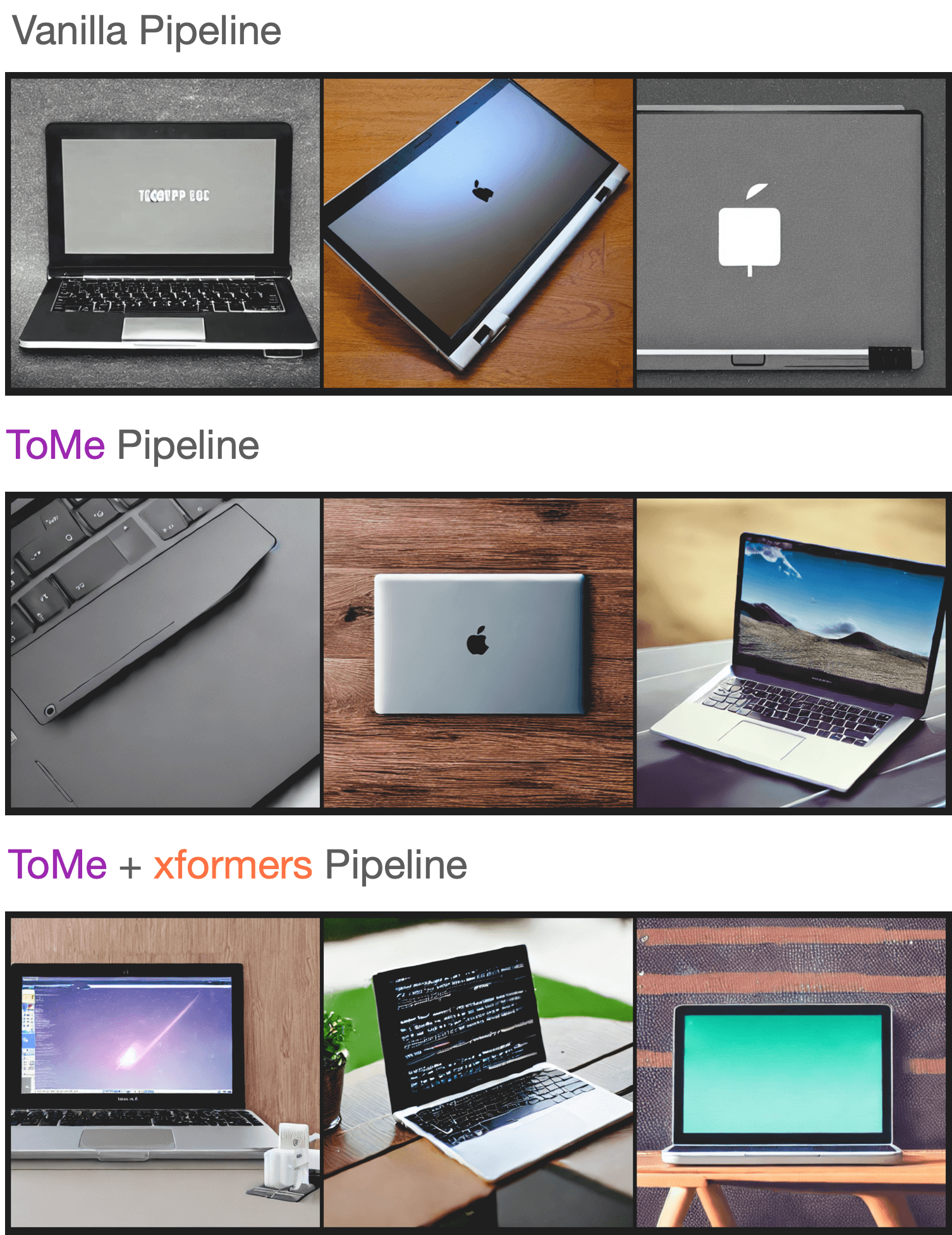
|
||||
|
||||
You can check out the generated samples [here](https://wandb.ai/sayakpaul/tomesd-results/runs/23j4bj3i?workspace=). We used [this script](https://gist.github.com/sayakpaul/8cac98d7f22399085a060992f411ecbd) for conducting this experiment.
|
||||
@@ -10,83 +10,96 @@ an "AS IS" BASIS, WITHOUT WARRANTIES OR CONDITIONS OF ANY KIND, either express o
|
||||
specific language governing permissions and limitations under the License.
|
||||
-->
|
||||
|
||||
# Torch 2.0
|
||||
# Accelerated PyTorch 2.0 support in Diffusers
|
||||
|
||||
🤗 Diffusers supports the latest optimizations from [PyTorch 2.0](https://pytorch.org/get-started/pytorch-2.0/) which include:
|
||||
Starting from version `0.13.0`, Diffusers supports the latest optimization from [PyTorch 2.0](https://pytorch.org/get-started/pytorch-2.0/). These include:
|
||||
1. Support for accelerated transformers implementation with memory-efficient attention – no extra dependencies (such as `xformers`) required.
|
||||
2. [torch.compile](https://pytorch.org/tutorials/intermediate/torch_compile_tutorial.html) support for extra performance boost when individual models are compiled.
|
||||
|
||||
1. A memory-efficient attention implementation, scaled dot product attention, without requiring any extra dependencies such as xFormers.
|
||||
2. [`torch.compile`](https://pytorch.org/tutorials/intermediate/torch_compile_tutorial.html), a just-in-time (JIT) compiler to provide an extra performance boost when individual models are compiled.
|
||||
|
||||
Both of these optimizations require PyTorch 2.0 or later and 🤗 Diffusers > 0.13.0.
|
||||
## Installation
|
||||
|
||||
To benefit from the accelerated attention implementation and `torch.compile()`, you just need to install the latest versions of PyTorch 2.0 from pip, and make sure you are on diffusers 0.13.0 or later. As explained below, diffusers automatically uses the optimized attention processor ([`AttnProcessor2_0`](https://github.com/huggingface/diffusers/blob/1a5797c6d4491a879ea5285c4efc377664e0332d/src/diffusers/models/attention_processor.py#L798)) (but not `torch.compile()`)
|
||||
when PyTorch 2.0 is available.
|
||||
|
||||
```bash
|
||||
pip install --upgrade torch diffusers
|
||||
```
|
||||
|
||||
## Scaled dot product attention
|
||||
## Using accelerated transformers and `torch.compile`.
|
||||
|
||||
[`torch.nn.functional.scaled_dot_product_attention`](https://pytorch.org/docs/master/generated/torch.nn.functional.scaled_dot_product_attention) (SDPA) is an optimized and memory-efficient attention (similar to xFormers) that automatically enables several other optimizations depending on the model inputs and GPU type. SDPA is enabled by default if you're using PyTorch 2.0 and the latest version of 🤗 Diffusers, so you don't need to add anything to your code.
|
||||
|
||||
However, if you want to explicitly enable it, you can set a [`DiffusionPipeline`] to use [`~models.attention_processor.AttnProcessor2_0`]:
|
||||
1. **Accelerated Transformers implementation**
|
||||
|
||||
```diff
|
||||
import torch
|
||||
from diffusers import DiffusionPipeline
|
||||
+ from diffusers.models.attention_processor import AttnProcessor2_0
|
||||
PyTorch 2.0 includes an optimized and memory-efficient attention implementation through the [`torch.nn.functional.scaled_dot_product_attention`](https://pytorch.org/docs/master/generated/torch.nn.functional.scaled_dot_product_attention) function, which automatically enables several optimizations depending on the inputs and the GPU type. This is similar to the `memory_efficient_attention` from [xFormers](https://github.com/facebookresearch/xformers), but built natively into PyTorch.
|
||||
|
||||
pipe = DiffusionPipeline.from_pretrained("runwayml/stable-diffusion-v1-5", torch_dtype=torch.float16, use_safetensors=True).to("cuda")
|
||||
+ pipe.unet.set_attn_processor(AttnProcessor2_0())
|
||||
These optimizations will be enabled by default in Diffusers if PyTorch 2.0 is installed and if `torch.nn.functional.scaled_dot_product_attention` is available. To use it, just install `torch 2.0` as suggested above and simply use the pipeline. For example:
|
||||
|
||||
prompt = "a photo of an astronaut riding a horse on mars"
|
||||
image = pipe(prompt).images[0]
|
||||
```
|
||||
```Python
|
||||
import torch
|
||||
from diffusers import DiffusionPipeline
|
||||
|
||||
SDPA should be as fast and memory efficient as `xFormers`; check the [benchmark](#benchmark) for more details.
|
||||
pipe = DiffusionPipeline.from_pretrained("runwayml/stable-diffusion-v1-5", torch_dtype=torch.float16)
|
||||
pipe = pipe.to("cuda")
|
||||
|
||||
In some cases - such as making the pipeline more deterministic or converting it to other formats - it may be helpful to use the vanilla attention processor, [`~models.attention_processor.AttnProcessor`]. To revert to [`~models.attention_processor.AttnProcessor`], call the [`~UNet2DConditionModel.set_default_attn_processor`] function on the pipeline:
|
||||
prompt = "a photo of an astronaut riding a horse on mars"
|
||||
image = pipe(prompt).images[0]
|
||||
```
|
||||
|
||||
```diff
|
||||
import torch
|
||||
from diffusers import DiffusionPipeline
|
||||
from diffusers.models.attention_processor import AttnProcessor
|
||||
If you want to enable it explicitly (which is not required), you can do so as shown below.
|
||||
|
||||
pipe = DiffusionPipeline.from_pretrained("runwayml/stable-diffusion-v1-5", torch_dtype=torch.float16, use_safetensors=True).to("cuda")
|
||||
+ pipe.unet.set_default_attn_processor()
|
||||
```diff
|
||||
import torch
|
||||
from diffusers import DiffusionPipeline
|
||||
+ from diffusers.models.attention_processor import AttnProcessor2_0
|
||||
|
||||
prompt = "a photo of an astronaut riding a horse on mars"
|
||||
image = pipe(prompt).images[0]
|
||||
```
|
||||
pipe = DiffusionPipeline.from_pretrained("runwayml/stable-diffusion-v1-5", torch_dtype=torch.float16).to("cuda")
|
||||
+ pipe.unet.set_attn_processor(AttnProcessor2_0())
|
||||
|
||||
## torch.compile
|
||||
prompt = "a photo of an astronaut riding a horse on mars"
|
||||
image = pipe(prompt).images[0]
|
||||
```
|
||||
|
||||
The `torch.compile` function can often provide an additional speed-up to your PyTorch code. In 🤗 Diffusers, it is usually best to wrap the UNet with `torch.compile` because it does most of the heavy lifting in the pipeline.
|
||||
This should be as fast and memory efficient as `xFormers`. More details [in our benchmark](#benchmark).
|
||||
|
||||
```python
|
||||
from diffusers import DiffusionPipeline
|
||||
import torch
|
||||
It is possible to revert to the vanilla attention processor ([`AttnProcessor`](https://github.com/huggingface/diffusers/blob/1a5797c6d4491a879ea5285c4efc377664e0332d/src/diffusers/models/attention_processor.py#L402)), which can be helpful to make the pipeline more deterministic, or if you need to convert a fine-tuned model to other formats such as [Core ML](https://huggingface.co/docs/diffusers/v0.16.0/en/optimization/coreml#how-to-run-stable-diffusion-with-core-ml). To use the normal attention processor you can use the [`~diffusers.UNet2DConditionModel.set_default_attn_processor`] function:
|
||||
|
||||
pipe = DiffusionPipeline.from_pretrained("runwayml/stable-diffusion-v1-5", torch_dtype=torch.float16, use_safetensors=True).to("cuda")
|
||||
pipe.unet = torch.compile(pipe.unet, mode="reduce-overhead", fullgraph=True)
|
||||
images = pipe(prompt, num_inference_steps=steps, num_images_per_prompt=batch_size).images[0]
|
||||
```
|
||||
```Python
|
||||
import torch
|
||||
from diffusers import DiffusionPipeline
|
||||
from diffusers.models.attention_processor import AttnProcessor
|
||||
|
||||
Depending on GPU type, `torch.compile` can provide an *additional speed-up* of **5-300x** on top of SDPA! If you're using more recent GPU architectures such as Ampere (A100, 3090), Ada (4090), and Hopper (H100), `torch.compile` is able to squeeze even more performance out of these GPUs.
|
||||
pipe = DiffusionPipeline.from_pretrained("runwayml/stable-diffusion-v1-5", torch_dtype=torch.float16).to("cuda")
|
||||
pipe.unet.set_default_attn_processor()
|
||||
|
||||
Compilation requires some time to complete, so it is best suited for situations where you prepare your pipeline once and then perform the same type of inference operations multiple times. For example, calling the compiled pipeline on a different image size triggers compilation again which can be expensive.
|
||||
prompt = "a photo of an astronaut riding a horse on mars"
|
||||
image = pipe(prompt).images[0]
|
||||
```
|
||||
|
||||
2. **torch.compile**
|
||||
|
||||
To get an additional speedup, we can use the new `torch.compile` feature. Since the UNet of the pipeline is usually the most computationally expensive, we wrap the `unet` with `torch.compile` leaving rest of the sub-models (text encoder and VAE) as is. For more information and different options, refer to the
|
||||
[torch compile docs](https://pytorch.org/tutorials/intermediate/torch_compile_tutorial.html).
|
||||
|
||||
```python
|
||||
pipe.unet = torch.compile(pipe.unet, mode="reduce-overhead", fullgraph=True)
|
||||
images = pipe(prompt, num_inference_steps=steps, num_images_per_prompt=batch_size).images
|
||||
```
|
||||
|
||||
Depending on the type of GPU, `compile()` can yield between **5% - 300%** of _additional speed-up_ over the accelerated transformer optimizations. Note, however, that compilation is able to squeeze more performance improvements in more recent GPU architectures such as Ampere (A100, 3090), Ada (4090) and Hopper (H100).
|
||||
|
||||
Compilation takes some time to complete, so it is best suited for situations where you need to prepare your pipeline once and then perform the same type of inference operations multiple times. Calling the compiled pipeline on a different image size will re-trigger compilation which can be expensive.
|
||||
|
||||
For more information and different options about `torch.compile`, refer to the [`torch_compile`](https://pytorch.org/tutorials/intermediate/torch_compile_tutorial.html) tutorial.
|
||||
|
||||
## Benchmark
|
||||
|
||||
We conducted a comprehensive benchmark with PyTorch 2.0's efficient attention implementation and `torch.compile` across different GPUs and batch sizes for five of our most used pipelines. The code is benchmarked on 🤗 Diffusers v0.17.0.dev0 to optimize `torch.compile` usage (see [here](https://github.com/huggingface/diffusers/pull/3313) for more details).
|
||||
We conducted a comprehensive benchmark with PyTorch 2.0's efficient attention implementation and `torch.compile` across different GPUs and batch sizes for five of our most used pipelines. We used `diffusers 0.17.0.dev0`, which [makes sure `torch.compile()` is leveraged optimally](https://github.com/huggingface/diffusers/pull/3313).
|
||||
|
||||
Expand the dropdown below to find the code used to benchmark each pipeline:
|
||||
### Benchmarking code
|
||||
|
||||
<details>
|
||||
#### Stable Diffusion text-to-image
|
||||
|
||||
### Stable Diffusion text-to-image
|
||||
|
||||
```python
|
||||
```python
|
||||
from diffusers import DiffusionPipeline
|
||||
import torch
|
||||
|
||||
@@ -94,7 +107,7 @@ path = "runwayml/stable-diffusion-v1-5"
|
||||
|
||||
run_compile = True # Set True / False
|
||||
|
||||
pipe = DiffusionPipeline.from_pretrained(path, torch_dtype=torch.float16, use_safetensors=True)
|
||||
pipe = DiffusionPipeline.from_pretrained(path, torch_dtype=torch.float16)
|
||||
pipe = pipe.to("cuda")
|
||||
pipe.unet.to(memory_format=torch.channels_last)
|
||||
|
||||
@@ -108,7 +121,7 @@ for _ in range(3):
|
||||
images = pipe(prompt=prompt).images
|
||||
```
|
||||
|
||||
### Stable Diffusion image-to-image
|
||||
#### Stable Diffusion image-to-image
|
||||
|
||||
```python
|
||||
from diffusers import StableDiffusionImg2ImgPipeline
|
||||
@@ -127,7 +140,7 @@ path = "runwayml/stable-diffusion-v1-5"
|
||||
|
||||
run_compile = True # Set True / False
|
||||
|
||||
pipe = StableDiffusionImg2ImgPipeline.from_pretrained(path, torch_dtype=torch.float16, use_safetensors=True)
|
||||
pipe = StableDiffusionImg2ImgPipeline.from_pretrained(path, torch_dtype=torch.float16)
|
||||
pipe = pipe.to("cuda")
|
||||
pipe.unet.to(memory_format=torch.channels_last)
|
||||
|
||||
@@ -141,7 +154,7 @@ for _ in range(3):
|
||||
image = pipe(prompt=prompt, image=init_image).images[0]
|
||||
```
|
||||
|
||||
### Stable Diffusion inpainting
|
||||
#### Stable Diffusion - inpainting
|
||||
|
||||
```python
|
||||
from diffusers import StableDiffusionInpaintPipeline
|
||||
@@ -167,7 +180,7 @@ path = "runwayml/stable-diffusion-inpainting"
|
||||
|
||||
run_compile = True # Set True / False
|
||||
|
||||
pipe = StableDiffusionInpaintPipeline.from_pretrained(path, torch_dtype=torch.float16, use_safetensors=True)
|
||||
pipe = StableDiffusionInpaintPipeline.from_pretrained(path, torch_dtype=torch.float16)
|
||||
pipe = pipe.to("cuda")
|
||||
pipe.unet.to(memory_format=torch.channels_last)
|
||||
|
||||
@@ -181,7 +194,7 @@ for _ in range(3):
|
||||
image = pipe(prompt=prompt, image=init_image, mask_image=mask_image).images[0]
|
||||
```
|
||||
|
||||
### ControlNet
|
||||
#### ControlNet
|
||||
|
||||
```python
|
||||
from diffusers import StableDiffusionControlNetPipeline, ControlNetModel
|
||||
@@ -199,9 +212,9 @@ init_image = init_image.resize((512, 512))
|
||||
path = "runwayml/stable-diffusion-v1-5"
|
||||
|
||||
run_compile = True # Set True / False
|
||||
controlnet = ControlNetModel.from_pretrained("lllyasviel/sd-controlnet-canny", torch_dtype=torch.float16, use_safetensors=True)
|
||||
controlnet = ControlNetModel.from_pretrained("lllyasviel/sd-controlnet-canny", torch_dtype=torch.float16)
|
||||
pipe = StableDiffusionControlNetPipeline.from_pretrained(
|
||||
path, controlnet=controlnet, torch_dtype=torch.float16, use_safetensors=True
|
||||
path, controlnet=controlnet, torch_dtype=torch.float16
|
||||
)
|
||||
|
||||
pipe = pipe.to("cuda")
|
||||
@@ -219,7 +232,7 @@ for _ in range(3):
|
||||
image = pipe(prompt=prompt, image=init_image).images[0]
|
||||
```
|
||||
|
||||
### DeepFloyd IF text-to-image + upscaling
|
||||
#### IF text-to-image + upscaling
|
||||
|
||||
```python
|
||||
from diffusers import DiffusionPipeline
|
||||
@@ -227,11 +240,11 @@ import torch
|
||||
|
||||
run_compile = True # Set True / False
|
||||
|
||||
pipe = DiffusionPipeline.from_pretrained("DeepFloyd/IF-I-M-v1.0", variant="fp16", text_encoder=None, torch_dtype=torch.float16, use_safetensors=True)
|
||||
pipe = DiffusionPipeline.from_pretrained("DeepFloyd/IF-I-M-v1.0", variant="fp16", text_encoder=None, torch_dtype=torch.float16)
|
||||
pipe.to("cuda")
|
||||
pipe_2 = DiffusionPipeline.from_pretrained("DeepFloyd/IF-II-M-v1.0", variant="fp16", text_encoder=None, torch_dtype=torch.float16, use_safetensors=True)
|
||||
pipe_2 = DiffusionPipeline.from_pretrained("DeepFloyd/IF-II-M-v1.0", variant="fp16", text_encoder=None, torch_dtype=torch.float16)
|
||||
pipe_2.to("cuda")
|
||||
pipe_3 = DiffusionPipeline.from_pretrained("stabilityai/stable-diffusion-x4-upscaler", torch_dtype=torch.float16, use_safetensors=True)
|
||||
pipe_3 = DiffusionPipeline.from_pretrained("stabilityai/stable-diffusion-x4-upscaler", torch_dtype=torch.float16)
|
||||
pipe_3.to("cuda")
|
||||
|
||||
|
||||
@@ -254,18 +267,24 @@ for _ in range(3):
|
||||
image_2 = pipe_2(image=image, prompt_embeds=prompt_embeds, negative_prompt_embeds=neg_prompt_embeds, output_type="pt").images
|
||||
image_3 = pipe_3(prompt=prompt, image=image, noise_level=100).images
|
||||
```
|
||||
</details>
|
||||
|
||||
The graph below highlights the relative speed-ups for the [`StableDiffusionPipeline`] across five GPU families with PyTorch 2.0 and `torch.compile` enabled. The benchmarks for the following graphs are measured in *number of iterations/second*.
|
||||
To give you a pictorial overview of the possible speed-ups that can be obtained with PyTorch 2.0 and `torch.compile()`,
|
||||
here is a plot that shows relative speed-ups for the [Stable Diffusion text-to-image pipeline](StableDiffusionPipeline) across five
|
||||
different GPU families (with a batch size of 4):
|
||||
|
||||
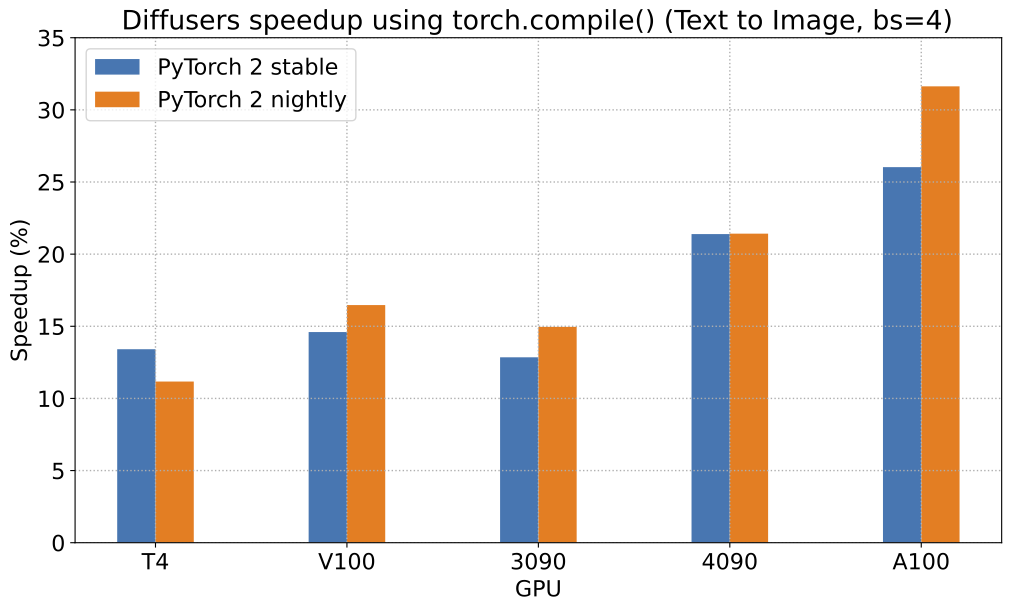
|
||||
|
||||
To give you an even better idea of how this speed-up holds for the other pipelines, consider the following
|
||||
graph for an A100 with PyTorch 2.0 and `torch.compile`:
|
||||
To give you an even better idea of how this speed-up holds for the other pipelines presented above, consider the following
|
||||
plot that shows the benchmarking numbers from an A100 across three different batch sizes
|
||||
(with PyTorch 2.0 nightly and `torch.compile()`):
|
||||
|
||||
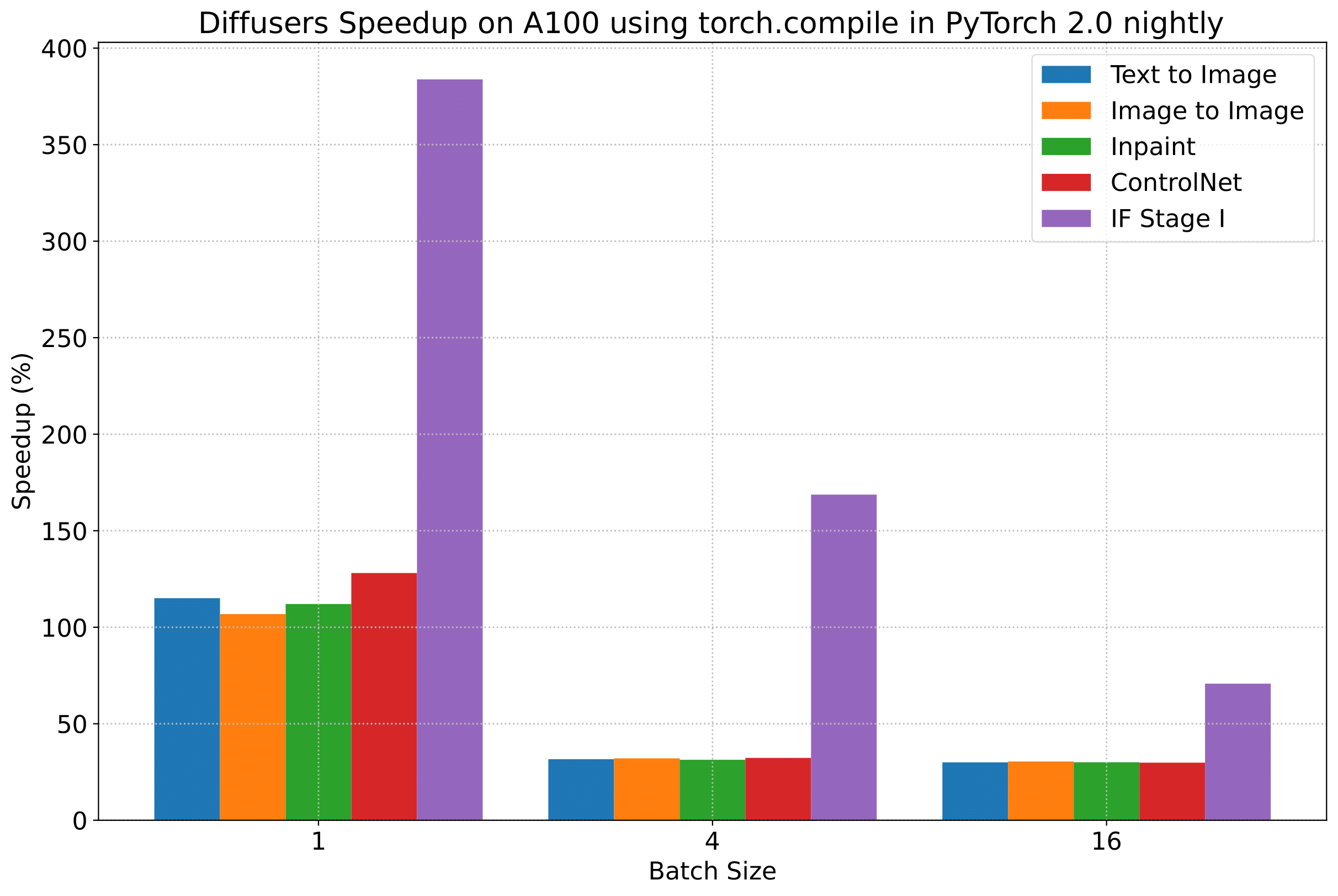
|
||||
|
||||
In the following tables, we report our findings in terms of the *number of iterations/second*.
|
||||
_(Our benchmarking metric for the plots above is **number of iterations/second**)_
|
||||
|
||||
But we reveal all the benchmarking numbers in the interest of transparency!
|
||||
|
||||
In the following tables, we report our findings in terms of the number of **_iterations processed per second_**.
|
||||
|
||||
### A100 (batch size: 1)
|
||||
|
||||
@@ -276,7 +295,6 @@ In the following tables, we report our findings in terms of the *number of itera
|
||||
| SD - inpaint | 22.24 | 23.23 | 43.76 | 49.25 |
|
||||
| SD - controlnet | 15.02 | 15.82 | 32.13 | 36.08 |
|
||||
| IF | 20.21 / <br>13.84 / <br>24.00 | 20.12 / <br>13.70 / <br>24.03 | ❌ | 97.34 / <br>27.23 / <br>111.66 |
|
||||
| SDXL - txt2img | 8.64 | 9.9 | - | - |
|
||||
|
||||
### A100 (batch size: 4)
|
||||
|
||||
@@ -287,7 +305,6 @@ In the following tables, we report our findings in terms of the *number of itera
|
||||
| SD - inpaint | 11.67 | 13.31 | 14.88 | 17.48 |
|
||||
| SD - controlnet | 8.28 | 9.38 | 10.51 | 12.41 |
|
||||
| IF | 25.02 | 18.04 | ❌ | 48.47 |
|
||||
| SDXL - txt2img | 2.44 | 2.74 | - | - |
|
||||
|
||||
### A100 (batch size: 16)
|
||||
|
||||
@@ -298,7 +315,6 @@ In the following tables, we report our findings in terms of the *number of itera
|
||||
| SD - inpaint | 3.04 | 3.66 | 3.9 | 4.76 |
|
||||
| SD - controlnet | 2.15 | 2.58 | 2.74 | 3.35 |
|
||||
| IF | 8.78 | 9.82 | ❌ | 16.77 |
|
||||
| SDXL - txt2img | 0.64 | 0.72 | - | - |
|
||||
|
||||
### V100 (batch size: 1)
|
||||
|
||||
@@ -339,7 +355,6 @@ In the following tables, we report our findings in terms of the *number of itera
|
||||
| SD - inpaint | 6.91 | 6.7 | 7.01 | 7.37 |
|
||||
| SD - controlnet | 4.89 | 4.86 | 5.35 | 5.48 |
|
||||
| IF | 17.42 / <br>2.47 / <br>18.52 | 16.96 / <br>2.45 / <br>18.69 | ❌ | 24.63 / <br>2.47 / <br>23.39 |
|
||||
| SDXL - txt2img | 1.15 | 1.16 | - | - |
|
||||
|
||||
### T4 (batch size: 4)
|
||||
|
||||
@@ -350,7 +365,6 @@ In the following tables, we report our findings in terms of the *number of itera
|
||||
| SD - inpaint | 1.81 | 1.82 | 2.09 | 2.09 |
|
||||
| SD - controlnet | 1.34 | 1.27 | 1.47 | 1.46 |
|
||||
| IF | 5.79 | 5.61 | ❌ | 7.39 |
|
||||
| SDXL - txt2img | 0.288 | 0.289 | - | - |
|
||||
|
||||
### T4 (batch size: 16)
|
||||
|
||||
@@ -361,7 +375,6 @@ In the following tables, we report our findings in terms of the *number of itera
|
||||
| SD - inpaint | 2.30s | 2.26s | OOM after 2nd iteration | 1.95s |
|
||||
| SD - controlnet | OOM after 2nd iteration | OOM after 2nd iteration | OOM after warmup | OOM after warmup |
|
||||
| IF * | 1.44 | 1.44 | ❌ | 1.94 |
|
||||
| SDXL - txt2img | OOM | OOM | - | - |
|
||||
|
||||
### RTX 3090 (batch size: 1)
|
||||
|
||||
@@ -402,7 +415,6 @@ In the following tables, we report our findings in terms of the *number of itera
|
||||
| SD - inpaint | 40.51 | 41.88 | 44.58 | 49.72 |
|
||||
| SD - controlnet | 29.27 | 30.29 | 32.26 | 36.03 |
|
||||
| IF | 69.71 / <br>18.78 / <br>85.49 | 69.13 / <br>18.80 / <br>85.56 | ❌ | 124.60 / <br>26.37 / <br>138.79 |
|
||||
| SDXL - txt2img | 6.8 | 8.18 | - | - |
|
||||
|
||||
### RTX 4090 (batch size: 4)
|
||||
|
||||
@@ -413,7 +425,6 @@ In the following tables, we report our findings in terms of the *number of itera
|
||||
| SD - inpaint | 12.65 | 12.81 | 15.3 | 15.58 |
|
||||
| SD - controlnet | 9.1 | 9.25 | 11.03 | 11.22 |
|
||||
| IF | 31.88 | 31.14 | ❌ | 43.92 |
|
||||
| SDXL - txt2img | 2.19 | 2.35 | - | - |
|
||||
|
||||
### RTX 4090 (batch size: 16)
|
||||
|
||||
@@ -424,11 +435,10 @@ In the following tables, we report our findings in terms of the *number of itera
|
||||
| SD - inpaint | 3.17 | 3.2 | 3.85 | 3.85 |
|
||||
| SD - controlnet | 2.23 | 2.3 | 2.7 | 2.75 |
|
||||
| IF | 9.26 | 9.2 | ❌ | 13.31 |
|
||||
| SDXL - txt2img | 0.52 | 0.53 | - | - |
|
||||
|
||||
## Notes
|
||||
|
||||
* Follow this [PR](https://github.com/huggingface/diffusers/pull/3313) for more details on the environment used for conducting the benchmarks.
|
||||
* For the DeepFloyd IF pipeline where batch sizes > 1, we only used a batch size of > 1 in the first IF pipeline for text-to-image generation and NOT for upscaling. That means the two upscaling pipelines received a batch size of 1.
|
||||
* Follow [this PR](https://github.com/huggingface/diffusers/pull/3313) for more details on the environment used for conducting the benchmarks.
|
||||
* For the IF pipeline and batch sizes > 1, we only used a batch size of >1 in the first IF pipeline for text-to-image generation and NOT for upscaling. So, that means the two upscaling pipelines received a batch size of 1.
|
||||
|
||||
*Thanks to [Horace He](https://github.com/Chillee) from the PyTorch team for their support in improving our support of `torch.compile()` in Diffusers.*
|
||||
*Thanks to [Horace He](https://github.com/Chillee) from the PyTorch team for their support in improving our support of `torch.compile()` in Diffusers.*
|
||||
@@ -10,11 +10,11 @@ an "AS IS" BASIS, WITHOUT WARRANTIES OR CONDITIONS OF ANY KIND, either express o
|
||||
specific language governing permissions and limitations under the License.
|
||||
-->
|
||||
|
||||
# xFormers
|
||||
# Installing xFormers
|
||||
|
||||
We recommend [xFormers](https://github.com/facebookresearch/xformers) for both inference and training. In our tests, the optimizations performed in the attention blocks allow for both faster speed and reduced memory consumption.
|
||||
We recommend the use of [xFormers](https://github.com/facebookresearch/xformers) for both inference and training. In our tests, the optimizations performed in the attention blocks allow for both faster speed and reduced memory consumption.
|
||||
|
||||
Install xFormers from `pip`:
|
||||
Starting from version `0.0.16` of xFormers, released on January 2023, installation can be easily performed using pre-built pip wheels:
|
||||
|
||||
```bash
|
||||
pip install xformers
|
||||
@@ -22,14 +22,14 @@ pip install xformers
|
||||
|
||||
<Tip>
|
||||
|
||||
The xFormers `pip` package requires the latest version of PyTorch. If you need to use a previous version of PyTorch, then we recommend [installing xFormers from the source](https://github.com/facebookresearch/xformers#installing-xformers).
|
||||
The xFormers PIP package requires the latest version of PyTorch (1.13.1 as of xFormers 0.0.16). If you need to use a previous version of PyTorch, then we recommend you install xFormers from source using [the project instructions](https://github.com/facebookresearch/xformers#installing-xformers).
|
||||
|
||||
</Tip>
|
||||
|
||||
After xFormers is installed, you can use `enable_xformers_memory_efficient_attention()` for faster inference and reduced memory consumption as shown in this [section](memory#memory-efficient-attention).
|
||||
After xFormers is installed, you can use `enable_xformers_memory_efficient_attention()` for faster inference and reduced memory consumption, as discussed [here](fp16#memory-efficient-attention).
|
||||
|
||||
<Tip warning={true}>
|
||||
|
||||
According to this [issue](https://github.com/huggingface/diffusers/issues/2234#issuecomment-1416931212), xFormers `v0.0.16` cannot be used for training (fine-tune or DreamBooth) in some GPUs. If you observe this problem, please install a development version as indicated in the issue comments.
|
||||
According to [this issue](https://github.com/huggingface/diffusers/issues/2234#issuecomment-1416931212), xFormers `v0.0.16` cannot be used for training (fine-tune or Dreambooth) in some GPUs. If you observe that problem, please install a development version as indicated in that comment.
|
||||
|
||||
</Tip>
|
||||
|
||||
@@ -67,7 +67,7 @@ Load the model with the [`~DiffusionPipeline.from_pretrained`] method:
|
||||
```python
|
||||
>>> from diffusers import DiffusionPipeline
|
||||
|
||||
>>> pipeline = DiffusionPipeline.from_pretrained("runwayml/stable-diffusion-v1-5", use_safetensors=True)
|
||||
>>> pipeline = DiffusionPipeline.from_pretrained("runwayml/stable-diffusion-v1-5")
|
||||
```
|
||||
|
||||
The [`DiffusionPipeline`] downloads and caches all modeling, tokenization, and scheduling components. You'll see that the Stable Diffusion pipeline is composed of the [`UNet2DConditionModel`] and [`PNDMScheduler`] among other things:
|
||||
@@ -130,7 +130,7 @@ You can also use the pipeline locally. The only difference is you need to downlo
|
||||
Then load the saved weights into the pipeline:
|
||||
|
||||
```python
|
||||
>>> pipeline = DiffusionPipeline.from_pretrained("./stable-diffusion-v1-5", use_safetensors=True)
|
||||
>>> pipeline = DiffusionPipeline.from_pretrained("./stable-diffusion-v1-5")
|
||||
```
|
||||
|
||||
Now you can run the pipeline as you would in the section above.
|
||||
@@ -142,7 +142,7 @@ Different schedulers come with different denoising speeds and quality trade-offs
|
||||
```py
|
||||
>>> from diffusers import EulerDiscreteScheduler
|
||||
|
||||
>>> pipeline = DiffusionPipeline.from_pretrained("runwayml/stable-diffusion-v1-5", use_safetensors=True)
|
||||
>>> pipeline = DiffusionPipeline.from_pretrained("runwayml/stable-diffusion-v1-5")
|
||||
>>> pipeline.scheduler = EulerDiscreteScheduler.from_config(pipeline.scheduler.config)
|
||||
```
|
||||
|
||||
@@ -160,7 +160,7 @@ Models are initiated with the [`~ModelMixin.from_pretrained`] method which also
|
||||
>>> from diffusers import UNet2DModel
|
||||
|
||||
>>> repo_id = "google/ddpm-cat-256"
|
||||
>>> model = UNet2DModel.from_pretrained(repo_id, use_safetensors=True)
|
||||
>>> model = UNet2DModel.from_pretrained(repo_id)
|
||||
```
|
||||
|
||||
To access the model parameters, call `model.config`:
|
||||
|
||||
@@ -26,7 +26,7 @@ Begin by loading the [`runwayml/stable-diffusion-v1-5`](https://huggingface.co/r
|
||||
from diffusers import DiffusionPipeline
|
||||
|
||||
model_id = "runwayml/stable-diffusion-v1-5"
|
||||
pipeline = DiffusionPipeline.from_pretrained(model_id, use_safetensors=True)
|
||||
pipeline = DiffusionPipeline.from_pretrained(model_id)
|
||||
```
|
||||
|
||||
The example prompt you'll use is a portrait of an old warrior chief, but feel free to use your own prompt:
|
||||
@@ -75,7 +75,7 @@ Let's start by loading the model in `float16` and generate an image:
|
||||
```python
|
||||
import torch
|
||||
|
||||
pipeline = DiffusionPipeline.from_pretrained(model_id, torch_dtype=torch.float16, use_safetensors=True)
|
||||
pipeline = DiffusionPipeline.from_pretrained(model_id, torch_dtype=torch.float16)
|
||||
pipeline = pipeline.to("cuda")
|
||||
generator = torch.Generator("cuda").manual_seed(0)
|
||||
image = pipeline(prompt, generator=generator).images[0]
|
||||
@@ -152,13 +152,26 @@ def get_inputs(batch_size=1):
|
||||
return {"prompt": prompts, "generator": generator, "num_inference_steps": num_inference_steps}
|
||||
```
|
||||
|
||||
You'll also need a function that'll display each batch of images:
|
||||
|
||||
```python
|
||||
from PIL import Image
|
||||
|
||||
|
||||
def image_grid(imgs, rows=2, cols=2):
|
||||
w, h = imgs[0].size
|
||||
grid = Image.new("RGB", size=(cols * w, rows * h))
|
||||
|
||||
for i, img in enumerate(imgs):
|
||||
grid.paste(img, box=(i % cols * w, i // cols * h))
|
||||
return grid
|
||||
```
|
||||
|
||||
Start with `batch_size=4` and see how much memory you've consumed:
|
||||
|
||||
```python
|
||||
from diffusers.utils import make_image_grid
|
||||
|
||||
images = pipeline(**get_inputs(batch_size=4)).images
|
||||
make_image_grid(images, 2, 2)
|
||||
image_grid(images)
|
||||
```
|
||||
|
||||
Unless you have a GPU with more RAM, the code above probably returned an `OOM` error! Most of the memory is taken up by the cross-attention layers. Instead of running this operation in a batch, you can run it sequentially to save a significant amount of memory. All you have to do is configure the pipeline to use the [`~DiffusionPipeline.enable_attention_slicing`] function:
|
||||
@@ -171,7 +184,7 @@ Now try increasing the `batch_size` to 8!
|
||||
|
||||
```python
|
||||
images = pipeline(**get_inputs(batch_size=8)).images
|
||||
make_image_grid(images, rows=2, cols=4)
|
||||
image_grid(images, rows=2, cols=4)
|
||||
```
|
||||
|
||||
<div class="flex justify-center">
|
||||
@@ -200,7 +213,7 @@ from diffusers import AutoencoderKL
|
||||
vae = AutoencoderKL.from_pretrained("stabilityai/sd-vae-ft-mse", torch_dtype=torch.float16).to("cuda")
|
||||
pipeline.vae = vae
|
||||
images = pipeline(**get_inputs(batch_size=8)).images
|
||||
make_image_grid(images, rows=2, cols=4)
|
||||
image_grid(images, rows=2, cols=4)
|
||||
```
|
||||
|
||||
<div class="flex justify-center">
|
||||
@@ -225,7 +238,7 @@ Generate a batch of images with the new prompt:
|
||||
|
||||
```python
|
||||
images = pipeline(**get_inputs(batch_size=8)).images
|
||||
make_image_grid(images, rows=2, cols=4)
|
||||
image_grid(images, rows=2, cols=4)
|
||||
```
|
||||
|
||||
<div class="flex justify-center">
|
||||
@@ -244,7 +257,7 @@ prompts = [
|
||||
|
||||
generator = [torch.Generator("cuda").manual_seed(1) for _ in range(len(prompts))]
|
||||
images = pipeline(prompt=prompts, generator=generator, num_inference_steps=25).images
|
||||
make_image_grid(images, 2, 2)
|
||||
image_grid(images)
|
||||
```
|
||||
|
||||
<div class="flex justify-center">
|
||||
|
||||
@@ -11,7 +11,7 @@ A [`UNet2DConditionModel`] by default accepts 4 channels in the [input sample](h
|
||||
```py
|
||||
from diffusers import StableDiffusionPipeline
|
||||
|
||||
pipeline = StableDiffusionPipeline.from_pretrained("runwayml/stable-diffusion-v1-5", use_safetensors=True)
|
||||
pipeline = StableDiffusionPipeline.from_pretrained("runwayml/stable-diffusion-v1-5")
|
||||
pipeline.unet.config["in_channels"]
|
||||
4
|
||||
```
|
||||
@@ -21,7 +21,7 @@ Inpainting requires 9 channels in the input sample. You can check this value in
|
||||
```py
|
||||
from diffusers import StableDiffusionPipeline
|
||||
|
||||
pipeline = StableDiffusionPipeline.from_pretrained("runwayml/stable-diffusion-inpainting", use_safetensors=True)
|
||||
pipeline = StableDiffusionPipeline.from_pretrained("runwayml/stable-diffusion-inpainting")
|
||||
pipeline.unet.config["in_channels"]
|
||||
9
|
||||
```
|
||||
@@ -35,12 +35,7 @@ from diffusers import UNet2DConditionModel
|
||||
|
||||
model_id = "runwayml/stable-diffusion-v1-5"
|
||||
unet = UNet2DConditionModel.from_pretrained(
|
||||
model_id,
|
||||
subfolder="unet",
|
||||
in_channels=9,
|
||||
low_cpu_mem_usage=False,
|
||||
ignore_mismatched_sizes=True,
|
||||
use_safetensors=True,
|
||||
model_id, subfolder="unet", in_channels=9, low_cpu_mem_usage=False, ignore_mismatched_sizes=True
|
||||
)
|
||||
```
|
||||
|
||||
|
||||
@@ -265,7 +265,7 @@ distributed_type: DEEPSPEED
|
||||
|
||||
See [documentation](https://huggingface.co/docs/accelerate/usage_guides/deepspeed) for more DeepSpeed configuration options.
|
||||
|
||||
</Tip>
|
||||
<Tip>
|
||||
|
||||
Changing the default Adam optimizer to DeepSpeed's Adam
|
||||
`deepspeed.ops.adam.DeepSpeedCPUAdam` gives a substantial speedup but
|
||||
@@ -306,9 +306,9 @@ import torch
|
||||
base_model_path = "path to model"
|
||||
controlnet_path = "path to controlnet"
|
||||
|
||||
controlnet = ControlNetModel.from_pretrained(controlnet_path, torch_dtype=torch.float16, use_safetensors=True)
|
||||
controlnet = ControlNetModel.from_pretrained(controlnet_path, torch_dtype=torch.float16)
|
||||
pipe = StableDiffusionControlNetPipeline.from_pretrained(
|
||||
base_model_path, controlnet=controlnet, torch_dtype=torch.float16, use_safetensors=True
|
||||
base_model_path, controlnet=controlnet, torch_dtype=torch.float16
|
||||
)
|
||||
|
||||
# speed up diffusion process with faster scheduler and memory optimization
|
||||
@@ -327,7 +327,3 @@ image = pipe(prompt, num_inference_steps=20, generator=generator, image=control_
|
||||
|
||||
image.save("./output.png")
|
||||
```
|
||||
|
||||
## Stable Diffusion XL
|
||||
|
||||
Training with [Stable Diffusion XL](https://huggingface.co/papers/2307.01952) is also supported via the `train_controlnet_sdxl.py` script. Please refer to the docs [here](https://github.com/huggingface/diffusers/blob/main/examples/controlnet/README_sdxl.md).
|
||||
|
||||
@@ -87,4 +87,4 @@ accelerate launch --mixed_precision="fp16" train_text_to_image.py \
|
||||
|
||||
Now that you've created a dataset, you can plug it into the `train_data_dir` (if your dataset is local) or `dataset_name` (if your dataset is on the Hub) arguments of a training script.
|
||||
|
||||
For your next steps, feel free to try and use your dataset to train a model for [unconditional generation](unconditional_training) or [text-to-image generation](text2image)!
|
||||
For your next steps, feel free to try and use your dataset to train a model for [unconditional generation](uncondtional_training) or [text-to-image generation](text2image)!
|
||||
@@ -69,7 +69,7 @@ write_basic_config()
|
||||
|
||||
Now let's get our dataset. Download dataset from [here](https://www.cs.cmu.edu/~custom-diffusion/assets/data.zip) and unzip it. To use your own dataset, take a look at the [Create a dataset for training](create_dataset) guide.
|
||||
|
||||
We also collect 200 real images using `clip-retrieval` which are combined with the target images in the training dataset as a regularization. This prevents overfitting to the given target image. The following flags enable the regularization `with_prior_preservation`, `real_prior` with `prior_loss_weight=1.`.
|
||||
We also collect 200 real images using `clip-retrieval` which are combined with the target images in the training dataset as a regularization. This prevents overfitting to the the given target image. The following flags enable the regularization `with_prior_preservation`, `real_prior` with `prior_loss_weight=1.`.
|
||||
The `class_prompt` should be the category name same as target image. The collected real images are with text captions similar to the `class_prompt`. The retrieved image are saved in `class_data_dir`. You can disable `real_prior` to use generated images as regularization. To collect the real images use this command first before training.
|
||||
|
||||
```bash
|
||||
@@ -106,7 +106,7 @@ accelerate launch train_custom_diffusion.py \
|
||||
|
||||
**Use `--enable_xformers_memory_efficient_attention` for faster training with lower VRAM requirement (16GB per GPU). Follow [this guide](https://github.com/facebookresearch/xformers) for installation instructions.**
|
||||
|
||||
To track your experiments using Weights and Biases (`wandb`) and to save intermediate results (which we HIGHLY recommend), follow these steps:
|
||||
To track your experiments using Weights and Biases (`wandb`) and to save intermediate results (whcih we HIGHLY recommend), follow these steps:
|
||||
|
||||
* Install `wandb`: `pip install wandb`.
|
||||
* Authorize: `wandb login`.
|
||||
@@ -222,9 +222,7 @@ Once you have trained a model using the above command, you can run inference usi
|
||||
import torch
|
||||
from diffusers import DiffusionPipeline
|
||||
|
||||
pipe = DiffusionPipeline.from_pretrained(
|
||||
"CompVis/stable-diffusion-v1-4", torch_dtype=torch.float16, use_safetensors=True
|
||||
).to("cuda")
|
||||
pipe = DiffusionPipeline.from_pretrained("CompVis/stable-diffusion-v1-4", torch_dtype=torch.float16).to("cuda")
|
||||
pipe.unet.load_attn_procs("path-to-save-model", weight_name="pytorch_custom_diffusion_weights.bin")
|
||||
pipe.load_textual_inversion("path-to-save-model", weight_name="<new1>.bin")
|
||||
|
||||
@@ -248,7 +246,7 @@ model_id = "sayakpaul/custom-diffusion-cat"
|
||||
card = RepoCard.load(model_id)
|
||||
base_model_id = card.data.to_dict()["base_model"]
|
||||
|
||||
pipe = DiffusionPipeline.from_pretrained(base_model_id, torch_dtype=torch.float16, use_safetensors=True).to("cuda")
|
||||
pipe = DiffusionPipeline.from_pretrained(base_model_id, torch_dtype=torch.float16).to("cuda")
|
||||
pipe.unet.load_attn_procs(model_id, weight_name="pytorch_custom_diffusion_weights.bin")
|
||||
pipe.load_textual_inversion(model_id, weight_name="<new1>.bin")
|
||||
|
||||
@@ -272,7 +270,7 @@ model_id = "sayakpaul/custom-diffusion-cat-wooden-pot"
|
||||
card = RepoCard.load(model_id)
|
||||
base_model_id = card.data.to_dict()["base_model"]
|
||||
|
||||
pipe = DiffusionPipeline.from_pretrained(base_model_id, torch_dtype=torch.float16, use_safetensors=True).to("cuda")
|
||||
pipe = DiffusionPipeline.from_pretrained(base_model_id, torch_dtype=torch.float16).to("cuda")
|
||||
pipe.unet.load_attn_procs(model_id, weight_name="pytorch_custom_diffusion_weights.bin")
|
||||
pipe.load_textual_inversion(model_id, weight_name="<new1>.bin")
|
||||
pipe.load_textual_inversion(model_id, weight_name="<new2>.bin")
|
||||
|
||||
@@ -1,17 +0,0 @@
|
||||
<!--Copyright 2023 The HuggingFace Team. All rights reserved.
|
||||
|
||||
Licensed under the Apache License, Version 2.0 (the "License"); you may not use this file except in compliance with
|
||||
the License. You may obtain a copy of the License at
|
||||
|
||||
http://www.apache.org/licenses/LICENSE-2.0
|
||||
|
||||
Unless required by applicable law or agreed to in writing, software distributed under the License is distributed on
|
||||
an "AS IS" BASIS, WITHOUT WARRANTIES OR CONDITIONS OF ANY KIND, either express or implied. See the License for the
|
||||
specific language governing permissions and limitations under the License.
|
||||
-->
|
||||
|
||||
# Reinforcement learning training with DDPO
|
||||
|
||||
You can fine-tune Stable Diffusion on a reward function via reinforcement learning with the 🤗 TRL library and 🤗 Diffusers. This is done with the Denoising Diffusion Policy Optimization (DDPO) algorithm introduced by Black et al. in [Training Diffusion Models with Reinforcement Learning](https://arxiv.org/abs/2305.13301), which is implemented in 🤗 TRL with the [`~trl.DDPOTrainer`].
|
||||
|
||||
For more information, check out the [`~trl.DDPOTrainer`] API reference and the [Finetune Stable Diffusion Models with DDPO via TRL](https://huggingface.co/blog/trl-ddpo) blog post.
|
||||
@@ -16,9 +16,7 @@ Now use the [`~accelerate.PartialState.split_between_processes`] utility as a co
|
||||
from accelerate import PartialState
|
||||
from diffusers import DiffusionPipeline
|
||||
|
||||
pipeline = DiffusionPipeline.from_pretrained(
|
||||
"runwayml/stable-diffusion-v1-5", torch_dtype=torch.float16, use_safetensors=True
|
||||
)
|
||||
pipeline = DiffusionPipeline.from_pretrained("runwayml/stable-diffusion-v1-5", torch_dtype=torch.float16)
|
||||
distributed_state = PartialState()
|
||||
pipeline.to(distributed_state.device)
|
||||
|
||||
@@ -52,9 +50,7 @@ import torch.multiprocessing as mp
|
||||
|
||||
from diffusers import DiffusionPipeline
|
||||
|
||||
sd = DiffusionPipeline.from_pretrained(
|
||||
"runwayml/stable-diffusion-v1-5", torch_dtype=torch.float16, use_safetensors=True
|
||||
)
|
||||
sd = DiffusionPipeline.from_pretrained("runwayml/stable-diffusion-v1-5", torch_dtype=torch.float16)
|
||||
```
|
||||
|
||||
You'll want to create a function to run inference; [`init_process_group`](https://pytorch.org/docs/stable/distributed.html?highlight=init_process_group#torch.distributed.init_process_group) handles creating a distributed environment with the type of backend to use, the `rank` of the current process, and the `world_size` or the number of processes participating. If you're running inference in parallel over 2 GPUs, then the `world_size` is 2.
|
||||
|
||||
@@ -303,9 +303,7 @@ unet = UNet2DConditionModel.from_pretrained("/sddata/dreambooth/daruma-v2-1/chec
|
||||
# if you have trained with `--args.train_text_encoder` make sure to also load the text encoder
|
||||
text_encoder = CLIPTextModel.from_pretrained("/sddata/dreambooth/daruma-v2-1/checkpoint-100/text_encoder")
|
||||
|
||||
pipeline = DiffusionPipeline.from_pretrained(
|
||||
model_id, unet=unet, text_encoder=text_encoder, dtype=torch.float16, use_safetensors=True
|
||||
)
|
||||
pipeline = DiffusionPipeline.from_pretrained(model_id, unet=unet, text_encoder=text_encoder, dtype=torch.float16)
|
||||
pipeline.to("cuda")
|
||||
|
||||
# Perform inference, or save, or push to the hub
|
||||
@@ -320,7 +318,7 @@ from diffusers import DiffusionPipeline
|
||||
|
||||
# Load the pipeline with the same arguments (model, revision) that were used for training
|
||||
model_id = "CompVis/stable-diffusion-v1-4"
|
||||
pipeline = DiffusionPipeline.from_pretrained(model_id, use_safetensors=True)
|
||||
pipeline = DiffusionPipeline.from_pretrained(model_id)
|
||||
|
||||
accelerator = Accelerator()
|
||||
|
||||
@@ -335,7 +333,6 @@ pipeline = DiffusionPipeline.from_pretrained(
|
||||
model_id,
|
||||
unet=accelerator.unwrap_model(unet),
|
||||
text_encoder=accelerator.unwrap_model(text_encoder),
|
||||
use_safetensors=True,
|
||||
)
|
||||
|
||||
# Perform inference, or save, or push to the hub
|
||||
@@ -491,7 +488,7 @@ from diffusers import DiffusionPipeline
|
||||
import torch
|
||||
|
||||
model_id = "path_to_saved_model"
|
||||
pipe = DiffusionPipeline.from_pretrained(model_id, torch_dtype=torch.float16, use_safetensors=True).to("cuda")
|
||||
pipe = DiffusionPipeline.from_pretrained(model_id, torch_dtype=torch.float16).to("cuda")
|
||||
|
||||
prompt = "A photo of sks dog in a bucket"
|
||||
image = pipe(prompt, num_inference_steps=50, guidance_scale=7.5).images[0]
|
||||
@@ -513,7 +510,7 @@ must also update the pipeline's scheduler config.
|
||||
```py
|
||||
from diffusers import DiffusionPipeline
|
||||
|
||||
pipe = DiffusionPipeline.from_pretrained("DeepFloyd/IF-I-XL-v1.0", use_safetensors=True)
|
||||
pipe = DiffusionPipeline.from_pretrained("DeepFloyd/IF-I-XL-v1.0")
|
||||
|
||||
pipe.load_lora_weights("<lora weights path>")
|
||||
|
||||
@@ -707,4 +704,4 @@ accelerate launch train_dreambooth.py \
|
||||
|
||||
## Stable Diffusion XL
|
||||
|
||||
We support fine-tuning of the UNet and text encoders shipped in [Stable Diffusion XL](https://huggingface.co/papers/2307.01952) with DreamBooth and LoRA via the `train_dreambooth_lora_sdxl.py` script. Please refer to the docs [here](https://github.com/huggingface/diffusers/blob/main/examples/dreambooth/README_sdxl.md).
|
||||
We support fine-tuning of the UNet shipped in [Stable Diffusion XL](https://huggingface.co/papers/2307.01952) with DreamBooth and LoRA via the `train_dreambooth_lora_sdxl.py` script. Please refer to the docs [here](https://github.com/huggingface/diffusers/blob/main/examples/dreambooth/README_sdxl.md).
|
||||
@@ -165,9 +165,7 @@ import torch
|
||||
from diffusers import StableDiffusionInstructPix2PixPipeline
|
||||
|
||||
model_id = "your_model_id" # <- replace this
|
||||
pipe = StableDiffusionInstructPix2PixPipeline.from_pretrained(
|
||||
model_id, torch_dtype=torch.float16, use_safetensors=True
|
||||
).to("cuda")
|
||||
pipe = StableDiffusionInstructPix2PixPipeline.from_pretrained(model_id, torch_dtype=torch.float16).to("cuda")
|
||||
generator = torch.Generator("cuda").manual_seed(0)
|
||||
|
||||
url = "https://huggingface.co/datasets/sayakpaul/sample-datasets/resolve/main/test_pix2pix_4.png"
|
||||
@@ -214,4 +212,4 @@ If you're looking for some interesting ways to use the InstructPix2Pix training
|
||||
|
||||
## Stable Diffusion XL
|
||||
|
||||
Training with [Stable Diffusion XL](https://huggingface.co/papers/2307.01952) is also supported via the `train_instruct_pix2pix_sdxl.py` script. Please refer to the docs [here](https://github.com/huggingface/diffusers/blob/main/examples/instruct_pix2pix/README_sdxl.md).
|
||||
We support fine-tuning of the UNet shipped in [Stable Diffusion XL](https://huggingface.co/papers/2307.01952) with DreamBooth and LoRA via the `train_dreambooth_lora_sdxl.py` script. Please refer to the docs [here](https://github.com/huggingface/diffusers/blob/main/examples/instruct_pix2pix/README_sdxl.md).
|
||||
@@ -34,7 +34,7 @@ the attention layers of a language model is sufficient to obtain good downstream
|
||||
|
||||
[cloneofsimo](https://github.com/cloneofsimo) was the first to try out LoRA training for Stable Diffusion in the popular [lora](https://github.com/cloneofsimo/lora) GitHub repository. 🧨 Diffusers now supports finetuning with LoRA for [text-to-image generation](https://github.com/huggingface/diffusers/tree/main/examples/text_to_image#training-with-lora) and [DreamBooth](https://github.com/huggingface/diffusers/tree/main/examples/dreambooth#training-with-low-rank-adaptation-of-large-language-models-lora). This guide will show you how to do both.
|
||||
|
||||
If you'd like to store or share your model with the community, login to your Hugging Face account (create [one](https://hf.co/join) if you don't have one already):
|
||||
If you'd like to store or share your model with the community, login to your Hugging Face account (create [one](hf.co/join) if you don't have one already):
|
||||
|
||||
```bash
|
||||
huggingface-cli login
|
||||
@@ -98,7 +98,7 @@ Now you can use the model for inference by loading the base model in the [`Stabl
|
||||
|
||||
>>> model_base = "runwayml/stable-diffusion-v1-5"
|
||||
|
||||
>>> pipe = StableDiffusionPipeline.from_pretrained(model_base, torch_dtype=torch.float16, use_safetensors=True)
|
||||
>>> pipe = StableDiffusionPipeline.from_pretrained(model_base, torch_dtype=torch.float16)
|
||||
>>> pipe.scheduler = DPMSolverMultistepScheduler.from_config(pipe.scheduler.config)
|
||||
```
|
||||
|
||||
@@ -137,7 +137,7 @@ lora_model_id = "sayakpaul/sd-model-finetuned-lora-t4"
|
||||
card = RepoCard.load(lora_model_id)
|
||||
base_model_id = card.data.to_dict()["base_model"]
|
||||
|
||||
pipe = StableDiffusionPipeline.from_pretrained(base_model_id, torch_dtype=torch.float16, use_safetensors=True)
|
||||
pipe = StableDiffusionPipeline.from_pretrained(base_model_id, torch_dtype=torch.float16)
|
||||
...
|
||||
```
|
||||
|
||||
@@ -211,7 +211,7 @@ Now you can use the model for inference by loading the base model in the [`Stabl
|
||||
|
||||
>>> model_base = "runwayml/stable-diffusion-v1-5"
|
||||
|
||||
>>> pipe = StableDiffusionPipeline.from_pretrained(model_base, torch_dtype=torch.float16, use_safetensors=True)
|
||||
>>> pipe = StableDiffusionPipeline.from_pretrained(model_base, torch_dtype=torch.float16)
|
||||
```
|
||||
|
||||
Load the LoRA weights from your finetuned DreamBooth model *on top of the base model weights*, and then move the pipeline to a GPU for faster inference. When you merge the LoRA weights with the frozen pretrained model weights, you can optionally adjust how much of the weights to merge with the `scale` parameter:
|
||||
@@ -251,7 +251,7 @@ lora_model_id = "sayakpaul/dreambooth-text-encoder-test"
|
||||
card = RepoCard.load(lora_model_id)
|
||||
base_model_id = card.data.to_dict()["base_model"]
|
||||
|
||||
pipe = StableDiffusionPipeline.from_pretrained(base_model_id, torch_dtype=torch.float16, use_safetensors=True)
|
||||
pipe = StableDiffusionPipeline.from_pretrained(base_model_id, torch_dtype=torch.float16)
|
||||
pipe = pipe.to("cuda")
|
||||
pipe.load_lora_weights(lora_model_id)
|
||||
image = pipe("A picture of a sks dog in a bucket", num_inference_steps=25).images[0]
|
||||
@@ -276,167 +276,20 @@ Note that the use of [`~diffusers.loaders.LoraLoaderMixin.load_lora_weights`] is
|
||||
|
||||
* LoRA parameters that have separate identifiers for the UNet and the text encoder such as: [`"sayakpaul/dreambooth"`](https://huggingface.co/sayakpaul/dreambooth).
|
||||
|
||||
<Tip>
|
||||
|
||||
You can also provide a local directory path to [`~diffusers.loaders.LoraLoaderMixin.load_lora_weights`] as well as [`~diffusers.loaders.UNet2DConditionLoadersMixin.load_attn_procs`].
|
||||
|
||||
</Tip>
|
||||
|
||||
## Stable Diffusion XL
|
||||
|
||||
We support fine-tuning with [Stable Diffusion XL](https://huggingface.co/papers/2307.01952). Please refer to the following docs:
|
||||
|
||||
* [text_to_image/README_sdxl.md](https://github.com/huggingface/diffusers/blob/main/examples/text_to_image/README_sdxl.md)
|
||||
* [dreambooth/README_sdxl.md](https://github.com/huggingface/diffusers/blob/main/examples/dreambooth/README_sdxl.md)
|
||||
**Note** that it is possible to provide a local directory path to [`~diffusers.loaders.LoraLoaderMixin.load_lora_weights`] as well as [`~diffusers.loaders.UNet2DConditionLoadersMixin.load_attn_procs`]. To know about the supported inputs,
|
||||
refer to the respective docstrings.
|
||||
|
||||
## Unloading LoRA parameters
|
||||
|
||||
You can call [`~diffusers.loaders.LoraLoaderMixin.unload_lora_weights`] on a pipeline to unload the LoRA parameters.
|
||||
|
||||
## Fusing LoRA parameters
|
||||
## Supporting A1111 themed LoRA checkpoints from Diffusers
|
||||
|
||||
You can call [`~diffusers.loaders.LoraLoaderMixin.fuse_lora`] on a pipeline to merge the LoRA parameters with the original parameters of the underlying model(s). This can lead to a potential speedup in the inference latency.
|
||||
This support was made possible because of our amazing contributors: [@takuma104](https://github.com/takuma104) and [@isidentical](https://github.com/isidentical).
|
||||
|
||||
## Unfusing LoRA parameters
|
||||
|
||||
To undo `fuse_lora`, call [`~diffusers.loaders.LoraLoaderMixin.unfuse_lora`] on a pipeline.
|
||||
|
||||
## Working with different LoRA scales when using LoRA fusion
|
||||
|
||||
If you need to use `scale` when working with `fuse_lora()` to control the influence of the LoRA parameters on the outputs, you should specify `lora_scale` within `fuse_lora()`. Passing the `scale` parameter to `cross_attention_kwargs` when you call the pipeline won't work.
|
||||
|
||||
To use a different `lora_scale` with `fuse_lora()`, you should first call `unfuse_lora()` on the corresponding pipeline and call `fuse_lora()` again with the expected `lora_scale`.
|
||||
|
||||
```python
|
||||
from diffusers import DiffusionPipeline
|
||||
import torch
|
||||
|
||||
pipe = DiffusionPipeline.from_pretrained("stabilityai/stable-diffusion-xl-base-1.0", torch_dtype=torch.float16).to("cuda")
|
||||
lora_model_id = "hf-internal-testing/sdxl-1.0-lora"
|
||||
lora_filename = "sd_xl_offset_example-lora_1.0.safetensors"
|
||||
pipe.load_lora_weights(lora_model_id, weight_name=lora_filename)
|
||||
|
||||
# This uses a default `lora_scale` of 1.0.
|
||||
pipe.fuse_lora()
|
||||
|
||||
generator = torch.manual_seed(0)
|
||||
images_fusion = pipe(
|
||||
"masterpiece, best quality, mountain", generator=generator, num_inference_steps=2
|
||||
).images
|
||||
|
||||
# To work with a different `lora_scale`, first reverse the effects of `fuse_lora()`.
|
||||
pipe.unfuse_lora()
|
||||
|
||||
# Then proceed as follows.
|
||||
pipe.load_lora_weights(lora_model_id, weight_name=lora_filename)
|
||||
pipe.fuse_lora(lora_scale=0.5)
|
||||
|
||||
generator = torch.manual_seed(0)
|
||||
images_fusion = pipe(
|
||||
"masterpiece, best quality, mountain", generator=generator, num_inference_steps=2
|
||||
).images
|
||||
```
|
||||
|
||||
## Serializing pipelines with fused LoRA parameters
|
||||
|
||||
Let's say you want to load the pipeline above that has its UNet fused with the LoRA parameters. You can easily do so by simply calling the `save_pretrained()` method on `pipe`.
|
||||
|
||||
After loading the LoRA parameters into a pipeline, if you want to serialize the pipeline such that the affected model components are already fused with the LoRA parameters, you should:
|
||||
|
||||
* call `fuse_lora()` on the pipeline with the desired `lora_scale`, given you've already loaded the LoRA parameters into it.
|
||||
* call `save_pretrained()` on the pipeline.
|
||||
|
||||
Here is a complete example:
|
||||
|
||||
```python
|
||||
from diffusers import DiffusionPipeline
|
||||
import torch
|
||||
|
||||
pipe = DiffusionPipeline.from_pretrained("stabilityai/stable-diffusion-xl-base-1.0", torch_dtype=torch.float16).to("cuda")
|
||||
lora_model_id = "hf-internal-testing/sdxl-1.0-lora"
|
||||
lora_filename = "sd_xl_offset_example-lora_1.0.safetensors"
|
||||
pipe.load_lora_weights(lora_model_id, weight_name=lora_filename)
|
||||
|
||||
# First, fuse the LoRA parameters.
|
||||
pipe.fuse_lora()
|
||||
|
||||
# Then save.
|
||||
pipe.save_pretrained("my-pipeline-with-fused-lora")
|
||||
```
|
||||
|
||||
Now, you can load the pipeline and directly perform inference without having to load the LoRA parameters again:
|
||||
|
||||
```python
|
||||
from diffusers import DiffusionPipeline
|
||||
import torch
|
||||
|
||||
pipe = DiffusionPipeline.from_pretrained("my-pipeline-with-fused-lora", torch_dtype=torch.float16).to("cuda")
|
||||
|
||||
generator = torch.manual_seed(0)
|
||||
images_fusion = pipe(
|
||||
"masterpiece, best quality, mountain", generator=generator, num_inference_steps=2
|
||||
).images
|
||||
```
|
||||
|
||||
## Working with multiple LoRA checkpoints
|
||||
|
||||
With the `fuse_lora()` method as described above, it's possible to load multiple LoRA checkpoints. Let's work through a complete example. First we load the base pipeline:
|
||||
|
||||
```python
|
||||
from diffusers import StableDiffusionXLPipeline, AutoencoderKL
|
||||
import torch
|
||||
|
||||
vae = AutoencoderKL.from_pretrained("madebyollin/sdxl-vae-fp16-fix", torch_dtype=torch.float16)
|
||||
pipe = StableDiffusionXLPipeline.from_pretrained(
|
||||
"stabilityai/stable-diffusion-xl-base-1.0",
|
||||
vae=vae,
|
||||
torch_dtype=torch.float16,
|
||||
)
|
||||
pipe.to("cuda")
|
||||
```
|
||||
|
||||
Then let's two LoRA checkpoints and fuse them with specific `lora_scale` values:
|
||||
|
||||
```python
|
||||
# LoRA one.
|
||||
pipe.load_lora_weights("goofyai/cyborg_style_xl")
|
||||
pipe.fuse_lora(lora_scale=0.7)
|
||||
|
||||
# LoRA two.
|
||||
pipe.load_lora_weights("TheLastBen/Pikachu_SDXL")
|
||||
pipe.fuse_lora(lora_scale=0.7)
|
||||
```
|
||||
|
||||
<Tip>
|
||||
|
||||
Play with the `lora_scale` parameter when working with multiple LoRAs to control the amount of their influence on the final outputs.
|
||||
|
||||
</Tip>
|
||||
|
||||
Let's see them in action:
|
||||
|
||||
```python
|
||||
prompt = "cyborg style pikachu"
|
||||
image = pipe(prompt, num_inference_steps=30, guidance_scale=7.5).images[0]
|
||||
```
|
||||
|
||||
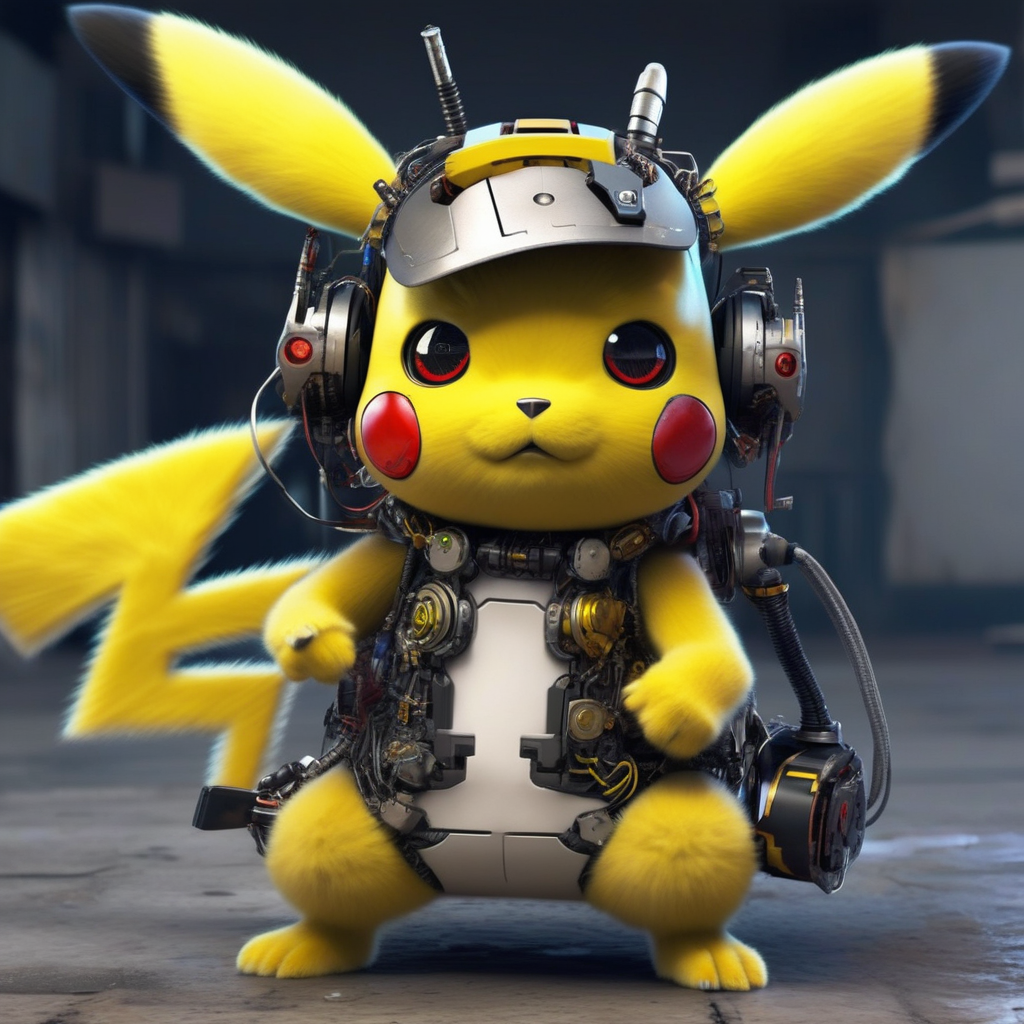
|
||||
|
||||
<Tip warning={true}>
|
||||
|
||||
Currently, unfusing multiple LoRA checkpoints is not possible.
|
||||
|
||||
</Tip>
|
||||
|
||||
## Supporting different LoRA checkpoints from Diffusers
|
||||
|
||||
🤗 Diffusers supports loading checkpoints from popular LoRA trainers such as [Kohya](https://github.com/kohya-ss/sd-scripts/) and [TheLastBen](https://github.com/TheLastBen/fast-stable-diffusion). In this section, we outline the current API's details and limitations.
|
||||
|
||||
### Kohya
|
||||
|
||||
This support was made possible because of the amazing contributors: [@takuma104](https://github.com/takuma104) and [@isidentical](https://github.com/isidentical).
|
||||
|
||||
We support loading Kohya LoRA checkpoints using [`~diffusers.loaders.LoraLoaderMixin.load_lora_weights`]. In this section, we explain how to load such a checkpoint from [CivitAI](https://civitai.com/)
|
||||
To provide seamless interoperability with A1111 to our users, we support loading A1111 formatted
|
||||
LoRA checkpoints using [`~diffusers.loaders.LoraLoaderMixin.load_lora_weights`] in a limited capacity.
|
||||
In this section, we explain how to load an A1111 formatted LoRA checkpoint from [CivitAI](https://civitai.com/)
|
||||
in Diffusers and perform inference with it.
|
||||
|
||||
First, download a checkpoint. We'll use
|
||||
@@ -454,7 +307,7 @@ import torch
|
||||
from diffusers import StableDiffusionPipeline, DPMSolverMultistepScheduler
|
||||
|
||||
pipeline = StableDiffusionPipeline.from_pretrained(
|
||||
"gsdf/Counterfeit-V2.5", torch_dtype=torch.float16, safety_checker=None, use_safetensors=True
|
||||
"gsdf/Counterfeit-V2.5", torch_dtype=torch.float16, safety_checker=None
|
||||
).to("cuda")
|
||||
pipeline.scheduler = DPMSolverMultistepScheduler.from_config(
|
||||
pipeline.scheduler.config, use_karras_sigmas=True
|
||||
@@ -501,78 +354,4 @@ directly with [`~diffusers.loaders.LoraLoaderMixin.load_lora_weights`] like so:
|
||||
lora_model_id = "sayakpaul/civitai-light-shadow-lora"
|
||||
lora_filename = "light_and_shadow.safetensors"
|
||||
pipeline.load_lora_weights(lora_model_id, weight_name=lora_filename)
|
||||
```
|
||||
|
||||
### Kohya + Stable Diffusion XL
|
||||
|
||||
After the release of [Stable Diffusion XL](https://huggingface.co/papers/2307.01952), the community contributed some amazing LoRA checkpoints trained on top of it with the Kohya trainer.
|
||||
|
||||
Here are some example checkpoints we tried out:
|
||||
|
||||
* SDXL 0.9:
|
||||
* https://civitai.com/models/22279?modelVersionId=118556
|
||||
* https://civitai.com/models/104515/sdxlor30costumesrevue-starlight-saijoclaudine-lora
|
||||
* https://civitai.com/models/108448/daiton-sdxl-test
|
||||
* https://filebin.net/2ntfqqnapiu9q3zx/pixelbuildings128-v1.safetensors
|
||||
* SDXL 1.0:
|
||||
* https://huggingface.co/stabilityai/stable-diffusion-xl-base-1.0/blob/main/sd_xl_offset_example-lora_1.0.safetensors
|
||||
|
||||
Here is an example of how to perform inference with these checkpoints in `diffusers`:
|
||||
|
||||
```python
|
||||
from diffusers import DiffusionPipeline
|
||||
import torch
|
||||
|
||||
base_model_id = "stabilityai/stable-diffusion-xl-base-0.9"
|
||||
pipeline = DiffusionPipeline.from_pretrained(base_model_id, torch_dtype=torch.float16).to("cuda")
|
||||
pipeline.load_lora_weights(".", weight_name="Kamepan.safetensors")
|
||||
|
||||
prompt = "anime screencap, glint, drawing, best quality, light smile, shy, a full body of a girl wearing wedding dress in the middle of the forest beneath the trees, fireflies, big eyes, 2d, cute, anime girl, waifu, cel shading, magical girl, vivid colors, (outline:1.1), manga anime artstyle, masterpiece, official wallpaper, glint <lora:kame_sdxl_v2:1>"
|
||||
negative_prompt = "(deformed, bad quality, sketch, depth of field, blurry:1.1), grainy, bad anatomy, bad perspective, old, ugly, realistic, cartoon, disney, bad proportions"
|
||||
generator = torch.manual_seed(2947883060)
|
||||
num_inference_steps = 30
|
||||
guidance_scale = 7
|
||||
|
||||
image = pipeline(
|
||||
prompt=prompt, negative_prompt=negative_prompt, num_inference_steps=num_inference_steps,
|
||||
generator=generator, guidance_scale=guidance_scale
|
||||
).images[0]
|
||||
image.save("Kamepan.png")
|
||||
```
|
||||
|
||||
`Kamepan.safetensors` comes from https://civitai.com/models/22279?modelVersionId=118556 .
|
||||
|
||||
If you notice carefully, the inference UX is exactly identical to what we presented in the sections above.
|
||||
|
||||
Thanks to [@isidentical](https://github.com/isidentical) for helping us on integrating this feature.
|
||||
|
||||
<Tip warning={true}>
|
||||
|
||||
**Known limitations specific to the Kohya LoRAs**:
|
||||
|
||||
* When images don't looks similar to other UIs, such as ComfyUI, it can be because of multiple reasons, as explained [here](https://github.com/huggingface/diffusers/pull/4287/#issuecomment-1655110736).
|
||||
* We don't fully support [LyCORIS checkpoints](https://github.com/KohakuBlueleaf/LyCORIS). To the best of our knowledge, our current `load_lora_weights()` should support LyCORIS checkpoints that have LoRA and LoCon modules but not the other ones, such as Hada, LoKR, etc.
|
||||
|
||||
</Tip>
|
||||
|
||||
### TheLastBen
|
||||
|
||||
Here is an example:
|
||||
|
||||
```python
|
||||
from diffusers import DiffusionPipeline
|
||||
import torch
|
||||
|
||||
pipeline_id = "Lykon/dreamshaper-xl-1-0"
|
||||
|
||||
pipe = DiffusionPipeline.from_pretrained(pipeline_id, torch_dtype=torch.float16)
|
||||
pipe.enable_model_cpu_offload()
|
||||
|
||||
lora_model_id = "TheLastBen/Papercut_SDXL"
|
||||
lora_filename = "papercut.safetensors"
|
||||
pipe.load_lora_weights(lora_model_id, weight_name=lora_filename)
|
||||
|
||||
prompt = "papercut sonic"
|
||||
image = pipe(prompt=prompt, num_inference_steps=20, generator=torch.manual_seed(0)).images[0]
|
||||
image
|
||||
```
|
||||
```
|
||||
@@ -34,16 +34,13 @@ If you feel like another important example should exist, we are more than happy
|
||||
Training examples show how to pretrain or fine-tune diffusion models for a variety of tasks. Currently we support:
|
||||
|
||||
- [Unconditional Training](./unconditional_training)
|
||||
- [Text-to-Image Training](./text2image)<sup>*</sup>
|
||||
- [Text-to-Image Training](./text2image)
|
||||
- [Text Inversion](./text_inversion)
|
||||
- [Dreambooth](./dreambooth)<sup>*</sup>
|
||||
- [LoRA Support](./lora)<sup>*</sup>
|
||||
- [ControlNet](./controlnet)<sup>*</sup>
|
||||
- [InstructPix2Pix](./instructpix2pix)<sup>*</sup>
|
||||
- [Dreambooth](./dreambooth)
|
||||
- [LoRA Support](./lora)
|
||||
- [ControlNet](./controlnet)
|
||||
- [InstructPix2Pix](./instructpix2pix)
|
||||
- [Custom Diffusion](./custom_diffusion)
|
||||
- [T2I-Adapters](./t2i_adapters)<sup>*</sup>
|
||||
|
||||
<sup>*</sup>: Supports [Stable Diffusion XL](../api/pipelines/stable_diffusion/stable_diffusion_xl).
|
||||
|
||||
If possible, please [install xFormers](../optimization/xformers) for memory efficient attention. This could help make your training faster and less memory intensive.
|
||||
|
||||
@@ -57,7 +54,6 @@ If possible, please [install xFormers](../optimization/xformers) for memory effi
|
||||
| [**ControlNet**](./controlnet) | ✅ | ✅ | - |
|
||||
| [**InstructPix2Pix**](./instructpix2pix) | ✅ | ✅ | - |
|
||||
| [**Custom Diffusion**](./custom_diffusion) | ✅ | ✅ | - |
|
||||
| [**T2I Adapters**](./t2i_adapters) | ✅ | ✅ | - |
|
||||
|
||||
## Community
|
||||
|
||||
|
||||
@@ -1,143 +0,0 @@
|
||||
<!--Copyright 2023 The HuggingFace Team. All rights reserved.
|
||||
|
||||
Licensed under the Apache License, Version 2.0 (the "License"); you may not use this file except in compliance with
|
||||
the License. You may obtain a copy of the License at
|
||||
|
||||
http://www.apache.org/licenses/LICENSE-2.0
|
||||
|
||||
Unless required by applicable law or agreed to in writing, software distributed under the License is distributed on
|
||||
an "AS IS" BASIS, WITHOUT WARRANTIES OR CONDITIONS OF ANY KIND, either express or implied. See the License for the
|
||||
specific language governing permissions and limitations under the License.
|
||||
-->
|
||||
|
||||
# T2I-Adapters for Stable Diffusion XL (SDXL)
|
||||
|
||||
The `train_t2i_adapter_sdxl.py` script (as shown below) shows how to implement the [T2I-Adapter training procedure](https://hf.co/papers/2302.08453) for [Stable Diffusion XL](https://huggingface.co/papers/2307.01952).
|
||||
|
||||
## Running locally with PyTorch
|
||||
|
||||
### Installing the dependencies
|
||||
|
||||
Before running the scripts, make sure to install the library's training dependencies:
|
||||
|
||||
**Important**
|
||||
|
||||
To make sure you can successfully run the latest versions of the example scripts, we highly recommend **installing from source** and keeping the install up to date as we update the example scripts frequently and install some example-specific requirements. To do this, execute the following steps in a new virtual environment:
|
||||
|
||||
```bash
|
||||
git clone https://github.com/huggingface/diffusers
|
||||
cd diffusers
|
||||
pip install -e .
|
||||
```
|
||||
|
||||
Then cd in the `examples/t2i_adapter` folder and run
|
||||
```bash
|
||||
pip install -r requirements_sdxl.txt
|
||||
```
|
||||
|
||||
And initialize an [🤗Accelerate](https://github.com/huggingface/accelerate/) environment with:
|
||||
|
||||
```bash
|
||||
accelerate config
|
||||
```
|
||||
|
||||
Or for a default accelerate configuration without answering questions about your environment
|
||||
|
||||
```bash
|
||||
accelerate config default
|
||||
```
|
||||
|
||||
Or if your environment doesn't support an interactive shell (e.g., a notebook)
|
||||
|
||||
```python
|
||||
from accelerate.utils import write_basic_config
|
||||
write_basic_config()
|
||||
```
|
||||
|
||||
When running `accelerate config`, if we specify torch compile mode to True there can be dramatic speedups.
|
||||
|
||||
## Circle filling dataset
|
||||
|
||||
The original dataset is hosted in the [ControlNet repo](https://huggingface.co/lllyasviel/ControlNet/blob/main/training/fill50k.zip). We re-uploaded it to be compatible with `datasets` [here](https://huggingface.co/datasets/fusing/fill50k). Note that `datasets` handles dataloading within the training script.
|
||||
|
||||
## Training
|
||||
|
||||
Our training examples use two test conditioning images. They can be downloaded by running
|
||||
|
||||
```sh
|
||||
wget https://huggingface.co/datasets/huggingface/documentation-images/resolve/main/diffusers/controlnet_training/conditioning_image_1.png
|
||||
|
||||
wget https://huggingface.co/datasets/huggingface/documentation-images/resolve/main/diffusers/controlnet_training/conditioning_image_2.png
|
||||
```
|
||||
|
||||
Then run `huggingface-cli login` to log into your Hugging Face account. This is needed to be able to push the trained T2IAdapter parameters to Hugging Face Hub.
|
||||
|
||||
```bash
|
||||
export MODEL_DIR="stabilityai/stable-diffusion-xl-base-1.0"
|
||||
export OUTPUT_DIR="path to save model"
|
||||
|
||||
accelerate launch train_t2i_adapter_sdxl.py \
|
||||
--pretrained_model_name_or_path=$MODEL_DIR \
|
||||
--output_dir=$OUTPUT_DIR \
|
||||
--dataset_name=fusing/fill50k \
|
||||
--mixed_precision="fp16" \
|
||||
--resolution=1024 \
|
||||
--learning_rate=1e-5 \
|
||||
--max_train_steps=15000 \
|
||||
--validation_image "./conditioning_image_1.png" "./conditioning_image_2.png" \
|
||||
--validation_prompt "red circle with blue background" "cyan circle with brown floral background" \
|
||||
--validation_steps=100 \
|
||||
--train_batch_size=1 \
|
||||
--gradient_accumulation_steps=4 \
|
||||
--report_to="wandb" \
|
||||
--seed=42 \
|
||||
--push_to_hub
|
||||
```
|
||||
|
||||
To better track our training experiments, we're using the following flags in the command above:
|
||||
|
||||
* `report_to="wandb` will ensure the training runs are tracked on Weights and Biases. To use it, be sure to install `wandb` with `pip install wandb`.
|
||||
* `validation_image`, `validation_prompt`, and `validation_steps` to allow the script to do a few validation inference runs. This allows us to qualitatively check if the training is progressing as expected.
|
||||
|
||||
Our experiments were conducted on a single 40GB A100 GPU.
|
||||
|
||||
### Inference
|
||||
|
||||
Once training is done, we can perform inference like so:
|
||||
|
||||
```python
|
||||
from diffusers import StableDiffusionXLAdapterPipeline, T2IAdapter, EulerAncestralDiscreteSchedulerTest
|
||||
from diffusers.utils import load_image
|
||||
import torch
|
||||
|
||||
base_model_path = "stabilityai/stable-diffusion-xl-base-1.0"
|
||||
adapter_path = "path to adapter"
|
||||
|
||||
adapter = T2IAdapter.from_pretrained(adapter_path, torch_dtype=torch.float16)
|
||||
pipe = StableDiffusionXLAdapterPipeline.from_pretrained(
|
||||
base_model_path, adapter=adapter, torch_dtype=torch.float16
|
||||
)
|
||||
|
||||
# speed up diffusion process with faster scheduler and memory optimization
|
||||
pipe.scheduler = EulerAncestralDiscreteSchedulerTest.from_config(pipe.scheduler.config)
|
||||
# remove following line if xformers is not installed or when using Torch 2.0.
|
||||
pipe.enable_xformers_memory_efficient_attention()
|
||||
# memory optimization.
|
||||
pipe.enable_model_cpu_offload()
|
||||
|
||||
control_image = load_image("./conditioning_image_1.png")
|
||||
prompt = "pale golden rod circle with old lace background"
|
||||
|
||||
# generate image
|
||||
generator = torch.manual_seed(0)
|
||||
image = pipe(
|
||||
prompt, num_inference_steps=20, generator=generator, image=control_image
|
||||
).images[0]
|
||||
image.save("./output.png")
|
||||
```
|
||||
|
||||
## Notes
|
||||
|
||||
### Specifying a better VAE
|
||||
|
||||
SDXL's VAE is known to suffer from numerical instability issues. This is why we also expose a CLI argument namely `--pretrained_vae_model_name_or_path` that lets you specify the location of a better VAE (such as [this one](https://huggingface.co/madebyollin/sdxl-vae-fp16-fix)).
|
||||
@@ -238,7 +238,7 @@ Now you can load the fine-tuned model for inference by passing the model path or
|
||||
from diffusers import StableDiffusionPipeline
|
||||
|
||||
model_path = "path_to_saved_model"
|
||||
pipe = StableDiffusionPipeline.from_pretrained(model_path, torch_dtype=torch.float16, use_safetensors=True)
|
||||
pipe = StableDiffusionPipeline.from_pretrained(model_path, torch_dtype=torch.float16)
|
||||
pipe.to("cuda")
|
||||
|
||||
image = pipe(prompt="yoda").images[0]
|
||||
@@ -275,14 +275,3 @@ image.save("yoda-pokemon.png")
|
||||
```
|
||||
</jax>
|
||||
</frameworkcontent>
|
||||
|
||||
|
||||
## Stable Diffusion XL
|
||||
|
||||
* We support fine-tuning the UNet shipped in [Stable Diffusion XL](https://huggingface.co/papers/2307.01952) via the `train_text_to_image_sdxl.py` script. Please refer to the docs [here](https://github.com/huggingface/diffusers/blob/main/examples/text_to_image/README_sdxl.md).
|
||||
* We also support fine-tuning of the UNet and Text Encoder shipped in [Stable Diffusion XL](https://huggingface.co/papers/2307.01952) with LoRA via the `train_text_to_image_lora_sdxl.py` script. Please refer to the docs [here](https://github.com/huggingface/diffusers/blob/main/examples/text_to_image/README_sdxl.md).
|
||||
|
||||
|
||||
## Kandinsky 2.2
|
||||
|
||||
* We support fine-tuning both the decoder and prior in Kandinsky2.2 with the `train_text_to_image_prior.py` and `train_text_to_image_decoder.py` scripts. LoRA support is also included. Please refer to the docs [here](https://github.com/huggingface/diffusers/blob/main/examples/kandinsky2_2/text_to_image/README_sdxl.md).
|
||||
@@ -192,7 +192,7 @@ been added to the text encoder embedding matrix and consequently been trained.
|
||||
<Tip>
|
||||
|
||||
💡 The community has created a large library of different textual inversion embedding vectors, called [sd-concepts-library](https://huggingface.co/sd-concepts-library).
|
||||
Instead of training textual inversion embeddings from scratch you can also see whether a fitting textual inversion embedding has already been added to the library.
|
||||
Instead of training textual inversion embeddings from scratch you can also see whether a fitting textual inversion embedding has already been added to the libary.
|
||||
|
||||
</Tip>
|
||||
|
||||
@@ -204,7 +204,7 @@ from diffusers import StableDiffusionPipeline
|
||||
import torch
|
||||
|
||||
model_id = "runwayml/stable-diffusion-v1-5"
|
||||
pipe = StableDiffusionPipeline.from_pretrained(model_id, torch_dtype=torch.float16, use_safetensors=True).to("cuda")
|
||||
pipe = StableDiffusionPipeline.from_pretrained(model_id, torch_dtype=torch.float16).to("cuda")
|
||||
```
|
||||
|
||||
Next, we need to load the textual inversion embedding vector which can be done via the [`TextualInversionLoaderMixin.load_textual_inversion`]
|
||||
|
||||
@@ -1,146 +0,0 @@
|
||||
# AutoPipeline
|
||||
|
||||
🤗 Diffusers is able to complete many different tasks, and you can often reuse the same pretrained weights for multiple tasks such as text-to-image, image-to-image, and inpainting. If you're new to the library and diffusion models though, it may be difficult to know which pipeline to use for a task. For example, if you're using the [runwayml/stable-diffusion-v1-5](https://huggingface.co/runwayml/stable-diffusion-v1-5) checkpoint for text-to-image, you might not know that you could also use it for image-to-image and inpainting by loading the checkpoint with the [`StableDiffusionImg2ImgPipeline`] and [`StableDiffusionInpaintPipeline`] classes respectively.
|
||||
|
||||
The `AutoPipeline` class is designed to simplify the variety of pipelines in 🤗 Diffusers. It is a generic, *task-first* pipeline that lets you focus on the task. The `AutoPipeline` automatically detects the correct pipeline class to use, which makes it easier to load a checkpoint for a task without knowing the specific pipeline class name.
|
||||
|
||||
<Tip>
|
||||
|
||||
Take a look at the [AutoPipeline](./pipelines/auto_pipeline) reference to see which tasks are supported. Currently, it supports text-to-image, image-to-image, and inpainting.
|
||||
|
||||
</Tip>
|
||||
|
||||
This tutorial shows you how to use an `AutoPipeline` to automatically infer the pipeline class to load for a specific task, given the pretrained weights.
|
||||
|
||||
## Choose an AutoPipeline for your task
|
||||
|
||||
Start by picking a checkpoint. For example, if you're interested in text-to-image with the [runwayml/stable-diffusion-v1-5](https://huggingface.co/runwayml/stable-diffusion-v1-5) checkpoint, use [`AutoPipelineForText2Image`]:
|
||||
|
||||
```py
|
||||
from diffusers import AutoPipelineForText2Image
|
||||
import torch
|
||||
|
||||
pipeline = AutoPipelineForText2Image.from_pretrained(
|
||||
"runwayml/stable-diffusion-v1-5", torch_dtype=torch.float16, use_safetensors=True
|
||||
).to("cuda")
|
||||
prompt = "peasant and dragon combat, wood cutting style, viking era, bevel with rune"
|
||||
|
||||
image = pipeline(prompt, num_inference_steps=25).images[0]
|
||||
```
|
||||
|
||||
<div class="flex justify-center">
|
||||
<img src="https://huggingface.co/datasets/huggingface/documentation-images/resolve/main/diffusers/autopipeline-text2img.png" alt="generated image of peasant fighting dragon in wood cutting style"/>
|
||||
</div>
|
||||
|
||||
Under the hood, [`AutoPipelineForText2Image`]:
|
||||
|
||||
1. automatically detects a `"stable-diffusion"` class from the [`model_index.json`](https://huggingface.co/runwayml/stable-diffusion-v1-5/blob/main/model_index.json) file
|
||||
2. loads the corresponding text-to-image [`StableDiffusionPipline`] based on the `"stable-diffusion"` class name
|
||||
|
||||
Likewise, for image-to-image, [`AutoPipelineForImage2Image`] detects a `"stable-diffusion"` checkpoint from the `model_index.json` file and it'll load the corresponding [`StableDiffusionImg2ImgPipeline`] behind the scenes. You can also pass any additional arguments specific to the pipeline class such as `strength`, which determines the amount of noise or variation added to an input image:
|
||||
|
||||
```py
|
||||
from diffusers import AutoPipelineForImage2Image
|
||||
|
||||
pipeline = AutoPipelineForImage2Image.from_pretrained(
|
||||
"runwayml/stable-diffusion-v1-5",
|
||||
torch_dtype=torch.float16,
|
||||
use_safetensors=True,
|
||||
).to("cuda")
|
||||
prompt = "a portrait of a dog wearing a pearl earring"
|
||||
|
||||
url = "https://upload.wikimedia.org/wikipedia/commons/thumb/0/0f/1665_Girl_with_a_Pearl_Earring.jpg/800px-1665_Girl_with_a_Pearl_Earring.jpg"
|
||||
|
||||
response = requests.get(url)
|
||||
image = Image.open(BytesIO(response.content)).convert("RGB")
|
||||
image.thumbnail((768, 768))
|
||||
|
||||
image = pipeline(prompt, image, num_inference_steps=200, strength=0.75, guidance_scale=10.5).images[0]
|
||||
```
|
||||
|
||||
<div class="flex justify-center">
|
||||
<img src="https://huggingface.co/datasets/huggingface/documentation-images/resolve/main/diffusers/autopipeline-img2img.png" alt="generated image of a vermeer portrait of a dog wearing a pearl earring"/>
|
||||
</div>
|
||||
|
||||
And if you want to do inpainting, then [`AutoPipelineForInpainting`] loads the underlying [`StableDiffusionInpaintPipeline`] class in the same way:
|
||||
|
||||
```py
|
||||
from diffusers import AutoPipelineForInpainting
|
||||
from diffusers.utils import load_image
|
||||
|
||||
pipeline = AutoPipelineForInpainting.from_pretrained(
|
||||
"stabilityai/stable-diffusion-xl-base-1.0", torch_dtype=torch.float16, use_safetensors=True
|
||||
).to("cuda")
|
||||
|
||||
img_url = "https://raw.githubusercontent.com/CompVis/latent-diffusion/main/data/inpainting_examples/overture-creations-5sI6fQgYIuo.png"
|
||||
mask_url = "https://raw.githubusercontent.com/CompVis/latent-diffusion/main/data/inpainting_examples/overture-creations-5sI6fQgYIuo_mask.png"
|
||||
|
||||
init_image = load_image(img_url).convert("RGB")
|
||||
mask_image = load_image(mask_url).convert("RGB")
|
||||
|
||||
prompt = "A majestic tiger sitting on a bench"
|
||||
image = pipeline(prompt, image=init_image, mask_image=mask_image, num_inference_steps=50, strength=0.80).images[0]
|
||||
```
|
||||
|
||||
<div class="flex justify-center">
|
||||
<img src="https://huggingface.co/datasets/huggingface/documentation-images/resolve/main/diffusers/autopipeline-inpaint.png" alt="generated image of a tiger sitting on a bench"/>
|
||||
</div>
|
||||
|
||||
If you try to load an unsupported checkpoint, it'll throw an error:
|
||||
|
||||
```py
|
||||
from diffusers import AutoPipelineForImage2Image
|
||||
import torch
|
||||
|
||||
pipeline = AutoPipelineForImage2Image.from_pretrained(
|
||||
"openai/shap-e-img2img", torch_dtype=torch.float16, use_safetensors=True
|
||||
)
|
||||
"ValueError: AutoPipeline can't find a pipeline linked to ShapEImg2ImgPipeline for None"
|
||||
```
|
||||
|
||||
## Use multiple pipelines
|
||||
|
||||
For some workflows or if you're loading many pipelines, it is more memory-efficient to reuse the same components from a checkpoint instead of reloading them which would unnecessarily consume additional memory. For example, if you're using a checkpoint for text-to-image and you want to use it again for image-to-image, use the [`~AutoPipelineForImage2Image.from_pipe`] method. This method creates a new pipeline from the components of a previously loaded pipeline at no additional memory cost.
|
||||
|
||||
The [`~AutoPipelineForImage2Image.from_pipe`] method detects the original pipeline class and maps it to the new pipeline class corresponding to the task you want to do. For example, if you load a `"stable-diffusion"` class pipeline for text-to-image:
|
||||
|
||||
```py
|
||||
from diffusers import AutoPipelineForText2Image, AutoPipelineForImage2Image
|
||||
|
||||
pipeline_text2img = AutoPipelineForText2Image.from_pretrained(
|
||||
"runwayml/stable-diffusion-v1-5", torch_dtype=torch.float16, use_safetensors=True
|
||||
)
|
||||
print(type(pipeline_text2img))
|
||||
"<class 'diffusers.pipelines.stable_diffusion.pipeline_stable_diffusion.StableDiffusionPipeline'>"
|
||||
```
|
||||
|
||||
Then [`~AutoPipelineForImage2Image.from_pipe`] maps the original `"stable-diffusion"` pipeline class to [`StableDiffusionImg2ImgPipeline`]:
|
||||
|
||||
```py
|
||||
pipeline_img2img = AutoPipelineForImage2Image.from_pipe(pipeline_text2img)
|
||||
print(type(pipeline_img2img))
|
||||
"<class 'diffusers.pipelines.stable_diffusion.pipeline_stable_diffusion_img2img.StableDiffusionImg2ImgPipeline'>"
|
||||
```
|
||||
|
||||
If you passed an optional argument - like disabling the safety checker - to the original pipeline, this argument is also passed on to the new pipeline:
|
||||
|
||||
```py
|
||||
from diffusers import AutoPipelineForText2Image, AutoPipelineForImage2Image
|
||||
|
||||
pipeline_text2img = AutoPipelineForText2Image.from_pretrained(
|
||||
"runwayml/stable-diffusion-v1-5",
|
||||
torch_dtype=torch.float16,
|
||||
use_safetensors=True,
|
||||
requires_safety_checker=False,
|
||||
).to("cuda")
|
||||
|
||||
pipeline_img2img = AutoPipelineForImage2Image.from_pipe(pipeline_text2img)
|
||||
print(pipe.config.requires_safety_checker)
|
||||
"False"
|
||||
```
|
||||
|
||||
You can overwrite any of the arguments and even configuration from the original pipeline if you want to change the behavior of the new pipeline. For example, to turn the safety checker back on and add the `strength` argument:
|
||||
|
||||
```py
|
||||
pipeline_img2img = AutoPipelineForImage2Image.from_pipe(pipeline_text2img, requires_safety_checker=True, strength=0.3)
|
||||
```
|
||||
@@ -252,11 +252,18 @@ Then, you'll need a way to evaluate the model. For evaluation, you can use the [
|
||||
|
||||
```py
|
||||
>>> from diffusers import DDPMPipeline
|
||||
>>> from diffusers.utils import make_image_grid
|
||||
>>> import math
|
||||
>>> import os
|
||||
|
||||
|
||||
>>> def make_grid(images, rows, cols):
|
||||
... w, h = images[0].size
|
||||
... grid = Image.new("RGB", size=(cols * w, rows * h))
|
||||
... for i, image in enumerate(images):
|
||||
... grid.paste(image, box=(i % cols * w, i // cols * h))
|
||||
... return grid
|
||||
|
||||
|
||||
>>> def evaluate(config, epoch, pipeline):
|
||||
... # Sample some images from random noise (this is the backward diffusion process).
|
||||
... # The default pipeline output type is `List[PIL.Image]`
|
||||
@@ -266,7 +273,7 @@ Then, you'll need a way to evaluate the model. For evaluation, you can use the [
|
||||
... ).images
|
||||
|
||||
... # Make a grid out of the images
|
||||
... image_grid = make_image_grid(images, rows=4, cols=4)
|
||||
... image_grid = make_grid(images, rows=4, cols=4)
|
||||
|
||||
... # Save the images
|
||||
... test_dir = os.path.join(config.output_dir, "samples")
|
||||
@@ -284,11 +291,22 @@ Now you can wrap all these components together in a training loop with 🤗 Acce
|
||||
|
||||
```py
|
||||
>>> from accelerate import Accelerator
|
||||
>>> from huggingface_hub import create_repo, upload_folder
|
||||
>>> from huggingface_hub import HfFolder, Repository, whoami
|
||||
>>> from tqdm.auto import tqdm
|
||||
>>> from pathlib import Path
|
||||
>>> import os
|
||||
|
||||
|
||||
>>> def get_full_repo_name(model_id: str, organization: str = None, token: str = None):
|
||||
... if token is None:
|
||||
... token = HfFolder.get_token()
|
||||
... if organization is None:
|
||||
... username = whoami(token)["name"]
|
||||
... return f"{username}/{model_id}"
|
||||
... else:
|
||||
... return f"{organization}/{model_id}"
|
||||
|
||||
|
||||
>>> def train_loop(config, model, noise_scheduler, optimizer, train_dataloader, lr_scheduler):
|
||||
... # Initialize accelerator and tensorboard logging
|
||||
... accelerator = Accelerator(
|
||||
@@ -298,12 +316,11 @@ Now you can wrap all these components together in a training loop with 🤗 Acce
|
||||
... project_dir=os.path.join(config.output_dir, "logs"),
|
||||
... )
|
||||
... if accelerator.is_main_process:
|
||||
... if config.output_dir is not None:
|
||||
... os.makedirs(config.output_dir, exist_ok=True)
|
||||
... if config.push_to_hub:
|
||||
... repo_id = create_repo(
|
||||
... repo_id=config.hub_model_id or Path(config.output_dir).name, exist_ok=True
|
||||
... ).repo_id
|
||||
... repo_name = get_full_repo_name(Path(config.output_dir).name)
|
||||
... repo = Repository(config.output_dir, clone_from=repo_name)
|
||||
... elif config.output_dir is not None:
|
||||
... os.makedirs(config.output_dir, exist_ok=True)
|
||||
... accelerator.init_trackers("train_example")
|
||||
|
||||
... # Prepare everything
|
||||
@@ -361,12 +378,7 @@ Now you can wrap all these components together in a training loop with 🤗 Acce
|
||||
|
||||
... if (epoch + 1) % config.save_model_epochs == 0 or epoch == config.num_epochs - 1:
|
||||
... if config.push_to_hub:
|
||||
... upload_folder(
|
||||
... repo_id=repo_id,
|
||||
... folder_path=config.output_dir,
|
||||
... commit_message=f"Epoch {epoch}",
|
||||
... ignore_patterns=["step_*", "epoch_*"],
|
||||
... )
|
||||
... repo.push_to_hub(commit_message=f"Epoch {epoch}", blocking=True)
|
||||
... else:
|
||||
... pipeline.save_pretrained(config.output_dir)
|
||||
```
|
||||
|
||||
Some files were not shown because too many files have changed in this diff Show More
Reference in New Issue
Block a user